location
25 Topics
Introducing the Azure Maps Geocode Autocomplete API
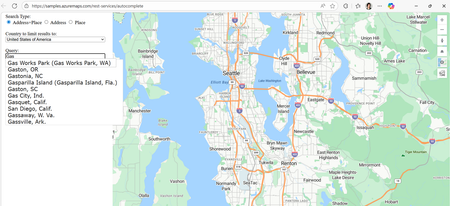
We’re thrilled to unveil the public preview of Azure Maps Geocode Autocomplete API, a powerful REST service designed to modernize and elevate autocomplete capabilities across Microsoft’s mapping platforms. If you’ve ever started typing an address into a search bar and immediately seen a list of relevant suggestions—whether it’s for a landmark, or your own home—you’ve already experienced the convenience of autocomplete. What’s less obvious is just how complex it is to deliver those suggestions quickly, accurately, and in a format that modern applications can use. That’s exactly the challenge this new API is designed to solve. Why Autocomplete Matters More Than Ever The Azure Maps Geocode Autocomplete API is the natural successor to the Bing Maps Autosuggest REST API, designed to meet the growing demand for intelligent, real-time location suggestions across a wide range of applications. It’s an ideal solution for developers who need reliable and scalable autocomplete functionality—whether for small business websites or large-scale enterprise systems. Key use cases include: Store locators: When a customer starts typing “New Yo…” into store locator, autocomplete instantly suggests “New York, N.Y.” With just a click, the map centers on the right location—making it fast and effortless to find the nearest branch. Rideshare or dispatching platforms: A rideshare driver needs to pick up a passenger at “One Microsoft Way.” Instead of typing out the full address, the driver starts entering “One Micro…” and the app instantly offers the correct road segment in Redmond, Washington. Delivery services: A delivery app can limit suggestions to postal codes within a specific region, ensuring the addresses customers choose are deliverable and reducing the risk of failed shipments Any Web UIs requiring location input: From real estate search to form autofill, autocomplete enhances the user experience wherever accurate location entry is needed. What the API Can Do The Geocode Autocomplete API is designed to deliver fast, relevant, and structured suggestions as users type. Key capabilities include: Entity Suggestions: Supports both Place (e.g., administrative districts, populated places, landmarks, postal codes) and Address (e.g., roads, point addresses) entities. Ranking: Results can be ranked based on entity popularity, user location (coordinates), and bounding box (bbox). Structured Output: Returns suggestions with structured address formats, making integration seamless. Multilingual Support: Set up query language preferences via the Accept-Language parameter. Flexible Filtering: You can filter suggestions by specifying a country or region using countryRegion, or by targeting a specific entity subtype using resultType. This allows you to extract entities with precise categorization—for example, you can filter results to return only postal codes to match the needs of a location-based selection input in your web application. How It Works The Geocode Autocomplete API is accessed via the following endpoint: https://atlas.microsoft.com/geocode:autocomplete?api-version=2025-06-01-preview This endpoint provides autocomplete-style suggestions for addresses and places. With just a few parameters, like your Azure Maps subscription key, a query string, and optionally user coordinates or a bounding box, you can start returning structured suggestions instantly. Developers can further issue geocode service with the selected/ideal entity as query to locate the entity on map, which is a common scenario for producing interactive mapping experiences. Let’s look at below examples: Example 1: Place Entity Autocomplete GET https://atlas.microsoft.com/geocode:autocomplete?api-version=2025-06-01-preview &subscription-key={YourAzureMapsKey} &coordinates={coordinates} &query=new yo &top=3 A user starts typing “new yo.” The API quickly returns results like “New York City” and “New York State,” each complete with structured metadata you can plug directly into your app. { "type": "FeatureCollection", "features": [ { "type": "Feature", "properties": { "typeGroup": "Place", "type": "PopulatedPlace", "geometry": null, "address": { "locality": "New York", "adminDistricts": [ { "name": "New York", "shortName": "N.Y." } ], "countryRegions": { "ISO": "US", "name": "United States" }, "formattedAddress": "New York, N.Y." } } }, { "type": "Feature", "properties": { "typeGroup": "Place", "type": "AdminDivision1", "geometry": null, "address": { "locality": "", "adminDistricts": [ { "name": "New York", "shortName": "N.Y." } ], "countryRegions": { "ISO": "US", "name": "United States" }, "formattedAddress": "New York" } } }, { "type": "Feature", "properties": { "typeGroup": "Place", "type": "AdminDivision2", "geometry": null, "address": { "locality": "", "adminDistricts": [ { "name": "New York", "shortName": "N.Y." }, { "name": "New York County" } ], "countryRegions": { "ISO": "US", "name": "United States" }, "formattedAddress": "New York County" } } } ] } Example 2: Address Entity Autocomplete GET https://atlas.microsoft.com/geocode:autocomplete?api-version=2025-06-01-preview &subscription-key={YourAzureMapsKey} &bbox={bbox} &query=One Micro &top=3 &countryRegion=US A query for “One Micro” scoped to the U.S. yields “NE One Microsoft Way, Redmond, WA 98052, United States.” That’s a complete, structured address ready to be mapped, dispatched, or stored. { "type": "FeatureCollection", "features": [ { "type": "Feature", "properties": { "typeGroup": "Address", "type": "RoadBlock", "geometry": null, "address": { "locality": "Redmond", "adminDistricts": [ { "name": "Washington", "shortName": "WA" }, { "name": "King County" } ], "countryRegions": { "ISO": "US", "name": "United States" }, "postalCode": "98052", "streetName": "NE One Microsoft Way", "addressLine": "", "formattedAddress": "NE One Microsoft Way, Redmond, WA 98052, United States" } } } ] } Example 3: Integration with Web Application Below sample shows user enter query and autocomplete service provide a series of suggestions based on user query and location. Pricing and Billing The Geocode Autocomplete API uses the same metering model as the Azure Maps Search service. For billing purposes, every 10 Geocode Autocomplete API requests are counted as one billable transaction. This approach keeps usage and costs consistent with what developers are already familiar with in Azure Maps. Ready to Build Smarter Location Experiences? Whether you're powering a store locator, enhancing address entry, or building a dynamic dispatch system, the new Geocode Autocomplete API gives you the precision, flexibility, and performance needed to deliver seamless location intelligence. With real-world use cases already proving its value, now is the perfect time to integrate this service into your applications and unlock richer, more interactive mapping experiences. Let’s build what’s next—faster, smarter, and more intuitive. Resources to Get Started Geocode Autocomplete REST API Documentation Geocode Autocomplete Samples Migrate from Bing Maps to Azure Maps How to use Azure Maps APIs3.9KViews1like1CommentAnnouncing the General Availability of the Azure Maps Geocode Autocomplete API
It was just last September that we were Introducing the Azure Maps Geocode Autocomplete API but now we’re excited to announce the general availability (GA) of the Azure Maps Geocode Autocomplete API, a production‑ready REST service that delivers fast, intelligent, and structured location suggestions. After a successful public preview, we have integrated your feedback and this API is now fully supported for mission‑critical workloads, providing a modern, scalable successor to the Bing Maps Autosuggest REST API and empowering developers to deliver high‑quality, responsive location experiences. Why This API Matters Today’s applications increasingly rely on smart, real‑time location suggestions, whether for store locators, delivery routing, rideshare dispatch, address entry, or dynamic search UIs. The Azure Maps Geocode Autocomplete API brings: Instant, relevant, typed‑ahead suggestions Granular result type filtering for Place or Address categories or even subtypes of Place category Structured, developer‑friendly outputs Support for multilingual experiences and localized ranking Proximity‑aware and popularity‑aware results Whether you are modernizing an existing solution or building something new, this API gives you precision, flexibility, and performance at scale. From Preview to GA: What’s New ✔ Stable GA API version The service is now available on the 2026‑01‑01 GA version, offering a reliable, long‑term contract for production workloads. ✔ Improved suggestion ranking and language handling This version introduces refined ranking logic and improved language handling, enabling more accurate, geo‑aware, and language‑appropriate suggestions across global markets. ✔ Updated documentation and samples The GA release includes new and refreshed REST API documentation, updated samples, and improved how-to-guide to help developers build complete geocoding workflows and migrate from Bing Maps more easily. What It Can Do The Geocode Autocomplete API is purpose‑built to deliver accurate, structured suggestions as users type. Core capabilities include: Entity suggestions: Places (e.g., administrative divisions, populated places, landmarks, postal codes) and Address (e.g., roads, point addresses) entities Structured output: Consistent address components for easy downstream integration Relevance‑based ranking: Popularity, proximity, and bounding‑box awareness Multilingual support: Honor language preferences via Accept-Language Flexible filtering: Target specific countries or entity types These capabilities help you create intuitive, high‑quality user experiences across global applications. How to Use It Use the GA version of Geocode Autocomplete with the following endpoint: https://atlas.microsoft.com/search/geocode:autocomplete?api-version=2026-01-01&query={query} Common optional parameters include: coordinates – Bias suggestions near the provided location bbox – Biases suggestions to entities that fall within the specified bounding box of the visible map area top – Limit the number of returned suggestions resultTypeGroups / resultTypes – Filter for Places or Addresses or its subtypes countryRegion – Restrict to specific country/Region A typical workflow: Call Autocomplete as the user types Use the selected suggestion with Azure Maps Geocoding service to retrieve coordinates and complete the interaction (e.g., map display, routing, address validation) Example: Autocomplete for Place Entity Query GET https://atlas.microsoft.com/search/geocode:autocomplete?api-version=2026-01-01 &subscription-key={YourAzureMapsKey} &coordinates={coordinates} &query=new yo &top=3 This request returns structured top 3 suggestions for the partial input “new yo,” helping users quickly find places like New York city or New York state based on user location. { "type": "FeatureCollection", "features": [ { "type": "Feature", "properties": { "typeGroup": "Place", "type": "PopulatedPlace", "geometry": null, "address": { "locality": "New York", "adminDistricts": [ { "name": "New York", "shortName": "N.Y." } ], "countryRegions": { "ISO": "US", "name": "United States" }, "formattedAddress": "New York, N.Y." } } }, { "type": "Feature", "properties": { "typeGroup": "Place", "type": "AdminDivision1", "geometry": null, "address": { "locality": "", "adminDistricts": [ { "name": "New York", "shortName": "N.Y." } ], "countryRegions": { "ISO": "US", "name": "United States" }, "formattedAddress": "New York" } } }, { "type": "Feature", "properties": { "typeGroup": "Place", "type": "AdminDivision2", "geometry": null, "address": { "locality": "", "adminDistricts": [ { "name": "New York", "shortName": "N.Y." }, { "name": "New York County" } ], "countryRegions": { "ISO": "US", "name": "United States" }, "formattedAddress": "New York County" } } } ] } Example: Autocomplete for an Address Entity Query GET https://atlas.microsoft.com/search/geocode:autocomplete?api-version=2026-01-01 &subscription-key={YourAzureMapsKey} &bbox={bbox} &query=One Micro &top=3 &countryRegion=US This request returns structured address suggestion for NE One Microsoft Way, categorized as an Address entity. { "type": "FeatureCollection", "features": [ { "type": "Feature", "properties": { "typeGroup": "Address", "type": "RoadBlock", "geometry": null, "address": { "locality": "Redmond", "adminDistricts": [ { "name": "Washington", "shortName": "WA" }, { "name": "King County" } ], "countryRegions": { "ISO": "US", "name": "United States" }, "postalCode": "98052", "streetName": "NE One Microsoft Way", "addressLine": "", "formattedAddress": "NE One Microsoft Way, Redmond, WA 98052, United States" } } } ] } Example: Integrate with Web Application Below sample shows user enter query and autocomplete service provide a series of suggestions based on user query and user location. Ready to Bring Autocomplete to Production? The Azure Maps Geocode Autocomplete API is now fully production‑ready, giving you the stability, performance, and flexibility needed to power fast, intuitive location‑driven experiences. Whether you're migrating from Bing Maps Autosuggest or enhancing your existing address or search workflows, the GA release makes it easier to deliver high‑quality suggestions at scale. If you're ready to upgrade your location experiences, now’s the perfect time to start. Explore the updated Azure Maps Autocomplete documentation, try the new endpoint, and let us know how it works for you. We’d love to hear your feedback. Let’s keep building great location intelligence experiences together. Resources to Get Started Geocode Autocomplete REST API Documentation How-to-Guide for Azure Maps Search Service Geocode Autocomplete Samples Migrate from Bing Maps to Azure Maps How to Use Azure Maps APIs751Views0likes0CommentsAzure Maps: Understanding View vs. Routing Coordinates
When you work with Azure Maps long enough, you will eventually run into a subtle but important detail: the platform returns two different types of coordinates for the same address. And while they may look interchangeable, they behave very differently once you start routing, calculating travel times, or dropping pins on a map. Let’s break down what each represents and how to use them correctly when building location‑intelligent applications. Why Azure Maps Has More Than One Coordinate for a Place Geocoders, including Azure Maps, are designed to satisfy two competing needs: Show the place in the visually “accurate” spot on a map. Get people or goods to a real, accessible point on the road network. The coordinate that satisfies the first need is rarely the same answer for the second, in fact it can be wildly off. If you have ever visited a National Park or other large location where the entrance is far from where you would display the center of the park, you will note that the difference between these coordinates can be many miles apart and often you can't drive to the exact center, so we would say the View coordinate is not Routable. So Azure Maps provides them separately; one to power the visual map experience, the other to power the routing engine. The View Coordinate: Your Visual Anchor Point Think of the Azure Maps view coordinate as “the place where the map pin should sit.” It may come from an address parcel, a building footprint centroid, or a point-of-interest geometry. Azure Maps will provide whatever option that produces the most natural visual representation of the feature on the map. This is the important part for our topic: a view coordinate is not guaranteed to land on a road or even near one. It might be in the center of a large warehouse, deep inside a shopping mall footprint, or somewhere else that makes sense visually but is effectively unreachable from the road network. View coordinates are great for anything that involves visual context such as placing a point on the map, centering the map on a search result, running spatial clustering on data values, or doing proximity lookups. They’re simply not intended for navigation. The Routing Coordinate: Your Navigable Access Point Routing coordinates serve a very different purpose. Azure Maps generates them to represent an access point. The point where a vehicle, pedestrian, or cyclist can legally and realistically approach or leave the location from the road network. This usually means: The point is snapped to the closest routable road segment. It’s positioned where a driver or pedestrian can actually arrive (e.g., the driveway, street entrance, or legal access point). It includes the orientation and topology needed for the routing engine to produce correct ETAs, distance calculations, and directions. When you're calling Azure Maps Routing APIs—calculateRoute, routeRange, distance matrices, isochrones, multi‑itinerary optimization—you should always feed the routing coordinate into the engine. Feeding a view coordinate instead may cause the service to snap to the wrong part of the network, or worse, find no viable route at all. How Azure Maps Exposes These Coordinates Azure Maps surfaces routing coordinates and view coordinates through structured fields in its search and geocoding responses. The naming varies by API, but you will often see: "usageTypes": [ "Display" ] denotes position or displayPosition → View coordinate "usageTypes": [ "Route" ] denotes routePosition, accessPoint, or entryPoints → Routing coordinate Azure Maps provides both and should your scenario involve travel movement (even indirectly), the routing coordinate is the authoritative choice. What Goes Wrong When You Swap Them If you use a view coordinate for routing, you can be asking for routes that terminate inside a building footprint, on the wrong side of the street, or at an incorrect driveway. You might also see unexpected route endpoints because the routing engine is forced to snap the point to whichever road segment it thinks is closest, which might not be the correct one. On the other hand, if you use a routing coordinate for display, your pins may look "off" because the access point for an address could be far from the building’s center. This is why the distinction matters: one is about realism, the other about navigability. The Upside: Using Them Correctly in Your Applications When building an end‑to‑end Azure Maps experience, a good mental model is: Map UI? Use the view coordinate. Anything involving routing logic? Use the routing coordinate. That includes distance calculations, service‑area modeling, route planning, delivery optimization, pickup/drop-off flows, fleet operations, and anything else where “how the user gets there” matters just as much as “where it is.” With this separation of geocode results, you can trust Azure Maps to keep your visual experience clean while ensuring the routing engine has the precision it needs to get users where they actually need to go. To find out more about Azure Maps Geocoding and our new Azure Maps AutoComplete experience, check out Search for a location using Azure Maps Search services | Microsoft Learn434Views1like0CommentsTransforming Dynamics 365 Customer Data with Azure Maps | Inogic Guest Post
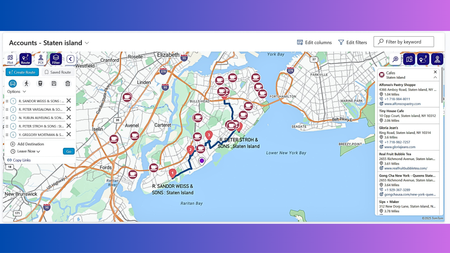
This guest post by Inogic explores how their integration of Azure Maps with Dynamics 365 empowers organizations to convert raw customer data into actionable location intelligence. The blog highlights: Use Case: Businesses using Dynamics 365 can visualize customer data geographically, enabling smarter decision-making and improved operational efficiency. Technology Stack: Azure Maps is used to enrich CRM data with spatial context, helping users identify trends, optimize routes, and enhance customer engagement. Benefits: Enhanced data visualization Improved field service planning Better territory management Integration Details: Inogic’s solution seamlessly embeds mapping capabilities into Dynamics 365 dashboards, making location insights accessible without leaving the CRM environment.667Views0likes0CommentsUsing Location Data to Gain Insights with Azure Maps
Azure Maps provides current and historical data to help you build your applications and create new insights. Support business decisions, enable planning, and power predictions with GIS data management. Combine Azure Maps with data in your Azure account to do even more. Smart decisions and plans, powered by data. Whether you’re finding the best possible place for a new business outlet or optimizing routing for multiple agents, every successful decision starts with better data. Azure Maps APIs’ delivers the geospatial data that thousands of businesses around the world depend on. Find out how Azure Maps APIs’ global coverage and high-accuracy geospatial data can transform organization outcomes. Rich geospatial data Access a vast repository of high-quality geospatial data curated from diverse sources worldwide, and leverage powerful analytics tools to extract actionable insights from spatial data provided within the Azure environment, uncovering hidden patterns, trends, and correlations that drive strategic initiatives Boundless flexibility Benefit from Azure's robust and scalable infrastructure. Process and analyze large volumes of spatial data efficiently and cost-effectively. Visualize spatial data in a way that suits your needs with customizable maps, location data management tools, and dashboards that facilitate clear communication and decision-making. Industry-specific compliance Ensure compliance with regulatory requirements by accessing geospatial data management tools that meet the highest standards of accuracy, privacy, and security with spatial analytics solutions tailored to your industry's unique compliance criteria, whether you're in retail, logistics, real estate, or urban planning. . GIS data management, simplified Azure Maps makes it easy to use and integrate our accurate geospatial data into your applications to unlock new insights. Whether you’re a seasoned developer or new to building mapping applications, you’ll find it easy to work with these robust and intuitive mapping APIs. Azure Maps API provides everything you need to thrive with your next app, from generating accurate time zone data, leveraging live or predictive traffic to high-resolution weather information. Timezone API The timezone API allows developers to query the timezone for any latitude/longitude. The timezone service can return past, current, and future timezones, localized time zones in UTC, or daylight savings in various formats. Explore Timezone API Get Started With Timezones Traffic Data The traffic service provides data on traffic flow and incidents for a given area or route and presents this information as a map overlay using the Traffic REST API. This location data management feature provides insights and critical awareness of flow and incidents along a route that could affect routes, distance, and travel time between locations. Explore Traffic API Demo: Traffic Data Get Started with Traffic Data in Your Application Weather Data Our weather service provides daily, historical, normal, and actuals for any latitude/longitude while also providing temperature, air quality, and storm information using the Weather API. This REST API provides valuable data to inform prediction and modeling based on current and forecasted data, helping developers create weather-informed applications. Explore Weather API Demo: Adding Weather Data Get Started With Weather Data Explore the Azure Maps Platform Large-scale geospatial applications require innovative tools and effective optimization to balance data efficiency and usability. We have only introduced three of these Data rich options, but Azure Maps has a whole lot more to offer. Explore Azure Maps’ capabilities and leverage Azure Maps rich Data APIs today for gaining deeper insights and building better geospatial solutions.509Views1like1CommentWhy Teams Clients Prompt for Your Location
Teams Windows and Mac desktop clients have started to prompt users about location privacy. Location data is used by several Teams features like the Call Quality Dashboard and emergency calling, so it’s good to allow access. These are Teams Phone features that you might not care about, but keeping an eye on location privacy is a good thing in case the data is used elsewhere. https://office365itpros.com/2025/03/25/teams-location-privacy/1.3KViews0likes0CommentsCreating Custom Map Visualizations with Azure Maps
Azure Maps empowers businesses and developers by making it easy to create custom maps and interactive visualizations. Whether you’re using Power BI or integrating APIs directly into applications, Azure Maps simplifies each step—from data preparation to advanced customization. Its robust features, scalability, and superior support set it apart, enabling you to unlock deeper insights through the visualization of geospatial data6.2KViews1like0CommentsUsing Vector Tiles for Large-Scale Geospatial Applications
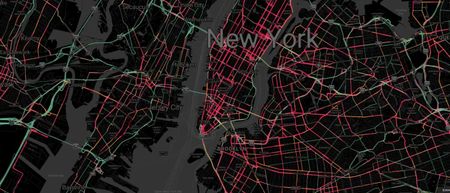
Handling geospatial data on a large scale poses unique challenges, including managing highly complex datasets and ensuring efficient scalability. One effective solution is the use of vector tiles, enabling developers to streamline data rendering for vast geographic regions. A cornerstone of this technology is optimizing the vector tile size, which significantly influences map performance, load time, and overall interactivity. Unlike raster tiles, vector map tiles are lightweight and scalable, making them indispensable for modern geospatial applications that demand dynamic, high-performance mapping. Azure Maps Vector Tile Map with Multiple Data overlays What Are Large-Scale Geospatial Applications? Large-scale geospatial applications manage datasets spanning countries, regions, or continents. These tools are utilized across industries like logistics, telecommunications, disaster management, and urban development. To ensure their effectiveness, developers must precisely configure the vector tile size to balance performance and scalability. The data scope is limited for smaller projects, requiring fewer resources and simpler tools to process localized information. In contrast, larger applications like global navigation systems or 5G network planning demand advanced solutions that can process massive datasets in real-time. With the proper configuration of a vector tiles map, even vast datasets can be rendered efficiently, enabling seamless interaction for end users. Applications of Vector Tiles in Different Industries Large-scale geospatial mapping applications leverage vector tiles to solve practical industry challenges. Here’s how they optimize outcomes across key domains: Disaster Management: Maps provide emergency responders with accurate, real-time data for evacuation planning and resource allocation. An efficiently optimized vector tile size ensures fast map loading and precise detail, which is critical during crises. Telecommunications: Rolling out 5G networks across broad regions relies heavily on the scalability of these maps. Scalable maps allow planners to visualize service coverage while optimizing deployments. Urban Development: Planners depend on detailed geospatial tools to design infrastructure like transit systems and utilities. The dynamic nature of vector tiles allows seamless adjustments and clear visuals across every zoom level. These use cases demonstrate how careful configuration of vector tiles improves efficiency, decision-making, and overall map visualization performance across industries. Raster Tiles vs. Vector Tiles Raster tiles pre-render images based on pixels. While functional for static purposes, they become outdated and bandwidth-heavy when handling real-time geospatial interactions. Vector tiles, by contrast, describe data through geometries like points and polygons. This approach dramatically reduces file sizes and enhances flexibility. Adjusting the vector tile size allows developers to strike a balance between lightweight data transfers and high-detail rendering, particularly when maps are repeatedly zoomed or customized. With a vector tiles map, styling can be adjusted dynamically, building highly interactive and user-friendly scalable mapping solutions across platforms. The Advantages of Optimizing Vector Tile Size Proper optimization of the tile size provides numerous benefits, particularly for large-scale applications: Efficient Data Handling: Smaller tile sizes minimize bandwidth usage while accelerating data transmission. Scalability Across Platforms: The same vector tiles work for web, mobile, or desktop applications without changes. Dynamic Interactivity: Customizable styles and real-time updates improve user experience. Seamless Zooming: Users can zoom in or out smoothly, with vector tiles adjusting dynamically to retain detail. These features highlight why vector tiles are critical in geospatial data visualization. Leveraging Azure Maps for Large-Scale Projects Azure Maps provides industry-leading tools for working with vector tiles on massive scales. Its flexibility ensures maps remain efficient and responsive across projects of varying complexity. Efficient Data Management: Azure Maps simplifies large-scale data visualization by customizing frameworks for a vector tiles map, reducing both file size and bandwidth demands. Properly configured vector tile size ensures clarity while maintaining smooth performance, even during high-demand tasks like real-time zooming. Customization and Flexibility: The platform offers custom layers, styling, and seamless integrations with tools like PostGIS. Developers can easily tailor vector tiles to their application’s needs without compromising performance. Enhanced Rendering: Vector tiles processed through Azure Maps ensure minimal lag and smooth interactivity, which is critical for large-scale applications. By using the correct tile configuration, maps load faster and avoid bottlenecks caused by redundant data transfers. Best Practices for Optimizing Vector Tile Size To ensure your applications remain efficient and scalable, follow these guidelines for optimizing the tile size: Focus on Relevant Data: Remove redundant or irrelevant geospatial data to streamline rendering. Adapt to Zoom Levels: Provide detailed data for closer views while simplifying wider perspectives to balance performance. Generalize Complexity: In dense regions, such as urban traffic hubs, simplify data without compromising on meaningful details. Implementing these best practices reduces server loads and ensures a responsive user experience, regardless of the dataset’s scale. Explore the Platform Large-scale geospatial applications require innovative tools and effective optimization to balance data efficiency and usability. Vector tiles deliver responsive and interactive map visualization capabilities, particularly when paired with scalable platforms like Azure Maps. However, the key to their success lies in fine-tuning the vector tile size to ensure seamless performance and scalability. By adopting best practices and leveraging advanced tools, developers can design mapping systems that process massive datasets efficiently while exceeding user expectations. Explore Azure Maps’ capabilities and optimize your vector tiles map today for better geospatial solutions.1KViews0likes0CommentsAdvanced Route Tracking for Transportation Services
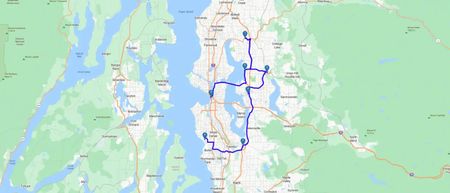
Azure Maps routing services can help ensure that the right professionals use the best route to reach their destination on time. The services can also factor-in variables such as vehicle data, traffic information, weather events, and more to find the best route for a call, while scaling this across an entire department.589Views1like0Comments