llms
14 TopicsPrivyDoc: Building a Zero-Data-Leak AI with Foundry Local & Microsoft's Agent Framework
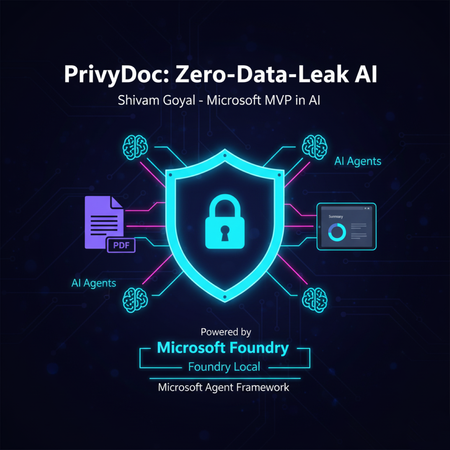
Tired of choosing between powerful AI insights and sacrificing your data's privacy? PrivyDoc offers a groundbreaking solution. In this article, Microsoft MVP in AI, Shivam Goyal, introduces his innovative project that brings robust AI document analysis directly to your local machine, ensuring zero data ever leaves your device. Discover how PrivyDoc leverages two cutting-edge Microsoft technologies: Foundry Local: The secret sauce for 100% on-device AI processing, allowing advanced models to run securely without cloud dependency. Microsoft Agent Framework: The intelligent orchestrator that builds a sophisticated multi-agent pipeline, handling everything from text extraction and entity recognition to summarization and sentiment analysis. Learn about PrivyDoc's intuitive web UI, its multi-format support, and crucial features that make it perfect for sensitive industries like legal, healthcare, and finance. Say goodbye to privacy concerns and hello to AI-powered document intelligence without compromise.633Views3likes0CommentsUnlocking AI-Driven Data Access: Azure Database for MySQL Support via the Azure MCP Server
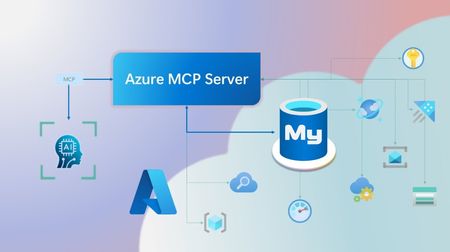
Step into a new era of data-driven intelligence with the fusion of Azure MCP Server and Azure Database for MySQL, where your MySQL data is no longer just stored, but instantly conversational, intelligent and action-ready. By harnessing the open-standard Model Context Protocol (MCP), your AI agents can now query, analyze and automate in natural language, accessing tables, surfacing insights and acting on your MySQL-driven business logic as easily as chatting with a colleague. It’s like giving your data a voice and your applications a brain, all within Azure’s trusted cloud platform. We are excited to announce that we have added support for Azure Database for MySQL in Azure MCP Server. The Azure MCP Server leverages the Model Context Protocol (MCP) to allow AI agents to seamlessly interact with various Azure services to perform context-aware operations such as querying databases and managing cloud resources. Building on this foundation, the Azure MCP Server now offers a set of tools that AI agents and apps can invoke to interact with Azure Database for MySQL - enabling them to list and query databases, retrieve schema details of tables, and access server configurations and parameters. These capabilities are delivered through the same standardized interface used for other Azure services, making it easier to the adopt the MCP standard for leveraging AI to work with your business data and operations across the Azure ecosystem. Before we delve into these new tools and explore how to get started with them, let’s take a moment to refresh our understanding of MCP and the Azure MCP Server - what they are, how they work, and why they matter. MCP architecture and key components The Model Context Protocol (MCP) is an emerging open protocol designed to integrate AI models with external data sources and services in a scalable, standardized, and secure manner. MCP dictates a client-server architecture with four key components: MCP Host, MCP Client, MCP Server and external data sources, services and APIs that provide the data context required to enhance AI models. To explain briefly, an MCP Host (AI apps and agents) includes an MCP client component that connects to one or more MCP Servers. These servers are lightweight programs that securely interface with external data sources, services and APIs and exposes them to MCP clients in the form of standardized capabilities called tools, resources and prompts. Learn more: MCP Documentation What is Azure MCP Server? Azure offers a multitude of cloud services that help developers build robust applications and AI solutions to address business needs. The Azure MCP Server aims to expose these powerful services for agentic usage, allowing AI systems to perform operations that are context-aware of your Azure resources and your business data within them, while ensuring adherence to the Model Context Protocol. It supports a wide range of Azure services and tools including Azure AI Search, Azure Cosmos DB, Azure Storage, Azure Monitor, Azure CLI and Developer CLI extensions. This means that you can empower AI agents, apps and tools to: Explore your Azure resources, such as listing and retrieving details on your Azure subscriptions, resource groups, services, databases, and tables. Search, query and analyze your data and logs. Execute CLI and Azure Developer CLI commands directly, and more! Learn more: Azure MCP Server GitHub Repository Introducing new Azure MCP Server tools to interact with Azure Database for MySQL The Azure MCP Server now includes the following tools that allow AI agents to interact with Azure Database for MySQL and your valuable business data residing in these servers, in accordance with the MCP standard: Tool Description Example Prompts azmcp_mysql_server_list List all MySQL servers in a subscription & resource group "List MySQL servers in resource group 'prod-rg'." "Show MySQL servers in region 'eastus'." azmcp_mysql_server_config_get Retrieve the configuration of a MySQL server "What is the backup retention period for server 'my-mysql-server'?" "Show storage allocation for server 'my-mysql-server'." azmcp_mysql_server_param_get Retrieve a specific parameter of a MySQL server "Is slow_query_log enabled on server my-mysql-server?" "Get innodb_buffer_pool_size for server my-mysql-server." azmcp_mysql_server_param_set Set a specific parameter of a MySQL server to a specific value "Set max_connections to 500 on server my-mysql-server." "Set wait_timeout to 300 on server my-mysql-server." azmcp_mysql_table_list List all tables in a MySQL database "List tables starting with 'tmp_' in database 'appdb'." "How many tables are in database 'analytics'?" azmcp_mysql_table_schema_get Get the schema of a specific table in a MySQL database "Show indexes for table 'transactions' in database 'billing'." "What is the primary key for table 'users' in database 'auth'?" azmcp_mysql_database_query Executes a SELECT query on a MySQL Database. The query must start with SELECT and cannot contain any destructive SQL operations for security reasons. “How many orders were placed in the last 30 days in the salesdb.orders table?” “Show the number of new users signed up in the last week in appdb.users grouped by day.” These interactions are secured using Microsoft Entra authentication, which enables seamless, identity-based access to Azure Database for MySQL - eliminating the need for password storage and enhancing overall security. How are these new tools in the Azure MCP Server different from the standalone MCP Server for Azure Database for MySQL? We have integrated the key capabilities of the Azure Database for MySQL MCP server into the Azure MCP Server, making it easier to connect your agentic apps not only to Azure Database for MySQL but also to other Azure services through one unified and secure interface! How to get started Installing and running the Azure MCP Server is quick and easy! Use GitHub Copilot in Visual Studio Code to gain meaningful insights from your business data in Azure Database for MySQL. Pre-requisites Install Visual Studio Code. Install GitHub Copilot and GitHub Copilot Chat extensions. An Azure Database for MySQL with Microsoft Entra authentication enabled. Ensure that the MCP Server is installed on a system with network connectivity and credentials to connect to Azure Database for MySQL. Installation and Testing Please use this guide for installation: Azure MCP Server Installation Guide Try the following prompts with your Azure Database for MySQL: Azure Database for MySQL tools for Azure MCP Server Try it out and share your feedback! Start using Azure MCP Server with the MySQL tools today and let our cloud services become your AI agent’s most powerful ally. We’re counting on your feedback - every comment, suggestion, or bug-report helps us build better tools together. Stay tuned: more features and capabilities are on the horizon! Feel free to comment below or write to us with your feedback and queries at AskAzureDBforMySQL@service.microsoft.com.525Views3likes0CommentsOptimizing Retrieval for RAG Apps: Vector Search and Hybrid Techniques
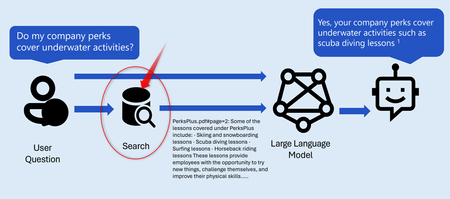
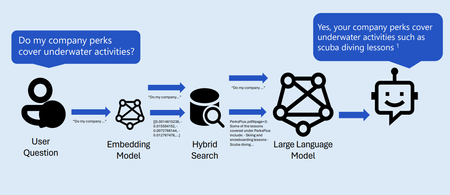
In this blog we are going to dive into optimizing our search strategy with Hybrid search techniques. Common practices for implementing the retrieval step in retrieval-augmented generation (RAG) applications are; Keyword search Vector Search Hybrid search (Keyword + Vector) Hybrid + Semantic ranker10KViews3likes0CommentsWhy Should Business Adopt RAG and migrate from LLMs?
In this blog we are going to discuss the importance of migrating your product or startup project from LLMS to RAG. Adopting RAG empowers businesses to leverage external knowledge, enhance accuracy, and create more robust AI applications. It’s a strategic move toward building intelligent systems that bridge the gap between generative capabilities and authoritative information. Below are topics in this blog. Brief History of AI What are Large Language Models (LLMS). Limitation of LLMS. How can we incorporate domain knowledge. What is Retrieval Augmented Generation (RAG). What is Robust retrieval for RAG Apps. Once we are done with these concepts, I hope to convince you to adopt RAG in your project.3.7KViews2likes0CommentsHow to build Tool-calling Agents with Azure OpenAI and Lang Graph
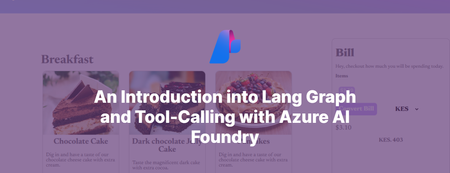
Introducing MyTreat Our demo is a fictional website that shows customers their total bill in dollars, but they have the option of getting the total bill in their local currencies. The button sends a request to the Node.js service and a response is simply returned from our Agent given the tool it chooses. Let’s dive in and understand how this works from a broader perspective. Prerequisites An active Azure subscription. You can sign up for a free trial here or get $100 worth of credits on Azure every year if you are a student. A GitHub account (not necessarily) Node.js LTS 18 + VS Code installed (or your favorite IDE) Basic knowledge of HTML, CSS, JS Creating an Azure OpenAI Resource Go over to your browser and key in portal.azure.com to access the Microsoft Azure Portal. Over there navigate to the search bar and type Azure OpenAI. Go ahead and click on + Create. Fill in the input boxes with appropriate, for example, as shown below then press on next until you reach review and submit then finally click on Create. After the deployment is done, go to the deployment and access Azure AI Foundry portal using the button as show below. You can also use the link as demonstrated below. In the Azure AI Foundry portal, we have to create our model instance so we have to go over to Model Catalog on the left panel beneath Get Started. Select a desired model, in this case I used gpt-35-turbo for chat completion (in your case use gpt-4o). Below is a way of doing this. Choose a model (gpt-4o) Click on deploy Give the deployment a new name e.g. myTreatmodel, then click deploy and wait for it to finish On the left panel go over to deployments and you will see the model you have created. Access your Azure OpenAI Resource Key Go back to Azure portal and specifically to the deployment instance that we have and select on the left panel, Resource Management. Click on Keys and Endpoints. Copy any of the keys as shown below and keep it very safe as we will use it in our .env file. Configuring your project Create a new project folder on your local machine and add these variables to the .env file in the root folder. AZURE_OPENAI_API_INSTANCE_NAME= AZURE_OPENAI_API_DEPLOYMENT_NAME= AZURE_OPENAI_API_KEY= AZURE_OPENAI_API_VERSION="2024-08-01-preview" LANGCHAIN_TRACING_V2="false" LANGCHAIN_CALLBACKS_BACKGROUND = "false" PORT=4556 Starting a new project Go over to https://github.com/tiprock-network/mytreat.git and follow the instructions to setup the new project, if you do not have git installed, go over to the Code button and press Download ZIP. This will enable you get the project folder and follow the same procedure for setting up. Creating a custom tool In the utils folder the math tool was created, this code show below uses tool from Langchain to build a tool and the schema of the tool is created using zod.js, a library that helps in validating an object’s property value. The price function takes in an array of prices and the exchange rate, adds the prices up and converts them using the exchange rate as shown below. import { tool } from '@langchain/core/tools' import { z } from 'zod' const priceConv = tool((input) =>{ //get the prices and add them up after turning each into let sum = 0 input.prices.forEach((price) => { let price_check = parseFloat(price) sum += price_check }) //now change the price using exchange rate let final_price = parseFloat(input.exchange_rate) * sum //return return final_price },{ name: 'add_prices_and_convert', description: 'Add prices and convert based on exchange rate.', schema: z.object({ prices: z.number({ required_error: 'Price should not be empty.', invalid_type_error: 'Price must be a number.' }).array().nonempty().describe('Prices of items listed.'), exchange_rate: z.string().describe('Current currency exchange rate.') }) }) export { priceConv } Utilizing the tool In the controller’s folder we then bring the tool in by importing it. After that we pass it in to our array of tools. Notice that we have the Tavily Search Tool, you can learn how to implement in the Additional Reads Section or just remove it. Agent Model and the Call Process This code defines an AI agent using LangGraph and LangChain.js, powered by GPT-4o from Azure OpenAI. It initializes a ToolNode to manage tools like priceConv and binds them to the agent model. The StateGraph handles decision-making, determining whether the agent should call a tool or return a direct response. If a tool is needed, the workflow routes the request accordingly; otherwise, the agent responds to the user. The callModel function invokes the agent, processing messages and ensuring seamless tool integration. The searchAgentController is a GET endpoint that accepts user queries (text_message). It processes input through the compiled LangGraph workflow, invoking the agent to generate a response. If a tool is required, the agent calls it before finalizing the output. The response is then sent back to the user, ensuring dynamic and efficient tool-assisted reasoning. //create tools the agent will use //const agentTools = [new TavilySearchResults({maxResults:5}), priceConv] const agentTools = [ priceConv] const toolNode = new ToolNode(agentTools) const agentModel = new AzureChatOpenAI({ model:'gpt-4o', temperature:0, azureOpenAIApiKey: AZURE_OPENAI_API_KEY, azureOpenAIApiInstanceName:AZURE_OPENAI_API_INSTANCE_NAME, azureOpenAIApiDeploymentName:AZURE_OPENAI_API_DEPLOYMENT_NAME, azureOpenAIApiVersion:AZURE_OPENAI_API_VERSION }).bindTools(agentTools) //make a decision to continue or not const shouldContinue = ( state ) => { const { messages } = state const lastMessage = messages[messages.length -1] //upon tool call we go to tools if("tool_calls" in lastMessage && Array.isArray(lastMessage.tool_calls) && lastMessage.tool_calls?.length) return "tools"; //if no tool call is made we stop and return back to the user return END } const callModel = async (state) => { const response = await agentModel.invoke(state.messages) return { messages: [response] } } //define a new graph const workflow = new StateGraph(MessagesAnnotation) .addNode("agent", callModel) .addNode("tools", toolNode) .addEdge(START, "agent") .addConditionalEdges("agent", shouldContinue, ["tools", END]) .addEdge("tools", "agent") const appAgent = workflow.compile() The above is implemented with the following code: Frontend The frontend is a simple HTML+CSS+JS stack that demonstrated how you can use an API to integrate this AI Agent to your website. It sends a GET request and uses the response to get back the right answer. Below is an illustration of how fetch API has been used. const searchAgentController = async ( req, res ) => { //get human text const { text_message } = req.query if(!text_message) return res.status(400).json({ message:'No text sent.' }) //invoke the agent const agentFinalState = await appAgent.invoke( { messages: [new HumanMessage(text_message)] }, {streamMode: 'values'} ) //const agentFinalState_b = await agentModel.invoke(text_message) /*return res.status(200).json({ answer:agentFinalState.messages[agentFinalState.messages.length - 1].content })*/ //console.log(agentFinalState_b.tool_calls) res.status(200).json({ text: agentFinalState.messages[agentFinalState.messages.length - 1].content }) } There you go! We have created a basic tool-calling agent using Azure and Langchain successfully, go ahead and expand the code base to your liking. If you have questions you can comment below or reach out on my socials. Additional Reads Azure Open AI Service Models Generative AI for Beginners AI Agents for Beginners Course Lang Graph Tutorial Develop Generative AI Apps in Azure AI Foundry Portal5KViews1like2CommentsAn Overview of LIDA: Generate Visualizations and Infographics of Tabular Data using LLMs!
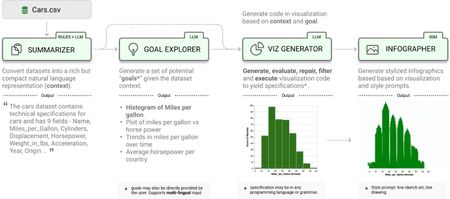
Large Language Models (LLMs) have demonstrated impressive capabilities on various data-related tasks, but they still have some limitations. One of them is the ability to generate effective visualizations from structured data sources such as CSV or Excel files. In this article, we will explore a new framework that addresses this challenge by combining LLMs with Granular Data. The framework is called LIDA, and it was recently open-sourced by Microsoft. LIDA is a powerful library that enhances the interaction between LLMs and Granular Data, enabling richer and more expressive data analysis and visualization.7.3KViews1like1CommentEthical AI: Nurup Naimji’s Vision for Responsible Growth in AI Entrepreneurship
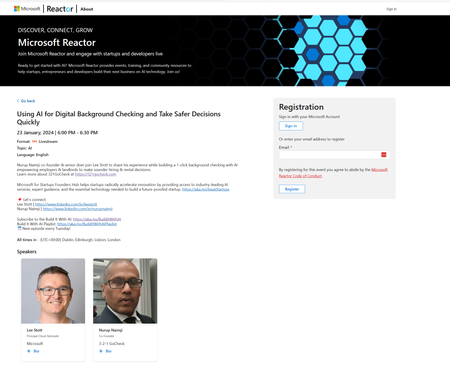
Learn more from Microsoft Startup 3-2-1 Go Check and how to Centralise Your Checking Flow 3-2-1-GoCheck enables HR, risk, compliance, hiring managers, candidates, previous employers and other third parties to all be on the same platform. Make lengthy e-mail exchanges, phone calls and time consuming inquiries tedious tasks for everyone involved in the checking journey all with the Power of Microsoft AI and Microsoft Foundershub2.5KViews1like0Comments