llm
90 Topics
How are people estimating LLM API costs before putting an AI application into production?
It's relatively easy to estimate the number of API requests, but I'm finding the token side more interesting because input and output usage can vary considerably between requests. Things get even more complicated when comparing different models or using long prompts and conversation history. Do you normally build a spreadsheet for this, use the provider's pricing information directly, or use a dedicated calculator? I'm especially interested in approaches that estimate monthly cost from expected requests, average input tokens, average output tokens, and the model being used.309Views1like4CommentsFrom Jev to Your Laptop: Building "System One" Decision Models in ONNX with Mobius
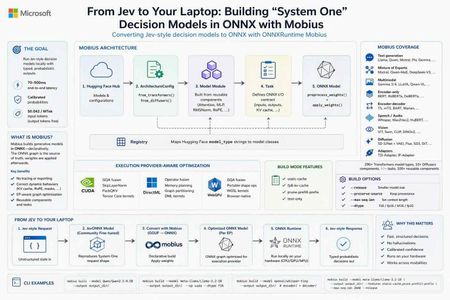
0. Why I'm writing this now Two things landed on my radar in the same week. First, TypeSafe AI published "Introducing System One Models & Jev" (Sep 15, 2026) and the developer community immediately started arguing about it. The pitch is unusual: instead of another chat model, Jev is described as "a new class of frontier models built to make fast, structured decisions that software can use directly." The post frames Jev as "a frontier-intelligence function call: unstructured state in, typed probabilistic decisions out" — and notes that while "Jev gives up string generation, it's optimized for structured outputs and can't hallucinate." The numbers in that post are what got everyone's attention: end-to-end response times of 70ms–500ms versus 3–329 seconds for frontier LLMs, input tokens at $0.042/MTok with output tokens free, and a claim that every answer arrives with a calibrated probability — "higher confidence means higher accuracy." The name itself is a thesis: TypeSafe named Jev after William Stanley Jevons, expecting that "every order of magnitude drop in the cost of intelligence unlocks orders of magnitude more use cases." Second — and this is the part that matters for anyone who builds on Microsoft's AI stack — onnxruntime/mobius has been quietly shipping at a furious pace. It's the piece of infrastructure that makes it realistic to take a model like this, in whatever format it arrives, and run it as an ONNX graph on hardware you control. So I built the bridge. kinfey/JevONNX takes an open, community-fine-tuned model that reproduces the System One request shape, converts it from GGUF to CPU ONNX with Mobius, and serves typed probabilistic decisions locally. This post covers three things: what Mobius is, how it differs from the ONNX Runtime GenAI Model Builder you may already be using, and how the JevONNX sample puts it together. 1. What is Mobius? Mobius builds generative models in ONNX. That preposition is the whole idea. From the repo's own description, Mobius provides "ONNX model definitions for GenAI using the onnxscript.nn API" — model definitions for "LLMs, MoE, multimodal, encoder-only, encoder-decoder, vision, audio, and diffusion models — built directly as ONNX graphs using onnxscript.nn.Module." The key sentence, and the one worth reading twice: "Rather than tracing or exporting PyTorch models, it constructs the ONNX graph declaratively, then applies pretrained HuggingFace weights." Why "declarative construction" is a big deal If you've ever exported a model to ONNX the traditional way, you know the failure modes. You run torch.onnx.export, the tracer executes one concrete path through Python control flow, and anything dynamic — a KV cache branch, a rotary embedding computed with a Python if, a sliding-window mask — either silently bakes in a constant or explodes into an unreadable subgraph. You then spend a week diffing graphs. Mobius inverts this. The graph is the source of truth, written as composable modules, and the weights are applied afterwards. The architecture in the README is four clean layers: HuggingFace Hub │ ▼ ArchitectureConfig ◄── from_transformers() / from_diffusers() │ ▼ Model Module ◄── Reusable Components (Attention, MLP, RMSNorm, RoPE, …) │ ▼ Task ◄── CausalLMTask, VisionLanguageTask, VAETask, DenoisingTask, … │ ▼ ONNX Model ◄── preprocess_weights() + apply_weights() Components — onnxscript.nn.Module building blocks (Attention, MLP, DecoderLayer, RoPE, VisionEncoder, MoELayer…) Models — full architectures composed from those components Tasks — define the ONNX graph's I/O contract (inputs, outputs, KV cache) Registry — maps HuggingFace model_type strings to model classes Adding a new architecture becomes writing a model definition, not debugging an exporter. Mobius even ships developer skills in .agents/skills/ (adding-a-new-model, reusable-components, moe-models, multimodal-models, writing-tests, writing-rewrite-rules) so an AI coding agent can do the legwork with you. Coverage This isn't a toy. The repo claims 290+ Transformers model types and 10 Diffusers component types across 40+ task types and 100+ reusable components, spanning: Category Examples Text generation Llama 2/3/4, Mistral, Qwen 2/2.5/3/3.5/3.6, Phi-3/3.5, Gemma 1/2/3/4, Granite, GPT-2, OPT, OLMo, SmolLM3 Mixture of Experts PhiMoE, GPTOSS, Mixtral, OLMoE, DeepSeek-V2/V3, Qwen2-MoE, Qwen3-MoE, Qwen3-Next, GLM-4-MoE, Arctic, DBRX, Jamba Multimodal Gemma 3/4, Phi-4MM (vision + audio + LoRA), LLaVA, InternVL2, MiniCPM-V 4.6, Qwen2.5-VL, Qwen3-VL, Pixtral Encoder-only BERT, RoBERTa, ALBERT, DeBERTa, DistilBERT, ELECTRA, XLNet Encoder-decoder BART, T5/mT5, Marian, M2M-100, Pegasus, BigBird-Pegasus Speech-to-text Whisper, Moonshine, Moonshine Streaming, FastConformer-RNNT, FunASR, GLM-ASR, Qwen3-ASR, SenseVoice Audio Wav2Vec2, HuBERT, WavLM, SpeechT5 Vision ViT, BEiT, DeiT, DINOv2, Swin, CLIP, SigLIP Diffusion Stable Diffusion (UNet + VAE + ControlNet), Flux, SD3, DiT, QwenImage / Qwen-Image-Edit-2509, HunyuanDiT, CogVideoX Adapters T2I-Adapter, IP-Adapter The five-minute version pip install -e . from mobius import build pkg = build("meta-llama/Llama-3.2-1B") pkg.save("output/llama-3.2-1b/") Static KV cache, when you know your max sequence length up front: from mobius import build, CausalLMTask task = CausalLMTask(static_cache=True, max_seq_len=2048) pkg = build("meta-llama/Llama-3.2-1B", task=task) pkg.save("output/llama-3.2-1b-static/") EP-aware optimization — the graph itself is tuned per execution provider, "each with the right set of fused kernels and lowering passes applied automatically": # CUDA: GQA fusion, SkipLayerNorm, PackQKV pkg = build("meta-llama/Llama-3.2-1B", execution_provider="cuda", dtype="f16") # WebGPU: GQA fusion, Shape ops replaced with portable alternatives pkg = build("meta-llama/Llama-3.2-1B", execution_provider="webgpu", dtype="f16") And the CLI, which is what we'll use later: mobius build --model Qwen/Qwen2.5-0.5B --output output_dir/ mobius build --model meta-llama/Llama-3.2-1B --output output_dir/ --ep cuda --dtype f16 mobius build --model openai/whisper-tiny --output output_dir/ # encoder/ + decoder/ Build-mode toggles use a cargo-style --features flag — available features are static-cache, fp8-kv-cache, prune-prefill-prefix, and text-only: mobius build --model meta-llama/Llama-3.2-1B --output output_dir/ \ --features static-cache,prune-prefill-prefix --max-seq-len 2048 --release strips build-time debug and provenance metadata to reduce saved model size, while preserving functional metadata keyed with the mobius. prefix. 2. Mobius vs. the ONNX Runtime GenAI Model Builder This is the question I get every time I demo Mobius, so let's be precise. Both are Microsoft tools, both produce ONNX, and they are not competitors — they sit at different points on the same pipeline. The ONNX Runtime GenAI Model Builder describes itself as the tool "for quickly creating optimized and quantized ONNX models within a few minutes that run with ONNX Runtime GenAI." Its output is a deployment-ready package: model.onnx plus genai_config.json plus tokenizer files, wired for the onnxruntime-genai runtime. Its architecture list is explicitly curated — AMD OLMo, ChatGLM, DeepSeek, ERNIE 4.5, Gemma, gpt-oss, Granite, Granite MoE Hybrid, HunYuan Dense V1, InternLM2, LFM2, LFM2 MoE, Llama, Mistral, Nemotron, Phi, Qwen, SmolLM3, Whisper — and the README states plainly that "it is intended for supporting the latest, popular state-of-the-art models." Mobius, by contrast, is a model-definition library: a component algebra for describing generative architectures as ONNX graphs, with a registry mapping HuggingFace model_type strings to model classes. Here's how I'd separate them: Dimension ORT GenAI Model Builder Mobius Primary goal Produce a deployment-ready GenAI package, fast Define and construct the ONNX graph itself Output contract model.onnx + genai_config.json + tokenizer, targeted at the ORT GenAI runtime ONNX model package; you choose the runtime (plain ORT sessions included) How the graph is made Per-architecture builder subclasses (LlamaModel, QwenModel, Phi3MiniModel, WhisperModel…) overriding make_layer / make_attention / make_moe Declarative onnxscript.nn.Module composition from reusable Components → Models → Tasks Breadth Curated list of ~19 popular families, text + Whisper 290+ Transformers types, 10 Diffusers component types, 40+ tasks — including vision, audio, and diffusion Extending it Add a builder subclass inside the onnxruntime-genai tree Add a model definition from existing components; shipped .agents/skills/ guide it Tuning surface Rich --extra_options for quantization and runtime behavior (QMoE, paged attention, KV-cache quantization, QDQ, CUDA/WebGPU graph capture…) --features build toggles + execution_provider= EP-aware graph lowering + dtype control Diffusion / multi-component pipelines Not the target First-class (--model Qwen/Qwen-Image-2512 builds all components) When I reach for it "I have a Phi/Llama/Qwen chat model and I want an int4 CPU/CUDA package running under ORT GenAI today" "My architecture is hybrid, unusual, multimodal, diffusion, or I need graph-level control over what gets emitted" Notably, the two overlap on real capabilities. The Model Builder also consumes GGUF and handles Qwen3.5-class features (compact state updates, recurrent-operator selection). Mobius also emits ORT-GenAI-compatible metadata — though the repo is honest about limits: for Mage-VL, "ORT GenAI export is currently rejected because the runtime cannot supply its required patch_positions input or Mage-VL's 1D decoder positions." That single line tells you exactly where the boundary sits: the Model Builder is bounded by what the GenAI runtime can express; Mobius is bounded by what ONNX can express. My rule of thumb as an advocate: if your model is on the Model Builder's supported list and you want the GenAI runtime's generation loop, use the Model Builder — it is faster and gives you a complete package. The moment you're off that list, or you need the graph itself to be a first-class artifact you can reason about and modify, Mobius is the tool. The JevONNX sample is squarely in the second category. Let's look at why. 3. The sample: converting a Jev-style decision model to CPU ONNX Repo: github.com/kinfey/JevONNX 3.1 The honest framing first Jev is TypeSafe's proprietary model. You can't download it and convert it, and this project doesn't pretend otherwise. What the community did do is interesting: n4ze3m/Qwen3.5-4B-Hmm is "an experimental open-model attempt to reproduce the central idea and request shape of the System One workflow introduced with Jev." It works by "fine-tuning Qwen3.5-4B to answer typed questions through option probabilities instead of ordinary generated text." The README of JevONNX is emphatic about the boundaries, and I want to repeat them here rather than bury them: "Hmm is not Jev, is not affiliated with TypeSafe AI, and does not reproduce Jev's proprietary model architecture, parallel sampler, performance, calibration, or type-safety guarantees. The Hmm model card explicitly states that it is less capable than Jev." And: "The reproduction is behavioral rather than architectural." The distinction, straight from the project's comparison table: Property Jev Hmm in this project Model design Native System One Model Qwen3.5-4B fine-tuned to reproduce the typed-decision concept Output mechanism Native typed probabilistic outputs First-token option-letter probabilities Multiple questions Designed for parallel sampling Jev-like request shape, implemented as one model pass per question Output types Schema-constrained structured values noul, choice, and score adapter Runtime here TypeSafe service Local ONNX Runtime CPU Guarantees As documented by TypeSafe No equivalent guarantee is claimed The mechanism is refreshingly legible: the adapter turns each typed question into an exact multiple-choice prompt, then "reads the first generated-token logits for A, B, C, and subsequent option letters and normalizes them into probabilities." No JSON parsing, no retry-on-malformed-output, no regex. The probability distribution is the answer. 3.2 Why this needs Mobius specifically Qwen3.5 is a hybrid architecture, and that's the whole reason this is a Mobius story. The exported model has 32 hybrid decoder layers. Linear-attention layers carry conv_state and recurrent_state; full-attention layers carry key/value caches. In this artifact, full-attention layers sit at indices 3, 7, 11, 15, 19, 23, 27, and 31. The practical consequence, quoted from the README: "The prompt is processed one token at a time while every present.* output is fed back into its corresponding past_key_values.* input. This differs from a conventional decoder-only example that can prefill an entire prompt in one call." That is a graph-shape problem. You cannot handwave it with a config flag — you need the exported graph's state contract to be explicit and inspectable, which is exactly what declarative construction gives you. The implementation "follows the structure of Mobius examples/text_generation.py while adding the hybrid-state handling required by Qwen3.5." 3.3 The conversion pipeline n4ze3m/Qwen3.5-4B-Hmm-Q4_K_M.gguf │ SHA-256 verification ▼ Mobius GGUF reader/importer │ metadata and tensor mapping │ Qwen3.5 hybrid graph construction │ Q4_K_M → packed quantized target storage │ CPU execution-provider optimization ▼ onnx_outputs/ ├── model.onnx ├── model.onnx.data ├── quantization_report.json ├── tokenizer.json ├── tokenizer_config.json ├── chat_template.jinja └── cpu_test_summary.json │ ▼ ONNX Runtime CPUExecutionProvider │ token-by-token hybrid-state prefill │ first-token A/B/C/… probabilities ▼ typed decision JSON response One command does the conversion: mobius build-gguf Qwen3.5-4B-Hmm-Q4_K_M.gguf \ --output onnx_outputs \ --ep cpu \ --dtype f32 \ --release Two details worth internalizing: --dequantize is intentionally not used. Keeping quantized storage "substantially reduc[es] the output size compared with a fully dequantized FP32 model." The external-data file is still ~2.6 GB — imagine it dequantized. Don't trust the preset, read the report. "Q4_K conversion can involve a lossy affine repack; inspect quantization_report.json rather than assuming source-preset fidelity." This is the kind of line that separates a demo from a deployment. 3.4 Reproducibility — the part I actually want you to copy Every pin, in a table, in the README: Component Revision GGUF repository n4ze3m/Qwen3.5-4B-Hmm GGUF revision c27fa3c627dfaced343c6ba9d3a0d00243a3be51 GGUF filename Qwen3.5-4B-Hmm-Q4_K_M.gguf GGUF SHA-256 5e03cb057049c56b421bd3c506d77fd8e0a77996bb8464148a02cfc3caac5229 Mobius revision 6b27a3f08b8b5d08ba9b14b416e3b435942bb0bd Tokenizer repository Qwen/Qwen3.5-4B Tokenizer revision 851bf6e806efd8d0a36b00ddf55e13ccb7b8cd0a The notebook builds a Mobius wheel from the pinned Git source rather than installing a prebuilt package. On a project moving at 500+ commits, that is not paranoia — that is the only way your conversion is still reproducible next month. 3.5 Running it Two files carry the project: Qwen3_5_4B_Hmm_GGUF_to_CPU_ONNX_Mobius_fixed.ipynb (the Colab conversion and validation workflow) and run_hmm_onnx.py (the standalone typed-decision runner). Run the notebook in a high-memory Colab CPU runtime; it writes to /content/onnx_outputs on Colab and .mobius_colab_run/onnx_outputs elsewhere. Then: python run_hmm_onnx.py --model-dir .mobius_colab_run/onnx_outputs python run_hmm_onnx.py --model-dir .mobius_colab_run/onnx_outputs --request request.json A request is state plus typed questions: { "state": "Help! My payouts have failed for 3 days. I need the money today.", "questions": { "is_urgent": { "type": "noul", "instructions": "Does this message convey urgency?" }, "department": { "type": "choice", "instructions": "Which team should handle this?", "criteria": { "billing": "Payments, invoicing, refunds", "technical": "Bugs, outages, integrations", "sales": "Pricing, upgrades, new accounts" } }, "priority": { "type": "score", "instructions": "How urgent is this request?", "criteria": ["Not urgent", "Normal", "Urgent", "Critical"] } } } From Python: from pathlib import Path from run_hmm_onnx import HmmOnnx model = HmmOnnx(Path(".mobius_colab_run/onnx_outputs")) response = model.decide({ "state": "Help! My payouts have failed for 3 days.", "questions": { "is_urgent": { "type": "noul", "instructions": "Does this message convey urgency?", } }, }) print(response) 3.6 The three decision types noul — a nullable-style yes/no probability; the probability of the true option: { "type": "noul", "noul": 0.9745 } choice — the highest-probability key, all normalized option probabilities, and a confidence value measuring how peaked the distribution is: { "type": "choice", "choice": "billing", "probabilities": { "billing": 0.7216, "technical": 0.2759, "sales": 0.0025 }, "confidence": 0.5823 } score — the expected numeric level, the level legend, normalized probabilities, and confidence: { "type": "score", "score": 2.6653, "legend": { "0": "Not urgent", "1": "Normal", "2": "Urgent", "3": "Critical" }, "probabilities": { "0": 0.0061, "1": 0.0361, "2": 0.2443, "3": 0.7135 }, "confidence": 0.618 } Look at that score output for a second. You don't get "this is critical." You get 2.6653 — a distribution leaning hard on Critical but with real mass on Urgent. That's a number your routing code can threshold on, log, and A/B test. It's the difference between an LLM that says it's confident and a distribution you can actually calibrate against. One constraint: Hmm is trained with 26 option letters. Larger option sets are handled by splitting them into groups of 25 and adding a none_of_these option to each group, matching the reference Hmm server strategy. 3.7 Does it actually run? Yes — the README reports the generated model executed directly on an Apple Silicon CPU with ONNX Runtime. A 4B hybrid-architecture model, converted from GGUF, running typed decisions on a laptop CPU with no service dependency. 4. What I'd tell a room of developers The System One idea is portable even where the model isn't. You can't run Jev locally, but the shape — state in, typed decisions with probabilities out — is something you can prototype today with an open model and an ONNX graph. As TypeSafe puts it, structured outputs "slot into ordinary software as fuzzy decision rules: classify, route, score, extract, or branch where hand-written logic is too brittle." That's a pattern, not a product. Probabilities are the actual product. The reason this class of model matters isn't speed alone. TypeSafe's argument is sharp: "If a model can do a task 95% of the time but doesn't say when it's in the 5%, it can't automate that task." Every engineer who has shipped an LLM feature has felt that exact wall. Set expectations honestly. JevONNX is an educational reproduction. It gives you noul/choice/score on a local CPU. It does not give you Jev's calibration, parallel sampler, or type-safety guarantees — and the project says so in its own README. Ship that caveat with your demo. Mobius is the infrastructure bet worth learning. When a new architecture shows up — hybrid attention, a novel MoE routing scheme, a three-model multimodal export — the question stops being "will the exporter support it?" and becomes "which components do I compose?" That is a much better question to be asking. Links Mobius — https://github.com/onnxruntime/mobius (docs: https://onnxruntime.github.io/mobius/) ONNX Runtime GenAI Model Builder — https://github.com/microsoft/onnxruntime-genai/tree/main/src/python/py/models JevONNX sample — https://github.com/kinfey/JevONNX Introducing System One Models & Jev — https://typesafe.ai/blog/introducing-system-one-models-and-jev Hugging face - https://huggingface.co/lokinfey/Qwen3_5_4B_Hmm_ONNX1.1KViews1like0Comments
GenRec Direct Learning: Moving Ranking from Feature Pipelines to Token-Native Sequence Modeling
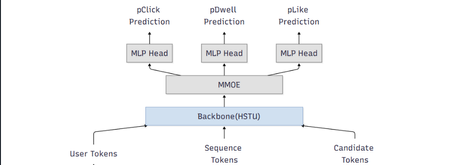
Authors: Chunlong Yu, Han Zheng, Jie Zhu, Neal Zhang, Li Xia, Lin Zhu, Sawyer Shen, Yulan Yan TL;DR Most modern ranking stacks rely on large generative models as feature extractors, flattening their outputs into vectors that are then fed into downstream rankers. While effective, this pattern introduces additional pipeline complexity and often dilutes token‑level semantics. GenRec Direct Learning (DirL) explores a different direction: using a generative, token‑native sequential model as the ranking engine itself. In this formulation, ranking becomes an end‑to‑end sequence modeling problem over user behavior, context, and candidate items—without an explicit feature‑extraction stage. Why revisit the classic L2 ranker design? Large‑scale recommender systems have historically evolved as layered pipelines: more signals lead to more feature plumbing, which in turn introduces more special cases. In our previous L2 ranking architecture, signals were split into dense and sparse branches and merged late in the stack (Fig. 1). As the system matured, three recurring issues became increasingly apparent. Figure 1: traditional ranking DNN 1) Growing pipeline surface area Each new signal expands the surrounding ecosystem—feature definitions, joins, normalization logic, validation, and offline/online parity checks. Over time, this ballooning surface area slows iteration, raises operational overhead, and increases the risk of subtle production inconsistencies. 2) Semantics diluted by flattening Generative models naturally capture rich structure: token‑level interactions, compositional meaning, and contextual dependencies. However, when these representations are flattened into sparse or dense feature vectors, much of that structure is lost—undermining the very semantics that make generative representations powerful. 3) Sequence modeling is treated as an add-on While traditional rankers can ingest history features, modeling long behavioral sequences and fine‑grained temporal interactions typically requires extensive manual feature engineering. As a result, sequence modeling is often bolted on rather than treated as a first‑class concern. DirL goal: treat ranking as native sequence learning, not as “MLP over engineered features.” What “Direct Learning” means in DirL The core shift behind Direct Learning (DirL) is simple but fundamental. Instead of the conventional pipeline: generative model → embeddings → downstream ranker, DirL adopts an end‑to‑end formulation: tokenized sequence → generative sequential model → ranking score(s). In DirL, user context, long‑term behavioral history, and candidate item information are all represented within a single, unified token sequence. Ranking is then performed directly by a generative, token‑native sequential model. This design enables several key capabilities: Long‑term behavior modeling beyond short summary windows The model operates over extended user histories, allowing it to capture long‑range dependencies and evolving interests that are difficult to represent with fixed‑size aggregates. Fine‑grained user–content interaction learning By modeling interactions at the token level, DirL learns detailed behavioral and content patterns rather than relying on coarse, pre‑engineered features. Preserved cross‑token semantics within the ranking model Semantic structure is maintained throughout the ranking process, instead of being collapsed into handcrafted dense or sparse vectors before scoring. Architecture overview (from signals to ranking) 1) Unified Tokenization All inputs in DirL are converted into a shared token embedding space, allowing heterogeneous signals to be modeled within a single sequential backbone. Conceptually, each input sequence consists of three token types: User / context tokens These tokens encode user or request‑level information, such as age or cohort‑like attributes, request or canvas context, temporal signals (e.g., day or time), and user‑level statistics like historical CTR. History tokens These represent prior user interactions over time, including signals such as engaged document IDs, semantic or embedding IDs, and topic‑like attributes. Each interaction is mapped to a token, preserving temporal order and enabling long‑range behavior modeling. Candidate tokens Each candidate item to be scored is represented as a token constructed from document features and user–item interaction features. These features are concatenated and projected into a fixed‑dimensional vector via an MLP, yielding a token compatible with the shared embedding space. Categorical features are embedded directly, while dense numerical signals are passed through MLP layers before being fused into their corresponding tokens. As a result, the model backbone consumes a sequence of the form: [1 user/context token] + [N history tokens] + [1 candidate token] 2) Long-sequence modeling backbone (HSTU) To model long input sequence, DirL adopts a sequential backbone designed to scale beyond naïve full attention. In the current setup, the backbone consists of stacked HSTU layers with multi‑head attention and dropout for regularization. The hidden state of the candidate token from the final HSTU layer is then fed into an MMoE module for scoring. 3) Multi-task prediction head (MMoE) Ranking typically optimizes multiple objectives (e.g., engagement‑related proxies). DirL employs a multi‑gate mixture‑of‑experts (MMoE) layer to support multi‑task prediction while sharing representation learning. The MMoE layer consists of N shared experts and one task‑specific expert per task. For each task, a gating network produces a weighted combination of the shared experts and the task‑specific expert. The aggregated representation is then fed into a task‑specific MLP head to produce the final prediction. Figure 2: DirL structure Early experiments: what worked and what didn’t What looked promising Early results indicate that a token‑native setup improves both inhouse evaluation metrics and online engagement (time spent per UU), suggesting that modeling long behavior sequences in a unified token space is directionally beneficial. The hard part: efficiency and scale The same design choices that improve expressiveness also raise practical hurdles: Training velocity slows down: long-sequence modeling and larger components can turn iteration cycles from hours into days, making ablations expensive. Serving and training costs increase: large sparse embedding tables + deep sequence stacks can dominate memory and compute. Capacity constraints limit rollout speed: Hardware availability and cost ceilings become a gating factor for expanding traffic and experimentation. In short: DirL’s main challenge isn’t “can it learn the right dependencies?”—it’s “can we make it cheap and fast enough to be a production workhorse?” Path to production viability: exploratory directions Our current work focuses on understanding how to keep the semantic benefits of token‑native modeling while exploring options that could help reduce overall cost. 1) Embedding tables consolidate and prune oversized sparse tables rely more on shared token representations where possible 2) Right-size the sequence model reduce backbone depth where marginal gains flatten evaluate minimal effective token sets—identify which tokens actually move metrics. explore sequence length vs. performance curves to find the “knee” 3) Inference and systems optimization dynamic batching tuned for token-native inference kernel fusion and graph optimizations quantization strategies that preserve ranking model behavior Why this direction matters DirL explores a broader shift in recommender systems—from feature‑heavy pipelines with shallow rankers toward foundation‑style sequential models that learn directly from user trajectories. If token‑native ranking can be made efficient, it unlocks several advantages: Simpler modeling interfaces, with fewer feature‑plumbing layers. Stronger semantic utilization, reducing information loss from aggressive flattening. A more natural path to long‑term behavior and intent modeling. Early signals are encouraging. The next phase is about translating this promise into practice—making the approach scalable, cost‑efficient, and fast enough to iterate as a production system. Using Microsoft Services to Enable Token‑Native Ranking Research This work was developed and validated within Microsoft’s internal machine learning and experimentation ecosystem. Training data was derived from seven days of MSN production logs and user behavior labels, encompassing thousands of features, including numerical, ID‑based, cross, and sequential features. Model training was performed using a PyTorch‑based deep learning framework built by the MSN infrastructure team and executed on Azure Machine Learning with a single A100 GPU. For online serving, the trained model was deployed on DLIS, Microsoft’s internal inference platform. Evaluation was conducted through controlled online experiments on the Azure Exp platform, enabling validation of user engagement signals under real production traffic. Although the implementation leverages Microsoft’s internal platforms, the core ideas behind DirL are broadly applicable. Practitioners interested in exploring similar approaches may consider the following high‑level steps: Construct a unified token space that captures user context, long‑term behavior sequences, and candidate items. Apply a long‑sequence modeling backbone to learn directly from extended user trajectories. Formulate ranking as a native sequence modeling problem, scoring candidates from token‑level representations. Evaluate both model effectiveness and system efficiency, balancing gains in expressiveness against training and serving cost. Call to action We encourage practitioners and researchers working on large‑scale recommender systems to experiment with token‑native ranking architectures alongside traditional feature‑heavy pipelines, compare trade‑offs in modeling power and system efficiency, and share insights on when direct sequence learning provides practical advantages in production environments. Acknowledgement: We would like to acknowledge the support and contributions from several colleagues who helped make this work possible. We thank Gaoyuan Jiang and Lightning Huang for their assistance with model deployment, Jianfei Wang for support with the training platform, Gong Cheng for ranker monitoring, Peiyuan Xu for sequential feature logging, and Chunhui Han and Peng Hu for valuable discussions on model design.Introducing Inside Microsoft Foundry: Quickstart 🎬
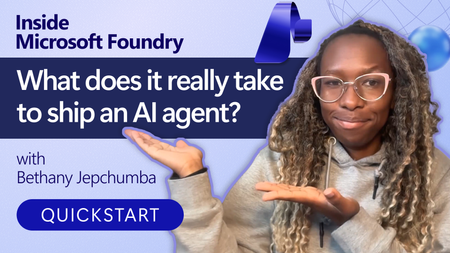
Discover Inside Microsoft Foundry: Quickstart, a new video series for developers building AI agents. Starting with "What does it really take to ship an AI agent?", the series explores real-world challenges such as model selection, grounding agents in data, evaluation, deployment, observability, and governance. Follow along as we show how the Microsoft Foundry ecosystem helps developers move from prototype to production, with new episodes released in the coming weeks.Adding a Fallback Model to Hermes with Microsoft Foundry
So the plan was simple. Leave the Bedrock configuration untouched, then wire Microsoft Foundry in behind it as a fallback, so Hermes always has somewhere else to go when the primary provider is not responding. A few other reasons pushed me towards Foundry in particular: Redundancy that does not need me. If Bedrock is throttled or out of quota, I want Hermes to fail over on its own rather than waiting for me to notice. A catalogue I already pay for. Foundry puts the latest GPT models next to open-weight and partner models in one place, so I can pick a model that suits the task instead of settling for whatever a single provider happens to offer. Enterprise controls out of the box. Region pinning, private networking, content filters and per-deployment quota all sit in the same portal, which makes the setup far easier to defend to a security reviewer. Learning the mechanics before I need them. Working out how Hermes handles a provider chain is much nicer on a quiet Tuesday than during a live outage. Here is the short version, if you are deciding whether to read on. Time: about thirty minutes if nothing goes wrong. Cost: pay-as-you-go tokens only, and none at all while the fallback sits idle. Result: an assistant that keeps answering when your primary provider stops. Before you start, you will need three things: a machine with Hermes already installed and a working primary provider configured, an Azure subscription with access to Microsoft Foundry in a region you can actually deploy into, and enough quota in that region to create a deployment. One thing that made this easy to justify: Foundry deployments bill per token on the standard pay-as-you-go tier. A fallback provider that never gets invoked costs nothing beyond the requests it actually serves, so the insurance is close to free until the day you need it. Chat surface (CLI, messaging) → Hermes Gateway → Primary Amazon Bedrock → Fallback Microsoft Foundry Figure 1: Where the fallback sits. Every request goes through the Hermes gateway to the primary provider; only when that provider is unavailable does the chain continue to Microsoft Foundry. Part 1: Deploying a Model on Microsoft Foundry The first half of this job happens entirely inside the Microsoft Foundry portal and has nothing to do with Hermes yet. All you are really doing here is making sure your Azure subscription can serve a model, and that you hold an endpoint and key Hermes can authenticate with later. 1. Deploy model in Foundry → 2. Copy endpoint + key → 3. hermes fallback add → 4. Authenticate → 5. Select models, test Figure 2: The whole setup in five moves. The first two happen in the Microsoft Foundry portal (orange); the rest happen on the Hermes machine (blue). Go to Microsoft Foundry > Build > Models > Deploy > Deploy a base model. You can deploy a fine-tuned model instead if you already have one, which works just as well with Hermes. Check the region shown at the top of the portal before you commit, because both model availability and deployment quota differ from one region to the next. Then deploy the model you have selected: In this case I deployed gpt-5.6-sol, which is the model Hermes will fall back to. The choice was deliberate rather than exciting. My primary model on Bedrock is a general-purpose chat model, and a fallback is only useful if the answers it gives feel like a continuation of the same conversation rather than a different assistant wearing the same name. The gpt-5.6-sol deployment matches that behaviour closely, it was available in the region I wanted to pin, and the quota I was granted comfortably covers a day of normal use. If a fallback surprises you the first time it fires, it is the wrong fallback. Once the deployment finishes, open it and take note of two values: the target endpoint URI and the API key. Copy both somewhere safe now, because you will be pasting them into Hermes in the next part. If your organisation rotates keys on a schedule, use a key with the longest life you are allowed, since a fallback secured with a credential that expires quietly stops being a fallback. What to copy Where it lives in the portal Where Hermes asks for it Target endpoint URI Deployment > Endpoint > Target URI "Endpoint" prompt in hermes fallback add API key Deployment > Endpoint > Key "API key" prompt, or choose Entra ID instead Deployment name Deployment > Details > Name Shown in the model list Hermes returns Region Top of the portal, next to the resource Must match the region you deployed into Figure 3: Everything Hermes will ask for, and where to find each value before you leave the portal. Part 2: Adding Foundry to Hermes as a Fallback With the Foundry side sorted, everything from here happens in the Hermes CLI. One thing worth knowing before you start: this is the fallback command, not the primary model command, so your existing Bedrock configuration is left completely alone. Nothing in this section can break what is already working, which makes it a good one to try on a live setup. Run the Hermes fallback command: When Hermes asks which provider to add, choose Azure Foundry. The picker still carries the old name; it is the same service that the portal now calls Microsoft Foundry. Paste the target endpoint URI from your deployment, then authenticate with the API key you copied earlier. Hermes also offers Microsoft Entra ID at this prompt, which is the better option if your organisation would rather not have a static key sitting on the machine. If authentication fails here, check the endpoint before you start suspecting the key. In my experience the endpoint is wrong far more often than the credential is, usually because the deployment name at the end of the URI does not match the deployment you actually created. Once authentication succeeds, Hermes lists the deployments your Foundry resource exposes and asks which ones you want to use. You can select more than one, and the order is not cosmetic: Hermes walks down the chain from top to bottom whenever the provider above is unavailable. Treat that list as a priority order, not a shopping basket. What happens to the primary What Hermes does What you see in the chat Responds normally Routes every request to the primary and never touches the chain Nothing. The fallback stays idle Throttled or out of quota Retries the next provider down the chain on the same request A reply, served by the fallback model Endpoint unreachable Keeps failing over on each new request until the primary recovers Slightly different tone and latency, but a working assistant Every provider fails Returns the error rather than hanging An error worth chasing with hermes status Figure 4: The chain in practice. The fallback only earns its keep in the middle two rows, which is exactly why it is easy to forget you configured it. Part 3: Promoting Foundry to the Primary Model At this stage Foundry is sitting in the back seat as a backup. I wanted to reverse the arrangement and make Foundry the primary while Bedrock slides down into the fallback slot, partly because I preferred keeping day-to-day traffic inside my Azure subscription, and partly because I wanted proof the chain works in both directions. Before promotion After promotion Primary: Amazon Bedrock → Primary: Microsoft Foundry Fallback: Microsoft Foundry → Fallback: Amazon Bedrock Figure 5: The promotion, in effect. Nothing is added or removed; the two providers simply trade places in the chain. There is no dedicated "promote" command in Hermes, so the manual route is a short sequence of steps rather than a single instruction: Select the fallback provider/model as the new primary: hermes model Remove the now-duplicate model from the fallback chain: hermes fallback remove Optionally add the old primary model as a fallback: hermes fallback add Restart the messaging gateway: hermes gateway restart Verify the result: hermes status / hermes fallback list That sequence works, and it is good to know what is happening underneath. But since I already had a working provider configured, I would rather just ask Hermes to rearrange itself. This is the part I genuinely enjoy about the tool: the configuration is something you can talk to, not only something you type commands at. Prompt: Okay now please make the model I configured on Microsoft Foundry into the main model, and make the Bedrock one the fallback model! Hermes rewrites the provider chain on its own and confirms the swap once it is done, which is a great deal less error-prone than running the five commands by hand. Part 4: Testing the Switch Configuration you have not tested is just an assumption with extra steps, so the next thing is to confirm Hermes really is talking to Foundry. Type /model when running Hermes to bring up the model picker. You will be prompted to select a provider first. Pick the Microsoft Foundry entry, then choose the specific deployment from the list underneath it. The active model should switch straight away. Send it a plain "Hello" to check that the deployment actually responds, rather than just looking correct in the menu. Appearing in a dropdown and serving a request are two very different things. A second test is worth the thirty seconds it costs: run hermes status to confirm which provider is live, then hermes fallback list to confirm the chain is ordered the way you intended. The picker tells you what you selected; those two commands tell you what Hermes will actually do at three in the morning. Part 5: The Obstacle, and What It Actually Taught Me Every walkthrough has the part the author quietly leaves out. Here is mine: the wrinkle was not the model, it was capacity. My first attempt deployed into the region closest to me out of habit, and the portal turned it down because there was no capacity left for that model at the tier I asked for. The model was clearly listed in the catalogue; being listed and being deployable in your region, on your subscription, at your quota, are three separate questions. Redeploying in a different region fixed it in a couple of minutes, but it meant the endpoint URI changed, which in turn meant the value I had already pasted into Hermes was stale. Re-running hermes fallback add against the new endpoint sorted it out. The lesson is cheap enough to hand over for free: check quota and regional capacity for your specific subscription before you design a walkthrough, a demo or a production fallback around one deployment. In the Foundry portal, Management then Quota shows exactly what you have been granted per region and per model family, which is the only list that matters. Symptom Likely cause Fix Deployment rejected in the portal No capacity for that model at the tier you asked for, in that region Deploy in another region, or drop to a smaller tier Hermes rejects the credential Endpoint URI does not match the deployment you created Re-copy the target URI from the deployment, not the resource Provider authenticates but lists nothing Key belongs to a different Foundry resource Check you are in the right resource, then re-run hermes fallback add Fallback never fires Chain ordered the wrong way round hermes fallback list, then reorder Figure 6: The four things that went wrong, or nearly did, and what fixed each one. There is a silver lining worth stating plainly. Because the fallback chain was already in place, a deployment that refused to come up did not take the assistant down with it. That is precisely the scenario this whole exercise was meant to cover, and it turned up on day one without me having to simulate it. Command Cheat Sheet Everything used in this walkthrough, collected in one place: hermes fallback add: attach a provider to the fallback chain hermes fallback remove: drop a provider from the chain hermes fallback list: show the chain in priority order hermes model: set the primary model hermes gateway restart: restart the messaging gateway after a change hermes status: confirm which provider is currently live /model: switch models from inside a running session Conclusion Adding Microsoft Foundry as a fallback behind my existing Bedrock setup took an afternoon, and most of that was spent recovering from a regional capacity limit I should have checked first. The work itself is small: deploy a model, copy the endpoint and key, run hermes fallback add, authenticate, pick your deployments. The payoff is that Hermes no longer depends on one provider staying healthy. Three things are worth carrying away from this: Check quota, not just the catalogue. The Foundry catalogue shows what Microsoft offers. It does not show what your subscription and region can actually deploy today. Confirm that first, before you build anything on top of a specific deployment. Order your fallback chain deliberately. Hermes works down the list from top to bottom, so the sequence you choose during setup is the failover policy you are going to live with. Put the model you actually trust at the top. Treat the endpoint as part of the credential. Redeploying in a new region changes the endpoint URI, and a fallback pointed at an endpoint that no longer exists is not a fallback. Re-run the setup whenever the deployment moves. The switch from Bedrock primary to Foundry primary also proved the chain runs in both directions, which is the real point. Provider redundancy is only useful if you have watched it work. Next on my list is deliberately breaking the primary provider to confirm the failover triggers on its own, without me typing a single command. If you run this against a different model, region or provider pairing, I would genuinely like to know how it went, particularly if your quota experience was better than mine. Drop it in the comments.379Views0likes0CommentsDistributing Agents to Microsoft Teams and Microsoft 365 Copilot Part 4/5
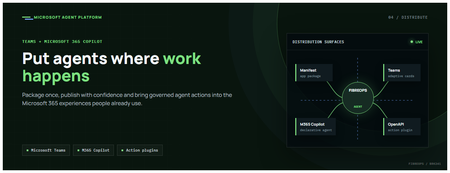
This is the fourth post in our series on the Microsoft agent platform. We cover the Distribute in M365 pillar — publishing your agents to Microsoft Teams and Microsoft 365 Copilot so they reach users where they already work. All examples reference the FibreOps repository, demonstrated at Microsoft Build BRK241. The Distribution Story Building a great agent is only half the challenge. The other half is getting it into the hands of users without asking them to learn a new tool, visit a new URL, or change their workflow. Microsoft 365 Copilot and Microsoft Teams are where enterprise users already spend their day, making them the natural distribution surface for agents. With the GA release, publishing an agent to Teams and M365 Copilot is a single command. No separate app registration portal, no manual manifest assembly, no multi-step approval workflow for development and testing. Publishing to Microsoft 365 Copilot (GA) FibreOps ships as a declarative agent + action plugin ready for sideload. A single CLI command produces the complete package: python -m fibreops.demo publish-m365 --out dist/m365 # Output: # ✓ wrote dist/m365/declarativeAgent.json # ✓ wrote dist/m365/fibreops-action.json # ✓ wrote dist/m365/manifest.json # ✓ wrote dist/m365/color.png (192x192) # ✓ wrote dist/m365/outline.png ( 32x32) # ✓ wrote dist/m365/fibreops-copilot.zip What Gets Generated File Purpose declarativeAgent.json Defines the agent's persona, capabilities, and conversation starters for M365 Copilot fibreops-action.json Action plugin that proxies tool calls to the deployed FastAPI backend via OpenAPI manifest.json Teams app manifest with publisher metadata, permissions, and capabilities color.png / outline.png App icons for Teams and M365 surfaces fibreops-copilot.zip Ready-to-upload package for Teams Admin Center Configuration Set the base URL to your deployed FastAPI app before publishing — the action plugin uses this to resolve the OpenAPI runtime: # Set the public HTTPS hostname of the deployed FastAPI app $env:M365_ACTION_BASE_URL = "https://fibreops-demo.azurewebsites.net" # Optional: customise publisher metadata $env:M365_PUBLISHER_NAME = "Contoso Network Operations" $env:M365_PUBLISHER_WEBSITE = "https://contoso.com/noc" # Generate the package python -m fibreops.demo publish-m365 --out dist/m365 Environment Variable Purpose M365_ACTION_BASE_URL Public HTTPS root for the FastAPI /openapi.json (e.g., Container Apps FQDN) M365_APP_ID Override the generated Teams app GUID (default: deterministic per repo) M365_PUBLISHER_NAME Publisher name shown in M365 Admin Center M365_PUBLISHER_WEBSITE Publisher website link Uploading the Package Upload the generated fibreops-copilot.zip through either path: Teams Admin Center → Manage apps → Upload new app M365 Admin Center → Integrated apps → Upload custom apps Once uploaded, the declarative agent: Inherits the publisher metadata you configured Advertises conversation starters from the FibreOps deck (e.g., "What is the current outage status?", "Dispatch an engineer to FN-LDN-001") Proxies tool calls to the deployed FastAPI app via the action plugin Appears in Microsoft 365 Copilot as a specialised agent users can invoke How Declarative Agents Work A declarative agent in Microsoft 365 Copilot is defined by metadata rather than code running in the M365 surface. The intelligence lives in your backend — Copilot handles the conversational UX, tool orchestration schema, and user authentication. The flow: User invokes the agent in Microsoft 365 Copilot or Teams Copilot renders conversation starters and accepts natural language input When the agent needs to act, Copilot calls the action plugin (your OpenAPI endpoint) Your FastAPI backend processes the request using the full agent pipeline Results return to the user in the Copilot/Teams UX This architecture means your agent logic stays in one place — the backend. The M365 surface is purely a distribution and interaction layer. Action Plugins and OpenAPI The action plugin ( fibreops-action.json ) references your FastAPI app's /openapi.json endpoint. FibreOps exposes a JSON API that the action plugin can call: /api/runs — List and query agent runs /api/optimiser — Get optimizer scores and suggestions /sdk/chat — Natural language interaction with the agent system /healthz — Liveness probe Because FastAPI auto-generates OpenAPI schemas from your typed Python endpoints, the action plugin gets accurate parameter descriptions, response schemas, and error codes without any manual specification work. Publishing as Autopilots (Public Preview) Autopilots take distribution one step further — agents that operate autonomously without requiring a user to initiate each interaction. An Autopilot can: React to events (e.g., a critical telemetry signal) without human initiation Take actions within defined guardrails Notify users only when human intervention is needed Operate continuously across Microsoft 365 surfaces For FibreOps, an Autopilot would monitor the Event Hub stream continuously and only surface to the NOC team when an incident exceeds automated resolution capability — a fully autonomous operations agent. Teams Adaptive Cards FibreOps posts rich Adaptive Card notifications to Microsoft Teams throughout the agent pipeline. This is separate from the declarative agent — it is a push notification channel for real-time operational awareness. # The NetOps agent posts an outage notice via Incoming Webhook def post_outage_notice(incident_id, node_id, severity, summary, engineer=None): card = { "type": "AdaptiveCard", "body": [ {"type": "TextBlock", "text": f"🚨 Outage: {node_id}", "weight": "Bolder", "size": "Large"}, {"type": "FactSet", "facts": [ {"title": "Severity", "value": severity.upper()}, {"title": "Incident", "value": incident_id}, {"title": "Summary", "value": summary}, ]}, ], "actions": [ {"type": "Action.OpenUrl", "title": "View in NOC Console", "url": f"{base_url}/runs/{incident_id}"} ] } # POST to Teams webhook or append to outbox for offline mode ... If TEAMS_WEBHOOK_URL is not configured, cards are appended to state/teams_outbox.jsonl for review in the NOC console's Teams panel. End-to-End: From Code to Copilot Here is the complete flow from development to distribution: Build — Develop agents with Microsoft Agent Framework, test locally with python -m fibreops.demo --backend local Publish agents — python -m fibreops.demo publish creates hosted Prompt Agents in Foundry Deploy infrastructure — azd up provisions App Service, ACR, Event Hub, Key Vault, and Application Insights Deploy hosted agent — azd env set FIBREOPS_DEPLOY_HOSTED true && azd up Generate M365 package — python -m fibreops.demo publish-m365 --out dist/m365 Upload to Teams — Upload fibreops-copilot.zip via Teams Admin Center Users interact — The agent is now available in Microsoft 365 Copilot and Teams Security Considerations Managed Identity — The deployed app uses system-assigned managed identity for all Azure service access. No secrets in code. Least privilege — Each role grant is scoped to the minimum required (Event Hubs Data Owner, Key Vault Secrets User, AcrPull, Azure AI Developer). Authentication — The M365 Copilot surface handles user authentication; your backend receives authenticated requests. Guardrails — Autopilots operate within defined boundaries; human-in-the-loop escalation is built into the Routine and agent decision logic. Key Takeaways Publishing to Teams and M365 Copilot is GA — a single command generates the complete package. Declarative agents separate distribution (M365) from intelligence (your backend). Action plugins leverage your existing FastAPI OpenAPI schema — no manual specification needed. Autopilots (Public Preview) enable fully autonomous operation within guardrails. Adaptive Cards provide real-time push notifications alongside the conversational agent surface. The same backend serves the NOC console, the Copilot SDK, and the M365 declarative agent. Next Steps Explore the FibreOps repository — try python -m fibreops.demo publish-m365 Microsoft 365 Copilot extensibility documentation Next in this series: Voice Live and Observability for Production Agent SystemsBuilding HIPAA-Compliant Medical Transcription with Local AI
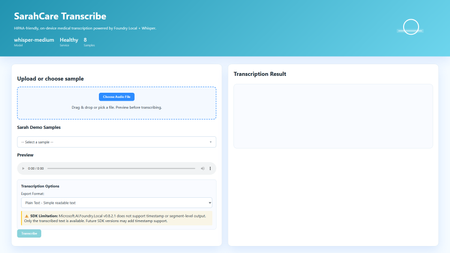
Building HIPAA-Compliant Medical Transcription with Local AI Introduction Healthcare organizations generate vast amounts of spoken content, patient consultations, research interviews, clinical notes, medical conferences. Transcribing these recordings traditionally requires either manual typing (time-consuming and expensive) or cloud transcription services (creating immediate HIPAA compliance concerns). Every audio file sent to external APIs exposes Protected Health Information (PHI), requires Business Associate Agreements, creates audit trails on third-party servers, and introduces potential breach vectors. This sample solution lies in on-premises voice-to-text systems that process audio entirely locally, never sending PHI beyond organizational boundaries. This article demonstrates building a sample medical transcription application using FLWhisper, ASP.NET Core, C#, and Microsoft Foundry Local with OpenAI Whisper models. You'll learn how to build sample HIPAA-compliant audio processing, integrate Whisper models for medical terminology accuracy, design privacy-first API patterns, and build responsive web UIs for healthcare workflows. Whether you're developing electronic health record (EHR) integrations, building clinical research platforms, or implementing dictation systems for medical practices, this sample could be a great starting point for privacy-first speech recognition. Why Local Transcription Is Critical for Healthcare Healthcare data handling is fundamentally different from general business data due to HIPAA regulations, state privacy laws, and professional ethics obligations. Understanding these requirements explains why cloud transcription services, despite their convenience, create unacceptable risks for medical applications. HIPAA compliance mandates strict controls over PHI. Every system that touches patient data must implement administrative, physical, and technical safeguards. Cloud transcription APIs require Business Associate Agreements (BAAs), but even with paperwork, you're entrusting PHI to external systems. Every API call creates logs on vendor servers, potentially in multiple jurisdictions. Data breaches at transcription vendors expose patient information, creating liability for healthcare organizations. On-premises processing eliminates these third-party risks entirely, PHI never leaves your controlled environment. US State laws increasingly add requirements beyond HIPAA. California's CCPA, New York's SHIELD Act, and similar legislation create additional compliance obligations. International regulations like GDPR prohibit transferring health data outside approved jurisdictions. Local processing simplifies compliance by keeping data within organizational boundaries. Research applications face even stricter requirements. Institutional Review Boards (IRBs) often require explicit consent for data sharing with external parties. Cloud transcription may violate study protocols that promise "no third-party data sharing." Clinical trials in pharmaceutical development handle proprietary information alongside PHI, double jeopardy for data exposure. Local transcription maintains research integrity while enabling audio analysis. Cost considerations favor local deployment at scale. Medical organizations generate substantial audio, thousands of patient encounters monthly. Cloud APIs charge per minute of audio, creating significant recurring costs. Local models have fixed infrastructure costs that scale economically. A modest GPU server can process hundreds of hours monthly at predictable expense. Latency matters for clinical workflows. Doctors and nurses need transcriptions available immediately after patient encounters to review and edit while details are fresh. Cloud APIs introduce network delays, especially problematic in rural health facilities with limited connectivity. Local inference provides <1 second turnaround for typical consultation lengths. Application Architecture: ASP.NET Core with Foundry Local The sample FLWhisper application implements clean separation between audio handling, AI inference, and state management using modern .NET patterns: The ASP.NET Core 10 minimal API provides HTTP endpoints for health checks, audio transcription, and sample file streaming. Minimal APIs reduce boilerplate while maintaining full middleware support for error handling, authentication, and CORS. The API design follows OpenAI's transcription endpoint specification, enabling drop-in replacement for existing integrations. The service layer encapsulates business logic: FoundryModelService manages model loading and lifetime, TranscriptionService handles audio processing and AI inference, and SampleAudioService provides demonstration files for testing. This separation enables easy testing, dependency injection, and service swapping. Foundry Local integration uses the Microsoft.AI.Foundry.Local.WinML SDK. Unlike cloud APIs requiring authentication and network calls, this SDK communicates directly with the local Foundry service via in-process calls. Models load once at startup, remaining resident in memory for sub-second inference on subsequent requests. The static file frontend delivers vanilla HTML/CSS/JavaScript, no framework overhead. This simplicity aids healthcare IT security audits and enables deployment on locked-down hospital networks. The UI provides file upload, sample selection, audio preview, transcription requests, and result display with copy-to-clipboard functionality. Here's the architectural flow for transcription requests: Web UI (Upload Audio File) ↓ POST /v1/audio/transcriptions (Multipart Form Data) ↓ ASP.NET Core API Route ↓ TranscriptionService.TranscribeAudio(audioStream) ↓ Foundry Local Model (Whisper Medium locally) ↓ Text Result + Metadata (language, duration) ↓ Return JSON/Text Response ↓ Display in UI This architecture embodies several healthcare system design principles: Data never leaves the device: All processing occurs on-premises, no external API calls No data persistence by default: Audio and transcripts are session-only, never saved unless explicitly configured Comprehensive health checks: System readiness verification before accepting PHI Audit logging support: Structured logging for compliance documentation Graceful degradation: Clear error messages when models unavailable rather than silent failures Setting Up Foundry Local with Whisper Models Foundry Local supports multiple Whisper model sizes, each with different accuracy/speed tradeoffs. For medical transcription, accuracy is paramount—misheard drug names or dosages create patient safety risks: # Install Foundry Local (Windows) winget install Microsoft.FoundryLocal # Verify installation foundry --version # Download Whisper Medium model (optimal for medical accuracy) foundry model add openai-whisper-medium-generic-cpu:1 # Check model availability foundry model list Whisper Medium (769M parameters) provides the best balance for medical use. Smaller models (Tiny, Base) miss medical terminology frequently. Larger models (Large) offer marginal accuracy gains at 3x inference time. Medium handles medical vocabulary well, drug names, anatomical terms, procedure names, while processing typical consultation audio (5-10 minutes) in under 30 seconds. The application detects and loads the model automatically: // Services/FoundryModelService.cs using Microsoft.AI.Foundry.Local.WinML; public class FoundryModelService { private readonly ILogger _logger; private readonly FoundryOptions _options; private ILocalAIModel? _loadedModel; public FoundryModelService( ILogger logger, IOptions options) { _logger = logger; _options = options.Value; } public async Task InitializeModelAsync() { try { _logger.LogInformation( "Loading Foundry model: {ModelAlias}", _options.ModelAlias ); // Load model from Foundry Local _loadedModel = await FoundryClient.LoadModelAsync( modelAlias: _options.ModelAlias, cancellationToken: CancellationToken.None ); if (_loadedModel == null) { _logger.LogWarning("Model loaded but returned null instance"); return false; } _logger.LogInformation( "Successfully loaded model: {ModelAlias}", _options.ModelAlias ); return true; } catch (Exception ex) { _logger.LogError( ex, "Failed to load Foundry model: {ModelAlias}", _options.ModelAlias ); return false; } } public ILocalAIModel? GetLoadedModel() => _loadedModel; public async Task UnloadModelAsync() { if (_loadedModel != null) { await FoundryClient.UnloadModelAsync(_loadedModel); _loadedModel = null; _logger.LogInformation("Model unloaded"); } } } Configuration lives in appsettings.json , enabling easy customization without code changes: { "Foundry": { "ModelAlias": "whisper-medium", "LogLevel": "Information" }, "Transcription": { "MaxAudioDurationSeconds": 300, "SupportedFormats": ["wav", "mp3", "m4a", "flac"], "DefaultLanguage": "en" } } Implementing Privacy-First Transcription Service The transcription service handles audio processing while maintaining strict privacy controls. No audio or transcript persists beyond the HTTP request lifecycle unless explicitly configured: // Services/TranscriptionService.cs public class TranscriptionService { private readonly FoundryModelService _modelService; private readonly ILogger _logger; public async Task TranscribeAudioAsync( Stream audioStream, string originalFileName, TranscriptionOptions? options = null) { options ??= new TranscriptionOptions(); var startTime = DateTime.UtcNow; try { // Validate audio format ValidateAudioFormat(originalFileName); // Get loaded model var model = _modelService.GetLoadedModel(); if (model == null) { throw new InvalidOperationException("Whisper model not loaded"); } // Create temporary file (automatically deleted after transcription) using var tempFile = new TempAudioFile(audioStream); // Execute transcription _logger.LogInformation( "Starting transcription for file: {FileName}", originalFileName ); var transcription = await model.TranscribeAsync( audioFilePath: tempFile.Path, language: options.Language, cancellationToken: CancellationToken.None ); var duration = (DateTime.UtcNow - startTime).TotalSeconds; _logger.LogInformation( "Transcription completed in {Duration:F2}s", duration ); return new TranscriptionResult { Text = transcription.Text, Language = transcription.Language ?? options.Language, Duration = transcription.AudioDuration, ProcessingTimeSeconds = duration, FileName = originalFileName, Timestamp = DateTime.UtcNow }; } catch (Exception ex) { _logger.LogError( ex, "Transcription failed for file: {FileName}", originalFileName ); throw; } } private void ValidateAudioFormat(string fileName) { var extension = Path.GetExtension(fileName).TrimStart('.'); var supportedFormats = new[] { "wav", "mp3", "m4a", "flac", "ogg" }; if (!supportedFormats.Contains(extension.ToLowerInvariant())) { throw new ArgumentException( $"Unsupported audio format: {extension}. " + $"Supported: {string.Join(", ", supportedFormats)}" ); } } } // Temporary file wrapper that auto-deletes internal class TempAudioFile : IDisposable { public string Path { get; } public TempAudioFile(Stream sourceStream) { Path = System.IO.Path.GetTempFileName(); using var fileStream = File.OpenWrite(Path); sourceStream.CopyTo(fileStream); } public void Dispose() { try { if (File.Exists(Path)) { File.Delete(Path); } } catch { // Ignore deletion errors in temp folder } } } This service demonstrates several privacy-first patterns: Temporary file lifecycle management: Audio written to temp storage, automatically deleted after transcription No implicit persistence: Results returned to caller, not saved by service Format validation: Accept only supported audio formats to prevent processing errors Comprehensive logging: Audit trail for compliance without logging PHI content Error isolation: Exceptions contain diagnostic info but no patient data Building the OpenAI-Compatible REST API The API endpoint mirrors OpenAI's transcription API specification, enabling existing integrations to work without modifications: // Program.cs var builder = WebApplication.CreateBuilder(args); // Configure services builder.Services.Configure( builder.Configuration.GetSection("Foundry") ); builder.Services.AddSingleton(); builder.Services.AddScoped(); builder.Services.AddHealthChecks() .AddCheck("foundry-health"); var app = builder.Build(); // Load model at startup var modelService = app.Services.GetRequiredService(); await modelService.InitializeModelAsync(); app.UseHealthChecks("/health"); app.MapHealthChecks("/api/health/status"); // OpenAI-compatible transcription endpoint app.MapPost("/v1/audio/transcriptions", async ( HttpRequest request, TranscriptionService transcriptionService, ILogger logger) => { if (!request.HasFormContentType) { return Results.BadRequest(new { error = "Content-Type must be multipart/form-data" }); } var form = await request.ReadFormAsync(); // Extract audio file var audioFile = form.Files.GetFile("file"); if (audioFile == null || audioFile.Length == 0) { return Results.BadRequest(new { error = "Audio file required in 'file' field" }); } // Parse options var format = form["format"].ToString() ?? "text"; var language = form["language"].ToString() ?? "en"; try { // Process transcription using var stream = audioFile.OpenReadStream(); var result = await transcriptionService.TranscribeAudioAsync( audioStream: stream, originalFileName: audioFile.FileName, options: new TranscriptionOptions { Language = language } ); // Return in requested format if (format == "json") { return Results.Json(new { text = result.Text, language = result.Language, duration = result.Duration }); } else { // Default: plain text return Results.Text(result.Text); } } catch (Exception ex) { logger.LogError(ex, "Transcription request failed"); return Results.StatusCode(500); } }) .DisableAntiforgery() // File uploads need CSRF exemption .WithName("TranscribeAudio") .WithOpenApi(); app.Run(); Example API usage: # PowerShell $audioFile = Get-Item "consultation-recording.wav" $response = Invoke-RestMethod ` -Uri "http://localhost:5192/v1/audio/transcriptions" ` -Method Post ` -Form @{ file = $audioFile; format = "json" } Write-Output $response.text # cURL curl -X POST http://localhost:5192/v1/audio/transcriptions \ -F "file=@consultation-recording.wav" \ -F "format=json" Building the Interactive Web Frontend The web UI provides a user-friendly interface for non-technical medical staff to transcribe recordings: SarahCare Medical Transcription The JavaScript handles file uploads and API interactions: // wwwroot/app.js let selectedFile = null; async function checkHealth() { try { const response = await fetch('/health'); const statusEl = document.getElementById('status'); if (response.ok) { statusEl.className = 'status-badge online'; statusEl.textContent = '✓ System Ready'; } else { statusEl.className = 'status-badge offline'; statusEl.textContent = '✗ System Unavailable'; } } catch (error) { console.error('Health check failed:', error); } } function handleFileSelect(event) { const file = event.target.files[0]; if (!file) return; selectedFile = file; // Show file info const fileInfo = document.getElementById('fileInfo'); fileInfo.textContent = `Selected: ${file.name} (${formatFileSize(file.size)})`; fileInfo.classList.remove('hidden'); // Enable audio preview const preview = document.getElementById('audioPreview'); preview.src = URL.createObjectURL(file); preview.classList.remove('hidden'); // Enable transcribe button document.getElementById('transcribeBtn').disabled = false; } async function transcribeAudio() { if (!selectedFile) return; const loadingEl = document.getElementById('loadingIndicator'); const resultEl = document.getElementById('resultSection'); const transcribeBtn = document.getElementById('transcribeBtn'); // Show loading state loadingEl.classList.remove('hidden'); resultEl.classList.add('hidden'); transcribeBtn.disabled = true; try { const formData = new FormData(); formData.append('file', selectedFile); formData.append('format', 'json'); const startTime = Date.now(); const response = await fetch('/v1/audio/transcriptions', { method: 'POST', body: formData }); if (!response.ok) { throw new Error(`HTTP ${response.status}: ${response.statusText}`); } const result = await response.json(); const processingTime = ((Date.now() - startTime) / 1000).toFixed(1); // Display results document.getElementById('transcriptionText').value = result.text; document.getElementById('resultDuration').textContent = `Duration: ${result.duration.toFixed(1)}s`; document.getElementById('resultLanguage').textContent = `Language: ${result.language}`; resultEl.classList.remove('hidden'); console.log(`Transcription completed in ${processingTime}s`); } catch (error) { console.error('Transcription failed:', error); alert(`Transcription failed: ${error.message}`); } finally { loadingEl.classList.add('hidden'); transcribeBtn.disabled = false; } } function copyToClipboard() { const text = document.getElementById('transcriptionText').value; navigator.clipboard.writeText(text) .then(() => alert('Copied to clipboard')) .catch(err => console.error('Copy failed:', err)); } // Initialize window.addEventListener('load', () => { checkHealth(); loadSamplesList(); }); Key Takeaways and Production Considerations Building HIPAA-compliant voice-to-text systems requires architectural decisions that prioritize data privacy over convenience. The FLWhisper application demonstrates that you can achieve accurate medical transcription, fast processing times, and intuitive user experiences entirely on-premises. Critical lessons for healthcare AI: Privacy by architecture: Design systems where PHI never exists outside controlled environments, not as a configuration option No persistence by default: Audio and transcripts should be ephemeral unless explicitly saved with proper access controls Model selection matters: Whisper Medium provides medical terminology accuracy that smaller models miss Health checks enable reliability: Systems should verify model availability before accepting PHI Audit logging without content logging: Track operations for compliance without storing sensitive data in logs For production deployment in clinical settings, integrate with EHR systems via HL7/FHIR interfaces. Implement role-based access control with Active Directory integration. Add digital signatures for transcript authentication. Configure automatic PHI redaction using clinical NLP models. Deploy on HIPAA-compliant infrastructure with proper physical security. Implement comprehensive audit logging meeting compliance requirements. The complete implementation with ASP.NET Core API, Foundry Local integration, sample audio files, and comprehensive tests is available at github.com/leestott/FLWhisper. Clone the repository and follow the setup guide to experience privacy-first medical transcription. Resources and Further Reading FLWhisper Repository - Complete C# implementation with .NET 10 Quick Start Guide - Installation and usage instructions Microsoft Foundry Local Documentation - SDK reference and model catalog OpenAI Whisper Documentation - Model architecture and capabilities HIPAA Compliance Guidelines - HHS official guidance Testing Guide - Comprehensive test suite documentationBuilding Autonomous Agents with Microsoft Agent Framework and GitHub Copilot SDK Part 2/5
This is the second post in our series on the Microsoft agent platform. Here we dive deep into building autonomous agents, the development experience, the Microsoft Agent Framework, tool design patterns, and how the GitHub Copilot SDK brings conversational AI to your agent system. All examples reference the FibreOps repository, an autonomous fibre outage response system demonstrated at Microsoft Build BRK241. The Microsoft Agent Framework The Microsoft Agent Framework (now GA) provides a unified programming model for building agents. It supports multiple backends through a single .run() contract: Hosted — FoundryAgent connected to a Prompt Agent published to Microsoft Foundry Agent Service. Foundry — Agent + FoundryChatClient with the definition resolved locally (ideal for prompt iteration). Local — Deterministic LocalAgent for offline development and testing. This design means your orchestration code never changes regardless of where the agent runs. The factory pattern in FibreOps selects the backend at startup: # src/fibreops/agents/factory.py — simplified from agent_framework_foundry import FoundryAgent from agent_framework import Agent, FoundryChatClient def build_agent(role: str, backend: str, config: Config): if backend == "hosted": return FoundryAgent(agent_id=config.foundry_agents[role]) elif backend == "foundry": return Agent( instructions=get_instructions(role), chat_client=FoundryChatClient(endpoint=config.endpoint), tools=get_tools(role), ) else: return LocalAgent(role=role) Set FIBREOPS_AGENT_BACKEND to override the backend, or leave it as auto for intelligent detection. Designing Role-Specialised Agents FibreOps demonstrates a key pattern: role specialisation. Rather than one monolithic agent, the system uses three focused agents, each with a clear responsibility boundary: Agent Role Tools Available IncidentAnalysisAgent Classify severity, find root cause, retrieve SOP Knowledge (SOPs + topology), Web IQ, Work IQ NetOpsCoordinatorAgent File D365 incident, post Teams notice Ticketing, Teams, Memory FieldDispatchAgent Select engineer, book resource, update team Dispatch, Teams, Voice Why Role Specialisation? Focused system prompts — Each agent has a tightly scoped instruction set, reducing hallucination and improving reliability. Independent evaluation — You can score each agent separately against role-specific criteria. Parallel development — Teams can iterate on agents independently. Selective upgrade — Swap one agent's model or implementation without touching others. Tool Design: Typed Python Functions Tools in the Microsoft Agent Framework are typed Python functions that the runtime supplies to the hosted agent definition. FibreOps demonstrates several tool categories: Knowledge Tools # src/fibreops/tools/knowledge.py — simplified def sop_lookup(node_id: str, signal_type: str) -> dict: """Retrieve the Standard Operating Procedure for a given signal type. Args: node_id: The fibre node identifier (e.g., FN-LDN-001) signal_type: The type of signal (loss_of_light, high_ber, signal_degradation) Returns: SOP with steps, escalation path, and estimated resolution time. """ # Load from local markdown SOPs or Foundry IQ ... def web_iq_search(query: str, *, limit: int = 5) -> list[dict]: """Search public web for context relevant to the incident. Grounding against roadworks, weather, power outages, splice guidance. Falls back to deterministic fixtures when endpoint is unset. """ ... def work_iq_search(query: str, *, limit: int = 5) -> list[dict]: """Search enterprise knowledge for context relevant to the incident. Site surveys, SLA tiers, competency matrix, MTTR trends. """ ... Integration Tools # src/fibreops/tools/teams.py — simplified def post_outage_notice( incident_id: str, node_id: str, severity: str, summary: str, engineer: str | None = None, ) -> dict: """Post an Adaptive Card outage notice to the configured Teams channel. If TEAMS_WEBHOOK_URL is not set, appends to state/teams_outbox.jsonl for offline review. """ card = build_adaptive_card(incident_id, node_id, severity, summary, engineer) if config.teams_webhook_url: requests.post(config.teams_webhook_url, json=card) else: append_to_outbox(card) return {"status": "posted", "incident_id": incident_id} Design Principles for Agent Tools Typed parameters with docstrings — The runtime uses type hints and docstrings to generate the tool schema for the LLM. Graceful degradation — Every tool works offline by falling back to local fixtures or file-based state. Idempotent where possible — Tools that create resources return existing records if called with the same parameters. Observable — Every tool invocation emits an OpenTelemetry span for tracing and debugging. The Orchestrator Pattern The orchestrator drives signals through the agent pipeline. It is deliberately simple — a linear flow with error handling: # src/fibreops/orchestrator.py — simplified async def handle_signal(signal: TelemetrySignal) -> RunResult: """Process a telemetry signal through the agent pipeline.""" # Stage 1: Incident Analysis analysis = await incident_agent.run( f"Analyse this signal: {signal.model_dump_json()}" ) # Stage 2: NetOps Coordination coordination = await netops_agent.run( f"Coordinate response for: {analysis.summary}" ) # Stage 3: Field Dispatch dispatch = await dispatch_agent.run( f"Dispatch engineer for incident: {coordination.incident_id}" ) return RunResult( signal=signal, analysis=analysis, coordination=coordination, dispatch=dispatch, ) The orchestrator honours the same contract regardless of backend — hosted , foundry , or local — because all backends implement await agent.run(prompt) . GitHub Copilot SDK Integration (GA) The GitHub Copilot SDK enables conversational interaction with your agent system. FibreOps implements FibreOpsCopilotClient with the same interface as github/copilot-sdk : # src/fibreops/sdk/__init__.py — simplified from fibreops.sdk.client import FibreOpsCopilotClient client = FibreOpsCopilotClient() session = client.create_session() # Query agent status response = session.send_and_wait("status") print(response.text) # Human-readable summary print(response.data) # Structured JSON # Inject a telemetry signal via conversation response = session.send_and_wait(json.dumps({ "signal_id": "sig-demo", "node_id": "FN-LDN-001", "signal_type": "loss_of_light", "severity": "critical" })) The adapter routes prompts by shape: JSON signal-shaped dicts — Forwarded to the orchestrator for processing. Free-form text — Answered by a deterministic responder ( help , status , nodes , engineers , optimiser , dispatch ). Drive it from the terminal: python -m fibreops.demo chat "help" python -m fibreops.demo chat "status" python -m fibreops.demo chat '{"signal_id":"sig-demo","node_id":"FN-LDN-001","signal_type":"loss_of_light","severity":"critical"}' Or hit the embedded HTTP endpoint when the NOC console is running: Invoke-RestMethod -Method Post http://127.0.0.1:8800/sdk/chat -Body '{"prompt":"status"}' -ContentType application/json Development Workflow with Foundry Toolkit for VS Code The Foundry Toolkit for VS Code provides an integrated development experience: Author prompts — Edit system instructions with live preview and token counting. Test locally — Run against the foundry backend with FoundryChatClient pointing at your development model. Iterate fast — The foundry backend resolves definitions locally, so prompt changes take effect immediately without republishing. Publish when ready — python -m fibreops.demo publish creates hosted Prompt Agents in Foundry. Multi-Model Support The Microsoft Agent Framework supports multiple models. FibreOps defaults to gpt-4.1-mini (the model available in most demo Foundry accounts), but any chat-completions deployment works: # .env AZURE_AI_MODEL_DEPLOYMENT=gpt-4.1-mini # or gpt-4o-mini, gpt-4o, gpt-4.1 The framework also supports Claude Code connectors and Magentic-One for multi-agent collaboration scenarios. Testing Strategy FibreOps demonstrates a layered testing approach: Unit tests — Test tools in isolation with mocked dependencies. Local backend tests — Run the full pipeline with LocalAgent for deterministic assertions. Integration tests — Run against real Foundry agents with pytest -q . Rubric evaluation — The optimizer scores every run against defined criteria. # Run the test suite .\.venv\Scripts\python.exe -m pytest -q Key Takeaways The Microsoft Agent Framework provides a unified .run() contract across hosted, foundry, and local backends. Role specialisation keeps agents focused, testable, and independently evolvable. Tools are typed Python functions with docstrings — the runtime generates schemas automatically. The GitHub Copilot SDK (GA) enables conversational interaction with any agent system. Graceful degradation means the entire system works offline for development. The factory pattern lets you switch backends without changing orchestration code. Next Steps Clone the FibreOps repository and run python -m fibreops.demo --signals 3 Microsoft Agent Framework documentation Next in this series: Running Hosted Agents in Microsoft Foundry Agent Service
Vector search finds candidates. Reranking decides what your RAG app reads
You ask a retrieval-augmented generation (RAG) application a question. Vector search returns ten passages that are clearly related to the topic. The passage that actually contains the answer, however, is ranked seventh, while the language model receives only the first five. Retrieval did not completely fail. It found the evidence, but ordered it below less useful context. Reranking addresses that gap between a passage that is semantically similar and a passage that is relevant to the user's specific question. This article demonstrates that pattern in four Azure services using the Stanford Question Answering Dataset (SQuAD). The goal is not to declare a winning service or publish a quality benchmark. It is to show where retrieval, rank fusion, and model-based reranking run in each architecture, and to illustrate how the position of a known source passage can change. What this demonstration establishes The examples show rank movement for three selected questions. They do not establish that one reranker or service is universally more accurate. A production decision requires a larger, representative query set and aggregate relevance, latency, and cost measurements. Get the full Python implementation: pauldj54/azure-vector-reranking-squad Retrieval and reranking are different stages A production search pipeline commonly uses two stages: Retrieve for recall. Fast retrieval narrows a large corpus to a bounded candidate set. It can use vector search, keyword search, or both. Rerank for precision. A more expensive model evaluates only those candidates against the original query and produces the final order. Reciprocal Rank Fusion (RRF) belongs between those two ideas. RRF is a model-free rank aggregation method that merges independent result lists, usually vector and keyword results. For a document d, a typical score is: RRF(d) = ∑ r ∈ R 1 k + rank r (d) Here, R is the set of ranked lists and k is commonly 60. RRF works with positions rather than raw scores, so it can combine signals such as cosine distance and BM25 without pretending their score scales are comparable. This gives a clearer three-part vocabulary: Stage Purpose Typical mechanism Retrieve Find broad candidate set Vector search, BM25, filters Fuse Combine independent rankings RRF Rerank Reassess query-document relevance Semantic ranker or cross-encoder RRF often improves hybrid retrieval when exact names, dates, identifiers, or terms matter. A learned reranker can then read the query and each candidate together, capturing interactions that separately generated embeddings can miss. The learned stage costs more, so it should operate on tens of candidates rather than the whole corpus. The following image describes the general process: Why use SQuAD for this demonstration? SQuAD 1.1 contains crowd-written questions over more than 500 Wikipedia articles. Its packaged splits contain 87,599 training rows and 10,570 validation rows. Each row includes a question, a context passage, and one or more answer spans inside that passage. That source-context mapping gives this demonstration a useful label: the context associated with a question is treated as its gold passage. We can then inspect whether each search stage moves that passage up or down. This is convenient, but it is not a perfect passage-ranking benchmark. SQuAD was designed for extractive question answering, and another passage in the corpus might also answer a question. The gold context is therefore a reproducible reference, not proof that every other passage is irrelevant. The results shown here use the 2,067 unique contexts in the SQuAD validation split and 1,536-dimensional embeddings. The repository default should be set to the same corpus size before treating the screenshots or rank transitions as directly reproducible. Three illustrative questions Question Expected answer Gold context According to game stats, which Super Bowl 50 quarterback had his worst year since his first NFL season? Peyton Manning 12, Super Bowl 50 What else did Tesla do for work at this time? Various electrical repair jobs 165, Nikola Tesla Who acts as laborer, paymaster, and design team for a renovation project? The property owner 1306, Construction Each notebook selects a seeded demonstration question when it runs. The three saved examples were collected across separate runs; the current notebooks do not execute all three questions in one pass. A benchmark harness should iterate over a fixed question list and save all stage results in one structured output. Capability boundaries at a glance Service Retrieval and Fusion Learned Reranking Boundary to Keep in Mind Azure AI Search Native keyword and vector retrieval with native RRF Built-in semantic ranker Semantic ranking only reorders the retrieved top 50 Azure SQL Database Exact vector retrieval in the current notebook External Cohere model invoked through native REST procedure SQL issues the HTTPS request; Foundry performs inference PostgreSQL Flexible Server pgvector plus hand-written SQL RRF over full-text search Optional external Cohere call from Python Retrieval primitives are native; this RRF query and Cohere path are application code Azure Cosmos DB for NoSQL Native vector search and native hybrid RRF SDK-integrated Semantic Reranker, currently preview Reranking is a separate inference call over at most 50 supplied documents Azure AI Search: native hybrid retrieval and semantic ranking How it works: Azure AI Search provides the most integrated pipeline in this demonstration. A hybrid query runs keyword and vector retrieval, combines the lists with RRF, and passes up to the top 50 results to the built-in semantic ranker. The semantic ranker assigns @search.rerankerScore values from 0 to 4 and can return extractive captions and answers. The semantic configuration identifies the fields that carry the meaning of each document: semantic_search = SemanticSearch( configurations=[ SemanticConfiguration( name=SEMANTIC_CONFIG, prioritized_fields=SemanticPrioritizedFields( title_field=SemanticField(field_name="title"), content_fields=[SemanticField(field_name="content")], ), ) ] ) This tells the semantic ranker which text fields to evaluate. The query then enables semantic ranking after hybrid retrieval: results = search_client.search( search_text=question, vector_queries=[vector_query], query_type="semantic", semantic_configuration_name=SEMANTIC_CONFIG, top=10, ) The important constraint is candidate recall. Semantic ranking does not search the corpus again. If the correct passage is absent from the hybrid top 50, the semantic stage cannot recover it. See 01_azure_ai_search_reranking.ipynb for the complete setup and query path. Test results for Azure AI Search These examples show that semantic reranking improves relevance selectively, not universally. It strongly helps the construction query, moving the correct passage from rank 4 to rank 1, but slightly degrades the Super Bowl and Tesla queries by one position. This reinforces that semantic ranking should be evaluated across a representative query set using aggregate metrics such as MRR or NDCG, rather than judged from a single result. Azure SQL Database: vector retrieval plus external Cohere reranking How it works. The Azure SQL notebook retrieves 20 candidates with exact cosine distance and sends their text to Cohere Rerank v4.0 Fast through sys.sp_invoke_external_rest_endpoint. The vector column and query vector must have the same dimensions. This repository uses 1,536-dimensional embeddings: SELECT TOP (@ candidate_count) context_id, title, content, 1 - VECTOR_DISTANCE( 'cosine', CAST(@ query_vector AS VECTOR(1536)), embedding ) AS similarity FROM dbo.documents ORDER BY similarity DESC; For reranking, we selected Cohere Rerank v4.0 Fast (Cohere-rerank-v4.0-fast), a fast version of Cohere’s fourth-generation relevance-ranking model. The model is deployed in Microsoft Foundry, where its Azure Direct inference endpoint is available in the deployment details within the Foundry portal. Azure SQL can call REST APIs directly using sp_invoke_external_rest_endpoint. Because Azure SQL allowlists Azure AI’s *.cognitiveservices.azure.com domain, we translate the equivalent Foundry endpoint from *.services.ai.azure.com while preserving the Cohere reranking route. from urllib.parse import urlsplit, urlunsplit def sql_compatible_endpoint(endpoint: str) -> str: """Convert an Azure Direct endpoint to Azure SQL's allowed hostname.""" parts = urlsplit(endpoint) if parts.hostname.endswith(".services.ai.azure.com"): resource = parts.hostname.removesuffix(".services.ai.azure.com") hostname = f"{resource}.cognitiveservices.azure.com" elif parts.hostname.endswith(".cognitiveservices.azure.com"): hostname = parts.hostname else: raise ValueError("Expected an Azure AI Services endpoint.") return urlunsplit( (parts.scheme, hostname, parts.path, parts.query, "") ) Then I defined a re-rank with cohere function, starting by loading the endpoint and setting the authentication: def rerank_with_cohere( cursor, question: str, candidates: list[dict], top_n: int = 10, ) -> list[dict]: """ Rerank candidate documents by calling Cohere through Azure SQL. Each candidate must contain a 'content' field. """ if not candidates: return [] sql_endpoint = sql_compatible_endpoint( os.environ["COHERE_RERANK_ENDPOINT"] ) model = os.environ["COHERE_RERANK_MODEL"] access_token = credential.get_token( "https://cognitiveservices.azure.com/.default" ).token headers = json.dumps({"Authorization": f"Bearer {access_token}"}) payload = json.dumps( { "model": model, "query": question, "documents": [row["content"] for row in candidates], "top_n": min(k, len(candidates)), }, ensure_ascii=False, ) cursor.execute( """ DECLARE @url NVARCHAR(4000) = CAST(? AS NVARCHAR(4000)); DECLARE @headers NVARCHAR(4000) = CAST(? AS NVARCHAR(4000)); DECLARE Payload NVARCHAR(MAX) = CAST(? AS NVARCHAR(MAX)); DECLARE Response NVARCHAR(MAX); DECLARE @status INT; EXEC @status = sys.sp_invoke_external_rest_endpoint @url = @url, @method = 'POST', @headers = @headers, Payload = Payload, @timeout = 60, @retry_count = 2, Response = Response OUTPUT; SELECT @status, Response; """, sql_endpoint, headers, payload, ) status, response_text = cursor.fetchone() if status != 0: raise RuntimeError(f"Reranker endpoint returned HTTP status {status}.") response = json.loads(response_text)["result"] You can see the complete implementation in the 02_azure_sql_reranking.ipynb notebook. Test results for Azure SQL Db Across the three sample questions, Cohere reranking consistently moved the correct SQuAD passage closer to the top: from rank 5 to 1 for the Super Bowl question, 3 to 2 for the Tesla question, and 8 to 1 for the construction question. These examples show how vector search provides a strong candidate set, while reranking applies deeper query-document relevance scoring to improve the final ordering. The results are illustrative rather than a complete quality benchmark, so broader evaluation across many queries is still recommended. Azure Database for PostgreSQL flexible server: pgvector, SQL RRF, and an optional model How it works: PostgreSQL makes the pipeline components explicit. The notebook uses pgvector for vector similarity, PostgreSQL full-text search for keyword retrieval, and SQL to implement RRF. Vector retrieval uses cosine distance: SELECT context_id, title, content, 1 - (embedding <= > % (query_vector) s:: vector) AS similarity FROM squad_docs ORDER BY embedding <= > % (query_vector) s:: vector LIMIT % (candidate_count) s; The hybrid query independently ranks vector and keyword hits, then combines positions rather than raw scores: SELECT d.context_id, COALESCE(1.0 / (60 + v.rank), 0) + COALESCE(1.0 / (60 + k.rank), 0) AS rrf_score FROM squad_docs AS d LEFT JOIN vector_hits AS v USING (context_id) LEFT JOIN keyword_hits AS k USING (context_id) WHERE v.context_id IS NOT NULL OR k.context_id IS NOT NULL ORDER BY rrf_score DESC; This is not a built-in PostgreSQL RRF operator. It is transparent, hand-written SQL over native retrieval primitives, which makes weighting and debugging flexible but leaves implementation and tuning with the application team. The notebook's optional learned stage sends the vector candidates from Python to a Foundry deployment of Cohere Rerank v4.0 Fast. This path was chosen because the tested Flexible Server azure_ai extension version expected the older serverless reranking endpoint contract. Microsoft documentation still describes azure_ai.rank() as a preview function whose default model is Cohere Rerank v3.5, even though that model retired on May 14, 2026. Treat this as a version-specific compatibility issue and verify current extension behavior before selecting an architecture. Azure HorizonDB is a different product path. Its AI Model Management feature can provision Cohere Rerank v4.0 Fast as default-reranker, but that management feature is currently a limited preview. It should not be described as a generally available Flexible Server capability. See 03_azure_postgres_reranking.ipynb for the full SQL and optional external model path. Test results for Azure SQL for PostgreSQL Flexible Server The tests show that PostgreSQL vector search provides a useful candidate set, SQL RRF can substantially improve results when keyword evidence is strong, and the Cohere semantic reranker is the most consistent overall: it moved the correct passage to rank 1 in two tests and from rank 3 to rank 2 in the Tesla test. RRF produced the biggest gain for the construction question, moving the correct passage from outside the vector top five to rank 1, but did not improve every query. The scores across stages are not directly comparable because cosine similarity, RRF score, and Cohere relevance use different scales. Azure Cosmos DB for NoSQL: hybrid search with built-in RRF How it works: Azure Cosmos DB for NoSQL supports native hybrid ranking with VectorDistance, FullTextScore, and RRF inside ORDER BY RANK: SELECT TOP K C.context_id, c.title, c.text FROM c ORDER BY RANK RRF( VectorDistance(c.vector, @query_vector), FullTextScore(c.text, @term1, @term2, @term3) ) The notebook extracts distinct terms from the question before building the full-text part of the query. That token selection is application logic and can materially affect the hybrid ranking, so production evaluation should test analyzers, languages, term extraction, and optional RRF weights. Cosmos DB Semantic Reranker is an SDK-integrated preview feature. The application first runs a query, serializes the resulting documents, and submits those documents with the user's context string: result = container.semantic_rerank( context=question, documents=documents, options={ "return_documents": False, "top_k": min(k, len(documents)), "sort": True, "document_type": "json", "target_paths": "title,text", }, ) The service accepts at most 50 documents per rerank call and returns relevance scores from 0 to 1, plus inference latency and token usage. It uses the Microsoft semantic ranking model also used by Azure AI Search. The reranking call requires Microsoft Entra authentication, the appropriate Semantic Reranker role, and an account-linked inference endpoint. The 04_azure_cosmosdb_reranking.ipynb in the shared repo contains and end-to-end implementation. Test results for Azure Cosmos Db The results show that vector search provides a strong baseline, while hybrid RRF and semantic reranking improve different queries in different ways. Hybrid RRF helps when exact keywords matter, moving the construction answer into the top results, while the semantic reranker delivers the strongest overall ordering, promoting the correct construction passage from hybrid rank 3 to rank 1 and improving the Super Bowl answer from rank 5 to rank 2. However, it does not always place the gold passage first, as seen in the Tesla example, confirming that reranking improves relevance but is query-dependent and should be evaluated across a larger test set. What the examples do and do not show The four services expose different ownership boundaries: • Azure AI Search owns hybrid fusion and learned semantic ranking inside the search service. • Azure SQL owns vector retrieval and outbound REST invocation in this example, while Foundry owns model inference. • PostgreSQL supplies vector and full-text primitives; the application owns the RRF SQL and optional Cohere call. • Cosmos DB provides native hybrid RRF and integrates a separate preview inference call through its SDK. Across three selected questions, the known source passage often moved substantially. That supports the practical value of testing a second-stage ranker. It does not prove that semantic reranking always improves top-1 accuracy, that RRF is universally beneficial, or that scores from different stages can be compared directly. Cosine similarity, RRF score, Azure AI Search reranker score, Cohere relevance, and Cosmos DB semantic relevance all have different definitions and scales. Compare rank positions and task-level metrics, not raw values across systems. Turn the demonstration into an evaluation For a production RAG system, convert the notebook pattern into a repeatable evaluation harness: Build a representative labeled query set from real user tasks. Freeze corpus, chunking, embedding model, dimensions, and candidate counts for each run. Record ranks after retrieval, fusion, and learned reranking. Measure Recall@k or Hit@k to verify that retrieval finds relevant evidence. Measure Mean Reciprocal Rank (MRR) when the position of the first relevant result matters. Use NDCG when judgments include multiple passages or graded relevance. Record latency percentiles, inference usage, request cost, and failure rates. Evaluate the generated answer separately for correctness, citation support, and refusal behavior. Also test the operational cases that a three-question demonstration cannot cover: empty keyword results, missing gold passages, long documents, multilingual text, filters, partial outages, token expiration, throttling, model retirement, and low-confidence scores. Practical guidance Retrieve broadly enough that the correct evidence can reach the learned stage. Use RRF when vector and keyword retrieval provide complementary signals. Rerank a bounded candidate set, commonly 20 to 50 passages, and measure the latency cost. Keep citations and source identifiers through every rank transformation. Version the corpus, embedding model, dimensions, query set, and reranker deployment. Do not hard-code assumptions about model endpoints or lifecycle dates. Verify current service documentation and the deployed extension or SDK version. Add thresholds or fallback behavior only after calibrating scores on your own data. Judge the full RAG chain. Better passage order is valuable only when it improves grounded answers for users. Vector search is built to find plausible candidates quickly. Rank fusion can reconcile retrieval signals, and a learned reranker can decide which candidates best address the question. The right architecture depends on where your data lives, which service boundaries you want to operate, and what your evaluation says about quality, latency, and cost. Resources Companion repository Azure AI Search semantic ranker Azure SQL VECTOR_DISTANCE Azure SQL sp_invoke_external_rest_endpoint Azure Database for PostgreSQL AI functions Microsoft Foundry model retirement schedule Azure Cosmos DB hybrid search Azure Cosmos DB Semantic Reranker SQuAD dataset card Dataset attribution Rajpurkar, P., Zhang, J., Lopyrev, K., and Liang, P. (2016). SQuAD: 100,000+ Questions for Machine Comprehension of Text. EMNLP 2016. SQuAD 1.1 is distributed under CC BY-SA 4.0.Set Up Plaud Note Pro with Microsoft Foundry
Prerequisites Riffado, up and running: follow the setup guide in the official Riffado repository to get it going with Docker Compose. A Microsoft Foundry (formerly Azure AI Foundry) resource, with the models you want deployed; in my case, whisper for transcription and o3-mini for summaries. A Plaud device, or any audio recordings you can import into Riffado. Once Riffado is up, head to the Settings page > Providers > Add Provider, and select Custom. This is where the Azure details will go. Why "OpenAI-compatible" isn’t one thing on Microsoft Foundry Azure AI Foundry exposes two different API surfaces on the same resource, and which one serves your model depends on the model: Surface Path shape Serves OpenAI-compatible? v1 route /openai/v1/… gpt-4o-transcribe, gpt-4o-mini-transcribe, chat models, embeddings Yes: Bearer auth, model in the body, no api-version needed Classic route /openai/deployments/{name}/… Whisper (and other legacy audio) No: deployment name lives in the URL, and ?api-version= is mandatory A generic OpenAI client (Riffado's included) can only speak the first dialect. It has nowhere to put a deployment name in the path and no way to append a query parameter. That single fact drives everything below. Part 1 - Transcription Whisper and the DeploymentNotFound mystery Symptom My very first transcription attempt in Riffado failed with 404 Resource not found. Off to a flying start. Configured provider: base URL https://<resource>.services.ai.azure.com, model whisper. Dead end #1: the missing path The first bug was mine: the base URL had no path. Riffado's OpenAI client appends /audio/transcriptions to whatever you give it, so requests were hitting https://<resource>…/audio/transcriptions, a path that doesn't exist on the resource at all. Fixing the base URL to end in /openai/v1 got us to a more interesting error: POST /openai/v1/audio/transcriptions · model=whisper {"error":{"code":"DeploymentNotFound","message":"The API deployment for this resource does not exist. If you created the deployment within the last 5 minutes, please wait a moment and try again."}} Dead end #2: catalog ≠ deployment Worth checking before anything else: selecting a model in the Foundry catalog is not deploying it. GET /openai/v1/models lists everything you could deploy; only Deployments → Deploy model creates an endpoint that answers. If you get DeploymentNotFound, first confirm a deployment actually exists (the listing below requires only the API key): enumerate real deployments (classic control-plane, key auth) curl -s -H "api-key: $KEY" \ "https://<resource>.openai.azure.com/openai/deployments?api-version=2023-03-15-preview" # → {"data":[{"id":"whisper","model":"whisper","status":"succeeded",…}]} The actual cause Here is the part that nearly drove me mad: the deployment existed and was succeeded, yet the v1 route still said DeploymentNotFound. Because Whisper deployments are not served on the v1 route at all. They only answer on the classic path. Verified side by side with the same tiny WAV file: Request Result POST /openai/v1/audio/transcriptions · model=whisper · Bearer 404 DeploymentNotFound POST /openai/deployments/whisper/audio/transcriptions?api-version=2024-06-01 · Bearer 200 {"text":"you"} Same classic path, without ?api-version= 404 Resource not found Three constraints, then: Whisper needs the classic path; the classic path needs api-version; Riffado can send neither. One piece of good news hiding in the table: the classic route accepts Authorization: Bearer, not just Azure's api-key header, so the shim doesn't have to touch auth at all. The fix: a Caddy shim Drop a stock caddy:2-alpine container into the Compose network. Riffado points at it as if it were OpenAI; the shim rewrites the path, injects api-version, and proxies to Azure. The Bearer header passes through untouched. azure-shim.Caddyfile { admin off auto_https off } :80 { @transcribe path /v1/audio/transcriptions /audio/transcriptions handle @transcribe { rewrite * /openai/deployments/whisper/audio/transcriptions?api-version=2024-06-01 reverse_proxy https://<resource>.services.ai.azure.com { header_up Host <resource>.services.ai.azure.com } } handle { respond "azure-shim ok" 200 } } docker-compose.yml (added service) azure-shim: image: caddy:2-alpine restart: unless-stopped volumes: - ./azure-shim.Caddyfile:/etc/caddy/Caddyfile:ro Riffado's provider settings become: Field Value Base URL http://azure-shim/v1 Model whisper (must equal the deployment name) API key the Azure resource key (forwarded as Bearer) Verified From inside the Riffado container: POST http://azure-shim/v1/audio/transcriptions → 200 {"text":"…"}. Transcription works end-to-end in the UI. Part 2 · Summaries & titles o3-mini and the empty answer Symptom The summary button showed "An unexpected error occurred." The container logs were more honest: riffado-app logs Error generating title: TypeError: undefined is not an object (evaluating 'C.choices[0]') Riffado calls chat/completions and reads choices[0] without checking whether the response was an error. So anything the API refuses becomes "an unexpected error." What was it refusing? Cause 1: reasoning models reject the classic knobs o3-mini belongs to Azure/OpenAI's o-series reasoning models, which hard-reject parameters every classic chat client sends. Riffado sends temperature: 0.7 and max_tokens: 50 for titles (0.5 / 2000 for summaries), and o3-mini answers: POST /openai/v1/chat/completions · model=o3-mini HTTP 400 {"error":{"message":"Unsupported parameter: 'max_tokens' is not supported with this model. Use 'max_completion_tokens' instead.", …}} # and with max_tokens fixed: HTTP 400 {"error":{"message":"Unsupported parameter: 'temperature' is not supported with this model.", …}} Cause 2: reasoning tokens starve the output Stripping the bad params gets you to 200, and then comes a subtler failure, my personal favourite of this whole saga. Reasoning models spend completion tokens on internal "thinking" before emitting a single visible character. Riffado's 50-token title budget is consumed entirely by reasoning, and the reply comes back syntactically valid and empty: max_completion_tokens reasoning_effort finish_reason content 50 not set length "" (all 50 spent reasoning) 2000 not set stop "Q3 Budget Planning Strategy Meeting" 2000 low stop same, less reasoning overhead The fix: a Node shim that rewrites the request body Caddy can rewrite paths but not JSON bodies, so this shim is ~60 lines of dependency-free Node on node:20-alpine. Per request it: converts max_tokens → max_completion_tokens, strips temperature / top_p / penalties, floors the token budget at 4000, sets reasoning_effort: "low", maps /v1/* → /openai/v1/*, and forwards to the Azure resource. o3-shim.js const http = require('http'); const https = require('https'); const UPSTREAM_HOST = '<resource>.services.ai.azure.com'; // Params o-series reasoning models reject on chat/completions. const STRIP = ['temperature','top_p','presence_penalty', 'frequency_penalty','logprobs','top_logprobs']; const server = http.createServer((req, res) => { const chunks = []; req.on('data', c => chunks.push(c)); req.on('end', () => { let body = Buffer.concat(chunks); // Riffado's base_url is http://o3-shim/v1 → map to Azure's /openai/v1 let path = req.url; if (path.startsWith('/v1/')) path = '/openai' + path; const ct = (req.headers['content-type'] || '').toLowerCase(); if (ct.includes('application/json') && body.length) { try { const j = JSON.parse(body.toString('utf8')); if (j && typeof j === 'object' && !Array.isArray(j)) { if ('max_tokens' in j) { if (!('max_completion_tokens' in j)) j.max_completion_tokens = j.max_tokens; delete j.max_tokens; } // Reasoning spends tokens before any visible output; small // budgets (Riffado sends 50 for titles) return empty strings. if (Array.isArray(j.messages)) { j.max_completion_tokens = Math.max(Number(j.max_completion_tokens) || 0, 4000); if (!('reasoning_effort' in j)) j.reasoning_effort = 'low'; } for (const k of STRIP) delete j[k]; body = Buffer.from(JSON.stringify(j)); } } catch (_) { /* not JSON - forward untouched */ } } const headers = { ...req.headers, host: UPSTREAM_HOST, 'content-length': Buffer.byteLength(body) }; const up = https.request( { host: UPSTREAM_HOST, port: 443, method: req.method, path, headers }, upRes => { res.writeHead(upRes.statusCode, upRes.headers); upRes.pipe(res); } ); up.on('error', e => { res.writeHead(502, {'content-type':'application/json'}); res.end(JSON.stringify({error:{message:'o3-shim upstream error: '+e.message}})); }); up.end(body); }); }); server.listen(80, () => console.log('o3-shim listening on :80')); docker-compose.yml (added service) o3-shim: image: node:20-alpine restart: unless-stopped working_dir: /app command: ["node", "/app/o3-shim.js"] volumes: - ./o3-shim.js:/app/o3-shim.js:ro Add a second provider in Riffado (base URL http://o3-shim/v1, model o3-mini, the resource's API key) and set it as the default enhancement provider (summaries/titles), keeping the Whisper one as default for transcription. Riffado's exact title request (temperature: 0.7, max_tokens: 50) through the shim → 200, finish_reason: stop, real title text. A full meeting-transcript summary returns structured key points and action items. The final shape Reading it left to right: Riffado never talks to Azure directly. Transcription requests pass through azure-shim, a stock Caddy container that rewrites each request onto Whisper's classic deployment path and injects the mandatory api-version parameter. Summary and title requests pass through o3-shim, a tiny Node server that rewrites the request body into the shape o3-mini accepts and floors the token budget so the model's internal reasoning cannot starve the actual answer. As far as Riffado is concerned, it is simply talking to two ordinary OpenAI providers. Both shims live on the Compose network only; nothing is exposed publicly. Riffado is unmodified. Verification checklist Each layer, testable in isolation. Run these before blaming the app: smoke tests # 1. Key + resource alive? (v1 models listing, Bearer auth) curl -s -H "Authorization: Bearer $KEY" \ https://<resource>.services.ai.azure.com/openai/v1/models | head -c 200 # 2. Whisper answers on the classic path? curl -s -H "Authorization: Bearer $KEY" -F file=@test.wav \ "https://<resource>.services.ai.azure.com/openai/deployments/whisper/audio/transcriptions?api-version=2024-06-01" # 3. Shim translates correctly? (from inside the compose network) docker exec riffado-app node -e "fetch('http://azure-shim/') .then(r=>r.text()).then(console.log)" # 4. o3-mini via shim, sending the params Riffado sends? # (temperature + max_tokens:50; the shim must absorb both) If you'd rather not run shims Both shims exist because of the specific models chosen. Pick models that live natively on the v1 route and Riffado connects directly, with base URL https://<resource>.services.ai.azure.com/openai/v1 and zero extra containers: Transcription: deploy gpt-4o-mini-transcribe (or gpt-4o-transcribe) instead of Whisper. Summaries: deploy a non-reasoning chat model such as gpt-4o-mini, which happily accepts temperature and max_tokens. The shim approach earns its keep when you're standardized on specific models (Whisper's transcription quality, o3-mini's reasoning), or when you want a control point to add logging, retries, or budget caps later. For reference, this is what the finished setup looks like on Riffado's side. Each shim is registered as a plain Custom provider. Here is the whisper provider pointing at azure-shim, with Use for transcription ticked: And once both are saved, they sit side by side in the providers list, whisper tagged for transcription and o3-mini tagged for enhancement: A quick look at the Foundry portal In the Microsoft Foundry portal, head over to Models > AI Services and you will find a pleasant surprise: fifteen AI service models already deployed and ready to use, covering the Azure Speech family (including Voice Live and Speech to Text), Azure Translator, Azure Language, and Content Understanding: You can of course deploy another model for this, but the pre-deployed ones are a handy cost-saving option. Click on the Azure Speech – Voice Live radio button and you will be shown the Base URL and API Key, which you can then paste into the provider settings on Riffado's Settings page. A quick note on cost: these services are not free. They are billed pay-as-you-go based on usage. Azure Speech transcription is charged per audio hour, and Voice Live pricing is tiered by the model you choose. The free tier does include a monthly allowance, though. Check the Azure Speech pricing page before committing. And if you would rather deploy a dedicated transcription model such as whisper, Foundry gives you the flexibility to do just that. Open the model page in the catalogue, click Deploy, and go with Default settings unless you need custom quotas or guardrails: Let's test the setup On your Plaud device, just tap to start recording. The little LED bars light up to show it is listening: Or skip the device entirely and upload an audio file straight into Riffado using the Upload Audio button. Either way, the recording lands on the Recordings page; hit Transcribe and let the spinner do its thing: As you can see below, whisper, the transcription model we deployed earlier, even managed to transcribe a recording in Malay without a hitch. My 3:32 test clip came back as 186 words of clean Malay, with the language correctly detected and tagged: I have also set o3-mini as the enhancement provider, and it enhanced the transcription with a proper summary, key points, and title as well! The Meeting Notes-style summary came straight out of o3-mini through the shim, with zero manual prompting. Wrapping up What started as a TikTok-fuelled impulse buy nearly killed off by subscription pricing ended up as a fully self-hosted pipeline: Plaud for recording, Riffado as the interface, and Microsoft Foundry serving whisper and o3-mini behind two tiny shims. The total extra infrastructure came to two containers and roughly sixty lines of code, and not a single monthly subscription in sight. If you try this setup and run into a failure mode I have not covered here, do share it in the comments. Half the fun is in the debugging.398Views0likes0Comments