linux
28 TopicsIntegrating Microsoft Foundry with OpenClaw: Step by Step Model Configuration
Step 1: Deploying Models on Microsoft Foundry Let us kick things off in the Azure portal. To get our OpenClaw agent thinking like a genius, we need to deploy our models in Microsoft Foundry. For this guide, we are going to focus on deploying gpt-5.2-codex on Microsoft Foundry with OpenClaw. Navigate to your AI Hub, head over to the model catalog, choose the model you wish to use with OpenClaw and hit deploy. Once your deployment is successful, head to the endpoints section. Important: Grab your Endpoint URL and your API Keys right now and save them in a secure note. We will need these exact values to connect OpenClaw in a few minutes. Step 2: Installing and Initializing OpenClaw Next up, we need to get OpenClaw running on your machine. Open up your terminal and run the official installation script: curl -fsSL https://openclaw.ai/install.sh | bash The wizard will walk you through a few prompts. Here is exactly how to answer them to link up with our Azure setup: First Page (Model Selection): Choose "Skip for now". Second Page (Provider): Select azure-openai-responses. Model Selection: Select gpt-5.2-codex , For now only the models listed (hosted on Microsoft Foundry) in the picture below are available to be used with OpenClaw. Follow the rest of the standard prompts to finish the initial setup. Step 3: Editing the OpenClaw Configuration File Now for the fun part. We need to manually configure OpenClaw to talk to Microsoft Foundry. Open your configuration file located at ~/.openclaw/openclaw.json in your favorite text editor. Replace the contents of the models and agents sections with the following code block: { "models": { "providers": { "azure-openai-responses": { "baseUrl": "https://<YOUR_RESOURCE_NAME>.openai.azure.com/openai/v1", "apiKey": "<YOUR_AZURE_OPENAI_API_KEY>", "api": "openai-responses", "authHeader": false, "headers": { "api-key": "<YOUR_AZURE_OPENAI_API_KEY>" }, "models": [ { "id": "gpt-5.2-codex", "name": "GPT-5.2-Codex (Azure)", "reasoning": true, "input": ["text", "image"], "cost": { "input": 0, "output": 0, "cacheRead": 0, "cacheWrite": 0 }, "contextWindow": 400000, "maxTokens": 16384, "compat": { "supportsStore": false } }, { "id": "gpt-5.2", "name": "GPT-5.2 (Azure)", "reasoning": false, "input": ["text", "image"], "cost": { "input": 0, "output": 0, "cacheRead": 0, "cacheWrite": 0 }, "contextWindow": 272000, "maxTokens": 16384, "compat": { "supportsStore": false } } ] } } }, "agents": { "defaults": { "model": { "primary": "azure-openai-responses/gpt-5.2-codex" }, "models": { "azure-openai-responses/gpt-5.2-codex": {} }, "workspace": "/home/<USERNAME>/.openclaw/workspace", "compaction": { "mode": "safeguard" }, "maxConcurrent": 4, "subagents": { "maxConcurrent": 8 } } } } You will notice a few placeholders in that JSON. Here is exactly what you need to swap out: Placeholder Variable What It Is Where to Find It <YOUR_RESOURCE_NAME> The unique name of your Azure OpenAI resource. Found in your Azure Portal under the Azure OpenAI resource overview. <YOUR_AZURE_OPENAI_API_KEY> The secret key required to authenticate your requests. Found in Microsoft Foundry under your project endpoints or Azure Portal keys section. <USERNAME> Your local computer's user profile name. Open your terminal and type whoami to find this. Step 4: Restart the Gateway After saving the configuration file, you must restart the OpenClaw gateway for the new Foundry settings to take effect. Run this simple command: openclaw gateway restart Configuration Notes & Deep Dive If you are curious about why we configured the JSON that way, here is a quick breakdown of the technical details. Authentication Differences Azure OpenAI uses the api-key HTTP header for authentication. This is entirely different from the standard OpenAI Authorization: Bearer header. Our configuration file addresses this in two ways: Setting "authHeader": false completely disables the default Bearer header. Adding "headers": { "api-key": "<key>" } forces OpenClaw to send the API key via Azure's native header format. Important Note: Your API key must appear in both the apiKey field AND the headers.api-key field within the JSON for this to work correctly. The Base URL Azure OpenAI's v1-compatible endpoint follows this specific format: https://<your_resource_name>.openai.azure.com/openai/v1 The beautiful thing about this v1 endpoint is that it is largely compatible with the standard OpenAI API and does not require you to manually pass an api-version query parameter. Model Compatibility Settings "compat": { "supportsStore": false } disables the store parameter since Azure OpenAI does not currently support it. "reasoning": true enables the thinking mode for GPT-5.2-Codex. This supports low, medium, high, and xhigh levels. "reasoning": false is set for GPT-5.2 because it is a standard, non-reasoning model. Model Specifications & Cost Tracking If you want OpenClaw to accurately track your token usage costs, you can update the cost fields from 0 to the current Azure pricing. Here are the specs and costs for the models we just deployed: Model Specifications Model Context Window Max Output Tokens Image Input Reasoning gpt-5.2-codex 400,000 tokens 16,384 tokens Yes Yes gpt-5.2 272,000 tokens 16,384 tokens Yes No Current Cost (Adjust in JSON) Model Input (per 1M tokens) Output (per 1M tokens) Cached Input (per 1M tokens) gpt-5.2-codex $1.75 $14.00 $0.175 gpt-5.2 $2.00 $8.00 $0.50 Conclusion: And there you have it! You have successfully bridged the gap between the enterprise-grade infrastructure of Microsoft Foundry and the local autonomy of OpenClaw. By following these steps, you are not just running a chatbot; you are running a sophisticated agent capable of reasoning, coding, and executing tasks with the full power of GPT-5.2-codex behind it. The combination of Azure's reliability and OpenClaw's flexibility opens up a world of possibilities. Whether you are building an automated devops assistant, a research agent, or just exploring the bleeding edge of AI, you now have a robust foundation to build upon. Now it is time to let your agent loose on some real tasks. Go forth, experiment with different system prompts, and see what you can build. If you run into any interesting edge cases or come up with a unique configuration, let me know in the comments below. Happy coding!12KViews2likes2Comments.NET MAUI on Linux with Visual Studio Code
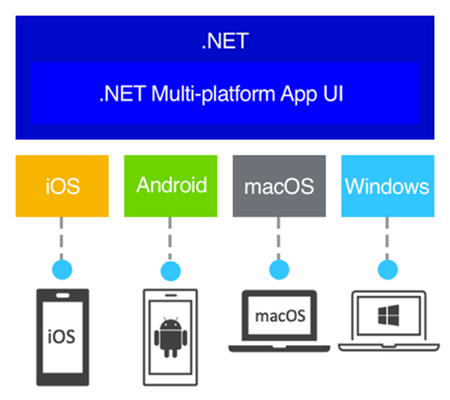
Explore Cross-Platform Development with .NET MAUI on Linux! Dive into the latest release of the .NET MAUI extension for Visual Studio Code, enabling Linux users to develop apps for Android, Windows, iOS, and macOS. This guide offers a step-by-step tutorial on setting up your Linux system for .NET MAUI development, including installation of essential tools and leveraging the C# Dev Kit extension. Whether you're working on Ubuntu or another Linux distribution, this article, enriched with a video walkthrough by Gerald Versluis, simplifies the journey to creating powerful, versatile applications with .NET MAUI.104KViews4likes12CommentsCreate Stunning AI Videos with Sora on Azure AI Foundry!
Special credit to Rory Preddy for creating the GitHub resource that enable us to learn more about Azure Sora. Reach him out on LinkedIn to say thanks. Introduction Artificial Intelligence (AI) is revolutionizing content creation, and video generation is at the forefront of this transformation. OpenAI's Sora, a groundbreaking text-to-video model, allows creators to generate high-quality videos from simple text prompts. When paired with the powerful infrastructure of Azure AI Foundry, you can harness Sora's capabilities with scalability and efficiency, whether on a local machine or a remote setup. In this blog post, I’ll walk you through the process of generating AI videos using Sora on Azure AI Foundry. We’ll cover the setup for both local and remote environments. Requirements: Azure AI Foundry with sora model access A Linux Machine/VM. Make sure that the machine already has the package below: Java JRE 17 (Recommended) OR later Maven Step Zero – Deploying the Azure Sora model on AI Foundry Navigate to the Azure AI Foundry portal and head to the “Models + Endpoints” section (found on the left side of the Azure AI Foundry portal) > Click on the “Deploy Model” button > “Deploy base model” > Search for Sora > Click on “Confirm”. Give a deployment name and specify the Deployment type > Click “Deploy” to finalize the configuration. You should receive an API endpoint and Key after successful deploying Sora on Azure AI Foundry. Store these in a safe place because we will be using them in the next steps. Step one – Setting up the Sora Video Generator in the local/remote machine. Clone the roryp/sora repository on your machine by running the command below: git clone https://github.com/roryp/sora.git cd sora Then, edit the application.properties file in the src/main/resources/ folder to include your Azure OpenAI Credentials. Change the configuration below: azure.openai.endpoint=https://your-openai-resource.cognitiveservices.azure.com azure.openai.api-key=your_api_key_here If port 8080 is used for another application, and you want to change the port for which the web app will run, change the “server.port” configuration to include the desired port. Allow appropriate permissions to run the “mvnw” script file. chmod +x mvnw Run the application ./mvnw spring-boot:run Open your browser and type in your localhost/remote host IP (format: [host-ip:port]) in the browser search bar. If you are running a remote host, please do not forget to update your firewall/NSG to allow inbound connection to the configured port. You should see the web app to generate video with Sora AI using the API provided on Azure AI Foundry. Now, let’s generate a video with Sora Video Generator. Enter a prompt in the first text field, choose the video pixel resolution, and set the video duration. (Due to technical limitation, Sora can only generate video of a maximum of 20 seconds). Click on the “Generate video” button to proceed. The cost to generate the video should be displayed below the “Generate Video” button, for transparency purposes. You can click on the “View Breakdown” button to learn more about the cost breakdown. The video should be ready to download after a maximum of 5 minutes. You can check the status of the video by clicking on the “Check Status” button on the web app. The web app will inform you once the download is ready and the page should refresh every 10 seconds to fetch real-time update from Sora. Once it is ready, click on the “Download Video” button to download the video. Conclusion Generating AI videos with Sora on Azure AI Foundry is a game-changer for content creators, marketers, and developers. By following the steps outlined in this guide, you can set up your environment, integrate Sora, and start creating stunning AI-generated videos. Experiment with different prompts, optimize your workflow, and let your imagination run wild! Have you tried generating AI videos with Sora or Azure AI Foundry? Share your experiences or questions in the comments below. Don’t forget to subscribe for more AI and cloud computing tutorials!1.7KViews0likes3CommentsVisual Studio AI Toolkit : Building Phi-3 GenAI Applications
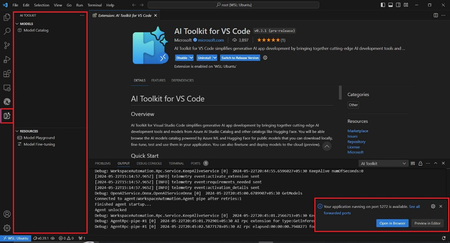
Port Forwarding, a valuable feature within the AI Toolkit, serves as a crucial gateway for seamless communication with the GenAI model. Whether it's through a straightforward API call or leveraging the SDKs, this functionality greatly enhances our ability to harness the power of the LLM/SLM. By enabling Port Forwarding, a plethora of new scenarios unfold, unlocking the full potential of our interactions with the model.10KViews2likes0CommentsAzure Database for MySQL
Dear partners, Please find attached two decks: 1) Build Critical Apps on a scalable MySQL Database 2) Build limitless, trusted business critical apps with Azure Database for MySQL Thanks. Regards, Shantanu Mane Director, Azure Partner Business Strategy Infrastructure Migration761Views0likes0CommentsLinux/ OSS DB Partner webinars
Dear partners, We are excited to announce Linux / OSS DB partner webinars! Azure Database for MySQL Webinar - August 9, 2023, 8 am PT Azure Hybrid Benefit for Linux Webinar - August 24, 2023, 8 am PT Azure Database for PostgreSQL Webinar - September 5, 2023, 8 am PT Please register! Thanks. Regards, Shantanu640Views1like0Comments