licensing & activation
209 Topics
M365 Business Standard renewal surprise: new subscription required!
Hi all, I wanted to share a recent experience in case it helps other Microsoft 365 admins. For many years, I have renewed several Microsoft 365 Business Standard subscriptions by purchasing annual product keys through the Microsoft eCompany Store and redeeming them in the Microsoft 365 Admin Center using the Extend end date workflow. This year, the renewal process suddenly stopped working. Symptoms When redeeming a newly purchased Microsoft 365 Business Standard key, the Admin Center displayed: "The product key you've entered can't be applied to this subscription. Instead, use this product key to add licenses to a new subscription." At first glance, this made no sense because: The existing subscription was Microsoft 365 Business Standard. The newly purchased product was also Microsoft 365 Business Standard. The purchase source was the same Microsoft eCompany Store that had been used previously. The renewal process had worked successfully for years. I initially suspected: Region mismatch Billing platform changes Subscription corruption Invalid product keys None of those turned out to be the cause. Investigation A few interesting findings: The subscription was still under MOSA (Microsoft Online Subscription Agreement). The keys were valid and recognized by Microsoft. The same behavior occurred with multiple Business Standard subscriptions. Redeeming from a US IP address vs. a non-US IP address made no difference. After multiple support escalations, Microsoft eventually confirmed that the behavior is by design. Root Cause (per Microsoft Support) Microsoft advised that although the product name is still Microsoft 365 Business Standard, the newly purchased keys belong to a different offer variant than the existing subscription. As a result: The keys are valid. The subscription is valid. However, the new keys cannot extend the existing subscription. The keys can only be used to create a new subscription. In other words, two products can both be called Microsoft 365 Business Standard while still being considered different offers internally. Workaround The Microsoft-recommended workaround was: Redeem the new product keys using Create Subscription. A new Microsoft 365 Business Standard subscription is created in the same tenant. Reassign users from the old subscription to the new one. Allow the old subscription to expire. The existing tenant, users, mailboxes, OneDrive, SharePoint, Teams, domains, etc. remain unchanged. Only the underlying subscription providing the licenses changes. Feedback The frustrating part was not the technical workaround. The issue was that there was no obvious indication prior to purchase that a Business Standard key purchased today would not be able to extend a Business Standard subscription that had historically been renewed using identical-looking keys from the same source. The eventual answer from Microsoft was reasonable, but it took over a week, multiple escalations, and considerable investigation to determine that the behavior was actually expected. Question for the community Has anyone else encountered this recently with: Microsoft 365 Business Standard eCompany Store purchases MOSA subscriptions Retail/prepaid product-key renewals I'm particularly interested in whether others have seen this offer-compatibility issue and whether future renewals of the newly created subscription behave normally. Thanks!339Views1like3Comments
Help Desk Sent Me Here...Help!
I'm getting the msg in a ribbon at the top of my excel files as follows: COULDN'T VERIFY SUBSCRIPTION Excel couldn't verify your Microsoft 365 subscription. Please make sure that you're connected to the Internet. ( I am ). we've rebooted several times, uninstalled, reinstalled etc. I can open all my excel files, but can't edit or save them. All dropdowns are "grayed" out. Microsoft Help Desk sent me here.156Views0likes2Comments
Microsoft 365 Family Subscription - Activation Issue
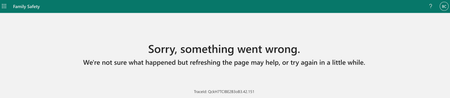
Hello Advice needed please. My wife has purchased a Microsoft 365 family subscription. She has emailed an invite to my Gmail account (apparently that is all correct). When I go through the steps to join, using my Hotmail address, I eventually end up at this screen. So, I am not able to activate my invite. I am on a brand new Apple Macbook Pro, so I know the issue is not the OS being out of date. I have also seen this update on the URL below, but not sure if that is the current blocker: https://support.microsoft.com/en-gb/home/contact?SourceApp=smc2&ContactUsExperienceEntryPointAssetId=login.live.com Any advice would really be appreciated. Thanks in advance Ben62Views0likes0Comments
Microsoft 365 Family Copilot Should Follow the Household
In my household, my 76-year-old mother pays for our Microsoft 365 Family subscription. She uses email and basic Office features and is unlikely to ever use Copilot. I, however, actively use Microsoft technologies and would benefit greatly from Copilot in Word, Excel, Outlook, and OneNote. Today, Copilot benefits included with Microsoft 365 Family are tied exclusively to the subscription owner. As a result, the person paying for the subscription receives an AI benefit they may never use, while another licensed family member who would use it every day cannot access it. I believe Microsoft should consider either allowing the Family owner to designate a Copilot beneficiary or allowing all Family members to draw from a shared monthly pool of AI credits. Microsoft 365 Family was designed around the concept of a household. The current Copilot policy does not always reflect how real families actually use Microsoft's products. If other subscribers have encountered the same issue, I would be interested in hearing your thoughts.79Views0likes0CommentsError Message 0x0 when trying to re-install Office 2019 on Mac Tahoe
Hello, I have a genuine Office Home & Student 2019 for Mac license, still listed in my Microsoft account under Services & Subscriptions and was added on March 30, 2022. Microsoft Support confirmed that my Office Home & Student 2019 license is genuine, valid, and should still be activatable. However, activation fails with error 0x0 immediately after entering my email. And the support argues that they ended their support years ago, that I should rather buy Office 2024. What makes me think this is not a local Mac issue is that Office stopped activating on my previous Mac (Big Sur) a few months ago, before I replaced it. I recently bought a new Mac and the exact same problem persists. My configuration: - MacBook Air M4 - macOS Tahoe - Office 16.78 (installed using the Microsoft-provided installer) - Office Home & Student 2019 perpetual license What I have already tried: - Reinstalling Office completely - Installing version 16.78 specifically recommended by Microsoft's support - Running the official Microsoft License Removal Tool - Removing Office containers and activation data - Restarting the Mac - Signing in with the Microsoft account that owns the license At this point, I'm wondering whether this may be related to Microsoft's activation services for older perpetual Office 2019 licenses rather than a problem on the Mac itself. Has anyone else seen error 0x0 during activation of Office 2019 for Mac recently? Any clues? I wonder if there’s a chance to make pressure also, as Microsoft sells license that are supposed to be perpetual… Thank you99Views2likes0Comments
Microsoft 365 Developer E5 license lacking endpoints and device ON defender portal
Dear Support Team, I am a microsoft certified trainer (MCT). I currently have a Microsoft 365 Developer E5 license assigned to my tenant. However, I have noticed that my Microsoft Defender portal (security.microsoft.com) is missing several critical features. For example, I cannot see the Endpoints or Devices menus, which is preventing me from implementing and testing Microsoft Defender for Endpoint. Additionally, my Azure tenant and Microsoft 365 tenant are separate. This has created challenges when configuring security services such as Microsoft Sentinel (SIEM), as certain prerequisites and integrations require configuration through the Microsoft Defender portal. Due to the missing Defender features, I am unable to complete the necessary setup. I would appreciate your assistance in understanding: Why the Endpoints and Devices sections are unavailable in my Defender portal despite having a Microsoft 365 Developer E5 license. Whether additional licensing, onboarding steps, or tenant configurations are required to enable Microsoft Defender for Endpoint features. How best to integrate or align my separate Azure and Microsoft 365 tenants to support services such as Microsoft Sentinel and Defender XDR. These issues are significantly impacting my ability to evaluate and implement Microsoft's security solutions. I would appreciate any guidance or recommendations to resolve them.635Views1like2Comments
How much of your Microsoft 365 environment can you actually see at once?
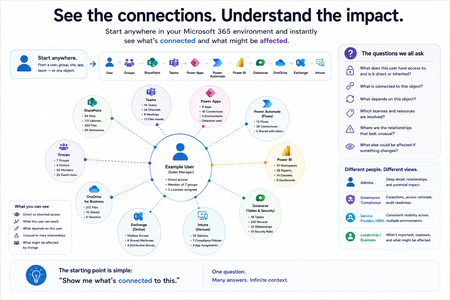
Not how many users you have. Not how many sites, teams, apps or flows you have. How much of it can you actually see connected together? I've been working across Microsoft 365 environments for a while, and I kept running into the same thing. There is no shortage of information. If anything, there is probably too much of it. Users, groups, permissions, SharePoint, Teams, Power Apps, Power Automate, Power BI, Dataverse, OneDrive, Exchange, Intune, licensing, configuration... It's all there. But when you're actually trying to understand how everything fits together, it can be a different story. You open one blade. Find something. Open another. Cross-check it. Go back. Open something else. Before long, you're jumping between different parts of the tenant trying to build the bigger picture in your head. And if you're working with larger environments, that gets difficult pretty quickly. The information isn't necessarily missing. The relationships between the information are what can be difficult to see. That got me thinking about a slightly different question: Instead of "where do I find this information?" "Show me what's connected to this." That's where VisibleState started. Start anywhere. Follow the connections. Imagine starting with a single user. Instead of seeing that user simply as a record with a list of properties, imagine being able to explore the relationships around them: User → Groups → SharePoint → Teams → Power Apps → Power Automate → Power BI → Dataverse → OneDrive → Exchange → Intune Then the questions become different: What does this user have access to? Is that access direct or coming through a group? What resources are connected to them? What depends on something they're associated with? Which licenses are involved? Are there relationships that look unusual? If something changes, what else might be affected? Those questions aren't necessarily about finding another piece of information. They're about putting information that already exists into context. A report can tell you that something exists. A connected view helps you understand what it is connected to. Illustrative example below — not a real customer environment. I'm not suggesting Microsoft 365 doesn't already give us this information Quite the opposite. Microsoft 365 already gives administrators an incredible amount of information and tooling. The thing I've been thinking about is what happens when you want to look across those boundaries. Sometimes I don't want another export. I don't want another list. I don't necessarily want another dashboard. I want to start with something I'm looking at and ask: "What's connected to this?" And then keep following the trail. That's the idea I'm exploring with VisibleState. The interesting part is what happens when you change the viewpoint The same relationships can be useful for completely different reasons. For example: Administrators may want to understand access, permissions and dependencies. Security and governance teams may want to find unusual relationships or exceptions. Compliance teams may need to understand who can access something and why. People managing multiple environments may want a consistent way to understand what's there without rebuilding the picture manually every time. Leadership may not need to see the graph at all. They may simply want to know what's important, what's exposed and what could be affected. It's still the same underlying environment. You're just looking at it from a different angle. And that's where I think things get interesting. Where I'm at with it VisibleState started as something I was building to make my own work easier. I was spending a lot of time investigating environments, tracing access and putting information together for reports. The individual tasks weren't necessarily difficult. It was the jumping between different places and reconstructing the bigger picture that took the time. So I started building something that would let me approach the environment through the relationships instead. It's grown quite a bit from where it started, and I'm continuing to build it. I'm not posting this as a product launch, and I'm not looking for people to sign up. I'm genuinely interested in whether the problem I'm seeing is familiar to other people working with Microsoft 365. So I'm curious... If you could start with any object in your Microsoft 365 environment and immediately see what it's connected to, where would you start? Would it be: Users and access Groups and permissions SharePoint and Teams Power Apps, Power Automate, Power BI and Dataverse Licensing and resources Governance and unusual relationships Something completely different Maybe you've already got a good way of doing this. Maybe you still find yourself jumping between different services and piecing things together manually. Or maybe I'm looking at the problem from the wrong direction. What's the one relationship in your Microsoft 365 environment that you wish you could see instantly?219Views0likes0CommentsEntra Admin Center Flags Licensing Problems with Conditional Access
The Entra admin center is flagging licensing gaps for conditional access. The messages are informational, not the beginning of a new automated billing procedure to charge tenants when Entra ID notices that some accounts use conditional access policies when they don’t have a license. In this article, we discuss the product license insight and how Microsoft measures conditional access usage, and show how to use PowerShell to find who’s using conditional access. https://office365itpros.com/2026/08/13/licensing-gaps-entra-id/368Views0likes0CommentsCost Savings In Microsoft 365
Long story short, I had a client say, "We have more M365 licensed users than employees. Please help us find them." It took me about a week to find all the waste (first time always takes forever). Now I've run the same steps for a dozen other clients (takes less than an hour now). On average, I've been able to save clients 22% of their budget. Thought I'd share exactly how I do it. There are 5 areas of waste in Microsoft 365: Remove licenses from disabled users. Remove licenses from inactive users. Downgrade licenses on over-licensed users. Stop paying for unassigned licenses. Redefine the license terms. NOTE: I have the steps using the admin center, PowerShell, and a third-party app, but it's too long to re-post in Reddit. Go to Microsoft 365 License Audit to see all the steps. Find Disabled Users Log in to the Microsoft 365 admin center. Users > Active Users > Export > Continue. Open the spreadsheet. In the Home Ribbon, click Sort & Filter > Filter Click the dropdown in the Licensed column > uncheck Unlicensed > click OK Click the dropdown in the Block credential column > uncheck FALSE > click OK. Find Inactive Users NOTE: You need to either have a Microsoft Entra P1 license or use a third-party app to get this data. Open Microsoft Entra Admin Center Users > Manage view > Edit columns. Remove, replace, or add so the only columns you can see are: Display name, User principal name, User type, Identities, Assign licenses, and Last interactive sign-in time. Click Save. Click Download users > Start bulk operation Wait for the success pop-up message to appear, then click the notification bell at the top of the page. Under the notifications menu, click Success!, and then select the [report name]. Open the downloaded spreadsheet. Click Sort & Filter > Filter to enable the column filters. Click the drop-down in the assignedLicenses column. Uncheck any empty options, i.e., []. Click OK. Click the drop-down in the signInActivity column. Click Sort A to Z. Any users who have an empty signInActivity or a sign-in that was over 30 days ago can be safely disabled, and the license removed after the data is properly secured. Find Downgradable Users Review the report located on the website, then click Export. Open the CSV in Excel. Next, download the Microsoft 365 apps spreadsheet by going back to Reports > Usage and clicking View More located under “Active users - Microsoft 365 Apps” Review the report and click Export. You can start by deleting everyone that you’ve already determined hasn’t logged on or is currently disabled. Add the filter by clicking Sort & Filter in the home ribbon > Filter. Add a column for Current Licenses. Copy the licenses from the How To Use The Admin Center To Find Inactive Users spreadsheet you downloaded earlier into the new column. Be sure to align the user names in both spreadsheets. Add a column for Microsoft 365 Apps. Copy the Last Activity Date column from the Pro Plus Usage report you downloaded above in step 7 into the Office 365 app usage spreadsheet you’ve been using. Be sure to align the new data with the appropriate users in the Office 365 app usage report. For each of the following columns, click the drop-down next to the column name and filter out any logins that have happened in the last month. OneDrive Last Activity Date SharePoint Last Activity Date Skype For Business Last Activity Date Yammer Last Activity Date Team’s Last Activity Date Microsoft 365 Apps The users who have not been filtered out are excellent candidates for Exchange Online-only licenses. You may want to double-check their usage of other apps before making any license changes on their accounts. Find Unassigned Licenses Open the Microsoft 365 admin center. Click Show All > Billing > Licenses. On that webpage, you’ll see a list of all your licenses in your organization, along with a column labeled “Available Licenses”. Any number above 0 in the Available Licenses column is typically safe to remove from your organization with two caveats. Some licenses aren’t assigned to users through the Microsoft 365 admin center. NOTE: Some licenses are consumed as they are used. For example, additional storage licenses for SharePoint Online may show as available, but removing them will decrease the amount of free space available in SharePoint Online and possibly cause a disruption to SharePoint Online usage. Redefine The License Terms Microsoft adjusted its pricing model, charging different rates for the same license based on commitment terms, billing frequency, or sector-specific eligibility. The subscription length Billing Frequency Go to the Microsoft 365 admin center Click Billing > Licenses > Select the license you want to review. Click ellipsis (…) next to the subscription > Manage subscription settings. You can view the billing settings right on this page.347Views1like3Comments