kql
312 Topics
Ingest Microsoft XDR Advanced Hunting Data into Microsoft Sentinel
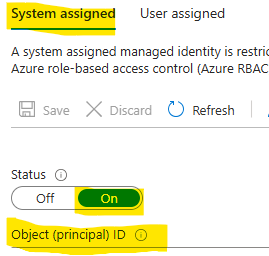
I had difficulty finding a guide that can query Microsoft Defender vulnerability management Advanced Hunting tables in Microsoft Sentinel for alerting and automation. As a result, I put together this guide to demonstrate how to ingest Microsoft XDR Advanced Hunting query results into Microsoft Sentinel using Azure Logic Apps and System‑Assigned Managed Identity. The solution allows you to: Run Advanced Hunting queries on a schedule Collect high‑risk vulnerability data (or other hunting results) Send the results to a Sentinel workspace as custom logs Create alerts and automation rules based on this data This approach avoids credential storage and follows least privilege and managed identity best practices. Prerequisites Before you begin, ensure you have: Microsoft Defender XDR access Microsoft Sentinel deployed Azure Logic Apps permission Application Administrator or higher in Microsoft Entra ID PowerShell with Az modules installed Contributor access to the Sentinel workspace Architecture at a Glance Logic App (Managed Identity) ↓ Microsoft XDR Advanced Hunting API ↓ Logic App ↓ Log Analytics Data Collector API ↓ Microsoft Sentinel (Custom Log) Step 1: Create a Logic App In the Azure Portal, go to Logic Apps Create a new Consumption Logic App Choose the appropriate: Subscription Resource Group Region Step 2: Enable System‑Assigned Managed Identity Open the Logic App Navigate to Settings → Identity Enable System‑assigned managed identity Click Save Note the Object ID This identity will later be granted permission to run Advanced Hunting queries. Step 3: Locate the Logic App in Entra ID Go to Microsoft Entra ID → Enterprise Applications Change filter to All Applications Search for your Logic App name Select the app to confirm it exists Step 4: Grant Advanced Hunting Permissions (PowerShell) Advanced Hunting permissions cannot be assigned via the portal and must be done using PowerShell. Required Permission AdvancedQuery.Read.All PowerShell Script # Your tenant ID (in the Azure portal, under Azure Active Directory > Overview). $TenantID=”Your TenantID” Connect-AzAccount -TenantId $TenantID # Get the ID of the managed identity for the app. $spID = “Your Managed Identity” # Get the service principal for Microsoft Graph by providing the AppID of WindowsDefender ATP $GraphServicePrincipal = Get-AzADServicePrincipal -Filter "AppId eq 'fc780465-2017-40d4-a0c5-307022471b92'" | Select-Object Id # Extract the Advanced query ID. $AppRole = $GraphServicePrincipal.AppRole | ` Where-Object {$_.Value -contains "AdvancedQuery.Read.All"} # If AppRoleID comes up with blank value, it can be replaced with 93489bf5-0fbc-4f2d-b901-33f2fe08ff05 # Now add the permission to the app to read the advanced queries New-AzADServicePrincipalAppRoleAssignment -ServicePrincipalId $spID -ResourceId $GraphServicePrincipal.Id -AppRoleId $AppRole.Id # Or New-AzADServicePrincipalAppRoleAssignment -ServicePrincipalId $spID -ResourceId $GraphServicePrincipal.Id -AppRoleId 93489bf5-0fbc-4f2d-b901-33f2fe08ff05 After successful execution, verify the permission under Enterprise Applications → Permissions. Step 5: Build the Logic App Workflow Open Logic App Designer and create the following flow: Trigger Recurrence (e.g., every 24 hours Run Advanced Hunting Query Connector: Microsoft Defender ATP Authentication: System‑Assigned Managed Identity Action: Run Advanced Hunting Query Sample KQL Query (High‑Risk Vulnerabilities) Send Data to Log Analytics (Sentinel) On Send Data, create a new connection and provide the workspace information where the Sentinel log exists. Obtaining the Workspace Key is not straightforward, we need to retrieve using the PowerShell command. Get-AzOperationalInsightsWorkspaceSharedKey ` -ResourceGroupName "<ResourceGroupName>" ` -Name "<WorkspaceName>" Configuration Details Workspace ID Primary key Log Type (example): XDRVulnerability_CL Request body: Results array from Advanced Hunting Step 6: Run the Logic app to return results In the logic app designer select run, If the run is successful data will be sent to sentinel workspace. Step 7: Validate Data in Microsoft Sentinel In Sentinel, run the query: XDRVulnerability_CL | where TimeGenerated > ago(24h) If data appears, ingestion is successful. Step 8: Create Alerts & Automation Rules Use Sentinel to: Create analytics rules for: CVSS > 9 Exploit available New vulnerabilities in last 24 hours Trigger: Email notifications Incident creation SOAR playbooks Conclusion By combining Logic Apps, Managed Identities, Microsoft XDR, and Microsoft Sentinel, you can create a powerful, secure, and scalable pipeline for ingesting hunting intelligence and triggering proactive detections.449Views2likes1Comment
Understand New Sentinel Pricing Model with Sentinel Data Lake Tier
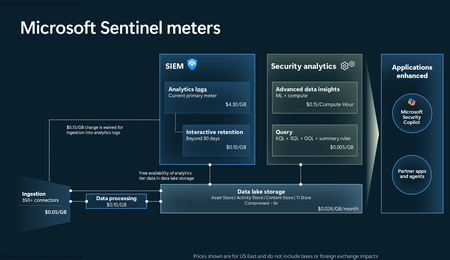
Introduction on Sentinel and its New Pricing Model Microsoft Sentinel is a cloud-native Security Information and Event Management (SIEM) and Security Orchestration, Automation, and Response (SOAR) platform that collects, analyzes, and correlates security data from across your environment to detect threats and automate response. Traditionally, Sentinel stored all ingested data in the Analytics tier (Log Analytics workspace), which is powerful but expensive for high-volume logs. To reduce cost and enable customers to retain all security data without compromise, Microsoft introduced a new dual-tier pricing model consisting of the Analytics tier and the Data Lake tier. The Analytics tier continues to support fast, real-time querying and analytics for core security scenarios, while the new Data Lake tier provides very low-cost storage for long-term retention and high-volume datasets. Customers can now choose where each data type lands—analytics for high-value detections and investigations, and data lake for large or archival types—allowing organizations to significantly lower cost while still retaining all their security data for analytics, compliance, and hunting. Please flow diagram depicts new sentinel pricing model: Now let's understand this new pricing model with below scenarios: Scenario 1A (PAY GO) Scenario 1B (Usage Commitment) Scenario 2 (Data Lake Tier Only) Scenario 1A (PAY GO) Requirement Suppose you need to ingest 10 GB of data per day, and you must retain that data for 2 years. However, you will only frequently use, query, and analyze the data for the first 6 months. Solution To optimize cost, you can ingest the data into the Analytics tier and retain it there for the first 6 months, where active querying and investigation happen. After that period, the remaining 18 months of retention can be shifted to the Data Lake tier, which provides low-cost storage for compliance and auditing needs. But you will be charged separately for data lake tier querying and analytics which depicted as Compute (D) in pricing flow diagram. Pricing Flow / Notes The first 10 GB/day ingested into the Analytics tier is free for 31 days under the Analytics logs plan. All data ingested into the Analytics tier is automatically mirrored to the Data Lake tier at no additional ingestion or retention cost. For the first 6 months, you pay only for Analytics tier ingestion and retention, excluding any free capacity. For the next 18 months, you pay only for Data Lake tier retention, which is significantly cheaper. Azure Pricing Calculator Equivalent Assuming no data is queried or analyzed during the 18-month Data Lake tier retention period: Although the Analytics tier retention is set to 6 months, the first 3 months of retention fall under the free retention limit, so retention charges apply only for the remaining 3 months of the analytics retention window. Azure pricing calculator will adjust accordingly. Scenario 1B (Usage Commitment) Now, suppose you are ingesting 100 GB per day. If you follow the same pay-as-you-go pricing model described above, your estimated cost would be approximately $15,204 per month. However, you can reduce this cost by choosing a Commitment Tier, where Analytics tier ingestion is billed at a discounted rate. Note that the discount applies only to Analytics tier ingestion—it does not apply to Analytics tier retention costs or to any Data Lake tier–related charges. Please refer to the pricing flow and the equivalent pricing calculator results shown below. Monthly cost savings: $15,204 – $11,184 = $4,020 per month Now the question is: What happens if your usage reaches 150 GB per day? Will the additional 50 GB be billed at the Pay-As-You-Go rate? No. The entire 150 GB/day will still be billed at the discounted rate associated with the 100 GB/day commitment tier bucket. Azure Pricing Calculator Equivalent (100 GB/ Day) Azure Pricing Calculator Equivalent (150 GB/ Day) Scenario 2 (Data Lake Tier Only) Requirement Suppose you need to store certain audit or compliance logs amounting to 10 GB per day. These logs are not used for querying, analytics, or investigations on a regular basis, but must be retained for 2 years as per your organization’s compliance or forensic policies. Solution Since these logs are not actively analyzed, you should avoid ingesting them into the Analytics tier, which is more expensive and optimized for active querying. Instead, send them directly to the Data Lake tier, where they can be retained cost-effectively for future audit, compliance, or forensic needs. Pricing Flow Because the data is ingested directly into the Data Lake tier, you pay both ingestion and retention costs there for the entire 2-year period. If, at any point in the future, you need to perform advanced analytics, querying, or search, you will incur additional compute charges, based on actual usage. Even with occasional compute charges, the cost remains significantly lower than storing the same data in the Analytics tier. Realized Savings Scenario Cost per Month Scenario 1: 10 GB/day in Analytics tier $1,520.40 Scenario 2: 10 GB/day directly into Data Lake tier $202.20 (without compute) $257.20 (with sample compute price) Savings with no compute activity: $1,520.40 – $202.20 = $1,318.20 per month Savings with some compute activity (sample value): $1,520.40 – $257.20 = $1,263.20 per month Azure calculator equivalent without compute Azure calculator equivalent with Sample Compute Conclusion The combination of the Analytics tier and the Data Lake tier in Microsoft Sentinel enables organizations to optimize cost based on how their security data is used. High-value logs that require frequent querying, real-time analytics, and investigation can be stored in the Analytics tier, which provides powerful search performance and built-in detection capabilities. At the same time, large-volume or infrequently accessed logs—such as audit, compliance, or long-term retention data—can be directed to the Data Lake tier, which offers dramatically lower storage and ingestion costs. Because all Analytics tier data is automatically mirrored to the Data Lake tier at no extra cost, customers can use the Analytics tier only for the period they actively query data, and rely on the Data Lake tier for the remaining retention. This tiered model allows different scenarios—active investigation, archival storage, compliance retention, or large-scale telemetry ingestion—to be handled at the most cost-effective layer, ultimately delivering substantial savings without sacrificing visibility, retention, or future analytical capabilities.Solved3.9KViews2likes6Comments
need to create monitoring queries to track the health status of data connectors
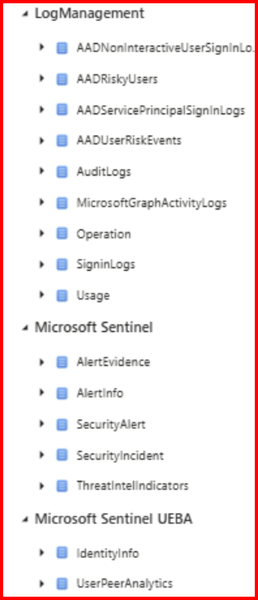
I'm working with Microsoft Sentinel and need to create monitoring queries to track the health status of data connectors. Specifically, I want to: Identify unhealthy or disconnected data connectors, Determine when a data connector last lost connection Get historical connection status information What I'm looking for: A KQL query that can be run in the Sentinel workspace to check connector status OR a PowerShell script/command that can retrieve this information Ideally, something that can be automated for regular monitoring Looking at the SentinelHealth table, but unsure about the exact schema,connector, etc Checking if there are specific tables that track connector status changes Using Azure Resource Graph or management APIs Ive Tried multiple approaches (KQL, PowerShell, Resource Graph) however I somehow cannot get the information I'm looking to obtain. Please assist with this, for example i see this microsoft docs page, https://learn.microsoft.com/en-us/azure/sentinel/monitor-data-connector-health#supported-data-connectors however I would like my query to state data such as - Last ingestion of tables? How much data has been ingested by specific tables and connectors? What connectors are currently connected? The health of my connectors? Please help619Views2likes3Comments
ASIM built-in functions in Sentinel, are they updated automatically?
Are the ASIM built-in functions in Sentinel automatically updated? For example, the built-in parsers such for DNS, NetworkSession, and WebSession. Do the built-in ones receive automatic updates or will the workspace-deployed versions of these parsers be the most up-to-date? And if true, would it be recommended to use workspace-deployed version of parsers that already come built-in?762Views2likes1CommentHunting AI Agent Configuration Drift with Microsoft Sentinel
Four KQL patterns for detecting instruction changes, new MCP servers, ownership changes, and organization-wide sharing I recently authored and contributed four new Microsoft Sentinel hunting queries for detecting security-relevant configuration drift in AI agents. They have been reviewed, approved, and merged into Microsoft's public Azure-Sentinel repository. I built the queries around four changes that can materially affect an agent's behavior, access, or exposure: instructions being modified, MCP servers being connected, owners being added, and sharing being expanded to the entire organization. Each modification may be legitimate, but each deserves enough context for a security team to verify that it was expected and authorized. For a security operations team, the difficult question is often not what does this agent look like now? It is what changed since the last known state? Microsoft Sentinel's AgentsInfo table provides inventory-style snapshots of AI agents and their associated configuration. That makes it useful for more than posture reporting. By comparing a recent snapshot with an earlier baseline, we can hunt for configuration drift that deserves investigation. This post walks through four practical hunting scenarios: Instructions changed on a previously published agent A newly observed MCP server on an existing agent An owner added to an MCP-enabled agent Sharing expanded from a restricted scope to the entire organization The complete hunting queries are available in Microsoft's public https://github.com/Azure/Azure-Sentinel/tree/master/Hunting%20Queries/AI%20Agents. The focus here is the detection design behind them, the KQL patterns they share, and the investigation questions they help answer. What I contributed I wrote the four standalone hunting queries discussed in this article and submitted them to Azure/Azure-Sentinel in https://github.com/Azure/Azure-Sentinel/pull/14702: AI Agents - Instructions changed on previously published agent AI Agents - Newly observed MCP server on existing agent AI Agents - Owner added to MCP-enabled agent AI Agents - Sharing expanded to organization-wide The contribution went through several rounds of technical review. Across six commits, I aligned the queries with the unified AgentsInfo schema, added schema-tolerant IdentityInfo enrichment, improved entity mappings, bounded the identity lookback, expanded all owner values, and kept the ATT&CK mappings limited to scenarios where a precise technique could be defended. Repository collaborator v-atulyadav approved the final revision, and the four queries were merged into master on July 20, 2026. This article explains the detection logic and engineering decisions behind that contribution rather than simply reproducing the final YAML files. Why current-state queries are not enough A current-state query can answer questions such as: Which agents are published? Which agents have MCP servers configured? Which agents are shared with the organization? Who owns a particular agent? Those are important posture questions, but they do not tell us whether the state is new. An agent with an MCP server might have been reviewed and approved months ago. The same MCP server appearing for the first time today is a different security signal. Configuration-drift hunting adds the missing time dimension. Instead of treating a risky-looking property as an event, it compares two states of the same agent and reports only meaningful transitions. The common detection pattern I used the same basic time model across all four hunts: let lookback = 14d; let recent = 2d; The latest snapshot observed during the last two days becomes the current state. The latest snapshot from the preceding portion of the 14-day lookback becomes the baseline. Conceptually, the comparison looks like this: let CurrentState = AgentsInfo | where Timestamp > ago(recent) | summarize arg_max(Timestamp, *) by AgentId | where LifecycleStatus != "Deleted"; let BaselineState = AgentsInfo | where Timestamp between (ago(lookback) .. ago(recent)) | where LifecycleStatus != "Deleted" | summarize arg_max(Timestamp, *) by AgentId; CurrentState | join kind=inner BaselineState on AgentId Several details matter here: arg_max(Timestamp, *) by AgentId selects the latest available state for each agent in the relevant time range. The inner join restricts results to agents that exist in both periods. A newly created agent is therefore not automatically treated as configuration drift on an existing agent. Deleted lifecycle snapshots are excluded so that a deletion record does not become the effective baseline or current configuration. The two-day current window is operationally significant. To retain coverage, these hunts should run within two days of a change. The 14-day and two-day values are practical defaults, not universal constants. Environments with different ingestion cadence or retention requirements can adjust them, but the current and baseline windows must remain non-overlapping. Scenario 1: Instructions changed on a published agent An agent's instructions define its default behavior, persona, and operating boundaries. Changing them can be part of normal development, but it can also weaken restrictions, redirect the agent's behavior, or modify how it uses connected capabilities. The first hunt compares the current and previous instruction values only when the agent was published in both snapshots: CurrentState | join kind=inner BaselineState on AgentId | where CurrentInstructions != PreviousInstructions | extend PreviousInstructionsHash = hash_sha256(PreviousInstructions), CurrentInstructionsHash = hash_sha256(CurrentInstructions), InstructionsLengthDelta = strlen(CurrentInstructions) - strlen(PreviousInstructions) I deliberately chose to expose hashes and a length delta rather than returning both instruction bodies in plaintext. This confirms that a change occurred without unnecessarily spreading potentially sensitive prompts through query results, exports, or screenshots. Useful investigation questions include: Was the change associated with an approved development or release process? Did the agent remain published while the instructions changed? Were guardrails, declared tools, permissions, or sharing settings modified around the same time? Do audit records identify an expected actor and change path? The query maps well to an integrity-focused investigation. Its MITRE ATT&CK mapping is T1565.001 (Stored Data Manipulation), but the result is still a hunting lead rather than proof of malicious manipulation. https://github.com/Azure/Azure-Sentinel/blob/master/Hunting%20Queries/AI%20Agents/AgentsInfoInstructionsChangedOnPublishedAgent.yaml Scenario 2: A newly observed MCP server Model Context Protocol servers can extend an agent with external tools, data sources, or actions. From a defender's perspective, the important transition is not simply that an MCP server exists. It is that a server name appears in the current configuration but was absent from the baseline. The query expands the dynamic McpServers array and builds a set of server names for each agent: let CurrentMcp = CurrentRaw | mv-expand Mcp = McpServers | extend McpName = tostring(Mcp.name) | where isnotempty(McpName) | summarize CurrentMcpServers = make_set(McpName) by AgentI It performs the same normalization for the baseline, then calculates the difference: | extend AddedMcpServers = set_difference(CurrentMcpServers, BaselineMcpServers) | where array_length(AddedMcpServers) > 0 Using set_difference() avoids raising a result merely because the order of array elements changed. The hunt reports only MCP server names present in the current set and absent from the previous set. An analyst should validate more than the displayed name: Is the MCP integration part of the approved inventory? What endpoint, authentication method, and permissions are associated with it? Which tools or data can the server expose to the agent? Was the integration introduced through an expected deployment path? Did ownership, instructions, or sharing change in the same period? I did not assign an ATT&CK technique to this query. Adding an MCP server does not, by itself, prove command execution, persistence, or a specific attacker behavior. Avoiding an overly broad mapping keeps the signal honest. https://github.com/Azure/Azure-Sentinel/blob/master/Hunting%20Queries/AI%20Agents/AgentsInfoNewlyObservedMcpServer.yaml Scenario 3: An owner added to an MCP-enabled agent Ownership is a control-plane relationship. A newly added owner may be able to modify an agent's configuration, instructions, integrations, or publication state. The risk becomes more interesting when the agent already has MCP servers configured. The hunt first limits the current state to MCP-enabled agents: | where array_length(coalesce(McpServers, dynamic([]))) > 0 | project AgentId, Timestamp, Name, Platform, CreatedDateTime, CurrentOwners = coalesce(Owners, dynamic([])), McpServers It then compares the owner arrays as sets: | extend AddedOwners = set_difference(CurrentOwners, PreviousOwners) | where array_length(AddedOwners) > 0 | mv-expand AddedOwnerId = AddedOwners to typeof(string) Expanding AddedOwners produces one row per newly observed owner. This is more useful than returning one opaque dynamic array because every added identity can be enriched, mapped, and investigated independently. I kept the raw object identifier in the result even when identity enrichment fails: | extend AddedOwnerUpn = AccountUpn, UnresolvedAddedOwnerId = iff(isempty(AccountUpn), AddedOwnerId, "") That fallback matters. A missing UPN should not hide the underlying ownership change. Investigation should establish: Is the added owner an expected person, service identity, or administrative group? Does the identity's role and business function justify control of this agent? Was the owner added before other configuration changes? Does the identity appear in related sign-in, audit, or privileged-access activity? Should ownership be removed while the change is reviewed? This query maps to T1098 (Account Manipulation) under Persistence and Privilege Escalation. As with the instruction-change hunt, the mapping frames an investigation hypothesis; it does not label every ownership change as malicious. https://github.com/Azure/Azure-Sentinel/blob/master/Hunting%20Queries/AI%20Agents/AgentsInfoOwnerAddedToMcpAgent.yaml Scenario 4: Sharing expanded to the entire organization An agent can move from a limited audience to organization-wide availability without changing its underlying tools or instructions. That transition can materially increase exposure, especially when the agent has MCP integrations or declared tools. The hunt treats "*" in SharedWith as the organization-wide state. The current snapshot must contain it, while the baseline must not: // Current state | where set_has_element(coalesce(SharedWith, dynamic([])), "*") // Baseline state | where not(set_has_element(coalesce(SharedWith, dynamic([])), "*")) The result also counts MCP servers and declared tools: | extend McpServerCount = array_length(coalesce(McpServers, dynamic([]))), DeclaredToolCount = array_length(coalesce(DeclaredTools, dynamic([]))) | extend HasElevatedCapabilities = McpServerCount > 0 or DeclaredToolCount > 0 | sort by HasElevatedCapabilities desc, Timestamp desc I use HasElevatedCapabilities as a prioritization field, not a verdict. It brings agents with connected capabilities to the top of the result set so analysts can review the potentially larger blast radius first. Questions for triage include: Was organization-wide publication explicitly approved? Is the agent intended for every user, or was a group-based scope expected? What data sources, tools, and MCP servers can organization-wide users reach through it? Do the instructions contain assumptions that were safe only for a restricted audience? Were access reviews or user-acceptance tests completed before the expansion? No ATT&CK mapping is assigned because a broader sharing scope is a security-relevant exposure change, but not a sufficiently precise adversary technique on its own. https://github.com/Azure/Azure-Sentinel/blob/master/Hunting%20Queries/AI%20Agents/AgentsInfoSharingExpandedToOrgWide.yaml Resolving owners without making the hunt schema-fragile The Owners field contains identifiers. Human-readable identity context makes results easier to triage, and entity mappings make those identities more useful in Sentinel investigations. I built a small, materialized IdentityInfo lookup that is shared by the four hunts: let IdentityIdtoUPN = materialize( IdentityInfo | extend ResolvedAccountUpn = tostring( column_ifexists("AccountUpn", column_ifexists("AccountUPN", ""))), IdentityTimestamp = todatetime( column_ifexists("Timestamp", column_ifexists("TimeGenerated", datetime(null)))) | where IdentityTimestamp >= ago(lookback) | where isnotempty(AccountObjectId) and isnotempty(ResolvedAccountUpn) | summarize arg_max(IdentityTimestamp, ResolvedAccountUpn) by AccountObjectId | project AccountObjectId = tostring(AccountObjectId), AccountUpn = ResolvedAccountUpn); There are three design choices worth noting: column_ifexists() accommodates observed IdentityInfo naming variants without maintaining separate query versions. The lookup is bounded by the same lookback period instead of scanning unbounded identity history. arg_max() keeps the latest usable identity record for each object ID. After enrichment, the queries map the account using the UPN components and the Entra object ID: entityMappings: - entityType: Account fieldMappings: - identifier: Name columnName: OwnerAccountName - identifier: UPNSuffix columnName: OwnerAccountUPNSuffix - identifier: AadUserId columnName: OwnerId The strong AadUserId identifier remains valuable even when display information changes. Microsoft Sentinel can use mapped entities in bookmarks and investigation experiences, so mapping the changed owner is more than cosmetic enrichment. Turning a result into an investigation These queries intentionally stop at the configuration transition. AgentsInfo tells us that two snapshots differ; it does not necessarily tell us who performed the change, through which interface, or whether the action was authorized. A practical investigation workflow is: Confirm that the two snapshots represent the expected agent and time period. Review the exact changed property and the agent's current capabilities. Identify the owner or newly added owner through IdentityInfo and Entra ID context. Correlate the transition with the relevant audit source for actor attribution. Check for related changes to permissions, tools, data sources, publication state, and sharing. Validate the change against an approved request, release, or ownership process. Restrict, unpublish, or revert the agent if the exposure cannot be justified. Expected changes can still be useful findings. Repeated legitimate results may reveal that a deployment process lacks a stable change window, that ownership is managed through noisy automation, or that the hunt's timing needs to be aligned with release activity. Tuning the hunts for your environment Before operational use, consider the following adjustments: Run cadence: Execute within the two-day current window. A daily cadence provides overlap without blending current and baseline periods. Lookback: Increase the 14-day lookback only if snapshot history and query cost support it. A longer lookback does not compensate for missing the current window. Known change windows: Add watchlists or environment-specific suppression logic for well-controlled automated deployments, while retaining enough context to audit the change. Agent scope: Filter by platform, business unit, agent naming convention, or owner if different teams require separate triage queues. Risk prioritization: Raise agents with sensitive declared data sources, powerful tools, privileged owners, or broad availability to the top of the result set. Audit correlation: Keep attribution logic separate unless the audit source and join keys are stable in your environment. This makes the configuration-drift hunt reusable while allowing each organization to attach its own control-plane evidence. Test with representative snapshots before treating any hunt as an operational control. In particular, validate array shapes for Owners, McpServers, and SharedWith, confirm the identity fields present in your workspace, and exercise both changed and unchanged states. Using the queries The four YAML definitions have been merged into the Hunting Queries/AI Agents folder of Microsoft's Azure-Sentinel repository. Each file contains the complete KQL, description, entity mappings, and ATT&CK mappings where a precise technique applies. https://github.com/Azure/Azure-Sentinel/blob/master/Hunting%20Queries/AI%20Agents/AgentsInfoInstructionsChangedOnPublishedAgent.yaml https://github.com/Azure/Azure-Sentinel/blob/master/Hunting%20Queries/AI%20Agents/AgentsInfoNewlyObservedMcpServer.yaml https://github.com/Azure/Azure-Sentinel/blob/master/Hunting%20Queries/AI%20Agents/AgentsInfoOwnerAddedToMcpAgent.yaml https://github.com/Azure/Azure-Sentinel/blob/master/Hunting%20Queries/AI%20Agents/AgentsInfoSharingExpandedToOrgWide.yaml The broader pattern is reusable beyond these four scenarios: select a stable current snapshot, select a non-overlapping baseline, normalize dynamic properties into comparable sets, calculate the transition, and enrich only after the drift has been identified. That keeps the core detection explainable and gives the analyst the before-and-after context needed for a defensible investigation. References https://learn.microsoft.com/en-us/azure/azure-monitor/reference/tables/agentsinfo https://learn.microsoft.com/en-us/azure/azure-monitor/reference/queries/agentsinfo https://learn.microsoft.com/en-us/azure/azure-monitor/reference/tables/identityinfo https://learn.microsoft.com/en-us/azure/sentinel/entities-reference https://github.com/Azure/Azure-Sentinel/pull/14702 I authored the four hunting queries discussed in this article and contributed them to Microsoft's Azure-Sentinel repository as https://github.com/Azure/Azure-Sentinel/pull/14702. The complete implementations and review history are publicly available through the links above.948Views1like2CommentsSecurity Copilot Integration with Microsoft Sentinel - Why Automation matters now
Security Operations Centers face a relentless challenge - the volume of security alerts far exceeds the capacity of human analysts. On average, a mid-sized SOC receives thousands of alerts per day, and analysts spend up to 80% of their time on initial triage. That means determining whether an alert is a true positive, understanding its scope, and deciding on next steps. With Microsoft Security Copilot now deeply integrated into Microsoft Sentinel, there is finally a practical path to automating the most time-consuming parts of this workflow. So I decided to walk you through how to combine Security Copilot with Sentinel to build an automated incident triage pipeline - complete with KQL queries, automation rule patterns, and practical scenarios drawn from common enterprise deployments. Traditional triage workflows rely on analysts manually reviewing each incident - reading alert details, correlating entities across data sources, checking threat intelligence, and making a severity assessment. This is slow, inconsistent, and does not scale. Security Copilot changes this equation by providing: Natural language incident summarization - turning complex, multi-alert incidents into analyst-readable narratives Automated entity enrichment - pulling threat intelligence, user risk scores, and device compliance state without manual lookups Guided response recommendations - suggesting containment and remediation steps based on the incident type and organizational context The key insight is that Copilot does not replace analysts - it handles the repetitive first-pass triage so analysts can focus on decision-making and complex investigations. Architecture - How the Pieces Fit Together The automated triage pipeline consists of four layers: Detection Layer - Sentinel analytics rules generate incidents from log data Enrichment Layer - Automation rules trigger Logic Apps that call Security Copilot Triage Layer - Copilot analyzes the incident, enriches entities, and produces a triage summary Routing Layer - Based on Copilot's assessment, incidents are routed, re-prioritized, or auto-closed (Forgive my AI-painted illustration here, but I find it a nice way to display dependencies.) +-----------------------------------------------------------+ | Microsoft Sentinel | | | | Analytics Rules --> Incidents --> Automation Rules | | | | | v | | Logic App / Playbook | | | | | v | | Security Copilot API | | +-----------------+ | | | Summarize | | | | Enrich Entities | | | | Assess Risk | | | | Recommend Action| | | +--------+--------+ | | | | | v | | +-----------------------------+ | | | Update Incident | | | | - Add triage summary tag | | | | - Adjust severity | | | | - Assign to analyst/team | | | | - Auto-close false positive| | | +-----------------------------+ | +-----------------------------------------------------------+ Step 1 - Identify High-Volume Triage Candidates Not every incident type benefits equally from automated triage. Start with alert types that are high in volume but often turn out to be false positives or low severity. Use this KQL query to identify your top candidates: SecurityIncident | where TimeGenerated > ago(30d) | summarize TotalIncidents = count(), AutoClosed = countif(Classification == "FalsePositive" or Classification == "BenignPositive"), AvgTimeToTriageMinutes = avg(datetime_diff('minute', FirstActivityTime, CreatedTime)) by Title | extend FalsePositiveRate = round(AutoClosed * 100.0 / TotalIncidents, 1) | where TotalIncidents > 10 | order by TotalIncidents desc | take 20 This query surfaces the incident types where automation will deliver the highest ROI. Based on publicly available data and community reports, the following categories consistently appear at the top: Impossible travel alerts (high volume, around 60% false positive rate) Suspicious sign-in activity from unfamiliar locations Mass file download and share events Mailbox forwarding rule creation Step 2 - Build the Copilot-Powered Triage Playbook Create a Logic App playbook that triggers on incident creation and leverages the Security Copilot connector. The core flow looks like this: Trigger: Microsoft Sentinel Incident - When an incident is created Action 1 - Get incident entities: let incidentEntities = SecurityIncident | where IncidentNumber == <IncidentNumber> | mv-expand AlertIds | join kind=inner (SecurityAlert | extend AlertId = SystemAlertId) on $left.AlertIds == $right.AlertId | mv-expand Entities | extend EntityData = parse_json(Entities) | project EntityType = tostring(EntityData.Type), EntityValue = coalesce( tostring(EntityData.HostName), tostring(EntityData.Address), tostring(EntityData.Name), tostring(EntityData.DnsDomain) ); incidentEntities Note: The <IncidentNumber> placeholder above is a Logic App dynamic content variable. When building your playbook, select the incident number from the trigger output rather than hardcoding a value. Action 2 - Copilot prompt session: Send a structured prompt to Security Copilot that requests: Analyze this Microsoft Sentinel incident and provide a triage assessment: Incident Title: {IncidentTitle} Severity: {Severity} Description: {Description} Entities involved: {EntityList} Alert count: {AlertCount} Please provide: 1. A concise summary of what happened (2-3 sentences) 2. Entity risk assessment for each IP, user, and host 3. Whether this appears to be a true positive, benign positive, or false positive 4. Recommended next steps 5. Suggested severity adjustment (if any) Action 3 - Parse and route: Use the Copilot response to update the incident. The Logic App parses the structured output and: Adds the triage summary as an incident comment Tags the incident with copilot-triaged Adjusts severity if Copilot recommends it Routes to the appropriate analyst tier based on the assessment Step 3 - Enrich with Contextual KQL Lookups Security Copilot's assessment improves dramatically when you feed it contextual data. Before sending the prompt, enrich the incident with organization-specific signals: // Check if the user has a history of similar alerts (repeat offender vs. first time) let userAlertHistory = SecurityAlert | where TimeGenerated > ago(90d) | mv-expand Entities | extend EntityData = parse_json(Entities) | where EntityData.Type == "account" | where tostring(EntityData.Name) == "<UserPrincipalName>" | summarize PriorAlertCount = count(), DistinctAlertTypes = dcount(AlertName), LastAlertTime = max(TimeGenerated) | extend IsRepeatOffender = PriorAlertCount > 5; userAlertHistory // Check user risk level from Entra ID Protection AADUserRiskEvents | where TimeGenerated > ago(7d) | where UserPrincipalName == "<UserPrincipalName>" | summarize arg_max(TimeGenerated, RiskLevel), RecentRiskEvents = count() | project RiskLevel, RecentRiskEvents Including this context in the Copilot prompt transforms generic assessments into organization-aware triage decisions. A "suspicious sign-in" for a user who travels internationally every week is very different from the same alert for a user who has never left their home country. Step 4 - Implement Feedback Loops Automated triage is only as good as its accuracy over time. Build a feedback mechanism by tracking Copilot's assessments against analyst final classifications: SecurityIncident | where Tags has "copilot-triaged" | where TimeGenerated > ago(30d) | where Classification != "" | mv-expand Comments | extend CopilotAssessment = extract("Assessment: (True Positive|False Positive|Benign Positive)", 1, tostring(Comments)) | where isnotempty(CopilotAssessment) | summarize Total = dcount(IncidentNumber), Correct = dcountif(IncidentNumber, (CopilotAssessment == "False Positive" and Classification == "FalsePositive") or (CopilotAssessment == "True Positive" and Classification == "TruePositive") or (CopilotAssessment == "Benign Positive" and Classification == "BenignPositive") ) by bin(TimeGenerated, 7d) | extend AccuracyPercent = round(Correct * 100.0 / Total, 1) | order by TimeGenerated asc For this query to work reliably, the automation playbook must write the assessment in a consistent format within the incident comments. Use a structured prefix such as Assessment: True Positive so the regex extraction remains stable. According to Microsoft's published benchmarks and community feedback, Copilot-assisted triage typically achieves 85-92% agreement with senior analyst classifications after prompt tuning - significantly reducing the manual triage burden. A Note on Licensing and Compute Units Security Copilot is licensed through Security Compute Units (SCUs), which are provisioned in Azure. Each prompt session consumes SCUs based on the complexity of the request. For automated triage at scale, plan your SCU capacity carefully - high-volume playbooks can accumulate significant usage. Start with a conservative allocation, monitor consumption through the Security Copilot usage dashboard, and scale up as you validate ROI. Microsoft provides detailed guidance on SCU sizing in the official Security Copilot documentation. Example Scenario - Impossible Travel at Scale Consider a typical enterprise that generates over 200 impossible travel alerts per week. The SOC team spends roughly 15 hours weekly just triaging these. Here is how automated triage addresses this: Detection - Sentinel's built-in impossible travel analytics rule flags the incidents Enrichment - The playbook pulls each user's typical travel patterns from sign-in logs over the past 90 days, VPN usage, and whether the "impossible" location matches any known corporate office or VPN egress point Copilot Analysis - Security Copilot receives the enriched context and classifies each incident Expected Result - Based on common deployment patterns, around 70-75% of impossible travel incidents are auto-closed as benign (VPN, known travel patterns), roughly 20% are downgraded to informational with a triage note, and only about 5% are escalated to analysts as genuine suspicious activity This type of automation can reclaim over 10 hours per week - time that analysts can redirect to proactive threat hunting. Getting Started - Practical Recommendations For teams ready to implement automated triage with Security Copilot and Sentinel, here is a recommended approach: Start small. Pick one high-volume, high-false-positive incident type. Do not try to automate everything at once. Run in shadow mode first. Have the playbook add triage comments but do not auto-close or re-route. Let analysts compare Copilot's assessment with their own for two to four weeks. Tune your prompts. Generic prompts produce generic results. Include organization-specific context - naming conventions, known infrastructure, typical user behavior patterns. Monitor accuracy continuously. Use the feedback loop KQL above. If accuracy drops below 80%, pause automation and investigate. Maintain human oversight. Even at 90%+ accuracy, keep a human review step for high-severity incidents. Automation handles volume - analysts handle judgment. The combination of Security Copilot and Microsoft Sentinel represents a genuine step forward for SOC efficiency. By automating the initial triage pass - summarizing incidents, enriching entities, and providing classification recommendations - analysts are freed to focus on what humans do best: making nuanced security decisions under uncertainty. Feel free to like or/and connect :)668Views1like0Comments
Sentinel Data Connector: Google Workspace (G Suite) (using Azure Functions)
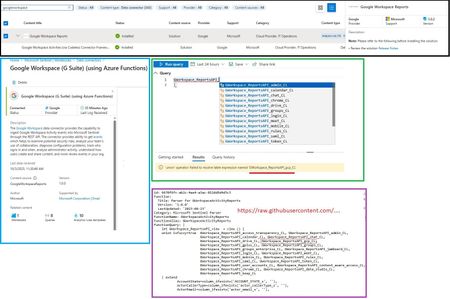
I'm encountering a problem when attempting to run the GWorkspace_Report workbook in Azure Sentinel. The query is throwing this error related to the union operator: 'union' operator: Failed to resolve table expression named 'GWorkspace_ReportsAPI_gcp_CL' I've double-checked, and the GoogleWorkspaceReports connector is installed and updated to version 3.0.2. Has anyone seen this or know what might be causing the table GWorkspace_ReportsAPI_gcp_CL to be unresolved? Thanks!648Views1like2CommentsDevice Tables are not ingesting tables for an orgs workspace
Device Tables are not ingesting tables for an orgs workspace. I can confirm that all devices are enrolled and onboarded to MDE (Microsoft defender for endpoint) I had placed an EICAR file on one of the machine which bought an alert through to sentinel,however this did not invoke any of the device related tables . Workspace i am targeting Workspace from another org with tables enabled and ingesting data Microsoft Defender XDR connector shows as connected however the tables do not seem to be ingesting data; I run the following; DeviceEvents | where TimeGenerated > ago(15m) | top 20 by TimeGenerated DeviceProcessEvents | where TimeGenerated > ago(15m) | top 20 by TimeGenerated I receive no results; No results found from the specified time range Try selecting another time range Please assist As I cannot think where this is failing223Views1like1Comment