k-12
25 TopicsEmbed Feature in OneDrive for Business
Why is there no Embed feature for OneDrive for Business? As a school with an Office365 tenancy and an active VLE we would like to be able to embed resources on pages the same way we can do it for OneDrive personal. Would have wished that MS had looked more at OneDrive personal when developing an education solution rather than the business based OneDrive for Business.Solved12KViews0likes5Comments
365 A3 for Faculty - cannot upgrade to Windows 10 edu (ent)
We recently purchased Microsoft 365 A3 for Faculty, we were assured that for educations users there was an upgrade path from home to Windows 10 Edu (comes with the 365 A3 for Faculty) . We have not been able to upgrade. Things we have tried: MDM, setting up MDM in intune, doesn't work with a rest on the home ed, or with a glpk on pro connecting user via azure (add work or school account) installing 10 pro and signing in with the domain account assigned the licence many command line product key tricks changing our domain and users to ***.onmicrosoft.com installing education and Enterprise editions installing the office apps setting up the education store to auto switch Contacting 365 support, activation support, support through our partner. Nothing we (or our partner) have done gets us closer (we have been working on this since Nov 30th). Any suggestions are greatly appreciated. Brad7KViews0likes1Comment
Video Editing Application
I would like to know if there are any plans by Microsoft to bring back video editing in the OS in some form or fashion. We are buying Macs just to create movies. It seems to me this would be a simple and realtively easy investment for Microsoft to make. ThanksSolved6.1KViews5likes7Comments
Porn and Edge
Edge circumvents local DNS. I put 1.1.1.3 and 1.0.0.3 in the local network interfaces and the router and the cablemodem. Chrome and Firefox won't let the 3rd graders surf porn, but Edge empowers 3rd graders to surf porn! What is the real purpose of this? Limited choices in Edge config for private dns i.e. 1.1.1.1 (no filter) is allowed but 1.1.1.3 (no porn/malware) is not allowed (as of last night). Sure is suspicious to those of us who argue against crimeware and child exploitation... and who are trying to protect the children (et al).4.8KViews0likes0CommentsMICROSOFT ENABLING REMOTE LEARNING COMMUNITY
For global EDU institutions looking to explore this space with O365 and MS Team Today we're announcing the Microsoft Enabling Remote Learning Community, a community for educational institutions around the world looking at remote learning programs with M365 and Teams. Share resources, get your questions answered and connect with Microsoft engineers about your remote learning needs. Learn more and sign up at aka.ms/JoinRemoteLearningCommunity2.1KViews2likes0Comments
Visual Studio Code on school computers and security
At my school, our teaching staff wants to move from Atom to Visual Studio Code on our lab computers (running MacOS). Our SysAdmin is telling me that we aren't allowed to install VSCode because of security policies. Their concern is that VSCode allows remote code execution (through extensions). I cannot find much information online in respect to security concerns with VSCode. How are other schools doing it? Are there ways to mitigate those security issues? Or are those security concerns mistaken? If you use VSCode at your school, I would love to hear more about this !2KViews0likes0CommentsHow to share/notify of a new Delve blog post
We are starting to experiment with the Delve blog function for internal school communications. But we can't figure out how to share out the new posts seamlessly. When we click the Share email icon, it tries to open up the mail app, but almost nobody uses that. They use OWA in the browser. Most haven't even configured the mail client. Is there any way to seamlessly share out the link? What about a subscription option for users to get it to notify them within O365 when the browser is open?1.8KViews1like1CommentMicrosoft 365 A1 for devices for students
I am looking to moving the students to Microsoft Surface SE laptops and to get Microsoft 365 A1 for devices for students for them. I bought one device and one of these licenses for testing purposes and assigned the license to the device group for the device, but it doesn't seem to work. The MS Office apps all say viewer since the student account is an M365 A1 but this license is supposed to provide not only the Intune support but the licensing for office. What needs to be done or configured for it to work with the device???1.5KViews0likes2CommentsGolden Path for Education - Part 1a
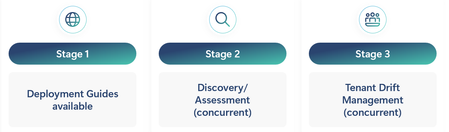
What is Golden Path Golden Path was developed to simplify and enhance the security of deploying a Microsoft 365 tenant solution in education. It consists of three stages: Stage 1: Deployment Guides are available online at Golden Path. This stage includes: Baseline - Stage 1a Standard - Stage 1b Advanced - Stage 1c Stage 2: A Discovery/Assessment AI tool is used to expose the tenant's configuration and analyze it against the tenant's license configurations, tenant and service settings, Microsoft's general education recommendations, and customer requirements. Stage 3: Drift Configuration management helps understand changes made against the established configuration in the tenant. These changes can be reversed or modified before any breaches or irregularities create problems. Goals and Objectives for Golden Path Goals Develop prescriptive deployment guides that provide a centralized resource with education-specific scenarios to assist organizations in defining, managing, and organizing their tenant and appropriate applications. Reduce the overall complexity of tenant and service deployment. Establish baseline recommended pathways to facilitate a common and agreed-upon configuration based on subject-matter experts. Utilize AI technology to uncover and compare recommended settings against user requirements based on documented configurations. Implement phased configurations to aid customers and partners in understanding what they may not know or should consider during discovery to meet customer expectations. Highlight unused features and products to ensure customers fully leverage the potential and benefits of their purchased product licenses. Identify opportunities for partner participation in achieving customer goals and expectations based on customer requirements and Golden Path findings. Create an easy pathway for customer change management to enhance control, security, compliance, and privacy of tenants. Develop custom assessments to evaluate product entry for items such as Copilot, Defender, Purview, Intune, Zero-Trust, and Microsoft Entra ID. Objectives Deliver information for features available (used/unused) to users based on license model. Prescriptive recommendations based on education scenarios. - Present upgrade license opportunities from A1 to A3 to A5. Security analysis exposing gaps and issues proactively to allow modifications before it's too late. Promote partner access to customers that have defined gaps based on assessments and are requesting partner assistance. Better discovery and assessment analysis with new tools. Designed to be more self-serving customer and partner access management. Speed up user adoption for educators and IT Admins alike. Baseline Stage 1a Baseline is stage 1a in the overall development of the Golden Path for Education. It is based on a majority of licenses within the tenant at the Microsoft 365 A1 for Education level. It also is a set of recommendations for ALL Microsoft Education tenants. Navigation Golden Path has three folders in the navigations. Golden Path Baseline References Golden Path folder consist of the Golden Path overall review. It goes over the entire program and the how and why it is built. Currently there are two pages, Golden Path overview and Baseline Overview. Golden Path overview menu Golden Path overview Stages (Deployment Guides, Discovery/Assessments, Drift Management) Modules (Setup, Identity, Applications, Security, and Devices) Phases (Baseline(A1), Standard(A3), Advanced(A5)) Baseline Overview Steps for each phase (Setup, Identity, Applications, Security, Devices) Licenses that are included General information links List of links for all applications and products included with A1 license List of links for all features included with A1 license Baseline menu Setup Tenant setup is key to establishing a secure and valid tenant. Setup goes through domain assignment, administration, and service management. Overview - Review all the steps that are part of the setup phase section Step 1 - Create your Office 365 tenant account Step 2 - Configure Security Center admin settings Step 3 - Secure and configure your network Step 4 - Sync your on-premises active directory Step 5 - Provision users Step 6 - Sync SIS with School Data Sync (SDS) Step 7 - License Users Identity Establishing an identity via Microsoft Entra ID and establishing authentication methods, Single Sign-On, and user procurement methodologies. Overview - Review all steps that are a part of the identity phase Step 1 - Understand identity definitions Step 2 - Configure Microsoft Entra ID basics Step 3 - Consider education identity steps Step 4 - Consider identity applications Step 5 - Set up access to operation services Step 6 - Set up identity lifecycle Step 7 - Configure security in identity Step 8 - Manage access controls Applications Applications like Microsoft Teams, SharePoint, OneDrive, Exchange Online are the core to a Microsoft tenant. Getting these applications setup are essential to allowing users in education to access services and apps like Learning Accelerators. Overview - Review all steps that are a part of the application phase Exchange Online o Step 1 - Design an Exchange Online environment o Step 2 - Set up Exchange Online o Step 3 - Configure compliance and security in Exchange Online o Step 4 - Configure address books, shared mailboxes, and clients Microsoft Teams o Overview - What is Microsoft Teams for Education o Step 1 - Configure Microsoft Teams for Education o Step 2 - Configure Microsoft Teams policies and settings for education organization OneDrive/SharePoint - Overview o Step 1 - Plan your OneDrive and SharePoint Deployment o Step 2 - Share within OneDrive and SharePoint o Step 3 - Configure security and access controls in OneDrive and SharePoint o Step 4 - Compliance considerations with OneDrive and SharePoint Security and Compliance Security via each phase is essential to maintaining order and blocking access for bad actors. Along with security compliance/privacy considerations that are established to adhere to a multitude of local and government requirements worldwide. Overview Step 1 - Security Considerations Devices Managed and unmanaged devices are another key to helping secure the network and potential cyber-security considerations that enter the network via these devices. Overview Step 1 - Review device management structure Step 2 - Plan device management Step 3 - Configure settings and applications Step 4 - Deploy and manage devices Windows 11 features and tips References menu Mulit-tenant solutions - Architectural recommendations base on multi or large tenant solutions. Accessibility Deploy Office 365 applications Pooled storage management How do you use Golden Path? Golden Path uses deployment guidelines content that contain education scenario specifics. Golden Path has a linked path for each modules based on the phase (Baseline,Standard,Advanced). Users can follow the deployment content to establish or redefine the tenant configuration in order to enable additional services and products. What’s Next Go to https://aka.ms/gp4edu to access the first part of Golden Path. Part 1b (Standard -A3 content) NEXT Part 1c (Advanced – A5 content) Part 2 - We will create a mechanism to discover the tenant configuration settings and allow customers and partners the ability to qualify what is set to standard recommendation. Using AI to deliver user requirements against the configuration will allow additional paths to enable services and features that allow the user/customer to achieve their objectives. Part 3 – Deliver drift management solution for management of unrealized or understood changes that need to be approved or modified.1.4KViews5likes1CommentUsing Teams as Admin Hub in Schools
I don't know if my concern is addressed anywhere. If it is, please point me to it. I am looking to propose Ms Teams as Admin hub in our school, however, there are a few areas of concern. One of them being security. Is it advisable to store high risk documents such as exams in Teams? What I envisage is having a Team per subject for admin/collaboration purposes between staff members. The assessment/exam would be stored in Teams, together with the memorandum/marking guidelines and the moderation of these, but if this can be accessed from any device, such as phone, tablet, laptop, which can be anywhere and at risk of being accessed by a family member - what are the implications and how does one address this concern? Currently, we are trying this out with a few individual staff members and it is working brilliantly. In the team we create a channel per assessment and keep everything together. The tabs can be used to display prominent documents. However, I am a but apprehensive to present this as a solution to the Principal because I know her first concern will be the security. One could implement a password policy on the document level but has anyone perhaps another solution or thought on this topic?1.4KViews0likes3Comments