itpro
4 TopicsAzure File Sync with ARC... Better together.
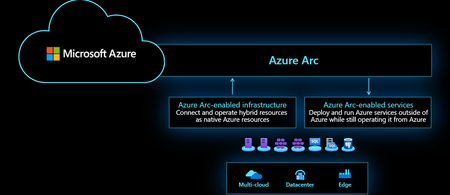
Hello Folks! Managing file servers across on-premises datacenters and cloud environments can be challenging for IT professionals. Azure File Sync (AFS) has been a game-changer by centralizing file shares in Azure while keeping your on-premises Windows servers in play. With AFS, a lightweight agent on a Windows file server keeps its files synced to an Azure file share, effectively turning the server into a cache for the cloud copy. This enables classic file server performance and compatibility, cloud tiering of cold data to save local storage costs, and capabilities like multi-site file access, backups, and disaster recovery using Azure’s infrastructure. Now, with the introduction of Azure Arc integration for Azure File Sync, it gets even better. Azure Arc, which allows you to project on-prem and multi-cloud servers into Azure for unified management, now offers an Azure File Sync agent extension that dramatically simplifies deployment and management of AFS on your hybrid servers. In this post, I’ll explain how this new integration works and how you can leverage it to streamline hybrid file server management, enable cloud tiering, and improve performance and cost efficiency. You can see the E2E 10-Minute Drill - Azure File sync with ARC, better together episode on YouTube below. Azure File Sync + Azure Arc: Better Together Azure File Sync has already enabled a hybrid cloud file system for many organizations. You install the AFS agent on a Windows Server (2016 or later) and register it with an Azure Storage Sync Service. From that point, the server’s designated folders continuously sync to an Azure file share. AFS’s hallmark feature is cloud tiering, older, infrequently used files can be transparently offloaded to Azure storage, while your active files stay on the local server cache. Users and applications continue to see all files in their usual paths; if someone opens a file that’s tiered, Azure File Sync pulls it down on-demand. This means IT pros can drastically reduce expensive on-premises storage usage without limiting users’ access to files. You also get multi-site synchronization (multiple servers in different locations can sync to the same Azure share), which is great for branch offices sharing data, and cloud backup/DR by virtue of having the data in Azure. In short, Azure File Sync transforms your traditional file server into a cloud-connected cache that combines the performance of local storage with the scalability and durability of Azure. Azure Arc comes into play to solve the management side of hybrid IT. Arc lets you project non-Azure machines (whether on-prem or even in other Clouds) into Azure and manage them alongside Azure VMs. An Arc-enabled server appears in the Azure portal and can have Extensions installed, which are components or agents that Azure can remotely deploy to the machine. Prior to now, installing or updating the Azure File Sync agent on a bunch of file servers meant handling each machine individually (via Remote Desktop, scripting, or System Center). This is where the Azure File Sync Agent Extension for Windows changes the game. Using the new Arc extension, deploying Azure File Sync is as easy as a few clicks. In the Azure Portal, if your Windows server is Arc-connected (i.e. the Azure Arc agent is installed and the server is registered in Azure), you can navigate to that server resource and simply Add the “Azure File Sync Agent for Windows” extension. The extension will automatically download and install the latest Azure File Sync agent (MSI) on the server. In other words, Azure Arc acts like a central deployment tool: you no longer need to manually log on or run separate install scripts on each server to set up or update AFS. If you have 10, 50, or 100 Arc-connected file servers, you can push Azure File Sync to all of them in a standardized way from Azure – a huge time saver for large environments. The extension also supports configuration options (like proxy settings or automatic update preferences) that you can set during deployment, ensuring the agent is installed with the right settings for your environment Note: The Azure File Sync Arc extension is currently Windows-only. Azure Arc supports Linux servers too, but the AFS agent (and thus this extension) works only on Windows Server 2016 or newer. So, you’ll need a Windows file server to take advantage of this feature (which is usually the case, since AFS relies on NTFS/Windows currently). Once the extension installs the agent, the remaining steps to fully enable sync are the same as a traditional Azure File Sync deployment: you register the server with your Storage Sync Service (if not done automatically) and then create a sync group linking a local folder (server endpoint) to an Azure file share (cloud endpoint). This can be done through the Azure portal, PowerShell, or CLI. The key point is that Azure Arc now handles the heavy lifting of agent deployment, and in the future, we may see even tighter integration where more of the configuration can be done centrally. For now, IT pros get a much simpler installation process – and once configured, all the hybrid benefits of Azure File Sync are in effect for your Arc-managed servers. Key Benefits for IT Pros: Azure File Sync + Azure Arc Centralized Management Azure Arc provides a single control plane in Azure to manage file services across multiple servers and locations. You can deploy updates or new agents at scale and monitor status from the cloud—reducing overhead and ensuring consistency. Simplified Deployment No manual installs. Azure Arc automates Azure File Sync setup by fetching and installing the agent remotely. Ideal for distributed environments, and easily integrated with automation tools like Azure CLI or PowerShell. Cost Optimization with Cloud Tiering Offload rarely accessed files to Azure storage to free local disk space and extend hardware life. Cache only hot data (10–20%) locally while leveraging Azure’s storage tiers for lower TCO. Improved Performance Cloud tiering keeps frequently used files local for LAN-speed access, reducing WAN latency. Active data stays on-site; inactive data moves to the cloud—delivering a smoother experience for distributed teams. Built-In Backup & DR Azure Files offers redundancy and point-in-time recovery via Azure Backup. If a server fails, you can quickly restore from Azure. Multi-site sync ensures continued access, supporting business continuity and cloud migration strategies. Getting Started with Azure File Sync via Arc Prepare Azure Arc and Servers Connect Windows file servers (Windows Server 2016+) to Azure Arc by installing the Connected Machine agent and onboarding them. Refer to Azure Arc documentation for setup. Deploy Azure File Sync Agent Extension Install the Azure File Sync agent extension on Arc-enabled servers using the Azure portal, PowerShell, or CLI. Verify the Azure Storage Sync Agent is installed on the server. See Microsoft Learn for detailed steps. Complete Azure File Sync Setup In the Azure portal, create or open a Storage Sync Service. Register the server and create a Sync Group to link a local folder (Server Endpoint) with an Azure File Share (Cloud Endpoint). Configure cloud tiering and free space settings as needed. Test and Monitor Allow time for initial sync. Test file access (including tiered files) and monitor sync status in the Azure portal. Use Azure Monitor for health alerts. Explore Advanced Features Enable options like cloud change enumeration, NTFS ACL sync, and Azure Backup for file shares to enhance functionality. Resources and Next Steps For more info and step-by-step guidance, check out these resources: Microsoft Learn – Azure File Sync Agent Extension on Azure Arc: Official documentation on installing and managing the AFS agent via Azure Arc. Azure File Sync Documentation: Comprehensive docs for Azure File Sync, including deployment guides, best practices, and troubleshooting. Azure Arc Documentation: Learn how to connect servers to Azure Arc and manage extensions. This is useful if you’re new to Arc or need to meet prerequisites for using the AFS extension. You, as an IT Pro, can provide your organization with the benefits of cloud storage – scalability, reliability, pay-as-you-go economics – while retaining the performance and control of on-premises file servers. All of this can be achieved with minimal overhead, thanks to the new Arc-delivered agent deployment and the powerful features of Azure File Sync. Check it out if you have not done so before. I highly recommend exploring this integration to modernize your file services. Cheers! Pierre Roman703Views1like0CommentsUnlocking Private IP for Azure Application Gateway: Security, Compliance, and Practical Deployment
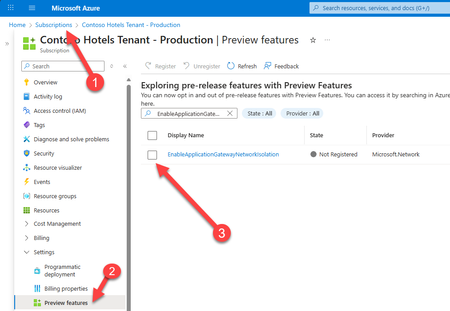
If you’re responsible for securing, scaling, and optimizing cloud infrastructure, this update is for you. Based on my recent conversation with Vyshnavi Namani, Product Manager on the Azure Networking team, I’ll break down what private IP means for your environment, why it matters, and how to get started. Why Private IP for Application Gateway? Application Gateway has long been the go-to Layer 7 load balancer for web traffic in Azure. It manages, routes, and secures requests to your backend resources, offering SSL offloading and integrated Web Application Firewall (WAF) capabilities. But until now, public IPs were the norm, meaning exposure to the internet and the need for extra security layers. With Private IP, your Application Gateway can be deployed entirely within your virtual network (VNet), isolated from public internet access. This is a huge win for organizations with strict security, compliance, or policy requirements. Now, your traffic stays internal, protected by Azure’s security layers, and only accessible to authorized entities within your ecosystem. Key Benefits for ITPRO 🔒 No Public Exposure With a private-only Application Gateway, no public IP is assigned. The gateway is accessible only via internal networks, eliminating any direct exposure to the public internet. This removes a major attack vector by keeping traffic entirely within your trusted network boundaries. 📌 Granular Network Control Private IP mode grants full control over network policies. Strict NSG rules can be applied (no special exceptions needed for Azure management traffic) and custom route tables can be used (including a 0.0.0.0/0 route to force outbound traffic through on-premises or appliance-based security checkpoints). ☑️ Compliance Alignment Internal-only gateways help meet enterprise compliance and data governance requirements. Sensitive applications remain isolated within private networks, aiding data residency and preventing unintended data exfiltration. Organizations with “no internet exposure” policies can now include Application Gateway without exception. Architectural Considerations and Deployment Prerequisites To deploy Azure Application Gateway with Private IP, you should plan for the following: SKU & Feature Enablement: Use the v2 SKU (Standard_v2 or WAF_v2). The Private IP feature is GA but may require opt-in via the EnableApplicationGatewayNetworkIsolation flag in Azure Portal, CLI, or PowerShell. Dedicated Subnet: Deploy the gateway in a dedicated subnet (no other resources allowed). Recommended size: /24 for v2. This enables clean NSG and route table configurations. NSG Configuration: Inbound: Allow AzureLoadBalancer for health probes and internal client IPs on required ports. Outbound: Allow only necessary internal destinations; apply a DenyAll rule to block internet egress. User-Defined Routes (UDRs): Optional but recommended for forced tunneling. Set 0.0.0.0/0 to route traffic through an NVA, Azure Firewall, or ExpressRoute gateway. Client Connectivity: Ensure internal clients (VMs, App Services, on-prem users via VPN/ExpressRoute) can reach the gateway’s private IP. Use Private DNS or custom DNS zones for name resolution. Outbound Dependencies: For services like Key Vault or telemetry, use Private Link or NAT Gateway if internet access is required. Plan NSG and UDRs accordingly. Management Access: Admins must be on the VNet or connected network to test or manage the gateway. Azure handles control-plane traffic internally via a management NIC. Migration Notes: Existing gateways may require redeployment to switch to private-only mode. Feature registration must be active before provisioning. Practical Scenarios Here are several practical scenarios where deploying Azure Application Gateway with Private IP is especially beneficial: 🔐 Internal-Only Web Applications Organizations hosting intranet portals, HR systems, or internal dashboards can use Private IP to ensure these apps are only accessible from within the corporate network—via VPN, ExpressRoute, or peered VNets. 🏥 Regulated Industries (Healthcare, Finance, Government) Workloads that handle sensitive data (e.g., patient records, financial transactions) often require strict network isolation. Private IP ensures traffic never touches the public internet, supporting compliance with HIPAA, PCI-DSS, or government data residency mandates. 🧪 Dev/Test Environments Development teams can deploy isolated environments for testing without exposing them externally. This reduces risk and avoids accidental data leaks during early-stage development. 🌐 Hybrid Network Architectures In hybrid setups where on-prem systems interact with Azure-hosted services, Private IP gateways can route traffic securely through ExpressRoute or VPN, maintaining internal-only access and enabling centralized inspection via NVAs. 🛡️ Zero Trust Architectures Private IP supports zero trust principles by enforcing least-privilege access, denying internet egress, and requiring explicit NSG rules for all traffic—ideal for organizations implementing segmented, policy-driven networks. Resources https://docs.microsoft.com/azure/application-gateway/ https://learn.microsoft.com/azure/application-gateway/configuration-overview https://learn.microsoft.com/azure/virtual-network/network-security-groups-overview https://learn.microsoft.com/azure/virtual-network/virtual-network-peering-overview Next Steps Evaluate Your Workloads: Identify apps and services that require internal-only access. Plan Migration: Map out your VNets, subnets, and NSGs for a smooth transition. Enable Private IP Feature: Register and deploy in your Azure subscription. Test Security: Validate that only intended traffic flows through your gateway. Final Thoughts Private IP for Azure Application Gateway is an improvement for secure, compliant, and efficient cloud networking. If you’re an ITPRO managing infrastructure, now’s the time check out this feature and level up your Azure architecture. Have questions or want to share your experience? Drop a comment below. Cheers! Pierre518Views1like0Comments