investigation
325 TopicsHunting AI Agent Configuration Drift with Microsoft Sentinel
Four KQL patterns for detecting instruction changes, new MCP servers, ownership changes, and organization-wide sharing I recently authored and contributed four new Microsoft Sentinel hunting queries for detecting security-relevant configuration drift in AI agents. They have been reviewed, approved, and merged into Microsoft's public Azure-Sentinel repository. I built the queries around four changes that can materially affect an agent's behavior, access, or exposure: instructions being modified, MCP servers being connected, owners being added, and sharing being expanded to the entire organization. Each modification may be legitimate, but each deserves enough context for a security team to verify that it was expected and authorized. For a security operations team, the difficult question is often not what does this agent look like now? It is what changed since the last known state? Microsoft Sentinel's AgentsInfo table provides inventory-style snapshots of AI agents and their associated configuration. That makes it useful for more than posture reporting. By comparing a recent snapshot with an earlier baseline, we can hunt for configuration drift that deserves investigation. This post walks through four practical hunting scenarios: Instructions changed on a previously published agent A newly observed MCP server on an existing agent An owner added to an MCP-enabled agent Sharing expanded from a restricted scope to the entire organization The complete hunting queries are available in Microsoft's public https://github.com/Azure/Azure-Sentinel/tree/master/Hunting%20Queries/AI%20Agents. The focus here is the detection design behind them, the KQL patterns they share, and the investigation questions they help answer. What I contributed I wrote the four standalone hunting queries discussed in this article and submitted them to Azure/Azure-Sentinel in https://github.com/Azure/Azure-Sentinel/pull/14702: AI Agents - Instructions changed on previously published agent AI Agents - Newly observed MCP server on existing agent AI Agents - Owner added to MCP-enabled agent AI Agents - Sharing expanded to organization-wide The contribution went through several rounds of technical review. Across six commits, I aligned the queries with the unified AgentsInfo schema, added schema-tolerant IdentityInfo enrichment, improved entity mappings, bounded the identity lookback, expanded all owner values, and kept the ATT&CK mappings limited to scenarios where a precise technique could be defended. Repository collaborator v-atulyadav approved the final revision, and the four queries were merged into master on July 20, 2026. This article explains the detection logic and engineering decisions behind that contribution rather than simply reproducing the final YAML files. Why current-state queries are not enough A current-state query can answer questions such as: Which agents are published? Which agents have MCP servers configured? Which agents are shared with the organization? Who owns a particular agent? Those are important posture questions, but they do not tell us whether the state is new. An agent with an MCP server might have been reviewed and approved months ago. The same MCP server appearing for the first time today is a different security signal. Configuration-drift hunting adds the missing time dimension. Instead of treating a risky-looking property as an event, it compares two states of the same agent and reports only meaningful transitions. The common detection pattern I used the same basic time model across all four hunts: let lookback = 14d; let recent = 2d; The latest snapshot observed during the last two days becomes the current state. The latest snapshot from the preceding portion of the 14-day lookback becomes the baseline. Conceptually, the comparison looks like this: let CurrentState = AgentsInfo | where Timestamp > ago(recent) | summarize arg_max(Timestamp, *) by AgentId | where LifecycleStatus != "Deleted"; let BaselineState = AgentsInfo | where Timestamp between (ago(lookback) .. ago(recent)) | where LifecycleStatus != "Deleted" | summarize arg_max(Timestamp, *) by AgentId; CurrentState | join kind=inner BaselineState on AgentId Several details matter here: arg_max(Timestamp, *) by AgentId selects the latest available state for each agent in the relevant time range. The inner join restricts results to agents that exist in both periods. A newly created agent is therefore not automatically treated as configuration drift on an existing agent. Deleted lifecycle snapshots are excluded so that a deletion record does not become the effective baseline or current configuration. The two-day current window is operationally significant. To retain coverage, these hunts should run within two days of a change. The 14-day and two-day values are practical defaults, not universal constants. Environments with different ingestion cadence or retention requirements can adjust them, but the current and baseline windows must remain non-overlapping. Scenario 1: Instructions changed on a published agent An agent's instructions define its default behavior, persona, and operating boundaries. Changing them can be part of normal development, but it can also weaken restrictions, redirect the agent's behavior, or modify how it uses connected capabilities. The first hunt compares the current and previous instruction values only when the agent was published in both snapshots: CurrentState | join kind=inner BaselineState on AgentId | where CurrentInstructions != PreviousInstructions | extend PreviousInstructionsHash = hash_sha256(PreviousInstructions), CurrentInstructionsHash = hash_sha256(CurrentInstructions), InstructionsLengthDelta = strlen(CurrentInstructions) - strlen(PreviousInstructions) I deliberately chose to expose hashes and a length delta rather than returning both instruction bodies in plaintext. This confirms that a change occurred without unnecessarily spreading potentially sensitive prompts through query results, exports, or screenshots. Useful investigation questions include: Was the change associated with an approved development or release process? Did the agent remain published while the instructions changed? Were guardrails, declared tools, permissions, or sharing settings modified around the same time? Do audit records identify an expected actor and change path? The query maps well to an integrity-focused investigation. Its MITRE ATT&CK mapping is T1565.001 (Stored Data Manipulation), but the result is still a hunting lead rather than proof of malicious manipulation. https://github.com/Azure/Azure-Sentinel/blob/master/Hunting%20Queries/AI%20Agents/AgentsInfoInstructionsChangedOnPublishedAgent.yaml Scenario 2: A newly observed MCP server Model Context Protocol servers can extend an agent with external tools, data sources, or actions. From a defender's perspective, the important transition is not simply that an MCP server exists. It is that a server name appears in the current configuration but was absent from the baseline. The query expands the dynamic McpServers array and builds a set of server names for each agent: let CurrentMcp = CurrentRaw | mv-expand Mcp = McpServers | extend McpName = tostring(Mcp.name) | where isnotempty(McpName) | summarize CurrentMcpServers = make_set(McpName) by AgentI It performs the same normalization for the baseline, then calculates the difference: | extend AddedMcpServers = set_difference(CurrentMcpServers, BaselineMcpServers) | where array_length(AddedMcpServers) > 0 Using set_difference() avoids raising a result merely because the order of array elements changed. The hunt reports only MCP server names present in the current set and absent from the previous set. An analyst should validate more than the displayed name: Is the MCP integration part of the approved inventory? What endpoint, authentication method, and permissions are associated with it? Which tools or data can the server expose to the agent? Was the integration introduced through an expected deployment path? Did ownership, instructions, or sharing change in the same period? I did not assign an ATT&CK technique to this query. Adding an MCP server does not, by itself, prove command execution, persistence, or a specific attacker behavior. Avoiding an overly broad mapping keeps the signal honest. https://github.com/Azure/Azure-Sentinel/blob/master/Hunting%20Queries/AI%20Agents/AgentsInfoNewlyObservedMcpServer.yaml Scenario 3: An owner added to an MCP-enabled agent Ownership is a control-plane relationship. A newly added owner may be able to modify an agent's configuration, instructions, integrations, or publication state. The risk becomes more interesting when the agent already has MCP servers configured. The hunt first limits the current state to MCP-enabled agents: | where array_length(coalesce(McpServers, dynamic([]))) > 0 | project AgentId, Timestamp, Name, Platform, CreatedDateTime, CurrentOwners = coalesce(Owners, dynamic([])), McpServers It then compares the owner arrays as sets: | extend AddedOwners = set_difference(CurrentOwners, PreviousOwners) | where array_length(AddedOwners) > 0 | mv-expand AddedOwnerId = AddedOwners to typeof(string) Expanding AddedOwners produces one row per newly observed owner. This is more useful than returning one opaque dynamic array because every added identity can be enriched, mapped, and investigated independently. I kept the raw object identifier in the result even when identity enrichment fails: | extend AddedOwnerUpn = AccountUpn, UnresolvedAddedOwnerId = iff(isempty(AccountUpn), AddedOwnerId, "") That fallback matters. A missing UPN should not hide the underlying ownership change. Investigation should establish: Is the added owner an expected person, service identity, or administrative group? Does the identity's role and business function justify control of this agent? Was the owner added before other configuration changes? Does the identity appear in related sign-in, audit, or privileged-access activity? Should ownership be removed while the change is reviewed? This query maps to T1098 (Account Manipulation) under Persistence and Privilege Escalation. As with the instruction-change hunt, the mapping frames an investigation hypothesis; it does not label every ownership change as malicious. https://github.com/Azure/Azure-Sentinel/blob/master/Hunting%20Queries/AI%20Agents/AgentsInfoOwnerAddedToMcpAgent.yaml Scenario 4: Sharing expanded to the entire organization An agent can move from a limited audience to organization-wide availability without changing its underlying tools or instructions. That transition can materially increase exposure, especially when the agent has MCP integrations or declared tools. The hunt treats "*" in SharedWith as the organization-wide state. The current snapshot must contain it, while the baseline must not: // Current state | where set_has_element(coalesce(SharedWith, dynamic([])), "*") // Baseline state | where not(set_has_element(coalesce(SharedWith, dynamic([])), "*")) The result also counts MCP servers and declared tools: | extend McpServerCount = array_length(coalesce(McpServers, dynamic([]))), DeclaredToolCount = array_length(coalesce(DeclaredTools, dynamic([]))) | extend HasElevatedCapabilities = McpServerCount > 0 or DeclaredToolCount > 0 | sort by HasElevatedCapabilities desc, Timestamp desc I use HasElevatedCapabilities as a prioritization field, not a verdict. It brings agents with connected capabilities to the top of the result set so analysts can review the potentially larger blast radius first. Questions for triage include: Was organization-wide publication explicitly approved? Is the agent intended for every user, or was a group-based scope expected? What data sources, tools, and MCP servers can organization-wide users reach through it? Do the instructions contain assumptions that were safe only for a restricted audience? Were access reviews or user-acceptance tests completed before the expansion? No ATT&CK mapping is assigned because a broader sharing scope is a security-relevant exposure change, but not a sufficiently precise adversary technique on its own. https://github.com/Azure/Azure-Sentinel/blob/master/Hunting%20Queries/AI%20Agents/AgentsInfoSharingExpandedToOrgWide.yaml Resolving owners without making the hunt schema-fragile The Owners field contains identifiers. Human-readable identity context makes results easier to triage, and entity mappings make those identities more useful in Sentinel investigations. I built a small, materialized IdentityInfo lookup that is shared by the four hunts: let IdentityIdtoUPN = materialize( IdentityInfo | extend ResolvedAccountUpn = tostring( column_ifexists("AccountUpn", column_ifexists("AccountUPN", ""))), IdentityTimestamp = todatetime( column_ifexists("Timestamp", column_ifexists("TimeGenerated", datetime(null)))) | where IdentityTimestamp >= ago(lookback) | where isnotempty(AccountObjectId) and isnotempty(ResolvedAccountUpn) | summarize arg_max(IdentityTimestamp, ResolvedAccountUpn) by AccountObjectId | project AccountObjectId = tostring(AccountObjectId), AccountUpn = ResolvedAccountUpn); There are three design choices worth noting: column_ifexists() accommodates observed IdentityInfo naming variants without maintaining separate query versions. The lookup is bounded by the same lookback period instead of scanning unbounded identity history. arg_max() keeps the latest usable identity record for each object ID. After enrichment, the queries map the account using the UPN components and the Entra object ID: entityMappings: - entityType: Account fieldMappings: - identifier: Name columnName: OwnerAccountName - identifier: UPNSuffix columnName: OwnerAccountUPNSuffix - identifier: AadUserId columnName: OwnerId The strong AadUserId identifier remains valuable even when display information changes. Microsoft Sentinel can use mapped entities in bookmarks and investigation experiences, so mapping the changed owner is more than cosmetic enrichment. Turning a result into an investigation These queries intentionally stop at the configuration transition. AgentsInfo tells us that two snapshots differ; it does not necessarily tell us who performed the change, through which interface, or whether the action was authorized. A practical investigation workflow is: Confirm that the two snapshots represent the expected agent and time period. Review the exact changed property and the agent's current capabilities. Identify the owner or newly added owner through IdentityInfo and Entra ID context. Correlate the transition with the relevant audit source for actor attribution. Check for related changes to permissions, tools, data sources, publication state, and sharing. Validate the change against an approved request, release, or ownership process. Restrict, unpublish, or revert the agent if the exposure cannot be justified. Expected changes can still be useful findings. Repeated legitimate results may reveal that a deployment process lacks a stable change window, that ownership is managed through noisy automation, or that the hunt's timing needs to be aligned with release activity. Tuning the hunts for your environment Before operational use, consider the following adjustments: Run cadence: Execute within the two-day current window. A daily cadence provides overlap without blending current and baseline periods. Lookback: Increase the 14-day lookback only if snapshot history and query cost support it. A longer lookback does not compensate for missing the current window. Known change windows: Add watchlists or environment-specific suppression logic for well-controlled automated deployments, while retaining enough context to audit the change. Agent scope: Filter by platform, business unit, agent naming convention, or owner if different teams require separate triage queues. Risk prioritization: Raise agents with sensitive declared data sources, powerful tools, privileged owners, or broad availability to the top of the result set. Audit correlation: Keep attribution logic separate unless the audit source and join keys are stable in your environment. This makes the configuration-drift hunt reusable while allowing each organization to attach its own control-plane evidence. Test with representative snapshots before treating any hunt as an operational control. In particular, validate array shapes for Owners, McpServers, and SharedWith, confirm the identity fields present in your workspace, and exercise both changed and unchanged states. Using the queries The four YAML definitions have been merged into the Hunting Queries/AI Agents folder of Microsoft's Azure-Sentinel repository. Each file contains the complete KQL, description, entity mappings, and ATT&CK mappings where a precise technique applies. https://github.com/Azure/Azure-Sentinel/blob/master/Hunting%20Queries/AI%20Agents/AgentsInfoInstructionsChangedOnPublishedAgent.yaml https://github.com/Azure/Azure-Sentinel/blob/master/Hunting%20Queries/AI%20Agents/AgentsInfoNewlyObservedMcpServer.yaml https://github.com/Azure/Azure-Sentinel/blob/master/Hunting%20Queries/AI%20Agents/AgentsInfoOwnerAddedToMcpAgent.yaml https://github.com/Azure/Azure-Sentinel/blob/master/Hunting%20Queries/AI%20Agents/AgentsInfoSharingExpandedToOrgWide.yaml The broader pattern is reusable beyond these four scenarios: select a stable current snapshot, select a non-overlapping baseline, normalize dynamic properties into comparable sets, calculate the transition, and enrich only after the drift has been identified. That keeps the core detection explainable and gives the analyst the before-and-after context needed for a defensible investigation. References https://learn.microsoft.com/en-us/azure/azure-monitor/reference/tables/agentsinfo https://learn.microsoft.com/en-us/azure/azure-monitor/reference/queries/agentsinfo https://learn.microsoft.com/en-us/azure/azure-monitor/reference/tables/identityinfo https://learn.microsoft.com/en-us/azure/sentinel/entities-reference https://github.com/Azure/Azure-Sentinel/pull/14702 I authored the four hunting queries discussed in this article and contributed them to Microsoft's Azure-Sentinel repository as https://github.com/Azure/Azure-Sentinel/pull/14702. The complete implementations and review history are publicly available through the links above.320Views1like2CommentsSentinel - Defender XDR KQL Queries Library
Hello all, I’ve been building something over the past few weeks that I think the security community might find useful. https://goxdr.fyi is a searchable KQL query library for Microsoft Sentinel and Defender XDR. The name comes from a nickname my colleagues gave me (GoX) combined with XDR. I also picked up https://goxdr.fyi as a short and easy to remember domain for it. You can check it out here: https://goxdr.fyi The idea came from my own day to day work as someone working in IAM and SOC operations. I constantly find myself writing and refining KQL queries for threat hunting, detection engineering and incident investigation. Over time I realized I had a growing collection of queries that I kept going back to and I thought why not make these available to others? It currently has 117 queries covering identity security, BEC/AiTM detection, NTLM and LDAP attack hunting, OAuth governance, AI/Copilot security, Sentinel alert trending, SOC performance metrics and more. Some of these queries are ones I wrote from scratch based on real scenarios I encountered in production environments. Others are community queries I tested and validated in my own setup. Only the ones I found genuinely useful and that actually worked against real data made it in. Each query comes with a description explaining what it detects and why it matters, along with severity levels, platform tags (Sentinel, XDR or both) and a copy button so you can paste it directly into Advanced Hunting or use it as the basis for an Analytics Rule. The site is open source, hosted on GitHub Pages and licensed under CC BY 4.0. No sign-up, no paywall, no tracking. The source is available. I’ll keep adding queries as new scenarios come up. If there’s enough interest I’m also considering adding Cortex XQL queries for Palo Alto environments. Suggestions, feedback or ideas for new detections are always welcome. Feel free to reach out. Thanks76Views0likes0Comments
Defender of XDR - Quarantine - Lack of filter/search options
Hi Microsoft, I love what you're doing with the Defender XDR portal, but could you please show some love to the Quarantine section soon? On a daily basis, I have to review emails caught in quarantine for false positives, and the lack of search and filtering options is appalling. As a company based in Denmark, 99% of legitimate emails come from .dk domains. Yet there is no way to search for or filter on something this simple. If I type .dk into the search box, I get 0 results, even though I can clearly see .dk sender addresses on the page. The filter options only allow me to enter full sender or recipient email addresses, which is of course almost useless in a quarantine-review context. Some examples of filters that would be extremely useful: Sender domain ends with .dk Sender domain contains .dk URL domain filtering Attachment name filtering Saved filter views More flexible search across message properties The Quarantine experience could be made dramatically better with relatively little effort. So please, pretty please, give the Quarantine portal some attention. It's often the part of Defender that security teams interact with every single day.132Views0likes4CommentsMicrosoft Defender Incident – Handling incident severity change
There's no dedicated history/audit endpoint for field-level transitions (like "this incident went from Low → High at timestamp X") in the /security/incidents Graph API — the incident object only exposes the current severity plus a lastUpdateDateTime, not a change log. So this isn't something you're missing; it genuinely doesn't exist as a queryable history today. Also worth knowing before you build around it: Graph change notifications (webhooks) are not documented as supported for /security/incidents — subscription/webhook support is only documented for the legacy /security/alerts resource, and that resource is deprecated with removal expected around April 2026. So polling is currently the only supported pattern for incidents specifically, not a limitation of your approach — there's no webhook alternative to fall back to yet. Given that, the fix is in your polling strategy, not in finding a hidden feature: instead of filtering once at creation time and then ignoring the incident, poll using $filter=lastUpdateDateTime gt {last_poll_timestamp}. Since lastUpdateDateTime bumps on any property change — including a severity escalation — this catches incidents that started as Low/Informational and later got escalated, without re-fetching everything. A pattern that works well in practice: GET /security/incidents?$filter=lastUpdateDateTime gt {last_poll_time}&$orderby=lastUpdateDateTime asc Then in your own store, diff the incoming severity against what you last recorded for that id to detect the transition yourself — you're effectively reconstructing the history client-side since the API won't give it to you natively. Store (incidentId, severity, lastUpdateDateTime) on each poll and compare. One gotcha: this still won't tell you the exact moment the severity changed if multiple fields changed between polls — only that it changed sometime between your last two poll timestamps. If you need second-level precision on transition timing, you'd need to poll more frequently (your 5-minute interval is probably fine for SOC triage purposes, but not for precise SLA timestamping).68Views0likes0CommentsCampaign-Centric Hunting with Microsoft Defender XDR and Microsoft Sentinel
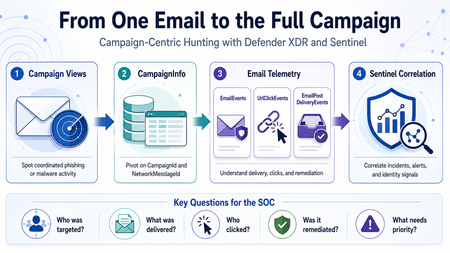
Phishing investigations usually start with one suspicious email. A user reports a message. An alert is generated. An analyst opens the email details, checks the sender, reviews the URL, and tries to understand whether the message is malicious. That is a normal starting point. However, in a real SOC investigation, one email is rarely the full story. Attackers usually operate in campaigns. They reuse sender infrastructure, similar subjects, URLs, payloads, templates, and delivery techniques. A single email may be only one part of a wider phishing or malware campaign targeting multiple users. This is why campaign-centric hunting is important. I wrote this article from the perspective of a SOC analyst who often needs to move quickly from a single suspicious email to the full campaign impact. The goal is simple: use Microsoft Defender XDR and Microsoft Sentinel together to understand who was targeted, what was delivered, who clicked, and what should be prioritized first. Why Campaign-Centric Hunting When investigating a phishing or malware email, analysts usually need to answer practical questions: How many users received messages from the same campaign? Were the messages blocked, junked, delivered, or remediated? Did any user click the URL? Did anyone click through a Safe Links warning? Were any priority or high-risk users affected? Was the email removed after delivery? Are there related Defender XDR or Sentinel incidents? If we only investigate one message, we may miss the bigger picture. Campaign-centric hunting helps the SOC move from this question: Is this email malicious? To this question: What is the full impact of this campaign? That shift is important because the response priority should be based on campaign impact, not only on a single alert. What Campaign Views Provides Campaign Views in Microsoft Defender for Office 365 help analysts investigate coordinated email attacks such as phishing and malware campaigns. From Campaign Views, analysts can review campaign-level information such as: Campaign name Campaign type Campaign subtype Targeted users Inboxed messages Clicked users Visited links Sender domains Sender IPs Payload URLs Delivery actions Campaign timeline Campaign flow This is useful during triage because it quickly shows whether an email is part of a wider attack. For example, one reported phishing message may look small at first. But if Campaign Views shows that the same campaign targeted 50 users, delivered messages to 15 inboxes, and had 2 users click the URL, the investigation becomes much more urgent. Where CampaignInfo Fits The CampaignInfo table gives analysts a KQL-based way to query campaign-related data. Some useful fields are: Field Purpose CampaignId Unique identifier for the campaign CampaignName Name of the campaign CampaignType Campaign category, such as Phish or Malware CampaignSubtype Additional context, such as brand being phished or malware family NetworkMessageId Unique identifier for the email message RecipientEmailAddress Recipient affected by the campaign Timestamp Time when the event was recorded For correlation, the most important field is usually: NetworkMessageId This field can help connect campaign data with other Defender XDR email tables, including: EmailEvents UrlClickEvents EmailPostDeliveryEvents EmailAttachmentInfo EmailUrlInfo This makes CampaignInfo a useful pivot table for campaign-level hunting. Important note: CampaignInfo is currently documented as Preview. Before using these queries in production analytics rules, validate the table availability, schema, and results in your own tenant. Practical Scenario An analyst receives a phishing alert in Microsoft Defender XDR. The alert is related to a user who received a suspicious email with a credential-harvesting URL. The analyst opens Campaign Views and sees that the message belongs to a wider phishing campaign. At that point, the investigation should not stop with the original user. The analyst should now ask: Who else received this campaign? How many messages were delivered? Which users clicked? Did any users click through the Safe Links warning? Were the messages removed after delivery? Are there related incidents in Microsoft Sentinel? The investigation flow could look like this: Start from Campaign Views in Microsoft Defender XDR. Identify the campaign details. Use CampaignInfo to list affected users and messages. Join with EmailEvents to validate delivery status. Join with UrlClickEvents to identify user interaction. Join with EmailPostDeliveryEvents to confirm remediation. Review related Microsoft XDR incidents in Microsoft Sentinel. Prioritize response based on campaign impact. Query 1: List Recent Campaigns The first query gives a simple overview of recent campaigns. CampaignInfo | where Timestamp > ago(14d) | summarize FirstSeen = min(Timestamp), LastSeen = max(Timestamp), AffectedUsers = dcount(RecipientEmailAddress), Messages = dcount(NetworkMessageId) by CampaignId, CampaignName, CampaignType, CampaignSubtype | order by LastSeen desc This helps analysts quickly identify campaigns that affected the organization during the selected period. Useful questions to ask from this output: Which campaigns are most recent? Which campaigns affected the most users? Are the campaigns phishing, malware, or spam? Is there a specific brand or malware family in the subtype? Are similar campaigns appearing repeatedly? Query 2: Understand Delivery Impact After identifying campaigns, the next step is to understand delivery impact. A campaign that was fully blocked is different from a campaign that reached user inboxes. let Campaigns = CampaignInfo | where Timestamp > ago(14d) | project CampaignId, CampaignName, CampaignType, CampaignSubtype, NetworkMessageId, RecipientEmailAddress; Campaigns | join kind=leftouter ( EmailEvents | where Timestamp > ago(14d) | project NetworkMessageId, RecipientEmailAddress, Subject, SenderFromAddress, SenderFromDomain, SenderIPv4, DeliveryAction, DeliveryLocation, ThreatTypes, DetectionMethods, Timestamp ) on NetworkMessageId, RecipientEmailAddress | summarize Messages = dcount(NetworkMessageId), AffectedUsers = dcount(RecipientEmailAddress), Subjects = make_set(Subject, 5), SenderDomains = make_set(SenderFromDomain, 10), SenderIPs = make_set(SenderIPv4, 10) by CampaignId, CampaignName, CampaignType, CampaignSubtype, DeliveryAction, DeliveryLocation | order by AffectedUsers desc, Messages desc This query helps separate campaigns that were blocked from campaigns that actually reached users. From a SOC perspective, delivered messages deserve closer attention, especially if they reached the inbox. Query 3: Identify Users Who Clicked Campaign URLs Delivery is important, but clicks usually increase the priority of the incident. This query joins campaign data with UrlClickEvents. let Campaigns = CampaignInfo | where Timestamp > ago(14d) | project CampaignId, CampaignName, CampaignType, CampaignSubtype, NetworkMessageId, RecipientEmailAddress; Campaigns | join kind=inner ( UrlClickEvents | where Timestamp > ago(14d) | project NetworkMessageId, AccountUpn, Url, ActionType, IsClickedThrough, ThreatTypes, DetectionMethods, IPAddress, Workload, ClickTime = Timestamp ) on NetworkMessageId | summarize FirstClick = min(ClickTime), LastClick = max(ClickTime), ClickEvents = count(), ClickedUsers = dcount(AccountUpn), ClickThroughUsers = dcountif(AccountUpn, IsClickedThrough == true), ClickedUrls = make_set(Url, 10), SourceIPs = make_set(IPAddress, 10) by CampaignId, CampaignName, CampaignType, CampaignSubtype | order by ClickThroughUsers desc, ClickedUsers desc, LastClick desc This query helps identify campaigns where users interacted with the payload. If a user clicked a phishing URL, the next step should usually include identity-focused investigation, such as reviewing sign-in activity, MFA status, session activity, and possible risky sign-ins. Query 4: Focus on Click-Through Events Safe Links may block access to a malicious site. In some cases, however, a user may continue through a warning page. Those cases should be reviewed carefully. let Campaigns = CampaignInfo | where Timestamp > ago(30d) | project CampaignId, CampaignName, CampaignType, CampaignSubtype, NetworkMessageId, RecipientEmailAddress; Campaigns | join kind=inner ( UrlClickEvents | where Timestamp > ago(30d) | where IsClickedThrough == true | project NetworkMessageId, AccountUpn, Url, ActionType, ThreatTypes, IPAddress, ClickTime = Timestamp ) on NetworkMessageId | project ClickTime, CampaignId, CampaignName, CampaignType, CampaignSubtype, AccountUpn, RecipientEmailAddress, Url, ActionType, ThreatTypes, IPAddress | order by ClickTime desc This is one of the most useful views during incident response. A click-through event does not automatically mean compromise, but it is a strong reason to investigate the user account further. Query 5: Confirm Post-Delivery Remediation A malicious message may be delivered first and removed later by ZAP, AIR, or manual remediation. This query joins CampaignInfo with EmailPostDeliveryEvents. let Campaigns = CampaignInfo | where Timestamp > ago(30d) | project CampaignId, CampaignName, CampaignType, CampaignSubtype, NetworkMessageId, RecipientEmailAddress; Campaigns | join kind=leftouter ( EmailPostDeliveryEvents | where Timestamp > ago(30d) | project NetworkMessageId, RecipientEmailAddress, RemediationTime = Timestamp, Action, ActionType, ActionTrigger, ActionResult, DeliveryLocation, SourceLocation ) on NetworkMessageId, RecipientEmailAddress | summarize RemediatedMessages = dcountif(NetworkMessageId, isnotempty(ActionType)), RemediationTypes = make_set(ActionType, 10), RemediationResults = make_set(ActionResult, 10), LastRemediation = max(RemediationTime) by CampaignId, CampaignName, CampaignType, CampaignSubtype | order by LastRemediation desc This helps answer a very important question: Were the delivered malicious messages actually removed? This is useful for both SOC triage and reporting because it shows not only detection, but also response. Query 6: Campaign Blast Radius Summary The following query combines campaign, delivery, click, and remediation data into one campaign-level view. let TimeRange = 30d; let Campaigns = CampaignInfo | where Timestamp > ago(TimeRange) | project CampaignId, CampaignName, CampaignType, CampaignSubtype, NetworkMessageId, RecipientEmailAddress; let Delivery = EmailEvents | where Timestamp > ago(TimeRange) | summarize DeliveryActions = make_set(DeliveryAction, 10), DeliveryLocations = make_set(DeliveryLocation, 10), DeliveredMessages = dcountif(NetworkMessageId, DeliveryAction =~ "Delivered"), JunkedMessages = dcountif(NetworkMessageId, DeliveryAction =~ "Junked"), BlockedMessages = dcountif(NetworkMessageId, DeliveryAction =~ "Blocked"), Subjects = make_set(Subject, 5), SenderDomains = make_set(SenderFromDomain, 10) by NetworkMessageId, RecipientEmailAddress; let Clicks = UrlClickEvents | where Timestamp > ago(TimeRange) | summarize ClickEvents = count(), ClickThroughEvents = countif(IsClickedThrough == true), FirstClick = min(Timestamp), LastClick = max(Timestamp), ClickedUrls = make_set(Url, 10) by NetworkMessageId; let Remediation = EmailPostDeliveryEvents | where Timestamp > ago(TimeRange) | summarize RemediationActions = make_set(ActionType, 10), LastRemediation = max(Timestamp) by NetworkMessageId, RecipientEmailAddress; Campaigns | join kind=leftouter Delivery on NetworkMessageId, RecipientEmailAddress | join kind=leftouter Clicks on NetworkMessageId | join kind=leftouter Remediation on NetworkMessageId, RecipientEmailAddress | summarize AffectedUsers = dcount(RecipientEmailAddress), Messages = dcount(NetworkMessageId), DeliveredMessages = sum(DeliveredMessages), JunkedMessages = sum(JunkedMessages), BlockedMessages = sum(BlockedMessages), TotalClickEvents = sum(ClickEvents), ClickThroughEvents = sum(ClickThroughEvents), Subjects = make_set(Subjects, 10), SenderDomains = make_set(SenderDomains, 10), ClickedUrls = make_set(ClickedUrls, 10), RemediationActions = make_set(RemediationActions, 10), LastClick = max(LastClick), LastRemediation = max(LastRemediation) by CampaignId, CampaignName, CampaignType, CampaignSubtype | extend SuggestedPriority = case( ClickThroughEvents > 0, "High", TotalClickEvents > 0, "Medium", DeliveredMessages > 0, "Medium", "Low" ) | order by SuggestedPriority asc, AffectedUsers desc, Messages desc This type of query can be useful during hunting sessions, incident review, and campaign reporting. The goal is not only to collect more data. The goal is to help the analyst decide what needs attention first. Correlating Campaign Activity with Microsoft Sentinel When Microsoft Defender XDR is connected to Microsoft Sentinel, incidents and alerts can be synchronized into the Sentinel incident queue. This allows the SOC to correlate campaign-related email activity with other security signals, such as: Suspicious sign-ins Identity alerts Endpoint alerts Cloud app activity OAuth consent activity Data exfiltration attempts Related Microsoft XDR incidents For example, if a user clicked a phishing URL, the SOC can then review whether the same user had suspicious sign-in activity shortly after the click. The following query is a simple starting point for reviewing Microsoft XDR incidents in Microsoft Sentinel. SecurityIncident | where TimeGenerated > ago(30d) | where ProviderName == "Microsoft XDR" | where Title has_any ("phish", "phishing", "email", "malware", "campaign") | summarize Incidents = count(), HighSeverity = countif(Severity == "High"), MediumSeverity = countif(Severity == "Medium"), Closed = countif(Status == "Closed"), Active = countif(Status == "Active") by bin(TimeGenerated, 1d) | order by TimeGenerated desc This query does not replace campaign hunting. It simply helps analysts understand how email-related activity is represented in the Sentinel incident queue. Suggested SOC Workflow A practical campaign-centric workflow could look like this: Step 1: Start from Campaign Views Review campaigns with delivered messages, clicked users, visited links, or high user impact. Step 2: Pivot to KQL Use CampaignInfo to list campaign-related messages and affected recipients. Step 3: Validate Delivery Join with EmailEvents to confirm whether messages were blocked, junked, delivered, or replaced. Step 4: Review User Interaction Join with UrlClickEvents to identify users who clicked URLs or clicked through Safe Links warnings. Step 5: Confirm Remediation Join with EmailPostDeliveryEvents to confirm whether delivered messages were removed after delivery. Step 6: Correlate in Sentinel Review related Microsoft XDR incidents and correlate with identity, endpoint, and cloud activity. Step 7: Decide Response Depending on the impact, the SOC may decide to: Escalate the incident Notify affected users Review user sign-ins Revoke user sessions Reset passwords Block sender domains or URLs Submit false negatives Create a watchlist for related indicators Tune analytics rules or response processes Suggested Priority Logic Not every campaign needs the same level of response. A simple triage model could be: Condition Suggested priority Campaign blocked before delivery Low Campaign delivered to junk Low to Medium Campaign delivered to inbox Medium Campaign delivered to multiple inboxes Medium to High User clicked URL High User clicked through warning High Priority account clicked High Click followed by suspicious sign-in Critical This model should be adapted to each organization’s risk profile and response process. Limitations and Things to Validate Before using this approach in production, validate the following: Defender for Office 365 Plan 2 availability Campaign Views permissions CampaignInfo table availability Defender XDR connector configuration Advanced hunting event streaming Field names in your environment Retention period Data latency Join behavior using NetworkMessageId Whether click events can be joined to email metadata in all cases One important limitation is that some URL click events may not join cleanly with email metadata. For example, clicks from Drafts or Sent Items may not have the same message metadata available for correlation. Also, because CampaignInfo is currently documented as Preview, I would avoid depending on it alone for critical production automation without testing and validation.193Views0likes0Comments
Pending Approval/Provisioning for Microsoft Defender XDR Lab/Trial Environment
Hello Microsoft Community Team, On June 26, 2026, our organization applied for a Microsoft 365 Developer Environment / Free Trial to support evaluation of the Microsoft Defender XDR Lab environment. To date, the environment has not been provisioned, and we have not received any status updates or confirmation. Impact: Current Status: We are currently utilizing our production environment to test project capabilities, which poses risks and limitations. Future Intent: Our organization plans to transition to a full, paid Business/Enterprise purchase immediately upon proving the platform’s benefits. Urgency: This delay is stalling our evaluation phase. We urgently need this environment onboarded and activated so we can proceed with deployment tests and subsequent procurement. Request: Please review the status of our registration and expedite the onboarding/provisioning of this developer environment. Thank you for your prompt assistance.74Views0likes1Comment
Agent 365 connector: Monitor, hunt, and investigate AI agent activity in Microsoft Sentinel
As enterprises scale the use of AI agents, SOC teams need visibility into AI agent behavior. The Agent 365 connector, now in public preview, streams rich agent telemetry from Agent 365 into Microsoft Sentinel data lake. Agent activity, such as agent data exposure or access drift, is surfaced alongside other security data, giving SOC teams a unified view across digital environments. AI Agent actions are correlated with agent identity, endpoint, and cloud signals, enabling analysts to run end‑to‑end investigations using KQL, graph, and MCP-powered workflows. Why this matters for organizations By centralizing security and AI agent telemetry in Sentinel data lake, organizations establish a unified control plane for securing AI agents. This enables security teams to analyze agent activity in context with broader signals and investigate using familiar Sentinel tools. This unlocks the ability for SOCs to detect risky or anomalous agent behavior early, understand impact quickly, and respond with speed and confidence. As AI agents take on real operational responsibility, this level of visibility is critical to prevent blind spots, reduce risk, and ensure agents operate safely at enterprise scale. End‑to‑end visibility into AI agent behavior: A centralized view of AI agent behavior allows AI agents to be treated as first-class entities alongside users, identities, endpoints, and workloads. Advanced hunting with KQL: Hunt using KQL to proactively uncover unusual AI agent execution patterns, sensitive actions, or activity without clear human context. These hunts help surface potential risk early using the same workflows already used for other security data. Analyzing blast radius and impact with Sentinel graph: Security teams can correlate AI agent activity with identities, endpoints, and cloud resources to understand blast radius and potential impact during an investigation. By pivoting across related entities in Sentinel, analysts can assess how agent actions connect to the broader environment and support deeper, end‑to‑end investigations. Querying agent data through MCP: Use MCP to surface agent observability data through AI assistants, letting analysts pull agent telemetry into investigation workflows alongside other Sentinel data. Agent 365 connector key capabilities Install the Agent 365 connector with a single click using Sentinel Content Hub in the Defender portal. Once enabled, two capabilities come online automatically: Unified agent telemetry across Agent 365 agent experiences: Rich Agent 365 agent telemetry streams into Sentinel data lake, ready to analyze alongside identity, endpoint, and cloud signals using familiar SOC workflows. ASIM unified schema for AI agent observability: Agent 365 agent observability data is normalized into an ASIM-aligned schema so it is consistent, queryable, and ready for analytics and detections. With the connector in place, Sentinel data lake becomes the system of record and the control plane for Agent 365 agent security—turning agent behavior into first-class security signals across SecOps workflows like hunting, investigation, detection engineering, and response. Use cases Prevent sensitive data exposure from misconfigured agents When an AI agent is granted broader access than intended, a crafted prompt could override safeguards and expose confidential data. With agent telemetry, security teams can trace the full execution path—from prompt to tools to data access—to quickly identify the root cause and contain the exposure. Detect and control agent access drift over time As agents take on new tasks, their permissions can expand beyond the original scope, often without clear visibility. Agent telemetry enables continuous behavioral baselining, making it easier to spot abnormal access patterns early and prevent privilege misuse before it escalates. Uncover hidden lateral movement across agent workflows Agents often collaborate and delegate tasks across systems, creating complex chains of execution that are difficult to track. Agent telemetry provides visibility into these interactions, mapping delegation paths and helping teams understand and limit the potential blast radius. Defend against prompt injection and manipulation attacks Attackers can craft prompts to override agent instructions and manipulate behavior. By capturing prompts and reasoning flows, agent telemetry enables detection of these attacks and provides the context needed to investigate and remediate quickly. Accelerate SOC investigations with end-to-end visibility When an agent is involved in a security alert, understanding its actions can be challenging. Agent telemetry correlates prompts, identities, tools, and data access into a unified timeline, giving SOC teams the clarity needed to investigate faster and respond with confidence. Strengthen governance and compliance for AI agents Organizations need visibility into what agents exist and what data they can access. Agent telemetry provides a comprehensive audit trail of agent activity and access patterns, supporting compliance reporting and policy enforcement. Enable proactive threat hunting on agent behavior Security teams need to stay ahead of emerging risks as agent usage grows. Agent telemetry enables advanced hunting across agent activity, helping detect anomalies, uncover patterns, and identify threats before they impact the organization. Get started with Agent 365 connector Getting started is straightforward. In the Microsoft Defender portal, navigate to Microsoft Sentinel Open Content hub and search for Agent 365 Install the Agent 365 Connector (if not already installed) Open the connector page and select Connect to begin ingestion Once connected, AI agent telemetry starts flowing into Sentinel, ready for hunting, investigation, and response. Data ingestion and analytics are billed using existing Sentinel meters. Learn more Find the Agent 365 data connector | Microsoft Learn Discover and manage Sentinel out-of-the-box content | Microsoft Learn Connect data sources to Sentinel by using data connectors | Microsoft Learn Sample KQL queries for Sentinel data lake | Microsoft Learn Watch the Sentinel data lake video playlist | Microsoft Security Get started with Sentinel data lake | Microsoft Learn2.5KViews1like0CommentsMicrosoft Sentinel MCP Entity Analyzer: Explainable risk analysis for URLs and identities
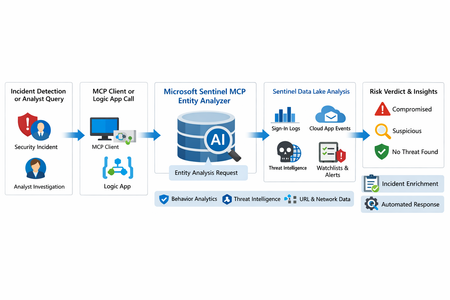
What makes this release important is not just that it adds another AI feature to Sentinel. It changes the implementation model for enrichment and triage. Instead of building and maintaining a chain of custom playbooks, KQL lookups, threat intel checks, and entity correlation logic, SOC teams can call a single analyzer that returns a reasoned verdict and supporting evidence. Microsoft positions the analyzer as available through Sentinel MCP server connections for agent platforms and through Logic Apps for SOAR workflows, which makes it useful both for interactive investigations and for automated response pipelines. Why this matters First, it formalizes Entity Analyzer as a production feature rather than a preview experiment. Second, it introduces a real cost model, which means organizations now need to govern usage instead of treating it as a free enrichment helper. Third, Microsoft’s documentation is now detailed enough to support repeatable implementation patterns, including prerequisites, limits, required tables, Logic Apps deployment, and cost behavior. From a SOC engineering perspective, Entity Analyzer is interesting because it focuses on explainability. Microsoft describes the feature as generating clear, explainable verdicts for URLs and user identities by analyzing multiple modalities, including threat intelligence, prevalence, and organizational context. That is a much stronger operational model than simple point-enrichment because it aims to return an assessment that analysts can act on, not just more raw evidence What Entity Analyzer actually does The Entity Analyzer tools are described as AI-powered tools that analyze data in the Microsoft Sentinel data lake and provide a verdict plus detailed insights on URLs, domains, and user entities. Microsoft explicitly says these tools help eliminate the need for manual data collection and complex integrations usually required for investigation and enrichment hat positioning is important. In practice, many SOC teams have built enrichment playbooks that fetch sign-in history, query TI feeds, inspect click data, read watchlists, and collect relevant alerts. Those workflows work, but they create maintenance overhead and produce inconsistent analyst experiences. Entity Analyzer centralizes that reasoning layer. For user entities, Microsoft’s preview architecture explains that the analyzer retrieves sign-in logs, security alerts, behavior analytics, cloud app events, identity information, and Microsoft Threat Intelligence, then correlates those signals and applies AI-based reasoning to produce a verdict. Microsoft lists verdict examples such as Compromised, Suspicious activity found, and No evidence of compromise, and also warns that AI-generated content may be incorrect and should be checked for accuracy. That warning matters. The right way to think about Entity Analyzer is not “automatic truth,” but “high-value, explainable triage acceleration.” It should reduce analyst effort and improve consistency, while still fitting into human review and response policy. Under the hood: the implementation model Technically, Entity Analyzer is delivered through the Microsoft Sentinel MCP data exploration tool collection. Microsoft documents that entity analysis is asynchronous: you start analysis, receive an identifier, and then poll for results. The docs note that analysis may take a few minutes and that the retrieval step may need to be run more than once if the internal timeout is not enough for long operations. That design has two immediate implications for implementers. First, this is not a lightweight synchronous enrichment call you should drop carelessly into every automation branch. Second, any production workflow should include retry logic, timeouts, and concurrency controls. If you ignore that, you will create fragile playbooks and unnecessary SCU burn. The supported access path for the data exploration collection requires Microsoft Sentinel data lake and one of the supported MCP-capable platforms. Microsoft also states that access to the tools is supported for identities with at least Security Administrator, Security Operator, or Security Reader. The data exploration collection is hosted at the Sentinel MCP endpoint, and the same documentation notes additional Entity Analyzer roles related to Security Copilot usage. The prerequisite many teams will miss The most important prerequisite is easy to overlook: Microsoft Sentinel data lake is required. This is more than a licensing footnote. It directly affects data quality, analyzer usefulness, and rollout success. If your organization has not onboarded the right tables into the data lake, Entity Analyzer will either fail or return reduced-confidence output. For user analysis, the following tables are required to ensure accuracy: AlertEvidence, SigninLogs, CloudAppEvents, and IdentityInfo. also notes that IdentityInfo depends on Defender for Identity, Defender for Cloud Apps, or Defender for Endpoint P2 licensing. The analyzer works best with AADNonInteractiveUserSignInLogs and BehaviorAnalytics as well. For URL analysis, the analyzer works best with EmailUrlInfo, UrlClickEvents, ThreatIntelIndicators, Watchlist, and DeviceNetworkEvents. If those tables are missing, the analyzer returns a disclaimer identifying the missing sources A practical architecture view An incident, hunting workflow, or analyst identifies a high-interest URL or user. A Sentinel MCP client or Logic App calls Entity Analyzer. Entity Analyzer queries relevant Sentinel data lake sources and correlates the findings. AI reasoning produces a verdict, evidence narrative, and recommendations. The result is returned to the analyst, incident record, or automation workflow for next-step action. This model is especially valuable because it collapses a multi-query, multi-tool investigation pattern into a single explainable decisioning step. Where it fits in real Sentinel operations Entity Analyzer is not a replacement for analytics rules, UEBA, or threat intelligence. It is a force multiplier for them. For identity triage, it fits naturally after incidents triggered by sign-in anomaly detections, UEBA signals, or Defender alerts because it already consumes sign-in logs, cloud app events, and behavior analytics as core evidence sources. For URL triage, it complements phishing and click-investigation workflows because it uses TI, URL activity, watchlists, and device/network context. Implementation path 1: MCP clients and security agents Microsoft states that Entity Analyzer integrates with agents through Sentinel MCP server connections to first-party and third-party AI runtime platforms. In practice, this makes it attractive for analyst copilots, engineering-side investigation agents, and guided triage experiences The benefit of this model is speed. A security engineer or analyst can invoke the analyzer directly from an MCP-capable client without building a custom orchestration layer. The tradeoff is governance: once you make the tool widely accessible, you need a clear policy for who can run it, when it should be used, and how results are validated before action is taken. Implementation path 2: Logic Apps and SOAR playbooks For SOC teams, Logic Apps is likely the most immediately useful deployment model. Microsoft documents an entity analyzer action inside the Microsoft Sentinel MCP tools connector and provides the required parameters for adding it to an existing logic app. These include: Workspace ID Look Back Days Properties payload for either URL or User The documented payloads are straightforward: { "entityType": "Url", "url": "[URL]" } And { "entityType": "User", "userId": "[Microsoft Entra object ID or User Principal Name]" } Also states that the connector supports Microsoft Entra ID, service principals, and managed identities, and that the Logic App identity requires Security Reader to operate. This makes playbook integration a strong pattern for incident enrichment. A high-severity incident can trigger a playbook, extract entities, invoke Entity Analyzer, and post the verdict back to the incident as a comment or decision artifact. The concurrency lesson most people will learn the hard way Unusually direct guidance on concurrency: to avoid timeouts and threshold issues, turn on Concurrency control in Logic Apps loops and start with a degree of parallelism of . The data exploration doc repeats the same guidance, stating that running multiple instances at once can increase latency and recommending starting with a maximum of five concurrent analyses. This is a strong indicator that the correct implementation pattern is selective analysis, not blanket analysis. Do not analyze every entity in every incident. Analyze the entities that matter most: external URLs in phishing or delivery chains accounts tied to high-confidence alerts entities associated with high-severity or high-impact incidents suspicious users with multiple correlated signals That keeps latency, quota pressure, and SCU consumption under control. KQL still matters Entity Analyzer does not eliminate KQL. It changes where KQL adds value. Before running the analyzer, KQL is still useful for scoping and selecting the right entities. After the analyzer returns, KQL is useful for validation, deeper hunting, and building custom evidence views around the analyzer’s verdict. For example, a simple sign-in baseline for a target user: let TargetUpn = "email address removed for privacy reasons"; SigninLogs | where TimeGenerated between (ago(7d) .. now()) | where UserPrincipalName == TargetUpn | summarize Total=count(), Failures=countif(ResultType != "0"), Successes=countif(ResultType == "0"), DistinctIPs=dcount(IPAddress), Apps=make_set(AppDisplayName, 20) by bin(TimeGenerated, 1d) | order by TimeGenerated desc And a lightweight URL prevalence check: let TargetUrl = "omicron-obl.com"; UrlClickEvents | where TimeGenerated between (ago(7d) .. now()) | search TargetUrl | take 50 Cost, billing, and governance GA is where technical excitement meets budget reality. Microsoft’s Sentinel billing documentation says there is no extra cost for the MCP server interface itself. However, for Entity Analyzer, customers are charged for the SCUs used for AI reasoning and also for the KQL queries executed against the Microsoft Sentinel data lake. Microsoft further states that existing Security Copilot entitlements apply The April 2026 “What’s new” entry also explicitly says that starting April 1, 2026, customers are charged for the SCUs required when using Entity Analyzer. That means every rollout should include a governance plan: define who can invoke the analyzer decide when playbooks are allowed to call it monitor SCU consumption limit unnecessary repeat runs preserve results in incident records so you do not rerun the same analysis within a short period Microsoft’s MCP billing documentation also defines service limits: 200 total runs per hour, 500 total runs per day, and around 15 concurrent runs every five minutes, with analysis results available for one hour. Those are not just product limits. They are design requirements. Limitations you should state clearly The analyze_user_entity supports a maximum time window of seven days and only works for users with a Microsoft Entra object ID. On-premises Active Directory-only users are not supported for user analysis. Microsoft also says Entity Analyzer results expire after one hour and that the tool collection currently supports English prompts only. Recommended rollout pattern If I were implementing this in a production SOC, I would phase it like this: Start with a narrow set of high-value use cases, such as suspicious user identities and phishing-related URLs. Confirm that the required tables are present in the data lake. Deploy a Logic App enrichment pattern for incident-triggered analysis. Add concurrency control and retry logic. Persist returned verdicts into incident comments or case notes. Then review SCU usage and analyst value before expanding coverage.1.1KViews8likes0CommentsAnnouncing Public Preview: Security Copilot’s Email Summary in Microsoft Defender
Co-Authors: Cristina Da Gama Henriquez and Ajaj Shaikh AI is rapidly reshaping both sides of the security landscape, and email remains one of the most common and complex entry points for attacks. As adversaries use AI to scale more sophisticated phishing and email-based threats, defenders are under pressure not just to detect them, but to quickly understand what actually happened. Microsoft continues to apply generative and agentic AI across the email protection stack to help stop threats before they reach the inbox and catch what inevitably gets through in the SOC. Still, for security analysts, understanding an email threat requires piecing together context across the incident and its related artifacts. Much of that context exists within the Email entity experience, but it is spread across metadata, timelines, URLs, and attachments, making it time-consuming to connect the dots and act with confidence. Today, we are excited to announce the public preview of Security Copilot’s Email summary capability, designed to bring those insights together and make email threat investigations faster, clearer, and more actionable. With Security Copilot included in Microsoft 365 E5, organizations will be able to bring AI directly into their flow of work—extending these benefits across the SOC at no additional cost.* Bringing clarity into the investigation workflow Email summary brings AI-generated context directly into the Email entity page, transforming fragmented detection data into a clear, natural-language explanation of what happened and why. Analysts can access it from the Security Copilot right-side pane, the same place where Copilot activity across Microsoft Defender is surfaced. Instead of navigating across multiple views to reconstruct the story, analysts can generate a summary that connects the signals and highlights what matters most. And it all happens in seconds. Built on Security Copilot’s summarization capabilities, Email summary uses the same data analysts already rely on, like email metadata, timeline events, URLs, and attachments, and turns it into a cohesive narrative. It explains how a message was evaluated, what actions were taken, and where risk exists, without requiring manual correlation. A summary that follows how analysts think The experience is intentionally embedded in the Email entity page, where investigations already happen, so analysts don’t have to change how they work to benefit from it. The output is structured to match how analysts approach an investigation. It starts with a concise overview of the email, including what was detected, what actions were taken, and any key indicators. From there, it walks through the timeline of events, helping reconstruct how the email was delivered, interacted with, and remediated. It also breaks down URLs and attachments, calling out malicious signals and explaining associated risks in plain language. Importantly, this is a user-triggered experience. Analysts generate a summary when they need it, ensuring the capability is both intentional and efficient. From fragmented data to confident decisions Email summary is a foundational step toward making email threat investigations more explainable and efficient. Today, it brings together existing signals into a clear, actionable narrative. Over time, it will evolve to incorporate additional signal depth: detonation (sandboxing) results, submission responses, and more granular insights from the filtering stack, further strengthening the completeness and fidelity of each investigation. As threats continue to grow in speed and sophistication, the ability to quickly understand and act is just as critical as detection itself. Email summary helps close that gap, giving analysts the clarity they need to respond with confidence. *Eligible Microsoft 365 E5 customers will have 400 Security Compute Units (SCUs) per month for every 1,000 user licenses, up to 10,000 SCUs per month. This included capacity is expected to support typical scenarios. Customers will have an option to pay for scaling beyond the allocated amount at a future date with $6 per SCU on a pay-as-you-go basis, and will get a 30-day advanced notification when this option is available. Learn more.Accelerate Agent Development: Hacks for Building with Microsoft Sentinel data lake
As a Senior Product Manager | Developer Architect on the App Assure team working to bring Microsoft Sentinel and Security Copilot solutions to market, I interact with many ISVs building agents on Microsoft Sentinel data lake for the first time. I’ve written this article to walk you through one possible approach for agent development – the process I use when building sample agents internally at Microsoft. If you have questions about this, or other methods for building your agent, App Assure offers guidance through our Sentinel Advisory Service. Throughout this post, I include screenshots and examples from Gigamon’s Security Posture Insight Agent. This article assumes you have: An existing SaaS or security product with accessible telemetry. A small ISV team (2–3 engineers + 1 PM). Focus on a single high value scenario for the first agent. The Composite Application Model (What You Are Building) When I begin designing an agent, I think end-to-end, from data ingestion requirements through agentic logic, following the Composite application model. The Composite Application Model consists of five layers: Data Sources – Your product’s raw security, audit, or operational data. Ingestion – Getting that data into Microsoft Sentinel. Sentinel data lake & Microsoft Graph – Normalization, storage, and correlation. Agent – Reasoning logic that queries data and produces outcomes. End User – Security Copilot or SaaS experiences that invoke the agent. This separation allows for evolving data ingestion and agent logic simultaneously. It also helps avoid downstream surprises that require going back and rearchitecting the entire solution. Optional Prerequisite You are enrolled in the ISV Success Program, so you can earn Azure Credits to provision Security Compute Units (SCUs) for Security Copilot Agents. Phase 1: Data Ingestion Design & Implementation Choose Your Ingestion Strategy The first choice I face when designing an agent is how the data is going to flow into my Sentinel workspace. Below I document two primary methods for ingestion. Option A: Codeless Connector Framework (CCF) This is the best option for ISVs with REST APIs. To build a CCF solution, reference our documentation for getting started. Option B: CCF Push (Public Preview) In this instance, an ISV pushes events directly to Sentinel via a CCF Push connector. Our MS Learn documentation is a great place to get started using this method. Additional Note: In the event you find that CCF does not support your needs, reach out to App Assure so we can capture your requirements for future consideration. Azure Functions remains an option if you’ve documented your CCF feature needs. Phase 2: Onboard to Microsoft Sentinel data lake Once my data is flowing into Sentinel, I onboard a single Sentinel workspace to data lake. This is a one-time action and cannot be repeated for additional workspaces. Onboarding Steps Go to the Defender portal. Follow the Sentinel Data lake onboarding instructions. Validate that tables are visible in the lake. See Running KQL Queries in data lake for additional information. Phase 3: Build and Test the Agent in Microsoft Foundry Once my data is successfully ingested into data lake, I begin the agent development process. There are multiple ways to build agents depending on your needs and tooling preferences. For this example, I chose Microsoft Foundry because it fit my needs for real-time logging, cost efficiency, and greater control. 1. Create a Microsoft Foundry Instance Foundry is used as a tool for your development environment. Reference our QuickStart guide for setting up your Foundry instance. Required Permissions: Security Reader (Entra or Subscription) Azure AI Developer at the resource group After setup, click Create Agent. 2. Design the Agent A strong first agent: Solves one narrow security problem. Has deterministic outputs. Uses explicit instructions, not vague prompts. Example agent responsibilities: To query Sentinel data lake (Sentinel data exploration tool). To summarize recent incidents. To correlate ISVs specific signals with Sentinel alerts and other ISV tables (Sentinel data exploration tool). 3. Implement Agent Instructions Well-designed agent instructions should include: Role definition ("You are a security investigation agent…"). Data sources it can access. Step by step reasoning rules. Output format expectations. Sample Instructions can be found here: Agent Instructions 4. Configure the Microsoft Model Context Protocol (MCP) tooling for your agent For your agent to query, summarize and correlate all the data your connector has sent to data lake, take the following steps: Select Tools, and under Catalog, type Sentinel, and then select Microsoft Sentinel Data Exploration. For more information about the data exploration tool collection in MCP server, see our documentation. I always test repeatedly with real data until outputs are consistent. For more information on testing and validating the agent, please reference our documentation. Phase 4: Migrate the Agent to Security Copilot Once the agent works in Foundry, I migrate it to Security Copilot. To do this: Copy the full instruction set from Foundry Provision a SCU for your Security Copilot workspace. For instructions, please reference this documentation. Make note of this process as you will be charged per hour per SCU Once you are done testing you will need to deprovision the capacity to prevent additional charges Open Security Copilot and use Create From Scratch Agent Builder as outlined here. Add Sentinel data exploration MCP tools (these are the same instructions from the Foundry agent in the previous step). For more information on linking the Sentinel MCP tools, please refer to this article. Paste and adapt instructions. At this stage, I always validate the following: Agent Permissions – I have confirmed the agent has the necessary permissions to interact with the MCP tool and read data from your data lake instance. Agent Performance – I have confirmed a successful interaction with measured latency and benchmark results. This step intentionally avoids reimplementation. I am reusing proven logic. Phase 5: Execute, Validate, and Publish After setting up my agent, I navigate to the Agents tab to manually trigger the agent. For more information on testing an agent you can refer to this article. Now that the agent has been executed successfully, I download the agent Manifest file from the environment so that it can be packaged. Click View code on the Agent under the Build tab as outlined in this documentation. Publishing to the Microsoft Security Store If I were publishing my agent to the Microsoft Security Store, these are the steps I would follow: Finalize ingestion reliability. Document required permissions. Define supported scenarios clearly. Package agent instructions and guidance (by following these instructions). Summary Based on my experience developing Security Copilot agents on Microsoft Sentinel data lake, this playbook provides a practical, repeatable framework for ISVs to accelerate their agent development and delivery while maintaining high standards of quality. This foundation enables rapid iteration—future agents can often be built in days, not weeks, by reusing the same ingestion and data lake setup. When starting on your own agent development journey, keep the following in mind: To limit initial scope. To reuse Microsoft managed infrastructure. To separate ingestion from intelligence. What Success Looks Like At the end of this development process, you will have the following: A Microsoft Sentinel data connector live in Content Hub (or in process) that provides a data ingestion path. Data visible in data lake. A tested agent running in Security Copilot. Clear documentation for customers. A key success factor I look for is clarity over completeness. A focused agent is far more likely to be adopted. Need help? If you have any issues as you work to develop your agent, please reach out to the App Assure team for support via our Sentinel Advisory Service . Or if you have any other tips, please comment below, I’d love to hear your feedback.774Views2likes0Comments