integration
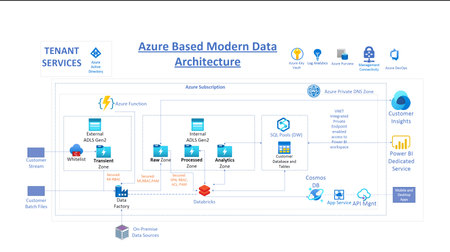
65 TopicsDesigning and Implementing Modern Data Architecture on Azure Cloud.
Designing a modern, cloud data architecture is a critical component of the digital transformation journey of any enterprise. In this post, we cover some of the Azure Data Services used to deliver a solution designed to meet the customer's current and evolving future needs.44KViews8likes2CommentsSeamless Integration: Leveraging Managed Identities to Invoke API Management from Azure Logic App
Managed Identities provide a secure way for Azure services to authenticate themselves without the need for explicit credentials or secrets. They're the key to streamlining authentication and enhancing security. Managed Identities are changing the game for organizations. Say goodbye to complex credential management and embrace a world where your applications seamlessly authenticate themselves. Stay tuned to unlock the benefits and unlock a new era of hassle-free security17KViews4likes3CommentsGranting Azure Resources Access to SharePoint Online Sites Using Managed Identity
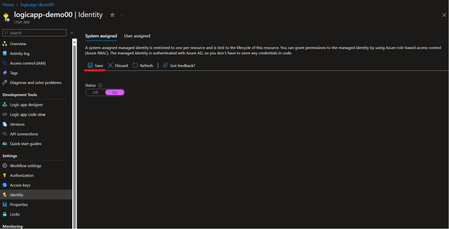
When integrating Azure resources like Logic Apps, Function Apps, or Azure VMs with SharePoint Online, you often need secure and granular access control. Rather than handling credentials manually, Managed Identity is the recommended approach to securely authenticate to Microsoft Graph and access SharePoint resources. High-level steps: Step 1: Enable Managed Identity (or App Registration) Step 2: Grant Sites.Selected Permission in Microsoft Entra ID Step 3: Assign SharePoint Site-Level Permission Step 1: Enable Managed Identity (or App Registration) For your Azure resource (e.g., Logic App): Navigate to the Azure portal. Go to the resource (e.g., Logic App). Under Identity, enable System-assigned Managed Identity. Note the Object ID and Client ID (you’ll need the Client ID later). Alternatively, use an App Registration if you prefer a multi-tenant or reusable identity. How to register an app in Microsoft Entra ID - Microsoft identity platform | Microsoft Learn Step 2: Grant Sites.Selected Permission in Microsoft Entra Open Microsoft Entra ID > App registrations. Select your Logic App’s managed identity or app registration. Under API permissions, click Add a permission > Microsoft Graph. Select Application permissions and add: Sites.Selected Click Grant admin consent. Note: Sites.Selected ensures least-privilege access — you must explicitly allow site-level access later. Step 3: Assign SharePoint Site-Level Permission SharePoint Online requires site-level consent for apps with Sites.Selected. Use the script below to assign access. Note: You must be a SharePoint Administrator and have the Sites.FullControl.All permission when running this. PowerShell Script: # Replace with your values $application = @{ id = "{ApplicationID}" # Client ID of the Managed Identity displayName = "{DisplayName}" # Display name (optional but recommended) } $appRole = "write" # Can be "read" or "write" $spoTenant = "contoso.sharepoint.com" # Sharepoint site host $spoSite = "{Sitename}" # Sharepoint site name # Site ID format for Graph API $spoSiteId = $spoTenant + ":/sites/" + $spoSite + ":" # Load Microsoft Graph module Import-Module Microsoft.Graph.Sites # Connect with appropriate permissions Connect-MgGraph -Scope Sites.FullControl.All # Grant site-level permission New-MgSitePermission -SiteId $spoSiteId -Roles $appRole -GrantedToIdentities @{ Application = $application } That's it, Your Logic App or Azure resource can now call Microsoft Graph APIs to interact with that specific SharePoint site (e.g., list files, upload documents). You maintain centralized control and least-privilege access, complying with enterprise security standards. By following this approach, you ensure secure, auditable, and scalable access from Azure services to SharePoint Online — no secrets, no user credentials, just managed identity done right.14KViews2likes6CommentsRun Your Most Demanding Oracle Workloads in Azure without Sacrificing Performance or Scalability
Oracle comprises over 30% of relational workloads in the world today and it has consistently been among the most used database for over a decade. In this blog post, we’ll discuss how Azure NetApp Files, combined with Azure virtual machines, can meet those demands and even push past some of the constraints that exist with Azure virtual machines alone.13KViews1like0Comments