integration
9 TopicsGuide: How to Connect ServiceNow to Azure DevOps with a Fully Configurable, No-Code, 2-Way Sync
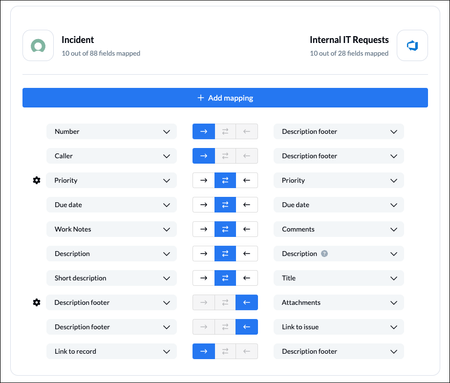
Let's talk about integrations. You need them because your business runs on too many different software systems that don't communicate with each other, so people end up working in data silos without a reliable source of truth. So each department ends up dealing with incomplete data or relying on inefficient and unreliable manual data transfer processes. So what are your options? Integrations break data silos, increase the capabilities of the entire software stack, improve overall efficiency, and provide you with real-time visibility and alignment. However integration requests are overflowing the backlogs of every IT department. Does that sound right? If not, let me know in the comments. Integration solutions today are either too basic, or excessively complicated, forcing you to default to a complex and costly solution provided by external consultants or you get to DIY like building an IKEA bedroom set without instructions. Unito is a Microsoft partner with a new integration for https://bit.ly/SNADO-int. What makes it different? It was designed with 2-way sync from the start in the form of a no-code platform that's still fully configurable. So you get 50+ powerful integrations right out of the box, and the ability to deeply customize and adapt them without writing or maintaining code. But you can if you want to. So anyone can sync records in ServiceNow to Azure DevOps work items with real-time 2-way updates between fields. How does it work? Users create low-code 2-way integrations called "flows". The flow represents the connection between ServiceNow and Azure DevOps. You start by selecting a table in ServiceNow and a project in ADO. Then, you choose a flow direction for item creation. Do you want manually created records to automatically add work items in ADO; vice versa; or both? Next, you set rules with an "if this, then that" logic to filter out unrelated records or work items. Typically you would add tags in ADO and only sync work items with those tags, but you can also filter by custom fields or any other native field. Finally, you set up a table of field mappings populated with drop-down menus that include data pulled from ServiceNow and ADO: Here's a longer https://bit.ly/SNADO-Guide. Let me know if you have any questions or comments!3.4KViews0likes0CommentsHands on experience with ADAL.js and securing backend with Azure AD
When integrating different systems, you might consider secured them via Azure AD authentication. However, if you are outside the context of Office 365, then you will need to generate a token somehow. In this blog, we show how to configure your Azure AD applications, and how to generate the needed token to make the REST calls. http://www.linkedin.com/redir/redirect?url=https%3A%2F%2Fwww%2Elinkedin%2Ecom%2Fpulse%2Fusing-adaljs-authenticate-against-your-azure-secured-native-iliev&urlhash=S1s7&_t=tracking_anet977Views2likes0CommentsEarly look at containers in Windows Server, Hyper-V and Azure – with Mark Russinovich
In this show, you'll learn from Mark Russinovich, about the design and architecture of containers and how you can use them. Including the new native container technology in Windows Server 2016 and how this extends to Hyper-V and Microsoft Azure.837Views0likes0CommentsOptimizing Azure DevOps Jira Integration: 5 Practical Use Cases for DevOps Teams
Many teams rely on Azure DevOps (ADO) for development and Jira for project or product management. While each tool is powerful on its own, things often get messy when work items, statuses, and updates live in separate systems. Integrating the two platforms can remove a lot of friction. Below are six common use cases I have seen from real teams, with concrete problems and solutions to make the connection between Jira and Azure DevOps work smoothly. 1. Keeping User Stories and Bugs in Sync Challenge: Teams use Jira for user requests and Azure DevOps for development tasks. Manually updating both systems is tedious and error-prone. Solution: Enable two-way synchronization so that changes in Jira automatically reflect in Azure DevOps and vice versa (including comments and status updates). This keeps bugs and stories aligned without duplicate work. “Before we integrated Jira with Aure DevOps, I spent too much time manually updating task statuses in both systems. Now, with the automatic sync, my team is focused on actual coding work instead of managing project statuses across platforms.” — DevOps Engineer 2. One-Way Sync for Project Management–First Teams Challenge: Some organizations plan and track everything in Jira but manage code exclusively in Azure DevOps. Developers only need the essentials pushed across. Solution: Use a one-way sync from Jira → Azure DevOps to bring over metadata like titles, statuses, sprints, and due dates. Developers see the context they need without cluttering both systems with manual updates. “We rely on Jira for all project planning and management, but the developers need a clean workspace in Azure DevOps. A one-way sync from Jira to ADO helps us keep things efficient and ensures developers always have the latest information without double entry.” — Product Owner 3. Creating Jira Tickets from Azure DevOps Tasks or Bugs Challenge: External partners or stakeholders may only work in Jira Service Management to manage tickets. Developers in Azure DevOps often need their work mirrored for transparency. Solution: Configure automated ticket creation in Jira when certain ADO tasks are tagged. Both teams can track progress in their preferred tool without duplicating effort. “We use Azure DevOps internally, but our external stakeholders only work in Jira. Automating the creation of Jira tickets based on Azure DevOps tasks or bugs has made collaboration seamless and ensured no work is lost in translation.” — DevOps Lead 4. Syncing Epics, Features, and Work Items Challenge: High-level epics might live in Jira, while features and tasks are managed in Azure DevOps. Without integration, visibility across systems is fragmented. Solution: Sync epics and features so Jira provides portfolio-level visibility, while Azure DevOps remains the system of record for detailed development work. This keeps roadmaps and execution aligned. “Tracking epics in Jira while managing the technical work in Azure DevOps used to cause us to lose visibility. Now, everything from high-level epics to individual tasks is in sync, so we always know where we stand.” — Azure DevOps Product Manager 5. Managing Multiple Jira Projects with One Azure DevOps Project Challenge: Large organizations often run multiple Jira projects (by teams or business units) but only one Azure DevOPs project for development. Syncing everything consistently is tough. Solution: Map multiple Jira projects to a single Azure DevOps project, syncing only the key data (titles, statuses, sprints, custom fields). This creates a unified development view without losing project-specific details. “We have multiple teams using different Jira projects, but we consolidate all development work into a single Azure DevOps project. Syncing across these platforms used to be a nightmare, but now everything stays aligned, and we’re able to track all initiatives in one place.” — Azure DevOps Engineer 💬 Have you integrated Jira with Azure DevOps in your team? What worked well, and what challenges did you run into?600Views0likes2CommentsIntegrating ServiceNow with Azure DevOps: Use Cases That Actually Show Up in Practice
I have been working in the integration space for quite some time. Though I work as a Content Manager, I am always curious to see how users handle integrations between multiple systems. Usually, the service desk runs on ServiceNow, and the build happens in Azure DevOps. But these tools aren't inherently connected, and someone has to manually relay information between them. So, the records never show consistent data. You need a way for the data to pass automatically between them. Even within this setup, a lot of scenarios come forth: from a single ServiceNow instance connecting to a single Azure DevOps org, up to companies running six or seven orgs off a shared service layer. Here's the full range of use cases I keep seeing, organized by what they're actually solving. Native Tools vs. a Dedicated Integration Layer Before the use cases, it's worth being clear on when you need more than what's built in. ServiceNow's IntegrationHub can push data through flows, and there's a spoke for looking up and creating basic Azure DevOps work items. Azure DevOps also has a native extension for pipeline-to-change-management syncing. These native options work fine when the integration is simple: one team, clean field mappings, developers on hand to maintain it. They start to struggle once you're crossing org boundaries, crossing company lines, or dealing with fields and states that don't line up between the two systems. At that point, a dedicated integration layer that handles the mapping and keeps each side's access separate is usually the better fit. Core Sync Use Cases 1. Sync ServiceNow Requests to Azure DevOps User Stories Current setup: Support or service teams work in ServiceNow. When a request needs development, someone has to get it onto an Azure DevOps board as a User Story. Problem: A person creates the work item by hand, copies the request details, and checks back later for updates. When the work item closes, the ServiceNow request often doesn't reflect that, so the requester never hears back. The two records aren't linked. Solution: A trigger, filtered by assignment group, category, or a manual send action, creates the User Story automatically. The link between the two records gets stored on both sides. Updates to the work item flow back to the request, and closing one side closes the other. 2. Sync Comments and State Back to ServiceNow Current setup: ServiceNow holds the ticket the requester sees. Azure DevOps holds the actual dev work. Problem: When the work item moves in Azure DevOps, the ServiceNow ticket's state doesn't follow. Comments the dev team adds stay in Azure DevOps, so the service team keeps pinging developers for status. Solution: As the work item's state changes, it updates the linked ServiceNow ticket. Comments from the dev side sync back too. The service team sees progress without opening Azure DevOps or chasing anyone. 3. Sync ServiceNow Catalog Items to Azure DevOps Current setup: Users order catalog items in ServiceNow. Fulfilling some of them takes real development work tracked in Azure DevOps. Problem: The catalog task sits in ServiceNow while the work happens somewhere the requester can't see. Someone bridges the two manually, and the catalog item's status stops meaning anything. Solution: The catalog item creates a matching work item in Azure DevOps with the request details attached. As the dev team works, status and comments sync back, so the catalog task shows real progress and closes when the work item does. 4. Cut Duplication Between Incidents and User Stories Current setup: Incidents land in ServiceNow. Some get tracked as User Stories in Azure DevOps so the dev team can work them alongside the rest of the backlog. Problem: The same information gets documented twice, updated twice, and the two records drift apart over time. Solution: Incidents create linked User Stories automatically, with comments and status syncing both ways. Update one side and the other reflects it, so nobody's working the same incident twice without realizing it. 5. Sync Bugs with Attachments Across Multiple Orgs Current setup: Bugs get raised in ServiceNow, often by a separate first-line support team, while product teams work across several distinct Azure DevOps orgs. Problem: Recreating bugs by hand loses attachments and context, and there's no clean way to route each bug to the right org out of several. When a bug's fixed, ServiceNow doesn't hear about it. Solution: A bug creates a matching Bug work item in the correct Azure DevOps org, attachments included. Status and comments flow back to ServiceNow when it's resolved. Each connection runs independently, so the first-line team stays in ServiceNow without needing access to the other side. 6. Project-to-Hypercare Handover Current setup: During a build, everyone works in Azure DevOps. Once it goes live and moves into maintenance, incidents and requests need to land in ServiceNow, sometimes a brand-new instance. Problem: Teams used to living in Azure DevOps now need a maintenance process in ServiceNow, with no link back to the developers who built the thing. Solution: Incidents raised during hypercare reach the dev team in Azure DevOps, and fixes flow back to ServiceNow. Because the connection is independent of either team's existing workflow, you can add it without disrupting how people already work. 7. Bidirectional Field and Lifecycle Sync Current setup: A demand owner in ServiceNow needs to track a Feature as it moves through scoping, active work, testing, and deployment in Azure DevOps. Problem: If effort, status, and assignment only live in Azure DevOps, the ServiceNow record goes stale. Fields on each side use different names and values, so a raw pass-through just creates mismatches. Solution: Key fields sync in both directions with explicit mappings. From Azure DevOps: iteration path, change reference, estimated effort, assignment, and lifecycle status. From ServiceNow: design documents, portfolio area, demand type, and requirement details. As the Feature moves through its stages, the ServiceNow record updates in real time. 8. Multiple Azure DevOps Orgs to a Central ServiceNow Instance Current setup: Each business unit runs its own Azure DevOps org, often from an acquisition or separate supplier setup. A central ServiceNow layer needs visibility across all of them without forcing a shared workflow. Problem: Without a sync, someone manually pulls data between systems and chases updates. It doesn't scale as orgs get added. Solution: Each org gets its own connection, configured independently, feeding the central ServiceNow instance. Every org keeps its own states and fields while leadership gets a single view across all of them. 9. Selective Field Sharing Between Separately Hosted Environments Current setup: One side runs cloud-hosted, the other on-prem or in a regulated environment, and neither can open full network-level access to the other. Problem: A basic integration either oversprays fields it shouldn't, or requires a network connection security won't approve. Each side wants control over exactly what leaves its environment. Solution: Outgoing and incoming rules configured independently on each side let each admin decide what leaves and what gets accepted. The two environments sync over a secured channel without either side getting direct access to the other's system. 10. Handling Closed and Read-Only Tickets Cleanly Current setup: ServiceNow access controls block updates to closed incidents. Your sync runs across tickets through their full lifecycle, including closure. Problem: A basic sync throws errors every time it tries to write to something already closed. Solution: Filter closed tickets out of the sync entirely so they never trigger a write, or let the errors surface where your team can see and review them. Which approach you pick is a team decision, not a technical constraint. 11. MSP Routing by Assignment Group Current setup: An MSP runs ServiceNow as its operational layer. Clients work in their own delivery tools, some in Azure DevOps, some elsewhere. Manual handoffs work for a couple of clients and fall apart past a handful. Problem: An engineer resolves an incident and forgets to update the client's system. A comment added on one side never reaches the other. Status shows "in progress" on one side long after it's resolved on the other. As client count grows, the gap between what your team knows and what clients see widens. Solution: An automated rule sends each incident to the right client system based on the ServiceNow assignment group. Set a filter (for example, database issues route to one client's system, network issues to another), and connections run independently with no crossover between clients. The original incident reference gets written into the client ticket, and status values map across cleanly. A couple of related patterns worth knowing: Internal notes can be filtered separately from customer-facing updates, so only what the client should see crosses over. A new client typically reuses your existing ServiceNow authentication, so onboarding is closer to registering their system and setting a routing rule than rebuilding the integration from scratch. 12. Conditional Escalation from Multiple ServiceNow Instances Current setup: Several ServiceNow instances feed a single Azure DevOps org. Only tickets that genuinely need developer attention should reach the board. Problem: Escalating everything floods the board with tickets the dev team shouldn't be handling. Solution: A conditional trigger escalates only tickets meeting a specific condition, so agents push what actually qualifies and everything else stays put. Multiple instances can each feed the same Azure DevOps org under their own trigger logic. 13. Demand Management to Feature Delivery Current setup: A demand process runs in ServiceNow end to end: submission, review, approval, and an approved Requirement. The build happens in Azure DevOps as a Feature, through scoping, active work, testing, deployment, and closure. Problem: Once a Requirement's approved, there's no automatic handoff. Someone recreates the Feature by hand and keeps both sides updated manually. The demand owner can't see effort, status, or assignment as work progresses, so the Requirement goes stale. When the Feature closes in Azure DevOps, the Requirement stays open until someone remembers to close it. Solution: A bidirectional sync connects the full flow. Feature creation: A Requirement creates a Feature automatically, carrying demand context (design sign-off, demand reference, portfolio area, stakeholders, description) so developers get what they need without opening ServiceNow. Field sync: Updates flow both ways, each field mapped to a specific direction. Azure DevOps to ServiceNow: iteration path, change reference, effort, priority, assignment, lifecycle state. ServiceNow to Azure DevOps: the demand and design fields above. Lifecycle feedback: As the Feature moves through its stages, effort, status, and assignment feed back into the Requirement in real time. Closure: When the Feature closes, the linked Requirement closes with it, and the demand gets marked fulfilled. ServiceNow stays the system of record for demand, Azure DevOps for execution, and each side keeps authority over what it owns. What Actually Makes These Work A few capabilities show up across almost every use case above: Attachment sync. Bugs and incidents depend on screenshots and logs. If attachments don't carry over, developers end up back on email. Custom field mappings. Out-of-the-box mappings only go so far. Real setups need custom fields like portfolio area or demand type mapped explicitly, with values transformed, not just copied. State mappings. ServiceNow states and Azure DevOps states don't share vocabulary. Map them explicitly, and decide upfront which side is authoritative when a state changes after creation. Selective sync. Filter by assignment group, area path, work item type, or a custom field. Fewer records crossing means less to govern and less risk of leaking internal data across a boundary. Security and access. For most Azure DevOps admins, this comes down to what gets checked in a security review anyway: Entra ID or OAuth over shared credentials, role-based access, audit logging, and real isolation between connections when multiple clients or companies are involved. For a single team with clean, one-direction mappings, a native option usually covers it. Once you're crossing orgs, crossing companies, or running a full demand-to-delivery flow with real field transformations, that's when a dedicated integration layer kind of becomes necessary. Let's discuss whether any of these match what you're dealing with, or if you've hit an edge case that isn't on this list.400Views1like2CommentsHow to Sync Area and Iteration Paths Between Jira and Azure DevOps
Azure DevOps area and iteration paths do not have a direct replica on the Jira side. So to sync information between both systems, the area and iteration path data has to be mapped to a custom field in the Jira issue. For this to work, you need a customizable AI-powered integration solution like Exalate. This solution will help you generate the script for mapping paths and maintaining the relationships between the work item and the issue. What is an Area Path? An area path establishes a hierarchy for work items related to a specific project. It helps you group work items based on team, product, or feature. Organizations working on a product or feature can use area paths to establish a hierarchy between teams at every level of involvement. You can assign the same area path to multiple teams. What is an Iteration Path? An iteration path assigns work items at the project level based on time-related intervals. Teams can share them to keep track of ongoing projects, specifically for sprints, releases, and subreleases. When new work items are added to the Sprint backlog, they become accessible via the existing iteration path. You can add up to 300 iteration paths per team. Sync Area and Iteration Paths: Jira to Azure DevOps Use Case You can create a custom field in your Jira instance to reflect the data from the iteration and area paths. How does this help your organization? Syncing this data gives more context about the teams involved on the Azure DevOps side. It provides context about the timelines and stages of progress for the mapped projects and entities. Primary Requirements Obtaining the right information from the API on both sides. Writing or generating the correct sync rules for both the incoming and outgoing data. Creating triggers to update the custom fields on Jira automatically. Fetching the right string from the area or iteration path. How Exalate Handles Jira to Azure DevOps Syncs Exalate supports one-way and two-way integration between Jira and Azure DevOps as well as with Zendesk, ServiceNow, Salesforce, GitHub, etc. Exalate also supports AI-powered Groovy scripting with the help of a chatbot. Users can also create trigger-based integrations for real-time syncs and bulk operations. To use Exalate, first install it on both Jira and Azure DevOps. Since this use case requires scripting, you need to set up a connection in the Script Mode. To configure the sync, open Exalate in your Azure DevOps dashboard, go to the connection you want to edit and click on the “Edit connection” icon. You have two options: Outgoing sync (on the Azure DevOps side) refers to the data being sent over to Jira. Incoming sync (on the Jira side) refers to the data to be received from the work item on Azure DevOps. Outgoing Sync (Azure DevOps): Send Area and Iteration Path Details from Azure DevOps to Jira To send out the area and iteration paths from the Azure DevOps work item, use the code below: replica.areaPath = workItem.areaPath replica.iterationPath = workItem.iterationPath The replica retrieves the values of the area and iteration paths from the work item and saves them as a string. On the remote side, you can store the area/iteration path in a custom field using a type string or select list. Incoming Sync (Jira): Set Area Path from Azure DevOps as a Custom Field in Jira Let’s start with the area path. The area path starts with the name of the project. For example, an Azure DevOps project called AzureProject handled by Exalate’s dev team could have an area path: AzureProject\\ExalateDev. To set the area path based on the value received from the remote side text field, use the code below: issue.customFields."Area Path".value = replica.areaPath The issue.customFields."area-path".value retrieves data from the work item and stores it in the designated custom field on Jira. Incoming Sync (Jira) Set Iteration Path from Azure DevOps as a Custom Field in Jira The iteration path shows the name of the project as well as the specific sprint. For example, an Azure DevOps project called AzureProject in the first sprint could have an area path: AzureProject//Sprint1 If you don’t set the value for the Area field in the Sync Rules, Exalate uses the default area that has the same name as the project. To set the iteration path based on the value received from the remote side text field, use the code below: issue.customFields."iPath".value = replica.iterationPath The issue.customFields."iPath".value retrieves data from the work item and stores it in the designated custom field on Jira. Congratulations! You have successfully mapped the area and iteration path to a Jira custom field. If you still have questions or want to see how Exalate is tailored to your specific use case, drop a comment below or reach out to our engineers.255Views0likes0CommentsSyncing Multiple Azure DevOps Orgs to One ServiceNow Instance Without Forcing a Shared Workflow
If your organization runs more than one Azure DevOps org, whether from an acquisition, a spun-up subsidiary, or business units that never consolidated onto one instance, you already know the visibility gap. Central ServiceNow has no idea what's happening in any of them unless someone checks manually. Your team ends up pulling status updates by hand, chasing changes across orgs, and reconciling what got closed where. That works well for a couple of orgs, but it falls apart past that. Why a Shared Workflow Usually Creates a Bigger Problem Migrating everyone onto a single Azure DevOps org would close the visibility gap on paper. Each org's area paths, iterations, states, and processes took years to get right, and a forced migration undoes all of it. A sync layer between each Azure DevOps org and your central ServiceNow instance closes the same gap without touching how any individual org works day to day. Each org keeps its own configuration. ServiceNow ends up with a rolled-up view across all of them. Common Use Cases Post-Acquisition Org Sprawl Current Setup: A company acquires another company, or runs several business units, each with its own Azure DevOps org and its own way of working. Problem: Central ops has no single view across orgs, and checking each one by hand doesn't scale past a few teams. Solution: Connect each Azure DevOps org to the central ServiceNow instance separately, each with its own sync rules. ServiceNow gets one rolled-up view, and no org has to change how it works. Bi-Directional Status Sync Between Delivery and Support Current Setup: Support logs incidents in ServiceNow. Development tracks the corresponding work in Azure DevOps, sometimes across several orgs. Problem: Support has to ask developers for status or check Azure DevOps boards directly, and developers end up relaying the same update twice. Solution: Sync status, comments, and priority both ways, so an update in either system shows up automatically on the other side. Field-Level Control Per Org Current Setup: Each business unit or subsidiary has its own rules about what data can leave its Azure DevOps org. Problem: A single shared integration with one set of mapping rules risks exposing fields an org never agreed to share outside its own boundary. Solution: Give each org's connection its own outgoing rules, so a subsidiary decides exactly which fields leave its Azure DevOps org, field by field. Handling Closed and Read-Only Work Items Current Setup: ServiceNow blocks writes to closed incidents through ACLs, and Azure DevOps can hit a similar restriction on closed or read-only work items. Problem: A sync that keeps trying to write to a closed item throws the same error repeatedly, and the real problems get buried under the noise. Solution: Filter closed and read-only states out of the sync, or let the errors surface if operations wants visibility into them. What to Evaluate When Choosing an Approach A few criteria matter more than others once you're running this across multiple orgs. Decentralized configuration: does each Azure DevOps org get its own connection and its own rules, or does everything route through one shared setup? Filtering: can you scope the sync with something like WIQL queries on the Azure DevOps side, by area path, iteration, work item type, or tag? Field mapping: does it handle the difference between ServiceNow's field structure and Azure DevOps work item fields without dropping data? Common pairs are ServiceNow State to Azure DevOps State, ServiceNow Priority to Azure DevOps Priority, and ServiceNow Assignment Group to Azure DevOps Area Path. Custom fields usually need explicit mapping rules. Conflict handling: what happens when both sides update the same field at the same time, and what happens with closed or read-only items specifically? Security: Entra ID or OAuth authentication, PAT management per org, role-based access, audit logging, and whatever compliance certifications your security team asks for during review. Direction: bidirectional where both teams update shared fields, one-way where only one side should ever write. Technical Approaches Service Hooks and REST APIs Azure DevOps Service Hooks paired with the ServiceNow REST API give you sync in both directions. A change in Azure DevOps triggers a Service Hook, which calls the ServiceNow API to update the record, and the same flow runs in reverse. This is the most direct route if you're comfortable building and maintaining the webhook logic yourself. Custom Middleware For anything more complex, custom middleware gives you full control over field transformation, routing, and error handling. Azure Functions, Logic Apps, or a small Node.js or Python service usually does the job. The trade-off is maintenance. You own the retry logic, the error handling, and every update when either platform changes its API. Dedicated Integration Platforms Plenty of teams skip building this from scratch and use a dedicated integration platform instead. These typically come with pre-built connectors for both Azure DevOps and ServiceNow, a way to configure field mapping and filters without writing much code, and managed infrastructure so you're not hosting your own sync server. What they usually cover: Pre-configured connectors that already understand both platforms' data structures Visual or scripting configuration for field mapping and filters Managed infrastructure, so nothing runs on your own servers Built-in retry and error handling for API failures Audit logging for tracking what synced and when Support for multi-org routing and conditional logic out of the box The trade-off runs the other way: a subscription cost instead of a one-time build, less control over the exact implementation, and your data passing through a third party's infrastructure. For teams running more than 2 or 3 orgs against one ServiceNow instance, this usually ends up being less overhead than maintaining custom middleware long-term. Every org here has probably solved a version of this differently. Curious what's worked for you, especially with 3 or more Azure DevOps orgs feeding into one ServiceNow instance, and which part of the setup gave you the most trouble.200Views1like0Comments
Integrating Tableau to a Azure Internal Database
Hi everyone, I wanted to ask if it's possible if I can connect Tableau to an internal database that I'm planning to build. Not just Tableau but Monday.com too. And yeah, I know I need to build the database first, and sort everything out first, but it's for my presentation. I would really be grateful if someone can answer this and show me a bit of how I can do that. Do I need some token from tableau or something?Solved200Views0likes4CommentsJPD to Azure DevOps: syncing approved ideas to Epics and getting delivery status back
If your product team prioritizes ideas in Jira Product Discovery (JPD) and your engineers deliver in Azure DevOps, you're probably recreating approved ideas as Epics by hand. After that, the Epic moves through delivery and never gets reflected in JPD. I often see this split. Development works in Azure DevOps; other departments move to Jira, and manual tracking becomes a fallback whenever work spans both. Here's what I've learned about connecting the two, including the parts that don't sync cleanly. What happens without a sync Your product team creates an epic in Azure DevOps and copies over the title, the description, and maybe the acceptance criteria. Then engineering takes over. State changes, comments, and linked pull requests stay in Azure DevOps, so product has to open the board to find out whether something shipped. This defeats the point of keeping the roadmap in JPD. Why JPD is harder to integrate than regular Jira You'd expect the Jira Cloud REST API to cover it, since JPD runs inside Jira. It covers part of it. JPD projects are team-managed, so their fields don't share with company-managed projects the way regular Jira fields do. The Jira Cloud API reads and updates JPD ideas as issues, but there's no dedicated public API for JPD-specific artifacts. Insights, views, and the newer roadmap fields sit outside what the standard API gives you. Formula fields don't come through the API at all. The Atlassian-maintained Azure DevOps for Jira app doesn't solve this either. It links development activity to Jira issues, and it doesn't create or sync work items between the two tools. What syncs and what needs work Standard fields sync without trouble: summary, description, status, priority, assignee, reporter, comments, attachments, and labels. Custom fields such as impact and effort scores, RICE values, product areas, and goals sync cleanly, since they're regular custom fields. Insights, views, and roadmap fields need custom scripting, and some aren't fully supported. Formula fields won't sync, because the API never returns them. The connection is easy to establish. Field mapping is where most of the work goes, and 2 problems come up again and again. The first is user mapping. Jira identifies people by account ID, and Azure DevOps uses Entra ID identities, so assignee and reporter need an explicit lookup between the two. Add a fallback for users who only exist on one side. Syncs can break because the default assignee left the company and their account was deactivated. The second is empty fields. A sync that assumes a value is always there fails when a field is left blank in JPD, so handle nulls before you go live. Use case 1: Push approved ideas to Azure DevOps as Epics Idea to Epic handoff Current Setup: Product prioritizes in JPD. Engineering works from an Azure DevOps board. Problem: Approved ideas get recreated as Epics manually, and the scoring context gets lost along the way. Solution: A query-based trigger on the JPD side picks up ideas once they hit an approved status and creates the Epic in the right Azure DevOps project, with score fields carried over. Most teams I talk to don't want every idea pushed across. They want to decide when something crosses over, so the trigger condition matters more than people expect. One idea usually maps to one Epic. JPD doesn't carry a Feature or User Story hierarchy, so any split into Features and stories happens in Azure DevOps after the sync. Use a JQL trigger such as project = ROADMAP AND status = Approved so only ready ideas cross over. A manual "sync this" action may not exist on the JPD idea view, and a query-based trigger also removes the risk of someone syncing the wrong idea by accident. Use the JPD product area field to set the area path on the Epic, so it lands on the right team's board without anyone triaging it. Use case 2: Get delivery status back into JPD Epic state to idea status Current Setup: The idea lives in JPD, and the Epic lives in Azure DevOps. Problem: Product only knows delivery status by asking engineering or opening the board. Solution: Map the Epic's state back to the idea's status, so the roadmap in JPD shows what's shipping. Example mapping for the Agile process template: New → Ready for delivery Active → Implementing Resolved → Waiting for release Closed → Released If your organization uses Scrum, CMMI, or an inherited custom process, your Epic states will differ, so build the mapping from your own process. Decide field by field which side wins when both teams edit the same thing. Status usually flows from Azure DevOps to JPD only, and priority often flows the other way. Going further with pull requests and release gates Some teams want more than a done or not-done flag. One setup I've seen ties Jira story status to Azure DevOps pull request events. A story moves to Code Review when a PR goes up, Ready for QA once the PR is approved, and back to In Progress if QA rejects it. The same logic works at the release level. Azure DevOps moves the linked Jira release through UAT Approved, Security Approved, and CAB Approved as each gate clears, then adds a link to the deployment pipeline once the release goes out. This applies to Jira Software stories and releases, not JPD ideas directly. None of it works out of the box. You write it into the sync rules on both sides, with service hooks on the Azure DevOps side firing the events. The admin rights problem Product and engineering rarely hold admin rights on each other's tools, and I've seen this stall projects completely. At one bank, the Jira admin wasn't an admin in Azure DevOps, and corporate policy blocked direct access between the two systems. Pick a setup where each side authenticates and controls its own configuration. On the Azure DevOps side, that means a scoped PAT or an Entra ID service principal owned by your Azure DevOps admin. Nobody needs admin rights on the other team's system to keep the sync running. Plan for a separate security review too. In most organizations, the person who owns the integration isn't the person who signs off on it, and InfoSec will ask where data is stored, how long it's kept, and how it's encrypted. Have those answers ready before the technical evaluation ends, so the project doesn't stall at the last step. What to check before you pick an approach You have 3 realistic options: Jira Automation plus Azure DevOps service hooks. This is free and works for simple one-way flows. It gets harder once you need two-way updates, attachments, or anything beyond creating the Epic once. Custom middleware on Azure Functions or Logic Apps. You get full control, and you also own every API change on both sides from then on. A third-party integration platform. This is faster to set up, with a subscription cost and less control over the internals. Whichever you choose, check it against these: Bidirectional sync, with direction set per field Support for JPD custom fields, plus a plan for insights and roadmap fields Query-based triggers on the JPD side State mapping that handles your Azure DevOps process template User mapping between Jira account IDs and Entra ID identities, with a fallback Separate admin control on each side, with PAT or Entra ID authentication Scripting for conditional logic such as PR events and release gates Clear error reporting that tells you which item failed and why, plus automatic retries Audit logging, role-based access, and the certifications your security team asks about (ISO 27001 is the usual one) Error reporting is often skipped during evaluation. When a sync fails at scale, you need to see the failing work item and the component that broke without exporting logs to a spreadsheet. If you run Azure DevOps Server on-premises, add one more check: how the tool reaches your server from the Jira Cloud side. That decides whether you need to open inbound access or run part of the integration inside your network. FAQs Can you sync Jira Product Discovery with Azure DevOps? Yes. JPD ideas behave as Jira issues through the Jira Cloud API, so an integration can create Azure DevOps Epics from approved ideas and send state changes back. Standard and custom fields work. Insights, views, roadmap fields, and formula fields need extra work or won't sync. Does Jira Product Discovery have its own API? The regular Jira Cloud REST API reads and updates JPD ideas as issues. There's no dedicated public API for JPD-specific artifacts such as insights or formula fields. Will RICE scores sync to Azure DevOps? RICE, impact, and effort scores sync because they're standard custom fields. You'll need matching custom fields on the Epic work item type in your Azure DevOps process to receive them. Can Jira Automation handle this on its own? It can create an Epic in Azure DevOps through a web request when an idea is approved. Keeping both sides updated after that, including comments, attachments, and state, is where automation rules usually run out. Do I need admin access to both Jira and Azure DevOps? Not if each side authenticates separately. Your Azure DevOps admin sets up a PAT or service principal on their side, your Jira admin handles theirs, and neither needs rights on the other system. Before you build Pull up the JPD fields your product team uses every week and check each one against your sync rules. Then run a test sync on a few ideas and compare the values on both sides before you go live.100Views0likes0Comments