import
20 Topics
ImportExportJobError, SQL72012, SQL72014, SQL72045.
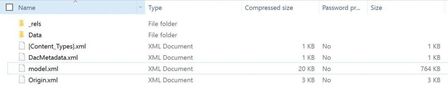
When trying to Import .bacpac file via Azure Portal, it fails with below error: 'code': 'ImportExportJobError', 'message': 'The ImportExport operation with Request Id '' failed due to 'The ImportExport operation with Request Id '' failed due to 'Could not import package.\\nWarning SQL72012: The object [data_0] exists in the target, but it will not be dropped even though you selected the 'Generate drop statements for objects that are in the target database but that are not in the source' check box.\\nWarning SQL72012: The object [log] exists in the target, but it will not be dropped even though you selected the 'Generate drop statements for objects that are in the target database but that are not in the source' check box.\\nError SQL72014: Framework Mi'.'.' The DAC framework hit a hard error and failed due to conflicts with existing system objects in the target database. The generated error does not show much information, except a Warning without enough detail to pinpoint the root cause. ⚠️ What the warnings mean (SQL72012) The object [data_0] exists in the target, but it will not be dropped… The object [log] exists in the target, but it will not be dropped… Retrying the import from the portal doesn’t help—the job fails consistently with the same outcome. To understand the exact cause of error, you can use SQLPackage.exe tool and follow steps below: Download SqlPackage for Windows. To extract the file by right clicking on the file in Windows Explorer, and selecting 'Extract All...', and select the target directory. Open a new Terminal window and cd to the location where SqlPackage was extracted: Import: sqlpackage.exe /Action:Import /tsn:ServerName.database.windows.net /tdn:sqlimporttestDB /tu:sql-user /tp:password /sf:"C:\test\DB-file.bacpac" /d:True /df:C:\test\df.txt TSN: Target server name, where the database will be imported. Tdn: Target database name, the name of the new database that will be created. Tu: user Tp: password Sf: source file, where the bacpac file is located. d: diagnostic, this parameter will help us to obtain detailed information for the import/export process. Df: where the diagnostic file will be saved and the name of it, please change the folder location to the same used on the source file. Note: .bacpac file needs to be present locally on your machine for this command. In the diagnostic file generated, we got a clear error indicating that Script "CREATE USER [EntraUser1@contoso.com] FOR EXTERNAL PROVIDER" failed to execute and only connections established with Entra accounts can create other Entra users. Microsoft.Data.Tools.Diagnostics.Tracer Error: 0 : 2026-01-22T06:56:50 : Error encountered during import operation Exception: Microsoft.SqlServer.Dac.DacServicesException: Could not import package. Error SQL72014: Core Microsoft SqlClient Data Provider: Msg 33159, Level 16, State 1, Line 1 Principal 'EntraUser1@contoso.com' could not be created. Only connections established with Active Directory accounts can create other Active Directory users. Error SQL72045: Script execution error. The executed script: CREATE USER [EntraUser1@contoso.com] FOR EXTERNAL PROVIDER; You’ll also notice the database gets created, but none of the schema or tables are deployed—leaving you with an online but completely blank database. SSMS shows the same behavior, the database appears online after creation, but the import ultimately fails and the resulting database is empty. When explicitly executing this script in database, you'll face the exact same error: If the source database contains only Contained Entra users, you typically won’t see this issue. For contained users, the import job uses a different user-creation script—one that can be executed even when the import connection is established using SQL authentication. CREATE USER [EntraUser2@contoso.com] WITH SID = 'User-SID-Here' , TYPE = E; The issue occurs when the Exported database contains Entra Server logins and a corresponding User is created in the User Database. To mitigate this issue: You need to initiate the Import request using Microsoft Entra Account since SQL Authentication account cannot create a user from an External Provider which is Microsoft Entra in this case. Make the Entra Users 'Contained' in User Database before exporting and then use SQL Authentication account for importing the DB. The second option is especially useful if you prefer importing through the Azure portal but your Entra account has MFA enforced. In that case, using SQL authentication for the import workflow can be a practical path forward. REFERENCES: Import a BACPAC File to Create a Database in Azure SQL Database - Azure SQL Database & Azure SQL Managed Instance | Microsoft Learn SqlPackage Import - SQL Server | Microsoft Learn596Views2likes0CommentsLessons Learned #535: BACPAC Import Failures in Azure SQL Database Due to Incompatible Users
We recently worked on a support case where a customer was trying to import a BACPAC file, generated on a different server and subscription, into their Azure SQL Database. The process kept failing with the following errors: "Could not import package. Error SQL72014: Framework Microsoft SqlClient Data Provider: Msg 33159 - Only connections established with Active Directory accounts can create other Active Directory user" At first glance, this looked like a permissions issue, but digging deeper we realized that the error was triggered when the import process tried to create Entra ID (Azure AD) users while the connection was being made with a SQL Login, We checked several things in the BACPAC: The BACPAC contained references to external Active Directory users that were valid in the source environment but not in the target. Both the Azure portal and SQL Server Management Studio (SSMS) failed with the same error. Since BACPAC files include both schema and user objects, incompatible users were being carried over and breaking the import. After thorough investigation, the following resolution path was established: We created a dummy copy of the source database. We removed the external AD/Entra users from that copy. We generated a new BACPAC from this cleaned database. We imported it into the target Azure SQL Database — and this time it worked. We explained several details: BACPAC files included both schema and security objects, including users. If external Active Directory users are not present in the target environment can cause import failures. Before exporting, review and remove or adjust user objects to avoid this issue — particularly when migrating across subscriptions, servers, or organizations with different Azure AD tenants.475Views0likes0CommentsLesson Learned #523: Measuring Import Time -Parsing SqlPackage Logs with PowerShell
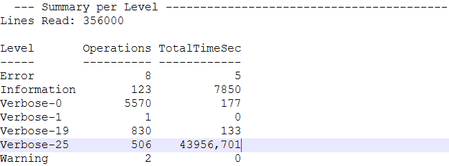
This week I'm working on a service request who was experiencing long import times when restoring a large BACPAC into Azure SQL Database, I need to understand where time was being spent inside SqlPackage.exe. I rely on the diagnostics log and the PowerShell to analyze this time. The file contains valuable information that we can extract and summarize using PowerShell. I developed a small PowerShell Script with the following idea: Classifies every entry (Information, Verbose‑25, Verbose‑19, …). Tracks cumulative time for each class. Flags any operation whose delta exceeds 10 seconds with a warning. Produces two tables at the end: Summary per Level (counts + total seconds). Verbose‑25 Operations sorted by elapsed time. I used Verbose-25 (Verbose Operation plus operation ), because I identified that the lines contains the elapsed-time of the operation done. Those are usually the slowest parts. How the Script Works Read the content 5000 lines at a time. Parser every line running Process‑Line function to obtain 3 variables Level, Id, Timestamp, Message. If the level is not Verbose-25 (operation finished), the time is measured against the previous timestamp otherwise for Perf: text Operation ended we use elapsed ms. I added a line that when the delta > 10 s triggers Write‑Warning. $logPath = "C:\temp\Exampledf.txt" $prevStamp = $null $Salida = $null [int]$Lines= 0 $stats = @{} $Verbose25 = @{} function Process-Line { param ( [string]$line, [ref]$prevStamp ) if ($line -notmatch 'Microsoft\.Data\.Tools\.Diagnostics\.Tracer') { return "" } $tail = $Line.Substring($Line.IndexOf('Tracer') + 6).Trim() $c1 = $tail.IndexOf(':') if ($c1 -lt 0) { return "" } $level = $tail.Substring(0, $c1).Trim() $rest = $tail.Substring($c1 + 1).Trim() $c2 = $rest.IndexOf(':') if ($c2 -lt 0) { return "" } $id = $rest.Substring(0, $c2).Trim() $rest = $rest.Substring($c2 + 1).Trim() if ($rest.Length -lt 19) { return "" } $stamp = $rest.Substring(0, 19) $msg = $rest.Substring(19).Trim() if ($msg.StartsWith(':')) { $msg = $msg.Substring(1).Trim() } If($Level -eq "Verbose") { $levelKey = "$level-$id" # Verbose-25, Verbose-19… } else { $levelKey=$level } $delta = 0 if ($msg -like 'Perf: Operation ended*' -and $Level -eq "Verbose") { # Ej.: "...elapsed in ms): StartImportTable,[schema].[table],58" $elapsedMs = ($msg.Split(',')[-1]).Trim() if ($elapsedMs -match '^\d+$') { $delta = [double]$elapsedMs / 1000 } $Verbose25[$msg] = @{ ElapsedTime = [double]$elapsedMs / 1000 } $prevStamp.Value = [datetime]$stamp } else { $curr = [datetime]$stamp if ($prevStamp.Value) { $delta = ($curr - $prevStamp.Value).TotalSeconds } $prevStamp.Value = $curr } # ---- Update the summary ----------------------------------------------- if (-not $stats.ContainsKey($levelKey)) { $stats[$levelKey] = @{ Count = 0; Total = 0 } } $stats[$levelKey].Count++ $stats[$levelKey].Total += $delta return "$levelKey $delta $($msg.Trim())" } # Read and show line (every 5000) Get-Content -Path $logPath -ReadCount 5000 | ForEach-Object { foreach ($line in $_) { $Lines++ $Salida = Process-Line -line $line -prevStamp ([ref]$prevStamp) if ($Salida) { $deltaToken = [double]($Salida.Split()[1]) if ($deltaToken -gt 10) { Write-Warning "$Lines $Salida" } if ($Lines % 5000 -eq 0 -and $Salida) { Write-Output "$Lines Text: $Salida" } } } } Write-Output "`n--- Summary per Level -----------------------------------------" Write-Output "Lines Read: $Lines" $stats.GetEnumerator() | Sort-Object Name | ForEach-Object { [pscustomobject]@{ Level = $_.Name Operations = $_.Value.Count TotalTimeSec = [math]::Round($_.Value.Total, 3) } } | Format-Table -AutoSize Write-Output "`n--- Verbose-25 Operations -------------------------------------" $Verbose25.GetEnumerator() | Sort-Object @{ Expression = { [double]$_.Value.ElapsedTime }; Descending = $true } | ForEach-Object { [pscustomobject]@{ Operation = $_.Name ElapsedTimeSec = [double]$_.Value.ElapsedTime } } | Format-Table -AutoSize Examples:
Decimal separator after CSV import
Hi, I need some help, please. I'm trying to import a csv file. The problem is that numbers are written with comma decimal separator, but my PC is working with dots as decimal separator. In the previous Excel versions, there was the possibility to convert them during the import wizard. Unfortunately, I'm not able to find the same option in the new import wizard (Power Query). Thanks for all your answers Luca167KViews0likes9CommentsNew Password Import feature natively available on Edge Canary Version 90.0.817.0
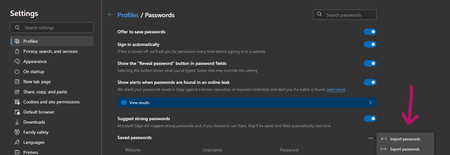
Microsoft Edge Version 90.0.817.0 (Official build) canary (64-bit) you need to enable this new flag first: edge://flags/#PasswordImport There is also another way to do this which was explained here Happy importing!1.9KViews2likes0CommentsEdge sync getting throttled after bookmark/favorites import
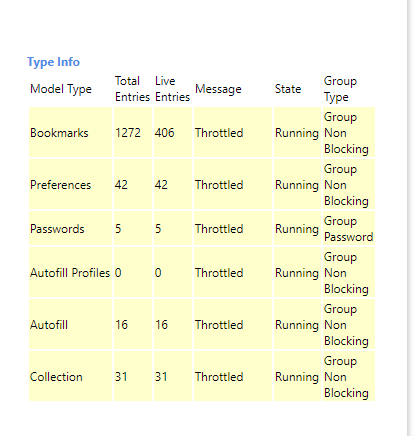
it's happening on Edge stable Version 81.0.416.58 (Official build) (64-bit) my other installed channel is Version 84.0.488.0 (Official build) canary (64-bit) this throttle creates duplicate favorites on all other Edge instances that are in sync almost instantly. but i have to wait 5-6 minutes (depending on the number of favorites) until sync gets back to the normal status and duplicates will then be removed on their own. can this be improved and sped up? i don't think every user knows to wait that long and might go on and modify their data while Edge is working in the background which could lead to lost favorites. Thanks2.2KViews2likes1CommentHow to view and manage your Microsoft passwords on Linux/Chrome/ChromeOS (Without Edge or mobile)
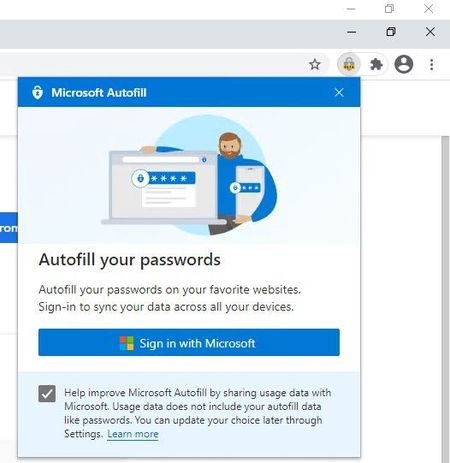
1. install Google Chrome (or other Chromium based browsers, including Edge itself) 2. install Microsoft Autofill extension 3. Sign into your Microsoft account in the extension 4. Access your Passwords safely and hassle-free * you do Not need to sign in to Google account for this. ** this works on Mac and Windows too, basically any environment where you can install this extension in. The extension also has Import feature, so you can import your passwords at once from a file and save them to your Microsoft account. Questions & answers about Microsoft Authenticator app - Azure AD | Microsoft Docs Q: How are my passwords protected by the Authenticator app? A: Authenticator app already provides a high level of security for multi-factor authentication and account management, and the same high security bar is also extended to managing your passwords. Strong authentication is needed by Authenticator app: Signing into Authenticator requires a second factor. This means that your passwords inside Authenticator app can't be accessed even if someone has your Microsoft account password. Autofill data is protected with biometrics and passcode: Before you can autofill password on an app or site, Authenticator requires biometric or device passcode. This ensures that even if someone else has access to your device, they cannot fill or see your password, as they’d be unable to provide the biometric or device PIN. Furthermore, a user cannot open the Passwords page unless they provide biometric or PIN, even if they turn off App Lock in app settings. Encrypted Passwords on the device: Passwords on device are encrypted, and encryption/decryption keys are never stored and always generated on-the-fly. Passwords are only decrypted when user wants to, that is, during autofill or when user wants to see the password, both of which require biometric or PIN. Cloud and network security: Your passwords on the cloud are encrypted and decrypted only when they reach your device. Passwords are synced over an SSL-protected HTTPS connection, which ensures no attacker can eavesdrop on sensitive data when it is being synced. We also ensure we check the sanity of data being synced over network using cryptographic hashed functions (specifically, hash-based message authentication code).11KViews2likes4CommentsSS28: selection to bookmarks + vivaldi example of what i reported you previously
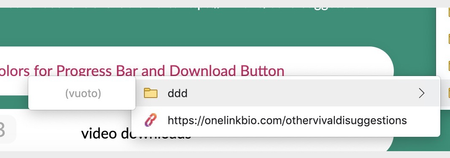
Suggestion (SS): 28 Classification: Bookmarks PRIORITY IN MY OPINION: 4 on a scale from 1 (low) to 10 (high) Here my idea i got after visiting a suggestion in vivaldi about add current tab to a folder (which is available for vivaldi and edge). I tested it out and in edge is available, but creates problem, like where you continuosly add it under ddd instead inside ddd. only 1 time you added it in ddd. PS: is not the first time i see problems with other bookmarks, you should check if all functions really work correctly with other bookmarks. Same if i do that you should avoid to show me that for the creation of folders. <<<<<<< second: i tried to select 3 tabs, and then do the same. is not possible. <<<<<<< third: i still think vivaldi add to bookmark option without right click is much better. please consider to implement it to edge too. <<<< because we are talking about vivaldi, here other points i like reload miniature (i suggested this to you only for bookmarks bar) like i suggested you with shortcut for bookmarks and other things (i noticed only after sending you the suggestions, that vivaldi has already such option, but still limited compared to what i told you, which is much more complex) this is similar to what i told you too, but vivaldi show us directly the webpage, is not a second bookmarks bar ability to change default bookmarks bar. (NEW SUGGESTION, but less important, since i use different profile. it still remains cool) same like i wrote you yesterday to remove things from the bar position of new tab, like i suggested you keep last tab open, like i suggested you a lot of option like i suggested you (or better some things are not available in vivaldi too) show me only icons inside bookmarks bar, full name in other bookmarks or when you hide url from bookmarks bar (like suggested). i still think a way to add personal customized folder color to bookmarks is usefull too even if i don't really like to use shortcuts (via keyboard with crtl alt etc., not things like <ddd $dd) ... but i like how they do. trackpad gesture, like suggested is much more clean search always in new tab (NEW SUGGESTION) .... PS: until now i don't use vivaldi, because they create library folders problems. so i just use it as a normal second browser for quick searches. this is why maybe the list of good features is not complete. once devs fix such problem, i can send more vivaldi based suggestion too. i still think main points are now available in this post, a lot is already included in previous submitted suggestions. Here even what i don't like previews different colours for each tab ... other ... (yes, you can disable such things). about the download suggestion, something like where i can set "save to /user/ccc/applications" and then "save this website always in this folder" or "if /externaldrive/... is not available, use /user/ccc/applications instead".1.5KViews0likes0Commentsabout edge store
NEW EDGE STORE LIST FEATURE a way to log with an account a and install extension on account b,c,d,e in such way we could even create default list on account a (not available at the moment) and install such extension easily on all other sync account (without need to use bookmarks or other methods) OR a way to export list from account a to b. obviously if i install the extension from account a and i use account b for sync, then the extension need to be sync with account b (not a) about the list: i mean a feature to add extension to favourite, to groups (example research/video/datahoarding/...) another option would be: create a list and share the link to other user. OTHER SUGGESTIONS 1) remember to add last added extension order during searching. 2) an "already visited" badge over the extension would be useful too (but not important) 3) maybe even a panel "last visited extension"... 4) if i visit extension a, you should show me suggestion for extensions a1, a2, a3, a4 too 5) maybe a way to subscribe to specific topics or users so i can see new extension inside my feed. 6) Please remember the notification "chrome version is already installed" if i try to reinstall the same from edge... like i suggested you weeks ago. 7) PS: until now i never tried to sync manual installed extension, if this is not supported, you should add it too. Another option that could help, but until now i never needed in edge, is "disable extension auto update" for extension x,y,z no matter which user/browser/mac i use (especially useful if the new version is simply worse or other reason). so all these suggestions are something like https://bugs.chromium.org/p/chromium/issues/detail?id=1130326 and https://bugs.chromium.org/p/chromium/issues/detail?id=11303081.9KViews0likes3Comments