import
7 Topics
ImportExportJobError, SQL72012, SQL72014, SQL72045.
When trying to Import .bacpac file via Azure Portal, it fails with below error: 'code': 'ImportExportJobError', 'message': 'The ImportExport operation with Request Id '' failed due to 'The ImportExport operation with Request Id '' failed due to 'Could not import package.\\nWarning SQL72012: The object [data_0] exists in the target, but it will not be dropped even though you selected the 'Generate drop statements for objects that are in the target database but that are not in the source' check box.\\nWarning SQL72012: The object [log] exists in the target, but it will not be dropped even though you selected the 'Generate drop statements for objects that are in the target database but that are not in the source' check box.\\nError SQL72014: Framework Mi'.'.' The DAC framework hit a hard error and failed due to conflicts with existing system objects in the target database. The generated error does not show much information, except a Warning without enough detail to pinpoint the root cause. ⚠️ What the warnings mean (SQL72012) The object [data_0] exists in the target, but it will not be dropped… The object [log] exists in the target, but it will not be dropped… Retrying the import from the portal doesn’t help—the job fails consistently with the same outcome. To understand the exact cause of error, you can use SQLPackage.exe tool and follow steps below: Download SqlPackage for Windows. To extract the file by right clicking on the file in Windows Explorer, and selecting 'Extract All...', and select the target directory. Open a new Terminal window and cd to the location where SqlPackage was extracted: Import: sqlpackage.exe /Action:Import /tsn:ServerName.database.windows.net /tdn:sqlimporttestDB /tu:sql-user /tp:password /sf:"C:\test\DB-file.bacpac" /d:True /df:C:\test\df.txt TSN: Target server name, where the database will be imported. Tdn: Target database name, the name of the new database that will be created. Tu: user Tp: password Sf: source file, where the bacpac file is located. d: diagnostic, this parameter will help us to obtain detailed information for the import/export process. Df: where the diagnostic file will be saved and the name of it, please change the folder location to the same used on the source file. Note: .bacpac file needs to be present locally on your machine for this command. In the diagnostic file generated, we got a clear error indicating that Script "CREATE USER [EntraUser1@contoso.com] FOR EXTERNAL PROVIDER" failed to execute and only connections established with Entra accounts can create other Entra users. Microsoft.Data.Tools.Diagnostics.Tracer Error: 0 : 2026-01-22T06:56:50 : Error encountered during import operation Exception: Microsoft.SqlServer.Dac.DacServicesException: Could not import package. Error SQL72014: Core Microsoft SqlClient Data Provider: Msg 33159, Level 16, State 1, Line 1 Principal 'EntraUser1@contoso.com' could not be created. Only connections established with Active Directory accounts can create other Active Directory users. Error SQL72045: Script execution error. The executed script: CREATE USER [EntraUser1@contoso.com] FOR EXTERNAL PROVIDER; You’ll also notice the database gets created, but none of the schema or tables are deployed—leaving you with an online but completely blank database. SSMS shows the same behavior, the database appears online after creation, but the import ultimately fails and the resulting database is empty. When explicitly executing this script in database, you'll face the exact same error: If the source database contains only Contained Entra users, you typically won’t see this issue. For contained users, the import job uses a different user-creation script—one that can be executed even when the import connection is established using SQL authentication. CREATE USER [EntraUser2@contoso.com] WITH SID = 'User-SID-Here' , TYPE = E; The issue occurs when the Exported database contains Entra Server logins and a corresponding User is created in the User Database. To mitigate this issue: You need to initiate the Import request using Microsoft Entra Account since SQL Authentication account cannot create a user from an External Provider which is Microsoft Entra in this case. Make the Entra Users 'Contained' in User Database before exporting and then use SQL Authentication account for importing the DB. The second option is especially useful if you prefer importing through the Azure portal but your Entra account has MFA enforced. In that case, using SQL authentication for the import workflow can be a practical path forward. REFERENCES: Import a BACPAC File to Create a Database in Azure SQL Database - Azure SQL Database & Azure SQL Managed Instance | Microsoft Learn SqlPackage Import - SQL Server | Microsoft Learn425Views2likes0CommentsLessons Learned #535: BACPAC Import Failures in Azure SQL Database Due to Incompatible Users
We recently worked on a support case where a customer was trying to import a BACPAC file, generated on a different server and subscription, into their Azure SQL Database. The process kept failing with the following errors: "Could not import package. Error SQL72014: Framework Microsoft SqlClient Data Provider: Msg 33159 - Only connections established with Active Directory accounts can create other Active Directory user" At first glance, this looked like a permissions issue, but digging deeper we realized that the error was triggered when the import process tried to create Entra ID (Azure AD) users while the connection was being made with a SQL Login, We checked several things in the BACPAC: The BACPAC contained references to external Active Directory users that were valid in the source environment but not in the target. Both the Azure portal and SQL Server Management Studio (SSMS) failed with the same error. Since BACPAC files include both schema and user objects, incompatible users were being carried over and breaking the import. After thorough investigation, the following resolution path was established: We created a dummy copy of the source database. We removed the external AD/Entra users from that copy. We generated a new BACPAC from this cleaned database. We imported it into the target Azure SQL Database — and this time it worked. We explained several details: BACPAC files included both schema and security objects, including users. If external Active Directory users are not present in the target environment can cause import failures. Before exporting, review and remove or adjust user objects to avoid this issue — particularly when migrating across subscriptions, servers, or organizations with different Azure AD tenants.367Views0likes0CommentsLesson Learned #523: Measuring Import Time -Parsing SqlPackage Logs with PowerShell
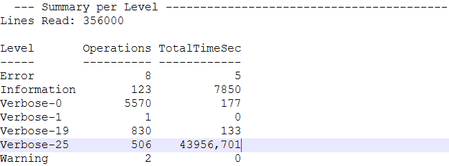
This week I'm working on a service request who was experiencing long import times when restoring a large BACPAC into Azure SQL Database, I need to understand where time was being spent inside SqlPackage.exe. I rely on the diagnostics log and the PowerShell to analyze this time. The file contains valuable information that we can extract and summarize using PowerShell. I developed a small PowerShell Script with the following idea: Classifies every entry (Information, Verbose‑25, Verbose‑19, …). Tracks cumulative time for each class. Flags any operation whose delta exceeds 10 seconds with a warning. Produces two tables at the end: Summary per Level (counts + total seconds). Verbose‑25 Operations sorted by elapsed time. I used Verbose-25 (Verbose Operation plus operation ), because I identified that the lines contains the elapsed-time of the operation done. Those are usually the slowest parts. How the Script Works Read the content 5000 lines at a time. Parser every line running Process‑Line function to obtain 3 variables Level, Id, Timestamp, Message. If the level is not Verbose-25 (operation finished), the time is measured against the previous timestamp otherwise for Perf: text Operation ended we use elapsed ms. I added a line that when the delta > 10 s triggers Write‑Warning. $logPath = "C:\temp\Exampledf.txt" $prevStamp = $null $Salida = $null [int]$Lines= 0 $stats = @{} $Verbose25 = @{} function Process-Line { param ( [string]$line, [ref]$prevStamp ) if ($line -notmatch 'Microsoft\.Data\.Tools\.Diagnostics\.Tracer') { return "" } $tail = $Line.Substring($Line.IndexOf('Tracer') + 6).Trim() $c1 = $tail.IndexOf(':') if ($c1 -lt 0) { return "" } $level = $tail.Substring(0, $c1).Trim() $rest = $tail.Substring($c1 + 1).Trim() $c2 = $rest.IndexOf(':') if ($c2 -lt 0) { return "" } $id = $rest.Substring(0, $c2).Trim() $rest = $rest.Substring($c2 + 1).Trim() if ($rest.Length -lt 19) { return "" } $stamp = $rest.Substring(0, 19) $msg = $rest.Substring(19).Trim() if ($msg.StartsWith(':')) { $msg = $msg.Substring(1).Trim() } If($Level -eq "Verbose") { $levelKey = "$level-$id" # Verbose-25, Verbose-19… } else { $levelKey=$level } $delta = 0 if ($msg -like 'Perf: Operation ended*' -and $Level -eq "Verbose") { # Ej.: "...elapsed in ms): StartImportTable,[schema].[table],58" $elapsedMs = ($msg.Split(',')[-1]).Trim() if ($elapsedMs -match '^\d+$') { $delta = [double]$elapsedMs / 1000 } $Verbose25[$msg] = @{ ElapsedTime = [double]$elapsedMs / 1000 } $prevStamp.Value = [datetime]$stamp } else { $curr = [datetime]$stamp if ($prevStamp.Value) { $delta = ($curr - $prevStamp.Value).TotalSeconds } $prevStamp.Value = $curr } # ---- Update the summary ----------------------------------------------- if (-not $stats.ContainsKey($levelKey)) { $stats[$levelKey] = @{ Count = 0; Total = 0 } } $stats[$levelKey].Count++ $stats[$levelKey].Total += $delta return "$levelKey $delta $($msg.Trim())" } # Read and show line (every 5000) Get-Content -Path $logPath -ReadCount 5000 | ForEach-Object { foreach ($line in $_) { $Lines++ $Salida = Process-Line -line $line -prevStamp ([ref]$prevStamp) if ($Salida) { $deltaToken = [double]($Salida.Split()[1]) if ($deltaToken -gt 10) { Write-Warning "$Lines $Salida" } if ($Lines % 5000 -eq 0 -and $Salida) { Write-Output "$Lines Text: $Salida" } } } } Write-Output "`n--- Summary per Level -----------------------------------------" Write-Output "Lines Read: $Lines" $stats.GetEnumerator() | Sort-Object Name | ForEach-Object { [pscustomobject]@{ Level = $_.Name Operations = $_.Value.Count TotalTimeSec = [math]::Round($_.Value.Total, 3) } } | Format-Table -AutoSize Write-Output "`n--- Verbose-25 Operations -------------------------------------" $Verbose25.GetEnumerator() | Sort-Object @{ Expression = { [double]$_.Value.ElapsedTime }; Descending = $true } | ForEach-Object { [pscustomobject]@{ Operation = $_.Name ElapsedTimeSec = [double]$_.Value.ElapsedTime } } | Format-Table -AutoSize Examples:Lesson Learned #25: Export/Import Azure SQL Database using Azure File Service?
First published on MSDN on Apr 03, 2017 In some situations, we need to import or export our Azure SQL Database using SQLPackage, but, unfortunately, either source and destination file we cannot specify a blob storage, in case that we want to save the file in this storage.