hpc
256 TopicsRunning OpenFOAM simulations on Azure Batch
OpenFOAM (Open Field Operation and Manipulation) is an open-source computational fluid dynamics (CFD) software package. It provides a comprehensive set of tools for simulating and analyzing complex fluid flow and heat transfer phenomena. It is widely used in academia and industry for a range of applications, such as aerodynamics, hydrodynamics, chemical engineering, environmental simulations, and more. Azure offers services like Azure Batch and Azure CycleCloud that can help individuals or organizations run OpenFOAM simulations effectively and efficiently. In both scenarios, these services allow users to create and manage clusters of VMs, enabling parallel processing and scaling of OpenFOAM simulations. While CycleCloud provides a similar experience to on-premises thanks to its support to common schedulers like OpenPBS or SLURM; Azure Batch provides a cloud native resource scheduler that simplifies the configuration, maintenance and support of your required infrastructure. This article covers a step-by-step guide on a minimal Azure Batch setup to run OpenFOAM simulations. Further analysis should be performed to identify the right sizing both in terms of compute and storage. A previous article on How to identify the recommended VM for your HPC workloads could be helpful.Retirement of Microsoft HPC Pack
Overview Microsoft HPC Pack is a Windows‑based high‑performance computing (HPC) scheduler that enables customers to deploy, manage, and operate HPC workloads in on‑premises and hybrid environments. Since its original release, HPC Pack has supported a range of Windows‑centric HPC scenarios, including job scheduling, workload orchestration, and integration with Windows Server–based technologies. Microsoft is announcing the planned retirement of HPC Pack. For customers looking to run HPC workloads going forward, Microsoft’s supported platform for managed HPC and parallel workloads is Azure Batch. Customers may also adopt any other Azure service as appropriate for their workload. These platforms provide modern, cloud‑native capabilities for scheduling, scaling, and operating HPC workloads on Azure. Important Dates Retirement announcement: August 27, 2026 End of Support / retirement date: August 27, 2027 After August 27, 2027, HPC Pack will no longer receive feature updates, bug fixes, or standard product support. No new versions or enhancements will be released. Existing HPC Pack deployments will not be forcibly disabled; however, they will be considered unsupported. Support During the Retirement Period HPC Pack is now entering a one-year retirement period that ends at End of Support on August 27, 2027. Microsoft will provide limited, retirement-only support during this period. The scope of this support is defined below so customers know what to expect. What Microsoft will provide during the retirement period: Security response, including investigation of applicable security vulnerabilities (CVEs) and any security updates deemed necessary by Microsoft Guidance based on existing Microsoft documentation, published best practices, and previously validated HPC Pack configurations Assistance with support incidents involving supported HPC Pack components and documented product functionality What is NOT included during the retirement period: Non-security bug fixes Performance, reliability, scalability, or optimization improvements New features or feature enhancements Customer-specific hotfixes, custom code changes, or design modifications Validation or certification of new operating systems, hardware platforms, drivers, firmware, third-party software, or dependencies Validation of new deployment architectures, configurations, or integration scenarios Changes to existing product behavior or design Creation of new documentation, guidance, or troubleshooting content Troubleshooting that requires new product investigation beyond existing product knowledge, documentation, or previously validated scenarios New customer onboarding, solution design, or pre-sales assistance Migration planning, migration execution, or migration consulting services Support for configurations, integrations, or deployment scenarios that are outside published documentation, established best practices, or previously validated HPC Pack environments After End of Support (August 27, 2027): HPC Pack will receive no further updates, fixes, or technical support, and deployments will be considered unsupported. What Customers Should Do Customers currently using HPC Pack should begin planning migration to a supported alternative as soon as possible. For most scenarios, the following services are recommended: Azure Batch – for managed scheduling and execution of parallel and HPC workloads Or any other Azure service as appropriate for your workload Resources HPC Pack documentation: Microsoft HPC Pack 2019 Public issue tracker: Azure/hpcpack GitHub repository Next Steps Customers who anticipate needing additional planning assistance or migration guidance should engage early with their Microsoft account team or Cloud Solution Architect (CSA) to help ensure a smooth transition and avoid potential disruption. To help us understand customer needs and improve future communications, please complete this Microsoft Form. Share any technical, operational, or business challenges you anticipate during your transition. Your feedback will help us identify common concerns and refine future guidance.The Complete Guide to Renewing an Expired Certificate in Microsoft HPC Pack 2019 (Single Head Node)
Managing certificates in an HPC Pack 2019 cluster is critical for secure communication between nodes. However, if your certificate has expired, your cluster services (Scheduler, Broker, Web Components, etc.) may stop functioning properly — preventing nodes from communicating or jobs from scheduling. When the HPC Pack certificate expires, the HPC Cluster Manager will fail to launch, and you may encounter error messages similar to the examples shown below. This comprehensive guide walks you through how to renew an already expired HPC Pack certificate on a single-head-node setup and bring your cluster back online. Step 1: Check the Current Certificate Expiry Start by checking the existing certificate and its expiry date. # Find certificates with "HPC" in the Subject Get-ChildItem -Path Cert:\LocalMachine\My | Where-Object { $_.Subject -like '*HPC*' } # Enter the Thumbprint from the previous command $thumbprint = "<Thumbprint from previous command>".ToUpper() # Find the certificate using the Thumbprint $cert = Get-ChildItem -Path Cert:\LocalMachine\My | Where-Object { $_.Thumbprint -eq $thumbprint } # Display certificate details $cert | Select-Object Subject, NotBefore, NotAfter, Thumbprint You can also confirm the system date using the PowerShell date command: Date This ensures you’re viewing the correct validity period for the currently installed certificate. Step 2: Prepare a New Self-Signed Certificate Next, we’ll create a new certificate that meets the HPC communication requirements. Certificate Requirements: Must have a private key capable of key exchange. Key usage should include: Digital Signature, Key Encipherment, Key Agreement, and Certificate Signing. Enhanced key usage should include: Client Authentication and Server Authentication. If two certificates are used (private/public), both must have the same subject name. When you prepare a new certificate, make sure that you use the same subject name as that of the old certificate. Run the following PowerShell commands on the HPC node to get the subject name of your certificate. You can verify the existing certificate’s subject name using the following command: $thumbprint = (Get-ItemProperty -Path HKLM:\SOFTWARE\Microsoft\HPC -Name SSLThumbprint).SSLThumbPrint $subjectName = (Get-Item Cert:\LocalMachine\My\$thumbprint).Subject $subjectName Use the same subject name when generating the new certificate. Step 3: Create a New Certificate Use the below commands to create and export a new self-signed certificate (valid for 1 year). $subjectName = "HPC Pack Node Communication" $pfxcert = New-SelfSignedCertificate -Subject $subjectName -KeySpec KeyExchange -KeyLength 2048 -HashAlgorithm SHA256 -TextExtension @("2.5.29.37={text}1.3.6.1.5.5.7.3.1,1.3.6.1.5.5.7.3.2") -Provider "Microsoft Enhanced RSA and AES Cryptographic Provider" -CertStoreLocation Cert:\CurrentUser\My -KeyExportPolicy Exportable -NotAfter (Get-Date).AddYears(1) -NotBefore (Get-Date).AddDays(-1) $certThumbprint = $pfxcert.Thumbprint $null = New-Item $env:Temp\$certThumbprint -ItemType Directory $pfxPassword = Get-Credential -UserName 'Protection password' -Message 'Enter protection password below' Export-PfxCertificate -Cert Cert:\CurrentUser\My\$certThumbprint -FilePath "$env:Temp\$certThumbprint\PrivateCert.pfx" -Password $pfxPassword.Password Export-Certificate -Cert Cert:\CurrentUser\My\$certThumbprint -FilePath "$env:Temp\$certThumbprint\PublicCert.cer" -Type CERT -Force start "$env:Temp\$certThumbprint" This will generate both .pfx (private) and .cer (public) files in a temporary directory. Step 4: Copy Certificate to Install Share On the master (head) node, copy the newly created certificate to the following path: C:\Program Files\Microsoft HPC Pack 2019\Data\InstallShare\Certificates This ensures the certificate is available to all compute nodes in the cluster. Step 5: Rotate Certificates on Compute Nodes Important: Always rotate certificates on compute nodes first, before the head node. If you update the head node first, compute nodes will reject the new certificate, forcing manual reconfiguration. After rotating compute node certificates, expect them to appear as Offline in HPC Cluster Manager — this is normal until the head node certificate is updated. Download the PowerShell script Update-HpcNodeCertificate.ps1 and place it in your HPC install share: \\<headnode>\REMINST On each compute node, open PowerShell as Administrator and run: PowerShell.exe -ExecutionPolicy ByPass -Command "\\<headnode>\REMINST\Update-HpcNodeCertificate.ps1 -PfxFilePath \\headnode>\REMINST\Certificates\HpcCnCommunication.pfx -Password <password> " This updates the certificate on each compute node. Step 6: Update Certificate on the Master (Head) Node On the head node, run the following commands in PowerShell as Administrator: $certPassword = ConvertTo-SecureString -String "YourPassword" -AsPlainText -Force Import-PfxCertificate -FilePath "C:\Program Files\Microsoft HPC Pack 2019\Data\InstallShare\Certificates\PrivateCert.pfx" -CertStoreLocation "Cert:\LocalMachine\My" -Password $certPassword PowerShell.exe -ExecutionPolicy ByPass -Command "Import-certificate -FilePath \\master\REMINST\Certificates\PublicCert.cer -CertStoreLocation cert:\LocalMachine\Root" Set-ItemProperty -Path "HKLM:\SOFTWARE\Microsoft\HPC" -Name SSLThumbprint -Value <Thumbprint> Set-ItemProperty -Path "HKLM:\SOFTWARE\Wow6432Node\Microsoft\HPC" -Name SSLThumbprint -Value <Thumbprint> Step 7: Update Thumbprint in SQL Database You’ll also need to update the certificate thumbprint stored in the HPCHAStorage database. Install SQL Server Management Studio (SSMS) (latest version). pen SSMS and connect to the HPC database. 3. Navigate to: 4. HPCHAStorage → Tables → dbo.DataTable 5. Right-click and select “Select Top 1000 Rows” to view the current SSL thumbprint. 6. Use the new query window and run the following command with the updated thumbprint: Update dbo.DataTable set dvalue='<NewThumbrpint>' where dpath = 'HKEY_LOCAL_MACHINE\Software\Microsoft\HPC' and dkey = 'SSLThumbprint' This updates the stored certificate reference used by the HPC services. Step 8: Reboot the Master Node Once everything is updated, reboot the head node to apply the changes. After the system restarts, open HPC Cluster Manager — your cluster should now be fully functional with the new certificate in place. Summary By following these steps, you can safely renew an expired HPC Pack 2019 certificate and restore secure communication across your cluster — without needing to reinstall or reconfigure HPC Pack components. This guide helps administrators handle expired certificates with confidence and maintain business continuity for HPC workloads. If this guide helped you resolve your certificate issues, please give it a 👍 thumbs up and share your feedback or questions in the comments section below.
Connecting Microsoft Discovery App to Azure HPC with Azure NetApp Files and CycleCloud
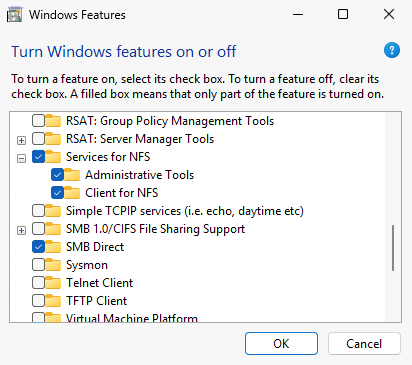
Introduction Traditional High-Performance Computing (HPC) is central to most scientific computing and engineering applications. These systems are based on well tested, repeatable, and scalable compute processes that enable the large-scale generation and validation that the semiconductor and other industries depend on. Integrating AI and agentic flows into this traditional model remains a challenge. Where many agentic systems rely on “modern” compute architecture utilizing REST based communications and object storage, traditional HPC relies on POSIX based file systems and scheduler-based orchestration. Combining these two different disciplines presents a challenge to many engineering and large-scale research enterprises. This blog describes how Microsoft Discovery app can directly interoperate with existing traditional HPC deployments utilizing Azure HPC. Microsoft Discovery is an enterprise agentic AI platform for research and development, designed to help specialized agents reason, plan, execute, and learn in a continuous loop across data, tools, and workflows. It is built on Azure and designed to integrate with capabilities such as Azure HPC and Microsoft Foundry, while leveraging industry proven tools and customer flows, making it a natural bridge between AI-native reasoning and compute-intensive engineering execution. Agentic AI in HPC The value of agentic AI in scientific and engineering workloads is not just as a chatbot or code generator; it is the ability to participate in an existing workflow: write parameter files, launch simulations, inspect logs, summarize failures, generate follow-on jobs, and preserve artifacts for traceability. To do this effectively, agents must be able also read data from POSIX-based file systems and dispatch jobs to the scheduler. To maintain IP security, they must access data while respecting the access limits of the user that dispatched them and write data under the same RBAC rules as that same user. That way organizations can be assured that agents operate strictly under the dispatching user's access rights, so they cannot reach data the user isn't authorized to see and the data they write retains the permissions that the user who dispatches the agent enjoys. Discovery app is currently only available on Windows. Linux and Mac versions will soon be available. In the meantime, enabling the Windows based Discovery app to leverage the capabilities on Azure HPC today with little to no change to the current HPC flow. Reference architecture The architecture has five primary components: a Windows VM running the Discovery app on Azure, an Azure NetApp Files volume that is mounted by both Windows and Linux clients, an Azure CycleCloud-managed HPC cluster with a Linux login node used for job submission and monitoring, and a scheduler that dispatches work to compute nodes. Discovery app on Windows: Runs on a Windows VM placed inside the same VNet, or reachable through controlled private networking, so it can access storage and the login node without exposing the HPC environment publicly. Azure NetApp Files: Provides the shared file namespace for input decks, scripts, logs, generated data, and results. Linux nodes mount the volume with native NFS. Windows can mount the same namespace through the Windows NFS client or an equivalent enterprise file-access solution. Azure CycleCloud: Provisions and manages the HPC cluster, including scheduler, login node, execute nodes, autoscaling, and cluster configuration. Login node: Acts as the controlled command endpoint. Discovery should submit jobs and query scheduler state from here, not run heavy tools directly on the login node. This protects the actual Cyclecloud scheduler and cluster manager from being overwhelmed if the dispatch volume is high. This also allows for scalability if there are many clients scheduling jobs at once. Scheduler: Incumbent schedulers that customers are already using with Azure Cyclecloud handles execution. Discovery creates scripts and submits them through the scheduler so compute runs on the correct nodes with the correct environment, licenses, and policies. This remains the same as how traditional HPC schedules jobs today. Connectivity model Running on a Windows VM in the Azure VNet aligns with many enterprises’ requirement that none of their data or IP can leave their network. Doing this avoids the need to run jobs through a user laptop or unmanaged public endpoint. This also allows the user to start an agentic workload then disconnect from the VM while the job runs and reconnect when they come back. Maintaining the same working model most engineers have with their HPC environment today. For Discovery to access Azure HPC, it needs to map the Azure NetApp Files volumes and command access to the Linux login node. File access lets agents create and read files. Command access lets agents run Linux commands, submit jobs, and monitor execution. Discovery writes execution scripts to the ANF volume, then uses SSH to dispatch the job to the schedule with the execution script. The advantage of this model is that the user can directly provide Unix-style paths to Discovery and tell it to execute tools without the user worrying about being on a Windows platform. For example, CAD teams often provide setup scripts with paths to tools that users are supposed to reference in creating their own tool execution scripts. Using this model, I just tell Discovery to use the setup script /mount/setup/tools/vendora.csh as a template and it will happily find the file and do so. I can then tell Discovery to dispatch the job to the hpc queue and it will schedule to the appropriate SLURM queue where a system is provisioned and assigned to run using the new execution script Discovery creates. This model also gets around the temporary limitation of Discovery app, unlike the enterprise Discovery service, only being available on Windows. In this model, Windows is only acting as a terminal interface so it doesn’t matter that it’s not a platform that normally works with most EDA tools. In fact, users can deploy Discovery app on either x86 or ARM Windows since all the actual tools run on the Linux-based HPC deployment in Azure anyway. Mapping Windows drive to NFS volumes Discovery agents must understand how to access files on the mapped NFS volume from the Windows VM. The same file may appear as Z:\project\run1\exec.csh on Windows and /mount/project/run1/exec.csh on Linux. The skill or instruction file used by Discovery should explicitly describe that mapping and instruct agents to use Linux paths inside batch scripts and scheduler commands. A typical instruction might say: the Windows drive Z: maps to the Linux mount point /mount. If Discovery sees /mount/designs/test.sv, it can read or write the corresponding Windows file at Z:\designs\test.sv. When generating job scripts, it should always use the Linux path, because those scripts run on the cluster. Implementation steps 1. Deploy the HPC foundation Start with the standard Azure HPC foundation: a virtual network, Azure CycleCloud, a scheduler-backed cluster, and shared storage. CycleCloud can deploy and manage Slurm clusters and supports external NFS mounts, including Azure NetApp Files. Configure the cluster so the scheduler and compute nodes mount the shared file system at a stable Linux path such as /mount, /shared, or a customer-specific project path. Make sure that systems can ssh to the login node using a public/private key pair. The login node should be accessible using a command like: % ssh -i .ssh/keyfile user@login-node 2. Place the Windows VM in the same network boundary Create a Windows VM that can reach both the Azure NetApp Files endpoint and the CycleCloud login node over private IP. The required Windows NFS client is available on Windows 11 Pro, Enterprise, and Education. It is not available on Windows 11 Home. Install the Discovery app on that VM. This VM becomes the user’s Discovery workstation for the HPC-connected workflow. Keep the VM inside the same security boundary as the HPC deployment, and use standard enterprise controls such as private networking, restricted inbound access, managed identity where appropriate, and least-privilege SSH keys. 3. Install Microsoft Discovery app Download and install Microsoft Discovery app from: https://github.com/microsoft/discovery Once installed, start Microsoft Discovery app and connect to your Github Copilot account in order to configure access to the LLM AI models. Create a new project 4. Mount the Azure NetApp Files volume into Windows Mount the same shared storage namespace into Windows. The Windows NFS client can map the NFS export to a drive letter such as Z:. The Windows NFS is sufficient for reading logs, results, and data files, and writing execution scripts, parameters, and configuration files. Heavy simulation I/O remain on Linux compute nodes running HPC tools. To configure the Windows NFS Client, you will need to have administrator privileges on your Windows VM. To mount the ANF volume with the Windows NFS client. Press Win+R Run “optional features” Select “More Windows features” Expand “Services for NFS” Enable “Administrative Tools” and “Client for NFS” Click “OK” to install the components. By default, Windows will mount the NFS volume as an anonymous user. To set the correct user, you can define the correct Linux User ID and Group ID in the registry. Note: This is an example of a functional baseline to mount a Linux volume with a user identity as an example. Production environments should employ proper identity mapping for security. Press Win+R Run “regedit” to start the Registry Editor Navigate to HKEY_LOCAL_MACHINE\SOFTWARE\Microsoft\ClientForNFS\CurrentVersion\Default In Default, right click and add two new DWORD entires: AnonymousUID and AnonymousGID Set the values to the decimal value of your Linux UID and GID. This will ensure that you connect to the ANF volume as the correct user. Select OK and then launch the Command Prompt as Administrator. To allow the NFS Client to accept the new registry entries, restart the NFS Client with the following commands: nfsadmin client stop nfsadmin client start Mount the ANF volume to a Windows drive: You should now be able to access your NFS volume by going through the Z: drive. 5. Configure SSH access to the login node Configure the SSH client on the Windows VM with a dedicated key for Discovery-driven access. The key should connect to the CycleCloud login node as the user (same as with NFS above) with permissions to submit jobs, read scheduler state, and access the shared project directory. Verify connectivity by connecting to the Cyclecloud login node using ssh from the Command Prompt. In this example, the username is ai4semi, the IP address of the login node is 10.16.16.25, and the cc_rsa is the keyfile located under the .ssh directory of the user’s home directory on Windows. Since this is the first time for this system to log into the Linux machine, you must accept the connection registration. This will not be necessary for subsequent ssh connects by Discovery using this method. 5. Teach Discovery how to use Azure HPC Now that you have the NFS and SSH connections established in Windows, you simply need to tell Discovery how to use these connections properly to run HPC workloads. In the Discovery chat window, tell Discovery to map the Z: drive on windows to the /mount volume on NFS and how to interact with the files. The Windows drive `Z:` is mapped to the cluster NFS volume `/mount`. - `/mount/<path>` on the cluster corresponds to `z:\<path>` locally. - Example: when a file is referenced as `/mount/test.txt`, look at `z:\test.txt`. Test to make sure Discovery understand by asking it to read a file on the NFS volume using POSIX nomenclature. read the contents of /mount/newfile.txt Discovery should show you the file contents Next, instruct Discovery on how to access and interact with Cyclecloud Connect to the CycleCloud login node over SSH using "ssh -i .ssh\cc_rsa ai4semi@10.16.16.25" Then tell Discovery which scheduler Cyclecloud uses and tell it to check the queue. Cyclecloud is using SLURM as the scheduler. Check the status of the hpc queue. Since the Windows VM is only used to run Discovery and the agentic AI part of the workload and the login node is not meant to run actual HPC workloads, be explicit with Discovery on how it should treat HPC job runs. NEVER run EDA/build/simulation tools on the local system or directly on the login node. ALWAYS submit work to the Slurm scheduler via sbatch. - The login node is for job submission and monitoring only — not for compute. - Wrap every tool invocation in a batch script and submit it with sbatch. 6. Validate the end-to-end workflow Validate that everything works by dispatching a simple test script to Cyclecloud Create a batch script that references the Linux path, submit it to Cyclecloud. dispatch /mount/proj/ai4semi/exec.csh to the hpc queue 7. Save the knowledge for future reference Now that Discovery understands how to access Linux-based files on NFS and how to dispatch jobs, tell it to save the information. Save this knowledge to a skill and use it for all subsequent job runs and file access for the project You see that Discovery now saved the information on how to access files and run jobs to a SKILL.md for general knowledge and updated the copilot-instructions.md to ensure that all subsequent agents and engines understand how to access Azure HPC. Note: These instructions are only scoped to a single project. When creating a new project, you can simply tell Discovery to reach over to your older project to copy the knowledge: copy over instructions on how to access NFS files and paths, and how to dispatch and execute hpc jobs from workspace1 If you want to make this a portable instruction that you can just load for each new project, tell Discovery to create a portable file. package the instructions on how to access NFS files and paths, and how to dispatch and execute hpc jobs into a a single instruction I can provide to new workspaces You can then copy the file to a central location like: C:\Users\ai4semi\project Then for each new project you can tell Discovery to use this file. read and understand the instructions in C:\Users\ai4semi\project\cyclecloud-hpc.instructions.md. Use for all agents and engines in this project and save this information as skills to use in the project Operational considerations Identity and permissions: Keep SSH access scoped to the project and avoid broad administrative privileges. For NFS, verify UID/GID mapping and file ownership behavior before production use. Performance: Use the Windows mount for orchestration artifacts, scripts, and logs. Let Linux compute nodes perform heavy I/O through native ANF mounts. Security: Keep Discovery, storage, and the login node on private networking. Avoid public exposure of scheduler or storage endpoints. Scheduler hygiene: Enforce a rule that Discovery submits jobs through the scheduler and does not run heavy tools interactively on the login node. Conclusion Connecting Microsoft Discovery app to Azure HPC allows users to seamlessly use their existing HPC environment. The most practical approach today is to place Discovery on a Windows VM inside the Azure network, map the shared Azure NetApp Files namespace into both Windows and Linux, and use SSH to submit scheduler-managed jobs through CycleCloud. Using this method, customers can quickly and easily use Discovery to integrate Agentic AI into their current HPC flows. Users can take advantage of AI agents to read and understand specification files, generate code and testbenches based on those specifications, run existing HPC tools on their Azure HPC environment. They can direct Discovery to use the scripts and resources which their CAD teams have developed. Users can create bookshelves by pointing to the documentation directories many tool vendors include in their installations, allowing Discovery to take advantage of documentation which most users don’t have time to fully digest. Over time, native Linux support can reduce the need for Windows-hosted bridging. Until then, this architecture gives teams a secure, and repeatable way to let Discovery agents create, launch, monitor, and learn from real HPC workloads on Azure.Microsoft Discovery: Where HPC meets agentic AI for the next era of EDA
Introduction High-performance computing is the engine behind the most demanding engineering breakthroughs. In electronic design automation, HPC enables massive simulation farms, verification regressions, place-and-route exploration, timing closure, power analysis, and signoff workloads that would be impractical at scale. However, as chip complexity grows, the limiting factor is no longer only compute capacity. It is the ability to reason across enormous design spaces, coordinate specialized tools, preserve engineering context, and decide what to run next. That is where Microsoft Discovery becomes especially interesting. Microsoft Discovery is an enterprise agentic AI platform for research and development, designed to help specialized agents reason, plan, execute, and learn in a continuous loop across data, tools, and workflows. It is built on Azure and designed to interoperate with capabilities such as Azure HPC and Microsoft Foundry, while leveraging industry proven tools and customer flows, making it a natural bridge between AI-native reasoning and compute-intensive engineering execution. The Inflection Point: HPC is required, but not enough Engineering teams already know how to scale compute. They run large regressions, distribute workloads across clusters, burst into cloud capacity, and optimize storage and schedulers around fast-moving design cycles. Yet the harder challenge is often deciding which simulations matter, which failures are related, which tool settings deserve another experiment, and which signals should trigger the next branch of exploration. Traditional HPC gives engineering teams scale. Agentic AI adds accelerated analysis, orchestration, memory, reasoning, and adaptation. The synthesis of the two is not about replacing engineers or replacing EDA tools. It is about turbocharging the engineers by creating an intelligent execution fabric where agents can understand goals, inspect results, choose tools, launch jobs, summarize outcomes, and recommend the next best action. Engineers remain in control of the design intent and final decisions. In this model, the most valuable resource is not compute capacity; it is engineering time. Microsoft Discovery as the agentic layer for engineering R&D Microsoft Discovery focuses on the full R&D lifecycle: knowledge reasoning, code and plan generation, simulation, analysis, and iteration. For semiconductor and EDA workflows, that maps naturally to the way design teams already operate. Timing closure, regression failure, achieving performance targets all require that engineers pour over massive amounts of information from tool run logs, interpret the results based on engineering goals and specifications, and determine how to resolve the gaps. Discovery leverages the same scientific process used in scientific research to help engineers more quickly understand the resulting data, pick out critical learnings, and help compose the next steps and mitigations. Unlike chat interfaces, agents can act and execute specific functions. Agents can be assigned roles: a verification triage agent, a log-analysis agent, a simulation-planning agent, a physical-design exploration agent, a cost-and-capacity agent, or a documentation agent that preserves evidence and rationale. Together, these agents can coordinate around a shared objective and use HPC as the execution and validation vehicle. For semiconductor programs, engineers are the most expensive and constrained part of the process. Every hour spent searching logs, reconciling reports, relaunching routine jobs, copying context between systems, or documenting repetitive findings is an hour not spent on architecture, debug strategy, design tradeoffs, or design sign-off. Discovery’s value is therefore not simply that it can automate tasks; it can help shift engineering effort away from menial coordination work and toward the decisions that improve product outcomes and silicon spins. What this looks like for EDA In a complex silicon project, design teams may run thousands of tests across multiple scenarios, configurations, simulators, and coverage targets. Today, engineers spend significant time reading logs, correlating failures, rerunning jobs, and deciding whether a failure is new, known, flaky, or blocking. Much of that work is necessary, but repetitive. With an agentic workflow, a verification agent could monitor regression output, cluster related failures, inspect logs, identify likely root causes, and propose targeted reruns rather than brute-force rerunning everything. All this helps to provide engineers more time to focus on the work that requires their unique engineering skill and judgement. In physical design, an agentic workflow could help explore constraints, placement strategies, timing violations, congestion hot spots, and power tradeoffs. HPC provides the parallel capacity to run experiments. Discovery-style agent orchestration can help determine which experiments to run, capture why they were run, compare outcomes, and refine the next set of candidates. This provides a guided design-space exploration loop. For signoff and analysis, agents could help connect results across timing, power, reliability, manufacturability, and cost. Instead of treating each report as an isolated artifact, an agentic system can reason across reports, prior runs, known design patterns, and engineering guidance helping to converge faster. Discovery leverages tried-and-true, industry-proven tools to validate the output of AI using the same methods semiconductor teams have relied on for decades. AI can propose code and plans, prioritize validation and simulation, summarize analysis and debug, or recommend next steps, but the validation path still runs through established EDA flows that engineers understand and trust. The Architecture: Agents, Tools, Data, and Compute Discovery’s flow architecture leverages a closed-loop system. Knowledge sources provide context: design specs, prior bugs, regression history, tool documentation, scripts, and engineering notes. Agents reason over that context and formulate next steps. Tool integrations connect those agents to EDA applications, schedulers, storage systems, model endpoints, and analysis pipelines. Azure HPC supplies scalable execution for simulations and compute-heavy analysis. Results flow back into the system so the next decision is better informed than the last. This demonstrates the power of joining agentic AI and HPC. Discovery provides a platform model for coordinating that loop with enterprise expectations around security, governance, transparency, and human oversight. HPC tools provide assurance that the results from AI are valid. Integrating Discovery with Azure HPC for EDA Discovery becomes even more powerful when it is connected to Azure HPC infrastructure purpose-built for compute- and memory-intensive engineering workloads. For EDA, that includes AMD-based Azure HPC virtual machines such as HX-series instances, which are optimized for silicon design and memory-intensive workloads, with large memory capacity, AMD EPYC processors with 3D V-Cache, and high-performance InfiniBand networking. These platforms give agentic workflows the execution fabric needed to run large simulations, regressions, analysis jobs, and design-space exploration at cloud scale for both EDA and other HPC workloads. Storage is equally important. EDA workloads generate and consume enormous numbers of files, and performance often depends on low-latency shared file access as much as raw CPU capacity. Azure NetApp Files provides enterprise-grade file storage for mission-critical HPC and EDA workloads in Azure, giving teams a managed, high-performance storage layer that can support simulation farms, tool installations, design libraries, scratch spaces, and shared project data. Azure NetApp Files also enables customers to use Discovery in a hybrid environment, enabling customers to keep critical data on-prem while using Discovery to optimize cloud-based flows. Many semiconductor teams keep authoritative design data, source repositories, IP libraries, and sign-off environments in on-premises infrastructure. Azure NetApp Files cache volumes can help bridge that workflow by creating a cloud-based cache of active data from an external origin volume. Frequently accessed data can be served close to Azure compute, while the authoritative dataset remains in the existing on-premises design environment. Cluster automation is another important part of enabling the hybrid flow. Azure CycleCloud can help automate the creation, scaling, and lifecycle management of HPC clusters in Azure so teams can stand up cloud capacity around specific EDA workloads rather than manually managing static infrastructure. That is important for agentic workflows because Discovery can reason about what needs to run, determine the proper resources needed, while CycleCloud-backed automation helps ensure the right compute environment is available when those jobs are ready to execute. Just as importantly, hybrid adoption does not need to force customers to replace the scheduling systems their engineering organizations already use. Many semiconductor teams have deep operational investments in incumbent schedulers which CycleCloud already works with, established queues, policies, licenses, scripts, and user workflows. A practical Discovery-plus-Azure-HPC architecture helps bring agentic AI to their existing flows: integrating cloud capacity with existing scheduler patterns, extending familiar job-submission models, and allowing teams to burst selected workloads into Azure while preserving the operational controls that have governed EDA execution for years. In that architecture, Discovery can act as the intelligent orchestration layer across the hybrid estate as well as a productivity accelerator. Agents can reason over design intent, prior results, and engineering context; submit jobs into Azure HPC environments; use AMD-powered compute for demanding EDA runs; access hot data through Azure NetApp Files; and work through cluster automation and scheduler integrations that align with customer operating models. Combined with Azure HPC, Azure NetApp Files helps eliminate storage bottlenecks that can otherwise limit EDA job throughput, allowing compute resources, EDA licenses, and engineering teams to remain productive at scale. The result is a practical synthesis: AI-guided exploration, proven EDA validation, elastic cloud compute, hybrid data access, and scheduler-aware execution that respects the way semiconductor teams already work. Why it matters for semiconductor teams Semiconductor design is a systems problem. Teams must manage more IP, more verification complexity, more software interaction, more foundry requirements, and more pressure to maintain schedules while design sizes and complexity grows. The industry has invested heavily in automation, but much of that automation remains fragmented across scripts, dashboards, job schedulers, and individual expert workflows. The simple fact is that compute is expensive, but engineering time is even more expensive. Improving engineer productivity has an outsized impact on schedule, quality, and cost. Agentic AI offers a way to automation more of the design and verification process. Automating much of the more mechanical parts of the flow. Teams can create workflows that observe, reason, and iterate while agents coordinate the results to achieve the engineering objective. Instead of relying only on tribal knowledge, teams can preserve decisions, evidence, and rationale in a repeatable workflow. Human-in-the-loop by design The goal is not autonomous chip design without engineers. The goal is amplified engineering outcomes. In the most valuable scenarios, agents handle the repetitive, high-volume, evidence-gathering work while engineers define objectives, validate assumptions, approve major decisions, and interpret tradeoffs. Discovery can help reduce the menial burden of searching, summarizing, comparing, rerunning, and documenting so engineers can spend more time on the creative and analytical work only they can do. This is especially important in EDA, where correctness, traceability, and sign-off confidence matter as much as speed. Microsoft Discovery’s emphasis on enterprise governance and transparency is therefore central to the story. In regulated or high-stakes engineering environments, teams need to know what data was used, which tools were invoked, what assumptions were made, and where human approval occurred. Just as important, they need confidence that AI-generated recommendations are validated through established engineering practices, not accepted on faith. Agentic workflows must be auditable, explainable, and grounded in the same EDA verification and signoff discipline the industry already depends on. Conclusion: Going beyond just compute and AI The next phase of EDA acceleration will not come from compute alone, and it will not come from AI alone. It will come from the synthesis of both: HPC infrastructure that can execute at scale, and agentic AI systems that can reason, coordinate, and learn across complex engineering workflows. Microsoft Discovery steps towards that future. For HPC and EDA teams, the opportunity is to move from faster batch execution to intelligent convergence: workflows that know what has been tried, understand what changed, recommend what to try next, and use scalable compute to validate ideas quickly through proven EDA tools and methodologies. In a world where design complexity keeps rising, the ability to combine elastic compute with agentic systems can help to greatly improve productivity, turn repetitive process work into guided automation, and validate AI-assisted decisions through the same trusted engineering practices the semiconductor industry has used for decades. The Microsoft Discovery team will be at Design Automation Conference, July 27-29, 2026, in Long Beach, California. The Microsoft Discovery team will be showcasing how engineers can use agentic AI to enable greater productivity for semiconductor design workloads. Drop by the Microsoft booth (651) to learn more about Microsoft Discovery for semiconductor design. Learn how technologies from AMD and NetApp come together with Azure HPC to provide the high-performance environment for running EDA tools on the cloud.AI Infrastructure Preflight at User space: Validating Multi Node, Multi GPU Slurm Clusters
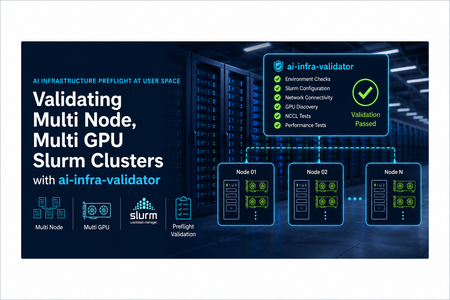
Every team that operates GPU clusters for AI has seen this pattern. The cluster boots, GPUs are visible, and scheduling works at a basic level. Then the first distributed training run stalls in NCCL initialization, fails during rank rendezvous, or silently maps ranks to the wrong devices. The issue is often not in training code. It is in infrastructure consistency across scheduler, runtime, drivers, networking, and process topology. The goal of ai-infra-validator is straightforward: Run a fast user space preflight before expensive training jobs. Validate distributed initialization for multi node, multi GPU workloads. Confirm GPU affinity and rank mapping are correct. Verify NCCL communication fabric can complete a collective ring under Slurm. This post walks through the implementation in detail, explains why each part exists, and shows how to operationalize it in real HPC AI environments. What the project validates Zero-dependency user space smoke test for AI clusters. Validates multi-node PyTorch DDP initialization, GPU affinity, and NCCL fabric connectivity under Slurm orchestration. Git Repo: ai-cluster-validator In practical terms, this checks that: Slurm launches the expected number of ranks per node. Distributed process group creation with NCCL succeeds. Each rank binds to the expected local GPU. Cross-rank all-reduce completes and converges. Node level telemetry confirms software and fabric state. This is not a performance benchmark. It is a correctness and readiness gate. Tested platform profile Component Value CycleCloud 8.8.3-3667 Slurm 25.05.5 Slurm partition hpc Scheduler VM SKU Standard_D8s_v6 Compute VM SKU Standard_ND96asr_v4 OS images microsoft-dsvm:ubuntu-hpc:2204:latest and microsoft-dsvm:ubuntu-hpc:2404:latest PyTorch 2.12.0+cu130 CUDA runtime 13.0 NCCL target 2.29.7 This profile represents a common enterprise scenario where scheduler and compute nodes have different roles, and the training fleet depends on correct multi node orchestration. Step 1: Minimal user space bootstrap The bootstrap script creates a shared Python environment at /shared/apps/pytorch_env and installs the required packages: torch torchvision torchaudio psutil This choice is intentional: No dependency on containers for first-pass validation. Single environment path visible to all compute nodes. Rapid setup and repeatability for cluster operators. Command sequence: git clone https://github.com/vinil-v/ai-cluster-validator.git cd ai-cluster-validator sudo bash bootstrap_env.sh Step 2: Slurm job defines deterministic distributed topology The Slurm script expresses a clear topology contract: nodes=2 ntasks-per-node=8 gpus-per-node=8 cpus-per-task=12 From this, world size is derived as: WORLD_SIZE = SLURM_NTASKS = 2 x 8 = 16 The script also configures network and NCCL behavior: NCCL_DEBUG=WARN NCCL_IB_DISABLE=0 NCCL_P2P_DISABLE=0 NCCL_IGNORE_CPU_AFFINITY=1 GLOO_SOCKET_IFNAME=eth0 NCCL_SOCKET_IFNAME=eth0 Important implementation detail: MASTER_ADDR is set to the first host in SLURM_JOB_NODELIST. MASTER_PORT is selected dynamically from the ephemeral range 49152-65535 and falls back to 29500 if needed. Why this matters: Reduces port collision risk when jobs run frequently. Avoids hardcoded rendezvous values that may fail in shared clusters. Launch path: srun --cpu-bind=none bash -c " source /shared/apps/pytorch_env/bin/activate; export RANK=$SLURM_PROCID; export LOCAL_RANK=$SLURM_LOCALID; python3 ddp_mesh_ping.py " The LOCAL_RANK handoff is critical for stable GPU affinity inside each node. Step 3: DDP initialization and rank to GPU affinity Inside ddp_mesh_ping.py, each process executes: Parse WORLD_SIZE, RANK, LOCAL_RANK, MASTER_ADDR, MASTER_PORT. Initialize torch.distributed with backend nccl and TCP init method. Set CUDA device using LOCAL_RANK. Core initialization path: dist.init_process_group( backend="nccl", init_method=f"tcp://{master_addr}:{master_port}", world_size=world_size, rank=rank ) torch.cuda.set_device(local_rank) This validates the minimum distributed contract required by real model training jobs. Step 4: Rich node and fabric telemetry in user space Each rank collects detailed metadata before the collective test: Node identity from Slurm and hostname. GPU model and VRAM from CUDA properties. System memory via psutil. CPU model from /proc/cpuinfo. OS and kernel versions. NVIDIA driver version from /proc/driver/nvidia/version. PyTorch, CUDA, and NCCL runtime versions. InfiniBand device state and link rate from /sys/class/infiniband. Basic GPU peer access capability via torch.cuda.can_device_access_peer. All rank payloads are gathered on rank 0 using dist.gather_object and printed as: Cluster hardware topology report. Node environment deep dive. Network interconnect and fabric status. This design gives platform teams one artifact that is both operational and diagnostic. Step 5: Functional collective validation After telemetry, each rank executes a lightweight DDP compute path: Build nn.Linear(10,10) on local GPU. Wrap with DistributedDataParallel. Perform forward, loss, backward. Run all_reduce on loss tensor. Compute global average loss. Pass condition is explicit in log output: SUCCESS: DDP Multi-Node AllReduce Ring Complete! This confirms that process group initialization and collective communication both completed successfully. What a successful run looks like Submission: sbatch ddp_smoke_test.slurm squeue Representative outcomes in the log: Total Execution Ranks: 16 Two nodes with local ranks 0 through 7 on each node GPU inventory aligned with expected A100 topology Active InfiniBand HCAs discovered per host NCCL socket interface set to eth0 Final success marker and computed convergence loss When these markers are present and coherent with expected hardware shape, the cluster is typically ready for distributed training bring-up. How to check the output file The Slurm script writes two artifacts per job: ai_infra_smoke_test_<jobid>.log ai_infra_smoke_test_<jobid>.err Use this exact workflow after submission: # 1. Submit and capture the job id sbatch ddp_smoke_test.slurm # 2. Check job state squeue -j <jobid> # 3. Read standard output log cat ai_infra_smoke_test_<jobid>.log # 4. Read standard error log cat ai_infra_smoke_test_<jobid>.err For stronger validation in automation, also check: Total Execution Ranks equals expected world size. Both nodes appear in the topology table with local ranks 0 through 7. NCCL/CUDA/PyTorch versions are present in the node environment section. Complete reference output Use the following full log as a known-good reference from a successful 2-node ND96asr_v4 run. Master Node IP/Hostname: ddpcluster-hpc-1 Dynamically Assigned Port: 53593 Total Execution Ranks: 16 =============================================================================================== HPC CLUSTER INTERACTION MONITOR =============================================================================================== --> Initializing DDP on Master Node : ddpcluster-hpc-1 --> Dynamic Coordination Port : 53593 --> Target World Cluster Size : 16 GPUs ----------------------------------------------------------------------------------------------- =============================================================================================== CLUSTER HARDWARE TOPOLOGY REPORT =============================================================================================== | Rank | Node Name | Local ID | GPU Model | VRAM | Sys Mem | CPU Cores | ----------------------------------------------------------------------------------------------- | 0 | ddpcluster-hpc-1 | 0 | NVIDIA A100-SXM4-4 | 39.5 GB | 885.8 GB | 96 Cores | | 1 | ddpcluster-hpc-1 | 1 | NVIDIA A100-SXM4-4 | 39.5 GB | 885.8 GB | 96 Cores | | 2 | ddpcluster-hpc-1 | 2 | NVIDIA A100-SXM4-4 | 39.5 GB | 885.8 GB | 96 Cores | | 3 | ddpcluster-hpc-1 | 3 | NVIDIA A100-SXM4-4 | 39.5 GB | 885.8 GB | 96 Cores | | 4 | ddpcluster-hpc-1 | 4 | NVIDIA A100-SXM4-4 | 39.5 GB | 885.8 GB | 96 Cores | | 5 | ddpcluster-hpc-1 | 5 | NVIDIA A100-SXM4-4 | 39.5 GB | 885.8 GB | 96 Cores | | 6 | ddpcluster-hpc-1 | 6 | NVIDIA A100-SXM4-4 | 39.5 GB | 885.8 GB | 96 Cores | | 7 | ddpcluster-hpc-1 | 7 | NVIDIA A100-SXM4-4 | 39.5 GB | 885.8 GB | 96 Cores | | 8 | ddpcluster-hpc-2 | 0 | NVIDIA A100-SXM4-4 | 39.5 GB | 885.8 GB | 96 Cores | | 9 | ddpcluster-hpc-2 | 1 | NVIDIA A100-SXM4-4 | 39.5 GB | 885.8 GB | 96 Cores | | 10 | ddpcluster-hpc-2 | 2 | NVIDIA A100-SXM4-4 | 39.5 GB | 885.8 GB | 96 Cores | | 11 | ddpcluster-hpc-2 | 3 | NVIDIA A100-SXM4-4 | 39.5 GB | 885.8 GB | 96 Cores | | 12 | ddpcluster-hpc-2 | 4 | NVIDIA A100-SXM4-4 | 39.5 GB | 885.8 GB | 96 Cores | | 13 | ddpcluster-hpc-2 | 5 | NVIDIA A100-SXM4-4 | 39.5 GB | 885.8 GB | 96 Cores | | 14 | ddpcluster-hpc-2 | 6 | NVIDIA A100-SXM4-4 | 39.5 GB | 885.8 GB | 96 Cores | | 15 | ddpcluster-hpc-2 | 7 | NVIDIA A100-SXM4-4 | 39.5 GB | 885.8 GB | 96 Cores | =============================================================================================== NODE ENVIRONMENT DEEP DIVE ----------------------------------------------------------------------------------------------- [ddpcluster-hpc-1] Details: --> CPU Microarchitecture : AMD EPYC 7V12 64-Core Processor --> Operating System : Ubuntu 22.04.5 LTS --> Kernel Base Version : 5.15.0-1110-azure --> Nvidia Driver Loaded : 580.126.20 --> PyTorch Environment : v2.12.0+cu130 --> CUDA Runtime Version : v13.0 --> NCCL Fabric Target : v2.29.7 --> Discovered InfiniBand HCAs: - mlx5_an0:1 (4: ACTIVE - 40 Gb/sec (4X QDR)) - mlx5_ib0:1 (4: ACTIVE - 200 Gb/sec (4X HDR)) - mlx5_ib1:1 (4: ACTIVE - 200 Gb/sec (4X HDR)) - mlx5_ib2:1 (4: ACTIVE - 200 Gb/sec (4X HDR)) - mlx5_ib3:1 (4: ACTIVE - 200 Gb/sec (4X HDR)) - mlx5_ib4:1 (4: ACTIVE - 200 Gb/sec (4X HDR)) - mlx5_ib5:1 (4: ACTIVE - 200 Gb/sec (4X HDR)) - mlx5_ib6:1 (4: ACTIVE - 200 Gb/sec (4X HDR)) - mlx5_ib7:1 (4: ACTIVE - 200 Gb/sec (4X HDR)) ----------------------------------------------------------------------------------------------- [ddpcluster-hpc-2] Details: --> CPU Microarchitecture : AMD EPYC 7V12 64-Core Processor --> Operating System : Ubuntu 22.04.5 LTS --> Kernel Base Version : 5.15.0-1110-azure --> Nvidia Driver Loaded : 580.126.20 --> PyTorch Environment : v2.12.0+cu130 --> CUDA Runtime Version : v13.0 --> NCCL Fabric Target : v2.29.7 --> Discovered InfiniBand HCAs: - mlx5_an0:1 (4: ACTIVE - 40 Gb/sec (4X QDR)) - mlx5_ib0:1 (4: ACTIVE - 200 Gb/sec (4X HDR)) - mlx5_ib1:1 (4: ACTIVE - 200 Gb/sec (4X HDR)) - mlx5_ib2:1 (4: ACTIVE - 200 Gb/sec (4X HDR)) - mlx5_ib3:1 (4: ACTIVE - 200 Gb/sec (4X HDR)) - mlx5_ib4:1 (4: ACTIVE - 200 Gb/sec (4X HDR)) - mlx5_ib5:1 (4: ACTIVE - 200 Gb/sec (4X HDR)) - mlx5_ib6:1 (4: ACTIVE - 200 Gb/sec (4X HDR)) - mlx5_ib7:1 (4: ACTIVE - 200 Gb/sec (4X HDR)) ----------------------------------------------------------------------------------------------- NETWORK INTERCONNECT & FABRIC STATUS ----------------------------------------------------------------------------------------------- --> Target Communication Interface (NCCL_SOCKET_IFNAME) : eth0 --> Active Telemetry Tracking Level (NCCL_DEBUG) : WARN --> Inter-GPU Topo Link Verification : Active (P2P/NVLink Capable) ----------------------------------------------------------------------------------------------- SUCCESS: DDP Multi-Node AllReduce Ring Complete! --> Computed System Verification Convergence Loss : 1.398719 =============================================================================================== Why this is effective for platform operations For AI infrastructure teams, this pattern is highly effective because it is: Fast: can be run after every change window. Deterministic: same topology contracts every run. Actionable: output includes enough context for first-level triage. Low friction: user space only, no heavy control plane dependencies. This supports common operating workflows: Day-0 cluster acceptance. Day-1 patch validation after driver, kernel, or image changes. Regression gate in golden image pipelines. Preflight before large multi node model training jobs. Practical guidance for extending to larger clusters Adjust Slurm directives for nodes and tasks per node. Keep one rank per GPU unless validating alternate placement policy. Set NCCL_SOCKET_IFNAME and GLOO_SOCKET_IFNAME according to your network policy. Preserve the dynamic MASTER_PORT logic to avoid static collisions. Keep the success marker string stable so automation can parse it. Closing perspective Most distributed training failures are expensive because they are discovered late. A user space preflight that validates scheduler topology, rank rendezvous, GPU affinity, and NCCL collectives provides a high value guardrail before production starts. ai-infra-validator is a practical implementation of that guardrail. It is compact, transparent, and aligned with how real Slurm based AI clusters operate. For teams running multi node multi gpu training at scale, this kind of preflight should be a standard operational gate.
Distributing model weights to your AI cluster: a faster pre-flight on AKS and Slurm
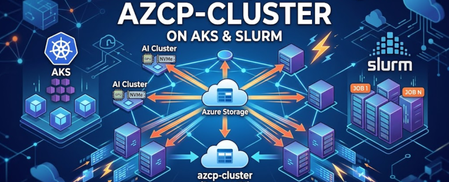
Standing up an N-node training or inference job and waiting forever for the model checkpoint to land on every node's NVMe? Here's a small Rust + MPI tool — azcp-cluster — that pays Azure egress once, broadcasts over your fabric, and finishes in seconds. Plus the AKS and Slurm patterns to wire it into a real pipeline.
Teamcenter Simulation Process Data Management Architecture on Azure CycleCloud- Slurm cluster
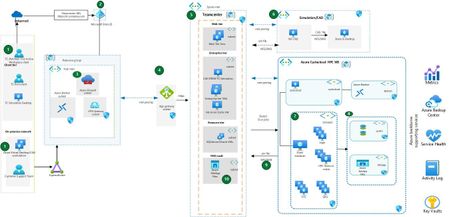
Introduction: Many customers run multiple Teamcenter-SPDM solutions across the enterprise, mixing multiple instances, multiple ISV vendors, and hybrid cloud/on-prem implementations. This fragmentation reduces the customer’s ability to uniformly access data. Consolidating Teamcenter-SPDM on Azure can speed the shift to one consistent, harmonized PLM experience, enterprise wide. What is Teamcenter Simulation? Teamcenter Simulation integrates simulation data, processes, and results into the broader PLM (Product Lifecycle Management) environment. Instead of engineers running simulations in silos on local drives, it provides: A single source of truth for CAD, simulation models, inputs, and results. Traceability across design, analysis, and manufacturing. Support for multi-CAD, multi-CAE tools (e.g., NX Nastran, ANSYS, Abaqus, Star-CCM+). Primary benefit Teamcenter Simulation SPDM gives you full traceability from source to solution. SPDM is a single source of truth where CAE analysis of a product design testing is related to a corresponding item in original CAD. This relationship of CAD and SIM data is a key to determine which CAD revision is captured in a particular CAE analysis. Architecture: Siemens Teamcenter SPDM baseline architecture has two major blocks of architectures which are connected. Teamcenter PLM core deployment StarCCM deployed on HPC Cyclecloud Slurm Workspace Teamcenter PLM Core Deployment: It has four distributed tiers (client, web, enterprise, and resource) in a single availability zone. Each tier aligns to function and communication flows between these tiers. All four tiers use their own virtual machines in a single virtual network. The Teamcenter Simulation aka CAE manage is core business functionality of SPDM runs on a central server in the enterprise tier and users access it through a web-based or thick-client interface. You can deploy multiple instances in Dev and Test environments by adding extra virtual machines and storage on virtual networks separate from production virtual networks. StarCCM HPC Cyclecloud slurm cluster architecture: Siemens StarCCM simulation software will be deployed on Azure Cyclecloud HPC Scheduler node. CAE Analyst fires the simulation jobs from Teamcenter Active workspace or Rich client UI. Azure HPC will then spin up and HPC nodes, these nodes will process the jobs submitted by CAE Analyst based on the runtime parameter. StarCCM will processed complete the simulation iteration and .sim file output will be generated. Workflow CAE Analysts, SPDM & Teamcenter users access the Teamcenter application via an HTTPS-based endpoint Public URL. Users access the application through two user interfaces: (1) a Rich client and (2) an Active workspace client, CAE engineer/Simulation Analysts access the Teamcenter through the Teamcenter Simulation client. Teamcenter Simulation client is lightweight thin client runs on users’ desktop. User access will be authenticated via Company’s Azure Entra ID. Azure Entra ID with SAML configuration allows single sign on(SSO) to the Teamcenter application. Azure Firewall & Azure backbone Security component which filter the traffic and threat intelligence feeds directly from Microsoft Cyber Security. Https traffic directed to the Azure Application gateway. The Hub virtual network and Spoke virtual network are peered so they can communicate over the Azure backbone network. Azure Application Gateway routes traffic to the Teamcenter’s web server virtual machines (VMs) in the Web tier. Siemens PLM Teamcenter deployment on Azure. For detailed information about Teamcenter Architecture on Azure refer this url. Teamcenter Simulation Client runs on Teamcenter User’s desktop. CAE manager is deployed as integral part of the Teamcenter package. Teamcenter Simulation on Azure HPC: CAE Engineer executes the following typical workflow with Azure HPC cluster Step 1: CAD Data & Product Structures CAD models (e.g., from NX, CATIA, SolidWorks) are managed in Teamcenter. Simulation engineer links simulation models directly to Teamcenter product structures. Ensures simulation always uses the latest or correct version of the design. Step 2: Build Simulation Model (Pre-processing) Simulation templates define solver type (FEA, CFD, Multiphysics) and required inputs. Engineers use tools like NX CAE, Simcenter 3D, ANSYS, Abaqus, or Star-CCM+ integrated with Teamcenter. Meshes, boundary conditions, loads, and materials are associated with the correct design revision. Step 3: Manage Simulation Data All input decks, scripts, and models stored in Teamcenter for version control. Metadata (e.g., load case, solver settings) captured for searchability & re-use. Supports process automation: simulation workflows can be pre-configured for repeatable tasks. Step 4: Run Simulation Jobs (Enhanced with Azure CycleCloud Benefits) Jobs submitted to local HPC clusters or cloud HPC (Azure CycleCloud,) directly from Teamcenter. Teamcenter stores solver logs, job status, and output files. Following diagram show end to end workflow starts with Teamcenter CAE manager--> StarCCM -->HPC cluster ->Simulation processing Sim file -->Sim file back to Teamcenter Teamcenter CAE manager--> StarCCM running on HPC cluster Teamcenter generates the job file on the HPC node HPC Cluster creating HPC nodes Squeue monitoring on HPC node Job monitoring on Teamcenter UI Simulation output file generated by Sbatch job File copied over to Teamcenter shared file location Step 5: Post-processing & Results Management Results imported back into Teamcenter: stress plots, temperature distributions, flow fields, etc. Visualization via Simcenter 3D, JT format (lightweight 3D), or web-based viewers. Results tied back to: Design versions Simulation setup Load cases This creates a traceable digital thread from requirements → design → simulation → results. Step 6: Review, Sign-off, and Collaboration Results shared with design, manufacturing, and management teams in Teamcenter. Review workflows, e-signatures, and approvals integrated into PLM processes. Simulation results influence design changes and product validation reports. Azure CycleCloud adds several key advantages: On-demand scaling: Automatically provisions Azure compute nodes when workloads spike, then scales down when jobs complete to reduce costs. HPC Slurm scheduler integration: Supports popular schedulers like Slurm enabling smooth job submission from Teamcenter. Multi-VM sizes & GPU support: Allows selecting the right mix of CPU/GPU VMs for different simulation workloads (e.g., CFD, FEA, ML-driven simulations). Hybrid flexibility: Combine on-prem HPC with Azure bursting to handle peak demand without over-provisioning local hardware. Cost governance: Built-in cost controls, job quotas, and reporting to track simulation expenses. Security & compliance: Leverages Azure security, VNet isolation, and role-based access control for simulation data and compute resources. Integration with Azure Storage: Simplifies access to input/output files using Azure Blob, Azure NetApp Files, or Lustre for HPC-grade throughput. Conclusion: Siemens Teamcenter SPDM, when deployed on Azure HPC CycleCloud Workspaces, delivers a scalable and high-performance simulation data management solution. The integration with Azure CycleCloud enables dynamic provisioning of compute resources, allowing simulation workloads to scale elastically based on demand. This ensures optimal resource utilization and cost efficiency, especially during peak simulation cycles. With support for Slurm scheduling, multi-VM configurations, and GPU acceleration, SPDM on HPC CCWs empowers engineering teams to run complex simulations faster and more reliably. The architecture’s hybrid flexibility—combining on-premises and cloud bursting—further enhances throughput without overcommitting infrastructure, making it a robust foundation for enterprise-wide digital thread and product validation workflows.Simplify troubleshooting at scale - Centralized Log Management for CycleCloud Workspace for Slurm
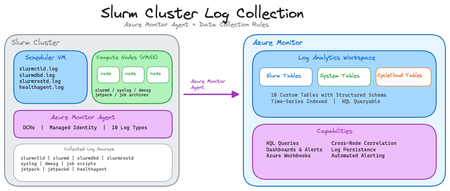
Training large AI models on hundreds or thousands of nodes introduces a critical operational challenge: when a distributed job fails, quickly identifying the root cause across scattered logs can become incredibly time-consuming. This manual process delays recovery and reduces cluster utilization. The ability to quickly parse centralized cluster logs from a single interface is critical to ensure job failure root cases are swiftly identified and mitigated to maintain high cluster utilization. Solution Architecture This is a turnkey, customizable log forwarding solution for CycleCloud Workspace for Slurm that centralizes all cluster logs into Azure Monitor Logs Analytic. The architecture uses Azure Monitor Agent (AMA) deployed on every VM and Virtual Machine Scale Set (VMSS) to stream logs defined by Data Collection Rules (DCR) to dedicated tables in a Log Analytics workspace where they can be queried from a single interface. The turnkey solution captures three categories of logs essential for troubleshooting distributed workloads, but can be extended for any other logs: Slurm logs including slurmctld, slurmd, etc., plus archived job artifacts (job submission scripts, environmental variables, stdout/stderr) collected via prolog/epilog scripts. Infrastructure logs including those from CycleCloud including the CycleCloud Healthagent which automatically tests nodes for hardware health and draining nodes that fail tests. Operation System logs from syslog and dmesg capturing kernel events, network state changes, and hardware issues. Each log source flows through its own DCR into a dedicated table following a consistent schema. The solution automatically associates scheduler-specific DCRs with the Slurm scheduler node and compute-specific DCRs with compute nodes handling dynamic node scaling transparently. The solution is purpose-built for CycleCloud Workspace for Slurm, but designed in a modular fashion to be easily extended for new data sources (i.e. new log formats) and processing (i.e. Data Collection Rules) to support log forwarding and analysis of other required logs. Key Benefits Time-series correlation: Azure Monitor's time-based indexing enables rapid identification of cascading failures. For example, trace a network carrier flap detected in syslog to corresponding slurmd communication errors to specific job failures all within seconds. Centralized visibility: Query logs from thousands of nodes through a single interface instead of SSH-ing to individual machines. Correlate Slurm controller decisions with node-level errors and system events in one query. Log persistence: Logs survive node deallocations and reimaging. Critical in cloud environments where compute nodes are ephemeral. Powerful query language: KQL (Kusto Query Language) allows parsing raw logs into structured fields, filtering across multiple sources, and building operational dashboards. Example queries detect patterns like repeated job failures, network instability, or resource exhaustion. Production-ready scalability: User-assigned managed identities automatically propagate to new VMSS instances, and DCR associations handle thousands of nodes without manual configuration. Getting Started The complete solution is available on GitHub (slurm-log-collection) with deployment scripts that: Create all required Log Analytics tables Deploys pre-configured DCRs for Slurm, CycleCloud, and OS logs Automatically associate DCRs with scheduler and compute resources After configuring environment variables and running the setup scripts, logs begin flowing to Azure Monitor and will populate within 15 minutes, but normal log ingestion latency is ~30s to 3 minutes. The repository includes sample KQL queries for common troubleshooting scenarios to accelerate time-to-resolution and to perform non-troubleshooting analysis of cluster usage.