governance
10 Topics
Microsoft Purview: Comprehensive solutions for data governance, protection, compliance & management.
Microsoft Purview provides a unified data governance solution to help manage and govern your on-premises, multicloud, and software as a service (SaaS) data, Office Apps, Microsoft Office 365 services, Devices and Cloud Apps. Easily create a holistic, up-to-date map of your data landscape with automated data discovery, sensitive data classification, and end-to-end data lineage. Enable data consumers to access valuable, trustworthy data management.
Azure DevOps - Leveraging Pipeline Decorators for Custom Process Automation
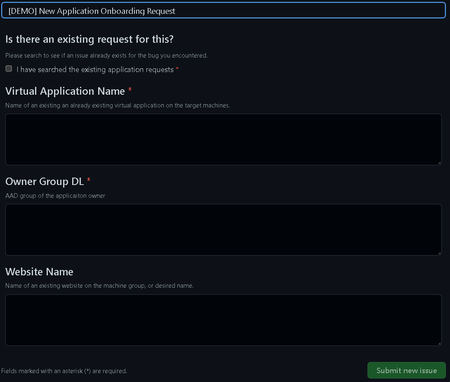
Introduction Background In the recent pandemic, health institutions all across the world have been pushed to their limits on about every facet. Through this, many such institutions have begun to reprioritize their modernization efforts around their cloud infrastructure to support increasing demands and hedge against uncertainty. As institutions are migrating their existing workloads into the cloud, a common challenge they are faced with is that many of their on-prem security processes and standards tend to not map one-to-one with the services they are being migrated to. With the sensitive nature of the healthcare industry, it is especially important to solution feasible routes to always ensure security and validation is in place end-to-end. In this blog post, we will look at how Azure DevOps Pipeline Decorators can be leveraged to bridge the gap in our cloud environment with the customer's existing security processes on their on-premises IIS server. What are Pipeline Decorators? If you have ever run across jobs executing on your azure pipelines that you have not previously defined, there is a good chance you may have already run into decorators before! Pipeline decorators allow you to program jobs to execute before or after any pipeline runs across your entire Azure DevOps organization. For scenarios such as running a virus scan before every pipeline job, or any sort of automated steps to assist with governance of your CICD processes, pipeline decorators grants you the ability to impose your will at any scale within Azure DevOps. Read further on decorators on Microsoft Learn: Pipeline decorators - Azure DevOps | Microsoft Learn In this blog post, I will be walking through a sample process based on the customer scenario’s requirements, and how the pipeline decorators can fit in to assist with their governance objectives. Scenario Customer’s Azure DevOps organization has grown to a considerable size composed of numerous projects with various applications with no clearly defined process or standards they adhere to. All of these applications have been hosted on an on-premises IIS server, where the application teams are trusted to provide manual inputs to deployment variables. Due to the lack of out-of-the-box controls for validating IIS file path permissions with Azure Active Directory identities within Azure DevOps, this was an area of concern with the customer as the deployed production applications effectively did not have any preventative measures to address malicious actors or human error overwriting existing applications. When looking at the deployment tasks to IIS servers from Azure DevOps, the two primary variables the customer was looking to control were: virtualAppName - Name of an existing an already existing virtual application on the target machines websiteName - Name of an existing website on the machine group Considering the RBAC strategy the customer has in mind with AAD, there will be a third variable to represent the ownership of the application via an AAD group. groupId - AAD ID of the application owner’s group In the next section, I will outline a high-level process proposal based on these three variables, that goes into onboarding applications. Solutioning High-Level Process Proposal for Onboarding New Applications For this demo’s purposes, we will make the following assumptions to build out a process that illustrates how application teams can successfully onboard and assist the operations team in successfully managing the application environment within their on-prem IIS server. Assumptions Ops team only require the following three parameters to help govern application deployments: virtualAppName groupId websiteName Application teams only need flexibility while building applications within the CICD pipelines, and currently do not have much concerns or the expertise to manage deployments. Ops team wishes to also build security around these parameters such that only the authorized actors will be able to modify these values. Onboarding New Applications Ops team provides a template (such as GitHub issues templates) for new application requests to the application teams, and captures the following IIS deployment-specific information: virtualAppName groupId websiteName For this demo, I have created a simple GitHub issues YAML form which the operations team can leverage to capture basic information from the application teams, which can also be tied to automation to further reduce operational overhead: Ops team is then notified of the request, and upon successful validation continues to provision an Application Environment with the captured information application environment in this context involves the following components: Key Vault (per application) Service Connection to application Key Vault with read permissions over secrets Place the application team provided, ops team validated virtualAppName , groupId , websiteName values as secrets Place Service Connection details in the project variable group to allow for the decorator to dynamically retrieve secrets for each project Application registered onto the IIS server that adheres to existing IIS server file management strategies Once the environment is ready for use, notify the application teams by updating the issue template and now the application teams only need to focus on building and publishing their artifact within their CICD pipelines Updating Existing Applications Ops team provides a template for change requests to the application teams, and captures the following information: virtualAppName groupId websiteName Change Justification/Description Core Ops team reviews and approves the change request Update the application environment accordingly Notify the application team Now with the high-level process defined, we will now look at how we could bring in the relevant parameters into the decorators to impose validation logic. Building the Demo Setting up our Demo Application Environment In this example, I created a key vault named kv-demolocaldev , and placed the virtualAppName , groupId , and websiteName so we may retrieve the values later as shown below: Now, we must create the project and subsequently create the service connection to the key vault scoped to the project. To do this, I created an Azure Resource Manager Service Connection while using my demo identity, that is scoped to the resource group containing the key vault: Once the service connection is done provisioning, you can navigate to the AAD object by following the Manage Service Principal link, which will allow you to retrieve the Application ID to be used when adding the access policy. Selecting the Manage Service Principal link will take us to the AAD object, where we can find the Azure Application ID to add to our Key Vault access policy. The service connection will only need GET secret permissions on its access policy. Afterwards, we now capture the information about the service connection and key vault by creating a variable group on the application's Azure DevOps project named demo-connection-details : There will need to be additional steps taken to provision the IIS server as well with the parameters, but for this demo's purpose we will assume that the provisioning steps have already been taken care of. Now with this, we can move onto building out our decorators. Building the Decorators For the pipeline side, the customer is looking to control both the pre-build with validating the input variables, and post-build in placing guardrails around deployment configurations with the validated parameters. Both pre and post decorators will leverage the same key vault secrets, so we will start with integrating the key vault secrets into the YAML definition. Pipeline decorators leverage the same YAML schema as the YAML build pipelines used within Azure DevOps. Meaning we can take advantage of conditional logic with repo branches, dynamic variables, and pull in key vault secrets with service connections. The high-level logic we are attempting to demonstrate for the pre and post decorators are the following: Pre: Check for variables/conditions to bypass decorators Using pre-established variables, connect to application’s Azure Key vault and retrieve secret values For each of the deployment variables, process custom validation logic Post: Deploy the application/artifact to the IIS server You can find the demo files within the following repo: https://github.com/JLee794-Sandbox/ADO-Decorators-PoC Pre-build decorator To ensure users can opt-out of the process during development, we can leverage the same YAML schema as build pipelines to construct our conditionals. Check for variables/condition to bypass decorators In the pre-build decorator YAML definition (located in Build/Pre/input-parameter-decorator.yml ), for pipeline builds that run off the main branch, that also checks for a simple variable flag named testDecorator to be true for the decorator to execute. steps: - ${{ if and(eq(variables['Build.SourceBranchName'], 'main'), contains(variables['testDecorator'],'true') ) }}: Following right after, I retrieve websiteName , groupId , and virtualAppName with the connection details we have placed within the demo-connection-details , which will be passed in by the build pipeline. - task: AzureKeyVault@2 displayName: '[PRE BUILD DECORATOR] Accessing Decorator Params from the key vault - $(decorator_keyvault_name), using $(decorator_keyvault_connection_name) connection.' inputs: azureSubscription: $(decorator_keyvault_connection_name) # Service Connection Name (scoped to RG) KeyVaultName: $(decorator_keyvault_name) # Key Vault Name SecretsFilter: 'websiteName,groupId,virtualAppName' # Secret names to retrieve from Key Vault RunAsPreJob: true Now that the secrets have been pulled in, we can now run our custom validation logic for each. For the purpose of this demo, we will just check that each variable exists and throw an error through a simple PowerShell script. - task: PowerShell@2 name: ValidateDeploymentVariables displayName: '[PRE BUILD DECORATOR] Validate Deployment Variables (Injected via Decorator)' inputs: targetType: 'inline' script: | $errorArr = @() try { Write-Host "VirtualAppName: $(virtualAppName)" # your input test cases go here # e.g querying the remote-machine to match the virtualAppName } catch { errorArr += 'virtualAppName' Write-Host "##vso[task.logissue type=error]Input parameter 'virtualAppName' failed validation tests." } try { Write-Host "GroupID: $(groupId)" # your input test cases go here # e.g querying the remote-machine to match the groupId against the local file permissions } catch { Write-Host "##vso[task.logissue type=error]Input parameter 'groupId' failed validation tests." errorArr += 'GroupID' } try { Write-Host "WebSiteName: $(webSiteName)" # your input test cases go here # e.g querying the web-site URL to see if site already exists, etc. } catch { Write-Host "##vso[task.logissue type=error]Input parameter 'webSiteName' failed validation tests." errorArr += 'GroupID' } if ($errorArr.count -gt 0) { # Link to your teams documentation for further explanation Write-Warning -Message "Please provide valid parameters for the following variables: $($errorArr.join(', '))" Write-Warning -Message "See <https://docs.microsoft.com/en-us/azure/devops/pipelines/process/variables?view=azure-devops&tabs=yaml%2Cbatch> for additional details" throw "Please provide valid values for $($errorArr.join(', '))." } And we are done with the pre-build decorator! Of course, while developing it is important to iteratively test your code. If you would like to publish your code now, skip to the (Publish your extension) section below. Post-build decorator For our post-build decorator, all we want to do is determine when the decorator should run, and simply invoke a deployment task such as the IISWebAppDeploymentOnMachineGroup task. Of course, there are many more validation steps and tools you can place here to further control your deployment process, but for the sake of this demo we will just be outputting some placeholder messages: steps: - task: PowerShell@2 name: DeployToIIS displayName: Deploy to IIS (Injected via Decorator) condition: | and ( eq(variables['Build.SourceBranch'], 'refs/heads/main'), eq(variables.testDecorator, 'true') ) inputs: targetType: 'inline' script: | # Validation steps to check if IIS # Validation steps to check if iOS or Android # > execute deployment accordingly Write-Host @" Your IIS Web Deploy Task can look like this: - task: IISWebAppDeploymentOnMachineGroup@ inputs: webSiteName: $(webSiteName) virtualApplication: $(virtualAppName) package: '$(System.DefaultWorkingDirectory)\\**\\*.zip' # Optionally, you can parameterize this as well. setParametersFile: # Optional removeAdditionalFilesFlag: false # Optional excludeFilesFromAppDataFlag: false # Optional takeAppOfflineFlag: false # Optional additionalArguments: # Optional xmlTransformation: # Optional xmlVariableSubstitution: # Optional jSONFiles: # Optional "@ Publishing the Extension to Share with our ADO Organization First, we need to construct a manifest for the pipeline decorators to publish them to the private Visual Studio marketplace so that we may start using and testing the code. In the demo directory, under Build we have both Pre and Post directories, where we see a file named vss-extension.json on each. We won’t go into too much of the details around the manifest file here today, but the manifest file allows us to configure how the pipeline decorator executes, and for what sort of target. Read more on manifest files: Pipeline decorators - Azure DevOps | Microsoft Learn With the manifest file configured, we can now publish to the marketplace and share it with our ADO organization: Create publisher on the Marketplace management portal Install tfx command line tool npm install -g tfx-cli Navigate to the directory containing the vss-extension.json Generate the .vsix file through tfx extension create > tfx extension create --rev-version TFS Cross Platform Command Line Interface v0.11.0 Copyright Microsoft Corporation === Completed operation: create extension === - VSIX: /mnt/c/Users/jinle/Documents/Tools/ADO-Decorator-Demo/Build/Pre/Jinle-SandboxExtensions.jinlesampledecoratorspre-1.0.0.vsix - Extension ID: jinlesampledecoratorspre - Extension Version: 1.0.0 - Publisher: Jinle-SandboxExtensions Upload the extension via the Marketplace management portal or through tfx extension publish Share your extension with your ADO Organization on the management portal Install the extension on your ADO Organization Organization Settings > Manage Extensions > Shared > Install Testing the Decorator Now that your pipeline decorators are installed in your organization, any time you push an update to the Visual Studio marketplace to update your extensions, your organization will automatically get the latest changes. To test your decorators, you can leverage the built in GUI for Azure DevOps to validate your YAML syntax, as well as executing any build pipeline with the appropriate trigger conditions we have configured previously. In our demo application environment, I updated the out-of-the-box starter pipeline to include our connection variable group, as well as specify the testDecorators flag to true: variables: - name: testDecorator value: true - group: demo-connection-details Running the pipeline, I can now see the tasks I have defined execute as expected: Once we verify that the pre and post tasks have run as expected with the conditional controls evaluating in a similar manner, we can then conclude this demo. Conclusion Now with the decorator's scaffolding in place, the customer can continue to take advantage of the flexibility provided by Azure DevOps pipeline's YAML schema to implement their existing security policies at the organization level. I hope this post helped bring understanding to how pipeline decorators can be leveraged to automate custom processes and bring governance layers into your ADO environment. If you have any questions or concerns around this demo, or would like to continue the conversation around potential customer scenarios, please feel free to reach out any time.4.9KViews2likes0CommentsUsing Copilot in Sensitive Healthcare Teams Meetings - Without Recording or Transcription
Healthcare organizations want the productivity benefits of Microsoft 365 Copilot, but those benefits must be balanced with privacy, security, and compliance requirements. I recently worked with a healthcare customer whose compliance team was concerned about persistent meeting artifacts. They wanted users to benefit from Copilot during Microsoft Teams meetings, but they did not want every conversation recorded or a transcript available afterward—especially for meetings involving sensitive operational, workforce, legal, compliance, or patient-related discussions. Microsoft Teams provides an option that can help with this scenario: allowing Copilot only during the meeting while disabling recording and transcription. Important: This article describes a technical configuration and customer scenario. It is not legal or compliance advice. Your privacy, security, compliance, records-management, and legal teams should determine whether this configuration is appropriate for your organization and specific meeting types. Why This Matters in Healthcare Healthcare organizations conduct many meetings where the discussion may include sensitive information: Patient care coordination Quality and safety reviews Compliance investigations Workforce and employee matters Security incidents Legal or risk-management discussions Research and clinical program planning A recording or transcript can become an additional persistent information asset that must be appropriately protected, retained, governed, and eventually disposed of. The HIPAA Security Rule requires covered entities and business associates to implement reasonable and appropriate administrative, physical, and technical safeguards for electronic protected health information. This includes evaluating risk, controlling access, implementing audit controls, and periodically reviewing security measures. The U.S. Department of Health and Human Services provides an overview of these requirements here. HIPAA’s minimum necessary standard also generally calls for organizations to limit unnecessary access to protected health information, although important exceptions apply—including certain disclosures for treatment. HHS provides additional guidance on the minimum necessary requirement. Turning off recording and transcription does not automatically make a meeting compliant. However, reducing the creation of unnecessary meeting artifacts can be one useful part of a broader, risk-based healthcare data-governance strategy. Copilot Without a Persistent Transcript When a Teams meeting is configured for Only during the meeting, Copilot can use temporary speech-to-text data to understand the active conversation. A traditional meeting transcript does not need to be started. Users can ask Copilot to: Summarize what has been discussed Identify decisions List open questions Capture action items Explain areas of disagreement Help someone catch up after joining late Microsoft explains that Copilot must be manually started by a participant in this configuration. Copilot can then provide insights based on the conversation taking place while it is active. See Microsoft’s guidance for using Copilot without recording or transcribing a Teams meeting. There are two important limitations users must understand. First, Copilot does not automatically start when the meeting begins. If someone activates it five minutes into the meeting, it will not have the same context it would have had if it had been started at the beginning. Second, users should capture anything they need before leaving the meeting. Without transcription, they will not have the same post-meeting Copilot conversation history or transcript-based recap. Microsoft recommends copying any Copilot content users want to keep before the meeting ends. Watch the Complete Walkthrough In the following video, I demonstrate the user experience, the corresponding Teams administrative policies, the Facilitator consideration, and several lessons I learned while implementing this for a healthcare customer. How to Use Copilot in Teams Without Recording or Transcription: Admin Setup & Gotchas The Administrative Configuration For this scenario, the goal was to create a scoped Teams meeting policy that: Prevented users from recording meetings Prevented users from starting transcription Allowed Copilot to operate during the meeting Avoided enabling a transcript-dependent post-meeting Copilot experience The settings are managed through Teams meeting policies in the Teams admin center. In the video, I walk through the relevant recording, transcription, and Copilot controls and show the resulting experience from a user’s perspective. For a healthcare organization, I would normally begin with a limited population instead of immediately applying a new policy globally. A pilot group gives the organization an opportunity to test the technical behavior and evaluate it with stakeholders from: Privacy and compliance Information security Legal and risk management Records management Clinical or operational leadership Microsoft 365 administration End-user training and adoption The appropriate configuration may differ between clinical, administrative, research, legal, HR, and general collaboration scenarios. A single organization-wide meeting policy may not be the right answer for every healthcare meeting. “No Transcript” Does Not Mean “No Compliance Data” This distinction is critical. Although participants may not receive a traditional meeting recording or transcript, Copilot prompts and responses can still be subject to Microsoft Purview retention policies. Depending on the organization’s configuration, those interactions may also be discoverable through Microsoft Purview eDiscovery. Microsoft explicitly notes that Copilot prompts and responses may be retained for compliance purposes even when recording and transcription are disabled. Microsoft’s Purview training covers auditing, retention, eDiscovery, and compliance controls for Copilot interactions. Healthcare organizations should therefore evaluate more than the visible Teams recap. The governance review should include: Copilot interaction retention Microsoft Purview Audit eDiscovery requirements Data Loss Prevention policies Sensitivity labels Records-management obligations Access to saved notes or exported Copilot responses Organizational policies governing the entry of PHI into AI-assisted experiences The user experience may feel temporary, but the organization’s compliance controls can still operate behind the scenes. The Lesson We Almost Missed: Facilitator Still Creates Loop Artifacts This was one of the most important lessons from my recent engagement. While working to Copilot to operate only during the meeting. Recording was disabled, transcription was disabled, and users did not receive the traditional transcript-based recap we were trying to avoid. But Loop files were still appearing. That initially seemed inconsistent with the policy design. After investigating, we discovered that the files were not being created by the personal Copilot experience—they were being generated because Microsoft Facilitator was enabled. This distinction is easy to miss: Copilot only during the meeting gives an individual user private, real-time assistance without requiring a persistent transcript. Facilitator is a shared meeting agent that can generate collaborative notes and other meeting artifacts. Microsoft documents that Facilitator’s meeting data is stored as a .loop file in the Meetings folder of the OneDrive account belonging to the user who initiated Facilitator. The data is treated as meeting transcript data for governance purposes. Facilitator notes may also be available to meeting participants through Notes and the meeting recap. Microsoft documents Facilitator’s behavior, storage, and administrative controls here. For a healthcare organization, that Loop file is not simply a convenient set of notes. Depending on what was discussed, it could contain sensitive operational information, workforce information, security details, or protected health information. It becomes another persistent artifact that must be considered in the organization’s access, sharing, retention, eDiscovery, lifecycle-management, and data-protection strategy. Copilot and Facilitator Require Separate Governance Decisions Disabling recording and transcription while allowing Copilot during the meeting does not automatically prevent Facilitator from producing shared meeting content. Healthcare organizations should make separate decisions about: Whether users should have access to Copilot during meetings. Whether users should be allowed to initiate Facilitator. Which meeting types are appropriate for shared AI-generated notes. Which users or groups should be allowed to use Facilitator. How the resulting Loop files should be stored, accessed, retained, labeled, and disposed of. Facilitator can be extremely useful for approved operational meetings where collaborative notes, decisions, and follow-up actions are valuable. However, it may not be appropriate for every sensitive clinical, compliance, legal, HR, or incident-response meeting. Microsoft allows administrators to control whether Facilitator is available across the organization or only to selected groups of users through Teams app policies and app-centric management. One important administrative nuance is that access to Facilitator can be scoped, while Microsoft’s control for turning off AI-generated meeting notes is currently tenant-wide rather than user-specific. That makes intentional scoping particularly important. Instead of assuming every Copilot-licensed user should also be able to initiate Facilitator, organizations can identify the populations and meeting scenarios where persistent collaborative notes have a defined business purpose and an approved governance model. The practical lesson is simple: If your goal is to use Copilot without creating persistent meeting artifacts, do not stop after validating the recording, transcription, and Copilot policies. Verify whether Facilitator is enabled and inspect the resulting Loop behavior as part of your testing. The Meeting Option That Can Cause Confusion and Broke Things For Us One of the most important lessons from this implementation involved the meeting organizer’s Copilot setting. If an organizer changes the meeting from Only during the meeting to During and after the meeting, Copilot expects transcription to be available. If the organization’s policy prevents transcription, the user may receive an error indicating that Copilot cannot access the meeting. From the user’s perspective, that can look like a licensing problem or a broken Copilot deployment. In reality, it may simply be a mismatch between: The organization’s transcription policy The Copilot meeting option selected by the organizer The type of Copilot experience the user is attempting to start Microsoft’s meeting guidance confirms that During and after the meeting requires transcription, while Only during the meeting can operate without it. Review the current Copilot behavior in Microsoft Teams meetings. This is why user education is just as important as the policy itself. A Healthcare Deployment Checklist Before introducing this configuration more broadly, consider the following: Classify the meeting scenarios. Determine where in-meeting Copilot is appropriate and where AI assistance should be restricted entirely. Engage compliance early. Validate the design with privacy, security, legal, records-management, and compliance stakeholders. Use scoped policies. Pilot with specific users or groups before considering a broader rollout. Review more than recordings and transcripts. Evaluate Purview retention, auditing, eDiscovery, DLP, sensitivity labels, and exported Copilot content. Evaluate and scope Facilitator separately. Determine which users should be able to initiate Facilitator and which meeting scenarios justify shared AI-generated notes. Test where the resulting Loop files are stored, who can access them, and how retention, sensitivity labels, eDiscovery, sharing, and lifecycle controls apply. Test for unexpected artifacts. After a pilot meeting, inspect the organizer’s and initiator’s OneDrive, the meeting chat, Notes, Recap, Loop, and relevant Purview experiences. Confirm that the meeting produces only the artifacts your governance team expects. Train meeting organizers. Explain the difference between Only during the meeting and During and after the meeting. Prepare users for the temporary experience. Users should capture approved action items or summaries before the meeting ends. Test the complete workflow. Validate the experience using representative accounts, policies, licenses, meeting types, and organizational controls. Review the configuration periodically. Microsoft Teams and Copilot capabilities continue to evolve, and healthcare organizations should reassess their controls as features change. Finding the Right Balance Healthcare organizations do not necessarily have to choose between disabling Copilot completely and generating a recording and transcript for every meeting. The Only during the meeting option provides another path: users can receive real-time assistance while the organization limits the creation of traditional post-meeting artifacts. It is not a substitute for a complete healthcare compliance strategy. It is a technical control that can support a broader strategy built around risk assessment, appropriate access, retention, auditing, training, and clearly defined meeting scenarios. The Facilitator lesson also demonstrates why organizations must test the entire meeting experience—not just the most visible policy settings. Copilot may be operating as expected while another enabled capability is still creating shared, persistent content. For the healthcare customer that inspired this video, the technical settings were only part of the solution. The real success came from understanding the user experience, finding the unexpected Loop artifacts, separating Copilot governance from Facilitator governance, and teaching organizers how the different options behave. That is the lesson I hope this walkthrough helps other healthcare organizations apply.