github
376 TopicsMastering Query Fields in Azure AI Document Intelligence with C#
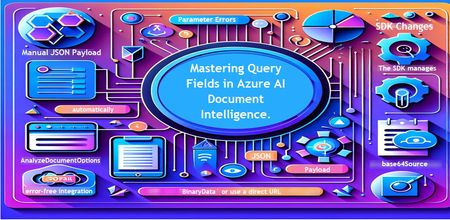
Introduction Azure AI Document Intelligence simplifies document data extraction, with features like query fields enabling targeted data retrieval. However, using these features with the C# SDK can be tricky. This guide highlights a real-world issue, provides a corrected implementation, and shares best practices for efficient usage. Use case scenario During the cause of Azure AI Document Intelligence software engineering code tasks or review, many developers encountered an error while trying to extract fields like "FullName," "CompanyName," and "JobTitle" using `AnalyzeDocumentAsync`: The error might be similar to Inner Error: The parameter urlSource or base64Source is required. This is a challenge referred to as parameter errors and SDK changes. Most problematic code are looks like below in C#: BinaryData data = BinaryData.FromBytes(Content); var queryFields = new List<string> { "FullName", "CompanyName", "JobTitle" }; var operation = await client.AnalyzeDocumentAsync( WaitUntil.Completed, modelId, data, "1-2", queryFields: queryFields, features: new List<DocumentAnalysisFeature> { DocumentAnalysisFeature.QueryFields } ); One of the reasons this failed was that the developer was using `Azure.AI.DocumentIntelligence v1.0.0`, where `base64Source` and `urlSource` must be handled internally. Because the older examples using `AnalyzeDocumentContent` no longer apply and leading to errors. Practical Solution Using AnalyzeDocumentOptions. Alternative Method using manual JSON Payload. Using AnalyzeDocumentOptions The correct method involves using AnalyzeDocumentOptions, which streamlines the request construction using the below steps: Prepare the document content: BinaryData data = BinaryData.FromBytes(Content); Create AnalyzeDocumentOptions: var analyzeOptions = new AnalyzeDocumentOptions(modelId, data) { Pages = "1-2", Features = { DocumentAnalysisFeature.QueryFields }, QueryFields = { "FullName", "CompanyName", "JobTitle" } }; - `modelId`: Your trained model’s ID. - `Pages`: Specify pages to analyze (e.g., "1-2"). - `Features`: Enable `QueryFields`. - `QueryFields`: Define which fields to extract. Run the analysis: Operation<AnalyzeResult> operation = await client.AnalyzeDocumentAsync( WaitUntil.Completed, analyzeOptions ); AnalyzeResult result = operation.Value; The reason this works: The SDK manages `base64Source` automatically. This approach matches the latest SDK standards. It results in cleaner, more maintainable code. Alternative method using manual JSON payload For advanced use cases where more control over the request is needed, you can manually create the JSON payload. For an example: var queriesPayload = new { queryFields = new[] { new { key = "FullName" }, new { key = "CompanyName" }, new { key = "JobTitle" } } }; string jsonPayload = JsonSerializer.Serialize(queriesPayload); BinaryData requestData = BinaryData.FromString(jsonPayload); var operation = await client.AnalyzeDocumentAsync( WaitUntil.Completed, modelId, requestData, "1-2", features: new List<DocumentAnalysisFeature> { DocumentAnalysisFeature.QueryFields } ); When to use the above: Custom request formats Non-standard data source integration Key points to remember Breaking changes exist between preview versions and v1.0.0 by checking the SDK version. Prefer `AnalyzeDocumentOptions` for simpler, error-free integration by using built-In classes. Ensure your content is wrapped in `BinaryData` or use a direct URL for correct document input: Conclusion Using AnalyzeDocumentOptions provides a cleaner and more reliable way to work with query fields in Azure AI Document Intelligence using C#. By aligning with the latest SDK approach, developers can simplify implementation, reduce common errors, and improve code maintainability. Keeping up with SDK enhancements and recommended practices ensures more accurate and efficient document data extraction. As Azure AI capabilities continue to evolve, adopting modern integration patterns will help you build scalable and future-ready document processing solutions with greater confidence. Reference Official AnalyzeDocumentAsync Documentation. Official Azure SDK documentation. Azure Document Intelligence C# SDK support add-on query field.470Views0likes0CommentsMicrosoft's Student Opportunities: A Gateway to Professional Growth
Are you a student looking to give your career in tech a boost? Look no further than Microsoft's student opportunities. From scholarships to internships, Microsoft provides a range of programs designed to help students develop their skills, gain practical experience, and build connections in the industry. In this article, we'll explore Microsoft's opportunities and events, and how they can be the gateway to professional growth for students seeking a career in technology.36KViews3likes7CommentsMake Your Copilot Credits Count: A Student's Guide to Smarter AI Usage
If you're a student enrolled in GitHub Education, you already have something most developers pay for: free access to GitHub Copilot and its premium features. That's incredible. But here's the thing, free access doesn't mean unlimited usage, and not all AI interactions cost the same. Every chat message, every agent task, every model call consumes something called AI Credits, and knowing how they work will help you use Copilot smarter, produce better code, and build the kind of disciplined AI habits that professional developers are only just starting to learn. This post is inspired by a fantastic deep-dive from my collegaue developer advocate Bruno: "GitHub Copilot and Tokens: How to Keep Using AI Without Burning Your Budget" . We've taken those professional lessons and tailored them specifically for students because your learning environment, your assignments, and your goals are different from a seasoned engineer at a tech company. TL;DR: Use autocomplete before chat. Choose the right model. Keep context small. Start fresh chats often. Plan before you build. These habits will make you a better developer and stretch your credits further. What Are AI Credits and Why Do They Matter? When you interact with GitHub Copilot through chat, agent mode, or inline edits the model processes tokens. Tokens are small chunks of text (roughly 3–4 characters each). Every interaction consumes: Input tokens — everything sent to the model (your message, attached files, chat history, instructions) Output tokens — everything the model generates back to you Cached tokens — context the model reuses from previous turns (cheaper) These tokens are converted to AI Credits, where 1 AI Credit = $0.01 USD. Different models have very different token costs a lightweight model like GPT-5 mini charges $0.25 per million input tokens, while a powerful model like GPT-5.5 charges $5.00 per million input tokens (20x more expensive). Using the wrong model for a simple task is like taking a taxi to a destination that's a 5-minute walk. See the official pricing table: GitHub Copilot Models and Pricing . Figure 1: The four cost tiers of Copilot interactions. Autocomplete and Next Edit Suggestions are free — they do not consume AI Credits on paid plans Strategy 1: Tab Before Chat The Free Tier is Powerful Here is the single most impactful habit you can build: always try autocomplete before opening chat. According to GitHub's official billing documentation, code completions and Next Edit Suggestions are not billed as AI Credits on paid plans. That means every time you press Tab to accept an inline suggestion, you are getting AI assistance for free. Use autocomplete (Tab) for: Completing a line or a simple function Generating repetitive boilerplate (constructors, properties, getters/setters) Completing a repeated pattern you've started Writing obvious next lines like console.log , imports, or variable declarations Adjusting variable names inline Only move to Inline Edit (Ctrl+I / Cmd+I) when autocomplete isn't enough for a local change. Only open a Chat window when you need genuine reasoning an explanation, a plan, or a multi-step solution. As Bruno puts it: "The most expensive model in the world should not be helping you write public string Name { get; set; } . That's what Tab is for. And coffee." Strategy 2: Choose the Right Model for the Job GitHub Copilot gives you access to models from OpenAI, Anthropic, and Google each at different price points and capability levels. The key insight from VS Code's official Copilot usage guide is: reserve powerful reasoning models for tasks that genuinely need them. Your Task Recommended Model Tier Example Models Simple question or boilerplate Lightweight GPT-5 mini, Gemini 3 Flash Code explanation or basic docs Lightweight GPT-5 mini, GPT-5.4 nano Writing tests or debugging a single function Medium / Versatile Claude Haiku 4.5, GPT-5.4 Multi-file refactor or code review Medium / Versatile Claude Sonnet 4.6, GPT-5.4 Complex system design or architecture Powerful Claude Opus 4.7, GPT-5.5 Long agentic workflows Powerful (scoped!) Claude Opus 4.8, GPT-5.5 Not sure what you need Auto (recommended default) Copilot selects for you GitHub Copilot's Auto Model Selection feature automatically chooses a model based on task complexity, availability, and policies. For most students, Auto should be your default only switch manually when you have a specific reason. And when the complex task is done, switch back to Auto or a lighter model. Strategy 3: Context is Currency Smaller is Smarter Here's the counterintuitive truth that surprises most developers: the expensive part of a prompt is usually not the question you type it's everything surrounding it. Every token consumed by Copilot includes: All your previous chat messages in the session Every file you have open or attached Workspace search results Copilot pulled in Build output, terminal logs, or diff content Responses from any MCP (Model Context Protocol) servers you have enabled Your custom instructions file ( .github/copilot-instructions.md ) A single question inside a conversation with 80 messages, 12 open files, and 3 tool call results can cost significantly more than the same question asked fresh in a new chat with one relevant file attached. Figure 2: The same task asked two ways. Scope your prompts to save credits and often get better answers. Practical rules for context management: Attach only 2–3 relevant files — not your entire project Don't ask Copilot to analyse the whole repo when you only need changes in one module Paste only the first relevant error from a log, not 2,000 lines of output Remove timestamps and duplicate stack traces from pasted logs State the expected output format explicitly so the model stops early Use /compact in VS Code Chat to summarise a long conversation without losing key context Use /fork to explore an alternative direction without polluting the main conversation Strategy 4: Start Fresh Chats When You Change Tasks This is one of the simplest optimisations and one of the most ignored. The VS Code Copilot usage guide is explicit about it: when a conversation grows, it carries context from all previous messages. If you switch to an unrelated task in the same session, the model still processes that irrelevant history and you pay for it in credits. Bad pattern: Chat session: - "Help me fix the JWT bug in auth.ts" [10 messages] - "Now write unit tests for my sorting algorithm" [still in same chat!] - "Can you generate the README for my project?" [still in same chat!] - "Now debug this CSS layout issue..." [still in same chat!] Smart pattern: Chat 1: "Fix JWT bug in auth.ts" - DONE, close chat. Chat 2: "Write unit tests for sorting algorithm" - DONE, close chat. Chat 3: "Generate README for project" - fresh context, fresh cost. New task = new chat. Your human brain benefits too — focused sessions produce better outcomes than sprawling multi-topic conversations. Strategy 5: Plan Before You Build Use Agent Mode Wisely Agent mode is one of the most powerful Copilot features for students working on larger assignments — it can create files, run terminal commands, edit across multiple files, and execute tests. But agent mode also carries the highest token cost, because it loops: it plans, acts, observes tool output, then plans again. The VS Code documentation recommends separating planning from implementation to reduce rework and back-and-forth. Here's a phased approach that saves credits and produces better results: Figure 3: The credit-smart workflow. Always try the cheaper option first, escalate only when needed. Phase 1: Plan (lightweight model, low cost) I need to add user authentication to my Express app. Before writing any code, give me a step-by-step plan covering which files to create, which packages to install, and what tests to write. Do not write code yet. Phase 2: Scoped Implementation (one feature at a time) Using the plan we agreed, implement only Step 1: create src/middleware/auth.ts with JWT validation. Do not modify any other files yet. Phase 3: Validate Run the existing tests in tests/auth.test.ts and report the results. Fix only test failures related to the new auth middleware. Phase 4: Cleanup The implementation is complete. Update README.md with setup instructions for the auth module. Keep it under 200 words. Each phase is small, scoped, and verifiable. You can stop at any phase, check the result, and only continue when you're satisfied. This dramatically reduces expensive re-runs where the agent reverses its own changes. Strategy 6: Review Your MCP Servers and Custom Instructions MCP Servers MCP (Model Context Protocol) servers let Copilot connect to external tools databases, GitHub issues, Jira, Slack, browser automation, and more. Each enabled server expands what the agent can do, but also adds to the context the model must consider, which increases token usage. For students, a practical rule: only enable MCP servers relevant to your current project. If you're working on a simple Python web app, you probably don't need browser automation, a Kubernetes connector, and a Slack integration all active at the same time. See the VS Code MCP servers documentation for how to enable, disable, and configure them. Custom Instructions A .github/copilot-instructions.md file in your repository lets you give Copilot standing instructions — coding standards, testing commands, architecture conventions. This is a fantastic feature. But that file is included in every prompt's context, so a bloated instructions file costs credits on every single interaction. A good custom instructions file is: Short — under 200 words for a student project Specific to this repository's real conventions Clear about test commands (e.g., npm test , pytest ) Free of generic advice that applies to every codebase on earth Example of a good student instructions file: # Copilot Instructions for MyWebApp Language: TypeScript (strict mode) Framework: Express.js with Prisma ORM Tests: Run with `npm test` (Jest) Lint: Run with `npm run lint` (ESLint + Prettier) Conventions: - Use async/await, not callbacks - Validate all request inputs with Zod - Keep controllers thin; put logic in service files - Write a test for every new public function That's it. Short, actionable, and genuinely useful — not a 500-line manifesto. Strategy 7: Use Traditional Tools First AI is excellent for reasoning, explaining, planning, and connecting ideas. It is not the right tool for every job. Before reaching for Copilot chat, ask yourself whether a traditional tool can answer your question faster, cheaper, and more reliably: Compiler / type-checker — to find type errors (TypeScript, mypy) Linter — to find style and logic issues (ESLint, Pylint, Checkstyle) Formatter — to fix formatting (Prettier, Black, gofmt) Test runner — to confirm whether your code works (Jest, pytest, JUnit) Debugger — to step through execution and inspect state Docs / Stack Overflow — for well-documented APIs and common patterns If your linter tells you there's a missing import, fix it directly — don't ask Copilot to analyse your code to find it. Let deterministic tools do deterministic work, and let AI do the reasoning where it genuinely adds value. Your GitHub Education Benefits: What You Get If you haven't already, apply for GitHub Education with your school email address. Once verified, you receive: Free GitHub Copilot including premium features — see how to enable Copilot as a student Free GitHub Codespaces — 180 core hours per month, equivalent to GitHub Pro (great for browser-based coding with Copilot built in) GitHub Student Developer Pack — free access to dozens of professional tools from GitHub's partners, including cloud credits, domains, and IDEs GitHub Classroom — your instructors can manage assignments and provide feedback GitHub Community Exchange — discover and contribute to student-built projects Campus Experts program — become a student leader in your tech community These benefits are designed to give you real-world tools in an educational setting. Copilot is the standout feature — it's the same tool professional developers use every day. Using it wisely during your studies means you'll arrive in the workforce already ahead of the curve. Pre-Prompt Checklist for Students Before you fire off your next Copilot prompt, run through this checklist. It takes 10 seconds and can save significant credits — and more importantly, it builds the mental habits of a professional AI user. Figure 4: Two-column checklist covering what to check before opening chat and when writing your prompt. Before you open chat: ☐ Can Tab / autocomplete solve this? ☐ Is inline edit (Ctrl+I) enough for this local change? ☐ Can a linter, compiler, or test runner answer this? ☐ Is this a different task from my last message? If so, start a new chat. ☐ Am I on Auto model selection (or the right tier for this task)? ☐ Should I ask for a plan before asking for code? ☐ Do I have MCP servers enabled that I don't need right now? ☐ Is my copilot-instructions.md file concise and current? When writing your prompt: ☐ Attach only 2–3 relevant files, not the whole project ☐ Paste only the first relevant error from any logs ☐ Define the files to change, the goal, and any files not to touch ☐ Ask for a plan before implementation on complex tasks ☐ Remove timestamps and duplicate stack traces from pasted logs ☐ State the expected output format and length ☐ Use /compact if the session is getting long ☐ Use /fork to explore alternatives without polluting the main thread A Note on Responsible AI Use in Education Using Copilot smartly is not just about saving credits it's about developing genuine skills. When you ask Copilot to write all your code without understanding it, you lose the learning opportunity the assignment was designed to create. When you review and understand every suggestion Copilot makes, you learn faster, build better instincts, and can confidently explain your own work. Best practices for academic integrity with AI tools: Understand before you accept — never paste code you can't explain Use Copilot to learn, not to skip learning — ask it to explain the code it generates Follow your institution's AI policy — many universities have specific guidance on AI use in assessments Treat Copilot as a senior pair-programmer, not an answer machine — question its suggestions, push back, iterate Verify facts and documentation links — AI can hallucinate; always check official sources GitHub Education exists to give you real professional tools while you learn. The goal is for you to graduate with genuine skills, a real portfolio, and the confidence that comes from building things yourself — with AI as your collaborator, not your ghostwriter. Key Takeaways Tab first — autocomplete and Next Edit Suggestions are free; use them for everything small Auto model by default — only switch to a powerful model when you have a clear reason Context is cost — fewer files, fewer messages, fewer tools = fewer tokens New task = new chat — don't carry stale context into unrelated work Plan before you build — a 10-message plan session is cheaper than 50 messages of rework Keep instructions short — your copilot-instructions.md runs on every prompt Use traditional tools first — linters and compilers are free, fast, and deterministic Understand your code — Copilot is a collaborator, not a replacement for learning Resources and Next Steps GitHub Education — apply for your free student benefits GitHub Student Developer Pack — explore free tools for students Enable GitHub Copilot as a student GitHub Copilot: Models and Pricing — understand exactly what each model costs Auto Model Selection in GitHub Copilot VS Code: Optimising GitHub Copilot Usage — the official guide that inspired many of these tips Managing MCP Servers in VS Code El Bruno: GitHub Copilot and Tokens (the original professional perspective) GitHub Education Community Discussions — connect with students and educators worldwide This post draws on insights from El Bruno's developer blog and best practices from GitHub Education. All pricing figures are sourced from the official GitHub Copilot billing documentation and are correct as of June 2026.2.8KViews0likes1Comment
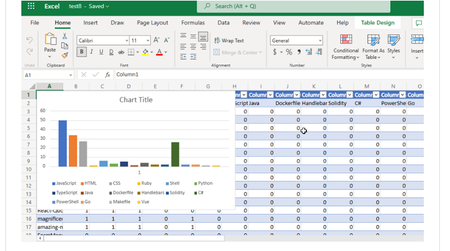
Visualizing Top GitHub Programming Languages in Excel with Microsoft Graph .NET SDK
Have you ever thought about going through all your GitHub Repositories, taking note of the languages used, aggregating them and visualizing it on Excel? Well, that is what this post is all about except you don’t have to do it manually in a mundane way.9.5KViews1like1CommentBuild an AI-Powered Space Invaders Game
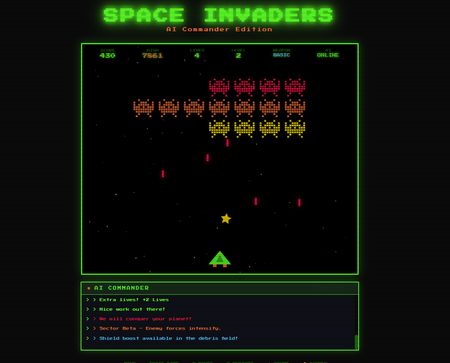
Build an AI-Powered Space Invaders Game: Integrating LLMs into HTML5 Games with Microsoft Foundry Local Introduction What if your game could talk back to you? Imagine playing Space Invaders while an AI commander taunts you during battle, delivers personalized mission briefings, and provides real-time feedback based on your performance. This isn't science fiction it's something you can build today using HTML, JavaScript, and a locally-running AI model. In this tutorial, we'll explore how to create an HTML5 game with integrated Large Language Model (LLM) features using Microsoft Foundry Local. You'll learn how to combine classic game development with modern AI capabilities, all running entirely on your own machine—no cloud services, no API costs, no internet connection required during gameplay. We'll be working with the Space Invaders - AI Commander Edition project, which demonstrates exactly how to architect games that leverage local AI. Whether you're a student learning game development, exploring AI integration patterns, or building your portfolio, this guide provides practical, hands-on experience with technologies that are reshaping how we build interactive applications. What You'll Learn By the end of this tutorial, you'll understand how to combine traditional web development with local AI inference. These skills transfer directly to building chatbots, interactive tutorials, AI-enhanced productivity tools, and any application where you want intelligent, context-aware responses. Set up Microsoft Foundry Local for running AI models on your machine Understand the architecture of games that integrate LLM features Use GitHub Copilot CLI to accelerate your development workflow Implement AI-powered game features like dynamic commentary and adaptive feedback Extend the project with your own creative AI features Why Local AI for Games? Before diving into the code, let's understand why running AI locally matters for game development. Traditional cloud-based AI services have limitations that make them impractical for real-time gaming experiences. Latency is the first challenge. Cloud API calls typically take 500ms to several seconds, an eternity in a game running at 60 frames per second. Local inference can respond in tens of milliseconds, enabling AI responses that feel instantaneous and natural. When an enemy ship appears, your AI commander can taunt you immediately, not three seconds later. Cost is another consideration. Cloud AI services charge per token, which adds up quickly when generating dynamic content during gameplay. Local models have zero per-use cost, once installed, they run entirely on your hardware. This frees you to experiment without worrying about API bills. Privacy and offline capability complete the picture. Local AI keeps all data on your machine, perfect for games that might handle player information. And since nothing requires internet connectivity, your game works anywhere, on planes, in areas with poor connectivity, or simply when you want to play without network access. Understanding Microsoft Foundry Local Microsoft Foundry Local is a runtime that enables you to run small language models (SLMs) directly on your computer. It's designed for developers who want to integrate AI capabilities into applications without requiring cloud infrastructure. Think of it as having a miniature AI assistant living on your laptop. Foundry Local handles the complex work of loading AI models, managing memory, and processing inference requests through a simple API. You send text prompts, and it returns AI-generated responses, all happening locally on your CPU or GPU. The models are optimized to run efficiently on consumer hardware, so you don't need a supercomputer. For our Space Invaders game, Foundry Local powers the "AI Commander" feature. During gameplay, the game sends context about what's happening, your score, accuracy, current level, enemies remaining and receives back contextual commentary, taunts, and encouragement. The result feels like playing alongside an AI companion who actually understands the game. Setting Up Your Development Environment Let's get your machine ready for AI-powered game development. We'll install Foundry Local, clone the project, and verify everything works. The entire setup takes about 10-15 minutes. Step 1: Install Microsoft Foundry Local Foundry Local installation varies by operating system. Open your terminal and run the appropriate command: # Windows (using winget) winget install Microsoft.FoundryLocal # macOS (using Homebrew) brew install microsoft/foundrylocal/foundrylocal These commands download and install the Foundry Local runtime along with a default small language model. The installation includes everything needed to run AI inference locally. Verify the installation by running: foundry --version If you see a version number, Foundry Local is ready. If you encounter errors, ensure you have administrator/sudo privileges and that your package manager is up to date. Step 2: Install Node.js (If Not Already Installed) Our game's AI features require a small Node.js server to communicate between the browser and Foundry Local. Check if Node.js is installed: node --version If you see a version number (v16 or higher recommended), you're set. Otherwise, install Node.js: # Windows winget install OpenJS.NodeJS.LTS # macOS brew install node # Linux sudo apt install nodejs npm Node.js provides the JavaScript runtime that powers our proxy server, bridging browser code with the local AI model. Step 3: Clone the Project Get the Space Invaders project onto your machine: git clone https://github.com/leestott/Spaceinvaders-FoundryLocal.git cd Spaceinvaders-FoundryLocal This downloads all game files, including the HTML interface, game logic, AI integration module, and server code. Step 4: Install Dependencies and Start the Server Install the Node.js packages and launch the AI-enabled server: npm install npm start The first command downloads required packages (primarily for the proxy server). The second starts the server, which listens for AI requests from the game. You should see output indicating the server is running on port 3001. Step 5: Play the Game Open your browser and navigate to: http://localhost:3001 You should see Space Invaders with "AI: ONLINE" displayed in the game HUD, indicating that AI features are active. Use arrow keys or A/D to move, SPACE to fire, and P to pause. The AI Commander will start providing commentary as you play! Understanding the Project Architecture Now that the game is running, let's explore how the different pieces fit together. Understanding this architecture will help you modify the game and apply these patterns to your own projects. The project follows a clean separation of concerns, with each file handling a specific responsibility: Spaceinvaders-FoundryLocal/ ├── index.html # Main game page and UI structure ├── styles.css # Retro arcade visual styling ├── game.js # Core game logic and rendering ├── llm.js # AI integration module ├── sound.js # Web Audio API sound effects ├── server.js # Node.js proxy for Foundry Local └── package.json # Project configuration index.html: Defines the game canvas and UI elements. It's the entry point that loads all other modules. game.js: Contains the game loop, physics, collision detection, scoring, and rendering logic. This is the heart of the game. llm.js: Handles all communication with the AI backend. It formats game state into prompts and processes AI responses. server.js: A lightweight Express server that proxies requests between the browser and Foundry Local. sound.js: Synthesizes retro sound effects using the Web Audio API—no audio files needed! How the AI Integration Works The magic of the AI Commander happens through a simple but powerful pattern. Let's trace the flow from gameplay event to AI response. When something interesting happens in the game, you clear a wave, achieve a combo, or lose a life, the game logic in game.js triggers an AI request. This request includes context about the current game state: your score, accuracy percentage, current level, lives remaining, and what just happened. The llm.js module formats this context into a prompt. For example, when you clear a wave with 85% accuracy, it might construct: You are an AI Commander in a Space Invaders game. The player just cleared wave 3 with 85% accuracy. Score: 12,500. Lives: 3. Provide a brief, enthusiastic comment (1-2 sentences). This prompt travels to server.js , which forwards it to Foundry Local. The AI model processes the prompt and generates a response like: "Impressive accuracy, pilot! Wave 3 didn't stand a chance. Keep that trigger finger sharp!" The response flows back through the server to the browser, where llm.js passes it to the game. The game displays the message in the HUD, creating the illusion of playing alongside an AI companion. This entire round trip typically completes in 50-200 milliseconds, fast enough to feel responsive without interrupting gameplay. Using GitHub Copilot CLI to Explore and Modify the Code GitHub Copilot CLI accelerates your development workflow by letting you ask questions and generate code directly in your terminal. Let's use it to understand and extend the Space Invaders project. Installing Copilot CLI If you haven't installed Copilot CLI yet, here's the quick setup: # Install GitHub CLI winget install GitHub.cli # Windows brew install gh # macOS # Authenticate with GitHub gh auth login # Add Copilot extension gh extension install github/gh-copilot # Verify installation gh copilot --help With Copilot CLI ready, you can interact with AI directly from your terminal while working on the project. Exploring Code with Copilot CLI Use Copilot to understand unfamiliar code. Navigate to the project directory and try: gh copilot explain "How does llm.js communicate with the server?" Copilot analyzes the code and explains the communication pattern, helping you understand the architecture without reading every line manually. You can also ask about specific functions: gh copilot explain "What does the generateEnemyTaunt function do?" This accelerates onboarding to unfamiliar codebases, a valuable skill when working with open source projects or joining teams. Generating New Features Want to add a new AI feature? Ask Copilot to help generate the code: gh copilot suggest "Create a function that asks the AI to generate a mission briefing at the start of each level, including the level number and a random mission objective" Copilot generates starter code that you can customize and integrate. This combination of AI-powered development tools and AI-integrated gameplay demonstrates how LLMs are transforming both how we build games and how games behave. Customizing the AI Commander The default AI Commander provides generic gaming commentary, but you can customize its personality and responses. Open llm.js to find the prompt templates that control AI behavior. Changing the AI's Personality The system prompt defines who the AI "is." Find the base prompt and modify it: // Original const systemPrompt = "You are an AI Commander in a Space Invaders game."; // Customized - Drill Sergeant personality const systemPrompt = `You are Sergeant Blaster, a gruff but encouraging drill sergeant commanding space cadets. Use military terminology, call the player "cadet," and be tough but fair.`; // Customized - Supportive Coach personality const systemPrompt = `You are Coach Nova, a supportive and enthusiastic gaming coach. Use encouraging language, celebrate small victories, and provide gentle guidance when players struggle.`; These personality changes dramatically alter the game's feel without changing any gameplay code. It's a powerful example of how AI can add variety to games with minimal development effort. Adding New Commentary Triggers Currently the AI responds to wave completions and game events. You can add new triggers in game.js : // Add AI commentary when player achieves a kill streak if (killStreak >= 5 && !streakCommentPending) { requestAIComment('killStreak', { count: killStreak }); streakCommentPending = true; } // Add AI reaction when player narrowly avoids death if (nearMissOccurred) { requestAIComment('nearMiss', { livesRemaining: lives }); } Each new trigger point adds another opportunity for the AI to engage with the player, making the experience more dynamic and personalized. Understanding the Game Features Beyond AI integration, the Space Invaders project demonstrates solid game development patterns worth studying. Let's explore the key features. Power-Up System The game includes eight different power-ups, each with unique effects: SPREAD (Orange): Fires three projectiles in a spread pattern LASER (Red): Powerful beam with high damage RAPID (Yellow): Dramatically increased fire rate MISSILE (Purple): Homing projectiles that track enemies SHIELD (Blue): Grants an extra life EXTRA LIFE (Green): Grants two extra lives BOMB (Red): Destroys all enemies on screen BONUS (Gold): Random score bonus between 250-750 points Power-ups demonstrate state management, tracking which power-up is active, applying its effects to player actions, and handling timeouts. Study the power-up code in game.js to understand how temporary state modifications work. Leaderboard System The game persists high scores using the browser's localStorage API: // Saving scores localStorage.setItem('spaceInvadersScores', JSON.stringify(scores)); // Loading scores const savedScores = localStorage.getItem('spaceInvadersScores'); const scores = savedScores ? JSON.parse(savedScores) : []; This pattern works for any data you want to persist between sessions—game progress, user preferences, or accumulated statistics. It's a simple but powerful technique for web games. Sound Synthesis Rather than loading audio files, the game synthesizes retro sound effects using the Web Audio API in sound.js . This approach has several benefits: no external assets to load, smaller project size, and complete control over sound parameters. Examine how oscillators and gain nodes combine to create laser sounds, explosions, and victory fanfares. This knowledge transfers directly to any web project requiring audio feedback. Extending the Project: Ideas for Students Ready to make the project your own? Here are ideas ranging from beginner-friendly to challenging, each teaching valuable skills. Beginner: Customize Visual Theme Modify styles.css to create a new visual theme. Try changing the color scheme from green to blue, or create a "sunset" theme with orange and purple gradients. This builds CSS skills while making the game feel fresh. Intermediate: Add New Enemy Types Create a new enemy class in game.js with different movement patterns. Perhaps enemies that move in sine waves, or boss enemies that take multiple hits. This teaches object-oriented programming and game physics. Intermediate: Expand AI Interactions Add new AI features like: Pre-game mission briefings that set up the story Dynamic difficulty hints when players struggle Post-game performance analysis and improvement suggestions AI-generated names for enemy waves Advanced: Multiplayer Commentary Modify the game for two-player support and have the AI provide play-by-play commentary comparing both players' performance. This combines game networking concepts with advanced AI prompting. Advanced: Voice Integration Use the Web Speech API to speak the AI Commander's responses aloud. This creates a more immersive experience and demonstrates browser speech synthesis capabilities. Troubleshooting Common Issues If something isn't working, here are solutions to common problems. "AI: OFFLINE" Displayed in Game This means the game can't connect to the AI server. Check that: The server is running ( npm start shows no errors) You're accessing the game via http://localhost:3001 , not directly opening the HTML file Foundry Local is installed correctly ( foundry --version works) Server Won't Start If npm start fails: Ensure you ran npm install first Check that port 3001 isn't already in use by another application Verify Node.js is installed ( node --version ) AI Responses Are Slow Local AI performance depends on your hardware. If responses feel sluggish: Close other resource-intensive applications Ensure your laptop is plugged in (battery mode may throttle CPU) Consider that first requests may be slower as the model loads Key Takeaways Local AI enables real-time game features: Microsoft Foundry Local provides fast, free, private AI inference perfect for gaming applications Clean architecture matters: Separating game logic, AI integration, and server code makes projects maintainable and extensible AI personality is prompt-driven: Changing a few lines of prompt text completely transforms how the AI interacts with players Copilot CLI accelerates learning: Use it to explore unfamiliar code and generate new features quickly The patterns transfer everywhere: Skills from this project apply to chatbots, assistants, educational tools, and any AI-integrated application Conclusion and Next Steps You've now seen how to integrate AI capabilities into a browser-based game using Microsoft Foundry Local. The Space Invaders project demonstrates that modern AI features don't require cloud services or complex infrastructure, they can run entirely on your laptop, responding in milliseconds. More importantly, you've learned patterns that extend far beyond gaming. The architecture of sending context to an AI, receiving generated responses, and integrating them into user experiences applies to countless applications: customer support bots, educational tutors, creative writing tools, and accessibility features. Your next step is experimentation. Clone the repository, modify the AI's personality, add new commentary triggers, or build an entirely new game using these patterns. The combination of GitHub Copilot CLI for development assistance and Foundry Local for runtime AI gives you powerful tools to bring intelligent applications to life. Start playing, start coding, and discover what you can create when your games can think. Resources Space Invaders - AI Commander Edition Repository - Full source code and documentation Play Space Invaders Online - Try the basic version without AI features Microsoft Foundry Local Documentation - Official installation and API guide GitHub Copilot CLI Documentation - Installation and usage guide GitHub Education - Free developer tools for students Web Audio API Documentation - Learn about browser sound synthesis Canvas API Documentation - Master HTML5 game rendering586Views0likes2CommentsStep-by-Step: Setting Up GitHub Student and GitHub Copilot as an Authenticated Student Developer
To become an authenticated GitHub Student Developer, follow these steps: create a GitHub account, verify student status through a school email or contact GitHub support, sign up for the student developer pack, connect to Copilot and activate the GitHub Student Developer Pack benefits. The GitHub Student Developer Pack offers 100s of free software offers and other benefits such as Azure credit, Codespaces, a student gallery, campus experts program, and a learning lab. Copilot provides autocomplete-style suggestions from AI as you code. Visual Studio Marketplace also offers GitHub Copilot Labs, a companion extension with experimental features, and GitHub Copilot for autocomplete-style suggestions. Setting up your GitHub Student and GitHub Copilot as an authenticated Github Student Developer416KViews14likes17CommentsBuilding ShadowQuest: A Multi-Agent RPG
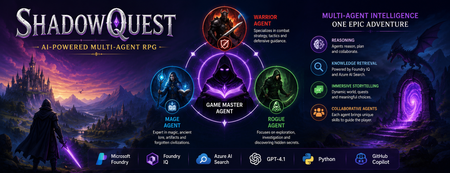
Artificial Intelligence is rapidly evolving beyond traditional chatbots. Today, developers are building intelligent systems where multiple AI agents collaborate, retrieve knowledge, and solve problems together. Microsoft's Agents League Hackathon provided the perfect opportunity to explore this new approach through the Reasoning Agents challenge. For this challenge, I built ShadowQuest, a fantasy role-playing game (RPG) powered by Microsoft Foundry, Foundry IQ, Azure AI Search, GPT-4.1, and GitHub Copilot. The project demonstrates how specialized AI agents can work together while using Retrieval-Augmented Generation (RAG) to deliver accurate and context-aware responses. About the Challenge Microsoft Agents League is a global developer challenge designed to encourage developers to build intelligent AI applications using Microsoft's latest AI technologies. Participants could choose from three tracks: Creative Apps, Reasoning Agents, and Enterprise Agents. I selected the Reasoning Agents track because I wanted to explore how multiple AI agents could collaborate instead of relying on a single large language model. Another important requirement for this year's challenge was integrating at least one Microsoft Intelligence Layer. For ShadowQuest, I chose Foundry IQ as the project's intelligence layer. The Idea Behind ShadowQuest Fantasy RPGs are built around storytelling, exploration, and collaboration between different characters. Every character usually has a unique role, whether it's a warrior protecting the team, a mage interpreting magical knowledge, or a rogue discovering hidden paths. I wanted to recreate this experience using AI. Instead of building one AI assistant responsible for everything, I designed a system where multiple specialized agents collaborate to create a richer and more immersive adventure. ShadowQuest is set in a fantasy world filled with magical artifacts, forgotten kingdoms, mysterious locations, and story-driven quests. Players can ask questions about the world, explore different locations, and learn about the game's lore through conversations with AI agents. Building the Multi-Agent Architecture The architecture follows a simple but scalable design. At the center of the system is the Game Master Agent, which acts as the orchestrator. Every player interaction starts with the Game Master. It receives the player's request, determines what information is needed, retrieves additional knowledge when required, and generates the final response. Supporting the Game Master are three specialized agents: Warrior Agent – Focuses on combat strategy and tactical decisions. Mage Agent – Provides magical knowledge, world lore, and information about ancient artifacts. Rogue Agent – Specializes in exploration, investigation, and discovering hidden information. Each agent has a clearly defined responsibility, making the system easier to understand, maintain, and extend in the future. Using Foundry IQ as the Knowledge Layer One of the most important parts of the project was integrating Foundry IQ. Instead of storing every piece of game information inside prompts, I created a dedicated knowledge base containing information about characters, magical artifacts, locations, quests, and the history of the ShadowQuest world. This approach separates knowledge from reasoning. Whenever a player asks a question, the Game Master Agent first retrieves relevant information from the knowledge base before generating a response. This ensures that answers remain consistent with the game's world while reducing hallucinations. Foundry IQ became the central source of truth for the entire project, making it easy to manage and expand the game world without constantly modifying prompts. Azure AI Search and Retrieval-Augmented Generation To enable intelligent retrieval, I connected Foundry IQ with Azure AI Search. The RPG documents were indexed, and vector embeddings were generated using Microsoft's embedding models. This enables semantic search, allowing the system to understand the meaning behind a player's question instead of relying only on keyword matching. For example, if a player asks about a magical relic without mentioning its exact name, Azure AI Search can still retrieve the correct information based on semantic similarity. The complete workflow looks like this: The player submits a question. The Game Master Agent receives the request. Foundry IQ queries Azure AI Search. Relevant documents are retrieved. GPT-4.1 generates a grounded response using the retrieved context. This Retrieval-Augmented Generation (RAG) approach significantly improves the quality and reliability of responses. Accelerating Development with GitHub Copilot GitHub Copilot played an important role throughout the development process. It helped generate Python classes, improve documentation, create helper functions, and speed up repetitive coding tasks. During the live demonstration, I also showed how Copilot could quickly generate a new Healer Agent, demonstrating how AI-assisted development makes it easier to extend a multi-agent application while maintaining a consistent architecture. Rather than replacing the developer, Copilot acted as an intelligent coding assistant, allowing me to focus more on architecture and design decisions. Demonstrating ShadowQuest During the Microsoft Agents League Reasoning Agents Battle, I demonstrated the Game Master Agent by asking questions about the ShadowQuest world, magical artifacts, and game lore. One of the most interesting parts of the demonstration was observing the retrieval process. Before generating a response, the Game Master Agent called the knowledge retrieval function through Foundry IQ. This confirmed that the system was retrieving relevant information from the indexed knowledge base rather than relying only on GPT-4.1's internal knowledge. This demonstrated how RAG can create more grounded, reliable, and context-aware AI experiences. Lessons Learned Building ShadowQuest taught me that designing multi-agent systems is as much about architecture as it is about AI models. Clearly defining responsibilities for each agent made the application easier to maintain and opened the door for future expansion. I also learned how valuable Retrieval-Augmented Generation can be for applications that depend on structured knowledge. Separating reasoning from knowledge allows AI systems to remain accurate while making it easier to update information over time. Finally, participating in the Microsoft Agents League was an incredible opportunity to experiment with Microsoft's latest AI technologies, learn from other developers, and share ideas with a global community passionate about agentic AI. Looking Ahead ShadowQuest is only the beginning. In future iterations, I plan to expand the project by introducing additional agents such as a Merchant Agent and Healer Agent, implementing persistent player memory, adding dynamic quest generation, improving combat mechanics, and enabling deeper collaboration between agents. These improvements will make the game world more immersive while continuing to explore the possibilities of agent-based AI systems. Conclusion ShadowQuest demonstrates how Microsoft Foundry, Foundry IQ, Azure AI Search, GPT-4.1, and GitHub Copilot can be combined to build intelligent multi-agent applications. More importantly, the project reinforced an important idea: the future of AI is not a single assistant performing every task, but a team of specialized agents collaborating with shared knowledge to solve increasingly complex problems. Participating in the Microsoft Agents League was an inspiring experience that allowed me to explore the next generation of AI development while building a project that combines storytelling, reasoning, and knowledge retrieval. I look forward to continuing this journey and discovering new ways to build intelligent applications using Microsoft's growing AI ecosystem.141Views1like0CommentsAccelerate your AI or agent build to sell on Marketplace with Quick-Start Development Toolkit
Want to skip right to coding in minutes? Start with the interactive wizard in App Advisor Building AI products quickly is becoming table stakes. Building them in a way that supports scalability, repeatability, and a path to commercialization is where software companies create advantage. The challenge now is reducing the time between identifying an opportunity and getting developers working inside a proven structure that supports real deployment outcomes. That’s where the AI, agentic, and Copilot branch of the Quick-Start Development Toolkit helps. Embedded directly within App Advisor, Quick-Start Development Toolkit helps software companies move from concept to implementation faster using guided development patterns, trusted architectures, deployable reference code, and practical resources designed to reduce friction across the development process. Build AI & agentic products faster without starting from scratch Development teams often know the customer scenario they want to solve. What slows momentum is deciding where to begin, selecting architecture patterns, and aligning implementation decisions across teams. The Quick-Start Development Toolkit helps remove that uncertainty. By answering a few focused questions about what you want to build, who it serves, and the products you’re building with, you’re matched with a development pattern designed to accelerate execution. Each development pattern includes: Self-serve, click-to-deploy reference code aligned to your scenario, Sample solution architecture to help visualize products and reduce guesswork, and Practical how-to resources and implementation guidance to overcome friction points, Everything is structured to support faster decision making and help teams move confidently into development. Accelerate development with purpose-built AI accelerators The AI and agent branch of Quick-Start Development Toolkit includes development accelerators designed around high-value scenarios, so your team can spend less time assembling foundations and more time building differentiated experiences. Each of these accelerators is built and fully maintained by Microsoft experts, so you can be confident your code template isn’t stale. Our most popular accelerators include: Multi-Agent Custom Automation Engine Accelerator: Delegate complex, repetitive tasks to AI agents that act on your behalf—executing work efficiently, reducing manual effort, and ensuring results align with your organization's standards. Conversation Knowledge Mining Accelerator: Improve contact center performance with AI-powered conversation intelligence—analyzing audio and text data on a large scale to show insights, improve service, and drive smarter decisions. Accelerate agentic applications for Unified Data Foundations (with Microsoft Fabric): Accelerate decision making at scale with secure, agentic AI built on a unified data foundation with two use cases for sales performance and customer insights. Each pattern includes common use cases, related resources, and pathways to adjacent scenarios so teams can continue progressing without losing momentum. The goal is to help your team move from experimentation to a product that can be packaged, deployed, and prepared for customers. You can see more of our accelerators here Coming this week: The Microsoft IQ solution accelerator leverages a shared intelligence layer to unify data, knowledge, and workflows, enabling AI-powered insights and coordinated actions for measurable business outcomes. Build with Microsoft Marketplace outcomes in mind Development choices shape commercial outcomes. Starting with trusted architecture and structured implementation guidance can help reduce redesign cycles later when preparing to package, publish, and scale. Quick-Start Development Toolkit helps software companies: Shorten time from idea to deployable AI product, Improve alignment across implementation decisions, Reduce development overhead through reusable foundations, and Create repeatable pathways toward publishing and selling. When development starts with clarity, commercialization becomes easier. Keep moving forward with App Advisor Quick-Start Development Toolkit is embedded within App Advisor because building is only one stage of the journey. App Advisor helps connect decisions across design, development, publishing, and growth so teams can continue moving forward with less context switching and more confidence. As your solution evolves, App Advisor provides curated, step-by-step guidance to help you prepare for Marketplace readiness and make the next decision faster. Ready to start? Explore Quick-Start Development Toolkit Start where you need help with App Advisor176Views4likes1CommentBuilding an On-Device Voice Assistant with Microsoft Foundry Local
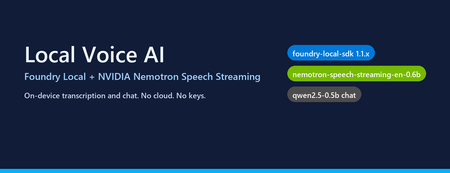
Why on-device voice still matters Most "voice AI" tutorials assume your audio leaves the machine. You ship a WAV to Whisper-API, your transcript to GPT-4, and a synthesized response back over the wire. That works — but it also means three round trips, three per-token bills, and three places your user's voice gets logged. The new wave of small, hardware-optimised models changes the trade-off. NVIDIA's Nemotron Speech Streaming En 0.6B is a 600M-parameter streaming ASR model published into the Microsoft Foundry Local catalog. Paired with a small chat model like qwen2.5-0.5b or phi-4-mini , you can run the entire capture → transcribe → reason → respond loop in-process on a developer laptop, with no API keys and no network egress. This post walks through how the fl-nemotron sample does it, the SDK pitfalls we hit on the way, and the design decisions that made the pipeline reliable. What we're building A browser-hosted assistant served by FastAPI at http://127.0.0.1:8000 . The page captures microphone audio, posts it to /api/transcribe , then streams the chat reply back over Server-Sent Events from /api/chat . All inference runs locally through two Foundry Local models loaded into the same process. The shape of the pipeline: Microphone (browser MediaRecorder) │ WebM/Opus blob ▼ Client-side WAV encoder (16 kHz, mono, PCM-16) │ multipart/form-data ▼ FastAPI /api/transcribe │ ▼ Nemotron Speech Streaming En 0.6B (Foundry Local audio client) │ transcript text ▼ Chat LLM e.g. qwen2.5-0.5b (Foundry Local chat client) │ streamed tokens ▼ FastAPI /api/chat → SSE → browser bubble The version that bit us: foundry-local-sdk >= 1.1.0 Before any code, the single most important fact about this project: The Nemotron Speech Streaming model only appears in the Foundry Local 1.1.x catalog. Older SDKs (0.5.x / 0.6.x) cannot resolve the alias nemotron-speech-streaming-en-0.6b and fail with model not found . The module name also changed in 1.1.0 — it is now foundry_local_sdk (with the underscore- sdk suffix), not foundry_local . The pip wheel for foundry-local-core is bundled, so there is no separate MSI / winget install to worry about. Pin it explicitly: pip install --upgrade "foundry-local-sdk>=1.1.0,<2" And verify before anything else: python -c "import importlib.metadata as m; print('sdk', m.version('foundry-local-sdk'))" # expect: sdk 1.1.0 Loading both models from one manager The 1.1.x SDK exposes a single FoundryLocalManager that owns the runtime. Each loaded model gives you back a per-model OpenAI-compatible client — get_chat_client() for text models and get_audio_client() for ASR. There is no need to bring your own openai Python package; the SDK ships its own thin client. The wrapper used in the repo ( src/foundry_client.py ) does this: from foundry_local_sdk import Configuration, FoundryLocalManager FoundryLocalManager.initialize(Configuration(app_name="fl-nemotron")) manager = FoundryLocalManager.instance chat_model = manager.load_model("qwen2.5-0.5b") stt_model = manager.load_model("nemotron-speech-streaming-en-0.6b") chat_client = chat_model.get_chat_client() audio_client = stt_model.get_audio_client() Both models are downloaded on first use into the Foundry Local cache and stay resident for the lifetime of the process. On a laptop with 16 GB RAM, the combined working set sits comfortably under 4 GB. The transcription surprise The first naive approach was the obvious one: with open(wav_path, "rb") as f: result = audio_client.transcribe(file=f, model="nemotron-speech-streaming-en-0.6b") That call fails on Nemotron. The bundled ONNX Runtime GenAI in foundry-local-core does not register the nemotron_speech multi-modal model type that the standard AudioClient.transcribe() path tries to instantiate. The error surfaces as a cryptic model-type registration failure deep inside the native runtime. The fix is to use the streaming session API instead — a different native entry point ( core_interop.start_audio_stream ) that the streaming model does support. The repo isolates this in src/_nemotron_live.py : def transcribe_wav_live(audio_client, wav_path, *, language="en"): with wave.open(str(wav_path), "rb") as w: sample_rate = w.getframerate() channels = w.getnchannels() sample_width = w.getsampwidth() pcm = w.readframes(w.getnframes()) session = audio_client.create_live_transcription_session() session.settings.sample_rate = sample_rate session.settings.channels = channels session.settings.bits_per_sample = sample_width * 8 session.settings.language = language session.start() # Feed PCM in ~100 ms chunks from a worker thread, then stop. bytes_per_sec = sample_rate * channels * sample_width chunk_bytes = max(bytes_per_sec // 10, 1024) def _pusher(): try: for offset in range(0, len(pcm), chunk_bytes): session.append(pcm[offset:offset + chunk_bytes]) finally: session.stop() threading.Thread(target=_pusher, daemon=True).start() parts = [] for resp in session.get_stream(): for cp in getattr(resp, "content", []) or []: text = getattr(cp, "text", "") or getattr(cp, "transcript", "") or "" if text: parts.append(text) return " ".join(p.strip() for p in parts if p.strip()).strip() Two things to notice: Push from a thread, read from the main coroutine. session.append() is a blocking write into the native stream and session.get_stream() is a blocking generator. Run one in a worker thread so the other can drain in parallel — otherwise you deadlock the session. Chunk to ~100 ms. Smaller chunks (e.g. 10 ms) spend more time crossing the FFI boundary than transcribing; larger chunks (e.g. 1 s) hold back partial results and hurt perceived latency. Always session.stop() . Without it the generator never terminates and the request hangs. The other transcription surprise: browsers don't send WAV Inside the browser, MediaRecorder defaults to audio/webm; codecs=opus . That's great for size but bad for our STT model, which expects a 16-bit mono PCM WAV at a known sample rate. Decoding WebM/Opus server-side would require ffmpeg as a runtime dependency — which is exactly the kind of friction this project exists to remove. The cleaner solution is to encode WAV on the client. AudioContext.decodeAudioData already understands WebM/Opus, so the page can decode the recording, resample to 16 kHz, mix to mono, and emit a PCM-16 WAV blob in 30 lines of JavaScript: // Inside src/static/index.html async function webmToWav(blob) { const ctx = new (window.AudioContext || window.webkitAudioContext)({ sampleRate: 16000 }); const buf = await ctx.decodeAudioData(await blob.arrayBuffer()); // Mix to mono const ch = buf.numberOfChannels; const mono = new Float32Array(buf.length); for (let c = 0; c < ch; c++) { const data = buf.getChannelData(c); for (let i = 0; i < data.length; i++) mono[i] += data[i] / ch; } return encodeWav(mono, 16000); } function encodeWav(samples, sampleRate) { const buffer = new ArrayBuffer(44 + samples.length * 2); const view = new DataView(buffer); // RIFF header writeStr(view, 0, "RIFF"); view.setUint32(4, 36 + samples.length * 2, true); writeStr(view, 8, "WAVE"); // fmt chunk writeStr(view, 12, "fmt "); view.setUint32(16, 16, true); // PCM chunk size view.setUint16(20, 1, true); // PCM format view.setUint16(22, 1, true); // mono view.setUint32(24, sampleRate, true); view.setUint32(28, sampleRate * 2, true); // byte rate view.setUint16(32, 2, true); // block align view.setUint16(34, 16, true); // bits per sample // data chunk writeStr(view, 36, "data"); view.setUint32(40, samples.length * 2, true); // PCM-16 samples let o = 44; for (let i = 0; i < samples.length; i++, o += 2) { const s = Math.max(-1, Math.min(1, samples[i])); view.setInt16(o, s < 0 ? s * 0x8000 : s * 0x7FFF, true); } return new Blob([view], { type: "audio/wav" }); } Now the server's /api/transcribe endpoint just writes the bytes to a temp file and hands them to transcribe_wav_live() — no audio decoding libraries on the Python side. Wiring it into FastAPI The server ( src/app.py ) is deliberately small. The notable detail is that the same process holds both Foundry Local model handles for its entire lifetime, so there is no warm-up cost per request: @app.post("/api/transcribe") async def transcribe(audio: UploadFile = File(...)): data = await audio.read() with tempfile.NamedTemporaryFile(suffix=".wav", delete=False) as f: f.write(data); path = f.name text = _ai_client.transcribe(path) return {"text": text} @app.post("/api/chat") async def chat(req: ChatRequest): if req.stream: return StreamingResponse( _sse(_ai_client.stream_completion(req.messages)), media_type="text/event-stream", ) return {"text": _ai_client.chat_completion(req.messages)} Streaming uses Server-Sent Events because they are trivially supported in both fetch() and the FastAPI runtime, and they don't require a WebSocket upgrade through any proxy a developer might have in front of localhost . What it looks like The repo includes screenshots of the running UI: a welcome screen with both models loaded, a streamed haiku reply, an inline code block with copy-to-clipboard, and the recording state for the microphone. Performance, honestly This is a small-model, CPU-friendly stack. On an Arm64 Surface running the x64 SDK under emulation: First model load (cold cache): tens of seconds — downloads ~600 MB for Nemotron and ~400 MB for qwen2.5-0.5b . Subsequent loads (warm cache): a few seconds per model. End-to-end transcription of a 5-second utterance: well under a second after warm-up. First chat token from qwen2.5-0.5b : typically 200–500 ms; full short reply within 1–2 s. On x64 silicon with a recent CPU the numbers improve substantially, and the SDK will pick the best execution provider it finds (CPU / DirectML / CUDA) for each model. Trade-offs to know about Model quality. qwen2.5-0.5b is a 500M-parameter model. It is fast and small enough to ship on a laptop, but it is not GPT-4. Swap in phi-4-mini or mistral-nemo-12b-instruct if you have the RAM and want better reasoning — the wrapper accepts any chat alias in the Foundry Local catalog. STT is English-only here. The current Nemotron streaming model in the catalog is ...-en-0.6b . Multilingual variants are likely to follow. Browser microphone needs a real browser. Headless / automated browsers (Playwright, Puppeteer) deny getUserMedia by default. Open the page in Edge / Chrome / Firefox to grant the permission and capture audio for real. No agent framework yet. This sample is deliberately a single-turn loop over a chat client — there is no tool calling, planning, or multi-agent orchestration. Adding the Microsoft Agent Framework on top would be a natural next step for richer behaviour. Responsible AI considerations Running locally removes the cloud-egress class of privacy concerns, but it does not remove responsibility: Disclose recording. The browser prompts for mic permission; your UI should make it obvious when capture is active. The sample shows a red ⏹ button and a "Recording…" banner for that reason. Don't log raw audio. The sample writes audio to a per-request NamedTemporaryFile and deletes it after transcription. Treat the WAV as sensitive data even when it never leaves the device. Small models hallucinate. A 0.5B chat model is great for snappy local replies, but unsuitable for high-stakes answers. Pair it with retrieval, ground it on your own data, or escalate to a larger model when accuracy matters. Try it Clone github.com/leestott/fl-nemotron. ./setup.ps1 (or ./setup.sh ) to create a virtualenv and install the pinned SDK. python scripts/prefetch.py nemotron-speech-streaming-en-0.6b qwen2.5-0.5b to download both models. .venv\Scripts\uvicorn.exe app:app --app-dir src --port 8000 Open http://127.0.0.1:8000 in a real browser and click the 🎤 button. Where to go next Foundry Local documentation — official docs for the runtime, catalog, and SDK. microsoft/Foundry-Local — upstream samples and issue tracker. NVIDIA Nemotron model family — background on the speech and language models being published into the catalog. leestott/fl-nemotron — the full source for this post. Key takeaways Pin foundry-local-sdk >= 1.1.0 . Earlier SDKs cannot see the Nemotron Speech Streaming model. Use the LiveAudioTranscriptionSession API for Nemotron, not AudioClient.transcribe() . Encode WAV in the browser. It eliminates a heavy server-side ffmpeg dependency for a few lines of JS. Push audio chunks on a worker thread and drain the response generator on the main one to avoid deadlocks. A small Foundry Local chat model plus Nemotron STT gives you a credible local voice loop in a single Python process — no cloud, no keys, no data egress.