github copilot cli
4 TopicsMaster the Command Line with GitHub Copilot CLI:
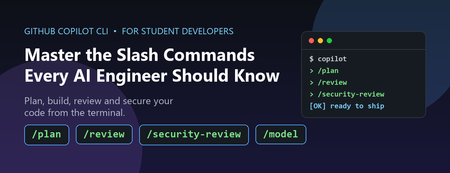
If you are a student aiming to become an AI engineer or a software developer, the terminal is about to become your most powerful classroom. https://github.com/features/copilot/cli/ brings an AI agent directly into your command line, and its slash commands (typed as /something ) are the shortcuts that unlock its real capabilities. The problem most students hit is simple: they install a powerful tool and then only ever use 10% of it. They type questions, get answers, and never discover the commands that turn Copilot CLI from a chatbot into a genuine pair programmer. This post fixes that. We will walk through the most useful slash commands, explain why you would reach for each one, and give you concrete student scenarios for every command. Why This Matters Now AI-assisted development is no longer optional in the industry. Employers increasingly expect graduates to be fluent with AI developer tools, not just programming languages. Learning the Copilot CLI slash commands early gives you two advantages: Speed: You spend less time context-switching between docs, terminal, and editor. Good habits: Commands like code review and security review teach you professional workflows while you are still learning. Everything below is grounded in the actual command set shipped in Copilot CLI. To see the full, current list at any time, just type /help inside the CLI. How to Run a Slash Command Slash commands are typed at the Copilot CLI prompt. Start a command with a forward slash and the CLI shows you an autocomplete menu: # Launch the CLI copilot # Then, at the prompt, type a slash to browse commands / # Or jump straight to one /model /plan /review A few related shortcuts are worth memorising on day one: ? — show quick help @ — mention files so Copilot reads them # — mention GitHub issues and pull requests ! — execute a raw shell command without leaving the prompt The Most Useful Slash Commands for Students The table below groups the highest-value commands by the job you are trying to do. Each row includes a realistic student scenario so you know exactly when to reach for it. Learning and Planning Command What it does Student scenario: why use it /plan Creates an implementation plan before any code is written. You have a coursework project ("build a sentiment classifier") but no idea where to start. Run /plan to get a step-by-step roadmap you can follow and learn from, instead of diving in blind. /research Runs a deep research investigation using GitHub search and web sources. For a dissertation or capstone, you need to compare approaches (e.g. "vector databases for RAG"). Use /research to gather grounded, cited findings rather than guessing. /ask Asks a quick side question without adding it to the conversation history. Mid-project you forget what a Python decorator does. Ask with /ask so your main task context stays clean and focused. /model Selects which AI model to use (or auto to let Copilot pick). A simple formatting fix needs a fast model; a tricky algorithm needs a stronger one. Learn to match the model to the task — a real engineering skill. Writing and Reviewing Code Command What it does Student scenario: why use it /diff Reviews the changes made in the current directory. Before submitting an assignment, run /diff to see exactly what changed — catch that debug print() you forgot to remove. /review Runs a code review agent to analyse your changes. No teaching assistant available at 2am? /review gives you professional-style feedback on bugs and logic errors so you learn before the deadline, not after grading. /security-review Analyses staged and unstaged changes for security vulnerabilities. Building a web app for a module? Run /security-review to spot issues like injection flaws — and start building the security mindset employers want. /pr Operates on pull requests for the current branch. Contributing to a group project or open source? Use /pr to manage pull requests and learn the collaboration workflow used in every real engineering team. /ide Connects Copilot to an IDE workspace. You prefer working in VS Code. Connect with /ide so Copilot understands your open files and editor context. Managing Your Work Session Command What it does Student scenario: why use it /resume Switches to a different saved session. You worked on a lab yesterday and want to continue today. /resume brings back the full context instead of starting from scratch. /context Shows context-window token usage and a visualization. Copilot seems to be "forgetting" earlier details. Check /context to understand how much conversation history fits — a core concept for any aspiring AI engineer. /compact Summarises conversation history to reduce context usage. Long debugging session running out of context? /compact condenses it so you can keep going without losing the thread. /undo / /rewind Rewinds the last turn and reverts file changes. Copilot made an edit that broke your tests. /undo safely rolls it back so you can experiment fearlessly. /usage Displays session usage metrics and statistics. Curious how much you are relying on the AI? /usage helps you stay aware of your consumption and learning balance. Setting Up and Extending the Environment Command What it does Student scenario: why use it /init Initialises Copilot instructions for the current repository. Starting a new project repo? /init sets up custom instructions so Copilot follows your project's conventions consistently. /mcp Manages Model Context Protocol (MCP) server configuration. Want Copilot to query a database or external tool? /mcp connects MCP servers — a cutting-edge skill for AI engineering portfolios. /agent Browses and selects specialised agents. Different tasks suit different agents. /agent lets you pick the right specialist for the job. /memory Shows memory status, or enables/disables memory across sessions. Want Copilot to remember your preferences (e.g. "I use Python type hints")? Manage that with /memory . A Realistic Student Workflow, End to End Here is how these commands fit together for a typical assignment — building a small machine learning script. Notice how the commands chain into a professional development loop: # 1. Plan the work before touching code /plan # 2. Pick an appropriate model for the task /model # 3. Let Copilot reference your data file @data/train.csv # 4. After Copilot writes code, see what changed /diff # 5. Get an automated code review /review # 6. Check for security issues before you submit /security-review # 7. If an edit broke something, roll it back /undo This loop —> plan, build, review, secure, iterate, is exactly the cycle used by professional engineering teams. By practising it now with Copilot CLI, you are rehearsing the workflow you will use in your first job. Responsible Use: Learn With AI, Not Instead Of It A quick but important note for students. AI assistance is a learning accelerator, not a replacement for understanding. Keep these principles in mind: Read the explanations, not just the code. Use /ask and /review to understand why something works. Check your institution's policy. Many courses have rules about AI use in assessed work, make sure you comply and cite appropriately. Never paste secrets. Keep API keys, passwords, and personal data out of prompts. Verify before you trust. Run the code, read the security review, and confirm claims against official documentation. Key Takeaways Slash commands turn Copilot CLI from a Q&A box into a full development partner. Start with /plan , /diff , /review , and /security-review they build professional habits immediately. Use /model , /context , and /compact to understand how AI systems actually work under the hood. Type /help any time to see the complete, current command list for your version. Next Steps and Resources Read the official guide: Use GitHub Copilot CLI Explore the broader docs: GitHub Copilot documentation Open the CLI and run /help to browse every command interactively. Pick one assignment this week and run the full plan → review → security-review loop on it. The fastest way to learn is to try. Launch Copilot CLI, type a single / , and start exploring. Your future engineering self will thank you.1.1KViews0likes0CommentsAction Required: Migrate Your Copilot CLI MCP Config Away from .vscode/mcp.json
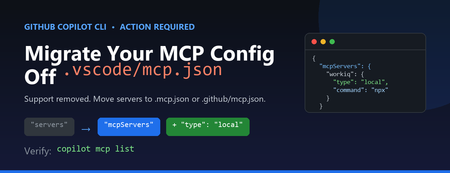
If you use the GitHub Copilot CLI with Model Context Protocol (MCP) servers, you may have hit this message on launch: Copilot CLI's incomplete support for .vscode/mcp.json has been removed. See https://gh.io/copilotcli-mcpmigrate to migrate to .mcp.json or .github/mcp.json . This is a quick, one-time fix. Here's what changed, why, and exactly what you need to do. What Changed The Copilot CLI previously made a best-effort attempt to read .vscode/mcp.json , the file VS Code uses to define MCP servers. That support was incomplete, so it has been removed. The CLI now loads MCP servers only from its own dedicated files: .mcp.json in your project root (or working directory) .github/mcp.json in your repository Your .vscode/mcp.json file is not deleted and still works for VS Code. The CLI simply no longer reads it. Why It Matters The VS Code and Copilot CLI configuration formats look similar but are not identical. Two differences trip people up: The top-level key is servers in VS Code, but mcpServers in the CLI. The CLI requires a type field on each server (for example, "local" for a stdio command-based server, or "http" for a remote server). Because of these differences, you can't just rename the file — you also need to adjust its contents. What You Need to Do Step 1: Find your existing config Locate the VS Code MCP file you've been using, for example: // .vscode/mcp.json (VS Code format) { "servers": { "workiq": { "command": "npx", "args": ["-y", "@microsoft/workiq", "mcp"], "tools": ["*"] } } } Step 2: Create .mcp.json in the same directory Convert it to the Copilot CLI format by renaming the top-level key and adding "type" : // .mcp.json (Copilot CLI format) { "mcpServers": { "workiq": { "type": "local", "command": "npx", "args": ["-y", "@microsoft/workiq", "mcp"], "tools": ["*"] } } } Prefer the change to live with your repository so teammates pick it up automatically? Put the same content in .github/mcp.json instead. Step 3: Verify From the directory containing the new file, list the servers the CLI can see: copilot mcp list You should see your server reported, for example workiq (local) , and the startup warning will stop. Quick Reference VS Code ( .vscode/mcp.json ) Copilot CLI ( .mcp.json / .github/mcp.json ) Top-level key servers Top-level key mcpServers No type field Add "type": "local" (stdio) or "http" (remote) Read by VS Code only Read by Copilot CLI only Don't Forget Your Other Repositories This setting is per-directory. If you run copilot inside multiple projects that each have a .vscode/mcp.json , repeat the migration in each one. The change is always the same: rename servers to mcpServers and add a type to every server. Key Takeaways The Copilot CLI no longer reads .vscode/mcp.json . Move your MCP servers into .mcp.json (project) or .github/mcp.json (repo). Change the key from servers to mcpServers and add "type" to each server. Leave .vscode/mcp.json in place so VS Code keeps working. Confirm with copilot mcp list . Learn More Copilot CLI MCP migration guidance GitHub Copilot CLI command reference Model Context Protocol561Views0likes0CommentsBuild an AI-Powered Space Invaders Game
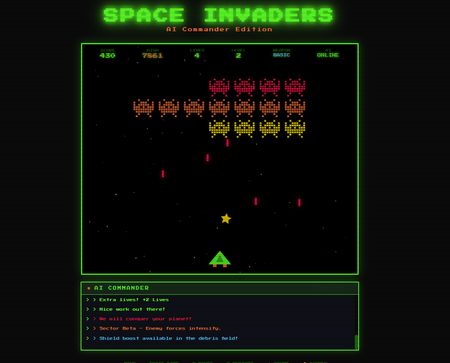
Build an AI-Powered Space Invaders Game: Integrating LLMs into HTML5 Games with Microsoft Foundry Local Introduction What if your game could talk back to you? Imagine playing Space Invaders while an AI commander taunts you during battle, delivers personalized mission briefings, and provides real-time feedback based on your performance. This isn't science fiction it's something you can build today using HTML, JavaScript, and a locally-running AI model. In this tutorial, we'll explore how to create an HTML5 game with integrated Large Language Model (LLM) features using Microsoft Foundry Local. You'll learn how to combine classic game development with modern AI capabilities, all running entirely on your own machine—no cloud services, no API costs, no internet connection required during gameplay. We'll be working with the Space Invaders - AI Commander Edition project, which demonstrates exactly how to architect games that leverage local AI. Whether you're a student learning game development, exploring AI integration patterns, or building your portfolio, this guide provides practical, hands-on experience with technologies that are reshaping how we build interactive applications. What You'll Learn By the end of this tutorial, you'll understand how to combine traditional web development with local AI inference. These skills transfer directly to building chatbots, interactive tutorials, AI-enhanced productivity tools, and any application where you want intelligent, context-aware responses. Set up Microsoft Foundry Local for running AI models on your machine Understand the architecture of games that integrate LLM features Use GitHub Copilot CLI to accelerate your development workflow Implement AI-powered game features like dynamic commentary and adaptive feedback Extend the project with your own creative AI features Why Local AI for Games? Before diving into the code, let's understand why running AI locally matters for game development. Traditional cloud-based AI services have limitations that make them impractical for real-time gaming experiences. Latency is the first challenge. Cloud API calls typically take 500ms to several seconds, an eternity in a game running at 60 frames per second. Local inference can respond in tens of milliseconds, enabling AI responses that feel instantaneous and natural. When an enemy ship appears, your AI commander can taunt you immediately, not three seconds later. Cost is another consideration. Cloud AI services charge per token, which adds up quickly when generating dynamic content during gameplay. Local models have zero per-use cost, once installed, they run entirely on your hardware. This frees you to experiment without worrying about API bills. Privacy and offline capability complete the picture. Local AI keeps all data on your machine, perfect for games that might handle player information. And since nothing requires internet connectivity, your game works anywhere, on planes, in areas with poor connectivity, or simply when you want to play without network access. Understanding Microsoft Foundry Local Microsoft Foundry Local is a runtime that enables you to run small language models (SLMs) directly on your computer. It's designed for developers who want to integrate AI capabilities into applications without requiring cloud infrastructure. Think of it as having a miniature AI assistant living on your laptop. Foundry Local handles the complex work of loading AI models, managing memory, and processing inference requests through a simple API. You send text prompts, and it returns AI-generated responses, all happening locally on your CPU or GPU. The models are optimized to run efficiently on consumer hardware, so you don't need a supercomputer. For our Space Invaders game, Foundry Local powers the "AI Commander" feature. During gameplay, the game sends context about what's happening, your score, accuracy, current level, enemies remaining and receives back contextual commentary, taunts, and encouragement. The result feels like playing alongside an AI companion who actually understands the game. Setting Up Your Development Environment Let's get your machine ready for AI-powered game development. We'll install Foundry Local, clone the project, and verify everything works. The entire setup takes about 10-15 minutes. Step 1: Install Microsoft Foundry Local Foundry Local installation varies by operating system. Open your terminal and run the appropriate command: # Windows (using winget) winget install Microsoft.FoundryLocal # macOS (using Homebrew) brew install microsoft/foundrylocal/foundrylocal These commands download and install the Foundry Local runtime along with a default small language model. The installation includes everything needed to run AI inference locally. Verify the installation by running: foundry --version If you see a version number, Foundry Local is ready. If you encounter errors, ensure you have administrator/sudo privileges and that your package manager is up to date. Step 2: Install Node.js (If Not Already Installed) Our game's AI features require a small Node.js server to communicate between the browser and Foundry Local. Check if Node.js is installed: node --version If you see a version number (v16 or higher recommended), you're set. Otherwise, install Node.js: # Windows winget install OpenJS.NodeJS.LTS # macOS brew install node # Linux sudo apt install nodejs npm Node.js provides the JavaScript runtime that powers our proxy server, bridging browser code with the local AI model. Step 3: Clone the Project Get the Space Invaders project onto your machine: git clone https://github.com/leestott/Spaceinvaders-FoundryLocal.git cd Spaceinvaders-FoundryLocal This downloads all game files, including the HTML interface, game logic, AI integration module, and server code. Step 4: Install Dependencies and Start the Server Install the Node.js packages and launch the AI-enabled server: npm install npm start The first command downloads required packages (primarily for the proxy server). The second starts the server, which listens for AI requests from the game. You should see output indicating the server is running on port 3001. Step 5: Play the Game Open your browser and navigate to: http://localhost:3001 You should see Space Invaders with "AI: ONLINE" displayed in the game HUD, indicating that AI features are active. Use arrow keys or A/D to move, SPACE to fire, and P to pause. The AI Commander will start providing commentary as you play! Understanding the Project Architecture Now that the game is running, let's explore how the different pieces fit together. Understanding this architecture will help you modify the game and apply these patterns to your own projects. The project follows a clean separation of concerns, with each file handling a specific responsibility: Spaceinvaders-FoundryLocal/ ├── index.html # Main game page and UI structure ├── styles.css # Retro arcade visual styling ├── game.js # Core game logic and rendering ├── llm.js # AI integration module ├── sound.js # Web Audio API sound effects ├── server.js # Node.js proxy for Foundry Local └── package.json # Project configuration index.html: Defines the game canvas and UI elements. It's the entry point that loads all other modules. game.js: Contains the game loop, physics, collision detection, scoring, and rendering logic. This is the heart of the game. llm.js: Handles all communication with the AI backend. It formats game state into prompts and processes AI responses. server.js: A lightweight Express server that proxies requests between the browser and Foundry Local. sound.js: Synthesizes retro sound effects using the Web Audio API—no audio files needed! How the AI Integration Works The magic of the AI Commander happens through a simple but powerful pattern. Let's trace the flow from gameplay event to AI response. When something interesting happens in the game, you clear a wave, achieve a combo, or lose a life, the game logic in game.js triggers an AI request. This request includes context about the current game state: your score, accuracy percentage, current level, lives remaining, and what just happened. The llm.js module formats this context into a prompt. For example, when you clear a wave with 85% accuracy, it might construct: You are an AI Commander in a Space Invaders game. The player just cleared wave 3 with 85% accuracy. Score: 12,500. Lives: 3. Provide a brief, enthusiastic comment (1-2 sentences). This prompt travels to server.js , which forwards it to Foundry Local. The AI model processes the prompt and generates a response like: "Impressive accuracy, pilot! Wave 3 didn't stand a chance. Keep that trigger finger sharp!" The response flows back through the server to the browser, where llm.js passes it to the game. The game displays the message in the HUD, creating the illusion of playing alongside an AI companion. This entire round trip typically completes in 50-200 milliseconds, fast enough to feel responsive without interrupting gameplay. Using GitHub Copilot CLI to Explore and Modify the Code GitHub Copilot CLI accelerates your development workflow by letting you ask questions and generate code directly in your terminal. Let's use it to understand and extend the Space Invaders project. Installing Copilot CLI If you haven't installed Copilot CLI yet, here's the quick setup: # Install GitHub CLI winget install GitHub.cli # Windows brew install gh # macOS # Authenticate with GitHub gh auth login # Add Copilot extension gh extension install github/gh-copilot # Verify installation gh copilot --help With Copilot CLI ready, you can interact with AI directly from your terminal while working on the project. Exploring Code with Copilot CLI Use Copilot to understand unfamiliar code. Navigate to the project directory and try: gh copilot explain "How does llm.js communicate with the server?" Copilot analyzes the code and explains the communication pattern, helping you understand the architecture without reading every line manually. You can also ask about specific functions: gh copilot explain "What does the generateEnemyTaunt function do?" This accelerates onboarding to unfamiliar codebases, a valuable skill when working with open source projects or joining teams. Generating New Features Want to add a new AI feature? Ask Copilot to help generate the code: gh copilot suggest "Create a function that asks the AI to generate a mission briefing at the start of each level, including the level number and a random mission objective" Copilot generates starter code that you can customize and integrate. This combination of AI-powered development tools and AI-integrated gameplay demonstrates how LLMs are transforming both how we build games and how games behave. Customizing the AI Commander The default AI Commander provides generic gaming commentary, but you can customize its personality and responses. Open llm.js to find the prompt templates that control AI behavior. Changing the AI's Personality The system prompt defines who the AI "is." Find the base prompt and modify it: // Original const systemPrompt = "You are an AI Commander in a Space Invaders game."; // Customized - Drill Sergeant personality const systemPrompt = `You are Sergeant Blaster, a gruff but encouraging drill sergeant commanding space cadets. Use military terminology, call the player "cadet," and be tough but fair.`; // Customized - Supportive Coach personality const systemPrompt = `You are Coach Nova, a supportive and enthusiastic gaming coach. Use encouraging language, celebrate small victories, and provide gentle guidance when players struggle.`; These personality changes dramatically alter the game's feel without changing any gameplay code. It's a powerful example of how AI can add variety to games with minimal development effort. Adding New Commentary Triggers Currently the AI responds to wave completions and game events. You can add new triggers in game.js : // Add AI commentary when player achieves a kill streak if (killStreak >= 5 && !streakCommentPending) { requestAIComment('killStreak', { count: killStreak }); streakCommentPending = true; } // Add AI reaction when player narrowly avoids death if (nearMissOccurred) { requestAIComment('nearMiss', { livesRemaining: lives }); } Each new trigger point adds another opportunity for the AI to engage with the player, making the experience more dynamic and personalized. Understanding the Game Features Beyond AI integration, the Space Invaders project demonstrates solid game development patterns worth studying. Let's explore the key features. Power-Up System The game includes eight different power-ups, each with unique effects: SPREAD (Orange): Fires three projectiles in a spread pattern LASER (Red): Powerful beam with high damage RAPID (Yellow): Dramatically increased fire rate MISSILE (Purple): Homing projectiles that track enemies SHIELD (Blue): Grants an extra life EXTRA LIFE (Green): Grants two extra lives BOMB (Red): Destroys all enemies on screen BONUS (Gold): Random score bonus between 250-750 points Power-ups demonstrate state management, tracking which power-up is active, applying its effects to player actions, and handling timeouts. Study the power-up code in game.js to understand how temporary state modifications work. Leaderboard System The game persists high scores using the browser's localStorage API: // Saving scores localStorage.setItem('spaceInvadersScores', JSON.stringify(scores)); // Loading scores const savedScores = localStorage.getItem('spaceInvadersScores'); const scores = savedScores ? JSON.parse(savedScores) : []; This pattern works for any data you want to persist between sessions—game progress, user preferences, or accumulated statistics. It's a simple but powerful technique for web games. Sound Synthesis Rather than loading audio files, the game synthesizes retro sound effects using the Web Audio API in sound.js . This approach has several benefits: no external assets to load, smaller project size, and complete control over sound parameters. Examine how oscillators and gain nodes combine to create laser sounds, explosions, and victory fanfares. This knowledge transfers directly to any web project requiring audio feedback. Extending the Project: Ideas for Students Ready to make the project your own? Here are ideas ranging from beginner-friendly to challenging, each teaching valuable skills. Beginner: Customize Visual Theme Modify styles.css to create a new visual theme. Try changing the color scheme from green to blue, or create a "sunset" theme with orange and purple gradients. This builds CSS skills while making the game feel fresh. Intermediate: Add New Enemy Types Create a new enemy class in game.js with different movement patterns. Perhaps enemies that move in sine waves, or boss enemies that take multiple hits. This teaches object-oriented programming and game physics. Intermediate: Expand AI Interactions Add new AI features like: Pre-game mission briefings that set up the story Dynamic difficulty hints when players struggle Post-game performance analysis and improvement suggestions AI-generated names for enemy waves Advanced: Multiplayer Commentary Modify the game for two-player support and have the AI provide play-by-play commentary comparing both players' performance. This combines game networking concepts with advanced AI prompting. Advanced: Voice Integration Use the Web Speech API to speak the AI Commander's responses aloud. This creates a more immersive experience and demonstrates browser speech synthesis capabilities. Troubleshooting Common Issues If something isn't working, here are solutions to common problems. "AI: OFFLINE" Displayed in Game This means the game can't connect to the AI server. Check that: The server is running ( npm start shows no errors) You're accessing the game via http://localhost:3001 , not directly opening the HTML file Foundry Local is installed correctly ( foundry --version works) Server Won't Start If npm start fails: Ensure you ran npm install first Check that port 3001 isn't already in use by another application Verify Node.js is installed ( node --version ) AI Responses Are Slow Local AI performance depends on your hardware. If responses feel sluggish: Close other resource-intensive applications Ensure your laptop is plugged in (battery mode may throttle CPU) Consider that first requests may be slower as the model loads Key Takeaways Local AI enables real-time game features: Microsoft Foundry Local provides fast, free, private AI inference perfect for gaming applications Clean architecture matters: Separating game logic, AI integration, and server code makes projects maintainable and extensible AI personality is prompt-driven: Changing a few lines of prompt text completely transforms how the AI interacts with players Copilot CLI accelerates learning: Use it to explore unfamiliar code and generate new features quickly The patterns transfer everywhere: Skills from this project apply to chatbots, assistants, educational tools, and any AI-integrated application Conclusion and Next Steps You've now seen how to integrate AI capabilities into a browser-based game using Microsoft Foundry Local. The Space Invaders project demonstrates that modern AI features don't require cloud services or complex infrastructure, they can run entirely on your laptop, responding in milliseconds. More importantly, you've learned patterns that extend far beyond gaming. The architecture of sending context to an AI, receiving generated responses, and integrating them into user experiences applies to countless applications: customer support bots, educational tutors, creative writing tools, and accessibility features. Your next step is experimentation. Clone the repository, modify the AI's personality, add new commentary triggers, or build an entirely new game using these patterns. The combination of GitHub Copilot CLI for development assistance and Foundry Local for runtime AI gives you powerful tools to bring intelligent applications to life. Start playing, start coding, and discover what you can create when your games can think. Resources Space Invaders - AI Commander Edition Repository - Full source code and documentation Play Space Invaders Online - Try the basic version without AI features Microsoft Foundry Local Documentation - Official installation and API guide GitHub Copilot CLI Documentation - Installation and usage guide GitHub Education - Free developer tools for students Web Audio API Documentation - Learn about browser sound synthesis Canvas API Documentation - Master HTML5 game rendering731Views0likes2CommentsBuilding an AI Study Agent - How GitHub Copilot CLI & SDK helped Reimagine LMS
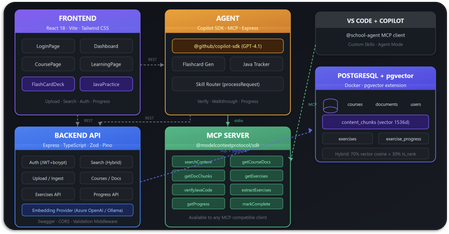
Building an AI Study Agent - How GitHub Copilot CLI & SDK helped Reimagine LMS. What if your Learning Management System didn't just host lecture documents, assignments, and grades - but actually understood them? Meet - School Agent, an AI learning management system that uses Retrieval-Augmented Generation (RAG), the Model Context Protocol (MCP), Microsoft Foundry (Embedding model), PostgreSQL (+pgvector) and GitHub's recently released Copilot SDK to turn static course content into an interactive, personalized study experience, built in hours using GitHub Copilot CLI.1.6KViews0likes0Comments