foundry local
15 TopicsBuilding a Fully Local Maintenance Assistant with Microsoft Foundry Local
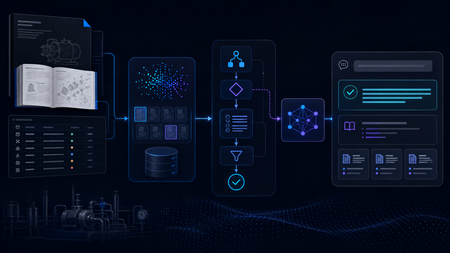
Building the Local RAG System The system was designed as a fully local RAG pipeline, with both retrieval and model inference running on the same machine. The knowledge base came from two equipment manuals covering pump and motor operation, maintenance, and troubleshooting. Rather than treating every page as plain text, I kept different types of information in forms that matched their structure, including paragraphs, Q&A entries, tables, procedures, and fault–cause–remedy troubleshooting records. The final corpus contained 165 retrievable records. Each record was embedded locally with all-MiniLM-L6-v2 and stored in ChromaDB. At query time, the system retrieved the most relevant manual records and passed the selected evidence to Phi-4-mini, a small language model (SLM) running through Microsoft Foundry Local, for grounded response generation. Once the required models and resources were installed, the full retrieval and inference workflow could run on the local machine without depending on cloud inference. I began with a simple Single-Agent RAG baseline. For each query, the system retrieved relevant manual evidence and used a single Phi-4-mini call to generate a grounded response. That gave me a clear reference point before I started adding separate model-driven stages for query understanding, retrieval, and reasoning. The Experiment That Changed the Architecture The next version split the workflow into three roles: Query Understanding, Retrieval, and Reasoning. All three reused the same local Phi-4-mini model through Microsoft Foundry Local, but with different prompts and responsibilities. I expected this separation to give the system more control over how queries were interpreted and how evidence moved through the pipeline. In practice, the extra stages added a noticeable cost, so I profiled the pipeline to see where the time was going. The stage timings showed where the delay was coming from: Query Understanding: 15.469 s Evidence Selection: 11.557 s Reasoning: 8.251 s Vector search: 0.002 s Vector search was only a tiny part of the total time. Most of the latency came from the stages that repeatedly called the local model. The bottleneck was repeated model inference, not vector search. I therefore started looking for decisions that could be handled reliably without another SLM call. The end-to-end numbers matched the profile. The Single-Agent baseline averaged 23.1 seconds per query, compared with 33.0 seconds for the Initial Multi-Agent system, without a consistent improvement in answer quality. That shifted the focus of the project from making the pipeline more agentic to deciding where model reasoning was actually useful, and where simpler deterministic control would be enough. A Deterministic-First Hybrid Design The Hybrid redesign kept the same local retrieval stack and Phi-4-mini setup, but changed when the model was asked to make decisions. Clear, bounded routing decisions were handled deterministically first. Depending on the query, the system could proceed to retrieval, request clarification when required information was missing, or stop requests that depended on information outside the manuals. Phi-4-mini was used for query analysis only when these rules could not make a reliable decision. In the 12-case final evaluation, Phi-4-mini was needed for query analysis in only three cases. The remaining routing decisions were handled deterministically. The Hybrid pipeline also handled clearly multi-part requests differently. Instead of relying on a single retrieval query, the system could identify separate information needs and search them alongside the original request. For example, a two-part pump question could be handled like this: Multi-part Query │ ▼ "What should I check before starting the B114N pump, and what should I inspect if it fails to prime?" │ ▼ Deterministic Decomposition │ ┌──────────────────┼──────────────────┐ ▼ ▼ ▼ Original Query Pre-start Checks Failure-to-prime Search Search Search │ │ │ └──────────────────┼──────────────────┘ ▼ Combine Ranked Results │ ▼ Retain Component Provenance │ ▼ Candidate Evidence The decomposition was deliberately conservative. It handled clear structures such as multiple questions, comparisons, or lists of requested facts, and did not split a query simply because it contained a comma or the word “and.” Once candidate evidence had been retrieved, clear matches could be selected without another model call, while Phi-4-mini was used when the candidates required additional judgement. Candidate Evidence │ ▼ Can deterministic rules select the evidence? / \ Yes No │ │ ▼ ▼ Deterministic Selection Phi-4-mini Evidence Selection │ │ └───────┬────────┘ ▼ Selected Evidence │ ▼ Evidence Guard │ ┌────────────────┼────────────────┐ ▼ ▼ ▼ Sufficient More evidence Insufficient coverage already in the evidence │ candidate pool │ ▼ │ ▼ Response ▼ Stop Generation Retain additional evidence │ ▼ Re-check coverage │ └──────► Evidence Guard The Evidence Guard checked whether the selected records covered the information requested by the user. Supporting evidence already present in the retrieved candidate set could be added before checking coverage again. When the available evidence was still insufficient, the pipeline stopped instead of asking the model to fill the gap. The guard never triggered a new retrieval or SLM call. The final response stage used the model selectively as well. Some bounded cases, including clarification, out-of-scope requests, insufficient evidence, and selected structured answers, could be handled without another model call. When synthesis was still needed, Phi-4-mini generated a grounded response from the selected evidence, while citation formatting remained deterministic. What Changed? I evaluated the three architectures on the same frozen 12-case test set, using answer quality and end-to-end latency as the main comparison points. The Final Hybrid system produced the lowest average latency while maintaining answer quality at roughly the same level as the Single-Agent baseline. Architecture Quality score Mean latency Single-Agent RAG 7.00 / 10 22.709 s Initial Multi-Agent 6.50 / 10 33.454 s Final Hybrid 7.08 / 10 16.905 s The Initial Multi-Agent design was the slowest of the three and did not produce a consistent quality improvement over the simpler baseline. The Hybrid redesign reversed that trend: average latency fell to 16.9 seconds while the overall quality score remained comparable to the baseline. For this prototype, adding more model-driven stages was therefore less useful than being selective about where model reasoning was actually needed. The call counts show the same change. Across the 12 final cases, the Hybrid system made 12 stage-level SLM calls: three during query analysis, four during evidence selection, and five during reasoning. A pipeline that invoked the SLM at all three stages for every query would require 36 stage-level calls over the same 12 cases. This was only a small 12-case evaluation, so I would not treat it as a final measure of system performance. What it did show was that cutting unnecessary SLM calls made the local pipeline faster without hurting the quality score in this test. From Pipeline to Local Application I connected the Final Hybrid backend to a lightweight PySide6 desktop interface. The application lets a user enter a maintenance question, view the generated answer, and inspect the supporting manual sources. What I Learned The biggest lesson from the project was that adding more model-driven stages did not automatically make the system better. The Initial Multi-Agent design gave each stage a clearer role, but the extra SLM calls increased latency without consistently improving answer quality. I also found that good retrieval alone was not enough. The system still needed to decide whether the retrieved evidence actually covered the user’s request and whether another model call was necessary. This is where deterministic routing, evidence checks, and model reasoning worked well together. By the end of the project, the question was no longer how many agents to add, but where an SLM call was actually useful. In this system, the best result came from combining simple deterministic control with model reasoning only where it was needed. What Comes Next The next step would be to test the system on a larger and more varied set of maintenance questions, including more unseen cases and feedback from engineers. I would also like to compare different local models and hardware configurations to see how response quality, latency, and resource use change in practice. Beyond that, the same approach could be applied to a larger maintenance knowledge base or adapted to other equipment domains. One question I would like to explore further is whether the deterministic-first design still works as well when the corpus, query types, and deployment conditions become more varied. Resources Foundry Local documentation Get started with Foundry Local Foundry Local architecture overview123Views0likes0CommentsKVStream: Smarter Memory Management for On-Device Language Model Inference
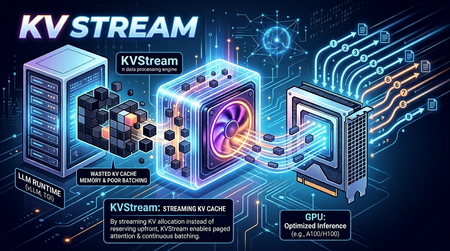
On-Device LLMs Are Starved for Memory Intelligence The shift toward on-device language model inference is accelerating. Platforms like Microsoft's Foundry Local, Ollama, and llama.cpp now make it possible to run capable models such as Phi-3-mini and Llama 3 entirely on local hardware, no cloud dependency, no data leaving the device. This is a meaningful leap for privacy-sensitive applications, offline scenarios, and latency-critical workloads. But on-device/edge inference surfaces a class of performance problems that cloud-based serving largely abstracts away. Memory is the bottleneck. When a language model generates text, it builds a Key-Value (KV) cache a memory structure that stores intermediate attention states so it doesn't have to recompute them for every new token. On a cloud server with hundreds of gigabytes of HBM (Hardware Bandwidth Memory), wasting KV cache memory is a rounding error. On a developer workstation or a GPU/NPU-equipped edge device, it is the difference between a usable system and a stalled one. The typical on-device runtime allocates KV cache memory statically and per-sequence. This creates three concrete problems: Fragmentation and over-reservation. A model has no way of knowing in advance how long a response will be. So, runtimes allocate a worst-case maximum context window of memory for every request even if the actual response is short. The result is a fragmented memory pool where most of the reserved space sits idle while queued requests wait for a slot to open. Research confirms the scale of this waste: production settings with variable-length or concurrent requests typically discard 60–80% of KV memory under monolithic static allocation; paged designs reduce this to under 5%. No batching across requests. Most local runtimes process one request at a time. If you fire four concurrent questions at Foundry Local or Ollama without a batching layer, they queue sequentially. Throughput scales linearly with latency instead of benefiting from the parallel processing the underlying hardware supports. Continuous batching the technique of admitting new sequences mid-generation rather than waiting for the whole batch to drain has been shown to yield up to 36.9× throughput improvement in the original Orca study, with production deployments regularly achieving 2–5× over static batching. Redundant computation. Real-world applications consistently include a shared system prompt instructions that tell the model how to behave. With a RAG pipeline or a chat assistant, the same few hundred tokens get prefilled on every single request, burning compute and TTFT (time-to-first-token) unnecessarily. External prefix caching layers addressing this problem have demonstrated up to 15× throughput improvement on multi-round workloads. These are not hypothetical inefficiencies. In practice, they translate to sluggish multi-turn conversation, poor throughput when multiple users or agent loops share the same local model, and wasted hardware potential on capable machines that could be doing much more. Crucially, while some of the cloud-scale inference engines embed these techniques internally, there is no equivalent orchestration layer for on-device runtimes a gap that enterprise deployments and the research community are now actively calling. Introducing KVStream: A Middleware Layer for Local LLM Runtimes KVStream is a lightweight Python middleware that sits between the application and any local LLM runtime, adding production-grade memory management and scheduling without requiring you to modify the backend or the client. The design principle is deliberate: KVStream is not a new inference engine. It does not replace Foundry Local or any other runtime. Instead, it solves the orchestration layer that on-device runtimes currently leave unaddressed the gap between a single model server and an application that expects the reliability and throughput of a managed serving system. KVStream exposes a fully OpenAI-compatible API on http://localhost:8080/v1. Any existing client the openai Python SDK, LangChain, httpx, or a curl command connects to it without modification. The backend continues to run unchanged. Architecture KVStream is composed of four cooperating subsystems. Understanding how they interact clarifies why the gains are meaningful and composable. 1.Paged KV-Cache Allocator: Inspired by the paged attention mechanism, KVStream manages KV cache memory as a pool of fixed-size pages (or blocks), each holding a configurable number of token states (default: 16 tokens per block). Rather than reserving a contiguous worst-case buffer per sequence, the allocator assigns pages on demand and reclaims them when a sequence finishes. Each sequence owns a logical page table, a mapping from logical page indices to physical block slots. Pages can be shared across sequences (enabling prefix deduplication) and migrated between GPU and CPU (enabling pre-emption). For Foundry Local and Ollama, this operates in soft-inject mode, the page table controls admission and logical accounting, while the actual KV tensors stay inside the backend. For llama.cpp, which exposes a /slots API for saving and restoring raw KV state, KVStream can operate in hard-inject mode, it manages a real tensor pool and performs zero re-compute cache reuse by physically restoring KV state between requests. 2.Continuous Batching Scheduler: The scheduler merges multiple queued sequences into a single batched forward pass, up to a configurable max_batch_size. Critically, it uses continuous batching new sequences can be admitted mid-generation, filling slots vacated by completed requests rather than waiting for the entire batch to finish. Two scheduling priorities are supported: fcfs (first-come, first-served): straightforward FIFO, best for fairness. sjf (shortest-job-first): minimizes average TTFT by prioritizing requests with shorter expected output lengths. When GPU page blocks are exhausted and a new sequence must be admitted, the scheduler applies a preemption policy: swap: the lowest-priority active sequence's pages are migrated to CPU RAM. The sequence resumes when GPU blocks become available again. recompute: pages are freed and the sequence is re-queued from scratch, lower memory overhead, higher latency for the preempted request. 3.Prefix Cache: The prefix cache deduplicates the KV computation for any shared token prefix across requests like system prompts, few-shot examples, RAG preambles, or any stable instruction block. The mechanism works in three steps: After a request completes its prefill phase, KVStream hashes the prompt tokens in block-aligned chunks and stores the canonical block table for that prefix. On a subsequent request whose prompt starts with the same prefix, the new sequence forks the canonical block table via copy-on-write, no re-computation occurs. Entries expire after a configurable TTL (default: 1 hour), or can be evicted manually. The practical consequence: in any application with a stable system prompt, only the first request pays the prefill cost for that prompt. Every subsequent request skips it entirely, reducing TTFT in proportion to the length of the shared prefix. 3.OpenAI-Compatible Proxy KVStream wraps all of the above behind a standard /v1/chat/completions interface. It handles both streaming (SSE) and non-streaming responses, translates between the OpenAI request format and the backend's native API, and serves a /health, /status, and /metrics endpoint for observability. The /status endpoint returns live scheduler and memory state: { "scheduler": { "waiting": 2, "running": 8, "swapped": 0, "gpu_blocks_free": 184, "gpu_utilization": 0.281 }, "prefix_cache": { "cached_prefixes": 3, "total_prefix_hits": 12, "cached_tokens": 768 } } A Prometheus-compatible /metrics endpoint is also available, with a pre-configured Grafana dashboard included in the Docker Compose stack. Getting Started with Foundry Local: Microsoft's Foundry Local is the primary integration target for KVStream. Foundry Local provides a high-quality on-device inference runtime with strong model support (Phi-3-mini, Phi-3.5, and others), NPU acceleration, and direct integration with the Windows AI platform. KVStream's Foundry backend adds continuous batching and prefix caching on top of that foundation without any changes to the Foundry runtime itself. Installation: pip install kvstream Start the KVStream Proxy: # 1. Start Foundry Local (if not already running) foundrylocal serve # 2. Start KVStream in front of it kvstream serve --backend foundry --model phi-3-mini --port 8080 KVStream's Foundry backend includes auto-discovery, if Foundry Local assigns an ephemeral OS port (which it typically does), KVStream scans localhost to locate the active service automatically, so you do not need to hardcode the backend port. Connect your existing client — unchanged: from openai import OpenAI client = OpenAI( base_url="http://localhost:8080/v1", api_key="not-required", ) response = client.chat.completions.create( model="phi-3-mini", messages=[ {"role": "system", "content": "You are a helpful assistant."}, {"role": "user", "content": "Explain paged attention in simple terms."}, ], max_tokens=512, ) print(response.choices[0].message.content) Any client that speaks the OpenAI protocol like LangChain, httpx, or a raw HTTP call, connects here without modification. Maximize prefix cache hits: Put the system prompt first; KVStream caches it after the first request and skips its computation for every subsequent one. import asyncio from openai import AsyncOpenAI client = AsyncOpenAI(base_url="http://localhost:8080/v1", api_key="not-required") SYSTEM = "You are an expert assistant specialized in on-device AI." async def ask(question: str) -> str: r = await client.chat.completions.create( model="phi-3-mini", messages=[ {"role": "system", "content": SYSTEM}, # cached after first call {"role": "user", "content": question}, ], max_tokens=256, ) return r.choices[0].message.content async def main(): questions = [ "What is NPU acceleration?", "How does Phi-3-mini differ from larger models?", "What is token streaming?", ] # KVStream batches these automatically; system prompt computed once answers = await asyncio.gather(*[ask(q) for q in questions]) for q, a in zip(questions, answers): print(f"Q: {q}\nA: {a}\n") asyncio.run(main()) Tuning memory for hardware: The single most impactful configuration knob is the GPU block pool size. For soft-inject mode (Foundry Local, Ollama), this controls admission concurrency, not actual VRAM allocation by KVStream. A practical starting table is as follows, Device VRAM / RAM num_gpu_blocks Suitable models (E.g.,) 4 GB 64 phi-3-mini 8 GB 128 llama3-8b, mistral-7b 16 GB 256 llama3-8b (q8) 24 GB 512 llama3-70b (q4), mixtral Via YAML configuration: # kvstream.yaml backend: type: foundry model: phi-3-mini memory: num_gpu_blocks: 128 num_cpu_blocks: 256 block_size: 16 scheduler: max_batch_size: 8 preemption_policy: swap priority: fcfs prefix_cache: enabled: true ttl_seconds: 3600 min_match_tokens: 16 Benchmarking KVStream ships with a built-in benchmarking command: kvstream bench \ --url http://localhost:8080 \ --model phi-3-mini \ --concurrency 8 \ --prompt-len 128 \ --output-len 64 \ --total-requests 100 Example output: ┌──────────────────────────┐ │ KVStream Benchmark │ ├──────────────┬───────────┤ │ Requests │ 100 │ │ Concurrency │ 8 │ │ Errors │ 0 │ │ Throughput │ 12.4 req/s│ │ p50 │ 612 ms │ │ p99 │ 1840 ms │ └──────────────┴───────────┘ KVStream covers the most common local inference runtimes today Foundry Local, Ollama, llama.cpp, and LM Studio through a single, consistent interface. If you are building on Foundry Local and running into the throughput or memory fragmentation issues described here, KVStream is designed to slot in with a single command and zero changes to your application code. pip install kvstream kvstream serve --backend foundry --model phi-3-mini The full integration guide, configuration reference, and Docker deployment instructions are available in the KVStream Documentation on Github. We are always looking to improve! If you want to help make KVStream even better, check out our Contributing Guide to get started on your first pull request.391Views0likes1CommentHybrid AI Agents in Python: Routing Between Foundry Local and Microsoft Foundry
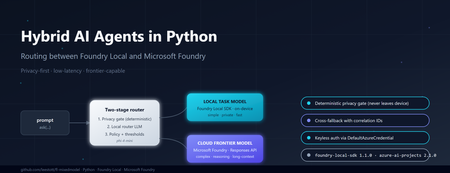
Why hybrid, and why now If you build AI features today, you are caught between three forces. Users want low latency and strong privacy. Product teams want frontier reasoning capability. Finance teams want predictable cost. No single model satisfies all three. Run everything on a small on-device model and you bottleneck on complex questions. Send everything to a frontier cloud model and you pay for trivial requests, leak sensitive data across a network boundary, and add hundreds of milliseconds of latency to greetings. The pragmatic answer is hybrid inference: a lightweight local model classifies every request first, simple or sensitive ones stay on the device, and only the genuinely hard or frontier-capability requests escalate to the cloud. Microsoft now ships both halves of that pattern as supported Python SDKs — foundry-local-sdk for on-device inference and azure-ai-projects for Microsoft Foundry cloud models. This post walks through a working reference implementation that combines them behind a single ask() call. The full source is at github.com/leestott/fl-mixedmodel. It is Python-only, secretless by design, and ships with a Gradio diagnostics UI, a CLI demo mode, and a full pytest suite. The contract: one schema, two paths The most important architectural decision is that callers never know which path served a request. Every response, local or cloud, returns the same dataclass: class InferencePath(str, Enum): LOCAL = "local" CLOUD = "cloud" LOCAL_FALLBACK = "local_fallback" # cloud attempted, fell back to local CLOUD_FALLBACK = "cloud_fallback" # local attempted, fell back to cloud @dataclass class AgentResponse: answer: str path: InferencePath model: str reason: str confidence: float latency_ms: float correlation_id: str prompt_tokens: Optional[int] = None completion_tokens: Optional[int] = None fallback: bool = False fallback_reason: Optional[str] = None metadata: dict = field(default_factory=dict) This is what makes the design honest. The router can change, the cloud model can be swapped from gpt-4o to gpt-5.4 , fallback policies can flip — and the calling code never breaks. The four InferencePath values give you full observability without leaking implementation details into the API surface. Architecture in one diagram ┌─────────────┐ prompt ┌──────────────────────────┐ │ caller │ ──────────► │ HybridAgentService │ └─────────────┘ │ .ask(prompt) │ └────────────┬─────────────┘ │ ┌────────────▼─────────────┐ │ RoutingPolicy │ │ 1. Heuristic gate │ │ 2. Local router LLM │ │ 3. Hard policy gates │ └─────┬─────────────┬──────┘ │ │ LOCAL ◄┘ └► CLOUD │ │ ┌──────────▼──┐ ┌──────▼───────┐ │ Foundry │ │ Microsoft │ │ Local SDK │ │ Foundry │ │ (phi-4-mini)│ │ (gpt-5.4) │ └─────────────┘ └──────────────┘ Best practice: the two-stage router pattern Before walking through the implementation, it is worth stating the design pattern explicitly, because it is the part that generalises beyond this specific repo. The cleanest design for hybrid inference is a two-stage router. Stage 1 — local router. A small local model performs intent and complexity classification first. It does not answer the question; it decides where the question should go. Stage 2 — route the answer. If the prompt is simple, private, latency-sensitive, or clearly within local capability, route to a local task model on the device. If the prompt is complex, needs deeper reasoning, a larger context window, or a capability unavailable locally, escalate to a cloud frontier model in Microsoft Foundry. Microsoft's current guidance for the cloud side is to use the Responses API and choose one of two control modes: Pass a specific deployment name (for example gpt-5.4 ) when you want deterministic control over which model serves the request, which is the right choice for regulated workloads, repeatable evaluations, or cost ceilings. Pass model-router as the deployment when you want Microsoft Foundry to automatically select the best available cloud model for each request. This is a sensible default for general-purpose agents where you would rather let the platform optimise the model choice as new ones are released. The reference repo exposes both as environment variables so you can switch without code changes: # .env.example FOUNDRY_CLOUD_MODEL_DEPLOYMENT=gpt-5.4 # deterministic FOUNDRY_CLOUD_ROUTER_DEPLOYMENT=model-router # auto-select Best practice: pin the right SDK versions Two SDKs do the heavy lifting and both have had recent breaking changes, so version discipline matters. Local development — foundry-local-sdk . The current public guidance is to use the Foundry Local SDK package foundry-local-sdk , which provides model discovery, download, cache, load, unload, chat completions, embeddings, audio transcription, and an optional built-in web service. Use version 1.1.0, released on 5 May 2026. Earlier versions used an OpenAI-compatible client surface that has since been replaced by the FoundryLocalManager → load_model → get_chat_client → complete_chat chain shown above. Pin it explicitly: # requirements.txt foundry-local-sdk>=1.1.0 Cloud orchestration and agents — azure-ai-projects . For cloud-side orchestration, Microsoft's current Python guidance is to use azure-ai-projects , which the docs describe as part of the Microsoft Foundry SDK and as the entry point for agents, deployments, connections, datasets, evaluations, and an OpenAI-compatible client returned by get_openai_client() . The current PyPI listing shows azure-ai-projects 2.1.0. Pin it explicitly: # requirements.txt azure-ai-projects>=2.1.0 azure-identity>=1.17.0 If you find yourself reading old samples that import azure.ai.inference as the cloud entry point, or that initialise Foundry Local through a raw openai.OpenAI(base_url=...) client, you are looking at pre-2026 patterns. The current shape is what the reference repo uses: FoundryLocalManager.initialize(Configuration(...)) for the device and AIProjectClient(...).get_openai_client() for the cloud. Stage 1: a deterministic privacy gate Before any model touches a prompt, a deterministic heuristic classifier scans for sensitive patterns — passwords, API keys, SSN/NHS numbers, PII signals, explicit "do not share" flags. If the heuristic returns PrivacyClass.RESTRICTED , the prompt is forced local. The router LLM is not called. The cloud provider is not called. The decision is auditable from a single regex pass. # app/routing/policy.py def decide(self, prompt: str, correlation_id: str = "") -> RoutingDecision: hint, privacy, complexity, h_reason = self._heuristic.classify(prompt) # Hard gate: restricted content never leaves the device if privacy == PrivacyClass.RESTRICTED: return self._make_decision( target=RouteTarget.LOCAL, confidence=1.0, reason=f"Policy hard-gate: {h_reason}", privacy=privacy, complexity=complexity, deterministic=True, correlation_id=correlation_id, ) # Hard gate: very high complexity always goes to cloud if complexity == ComplexityBand.VERY_HIGH: return self._make_decision( target=RouteTarget.CLOUD, confidence=1.0, reason="Policy hard-gate: very_high complexity requires frontier model", ... ) This is the most important responsible-AI control in the whole system. If your privacy review depends on an LLM correctly classifying every prompt, you do not have a privacy control — you have a probability distribution. Deterministic gates first, model judgement second. Stage 2: a local LLM as the router For everything that passes the privacy gate, a small local model classifies whether the prompt needs frontier capability. This is the bit that surprises most engineers: you can do useful routing with a 4B parameter model running on a laptop CPU. The router does not need to answer the question. It only needs to classify it. The reference implementation uses phi-4-mini via Foundry Local. Initialising it is two lines: # app/providers/local_provider.py (excerpt) from foundry_local import FoundryLocalManager from foundry_local.models import Configuration self._manager = FoundryLocalManager.initialize( Configuration(app_name="hybrid-agent") ) self._router_model = self._manager.load_model(self._config.local_router_alias) self._chat_client = self._router_model.get_chat_client() response = self._chat_client.complete_chat( messages=[ {"role": "system", "content": ROUTER_SYSTEM_PROMPT}, {"role": "user", "content": prompt}, ], ) The router prompt asks for a strict JSON response: { "target": "local|cloud", "confidence": 0.0-1.0, "complexity": "low|medium|high|very_high", "reason": "..." } . The application parses it, applies the confidence threshold from config (default 0.6), and falls back to the heuristic decision if the router LLM is unsure or its JSON is malformed. The router never blocks the answer path — that is a deliberate reliability choice. Cloud inference via Microsoft Foundry When the policy returns RouteTarget.CLOUD , the request goes through AIProjectClient , which gives you an openai.OpenAI -compatible client wired to your Foundry project with DefaultAzureCredential . No API keys. No secrets in .env . # app/providers/cloud_provider.py (excerpt) from azure.ai.projects import AIProjectClient from azure.identity import DefaultAzureCredential self._project = AIProjectClient( endpoint=self._config.foundry_project_endpoint, credential=DefaultAzureCredential(), ) self._openai_client = self._project.get_openai_client() response = self._openai_client.chat.completions.create( model=self._config.foundry_cloud_model_deployment, # e.g. "gpt-5.4" messages=messages, max_completion_tokens=max_tokens, ) A subtle gotcha worth flagging: gpt-5 and o-series deployments reject the legacy max_tokens parameter and require max_completion_tokens . They also reject custom temperature values. The reference repo handles this by trying the new parameter first and falling back to the legacy one only when the API returns the specific unsupported parameter error. That keeps the same code working against older deployments without forking the provider. Graceful degradation: the fallback paths Hybrid systems fail in interesting ways. The cloud can be down. The local model can throw because the GPU ran out of memory. A reasoning model can return an empty completion. The service handles all of these by attempting the alternative path and labelling the response so observability stays honest: Cloud route fails → local fallback. The response carries path=LOCAL_FALLBACK , fallback=true , and a populated fallback_reason . The user gets an answer instead of an error. Local route fails → cloud fallback, but only if privacy class is not RESTRICTED. A sensitive prompt that the local model could not handle never leaks to the cloud as a fallback. It returns a clear error instead. This is the second hard gate in the system. Both fail. A structured error response with a correlation ID, never a stack trace. That last rule — fallback respects privacy class — is the kind of decision that is easy to skip and impossible to bolt on later. Encode it once in the service layer and your privacy reviewers will thank you. What it looks like in practice The diagnostics panel in the Gradio UI shows the routing decision live: path, model, confidence, latency, privacy class, complexity band, and the full JSON response. Five canonical scenarios shake out the entire decision tree: "hello" → path=local, confidence=1.0, complexity=low . Heuristic only. No router LLM call. ~3 seconds end-to-end with phi-4-mini cached. "explain transformer self-attention in depth with maths" → path=cloud, model=gpt-5.4, complexity=high . Router LLM classifies, hard gate confirms. "my password is hunter2, suggest a stronger one" → path=local, privacy=restricted, deterministic=true . Privacy gate fires before any model sees it. "summarise this 8 KB document" with cloud unavailable → path=cloud_fallback (local handles it, response is labelled). Complex prompt with local model error → path=local_fallback , fallback_reason populated. You can reproduce all five without any models installed by running python -m app.main --demo . The demo mode swaps the providers for deterministic stubs so you can validate the routing logic and the response schema in under a second on any machine. Operational lessons learned Some things the reference implementation only gets right because it got them wrong first: Pick a non-reasoning model for the router. Reasoning-tuned local models (Phi-4-reasoning, o-style) wrap their output in <think> blocks and blow your JSON parser. phi-4-mini is faster and more reliable for classification. Cache the local model. First load can take 30–60 seconds while Foundry Local downloads weights. Initialise the service once at process startup, not per request. Use correlation IDs everywhere. The service attaches one per request and the structured JSON logger emits it on every event. When you are debugging a fallback path across two model providers, this is the difference between five minutes and five hours. Run the privacy heuristic on every fallback path too. A naive implementation might route locally, fail, and then send the same sensitive prompt to the cloud as a "graceful" fallback. That is not graceful, it is a data leak. Keep configuration in .env and out of code. Privacy mode, fallback toggles, confidence threshold, model aliases — all environment-driven. The config.py module is the only place that reads them. Responsible AI in a hybrid topology Hybrid does not make responsible AI harder, but it does make it different. Three controls earn their keep: Data residency by default. The local path keeps prompts and answers on the device. For RESTRICTED content this is mandatory; for everything else it is a free latency and cost win. Auditability. Every routing decision is logged with the deterministic reason, the heuristic class, the router LLM output, the confidence, and the correlation ID. You can answer "why did this prompt go to the cloud?" months later. Keyless auth. DefaultAzureCredential means there is no API key to leak, rotate, or commit by accident. The repo's .gitignore , SECURITY.md , and pre-push checklist enforce this end-to-end. Try it Five minutes, no Azure account needed for the demo: git clone https://github.com/leestott/fl-mixedmodel.git cd fl-mixedmodel python -m venv .venv .venv\Scripts\activate # Windows # source .venv/bin/activate # macOS / Linux pip install -r requirements.txt python -m app.main --demo # all five scenarios, no models required To run with real models, install Foundry Local, copy .env.example to .env , set your FOUNDRY_PROJECT_ENDPOINT , then: az login python -m app.main --ui --port 7860 Where to go next Repository: github.com/leestott/fl-mixedmodel — full source, tests, specification, screenshots. Foundry Local SDK: pypi.org/project/foundry-local-sdk and the Foundry Local docs. Azure AI Projects SDK: pypi.org/project/azure-ai-projects and the Microsoft Foundry docs. Azure Identity: DefaultAzureCredential reference. Phi-4-mini: Phi-4-mini on Hugging Face. Key takeaways The best-practice pattern is a two-stage router: local model classifies first, then either a local task model or a Microsoft Foundry cloud model answers. For cloud control, use the Responses API with either a named deployment (deterministic) or model-router (auto-select). Pin foundry-local-sdk >= 1.1.0 (5 May 2026) and azure-ai-projects >= 2.1.0 . The 2026 SDK surfaces are not backwards-compatible with pre-2026 samples. Hybrid inference is a routing problem, not a model problem. A small local model is enough to classify the request. Deterministic privacy gates beat probabilistic ones. Code the rules; let the LLM judge only what is left. Return the same response schema from every path. Label fallbacks honestly. Carry a correlation ID everywhere. Keep auth keyless with DefaultAzureCredential and your .env out of git. Test the routing decisions, not just the model outputs. Demo mode and a strong pytest suite pay back every time you swap a model. Hybrid AI is not a compromise between local and cloud. It is the supervisor pattern applied to inference — fast and private where you can be, frontier where you have to be, observable everywhere. The hard part is the contract, not the models.531Views1like0CommentsEdge AI for Beginners : Getting Started with Foundry Local
In Module 08 of the EdgeAI for Beginners course, Microsoft introduces Foundry Local a toolkit that helps you deploy and test Small Language Models (SLMs) completely offline. In this blog, I’ll share how I installed Foundry Local, ran the Phi-3.5-mini model on my windows laptop, and what I learned through the process. What Is Foundry Local? Foundry Local allows developers to run AI models locally on their own hardware. It supports text generation, summarization, and code completion — all without sending data to the cloud. Unlike cloud-based systems, everything happens on your computer, so your data never leaves your device. Prerequisites Before starting, make sure you have: Windows 10 or 11 Python 3.10 or newer Git Internet connection (for the first-time model download) Foundry Local installed Step 1 — Verify Installation After installing Foundry Local, open Command Prompt and type: foundry --version If you see a version number, Foundry Local is installed correctly. Step 2 — Start the Service Start the Foundry Local service using: foundry service start You should see a confirmation message that the service is running. Step 3 — List Available Models To view the models supported by your system, run: foundry model list You’ll get a list of locally available SLMs. Here’s what I saw on my machine: Note: Model availability depends on your device’s hardware. For most laptops, phi-3.5-mini works smoothly on CPU. Step 4 — Run the Phi-3.5 Model Now let’s start chatting with the model: foundry model run phi-3.5-mini-instruct-generic-cpu:1 Once it loads, you’ll enter an interactive chat mode. Try a simple prompt: Hello! What can you do? The model replies instantly — right from your laptop, no cloud needed. To exit, type: /exit How It Works Foundry Local loads the model weights from your device and performs inference locally.This means text generation happens using your CPU (or GPU, if available). The result: complete privacy, no internet dependency, and instant responses. Benefits for Students For students beginning their journey in AI, Foundry Local offers several key advantages: No need for high-end GPUs or expensive cloud subscriptions. Easy setup for experimenting with multiple models. Perfect for class assignments, AI workshops, and offline learning sessions. Promotes a deeper understanding of model behavior by allowing step-by-step local interaction. These factors make Foundry Local a practical choice for learning environments, especially in universities and research institutions where accessibility and affordability are important. Why Use Foundry Local Running models locally offers several practical benefits compared to using AI Foundry in the cloud. With Foundry Local, you do not need an internet connection, and all computations happen on your personal machine. This makes it faster for small models and more private since your data never leaves your device. In contrast, AI Foundry runs entirely on the cloud, requiring internet access and charging based on usage. For students and developers, Foundry Local is ideal for quick experiments, offline testing, and understanding how models behave in real-time. On the other hand, AI Foundry is better suited for large-scale or production-level scenarios where models need to be deployed at scale. In summary, Foundry Local provides a flexible and affordable environment for hands-on learning, especially when working with smaller models such as Phi-3, Qwen2.5, or TinyLlama. It allows you to experiment freely, learn efficiently, and better understand the fundamentals of Edge AI development. Optional: Restart Later Next time you open your laptop, you don’t have to reinstall anything. Just run these two commands again: foundry service start foundry model run phi-3.5-mini-instruct-generic-cpu:1 What I Learned Following the EdgeAI for Beginners Study Guide helped me understand: How edge AI applications work How small models like Phi 3.5 can run on a local machine How to test prompts and build chat apps with zero cloud usage Conclusion Running the Phi-3.5-mini model locally with Foundry Localgave me hands-on insight into edge AI. It’s an easy, private, and cost-free way to explore generative AI development. If you’re new to Edge AI, start with the EdgeAI for Beginners course and follow its Study Guide to get comfortable with local inference and small language models. Resources: EdgeAI for Beginners GitHub Repo Foundry Local Official Site Phi Model Link1.2KViews1like0CommentsGetting Started with Foundry Local: A Student Guide to the Microsoft Foundry Local Lab
If you want to start building AI applications on your own machine, the Microsoft Foundry Local Lab is one of the most useful places to begin. It is a practical workshop that takes you from first-time setup through to agents, retrieval, evaluation, speech transcription, tool calling, and a browser-based interface. The material is hands-on, cross-language, and designed to show how modern AI apps can run locally rather than depending on a cloud service for every step. This blog post is aimed at students, self-taught developers, and anyone learning how AI applications are put together in practice. Instead of treating large language models as a black box, the lab shows you how to install and manage local models, connect to them with code, structure tasks into workflows, and test whether the results are actually good enough. If you have been looking for a learning path that feels more like building real software and less like copying isolated snippets, this workshop is a strong starting point. What Is Foundry Local? Foundry Local is a local runtime for downloading, managing, and serving AI models on your own hardware. It exposes an OpenAI-compatible interface, which means you can work with familiar SDK patterns while keeping execution on your device. For learners, that matters for three reasons. First, it lowers the barrier to experimentation because you can run projects without setting up a cloud account for every test. Second, it helps you understand the moving parts behind AI applications, including model lifecycle, local inference, and application architecture. Third, it encourages privacy-aware development because the examples are designed to keep data on the machine wherever possible. The Foundry Local Lab uses that local-first approach to teach the full journey from simple prompts to multi-agent systems. It includes examples in Python, JavaScript, and C#, so you can follow the language that fits your course, your existing skills, or the platform you want to build on. Why This Lab Works Well for Learners A lot of AI tutorials stop at the moment a model replies to a prompt. That is useful for a first demo, but it does not teach you how to build a proper application. The Foundry Local Lab goes further. It is organised as a sequence of parts, each one adding a new idea and giving you working code to explore. You do not just ask a model to respond. You learn how to manage the service, choose a language SDK, construct retrieval pipelines, build agents, evaluate outputs, and expose the result through a usable interface. That sequence is especially helpful for students because the parts build on each other. Early labs focus on confidence and setup. Middle labs focus on architecture and patterns. Later labs move into more advanced ideas that are common in real projects, such as tool calling, evaluation, and custom model packaging. By the end, you have seen not just what a local AI app looks like, but how its different layers fit together. Before You Start The workshop expects a reasonably modern machine and at least one programming language environment. The core prerequisites are straightforward: install Foundry Local, clone the repository, and choose whether you want to work in Python, JavaScript, or C#. You do not need to master all three. In fact, most learners will get more value by picking one language first, completing the full path in that language, and only then comparing how the same patterns look elsewhere. If you are new to AI development, do not be put off by the number of parts. The early sections are accessible, and the later ones become much easier once you have completed the foundations. Think of the lab as a structured course rather than a single tutorial. What You Learn in Each Lab https://github.com/microsoft-foundry/foundry-local-lab Part 1: Getting Started with Foundry Local The first part introduces the basics of Foundry Local and gets you up and running. You learn how to install the CLI, inspect the model catalogue, download a model, and run it locally. This part also introduces practical details such as model aliases and dynamic service ports, which are small but important pieces of real development work. For students, the value of this part is confidence. You prove that local inference works on your machine, you see how the service behaves, and you learn the operational basics before writing any application code. By the end of Part 1, you should understand what Foundry Local does, how to start it, and how local model serving fits into an application workflow. Part 2: Foundry Local SDK Deep Dive Once the CLI makes sense, the workshop moves into the SDK. This part explains why application developers often use the SDK instead of relying only on terminal commands. You learn how to manage the service programmatically, browse available models, control model download and loading, and understand model metadata such as aliases and hardware-aware selection. This is where learners start to move from using a tool to building with a platform. You begin to see the difference between running a model manually and integrating it into software. By the end of this section, you should understand the API surface you will use in your own projects and know how to bootstrap the SDK in Python, JavaScript, or C#. Part 3: SDKs and APIs Part 3 turns the SDK concepts into a working chat application. You connect code to the local inference server and use the OpenAI-compatible API for streaming chat completions. The lab includes examples in all three supported languages, which makes it especially useful if you are comparing ecosystems or learning how the same idea is expressed through different syntax and libraries. The key learning outcome here is not just that you can get a response from a model. It is that you understand the boundary between your application and the local model service. You learn how messages are structured, how streaming works, and how to write the sort of integration code that becomes the foundation for every later lab. Part 4: Retrieval-Augmented Generation This is where the workshop starts to feel like modern AI engineering rather than basic prompting. In the retrieval-augmented generation lab, you build a simple RAG pipeline that grounds answers in supplied data. You work with an in-memory knowledge base, apply retrieval logic, score matches, and compose prompts that include grounded context. For learners, this part is important because it demonstrates a core truth of AI app development: a model on its own is often not enough. Useful applications usually need access to documents, notes, or structured information. By the end of Part 4, you understand why retrieval matters, how to pass retrieved context into a prompt, and how a pipeline can make answers more relevant and reliable. Part 5: Building AI Agents Part 5 introduces the concept of an agent. Instead of a one-off prompt and response, you begin to define behaviour through system instructions, roles, and conversation state. The lab uses the ChatAgent pattern and the Microsoft Agent Framework to show how an agent can maintain a purpose, respond with a persona, and return structured output such as JSON. This part helps learners understand the difference between a raw model call and a reusable application component. You learn how to design instructions that shape behaviour, how multi-turn interaction differs from single prompts, and why structured output matters when an AI component has to work inside a broader system. Part 6: Multi-Agent Workflows Once a single agent makes sense, the workshop expands the idea into a multi-agent workflow. The example pipeline uses roles such as researcher, writer, and editor, with outputs passed from one stage to the next. You explore sequential orchestration, shared configuration, and feedback loops between specialised components. For students, this lab is a very clear introduction to decomposition. Instead of asking one model to do everything at once, you break a task into smaller responsibilities. That pattern is useful well beyond AI. By the end of Part 6, you should understand why teams build multi-agent systems, how hand-offs are structured, and what trade-offs appear when more components are added to a workflow. Part 7: Zava Creative Writer Capstone Application The Zava Creative Writer is the capstone project that brings the earlier ideas together into a more production-style application. It uses multiple specialised agents, structured JSON hand-offs, product catalogue search, streaming output, and evaluation-style feedback loops. Rather than showing an isolated feature, this part shows how separate patterns combine into a complete system. This is one of the most valuable parts of the workshop for learner developers because it narrows the gap between tutorial code and real application design. You can see how orchestration, agent roles, and practical interfaces fit together. By the end of Part 7, you should be able to recognise the architecture of a serious local AI app and understand how the earlier labs support it. Part 8: Evaluation-Led Development Many beginner AI projects stop once the output looks good once or twice. This lab teaches a much stronger habit: evaluation-led development. You work with golden datasets, rule-based checks, and LLM-as-judge scoring to compare prompt or agent variants systematically. The goal is to move from anecdotal testing to repeatable assessment. This matters enormously for students because evaluation is one of the clearest differences between a classroom demo and dependable software. By the end of Part 8, you should understand how to define success criteria, compare outputs at scale, and use evidence rather than intuition when improving an AI component. Part 9: Voice Transcription with Whisper Part 9 broadens the workshop beyond text generation by introducing speech-to-text with Whisper running locally. You use the Foundry Local SDK to download and load the model, then transcribe local audio files through the compatible API surface. The emphasis is on privacy-first processing, with audio kept on-device. This section is a useful reminder that local AI development is not limited to chatbots. Learners see how a different modality fits into the same ecosystem and how local execution supports sensitive workloads. By the end of this lab, you should understand the transcription flow, the relevant client methods, and how speech features can be integrated into broader applications. Part 10: Using Custom or Hugging Face Models After learning the standard path, the workshop shows how to work with custom or Hugging Face models. This includes compiling models into optimised ONNX format with ONNX Runtime GenAI, choosing hardware-specific options, applying quantisation strategies, creating configuration files, and adding compiled models to the Foundry Local cache. For learner developers, this part opens the door to model engineering rather than simple model consumption. You begin to understand that model choice, optimisation, and packaging affect performance and usability. By the end of Part 10, you should have a clearer picture of how models move from an external source into a runnable local setup and why deployment format matters. Part 11: Tool Calling with Local Models Tool calling is one of the most practical patterns in current AI development, and this lab covers it directly. You define tool schemas, allow the model to request function calls, handle the multi-turn interaction loop, execute the tools locally, and return results back to the model. The examples include practical scenarios such as weather and population tools. This lab teaches learners how to move beyond generation into action. A model is no longer limited to producing text. It can decide when external data or a function is needed and incorporate that result into a useful answer. By the end of Part 11, you should understand the tool-calling flow and how AI systems connect reasoning with deterministic software behaviour. Part 12: Building a Web UI for the Zava Creative Writer Part 12 adds a browser-based front end to the capstone application. You learn how to serve a shared interface from Python, JavaScript, or C#, stream updates to the browser, consume NDJSON with the Fetch API and ReadableStream, and show live agent status as content is produced in real time. This part is especially good for students who want to build portfolio projects. It turns backend orchestration into something visible and interactive. By the end of Part 12, you should understand how to connect a local AI backend to a web interface and how streaming changes the user experience compared with waiting for one final response. Part 13: Workshop Complete The final part is a summary and extension point. It reviews what you have built across the previous sections and suggests ways to continue. Although it is not a new technical lab in the same way as the earlier parts, it plays an important role in learning. It helps you consolidate the architecture, the terminology, and the development patterns you have encountered. For learners, reflection matters. By the end of Part 13, you should be able to describe the full stack of a local AI application, from model management to user interface, and identify which area you want to deepen next. What Students Gain from the Full Workshop Taken together, these labs do more than teach Foundry Local itself. They teach how AI applications are built. You learn operational basics such as model setup and service management. You learn application integration through SDKs and APIs. You learn system design through RAG, agents, multi-agent orchestration, and web interfaces. You learn engineering discipline through evaluation. You also see how text, speech, custom models, and tool calling all fit into one local-first development workflow. That breadth makes the workshop useful in several settings. A student can use it as a self-study path. A lecturer can use it as source material for practical sessions. A learner developer can use it to build portfolio pieces and to understand which AI patterns are worth learning next. Because the repository includes Python, JavaScript, and C#, it also works well for comparing how architectural ideas transfer across languages. How to Approach the Lab as a Beginner If you are starting from scratch, the best route is simple. Complete Parts 1 to 3 in your preferred language first. That gives you the essential setup and integration skills. Then move into Parts 4 to 6 to understand how AI application patterns are composed. After that, use Parts 7 and 8 to learn how larger systems and evaluation fit together. Finally, explore Parts 9 to 12 based on your interests, whether that is speech, tooling, model customisation, or front-end work. It is also worth keeping notes as you go. Record what each part adds to your understanding, what code files matter, and what assumptions each example makes. That habit will help you move from following the labs to adapting the patterns in your own projects. Final Thoughts The Microsoft Foundry Local Lab is a strong introduction to local AI development because it treats learners like developers rather than spectators. You install, run, connect, orchestrate, evaluate, and present working systems. That makes it far more valuable than a short demo that only proves a model can answer a question. If you are a student or learner developer who wants to understand how AI applications are really built, this lab gives you a clear path. Start with the basics, pick one language, and work through the parts in order. By the time you finish, you will not just have used Foundry Local. You will have a practical foundation for building local AI applications with far more confidence and much better judgement.810Views0likes0CommentsBuild an Offline Hybrid RAG Stack with ONNX and Foundry Local
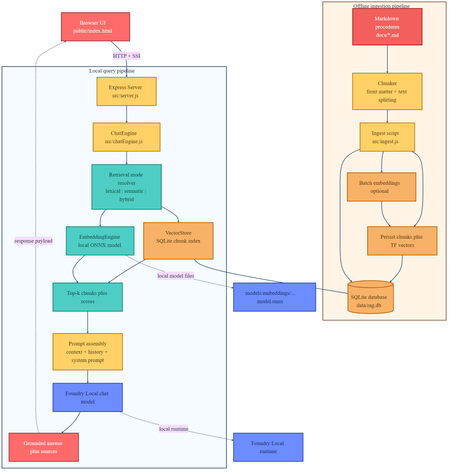
If you are building local AI applications, basic retrieval augmented generation is often only the starting point. This sample shows a more practical pattern: combine lexical retrieval, ONNX based semantic embeddings, and a Foundry Local chat model so the assistant stays grounded, remains offline, and degrades cleanly when the semantic path is unavailable. Why this sample is worth studying Many local RAG samples rely on a single retrieval strategy. That is usually enough for a proof of concept, but it breaks down quickly in production. Exact keywords, acronyms, and document codes behave differently from natural language questions and paraphrased requests. This repository keeps the original lexical retrieval path, adds local ONNX embeddings for semantic search, and fuses both signals in a hybrid ranking mode. The generation step runs through Foundry Local, so the entire assistant can remain on device. Lexical mode handles exact terms and structured vocabulary. Semantic mode handles paraphrases and more natural language phrasing. Hybrid mode combines both and is usually the best default. Lexical fallback protects the user experience if the embedding pipeline cannot start. Architectural overview The sample has two main flows: an offline ingestion pipeline and a local query pipeline. The architecture splits cleanly into offline ingestion at the top and runtime query handling at the bottom. Offline ingestion pipeline Read Markdown files from docs/ . Parse front matter and split each document into overlapping chunks. Generate dense embeddings when the ONNX model is available. Store chunks in SQLite with both sparse lexical features and optional dense vectors. Local query pipeline The browser posts a question to the Express API. ChatEngine resolves the requested retrieval mode. VectorStore retrieves lexical, semantic, or hybrid results. The prompt is assembled with the retrieved context and sent to a Foundry Local chat model. The answer is returned with source references and retrieval metadata. The sequence diagram shows the difference between lexical retrieval and hybrid retrieval. In hybrid mode, the query is embedded first, then lexical and semantic scores are fused before prompt assembly. Repository structure and core components The implementation is compact and readable. The main files to understand are listed below. src/config.js : retrieval defaults, paths, and model settings. src/embeddingEngine.js : local ONNX embedding generation through Transformers.js. src/vectorStore.js : SQLite storage plus lexical, semantic, and hybrid ranking. src/chatEngine.js : retrieval mode resolution, prompt assembly, and Foundry Local model execution. src/ingest.js : document ingestion and embedding generation during indexing. src/server.js : REST endpoints, streaming endpoints, upload support, and health reporting. Getting started To run the sample, you need Node.js 20 or newer, Foundry Local, and a local ONNX embedding model. The default model path is models/embeddings/bge-small-en-v1.5 . cd c:\Users\leestott\local-hybrid-retrival-onnx npm install huggingface-cli download BAAI/bge-small-en-v1.5 --local-dir models/embeddings/bge-small-en-v1.5 npm run ingest npm start Ingestion writes the local SQLite database to data/rag.db . If the embedding model is available, each chunk gets a dense vector as well as lexical features. If the embedding model is missing, ingestion still succeeds and the application remains usable in lexical mode. Best practice: local AI applications should treat model files, SQLite data, and native runtime compatibility as part of the deployable system, not as optional developer conveniences. Code walkthrough 1. Retrieval configuration The sample makes its retrieval behaviour explicit in configuration. That is useful for testing and for operator visibility. export const config = { model: "phi-3.5-mini", docsDir: path.join(ROOT, "docs"), dbPath: path.join(ROOT, "data", "rag.db"), chunkSize: 200, chunkOverlap: 25, topK: 3, retrievalMode: process.env.RETRIEVAL_MODE || "hybrid", retrievalModes: ["lexical", "semantic", "hybrid"], fallbackRetrievalMode: "lexical", retrievalWeights: { lexical: 0.45, semantic: 0.55, }, }; Those defaults tell you a lot about the intended operating profile. Chunks are small, the number of returned chunks is low, and the fallback path is explicit. 2. Local ONNX embeddings The embedding engine disables remote model loading and only uses local files. That matters for privacy, repeatability, and air gapped operation. env.allowLocalModels = true; env.allowRemoteModels = false; this.extractor = await pipeline("feature-extraction", resolvedPath, { local_files_only: true, }); const output = await this.extractor(text, { pooling: "mean", normalize: true, }); The mean pooling and normalisation step make the vectors suitable for cosine similarity based ranking. 3. Hybrid storage and ranking in SQLite Instead of adding a separate vector database, the sample stores lexical and semantic representations in the same SQLite table. That keeps the local footprint low and the implementation easy to debug. searchHybrid(query, queryEmbedding, topK = 5, weights = { lexical: 0.45, semantic: 0.55 }) { const lexicalResults = this.searchLexical(query, topK * 3); const semanticResults = this.searchSemantic(queryEmbedding, topK * 3); if (semanticResults.length === 0) { return lexicalResults.slice(0, topK).map((row) => ({ ...row, retrievalMode: "lexical", })); } const fused = [...combined.values()].map((row) => ({ ...row, score: (row.lexicalScore * lexicalWeight) + (row.semanticScore * semanticWeight), })); fused.sort((a, b) => b.score - a.score); return fused.slice(0, topK); } The important point is not just the weighted fusion. It is the fallback behaviour. If semantic retrieval cannot provide results, the user still gets lexical grounding instead of an empty context window. 4. Retrieval mode resolution in ChatEngine ChatEngine keeps the runtime behaviour predictable. It validates the requested mode and falls back to lexical search when semantic retrieval is unavailable. resolveRetrievalMode(requestedMode) { const desiredMode = config.retrievalModes.includes(requestedMode) ? requestedMode : config.retrievalMode; if ((desiredMode === "semantic" || desiredMode === "hybrid") && !this.semanticAvailable) { return config.fallbackRetrievalMode; } return desiredMode; } This is a sensible production design because local runtime failures are common. Missing model files or native dependency mismatches should reduce quality, not crash the entire assistant. 5. Foundry Local model management The sample uses FoundryLocalManager to discover, download, cache, and load the configured chat model. const manager = FoundryLocalManager.create({ appName: "gas-field-local-rag" }); const catalog = manager.catalog; this.model = await catalog.getModel(config.model); if (!this.model.isCached) { await this.model.download((progress) => { const pct = Math.round(progress * 100); this._emitStatus("download", `Downloading ${this.modelAlias}... ${pct}%`, progress); }); } await this.model.load(); this.chatClient = this.model.createChatClient(); this.chatClient.settings.temperature = 0.1; This gives the app a better local startup experience. The server can expose a status stream while the model initialises in the background. User experience and screenshots The client is intentionally simple, which makes it useful during evaluation. You can switch retrieval mode, test questions quickly, and inspect the retrieved sources. The landing page exposes retrieval mode directly in the UI. That makes it easy to compare lexical, semantic, and hybrid behaviour during testing. The sources panel shows grounding evidence and retrieval scores, which is useful when validating whether better answers are coming from better retrieval or just model phrasing. Best practices for ONNX RAG and Foundry Local Keep lexical fallback alive. Exact identifiers and runtime failures both make this necessary. Persist sparse and dense features together where possible. It simplifies debugging and operational reasoning. Use small chunks and conservative topK values for local context budgets. Expose health and status endpoints so users can see when the model is still loading or embeddings are unavailable. Test retrieval quality separately from generation quality. Pin and validate native runtime dependencies, especially ONNX Runtime, before tuning prompts. Practical warning: this repository already shows why runtime validation matters. A local app can ingest documents successfully and still fail at model initialisation if the native runtime stack is misaligned. How this compares with RAG and CAG The strongest value in this sample comes from where it sits between a basic local RAG baseline and a curated CAG design. Dimension Classic local RAG This hybrid ONNX RAG sample CAG Context assembly Retrieve chunks at query time, often lexically, then inject them into the prompt. Retrieve chunks at query time with lexical, semantic, or fused scoring, then inject the strongest results into the prompt. Use a prepared or cached context pack instead of fresh retrieval for every request. Main strength Easy to implement and easy to explain. Better recall for paraphrases without giving up exact match behaviour or offline execution. Predictable prompts and low query time overhead. Main weakness Misses synonyms and natural language reformulations. More moving parts, larger local asset footprint, and native runtime compatibility to manage. Coverage depends on curation quality and goes stale more easily. Failure behaviour Weak retrieval leads to weak grounding. Semantic failure can degrade to lexical retrieval if designed properly, which this sample does. Prepared context can be too narrow for new or unexpected questions. Best fit Simple local assistants and proof of concept systems. Offline copilots and technical assistants that need stronger recall across varied phrasing. Stable workflows with tightly bounded, curated knowledge. Samples Related samples: - Foundry Local RAG - https://github.com/leestott/local-rag - Foundry Local CAG - https://github.com/leestott/local-cag - Foundry Local hybrid-retrival-onnx https://github.com/leestott/local-hybrid-retrival-onnx Specific benefits of this hybrid approach over classic RAG It captures paraphrased questions that lexical search would often miss. It still preserves exact match performance for codes, terms, and product names. It gives operators a controlled degradation path when the semantic stack is unavailable. It stays local and inspectable without introducing a separate hosted vector service. Specific differences from CAG CAG shifts effort into context curation before the request. This sample retrieves evidence dynamically at runtime. CAG can be faster for fixed workflows, but it is usually less flexible when the document set changes. This hybrid RAG design is better suited to open ended knowledge search and growing document collections. What to validate before shipping Measure retrieval quality in each mode using exact term, acronym, and paraphrase queries. Check that sources shown in the UI reflect genuinely distinct evidence, not repeated chunks. Confirm the application remains usable when semantic retrieval is unavailable. Verify ONNX Runtime compatibility on the real target machines, not only on the development laptop. Test model download, cache, and startup behaviour with a clean environment. Final take For developers getting started with ONNX RAG and Foundry Local, this sample is a good technical reference because it demonstrates a realistic local architecture rather than a minimal demo. It shows how to build a grounded assistant that remains offline, supports multiple retrieval modes, and fails gracefully. Compared with classic local RAG, the hybrid design provides better recall and better resilience. Compared with CAG, it remains more flexible for changing document sets and less dependent on pre curated context packs. If you want a practical starting point for offline grounded AI on developer workstations or edge devices, this is the most balanced pattern in the repository set.543Views0likes0CommentsMicrosoft Olive & Olive Recipes: A Practical Guide to Model Optimization for Real-World Deployment
Why your model runs great on your laptop but fails in the real world You have trained a model. It scores well on your test set. It runs fine on your development machine with a beefy GPU. Then someone asks you to deploy it to a customer's edge device, a cloud endpoint with a latency budget, or a laptop with no discrete GPU at all. Suddenly the model is too large, too slow, or simply incompatible with the target runtime. You start searching for quantisation scripts, conversion tools, and hardware-specific compiler flags. Each target needs a different recipe, and the optimisation steps interact in ways that are hard to predict. This is the deployment gap. It is not a knowledge gap; it is a tooling gap. And it is exactly the problem that Microsoft Olive is designed to close. What is Olive? Olive is an easy-to-use, hardware-aware model optimisation toolchain that composes techniques across model compression, optimisation, and compilation. Rather than asking you to string together separate conversion scripts, quantisation utilities, and compiler passes by hand, Olive lets you describe what you have and what you need, then handles the pipeline. In practical terms, Olive takes a model source, such as a PyTorch model or an ONNX model (and other supported formats), plus a configuration that describes your production requirements and target hardware accelerator. It then runs the appropriate optimisation passes and produces a deployment-ready artefact. You can think of it as a build system for model optimisation: you declare the intent, and Olive figures out the steps. Official repo: github.com/microsoft/olive Documentation: microsoft.github.io/Olive Key advantages: why Olive matters for your workflow A. Optimise once, deploy across many targets One of the hardest parts of deploying models in production is that "production" is not one thing. Your model might need to run on a cloud GPU, an edge CPU, or a Windows device with an NPU. Each target has different memory constraints, instruction sets, and runtime expectations. Olive supports targeting CPU, GPU, and NPU through its optimisation workflow. This means a single toolchain can produce optimised artefacts for multiple deployment targets, expanding the number of platforms you can serve without maintaining separate optimisation scripts for each one. The conceptual workflow is straightforward: Olive can download, convert, quantise, and optimise a model using an auto-optimisation style approach where you specify the target device (cpu, gpu, or npu). This keeps the developer experience consistent even as the underlying optimisation strategy changes per target. B. ONNX as the portability layer If you have heard of ONNX but have not used it in anger, here is why it matters: ONNX gives your model a common representation that multiple runtimes understand. Instead of being locked to one framework's inference path, an ONNX model can run through ONNX Runtime and take advantage of whatever hardware is available. Olive supports ONNX conversion and optimisation, and can generate a deployment-ready model package along with sample inference code in languages like C#, C++, or Python. That package is not just the model weights; it includes the configuration and code needed to load and run the model on the target platform. For students and early-career engineers, this is a meaningful capability: you can train in PyTorch (the ecosystem you already know) and deploy through ONNX Runtime (the ecosystem your production environment needs). C. Hardware-specific acceleration and execution providers When Olive targets a specific device, it does not just convert the model format. It optimises for the execution provider (EP) that will actually run the model on that hardware. Execution providers are the bridge between the ONNX Runtime and the underlying accelerator. Olive can optimise for a range of execution providers, including: Vitis AI EP (AMD) – for AMD accelerator hardware OpenVINO EP (Intel) – for Intel CPUs, integrated GPUs, and VPUs QNN EP (Qualcomm) – for Qualcomm NPUs and SoCs DirectML EP (Windows) – for broad GPU support on Windows devices Why does EP targeting matter? Because the difference between a generic model and one optimised for a specific execution provider can be significant in terms of latency, throughput, and power efficiency. On battery-powered devices especially, the right EP optimisation can be the difference between a model that is practical and one that drains the battery in minutes. D. Quantisation and precision options Quantisation is one of the most powerful levers you have for making models smaller and faster. The core idea is reducing the numerical precision of model weights and activations: FP32 (32-bit floating point) – full precision, largest model size, highest fidelity FP16 (16-bit floating point) – roughly half the memory, usually minimal quality loss for most tasks INT8 (8-bit integer) – significant size and speed gains, moderate risk of quality degradation depending on the model INT4 (4-bit integer) – aggressive compression for the most constrained deployment scenarios Think of these as a spectrum. As you move from FP32 towards INT4, models get smaller and faster, but you trade away some numerical fidelity. The practical question is always: how much quality can I afford to lose for this use case? Practical heuristics for choosing precision: FP16 is often a safe default for GPU deployment. In practice, you might start here and only go lower if you need to. INT8 is a strong choice for CPU-based inference where memory and compute are constrained but accuracy requirements are still high (e.g., classification, embeddings, many NLP tasks). INT4 is worth exploring when you are deploying large language models to edge or consumer devices and need aggressive size reduction. Expect to validate quality carefully, as some tasks and model architectures tolerate INT4 better than others. Olive handles the mechanics of applying these quantisation passes as part of the optimisation pipeline, so you do not need to write custom quantisation scripts from scratch. Showcase: model conversion stories To make this concrete, here are three plausible optimisation scenarios that illustrate how Olive fits into real workflows. Story 1: PyTorch classification model → ONNX → quantised for cloud CPU inference Starting point: A PyTorch image classification model fine-tuned on a domain-specific dataset. Target hardware: Cloud CPU instances (no GPU budget for inference). Optimisation intent: Reduce latency and cost by quantising to INT8 whilst keeping accuracy within acceptable bounds. Output: An ONNX model optimised for CPU execution, packaged with configuration and sample inference code ready for deployment behind an API endpoint. Story 2: Hugging Face language model → optimised for edge NPU Starting point: A Hugging Face transformer model used for text summarisation. Target hardware: A laptop with an integrated NPU (e.g., a Qualcomm-based device). Optimisation intent: Shrink the model to INT4 to fit within NPU memory limits, and optimise for the QNN execution provider to leverage the neural processing unit. Output: A quantised ONNX model configured for QNN EP, with packaging that includes the model, runtime configuration, and sample code for local inference. Story 3: Same model, two targets – GPU vs. NPU Starting point: A single PyTorch generative model used for content drafting. Target hardware: (A) Cloud GPU for batch processing, (B) On-device NPU for interactive use. Optimisation intent: For GPU, optimise at FP16 for throughput. For NPU, quantise to INT4 for size and power efficiency. Output: Two separate optimised packages from the same source model, one targeting DirectML EP for GPU, one targeting QNN EP for NPU, each with appropriate precision, runtime configuration, and sample inference code. In each case, Olive handles the multi-step pipeline: conversion, optimisation passes, quantisation, and packaging. The developer's job is to define the target and validate the output quality. Introducing Olive Recipes If you are new to model optimisation, staring at a blank configuration file can be intimidating. That is where Olive Recipes comes in. The Olive Recipes repository complements Olive by providing recipes that demonstrate features and use cases. You can use them as a reference for optimising publicly available models or adapt them for your own proprietary models. The repository also includes a selection of ONNX-optimised models that you can study or use as starting points. Think of recipes as worked examples: each one shows a complete optimisation pipeline for a specific scenario, including the configuration, the target hardware, and the expected output. Instead of reinventing the pipeline from scratch, you can find a recipe close to your use case and modify it. For students especially, recipes are a fast way to learn what good optimisation configurations look like in practice. Taking it further: adding custom models to Foundry Local Once you have optimised a model with Olive, you may want to serve it locally for development, testing, or fully offline use. Foundry Local is a lightweight runtime that downloads, manages, and serves language models entirely on-device via an OpenAI-compatible API, with no cloud dependency and no API keys required. Important: Foundry Local only supports specific model templates. At present, these are the chat template (for conversational and text-generation models) and the whisper template (for speech-to-text models based on the Whisper architecture). If your model does not fit one of these two templates, it cannot currently be loaded into Foundry Local. Compiling a Hugging Face model for Foundry Local If your optimised model uses a supported architecture, you can compile it from Hugging Face for use with Foundry Local. The high-level process is: Choose a compatible Hugging Face model. The model must match one of Foundry Local's supported templates (chat or whisper). For chat models, this typically means decoder-only transformer architectures that support the standard chat format. Use Olive to convert and optimise. Olive handles the conversion from the Hugging Face source format into an ONNX-based, quantised artefact that Foundry Local can serve. This is where your Olive skills directly apply. Register the model with Foundry Local. Once compiled, you register the model so that Foundry Local's catalogue recognises it and can serve it through the local API. For the full step-by-step guide, including exact commands and configuration details, refer to the official documentation: How to compile Hugging Face models for Foundry Local. For a hands-on lab that walks through the complete workflow, see Foundry Local Lab, specifically Lab 10 which covers bringing custom models into Foundry Local. Why does this matter? The combination of Olive and Foundry Local gives you a complete local workflow: optimise your model with Olive, then serve it with Foundry Local for rapid iteration, privacy-sensitive workloads, or environments without internet connectivity. Because Foundry Local exposes an OpenAI-compatible API, your application code can switch between local and cloud inference with minimal changes. Keep in mind the template constraint. If you are planning to bring a custom model into Foundry Local, verify early that it fits the chat or whisper template. Attempting to load an unsupported architecture will not work, regardless of how well the model has been optimised. Contributing: how to get involved The Olive ecosystem is open source, and contributions are welcome. There are two main ways to contribute: A. Contributing recipes If you have built an optimisation pipeline that works well for a specific model, hardware target, or use case, consider contributing it as a recipe. Recipes are repeatable pipeline configurations that others can learn from and adapt. B. Sharing optimised model outputs and configurations If you have produced an optimised model that might be useful to others, sharing the optimisation configuration and methodology (and, where licensing permits, the model itself) helps the community build on proven approaches rather than starting from zero. Contribution checklist Reproducibility: Can someone else run your recipe or configuration and get comparable results? Licensing: Are the base model weights, datasets, and any dependencies properly licensed for sharing? Hardware target documented: Have you specified which device and execution provider the optimisation targets? Runtime documented: Have you noted the ONNX Runtime version and any EP-specific requirements? Quality validation: Have you included at least a basic accuracy or quality check for the optimised output? If you are a student or early-career developer, contributing a recipe is a great way to build portfolio evidence that you understand real deployment concerns, not just training. Try it yourself: a minimal workflow Here is a conceptual walkthrough of the optimisation workflow using Olive. The idea is to make the mental model concrete. For exact CLI flags and options, refer to the official Olive documentation. Choose a model source. Start with a PyTorch or Hugging Face model you want to optimise. This is your input. Choose a target device. Decide where the model will run: cpu , gpu , or npu . Choose an execution provider. Pick the EP that matches your hardware, for example DirectML for Windows GPU, QNN for Qualcomm NPU, or OpenVINO for Intel. Choose a precision. Select the quantisation level: fp16 , int8 , or int4 , based on your size, speed, and quality requirements. Run the optimisation. Olive will convert, quantise, optimise, and package the model for your target. The output is a deployment-ready artefact with model files, configuration, and sample inference code. A conceptual command might look like this: # Conceptual example – refer to official docs for exact syntax olive auto-opt --model-id my-model --device cpu --provider onnxruntime --precision int8 After optimisation, validate the output. Run your evaluation benchmark on the optimised model and compare quality, latency, and model size against the original. If INT8 drops quality below your threshold, try FP16. If the model is still too large for your device, explore INT4. Iteration is expected. Key takeaways Olive bridges training and deployment by providing a single, hardware-aware optimisation toolchain that handles conversion, quantisation, optimisation, and packaging. One source model, many targets: Olive lets you optimise the same model for CPU, GPU, and NPU, expanding your deployment reach without maintaining separate pipelines. ONNX is the portability layer that decouples your training framework from your inference runtime, and Olive leverages it to generate deployment-ready packages. Precision is a design choice: FP16, INT8, and INT4 each serve different deployment constraints. Start conservative, measure quality, and compress further only when needed. Olive Recipes are your starting point: Do not build optimisation pipelines from scratch when worked examples exist. Learn from recipes, adapt them, and contribute your own. Foundry Local extends the workflow: Once your model is optimised, Foundry Local can serve it on-device via a standard API, but only if it fits a supported template (chat or whisper). Resources Microsoft Olive – GitHub repository Olive documentation Olive Recipes – GitHub repository How to compile Hugging Face models for Foundry Local Foundry Local Lab – hands-on labs (see Lab 10 for custom models) Foundry Local documentation573Views0likes0CommentsBuild a Fully Offline RAG App with Foundry Local: No Cloud Required
A practical guide to building an on-device AI support agent using Retrieval-Augmented Generation, JavaScript, and Microsoft Foundry Local. The Problem: AI That Can't Go Offline Most AI-powered applications today are firmly tethered to the cloud. They assume stable internet, low-latency API calls, and the comfort of a managed endpoint. But what happens when your users are in an environment with zero connectivity a gas pipeline in a remote field, a factory floor, an underground facility? That's exactly the scenario that motivated this project: a fully offline RAG-powered support agent that runs entirely on a laptop. No cloud. No API keys. No outbound network calls. Just a local model, a local vector store, and domain-specific documents all accessible from a browser on any device. The Gas Field Support Agent - running entirely on-device What is RAG and Why Should You Care? Retrieval-Augmented Generation (RAG) is a pattern that makes language models genuinely useful for domain-specific tasks. Instead of hoping the model "knows" the answer from pre-training, you: Retrieve relevant chunks from your own documents Augment the model's prompt with those chunks as context Generate a response grounded in your actual data The result: fewer hallucinations, traceable answers, and an AI that works with your content. If you're building internal tools, customer support bots, field manuals, or knowledge bases, RAG is the pattern you want. Why fully offline? Data sovereignty, air-gapped environments, field operations, latency-sensitive workflows, and regulatory constraints all demand AI that doesn't phone home. Running everything locally gives you complete control over your data and eliminates any external dependency. The Tech Stack This project is deliberately simple — no frameworks, no build steps, no Docker: Layer Technology Why AI Model Foundry Local + Phi-3.5 Mini Runs locally, OpenAI-compatible API, no GPU needed Backend Node.js + Express Lightweight, fast, universally known Vector Store SQLite via better-sqlite3 Zero infrastructure, single file on disk Retrieval TF-IDF + cosine similarity No embedding model required, fully offline Frontend Single HTML file with inline CSS No build step, mobile-responsive, field-ready The total dependency footprint is just four npm packages: express , openai , foundry-local-sdk , and better-sqlite3 . Architecture Overview The system has five layers — all running on a single machine: Five-layer architecture: Client → Server → RAG Pipeline → Data → AI Model Client Layer — A single HTML file served by Express, with quick-action buttons and responsive chat Server Layer — Express.js handles API routes for chat (streaming + non-streaming), document upload, and health checks RAG Pipeline — The chat engine orchestrates retrieval and generation; the chunker handles TF-IDF vectorization Data Layer — SQLite stores document chunks and their TF-IDF vectors; source docs live as .md files AI Layer — Foundry Local runs Phi-3.5 Mini Instruct on CPU/NPU, exposing an OpenAI-compatible API Getting Started in 5 Minutes You need two prerequisites: Node.js 20+ — nodejs.org Foundry Local — Microsoft's on-device AI runtime: Terminal winget install Microsoft.FoundryLocal Then clone, install, ingest, and run: git clone https://github.com/leestott/local-rag.git cd local-rag npm install npm run ingest # Index the 20 gas engineering documents npm start # Start the server + Foundry Local Open http://127.0.0.1:3000 and start chatting. Foundry Local auto-downloads Phi-3.5 Mini (~2 GB) on first run. How the RAG Pipeline Works Let's trace what happens when a user asks: "How do I detect a gas leak?" RAG query flow: Browser → Server → Vector Store → Model → Streaming response Step 1: Document Ingestion Before any queries happen, npm run ingest reads every .md file from the docs/ folder, splits each into overlapping chunks (~200 tokens, 25-token overlap), computes a TF-IDF vector for each chunk, and stores everything in SQLite. Chunking example docs/01-gas-leak-detection.md → Chunk 1: "Gas Leak Detection – Safety Warnings: Ensure all ignition..." → Chunk 2: "...sources are eliminated. Step-by-step: 1. Perform visual..." → Chunk 3: "...inspection of all joints. 2. Check calibration date..." The overlap ensures no information falls between chunk boundaries — a critical detail in any RAG system. Step 2: Query → Retrieval When the user sends a question, the server converts it into a TF-IDF vector, compares it against every stored chunk using cosine similarity, and returns the top-K most relevant results. For 20 documents (~200 chunks), this executes in under 10ms. src/vectorStore.js /** Retrieve top-K most relevant chunks for a query. */ search(query, topK = 5) { const queryTf = termFrequency(query); const rows = this.db.prepare("SELECT * FROM chunks").all(); const scored = rows.map((row) => { const chunkTf = new Map(JSON.parse(row.tf_json)); const score = cosineSimilarity(queryTf, chunkTf); return { ...row, score }; }); scored.sort((a, b) => b.score - a.score); return scored.slice(0, topK).filter((r) => r.score > 0); } Step 3: Prompt Construction The retrieved chunks are injected into the prompt alongside system instructions: Prompt structure System: You are an offline gas field support agent. Safety-first... Context: [Chunk 1: Gas Leak Detection – Safety Warnings...] [Chunk 2: Gas Leak Detection – Step-by-step...] [Chunk 3: Purging Procedures – Related safety...] User: How do I detect a gas leak? Step 4: Generation + Streaming The prompt is sent to Foundry Local via the OpenAI-compatible API. The response streams back token-by-token through Server-Sent Events (SSE) to the browser: Safety-first response with structured guidance Expandable sources with relevance scores Foundry Local: Your Local AI Runtime Foundry Local is what makes the "offline" part possible. It's a runtime from Microsoft that runs small language models (SLMs) on CPU or NPU — no GPU required. It exposes an OpenAI-compatible API and manages model downloads, caching, and lifecycle automatically. The integration code is minimal if you've used the OpenAI SDK before, this will feel instantly familiar: src/chatEngine.js import { FoundryLocalManager } from "foundry-local-sdk"; import { OpenAI } from "openai"; // Start Foundry Local and load the model const manager = new FoundryLocalManager(); const modelInfo = await manager.init("phi-3.5-mini"); // Use the standard OpenAI client — pointed at the local endpoint const client = new OpenAI({ baseURL: manager.endpoint, apiKey: manager.apiKey, }); // Chat completions work exactly like the cloud API const stream = await client.chat.completions.create({ model: modelInfo.id, messages: [ { role: "system", content: "You are a helpful assistant." }, { role: "user", content: "How do I detect a gas leak?" } ], stream: true, }); Portability matters Because Foundry Local uses the OpenAI API format, any code you write here can be ported to Azure OpenAI or OpenAI's cloud API with a single config change. You're not locked in. Why TF-IDF Instead of Embeddings? Most RAG tutorials use embedding models for retrieval. We chose TF-IDF for this project because: Fully offline — no embedding model to download or run Zero latency — vectorization is instantaneous (just math on word frequencies) Good enough — for a curated collection of 20 domain-specific documents, TF-IDF retrieves the right chunks reliably Transparent — you can inspect the vocabulary and weights, unlike neural embeddings For larger collections (thousands of documents) or when semantic similarity matters more than keyword overlap, you'd swap in an embedding model. But for this use case, TF-IDF keeps the stack simple and dependency-free. Mobile-Responsive Field UI Field engineers use this app on phones and tablets often wearing gloves. The UI is designed for harsh conditions with a dark, high-contrast theme, large touch targets (minimum 48px), and horizontally scrollable quick-action buttons. Desktop view Mobile view The entire frontend is a single index.html file — no React, no build step, no bundler. This keeps the project accessible and easy to deploy anywhere. Runtime Document Upload Users can upload new documents without restarting the server. The upload endpoint receives markdown content, chunks it, computes TF-IDF vectors, and inserts the chunks into SQLite — all in memory, immediately available for retrieval. Drag-and-drop document upload with instant indexing Adapt This for Your Own Domain This project is a scenario sample designed to be forked and customized. Here's the three-step process: 1. Replace the Documents Delete the gas engineering docs in docs/ and add your own .md files with optional YAML front-matter: docs/my-procedure.md --- title: Troubleshooting Widget Errors category: Support id: KB-001 --- # Troubleshooting Widget Errors ...your content here... 2. Edit the System Prompt Open src/prompts.js and rewrite the instructions for your domain: src/prompts.js export const SYSTEM_PROMPT = `You are an offline support agent for [YOUR DOMAIN]. Rules: - Only answer using the retrieved context - If the answer isn't in the context, say so - Use structured responses: Summary → Details → Reference `; 3. Tune the Retrieval Adjust chunking and retrieval parameters in src/config.js : src/config.js export const config = { model: "phi-3.5-mini", chunkSize: 200, // smaller = more precise, less context per chunk chunkOverlap: 25, // prevents info from falling between chunks topK: 3, // chunks per query (more = richer context, slower) }; Extending to Multi-Agent Architectures Once you have a working RAG agent, the natural next step is multi-agent orchestration where specialized agents collaborate to handle complex workflows. With Foundry Local's OpenAI-compatible API, you can compose multiple agent roles on the same machine: Multi-agent concept // Each agent is just a different system prompt + RAG scope const agents = { safety: { prompt: safetyPrompt, docs: "safety/*.md" }, diagnosis: { prompt: diagnosisPrompt, docs: "faults/*.md" }, procedure: { prompt: procedurePrompt, docs: "procedures/*.md" }, }; // Router determines which agent handles the query function route(query) { if (query.match(/safety|warning|hazard/i)) return agents.safety; if (query.match(/fault|error|code/i)) return agents.diagnosis; return agents.procedure; } // Each agent uses the same Foundry Local model endpoint const response = await client.chat.completions.create({ model: modelInfo.id, messages: [ { role: "system", content: selectedAgent.prompt }, { role: "system", content: `Context:\n${retrievedChunks}` }, { role: "user", content: userQuery } ], stream: true, }); This pattern lets you build specialized agent pipelines a triage agent routes to the right specialist, each with its own document scope and system prompt, all running on the same local Foundry instance. For production multi-agent systems, explore Microsoft Foundry for cloud-scale orchestration when connectivity is available. Local-first, cloud-ready Start with Foundry Local for development and offline scenarios. When your agents need cloud scale, swap to Azure AI Foundry with the same OpenAI-compatible API your agent code stays the same. Key Takeaways 1 RAG = Retrieve + Augment + Generate Ground your AI in real documents — dramatically reducing hallucination and making answers traceable. 2 Foundry Local makes local AI accessible OpenAI-compatible API running on CPU/NPU. No GPU required. No cloud dependency. 3 TF-IDF + SQLite is viable For small-to-medium document collections, you don't need a dedicated vector database. 4 Same API, local or cloud Build locally with Foundry Local, deploy with Azure OpenAI — zero code changes. What's Next? Embedding-based retrieval — swap TF-IDF for a local embedding model for better semantic matching Conversation memory — persist chat history across sessions Multi-agent routing — specialized agents for safety, diagnostics, and procedures PWA packaging — make it installable as a standalone app on mobile devices Hybrid retrieval — combine keyword search with semantic embeddings for best results Get the code Clone the repo, swap in your own documents, and start building: git clone https://github.com/leestott/local-rag.git github.com/leestott/local-rag — MIT licensed, contributions welcome. Open source under the MIT License. Built with Foundry Local and Node.js.1.7KViews1like0CommentsAgentic Code Fixing with GitHub Copilot SDK and Foundry Local
Introduction AI-powered coding assistants have transformed how developers write and review code. But most of these tools require sending your source code to cloud services, a non-starter for teams working with proprietary codebases, air-gapped environments, or strict compliance requirements. What if you could have an intelligent coding agent that finds bugs, fixes them, runs your tests, and produces PR-ready summaries, all without a single byte leaving your machine? The Local Repo Patch Agent demonstrates exactly this. By combining the GitHub Copilot SDK for agent orchestration with Foundry Local for on-device inference, this project creates a fully autonomous coding workflow that operates entirely on your hardware. The agent scans your repository, identifies bugs and code smells, applies fixes, verifies them through your test suite, and generates a comprehensive summary of all changes, completely offline and secure. This article explores the architecture behind this integration, walks through the key implementation patterns, and shows you how to run the agent yourself. Whether you're building internal developer tools, exploring agentic workflows, or simply curious about what's possible when you combine GitHub's SDK with local AI, this project provides a production-ready foundation to build upon. Why Local AI Matters for Code Analysis Cloud-based AI coding tools have proven their value—GitHub Copilot has fundamentally changed how millions of developers work. But certain scenarios demand local-first approaches where code never leaves the organisation's network. Consider these real-world constraints that teams face daily: Regulatory compliance: Financial services, healthcare, and government projects often prohibit sending source code to external services, even for analysis Intellectual property protection: Proprietary algorithms and trade secrets can't risk exposure through cloud API calls Air-gapped environments: Secure facilities and classified projects have no internet connectivity whatsoever Latency requirements: Real-time code analysis in IDEs benefits from zero network roundtrip Cost control: High-volume code analysis without per-token API charges The Local Repo Patch Agent addresses all these scenarios. By running the AI model on-device through Foundry Local and using the GitHub Copilot SDK for orchestration, you get the intelligence of agentic coding workflows with complete data sovereignty. The architecture proves that "local-first" doesn't mean "capability-limited." The Technology Stack Two core technologies make this architecture possible, working together through a clever integration called BYOK (Bring Your Own Key). Understanding how they complement each other reveals the elegance of the design. GitHub Copilot SDK The GitHub Copilot SDK provides the agent runtime, the scaffolding that handles planning, tool invocation, streaming responses, and the orchestration loop that makes agentic behaviour possible. Rather than managing raw LLM API calls, developers define tools (functions the agent can call) and system prompts, and the SDK handles everything else. Key capabilities the SDK brings to this project: Session management: Maintains conversation context across multiple agent interactions Tool orchestration: Automatically invokes defined tools when the model requests them Streaming support: Real-time response streaming for responsive user interfaces Provider abstraction: Works with any OpenAI-compatible API through the BYOK configuration Foundry Local Foundry Local brings Azure AI Foundry's model catalog to your local machine. It automatically selects the best available hardware acceleration—GPU, NPU, or CP, and exposes models through an OpenAI-compatible API on localhost. Models run entirely on-device with no telemetry or data transmission. For this project, Foundry Local provides: On-device inference: All AI processing happens locally, ensuring complete data privacy Dynamic port allocation: The SDK auto-detects the Foundry Local endpoint, eliminating configuration hassle Model flexibility: Swap between models like qwen2.5-coder-1.5b , phi-3-mini , or larger variants based on your hardware OpenAI API compatibility: Standard API format means the GitHub Copilot SDK works without modification The BYOK Integration The entire connection between the GitHub Copilot SDK and Foundry Local happens through a single configuration object. This BYOK (Bring Your Own Key) pattern tells the SDK to route all inference requests to your local model instead of cloud services: const session = await client.createSession({ model: modelId, provider: { type: "openai", // Foundry Local speaks OpenAI's API format baseUrl: proxyBaseUrl, // Streaming proxy → Foundry Local apiKey: manager.apiKey, wireApi: "completions", // Chat Completions API }, streaming: true, tools: [ /* your defined tools */ ], }); This configuration is the key insight: with one config object, you've redirected an entire agent framework to run on local hardware. No code changes to the SDK, no special adapters—just standard OpenAI-compatible API communication. Architecture Overview The Local Repo Patch Agent implements a layered architecture where each component has a clear responsibility. Understanding this flow helps when extending or debugging the system. ┌─────────────────────────────────────────────────────────┐ │ Your Terminal / Web UI │ │ npm run demo / npm run ui │ └──────────────┬──────────────────────────────────────────┘ │ ┌──────────────▼──────────────────────────────────────────┐ │ src/agent.ts (this project) │ │ │ │ ┌────────────────────────────┐ ┌──────────────────┐ │ │ │ GitHub Copilot SDK │ │ Agent Tools │ │ │ │ (CopilotClient) │ │ list_files │ │ │ │ BYOK → Foundry │ │ read_file │ │ │ └────────┬───────────────────┘ │ write_file │ │ │ │ │ run_command │ │ └────────────┼───────────────────────┴──────────────────┘ │ │ │ │ JSON-RPC │ ┌────────────▼─────────────────────────────────────────────┐ │ GitHub Copilot CLI (server mode) │ │ Agent orchestration layer │ └────────────┬─────────────────────────────────────────────┘ │ POST /v1/chat/completions (BYOK) ┌────────────▼─────────────────────────────────────────────┐ │ Foundry Local (on-device inference) │ │ Model: qwen2.5-coder-1.5b via ONNX Runtime │ │ Endpoint: auto-detected (dynamic port) │ └───────────────────────────────────────────────────────────┘ The data flow works as follows: your terminal or web browser sends a request to the agent application. The agent uses the GitHub Copilot SDK to manage the conversation, which communicates with the Copilot CLI running in server mode. The CLI, configured with BYOK, sends inference requests to Foundry Local running on localhost. Responses flow back up the same path, with tool invocations happening in the agent.ts layer. The Four-Phase Workflow The agent operates through a structured four-phase loop, each phase building on the previous one's output. This decomposition transforms what would be an overwhelming single prompt into manageable, verifiable steps. Phase 1: PLAN The planning phase scans the repository and produces a numbered fix plan. The agent reads every source and test file, identifies potential issues, and outputs specific tasks to address: // Phase 1 system prompt excerpt const planPrompt = ` You are a code analysis agent. Scan the repository and identify: 1. Bugs that cause test failures 2. Code smells and duplication 3. Style inconsistencies Output a numbered list of fixes, ordered by priority. Each item should specify: file path, line numbers, issue type, and proposed fix. `; The tools available during this phase are list_files and read_file —the agent explores the codebase without modifying anything. This read-only constraint prevents accidental changes before the plan is established. Phase 2: EDIT With a plan in hand, the edit phase applies each fix by rewriting affected files. The agent receives the plan from Phase 1 and systematically addresses each item: // Phase 2 adds the write_file tool const editTools = [ { name: "write_file", description: "Write content to a file, creating or overwriting it", parameters: { type: "object", properties: { path: { type: "string", description: "File path relative to repo root" }, content: { type: "string", description: "Complete file contents" } }, required: ["path", "content"] } } ]; The write_file tool is sandboxed to the demo-repo directory, path traversal attempts are blocked, preventing the agent from modifying files outside the designated workspace. Phase 3: VERIFY After making changes, the verification phase runs the project's test suite to confirm fixes work correctly. If tests fail, the agent attempts to diagnose and repair the issue: // Phase 3 adds run_command with an allowlist const allowedCommands = ["npm test", "npm run lint", "npm run build"]; const runCommandTool = { name: "run_command", description: "Execute a shell command (npm test, npm run lint, npm run build only)", execute: async (command: string) => { if (!allowedCommands.includes(command)) { throw new Error(`Command not allowed: ${command}`); } // Execute and return stdout/stderr } }; The command allowlist is a critical security measure. The agent can only run explicitly permitted commands—no arbitrary shell execution, no data exfiltration, no system modification. Phase 4: SUMMARY The final phase produces a PR-style Markdown report documenting all changes. This summary includes what was changed, why each change was necessary, test results, and recommended follow-up actions: ## Summary of Changes ### Bug Fix: calculateInterest() in account.js - **Issue**: Division instead of multiplication caused incorrect interest calculations - **Fix**: Changed `principal / annualRate` to `principal * (annualRate / 100)` - **Tests**: 3 previously failing tests now pass ### Refactor: Duplicate formatCurrency() removed - **Issue**: Identical function existed in account.js and transaction.js - **Fix**: Both files now import from utils.js - **Impact**: Reduced code duplication, single source of truth ### Test Results - **Before**: 6/9 passing - **After**: 9/9 passing This structured output makes code review straightforward, reviewers can quickly understand what changed and why without digging through diffs. The Demo Repository: Intentional Bugs The project includes a demo-repo directory containing a small banking utility library with intentional problems for the agent to find and fix. This provides a controlled environment to demonstrate the agent's capabilities. Bug 1: Calculation Error in calculateInterest() The account.js file contains a calculation bug that causes test failures: // BUG: should be principal * (annualRate / 100) function calculateInterest(principal, annualRate) { return principal / annualRate; // Division instead of multiplication! } This bug causes 3 of 9 tests to fail. The agent identifies it during the PLAN phase by correlating test failures with the implementation, then fixes it during EDIT. Bug 2: Code Duplication The formatCurrency() function is copy-pasted in both account.js and transaction.js, even though a canonical version exists in utils.js. This duplication creates maintenance burden and potential inconsistency: // In account.js (duplicated) function formatCurrency(amount) { return '$' + amount.toFixed(2); } // In transaction.js (also duplicated) function formatCurrency(amount) { return '$' + amount.toFixed(2); } // In utils.js (canonical, but unused) export function formatCurrency(amount) { return '$' + amount.toFixed(2); } The agent identifies this duplication during planning and refactors both files to import from utils.js, eliminating redundancy. Handling Foundry Local Streaming Quirks One technical challenge the project solves is Foundry Local's behaviour with streaming requests. As of version 0.5, Foundry Local can hang on stream: true requests. The project includes a streaming proxy that works around this limitation transparently. The Streaming Proxy The streaming-proxy.ts file implements a lightweight HTTP proxy that converts streaming requests to non-streaming, then re-encodes the single response as SSE (Server-Sent Events) chunks—the format the OpenAI SDK expects: // streaming-proxy.ts simplified logic async function handleRequest(req: Request): Promise { const body = await req.json(); // If it's a streaming chat completion, convert to non-streaming if (body.stream === true && req.url.includes('/chat/completions')) { body.stream = false; const response = await fetch(foundryEndpoint, { method: 'POST', body: JSON.stringify(body), headers: { 'Content-Type': 'application/json' } }); const data = await response.json(); // Re-encode as SSE stream for the SDK return createSSEResponse(data); } // Non-streaming and non-chat requests pass through unchanged return fetch(foundryEndpoint, req); } This proxy runs on port 8765 by default and sits between the GitHub Copilot SDK and Foundry Local. The SDK thinks it's talking to a streaming-capable endpoint, while the actual inference happens non-streaming. The conversion is transparent, no changes needed to SDK configuration. Text-Based Tool Call Detection Small on-device models like qwen2.5-coder-1.5b sometimes output tool calls as JSON text rather than using OpenAI-style function calling. The SDK won't fire tool.execution_start events for these text-based calls, so the agent includes a regex-based detector: // Pattern to detect tool calls in model output const toolCallPattern = /\{[\s\S]*"name":\s*"(list_files|read_file|write_file|run_command)"[\s\S]*\}/; function detectToolCall(text: string): ToolCall | null { const match = text.match(toolCallPattern); if (match) { try { return JSON.parse(match[0]); } catch { return null; } } return null; } This fallback ensures tool calls are captured regardless of whether the model uses native function calling or text output, keeping the dashboard's tool call counter and CLI log accurate. Security Considerations Running an AI agent that can read and write files and execute commands requires careful security design. The Local Repo Patch Agent implements multiple layers of protection: 100% local execution: No code, prompts, or responses leave your machine—complete data sovereignty Command allowlist: The agent can only run npm test , npm run lint , and npm run build —no arbitrary shell commands Path sandboxing: File tools are locked to the demo-repo/ directory; path traversal attempts like ../../../etc/passwd are rejected File size limits: The read_file tool rejects files over 256 KB, preventing memory exhaustion attacks Recursion limits: Directory listing caps at 20 levels deep, preventing infinite traversal These constraints demonstrate responsible AI agent design. The agent has enough capability to do useful work but not enough to cause harm. When extending this project for your own use cases, maintain similar principles, grant minimum necessary permissions, validate all inputs, and fail closed on unexpected conditions. Running the Agent Getting the Local Repo Patch Agent running on your machine takes about five minutes. The project includes setup scripts that handle prerequisites automatically. Prerequisites Before running the setup, ensure you have: Node.js 18 or higher: Download from nodejs.org (LTS version recommended) Foundry Local: Install via winget install Microsoft.FoundryLocal (Windows) or brew install foundrylocal (macOS) GitHub Copilot CLI: Follow the GitHub Copilot CLI install guide Verify your installations: node --version # Should print v18.x.x or higher foundry --version copilot --version One-Command Setup The easiest path uses the provided setup scripts that install dependencies, start Foundry Local, and download the AI model: # Clone the repository git clone https://github.com/leestott/copilotsdk_foundrylocal.git cd copilotsdk_foundrylocal # Windows (PowerShell) .\setup.ps1 # macOS / Linux chmod +x setup.sh ./setup.sh When setup completes, you'll see: ━━━ Setup complete! ━━━ You're ready to go. Run one of these commands: npm run demo CLI agent (terminal output) npm run ui Web dashboard (http://localhost:3000) Manual Setup If you prefer step-by-step control: # Install npm packages npm install cd demo-repo && npm install --ignore-scripts && cd .. # Start Foundry Local and download the model foundry service start foundry model run qwen2.5-coder-1.5b # Copy environment configuration cp .env.example .env # Run the agent npm run demo The first model download takes a few minutes depending on your connection. After that, the model runs from cache with no internet required. Using the Web Dashboard For a visual experience with real-time streaming, launch the web UI: npm run ui Open http://localhost:3000 in your browser. The dashboard provides: Phase progress sidebar: Visual indication of which phase is running, completed, or errored Live streaming output: Model responses appear in real-time via WebSocket Tool call log: Every tool invocation logged with phase context Phase timing table: Performance metrics showing how long each phase took Environment info: Current model, endpoint, and repository path at a glance Configuration Options The agent supports several environment variables for customisation. Edit the .env file or set them directly: Variable Default Description FOUNDRY_LOCAL_ENDPOINT auto-detected Override the Foundry Local API endpoint FOUNDRY_LOCAL_API_KEY auto-detected Override the API key FOUNDRY_MODEL qwen2.5-coder-1.5b Which model to use from the Foundry Local catalog FOUNDRY_TIMEOUT_MS 180000 (3 min) How long each agent phase can run before timing out FOUNDRY_NO_PROXY — Set to 1 to disable the streaming proxy PORT 3000 Port for the web dashboard Using Different Models To try a different model from the Foundry Local catalog: # Use phi-3-mini instead FOUNDRY_MODEL=phi-3-mini npm run demo # Use a larger model for higher quality (requires more RAM/VRAM) FOUNDRY_MODEL=qwen2.5-7b npm run demo Adjusting for Slower Hardware If you're running on CPU-only or limited hardware, increase the timeout to give the model more time per phase: # 5 minutes per phase instead of 3 FOUNDRY_TIMEOUT_MS=300000 npm run demo Troubleshooting Common Issues When things don't work as expected, these solutions address the most common problems: Problem Solution foundry: command not found Install Foundry Local—see Prerequisites section copilot: command not found Install GitHub Copilot CLI—see Prerequisites section Agent times out on every phase Increase FOUNDRY_TIMEOUT_MS (e.g., 300000 for 5 min). CPU-only machines are slower. Port 3000 already in use Set PORT=3001 npm run ui Model download is slow First download can take 5-10 min. Subsequent runs use the cache. Cannot find module errors Run npm install again, then cd demo-repo && npm install --ignore-scripts Tests still fail after agent runs The agent edits files in demo-repo/. Reset with git checkout demo-repo/ and run again. PowerShell blocks setup.ps1 Run Set-ExecutionPolicy -Scope Process Bypass first, then .\setup.ps1 Diagnostic Test Scripts The src/tests/ folder contains standalone scripts for debugging SDK and Foundry Local integration issues. These are invaluable when things go wrong: # Debug-level SDK event logging npx tsx src/tests/test-debug.ts # Test non-streaming inference (bypasses streaming proxy) npx tsx src/tests/test-nostream.ts # Raw fetch to Foundry Local (bypasses SDK entirely) npx tsx src/tests/test-stream-direct.ts # Start the traffic-inspection proxy npx tsx src/tests/test-proxy.ts These scripts isolate different layers of the stack, helping identify whether issues lie in Foundry Local, the streaming proxy, the SDK, or your application code. Key Takeaways BYOK enables local-first AI: A single configuration object redirects the entire GitHub Copilot SDK to use on-device inference through Foundry Local Phased workflows improve reliability: Breaking complex tasks into PLAN → EDIT → VERIFY → SUMMARY phases makes agent behaviour predictable and debuggable Security requires intentional design: Allowlists, sandboxing, and size limits constrain agent capabilities to safe operations Local models have quirks: The streaming proxy and text-based tool detection demonstrate how to work around on-device model limitations Real-time feedback matters: The web dashboard with WebSocket streaming makes agent progress visible and builds trust in the system The architecture is extensible: Add new tools, change models, or modify phases to adapt the agent to your specific needs Conclusion and Next Steps The Local Repo Patch Agent proves that sophisticated agentic coding workflows don't require cloud infrastructure. By combining the GitHub Copilot SDK's orchestration capabilities with Foundry Local's on-device inference, you get intelligent code analysis that respects data sovereignty completely. The patterns demonstrated here, BYOK integration, phased execution, security sandboxing, and streaming workarounds, transfer directly to production systems. Consider extending this foundation with: Custom tool sets: Add database queries, API calls to internal services, or integration with your CI/CD pipeline Multiple repository support: Scan and fix issues across an entire codebase or monorepo Different model sizes: Use smaller models for quick scans, larger ones for complex refactoring Human-in-the-loop approval: Add review steps before applying fixes to production code Integration with Git workflows: Automatically create branches and PRs from agent-generated fixes Clone the repository, run through the demo, and start building your own local-first AI coding tools. The future of developer AI isn't just cloud—it's intelligent systems that run wherever your code lives. Resources Local Repo Patch Agent Repository – Full source code with setup scripts and documentation Foundry Local – Official site for on-device AI inference Foundry Local GitHub Repository – Installation instructions and CLI reference Foundry Local Get Started Guide – Official Microsoft Learn documentation Foundry Local SDK Reference – Python and JavaScript SDK documentation GitHub Copilot SDK – Official SDK repository GitHub Copilot SDK BYOK Documentation – Bring Your Own Key integration guide GitHub Copilot SDK Getting Started – SDK setup and first agent tutorial Microsoft Sample: Copilot SDK + Foundry Local – Official integration sample from Microsoft2.7KViews0likes0CommentsBuilding a Local Research Desk: Multi-Agent Orchestration
Introduction Multi-agent systems represent the next evolution of AI applications. Instead of a single model handling everything, specialised agents collaborate—each with defined responsibilities, passing context to one another, and producing results that no single agent could achieve alone. But building these systems typically requires cloud infrastructure, API keys, usage tracking, and the constant concern about what data leaves your machine. What if you could build sophisticated multi-agent workflows entirely on your local machine, with no cloud dependencies? The Local Research & Synthesis Desk demonstrates exactly this. Using Microsoft Agent Framework (MAF) for orchestration and Foundry Local for on-device inference, this demo shows how to create a four-agent research pipeline that runs entirely on your hardware—no API keys, no data leaving your network, and complete control over every step. This article walks through the architecture, implementation patterns, and practical code that makes multi-agent local AI possible. You'll learn how to bootstrap Foundry Local from Python, create specialised agents with distinct roles, wire them into sequential, concurrent, and feedback loop orchestration patterns, and implement tool calling for extended functionality. Whether you're building research tools, internal analysis systems, or simply exploring what's possible with local AI, this architecture provides a production-ready foundation. Why Multi-Agent Architecture Matters Single-agent AI systems hit limitations quickly. Ask one model to research a topic, analyse findings, identify gaps, and write a comprehensive report—and you'll get mediocre results. The model tries to do everything at once, with no opportunity for specialisation, review, or iterative refinement. Multi-agent systems solve this by decomposing complex tasks into specialised roles. Each agent focuses on what it does best: Planners break ambiguous questions into concrete sub-tasks Retrievers focus exclusively on finding and extracting relevant information Critics review work for gaps, contradictions, and quality issues Writers synthesise everything into coherent, well-structured output This separation of concerns mirrors how human teams work effectively. A research team doesn't have one person doing everything—they have researchers, fact-checkers, editors, and writers. Multi-agent AI systems apply the same principle to AI workflows, with each agent receiving the output of previous agents as context for their own specialised task. The Local Research & Synthesis Desk implements this pattern with four primary agents, plus an optional ToolAgent for utility functions. Here's how user questions flow through the system: This architecture demonstrates three essential orchestration patterns: sequential pipelines where each agent builds on the previous output, concurrent fan-out where independent tasks run in parallel to save time, and feedback loops where the Critic can send work back to the Retriever for iterative refinement. The Technology Stack: MAF + Foundry Local Before diving into implementation, let's understand the two core technologies that make this architecture possible and why they work so well together. Microsoft Agent Framework (MAF) The Microsoft Agent Framework provides building blocks for creating AI agents in Python and .NET. Unlike frameworks that require specific cloud providers, MAF works with any OpenAI-compatible API—which is exactly what Foundry Local provides. The key abstraction in MAF is the ChatAgent . Each agent has: Instructions: A system prompt that defines the agent's role and behaviour Chat client: An OpenAI-compatible client for making inference calls Tools: Optional functions the agent can invoke during execution Name: An identifier for logging and observability MAF handles message threading, tool execution, and response parsing automatically. You focus on designing agent behaviour rather than managing low-level API interactions. Foundry Local Foundry Local brings Azure AI Foundry's model catalog to your local machine. It automatically selects the best hardware acceleration available (GPU, NPU, or CPU) and exposes models through an OpenAI-compatible API. Models run entirely on-device with no data leaving your machine. The foundry-local-sdk Python package provides programmatic control over the Foundry Local service. You can start the service, download models, and retrieve connection information—all from your Python code. This is the "control plane" that manages the local AI infrastructure. The combination is powerful: MAF handles agent logic and orchestration, while Foundry Local provides the underlying inference. No cloud dependencies, no API keys, complete data privacy: Bootstrapping Foundry Local from Python The first practical challenge is starting Foundry Local programmatically. The FoundryLocalBootstrapper class handles this, encapsulating all the setup logic so the rest of the application can focus on agent behaviour. The bootstrap process follows three steps: start the Foundry Local service if it's not running, download the requested model if it's not cached, and return connection information that MAF agents can use. Here's the core implementation: from dataclasses import dataclass from foundry_local import FoundryLocalManager @dataclass class FoundryConnection: """Holds endpoint, API key, and model ID after bootstrap.""" endpoint: str api_key: str model_id: str model_alias: str This dataclass carries everything needed to connect MAF agents to Foundry Local. The endpoint is typically http://localhost:<port>/v1 (the port is assigned dynamically), and the API key is managed internally by Foundry Local. class FoundryLocalBootstrapper: def __init__(self, alias: str | None = None) -> None: self.alias = alias or os.getenv("MODEL_ALIAS", "qwen2.5-0.5b") def bootstrap(self) -> FoundryConnection: """Start service, download & load model, return connection info.""" from foundry_local import FoundryLocalManager manager = FoundryLocalManager() model_info = manager.download_and_load_model(self.alias) return FoundryConnection( endpoint=manager.endpoint, api_key=manager.api_key, model_id=model_info.id, model_alias=self.alias, ) Key design decisions in this implementation: Lazy import: The foundry_local import happens inside bootstrap() so the application can provide helpful error messages if the SDK isn't installed Environment configuration: Model alias comes from MODEL_ALIAS environment variable or defaults to qwen2.5-0.5b Automatic hardware selection: Foundry Local picks GPU, NPU, or CPU automatically—no configuration needed The qwen2.5 model family is recommended because it supports function/tool calling, which the ToolAgent requires. For higher quality outputs, larger variants like qwen2.5-7b or qwen2.5-14b are available via the --model flag. Creating Specialised Agents With Foundry Local bootstrapped, the next step is creating agents with distinct roles. Each agent is a ChatAgent instance with carefully crafted instructions that focus it on a specific task. The Planner Agent The Planner receives a user question and available documents, then breaks the research task into concrete sub-tasks. Its instructions emphasise structured output—a numbered list of specific tasks rather than prose: from agent_framework import ChatAgent from agent_framework.openai import OpenAIChatClient def _make_client(conn: FoundryConnection) -> OpenAIChatClient: """Create an MAF OpenAIChatClient pointing at Foundry Local.""" return OpenAIChatClient( api_key=conn.api_key, base_url=conn.endpoint, model_id=conn.model_id, ) def create_planner(conn: FoundryConnection) -> ChatAgent: return ChatAgent( chat_client=_make_client(conn), name="Planner", instructions=( "You are a planning agent. Given a user's research question and a list " "of document snippets (if any), break the question into 2-4 concrete " "sub-tasks. Output ONLY a numbered list of tasks. Each task should state:\n" " • What information is needed\n" " • Which source documents might help (if known)\n" "Keep it concise — no more than 6 lines total." ), ) Notice how the instructions are explicit about output format. Multi-agent systems work best when each agent produces structured, predictable output that downstream agents can parse reliably. The Retriever Agent The Retriever receives the Planner's task list plus raw document content, then extracts and cites relevant passages. Its instructions emphasise citation format—a specific pattern that the Writer can reference later: def create_retriever(conn: FoundryConnection) -> ChatAgent: return ChatAgent( chat_client=_make_client(conn), name="Retriever", instructions=( "You are a retrieval agent. You receive a research plan AND raw document " "text from local files. Your job:\n" " 1. Identify the most relevant passages for each task in the plan.\n" " 2. Output extracted snippets with citations in the format:\n" " [filename.ext, lines X-Y]: \"quoted text…\"\n" " 3. If no relevant content exists, say so explicitly.\n" "Be precise — quote only what is relevant, keep each snippet under 100 words." ), ) The citation format [filename.ext, lines X-Y] creates a consistent contract. The Writer knows exactly how to reference source material, and human reviewers can verify claims against original documents. The Critic Agent The Critic reviews the Retriever's work, identifying gaps and contradictions. This agent serves as a quality gate before the final report and can trigger feedback loops for iterative improvement: def create_critic(conn: FoundryConnection) -> ChatAgent: return ChatAgent( chat_client=_make_client(conn), name="Critic", instructions=( "You are a critical review agent. You receive a plan and extracted snippets. " "Your job:\n" " 1. Check for gaps — are any plan tasks unanswered?\n" " 2. Check for contradictions between snippets.\n" " 3. Suggest 1-2 specific improvements or missing details.\n" "Start your response with 'GAPS FOUND' if issues exist, or 'NO GAPS' if satisfied.\n" "Then output a short numbered list of issues (or say 'No issues found')." ), ) The Critic is instructed to output GAPS FOUND or NO GAPS at the start of its response. This structured output enables the orchestrator to detect when gaps exist and trigger the feedback loop—sending the gaps back to the Retriever for additional retrieval before re-running the Critic. This iterates up to 2 times before the Writer takes over, ensuring higher quality reports. Critics are essential for production systems. Without this review step, the Writer might produce confident-sounding reports with missing information or internal contradictions. The Writer Agent The Writer receives everything—original question, plan, extracted snippets, and critic review—then produces the final report: def create_writer(conn: FoundryConnection) -> ChatAgent: return ChatAgent( chat_client=_make_client(conn), name="Writer", instructions=( "You are the final report writer. You receive:\n" " • The original question\n" " • A plan, extracted snippets with citations, and a critic review\n\n" "Produce a clear, well-structured answer (3-5 paragraphs). " "Requirements:\n" " • Cite sources using [filename.ext, lines X-Y] notation\n" " • Address any gaps the critic raised (note if unresolvable)\n" " • End with a one-sentence summary\n" "Do NOT fabricate citations — only use citations provided by the Retriever." ), ) The final instruction—"Do NOT fabricate citations"—is crucial for responsible AI. The Writer has access only to citations the Retriever provided, preventing hallucinated references that plague single-agent research systems. Implementing Sequential Orchestration With agents defined, the orchestrator connects them into a workflow. Sequential orchestration is the simpler pattern: each agent runs after the previous one completes, passing its output as input to the next agent. The implementation uses Python's async/await for clean asynchronous execution: import asyncio import time from dataclasses import dataclass, field @dataclass class StepResult: """Captures one agent step for observability.""" agent_name: str input_text: str output_text: str elapsed_sec: float @dataclass class WorkflowResult: """Final result of the entire orchestration run.""" question: str steps: list[StepResult] = field(default_factory=list) final_report: str = "" async def _run_agent(agent: ChatAgent, prompt: str) -> tuple[str, float]: """Execute a single agent and measure elapsed time.""" start = time.perf_counter() response = await agent.run(prompt) elapsed = time.perf_counter() - start return response.content, elapsed The StepResult dataclass captures everything needed for observability: what went in, what came out, and how long it took. This information is invaluable for debugging and optimisation. The sequential pipeline chains agents together, building context progressively: async def run_sequential_workflow( question: str, docs: LoadedDocuments, conn: FoundryConnection, ) -> WorkflowResult: wf = WorkflowResult(question=question) doc_block = docs.combined_text if docs.chunks else "(no documents provided)" # Step 1 — Plan planner = create_planner(conn) planner_prompt = f"User question: {question}\n\nAvailable documents:\n{doc_block}" plan_text, elapsed = await _run_agent(planner, planner_prompt) wf.steps.append(StepResult("Planner", planner_prompt, plan_text, elapsed)) # Step 2 — Retrieve retriever = create_retriever(conn) retriever_prompt = f"Plan:\n{plan_text}\n\nDocuments:\n{doc_block}" snippets_text, elapsed = await _run_agent(retriever, retriever_prompt) wf.steps.append(StepResult("Retriever", retriever_prompt, snippets_text, elapsed)) # Step 3 — Critique critic = create_critic(conn) critic_prompt = f"Plan:\n{plan_text}\n\nExtracted snippets:\n{snippets_text}" critique_text, elapsed = await _run_agent(critic, critic_prompt) wf.steps.append(StepResult("Critic", critic_prompt, critique_text, elapsed)) # Step 4 — Write writer = create_writer(conn) writer_prompt = ( f"Original question: {question}\n\n" f"Plan:\n{plan_text}\n\n" f"Extracted snippets:\n{snippets_text}\n\n" f"Critic review:\n{critique_text}" ) report_text, elapsed = await _run_agent(writer, writer_prompt) wf.steps.append(StepResult("Writer", writer_prompt, report_text, elapsed)) wf.final_report = report_text return wf Each step receives all relevant context from previous steps. The Writer gets the most comprehensive prompt—original question, plan, snippets, and critique—enabling it to produce a well-informed final report. Adding Concurrent Fan-Out and Feedback Loops Sequential orchestration works well but can be slow. When tasks are independent—neither needs the other's output—running them in parallel saves time. The demo implements this with asyncio.gather . Consider the Retriever and ToolAgent: both need the Planner's output, but neither depends on the other. Running them concurrently cuts the wait time roughly in half: async def run_concurrent_retrieval( plan_text: str, docs: LoadedDocuments, conn: FoundryConnection, ) -> tuple[str, str]: """Run Retriever and ToolAgent in parallel.""" retriever = create_retriever(conn) tool_agent = create_tool_agent(conn) doc_block = docs.combined_text if docs.chunks else "(no documents)" retriever_prompt = f"Plan:\n{plan_text}\n\nDocuments:\n{doc_block}" tool_prompt = f"Analyse the following documents for word count and keywords:\n{doc_block}" # Execute both agents concurrently (snippets_text, r_elapsed), (tool_text, t_elapsed) = await asyncio.gather( _run_agent(retriever, retriever_prompt), _run_agent(tool_agent, tool_prompt), ) return snippets_text, tool_text The asyncio.gather function runs both coroutines concurrently and returns when both complete. If the Retriever takes 3 seconds and the ToolAgent takes 1.5 seconds, the total wait is approximately 3 seconds rather than 4.5 seconds. Implementing the Feedback Loop The most sophisticated orchestration pattern is the Critic–Retriever feedback loop. When the Critic identifies gaps in the retrieved information, the orchestrator sends them back to the Retriever for additional retrieval, then re-evaluates: async def run_critic_with_feedback( plan_text: str, snippets_text: str, docs: LoadedDocuments, conn: FoundryConnection, max_iterations: int = 2, ) -> tuple[str, str]: """ Run Critic with feedback loop to Retriever. Returns (final_snippets, final_critique). """ critic = create_critic(conn) retriever = create_retriever(conn) current_snippets = snippets_text for iteration in range(max_iterations): # Run Critic critic_prompt = f"Plan:\n{plan_text}\n\nExtracted snippets:\n{current_snippets}" critique_text, _ = await _run_agent(critic, critic_prompt) # Check if gaps were found if not critique_text.upper().startswith("GAPS FOUND"): return current_snippets, critique_text # Gaps found — send back to Retriever for more extraction gap_fill_prompt = ( f"Previous snippets:\n{current_snippets}\n\n" f"Gaps identified:\n{critique_text}\n\n" f"Documents:\n{docs.combined_text}\n\n" "Extract additional relevant passages to fill these gaps." ) additional_snippets, _ = await _run_agent(retriever, gap_fill_prompt) current_snippets = f"{current_snippets}\n\n--- Gap-fill iteration {iteration + 1} ---\n{additional_snippets}" # Max iterations reached — run final critique final_critique, _ = await _run_agent(critic, f"Plan:\n{plan_text}\n\nExtracted snippets:\n{current_snippets}") return current_snippets, final_critique This feedback loop pattern significantly improves output quality. The Critic acts as a quality gate, and when standards aren't met, the system iteratively improves rather than producing incomplete results. The full workflow combines all three patterns—sequential where dependencies require it, concurrent where independence allows it, and feedback loops for quality assurance: async def run_full_workflow( question: str, docs: LoadedDocuments, conn: FoundryConnection, ) -> WorkflowResult: """ End-to-end workflow showcasing THREE orchestration patterns: 1. Planner runs first (sequential — must happen before anything else). 2. Retriever + ToolAgent run concurrently (fan-out on independent tasks). 3. Critic reviews with feedback loop (iterates with Retriever if gaps found). 4. Writer produces final report (sequential — needs everything above). """ wf = WorkflowResult(question=question) # Step 1: Planner (sequential) plan_text, elapsed = await _run_agent(create_planner(conn), planner_prompt) wf.steps.append(StepResult("Planner", planner_prompt, plan_text, elapsed)) # Step 2: Concurrent fan-out (Retriever + ToolAgent) snippets_text, tool_text = await run_concurrent_retrieval(plan_text, docs, conn) # Step 3: Critic with feedback loop final_snippets, critique_text = await run_critic_with_feedback( plan_text, snippets_text, docs, conn ) # Step 4: Writer (sequential — needs everything) writer_prompt = ( f"Original question: {question}\n\n" f"Plan:\n{plan_text}\n\n" f"Snippets:\n{final_snippets}\n\n" f"Stats:\n{tool_text}\n\n" f"Critique:\n{critique_text}" ) report_text, elapsed = await _run_agent(create_writer(conn), writer_prompt) wf.final_report = report_text return wf This hybrid approach maximises both correctness and performance. Dependencies are respected, independent work happens in parallel, and quality is ensured through iterative feedback. Implementing Tool Calling Some agents benefit from deterministic tools rather than relying entirely on LLM generation. The ToolAgent demonstrates this pattern with two utility functions: word counting and keyword extraction. MAF supports tool calling through function declarations with Pydantic type annotations: from typing import Annotated from pydantic import Field def word_count( text: Annotated[str, Field(description="The text to count words in")] ) -> int: """Count words in a text string.""" return len(text.split()) def extract_keywords( text: Annotated[str, Field(description="The text to extract keywords from")], top_n: Annotated[int, Field(description="Number of keywords to return", default=5)] ) -> list[str]: """Extract most frequent words (simple implementation).""" words = text.lower().split() # Filter common words, count frequencies, return top N word_counts = {} for word in words: if len(word) > 3: # Skip short words word_counts[word] = word_counts.get(word, 0) + 1 sorted_words = sorted(word_counts.items(), key=lambda x: x[1], reverse=True) return [word for word, count in sorted_words[:top_n]] The Annotated type with Field descriptions provides metadata that MAF uses to generate function schemas for the LLM. When the model needs to count words, it invokes the word_count tool rather than attempting to count in its response (which LLMs notoriously struggle with). The ToolAgent receives these functions in its constructor: def create_tool_agent(conn: FoundryConnection) -> ChatAgent: return ChatAgent( chat_client=_make_client(conn), name="ToolHelper", instructions=( "You are a utility agent. Use the provided tools to compute " "word counts or extract keywords when asked. Return the tool " "output directly — do not embellish." ), tools=[word_count, extract_keywords], ) This pattern—combining LLM reasoning with deterministic tools—produces more reliable results. The LLM decides when to use tools and how to interpret results, but the actual computation happens in Python where precision is guaranteed. Running the Demo With the architecture explained, here's how to run the demo yourself. Setup takes about five minutes. Prerequisites You'll need Python 3.10 or higher and Foundry Local installed on your machine. Install Foundry Local by following the instructions at github.com/microsoft/Foundry-Local, then verify it works: foundry --help Installation Clone the repository and set up a virtual environment: git clone https://github.com/leestott/agentframework--foundrylocal.git cd agentframework--foundrylocal python -m venv .venv # Windows .venv\Scripts\activate # macOS / Linux source .venv/bin/activate pip install -r requirements.txt copy .env.example .env CLI Usage Run the research workflow from the command line: python -m src.app "What are the key features of Foundry Local and how does it compare to cloud inference?" --docs ./data You'll see agent-by-agent progress with timing information: Web Interface For a visual experience, launch the Flask-based web UI: python -m src.app.web Open http://localhost:5000 in your browser. The web UI provides real-time streaming of agent progress, a visual pipeline showing both orchestration patterns, and an interactive demos tab showcasing tool calling capabilities. CLI Options The CLI supports several options for customisation: --docs: Folder of local documents to search (default: ./data) --model: Foundry Local model alias (default: qwen2.5-0.5b) --mode: full for sequential + concurrent, or sequential for simpler pipeline --log-level: DEBUG, INFO, WARNING, or ERROR For higher quality output, try larger models: python -m src.app "Explain multi-agent benefits" --docs ./data --model qwen2.5-7b Validate Tool/Function Calling Run the dedicated tool calling demo to verify function calling works: python -m src.app.tool_demo This tests direct tool function calls ( word_count , extract_keywords ), LLM-driven tool calling via the ToolAgent, and multi-tool requests in a single prompt. Run Tests Run the smoke tests to verify your setup: pip install pytest pytest-asyncio pytest tests/ -v The smoke tests check document loading, tool functions, and configuration—they do not require a running Foundry Local service. Interactive Demos: Exploring MAF Capabilities Beyond the research workflow, the web UI includes five interactive demos showcasing different MAF capabilities. Each demonstrates a specific pattern with suggested prompts and real-time results. Weather Tools demonstrates multi-tool calling with an agent that provides weather information, forecasts, city comparisons, and activity recommendations. The agent uses four different tools to construct comprehensive responses. Math Calculator shows precise calculation through tool calling. The agent uses arithmetic, percentage, unit conversion, compound interest, and statistics tools instead of attempting mental math—eliminating the calculation errors that plague LLM-only approaches. Sentiment Analyser performs structured text analysis, detecting sentiment, emotions, key phrases, and word frequency through lexicon-based tools. The results are deterministic and verifiable. Code Reviewer analyses code for style issues, complexity problems, potential bugs, and improvement opportunities. This demonstrates how tool calling can extend AI capabilities into domain-specific analysis. Multi-Agent Debate showcases sequential orchestration with interdependent outputs. Three agents—one arguing for a position, one against, and a moderator—debate a topic. Each agent receives the previous agent's output, demonstrating how multi-agent systems can explore topics from multiple perspectives. Troubleshooting Common issues and their solutions: foundry: command not found : Install Foundry Local from github.com/microsoft/Foundry-Local foundry-local-sdk is not installed : Run pip install foundry-local-sdk Model download is slow: First download can be large. It's cached for future runs. No documents found warning: Add .txt or .md files to the --docs folder Agent output is low quality: Try a larger model alias, e.g. --model phi-3.5-mini Web UI won't start: Ensure Flask is installed: pip install flask Port 5000 in use: The web UI uses port 5000. Stop other services or set PORT=8080 environment variable Key Takeaways Multi-agent systems decompose complex tasks: Specialised agents (Planner, Retriever, Critic, Writer) produce better results than single-agent approaches by focusing each agent on what it does best Local AI eliminates cloud dependencies: Foundry Local provides on-device inference with automatic hardware acceleration, keeping all data on your machine MAF simplifies agent development: The ChatAgent abstraction handles message threading, tool execution, and response parsing, letting you focus on agent behaviour Three orchestration patterns serve different needs: Sequential pipelines maintain dependencies; concurrent fan-out parallelises independent work; feedback loops enable iterative quality improvement Feedback loops improve quality: The Critic–Retriever feedback loop catches gaps and contradictions, iterating until quality standards are met rather than producing incomplete results Tool calling adds precision: Deterministic functions for counting, calculation, and analysis complement LLM reasoning for more reliable results The same patterns scale to production: This demo architecture—bootstrapping, agent creation, orchestration—applies directly to real-world research and analysis systems Conclusion and Next Steps The Local Research & Synthesis Desk demonstrates that sophisticated multi-agent AI systems don't require cloud infrastructure. With Microsoft Agent Framework for orchestration and Foundry Local for inference, you can build production-quality workflows that run entirely on your hardware. The architecture patterns shown here—specialised agents with clear roles, sequential pipelines for dependent tasks, concurrent fan-out for independent work, feedback loops for quality assurance, and tool calling for precision—form a foundation for building more sophisticated systems. Consider extending this demo with: Additional agents for fact-checking, summarisation, or domain-specific analysis Richer tool integrations connecting to databases, APIs, or local services Human-in-the-loop approval gates before producing final reports Different model sizes for different agents based on task complexity Start with the demo, understand the patterns, then apply them to your own research and analysis challenges. The future of AI isn't just cloud models—it's intelligent systems that run wherever your data lives. Resources Local Research & Synthesis Desk Repository – Full source code with documentation and examples Foundry Local – Official site for on-device AI inference Foundry Local GitHub Repository – Installation instructions and CLI reference Foundry Local SDK Documentation – Python SDK reference on Microsoft Learn Microsoft Agent Framework Documentation – Official MAF tutorials and user guides MAF Orchestrations Overview – Deep dive into workflow patterns agent-framework-core on PyPI – Python package for MAF Agent Framework Samples – Additional MAF examples and patterns2.3KViews2likes2Comments