foundry local
29 TopicsBuilding a Fully Local Maintenance Assistant with Microsoft Foundry Local
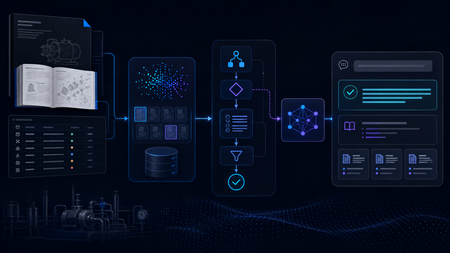
Building the Local RAG System The system was designed as a fully local RAG pipeline, with both retrieval and model inference running on the same machine. The knowledge base came from two equipment manuals covering pump and motor operation, maintenance, and troubleshooting. Rather than treating every page as plain text, I kept different types of information in forms that matched their structure, including paragraphs, Q&A entries, tables, procedures, and fault–cause–remedy troubleshooting records. The final corpus contained 165 retrievable records. Each record was embedded locally with all-MiniLM-L6-v2 and stored in ChromaDB. At query time, the system retrieved the most relevant manual records and passed the selected evidence to Phi-4-mini, a small language model (SLM) running through Microsoft Foundry Local, for grounded response generation. Once the required models and resources were installed, the full retrieval and inference workflow could run on the local machine without depending on cloud inference. I began with a simple Single-Agent RAG baseline. For each query, the system retrieved relevant manual evidence and used a single Phi-4-mini call to generate a grounded response. That gave me a clear reference point before I started adding separate model-driven stages for query understanding, retrieval, and reasoning. The Experiment That Changed the Architecture The next version split the workflow into three roles: Query Understanding, Retrieval, and Reasoning. All three reused the same local Phi-4-mini model through Microsoft Foundry Local, but with different prompts and responsibilities. I expected this separation to give the system more control over how queries were interpreted and how evidence moved through the pipeline. In practice, the extra stages added a noticeable cost, so I profiled the pipeline to see where the time was going. The stage timings showed where the delay was coming from: Query Understanding: 15.469 s Evidence Selection: 11.557 s Reasoning: 8.251 s Vector search: 0.002 s Vector search was only a tiny part of the total time. Most of the latency came from the stages that repeatedly called the local model. The bottleneck was repeated model inference, not vector search. I therefore started looking for decisions that could be handled reliably without another SLM call. The end-to-end numbers matched the profile. The Single-Agent baseline averaged 23.1 seconds per query, compared with 33.0 seconds for the Initial Multi-Agent system, without a consistent improvement in answer quality. That shifted the focus of the project from making the pipeline more agentic to deciding where model reasoning was actually useful, and where simpler deterministic control would be enough. A Deterministic-First Hybrid Design The Hybrid redesign kept the same local retrieval stack and Phi-4-mini setup, but changed when the model was asked to make decisions. Clear, bounded routing decisions were handled deterministically first. Depending on the query, the system could proceed to retrieval, request clarification when required information was missing, or stop requests that depended on information outside the manuals. Phi-4-mini was used for query analysis only when these rules could not make a reliable decision. In the 12-case final evaluation, Phi-4-mini was needed for query analysis in only three cases. The remaining routing decisions were handled deterministically. The Hybrid pipeline also handled clearly multi-part requests differently. Instead of relying on a single retrieval query, the system could identify separate information needs and search them alongside the original request. For example, a two-part pump question could be handled like this: Multi-part Query │ ▼ "What should I check before starting the B114N pump, and what should I inspect if it fails to prime?" │ ▼ Deterministic Decomposition │ ┌──────────────────┼──────────────────┐ ▼ ▼ ▼ Original Query Pre-start Checks Failure-to-prime Search Search Search │ │ │ └──────────────────┼──────────────────┘ ▼ Combine Ranked Results │ ▼ Retain Component Provenance │ ▼ Candidate Evidence The decomposition was deliberately conservative. It handled clear structures such as multiple questions, comparisons, or lists of requested facts, and did not split a query simply because it contained a comma or the word “and.” Once candidate evidence had been retrieved, clear matches could be selected without another model call, while Phi-4-mini was used when the candidates required additional judgement. Candidate Evidence │ ▼ Can deterministic rules select the evidence? / \ Yes No │ │ ▼ ▼ Deterministic Selection Phi-4-mini Evidence Selection │ │ └───────┬────────┘ ▼ Selected Evidence │ ▼ Evidence Guard │ ┌────────────────┼────────────────┐ ▼ ▼ ▼ Sufficient More evidence Insufficient coverage already in the evidence │ candidate pool │ ▼ │ ▼ Response ▼ Stop Generation Retain additional evidence │ ▼ Re-check coverage │ └──────► Evidence Guard The Evidence Guard checked whether the selected records covered the information requested by the user. Supporting evidence already present in the retrieved candidate set could be added before checking coverage again. When the available evidence was still insufficient, the pipeline stopped instead of asking the model to fill the gap. The guard never triggered a new retrieval or SLM call. The final response stage used the model selectively as well. Some bounded cases, including clarification, out-of-scope requests, insufficient evidence, and selected structured answers, could be handled without another model call. When synthesis was still needed, Phi-4-mini generated a grounded response from the selected evidence, while citation formatting remained deterministic. What Changed? I evaluated the three architectures on the same frozen 12-case test set, using answer quality and end-to-end latency as the main comparison points. The Final Hybrid system produced the lowest average latency while maintaining answer quality at roughly the same level as the Single-Agent baseline. Architecture Quality score Mean latency Single-Agent RAG 7.00 / 10 22.709 s Initial Multi-Agent 6.50 / 10 33.454 s Final Hybrid 7.08 / 10 16.905 s The Initial Multi-Agent design was the slowest of the three and did not produce a consistent quality improvement over the simpler baseline. The Hybrid redesign reversed that trend: average latency fell to 16.9 seconds while the overall quality score remained comparable to the baseline. For this prototype, adding more model-driven stages was therefore less useful than being selective about where model reasoning was actually needed. The call counts show the same change. Across the 12 final cases, the Hybrid system made 12 stage-level SLM calls: three during query analysis, four during evidence selection, and five during reasoning. A pipeline that invoked the SLM at all three stages for every query would require 36 stage-level calls over the same 12 cases. This was only a small 12-case evaluation, so I would not treat it as a final measure of system performance. What it did show was that cutting unnecessary SLM calls made the local pipeline faster without hurting the quality score in this test. From Pipeline to Local Application I connected the Final Hybrid backend to a lightweight PySide6 desktop interface. The application lets a user enter a maintenance question, view the generated answer, and inspect the supporting manual sources. What I Learned The biggest lesson from the project was that adding more model-driven stages did not automatically make the system better. The Initial Multi-Agent design gave each stage a clearer role, but the extra SLM calls increased latency without consistently improving answer quality. I also found that good retrieval alone was not enough. The system still needed to decide whether the retrieved evidence actually covered the user’s request and whether another model call was necessary. This is where deterministic routing, evidence checks, and model reasoning worked well together. By the end of the project, the question was no longer how many agents to add, but where an SLM call was actually useful. In this system, the best result came from combining simple deterministic control with model reasoning only where it was needed. What Comes Next The next step would be to test the system on a larger and more varied set of maintenance questions, including more unseen cases and feedback from engineers. I would also like to compare different local models and hardware configurations to see how response quality, latency, and resource use change in practice. Beyond that, the same approach could be applied to a larger maintenance knowledge base or adapted to other equipment domains. One question I would like to explore further is whether the deterministic-first design still works as well when the corpus, query types, and deployment conditions become more varied. Resources Foundry Local documentation Get started with Foundry Local Foundry Local architecture overview186Views0likes0Comments
One agent, three runtimes: porting a CSA agent to Microsoft Scout and Foundry Local
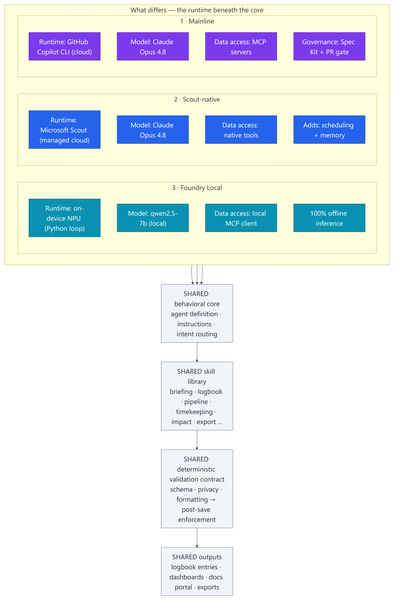
Most of my posts here are about Azure infrastructure lessons from customer engagements. This one is a little different — it's a real‑world engineering lesson from something I built to run my own practice. In my role as a Senior Cloud Solution Architect (CSA), I'm part of a grass-roots organic development team for an internal persona‑driven productivity agent called CSA‑Sherpa. It runs my daily rhythm: a morning briefing, a running logbook of wins and blockers, pipeline and timekeeping summaries, and reporting/exports. It started life in the GitHub Copilot CLI. But over the last few months two things changed the ground under it: Microsoft Scout arrived as a managed cloud agent with native tooling, scheduling, and memory; and Foundry Local made it realistic to run a capable model entirely on‑device on a Copilot+ PC's NPU — no cloud round‑trip at all. That raised a question I think a lot of people building agents will eventually ask: If I designed the framework well, can I change how the model runs without rewriting the agent? To find out, I stood the same agent up in three runtimes, then wrote a whitepaper and a comparison deck measuring what actually changed. This post explains: How one shared, deterministic core made three very different runtimes comparable What the three ports — Copilot CLI, Scout‑native, and Foundry Local (on‑device NPU) — actually took What the analysis showed, and a simple decision framework for which runtime to use when The part that stayed the same: a deterministic core The whole exercise only works because all three implementations load the same behavioral core: Agent definition — persona, behavioral rules, intent routing, workflow dispatch Instructions — conventions, session bootstrap, change‑management rules Skill library — one procedure file per workflow (morning briefing, logbook, pipeline, timekeeping, impact, ops, export…) A deterministic validation contract — schema, formatting, and privacy validators plus a post‑save enforcement chain That last point is the whole thesis: reliability belongs in code, not in the prompt. Rather than asking the model to "remember" to validate its output, a real gate (a validation step → a post‑save enforcement chain → index regeneration) enforces it every single run. This wasn't my idea in a vacuum — it follows the enterprise prompt‑engineering principles Kathiravan Thangavelu lays out in his article Prompt Engineering for Enterprise AI: Why Reliability Matters: keep deterministic logic in code, prefer schema‑driven / structured output over prompt‑enforced formatting, and replace "before you answer, verify that…" mental checklists with real machine validation. My validation gate is that principle in practice. And because that contract is identical across all three runtimes, I'm comparing three ways to execute one product — not three different products. The deterministic payoff: faster and cheaper Retrofitting those principles into the agent — moving work out of the model and into deterministic scripts — is the single change that paid off the most, on two axes at once: Faster. Letting code (not the model) gather and aggregate history cut the average model round‑trips per workflow from ~8.7 to ~5.5 — roughly a third fewer turns. Fewer turns means less waiting on generation and less back‑and‑forth to finish a task. Cheaper. The same change cut usage‑based cost ~24% — and, more importantly, held it flat as the logbook grew to hundreds of entries, because scripts carry the history the model used to re‑read every run. That's the quiet lesson: the reliability work I did for correctness turned out to be the same work that made the agent quicker and less expensive. Determinism isn't a tax on speed — here it bought all three. The work: three repositories, three runtimes Everything below the core — runtime, data access, governance, file layout — is where the effort went. 1 · Mainline — Copilot CLI + MCP. The upstream, most feature‑complete build. Runs as a primary agent in the GitHub Copilot CLI on Claude Opus 4.8; data services are discovered through MCP. It carries the heaviest governance: a Spec Kit layer (spec‑driven‑development agents, a constitution + templates, and 50+ per‑feature spec artifacts gated at PR time) plus an add‑on framework. The richest architecture — and the most complex to operate. 2 · Scout‑native. A thin wrapper loads the exact same core onto Microsoft Scout — again on Claude Opus 4.8 — but data access is re‑platformed onto Scout's native tooling instead of MCP subprocesses. No broker to configure; native tools negotiate their own auth. It adds two things the CLI can't do as cleanly: ✅ Scheduled automations — my morning briefing fires automatically on weekday mornings ✅ Cross‑session memory in place of hand‑off files The deterministic finalize gate stays fully intact. 3 · Foundry Local — on‑device NPU. The genuine outlier and the most involved port: a Python re‑implementation that runs the model — qwen2.5‑7b, an open ~7‑billion‑parameter model — 100% locally on the device's NPU (a Snapdragon X Elite Copilot+ PC) via Foundry Local's OpenAI‑compatible server. The agent loop, an MCP client, skill loading, and a distinct finalize pipeline all had to be rebuilt outside the CLI. The model never leaves the machine; only data connectors reach out when connected. The trade‑offs are real — modest throughput and a fixed context window — but so is the payoff: offline, private, near‑zero marginal cost. The effort This wasn't a weekend spike. Across the three code bases (plus a clean isolation clone I kept as an A/B baseline): ~340–380 commits per repository, three versions maintained in parallel 17 skills in each cloud build; 18 in the Foundry port ~37 scripts in the streamlined Scout build, up to ~97 in the governed Mainline build A Spec Kit governance layer with 50+ feature specs on Mainline A four‑part cost study and two written deliverables: an architecture whitepaper and a 20‑slide comparison deck The analysis and reporting The whitepaper and deck do two jobs. First, they document each runtime as a layered diagram — runtime, core, skills, scripting/validation, external services — so the differences are visible at a glance. Second, they convert the architecture fork into economics: a study that measured the actual token footprints of each repo and priced runs across billing models and hardware. The four dimensions: per‑skill cost, optimized‑vs‑out‑of‑the‑box, Copilot CLI vs Scout, and cloud vs local NPU. By the numbers The study priced measured token footprints at frontier‑model rates (treat the dollars as ±30% — the relative conclusions are far more robust than the absolute figures): Per skill: roughly $0.6–$1.4 per run usage‑based — or a single flat "premium request" under request‑based billing The determinism dividend: optimized, script‑driven skills cut model round‑trips ~8.7 → ~5.5 and usage‑based cost ~24% — and held cost flat as the logbook grew Scout vs CLI: Scout ran ~37% cheaper across a five‑command session and consumed none of the premium‑request allowance Cloud vs local: on‑device NPU inference came in 50–3,400× cheaper in cash than cloud — at the cost of throughput, context, and first‑pass reliability A full active day (~4 runs) landed around a few dollars usage‑based The headline isn't any single figure — it's the shape: cloud cents buy first‑pass reliability, on‑device near‑zero cost trades your time, and determinism makes either one cheaper and steadier. What held up The core is portable. The same agent, skills, and validation gate ran under all three runtimes. Good separation of concerns paid off. Determinism pays three ways — faster, cheaper, and more reliable (detailed above). It was the highest‑leverage change I made. Managed cloud wins the day job. Scout is the best daily driver: reliability gate intact, lower setup friction, scheduling + memory, and cheaper across a multi‑command session because it caches the bootstrap. On‑device is strategic — but reliability is the tax. Local NPU inference is dramatically cheaper in cash. We ran an in‑depth test pass across every function and closed the gaps it surfaced — yet the smaller model that makes Foundry Local possible still hallucinates and drops instructions often enough on the first pass to matter. Each re‑run is nearly free in dollars, but it costs real time to catch and correct. The winning pattern is hybrid. Draft and triage locally for ~nothing; escalate the correctness‑critical steps to cloud Opus 4.8, paying only where it buys first‑pass reliability. Three runtimes, side by side Figure: Three runtimes, one shared core. Only the top rows — runtime, model, data access, and governance — differ; the behavioral core, skill library, validation gate, and outputs are identical across all three. Capability Mainline (Copilot CLI) Scout‑native Foundry Local (NPU) Runtime Copilot CLI (cloud) Scout (cloud, managed) On‑device NPU Model Claude Opus 4.8 Claude Opus 4.8 qwen2.5‑7b (open, ~7B) Data access MCP Native tools MCP via local client Governance Spec Kit + PR gate Behavioral rules Behavioral rules Scheduling + memory ❌ ✅ ❌ Runs fully offline ❌ ❌ ✅ Marginal cost / run cloud per‑token cloud per‑token (cheaper/session) ≈ free Best for Framework development Daily production Offline / privacy / bulk When to use each Daily CSA workflows → Scout‑native. Managed, cheaper across a session, reliable, and it doesn't burn your Copilot request allowance. Building or versioning the framework → Mainline. Spec Kit governance and the add‑on system earn their keep here. Offline, air‑gapped, or sensitive data → Foundry Local. 100% on‑device inference. Bulk / high‑volume / non‑critical → Foundry Local. Zero marginal cost. Must be right on the first pass → Cloud Opus 4.8. The cents are worth it. Mixed, cost‑sensitive workload → Hybrid. Local draft → cloud escalate. Closing Thoughts The most useful reframe from this work: the three architectures aren't competitors — they're a portfolio. A managed cloud daily‑driver (Scout), a governed development platform (Mainline), and a sovereign on‑device runtime (Foundry Local). The job is to match the runtime to the task, not to crown one winner. And the same lesson that applies to Azure infrastructure applies to agents: build reliability into the system, not into good intentions. Because CSA‑Sherpa keeps its guarantees in code, I could change the entire execution model underneath it — cloud CLI, managed cloud, on‑device NPU — and the agent still behaved the same way. That portability is the dividend of a deterministic design. These workflows are genuinely complex, and that's exactly where the small model shows its limits: even after closing the gaps our testing surfaced, it still hallucinates and drops instructions often enough on the first pass to be a real cost. That's the honest trade‑off — near‑zero dollars, paid back in review‑and‑retry time — and it's why my recommendation lands on hybrid: let the small model draft where it's cheap and low‑risk, and escalate anything that has to be right the first time to cloud Opus 4.8. I use the agent in Microsoft Scout daily, as part of my personal production process. I did use AI to help draft and format this post — fittingly, the very agent it describes. The architecture, the analysis, and the conclusions are my own. Thanks for reading.442Views1like1CommentYour Entire Agentic AI Workflow, Now Inside VS Code: New Course Available
If you build with AI, you know the tax: jumping between a browser portal to pick a model, a terminal to run it, a separate playground to test a prompt, and finally your editor to write the code. Every context switch is a small drain on focus—and it adds up. What if the whole loop lived in the one tool you never leave? That's the promise of the Foundry Toolkit for Visual Studio Code, and it's exactly what our new VS Code Learn: Foundry Toolkit video series is here to show youInstall and run Azure Foundry Local LLM server & Open WebUI on Windows Server 2025
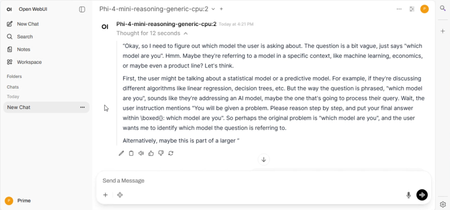
Foundry Local is an on-device AI inference solution offering performance, privacy, customization, and cost advantages. It integrates seamlessly into your existing workflows and applications through an intuitive CLI, SDK, and REST API. Foundry Local has the following benefits: On-Device Inference: Run models locally on your own hardware, reducing your costs while keeping all your data on your device. Model Customization: Select from preset models or use your own to meet specific requirements and use cases. Cost Efficiency: Eliminate recurring cloud service costs by using your existing hardware, making AI more accessible. Seamless Integration: Connect with your applications through an SDK, API endpoints, or the CLI, with easy scaling to Azure AI Foundry as your needs grow. Foundry Local is ideal for scenarios where: You want to keep sensitive data on your device. You need to operate in environments with limited or no internet connectivity. You want to reduce cloud inference costs. You need low-latency AI responses for real-time applications. You want to experiment with AI models before deploying to a cloud environment. You can install Foundry Local by running the following command: winget install Microsoft.FoundryLocal Once Foundry Local is installed, you download and interact with a model from the command line by using a command like: foundry model run phi-4 This will download the phi-4 model and provide a text based chat interface. If you want to interact with Foundry Local through a web chat interface, you can use the open source Open WebUI project. You can install Open WebUI on Windows Server by performing the following steps: Download OpenWebUIInstaller.exe from https://github.com/BrainDriveAI/OpenWebUI_CondaInstaller/releases. You'll get warning messages from Windows Defender SmartScreen. Copy OpenWebUIInstaller.exe into C:\Temp. In an elevated command prompt, run the following commands winget install -e --id Anaconda.Miniconda3 --scope machine $env:Path = 'C:\ProgramData\miniconda3;' + $env:Path $env:Path = 'C:\ProgramData\miniconda3\Scripts;' + $env:Path $env:Path = 'C:\ProgramData\miniconda3\Library\bin;' + $env:Path conda.exe tos accept --override-channels --channel https://repo.anaconda.com/pkgs/main conda.exe tos accept --override-channels --channel https://repo.anaconda.com/pkgs/r conda.exe tos accept --override-channels --channel https://repo.anaconda.com/pkgs/msys2 C:\Temp\OpenWebUIInstaller.exe Then from the dialog choose to install and run Open WebUI. You then need to take several extra steps to configure Open WebUI to connect to the Foundry Local endpoint. Enable Direct Connections in Open WebUI Select Settings and Admin Settings in the profile menu. Select Connections in the navigation menu. Enable Direct Connections by turning on the toggle. This allows users to connect to their own OpenAI compatible API endpoints. Connect Open WebUI to Foundry Local: Select Settings in the profile menu. Select Connections in the navigation menu. Select + by Manage Direct Connections. For the URL, enter http://localhost:PORT/v1 where PORT is the Foundry Local endpoint port (use the CLI command foundry service status to find it). Note that Foundry Local dynamically assigns a port, so it isn't always the same. For the Auth, select None. Select Save ➡️ What is Foundry Local https://learn.microsoft.com/en-us/azure/ai-foundry/foundry-local/what-is-foundry-local ➡️ Edge AI for Beginners https://aka.ms/edgeai-for-beginners ➡️ Open WebUI: https://docs.openwebui.com/2.2KViews1like4CommentsKVStream: Smarter Memory Management for On-Device Language Model Inference
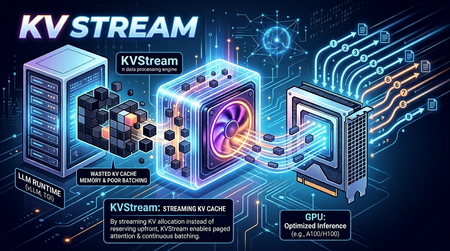
On-Device LLMs Are Starved for Memory Intelligence The shift toward on-device language model inference is accelerating. Platforms like Microsoft's Foundry Local, Ollama, and llama.cpp now make it possible to run capable models such as Phi-3-mini and Llama 3 entirely on local hardware, no cloud dependency, no data leaving the device. This is a meaningful leap for privacy-sensitive applications, offline scenarios, and latency-critical workloads. But on-device/edge inference surfaces a class of performance problems that cloud-based serving largely abstracts away. Memory is the bottleneck. When a language model generates text, it builds a Key-Value (KV) cache a memory structure that stores intermediate attention states so it doesn't have to recompute them for every new token. On a cloud server with hundreds of gigabytes of HBM (Hardware Bandwidth Memory), wasting KV cache memory is a rounding error. On a developer workstation or a GPU/NPU-equipped edge device, it is the difference between a usable system and a stalled one. The typical on-device runtime allocates KV cache memory statically and per-sequence. This creates three concrete problems: Fragmentation and over-reservation. A model has no way of knowing in advance how long a response will be. So, runtimes allocate a worst-case maximum context window of memory for every request even if the actual response is short. The result is a fragmented memory pool where most of the reserved space sits idle while queued requests wait for a slot to open. Research confirms the scale of this waste: production settings with variable-length or concurrent requests typically discard 60–80% of KV memory under monolithic static allocation; paged designs reduce this to under 5%. No batching across requests. Most local runtimes process one request at a time. If you fire four concurrent questions at Foundry Local or Ollama without a batching layer, they queue sequentially. Throughput scales linearly with latency instead of benefiting from the parallel processing the underlying hardware supports. Continuous batching the technique of admitting new sequences mid-generation rather than waiting for the whole batch to drain has been shown to yield up to 36.9× throughput improvement in the original Orca study, with production deployments regularly achieving 2–5× over static batching. Redundant computation. Real-world applications consistently include a shared system prompt instructions that tell the model how to behave. With a RAG pipeline or a chat assistant, the same few hundred tokens get prefilled on every single request, burning compute and TTFT (time-to-first-token) unnecessarily. External prefix caching layers addressing this problem have demonstrated up to 15× throughput improvement on multi-round workloads. These are not hypothetical inefficiencies. In practice, they translate to sluggish multi-turn conversation, poor throughput when multiple users or agent loops share the same local model, and wasted hardware potential on capable machines that could be doing much more. Crucially, while some of the cloud-scale inference engines embed these techniques internally, there is no equivalent orchestration layer for on-device runtimes a gap that enterprise deployments and the research community are now actively calling. Introducing KVStream: A Middleware Layer for Local LLM Runtimes KVStream is a lightweight Python middleware that sits between the application and any local LLM runtime, adding production-grade memory management and scheduling without requiring you to modify the backend or the client. The design principle is deliberate: KVStream is not a new inference engine. It does not replace Foundry Local or any other runtime. Instead, it solves the orchestration layer that on-device runtimes currently leave unaddressed the gap between a single model server and an application that expects the reliability and throughput of a managed serving system. KVStream exposes a fully OpenAI-compatible API on http://localhost:8080/v1. Any existing client the openai Python SDK, LangChain, httpx, or a curl command connects to it without modification. The backend continues to run unchanged. Architecture KVStream is composed of four cooperating subsystems. Understanding how they interact clarifies why the gains are meaningful and composable. 1.Paged KV-Cache Allocator: Inspired by the paged attention mechanism, KVStream manages KV cache memory as a pool of fixed-size pages (or blocks), each holding a configurable number of token states (default: 16 tokens per block). Rather than reserving a contiguous worst-case buffer per sequence, the allocator assigns pages on demand and reclaims them when a sequence finishes. Each sequence owns a logical page table, a mapping from logical page indices to physical block slots. Pages can be shared across sequences (enabling prefix deduplication) and migrated between GPU and CPU (enabling pre-emption). For Foundry Local and Ollama, this operates in soft-inject mode, the page table controls admission and logical accounting, while the actual KV tensors stay inside the backend. For llama.cpp, which exposes a /slots API for saving and restoring raw KV state, KVStream can operate in hard-inject mode, it manages a real tensor pool and performs zero re-compute cache reuse by physically restoring KV state between requests. 2.Continuous Batching Scheduler: The scheduler merges multiple queued sequences into a single batched forward pass, up to a configurable max_batch_size. Critically, it uses continuous batching new sequences can be admitted mid-generation, filling slots vacated by completed requests rather than waiting for the entire batch to finish. Two scheduling priorities are supported: fcfs (first-come, first-served): straightforward FIFO, best for fairness. sjf (shortest-job-first): minimizes average TTFT by prioritizing requests with shorter expected output lengths. When GPU page blocks are exhausted and a new sequence must be admitted, the scheduler applies a preemption policy: swap: the lowest-priority active sequence's pages are migrated to CPU RAM. The sequence resumes when GPU blocks become available again. recompute: pages are freed and the sequence is re-queued from scratch, lower memory overhead, higher latency for the preempted request. 3.Prefix Cache: The prefix cache deduplicates the KV computation for any shared token prefix across requests like system prompts, few-shot examples, RAG preambles, or any stable instruction block. The mechanism works in three steps: After a request completes its prefill phase, KVStream hashes the prompt tokens in block-aligned chunks and stores the canonical block table for that prefix. On a subsequent request whose prompt starts with the same prefix, the new sequence forks the canonical block table via copy-on-write, no re-computation occurs. Entries expire after a configurable TTL (default: 1 hour), or can be evicted manually. The practical consequence: in any application with a stable system prompt, only the first request pays the prefill cost for that prompt. Every subsequent request skips it entirely, reducing TTFT in proportion to the length of the shared prefix. 3.OpenAI-Compatible Proxy KVStream wraps all of the above behind a standard /v1/chat/completions interface. It handles both streaming (SSE) and non-streaming responses, translates between the OpenAI request format and the backend's native API, and serves a /health, /status, and /metrics endpoint for observability. The /status endpoint returns live scheduler and memory state: { "scheduler": { "waiting": 2, "running": 8, "swapped": 0, "gpu_blocks_free": 184, "gpu_utilization": 0.281 }, "prefix_cache": { "cached_prefixes": 3, "total_prefix_hits": 12, "cached_tokens": 768 } } A Prometheus-compatible /metrics endpoint is also available, with a pre-configured Grafana dashboard included in the Docker Compose stack. Getting Started with Foundry Local: Microsoft's Foundry Local is the primary integration target for KVStream. Foundry Local provides a high-quality on-device inference runtime with strong model support (Phi-3-mini, Phi-3.5, and others), NPU acceleration, and direct integration with the Windows AI platform. KVStream's Foundry backend adds continuous batching and prefix caching on top of that foundation without any changes to the Foundry runtime itself. Installation: pip install kvstream Start the KVStream Proxy: # 1. Start Foundry Local (if not already running) foundrylocal serve # 2. Start KVStream in front of it kvstream serve --backend foundry --model phi-3-mini --port 8080 KVStream's Foundry backend includes auto-discovery, if Foundry Local assigns an ephemeral OS port (which it typically does), KVStream scans localhost to locate the active service automatically, so you do not need to hardcode the backend port. Connect your existing client — unchanged: from openai import OpenAI client = OpenAI( base_url="http://localhost:8080/v1", api_key="not-required", ) response = client.chat.completions.create( model="phi-3-mini", messages=[ {"role": "system", "content": "You are a helpful assistant."}, {"role": "user", "content": "Explain paged attention in simple terms."}, ], max_tokens=512, ) print(response.choices[0].message.content) Any client that speaks the OpenAI protocol like LangChain, httpx, or a raw HTTP call, connects here without modification. Maximize prefix cache hits: Put the system prompt first; KVStream caches it after the first request and skips its computation for every subsequent one. import asyncio from openai import AsyncOpenAI client = AsyncOpenAI(base_url="http://localhost:8080/v1", api_key="not-required") SYSTEM = "You are an expert assistant specialized in on-device AI." async def ask(question: str) -> str: r = await client.chat.completions.create( model="phi-3-mini", messages=[ {"role": "system", "content": SYSTEM}, # cached after first call {"role": "user", "content": question}, ], max_tokens=256, ) return r.choices[0].message.content async def main(): questions = [ "What is NPU acceleration?", "How does Phi-3-mini differ from larger models?", "What is token streaming?", ] # KVStream batches these automatically; system prompt computed once answers = await asyncio.gather(*[ask(q) for q in questions]) for q, a in zip(questions, answers): print(f"Q: {q}\nA: {a}\n") asyncio.run(main()) Tuning memory for hardware: The single most impactful configuration knob is the GPU block pool size. For soft-inject mode (Foundry Local, Ollama), this controls admission concurrency, not actual VRAM allocation by KVStream. A practical starting table is as follows, Device VRAM / RAM num_gpu_blocks Suitable models (E.g.,) 4 GB 64 phi-3-mini 8 GB 128 llama3-8b, mistral-7b 16 GB 256 llama3-8b (q8) 24 GB 512 llama3-70b (q4), mixtral Via YAML configuration: # kvstream.yaml backend: type: foundry model: phi-3-mini memory: num_gpu_blocks: 128 num_cpu_blocks: 256 block_size: 16 scheduler: max_batch_size: 8 preemption_policy: swap priority: fcfs prefix_cache: enabled: true ttl_seconds: 3600 min_match_tokens: 16 Benchmarking KVStream ships with a built-in benchmarking command: kvstream bench \ --url http://localhost:8080 \ --model phi-3-mini \ --concurrency 8 \ --prompt-len 128 \ --output-len 64 \ --total-requests 100 Example output: ┌──────────────────────────┐ │ KVStream Benchmark │ ├──────────────┬───────────┤ │ Requests │ 100 │ │ Concurrency │ 8 │ │ Errors │ 0 │ │ Throughput │ 12.4 req/s│ │ p50 │ 612 ms │ │ p99 │ 1840 ms │ └──────────────┴───────────┘ KVStream covers the most common local inference runtimes today Foundry Local, Ollama, llama.cpp, and LM Studio through a single, consistent interface. If you are building on Foundry Local and running into the throughput or memory fragmentation issues described here, KVStream is designed to slot in with a single command and zero changes to your application code. pip install kvstream kvstream serve --backend foundry --model phi-3-mini The full integration guide, configuration reference, and Docker deployment instructions are available in the KVStream Documentation on Github. We are always looking to improve! If you want to help make KVStream even better, check out our Contributing Guide to get started on your first pull request.392Views0likes1CommentMastering Query Fields in Azure AI Document Intelligence with C#
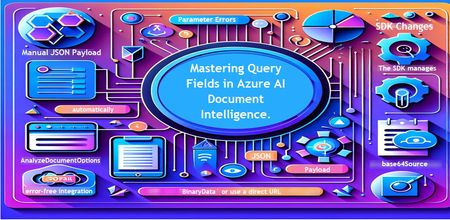
Introduction Azure AI Document Intelligence simplifies document data extraction, with features like query fields enabling targeted data retrieval. However, using these features with the C# SDK can be tricky. This guide highlights a real-world issue, provides a corrected implementation, and shares best practices for efficient usage. Use case scenario During the cause of Azure AI Document Intelligence software engineering code tasks or review, many developers encountered an error while trying to extract fields like "FullName," "CompanyName," and "JobTitle" using `AnalyzeDocumentAsync`: The error might be similar to Inner Error: The parameter urlSource or base64Source is required. This is a challenge referred to as parameter errors and SDK changes. Most problematic code are looks like below in C#: BinaryData data = BinaryData.FromBytes(Content); var queryFields = new List<string> { "FullName", "CompanyName", "JobTitle" }; var operation = await client.AnalyzeDocumentAsync( WaitUntil.Completed, modelId, data, "1-2", queryFields: queryFields, features: new List<DocumentAnalysisFeature> { DocumentAnalysisFeature.QueryFields } ); One of the reasons this failed was that the developer was using `Azure.AI.DocumentIntelligence v1.0.0`, where `base64Source` and `urlSource` must be handled internally. Because the older examples using `AnalyzeDocumentContent` no longer apply and leading to errors. Practical Solution Using AnalyzeDocumentOptions. Alternative Method using manual JSON Payload. Using AnalyzeDocumentOptions The correct method involves using AnalyzeDocumentOptions, which streamlines the request construction using the below steps: Prepare the document content: BinaryData data = BinaryData.FromBytes(Content); Create AnalyzeDocumentOptions: var analyzeOptions = new AnalyzeDocumentOptions(modelId, data) { Pages = "1-2", Features = { DocumentAnalysisFeature.QueryFields }, QueryFields = { "FullName", "CompanyName", "JobTitle" } }; - `modelId`: Your trained model’s ID. - `Pages`: Specify pages to analyze (e.g., "1-2"). - `Features`: Enable `QueryFields`. - `QueryFields`: Define which fields to extract. Run the analysis: Operation<AnalyzeResult> operation = await client.AnalyzeDocumentAsync( WaitUntil.Completed, analyzeOptions ); AnalyzeResult result = operation.Value; The reason this works: The SDK manages `base64Source` automatically. This approach matches the latest SDK standards. It results in cleaner, more maintainable code. Alternative method using manual JSON payload For advanced use cases where more control over the request is needed, you can manually create the JSON payload. For an example: var queriesPayload = new { queryFields = new[] { new { key = "FullName" }, new { key = "CompanyName" }, new { key = "JobTitle" } } }; string jsonPayload = JsonSerializer.Serialize(queriesPayload); BinaryData requestData = BinaryData.FromString(jsonPayload); var operation = await client.AnalyzeDocumentAsync( WaitUntil.Completed, modelId, requestData, "1-2", features: new List<DocumentAnalysisFeature> { DocumentAnalysisFeature.QueryFields } ); When to use the above: Custom request formats Non-standard data source integration Key points to remember Breaking changes exist between preview versions and v1.0.0 by checking the SDK version. Prefer `AnalyzeDocumentOptions` for simpler, error-free integration by using built-In classes. Ensure your content is wrapped in `BinaryData` or use a direct URL for correct document input: Conclusion Using AnalyzeDocumentOptions provides a cleaner and more reliable way to work with query fields in Azure AI Document Intelligence using C#. By aligning with the latest SDK approach, developers can simplify implementation, reduce common errors, and improve code maintainability. Keeping up with SDK enhancements and recommended practices ensures more accurate and efficient document data extraction. As Azure AI capabilities continue to evolve, adopting modern integration patterns will help you build scalable and future-ready document processing solutions with greater confidence. Reference Official AnalyzeDocumentAsync Documentation. Official Azure SDK documentation. Azure Document Intelligence C# SDK support add-on query field.593Views0likes0CommentsHybrid AI Agents in Python: Routing Between Foundry Local and Microsoft Foundry
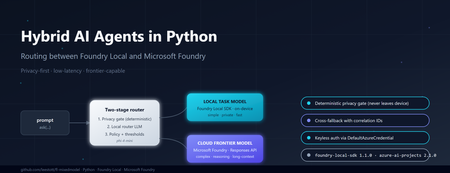
Why hybrid, and why now If you build AI features today, you are caught between three forces. Users want low latency and strong privacy. Product teams want frontier reasoning capability. Finance teams want predictable cost. No single model satisfies all three. Run everything on a small on-device model and you bottleneck on complex questions. Send everything to a frontier cloud model and you pay for trivial requests, leak sensitive data across a network boundary, and add hundreds of milliseconds of latency to greetings. The pragmatic answer is hybrid inference: a lightweight local model classifies every request first, simple or sensitive ones stay on the device, and only the genuinely hard or frontier-capability requests escalate to the cloud. Microsoft now ships both halves of that pattern as supported Python SDKs — foundry-local-sdk for on-device inference and azure-ai-projects for Microsoft Foundry cloud models. This post walks through a working reference implementation that combines them behind a single ask() call. The full source is at github.com/leestott/fl-mixedmodel. It is Python-only, secretless by design, and ships with a Gradio diagnostics UI, a CLI demo mode, and a full pytest suite. The contract: one schema, two paths The most important architectural decision is that callers never know which path served a request. Every response, local or cloud, returns the same dataclass: class InferencePath(str, Enum): LOCAL = "local" CLOUD = "cloud" LOCAL_FALLBACK = "local_fallback" # cloud attempted, fell back to local CLOUD_FALLBACK = "cloud_fallback" # local attempted, fell back to cloud @dataclass class AgentResponse: answer: str path: InferencePath model: str reason: str confidence: float latency_ms: float correlation_id: str prompt_tokens: Optional[int] = None completion_tokens: Optional[int] = None fallback: bool = False fallback_reason: Optional[str] = None metadata: dict = field(default_factory=dict) This is what makes the design honest. The router can change, the cloud model can be swapped from gpt-4o to gpt-5.4 , fallback policies can flip — and the calling code never breaks. The four InferencePath values give you full observability without leaking implementation details into the API surface. Architecture in one diagram ┌─────────────┐ prompt ┌──────────────────────────┐ │ caller │ ──────────► │ HybridAgentService │ └─────────────┘ │ .ask(prompt) │ └────────────┬─────────────┘ │ ┌────────────▼─────────────┐ │ RoutingPolicy │ │ 1. Heuristic gate │ │ 2. Local router LLM │ │ 3. Hard policy gates │ └─────┬─────────────┬──────┘ │ │ LOCAL ◄┘ └► CLOUD │ │ ┌──────────▼──┐ ┌──────▼───────┐ │ Foundry │ │ Microsoft │ │ Local SDK │ │ Foundry │ │ (phi-4-mini)│ │ (gpt-5.4) │ └─────────────┘ └──────────────┘ Best practice: the two-stage router pattern Before walking through the implementation, it is worth stating the design pattern explicitly, because it is the part that generalises beyond this specific repo. The cleanest design for hybrid inference is a two-stage router. Stage 1 — local router. A small local model performs intent and complexity classification first. It does not answer the question; it decides where the question should go. Stage 2 — route the answer. If the prompt is simple, private, latency-sensitive, or clearly within local capability, route to a local task model on the device. If the prompt is complex, needs deeper reasoning, a larger context window, or a capability unavailable locally, escalate to a cloud frontier model in Microsoft Foundry. Microsoft's current guidance for the cloud side is to use the Responses API and choose one of two control modes: Pass a specific deployment name (for example gpt-5.4 ) when you want deterministic control over which model serves the request, which is the right choice for regulated workloads, repeatable evaluations, or cost ceilings. Pass model-router as the deployment when you want Microsoft Foundry to automatically select the best available cloud model for each request. This is a sensible default for general-purpose agents where you would rather let the platform optimise the model choice as new ones are released. The reference repo exposes both as environment variables so you can switch without code changes: # .env.example FOUNDRY_CLOUD_MODEL_DEPLOYMENT=gpt-5.4 # deterministic FOUNDRY_CLOUD_ROUTER_DEPLOYMENT=model-router # auto-select Best practice: pin the right SDK versions Two SDKs do the heavy lifting and both have had recent breaking changes, so version discipline matters. Local development — foundry-local-sdk . The current public guidance is to use the Foundry Local SDK package foundry-local-sdk , which provides model discovery, download, cache, load, unload, chat completions, embeddings, audio transcription, and an optional built-in web service. Use version 1.1.0, released on 5 May 2026. Earlier versions used an OpenAI-compatible client surface that has since been replaced by the FoundryLocalManager → load_model → get_chat_client → complete_chat chain shown above. Pin it explicitly: # requirements.txt foundry-local-sdk>=1.1.0 Cloud orchestration and agents — azure-ai-projects . For cloud-side orchestration, Microsoft's current Python guidance is to use azure-ai-projects , which the docs describe as part of the Microsoft Foundry SDK and as the entry point for agents, deployments, connections, datasets, evaluations, and an OpenAI-compatible client returned by get_openai_client() . The current PyPI listing shows azure-ai-projects 2.1.0. Pin it explicitly: # requirements.txt azure-ai-projects>=2.1.0 azure-identity>=1.17.0 If you find yourself reading old samples that import azure.ai.inference as the cloud entry point, or that initialise Foundry Local through a raw openai.OpenAI(base_url=...) client, you are looking at pre-2026 patterns. The current shape is what the reference repo uses: FoundryLocalManager.initialize(Configuration(...)) for the device and AIProjectClient(...).get_openai_client() for the cloud. Stage 1: a deterministic privacy gate Before any model touches a prompt, a deterministic heuristic classifier scans for sensitive patterns — passwords, API keys, SSN/NHS numbers, PII signals, explicit "do not share" flags. If the heuristic returns PrivacyClass.RESTRICTED , the prompt is forced local. The router LLM is not called. The cloud provider is not called. The decision is auditable from a single regex pass. # app/routing/policy.py def decide(self, prompt: str, correlation_id: str = "") -> RoutingDecision: hint, privacy, complexity, h_reason = self._heuristic.classify(prompt) # Hard gate: restricted content never leaves the device if privacy == PrivacyClass.RESTRICTED: return self._make_decision( target=RouteTarget.LOCAL, confidence=1.0, reason=f"Policy hard-gate: {h_reason}", privacy=privacy, complexity=complexity, deterministic=True, correlation_id=correlation_id, ) # Hard gate: very high complexity always goes to cloud if complexity == ComplexityBand.VERY_HIGH: return self._make_decision( target=RouteTarget.CLOUD, confidence=1.0, reason="Policy hard-gate: very_high complexity requires frontier model", ... ) This is the most important responsible-AI control in the whole system. If your privacy review depends on an LLM correctly classifying every prompt, you do not have a privacy control — you have a probability distribution. Deterministic gates first, model judgement second. Stage 2: a local LLM as the router For everything that passes the privacy gate, a small local model classifies whether the prompt needs frontier capability. This is the bit that surprises most engineers: you can do useful routing with a 4B parameter model running on a laptop CPU. The router does not need to answer the question. It only needs to classify it. The reference implementation uses phi-4-mini via Foundry Local. Initialising it is two lines: # app/providers/local_provider.py (excerpt) from foundry_local import FoundryLocalManager from foundry_local.models import Configuration self._manager = FoundryLocalManager.initialize( Configuration(app_name="hybrid-agent") ) self._router_model = self._manager.load_model(self._config.local_router_alias) self._chat_client = self._router_model.get_chat_client() response = self._chat_client.complete_chat( messages=[ {"role": "system", "content": ROUTER_SYSTEM_PROMPT}, {"role": "user", "content": prompt}, ], ) The router prompt asks for a strict JSON response: { "target": "local|cloud", "confidence": 0.0-1.0, "complexity": "low|medium|high|very_high", "reason": "..." } . The application parses it, applies the confidence threshold from config (default 0.6), and falls back to the heuristic decision if the router LLM is unsure or its JSON is malformed. The router never blocks the answer path — that is a deliberate reliability choice. Cloud inference via Microsoft Foundry When the policy returns RouteTarget.CLOUD , the request goes through AIProjectClient , which gives you an openai.OpenAI -compatible client wired to your Foundry project with DefaultAzureCredential . No API keys. No secrets in .env . # app/providers/cloud_provider.py (excerpt) from azure.ai.projects import AIProjectClient from azure.identity import DefaultAzureCredential self._project = AIProjectClient( endpoint=self._config.foundry_project_endpoint, credential=DefaultAzureCredential(), ) self._openai_client = self._project.get_openai_client() response = self._openai_client.chat.completions.create( model=self._config.foundry_cloud_model_deployment, # e.g. "gpt-5.4" messages=messages, max_completion_tokens=max_tokens, ) A subtle gotcha worth flagging: gpt-5 and o-series deployments reject the legacy max_tokens parameter and require max_completion_tokens . They also reject custom temperature values. The reference repo handles this by trying the new parameter first and falling back to the legacy one only when the API returns the specific unsupported parameter error. That keeps the same code working against older deployments without forking the provider. Graceful degradation: the fallback paths Hybrid systems fail in interesting ways. The cloud can be down. The local model can throw because the GPU ran out of memory. A reasoning model can return an empty completion. The service handles all of these by attempting the alternative path and labelling the response so observability stays honest: Cloud route fails → local fallback. The response carries path=LOCAL_FALLBACK , fallback=true , and a populated fallback_reason . The user gets an answer instead of an error. Local route fails → cloud fallback, but only if privacy class is not RESTRICTED. A sensitive prompt that the local model could not handle never leaks to the cloud as a fallback. It returns a clear error instead. This is the second hard gate in the system. Both fail. A structured error response with a correlation ID, never a stack trace. That last rule — fallback respects privacy class — is the kind of decision that is easy to skip and impossible to bolt on later. Encode it once in the service layer and your privacy reviewers will thank you. What it looks like in practice The diagnostics panel in the Gradio UI shows the routing decision live: path, model, confidence, latency, privacy class, complexity band, and the full JSON response. Five canonical scenarios shake out the entire decision tree: "hello" → path=local, confidence=1.0, complexity=low . Heuristic only. No router LLM call. ~3 seconds end-to-end with phi-4-mini cached. "explain transformer self-attention in depth with maths" → path=cloud, model=gpt-5.4, complexity=high . Router LLM classifies, hard gate confirms. "my password is hunter2, suggest a stronger one" → path=local, privacy=restricted, deterministic=true . Privacy gate fires before any model sees it. "summarise this 8 KB document" with cloud unavailable → path=cloud_fallback (local handles it, response is labelled). Complex prompt with local model error → path=local_fallback , fallback_reason populated. You can reproduce all five without any models installed by running python -m app.main --demo . The demo mode swaps the providers for deterministic stubs so you can validate the routing logic and the response schema in under a second on any machine. Operational lessons learned Some things the reference implementation only gets right because it got them wrong first: Pick a non-reasoning model for the router. Reasoning-tuned local models (Phi-4-reasoning, o-style) wrap their output in <think> blocks and blow your JSON parser. phi-4-mini is faster and more reliable for classification. Cache the local model. First load can take 30–60 seconds while Foundry Local downloads weights. Initialise the service once at process startup, not per request. Use correlation IDs everywhere. The service attaches one per request and the structured JSON logger emits it on every event. When you are debugging a fallback path across two model providers, this is the difference between five minutes and five hours. Run the privacy heuristic on every fallback path too. A naive implementation might route locally, fail, and then send the same sensitive prompt to the cloud as a "graceful" fallback. That is not graceful, it is a data leak. Keep configuration in .env and out of code. Privacy mode, fallback toggles, confidence threshold, model aliases — all environment-driven. The config.py module is the only place that reads them. Responsible AI in a hybrid topology Hybrid does not make responsible AI harder, but it does make it different. Three controls earn their keep: Data residency by default. The local path keeps prompts and answers on the device. For RESTRICTED content this is mandatory; for everything else it is a free latency and cost win. Auditability. Every routing decision is logged with the deterministic reason, the heuristic class, the router LLM output, the confidence, and the correlation ID. You can answer "why did this prompt go to the cloud?" months later. Keyless auth. DefaultAzureCredential means there is no API key to leak, rotate, or commit by accident. The repo's .gitignore , SECURITY.md , and pre-push checklist enforce this end-to-end. Try it Five minutes, no Azure account needed for the demo: git clone https://github.com/leestott/fl-mixedmodel.git cd fl-mixedmodel python -m venv .venv .venv\Scripts\activate # Windows # source .venv/bin/activate # macOS / Linux pip install -r requirements.txt python -m app.main --demo # all five scenarios, no models required To run with real models, install Foundry Local, copy .env.example to .env , set your FOUNDRY_PROJECT_ENDPOINT , then: az login python -m app.main --ui --port 7860 Where to go next Repository: github.com/leestott/fl-mixedmodel — full source, tests, specification, screenshots. Foundry Local SDK: pypi.org/project/foundry-local-sdk and the Foundry Local docs. Azure AI Projects SDK: pypi.org/project/azure-ai-projects and the Microsoft Foundry docs. Azure Identity: DefaultAzureCredential reference. Phi-4-mini: Phi-4-mini on Hugging Face. Key takeaways The best-practice pattern is a two-stage router: local model classifies first, then either a local task model or a Microsoft Foundry cloud model answers. For cloud control, use the Responses API with either a named deployment (deterministic) or model-router (auto-select). Pin foundry-local-sdk >= 1.1.0 (5 May 2026) and azure-ai-projects >= 2.1.0 . The 2026 SDK surfaces are not backwards-compatible with pre-2026 samples. Hybrid inference is a routing problem, not a model problem. A small local model is enough to classify the request. Deterministic privacy gates beat probabilistic ones. Code the rules; let the LLM judge only what is left. Return the same response schema from every path. Label fallbacks honestly. Carry a correlation ID everywhere. Keep auth keyless with DefaultAzureCredential and your .env out of git. Test the routing decisions, not just the model outputs. Demo mode and a strong pytest suite pay back every time you swap a model. Hybrid AI is not a compromise between local and cloud. It is the supervisor pattern applied to inference — fast and private where you can be, frontier where you have to be, observable everywhere. The hard part is the contract, not the models.534Views1like0CommentsEdge AI for Beginners : Getting Started with Foundry Local
In Module 08 of the EdgeAI for Beginners course, Microsoft introduces Foundry Local a toolkit that helps you deploy and test Small Language Models (SLMs) completely offline. In this blog, I’ll share how I installed Foundry Local, ran the Phi-3.5-mini model on my windows laptop, and what I learned through the process. What Is Foundry Local? Foundry Local allows developers to run AI models locally on their own hardware. It supports text generation, summarization, and code completion — all without sending data to the cloud. Unlike cloud-based systems, everything happens on your computer, so your data never leaves your device. Prerequisites Before starting, make sure you have: Windows 10 or 11 Python 3.10 or newer Git Internet connection (for the first-time model download) Foundry Local installed Step 1 — Verify Installation After installing Foundry Local, open Command Prompt and type: foundry --version If you see a version number, Foundry Local is installed correctly. Step 2 — Start the Service Start the Foundry Local service using: foundry service start You should see a confirmation message that the service is running. Step 3 — List Available Models To view the models supported by your system, run: foundry model list You’ll get a list of locally available SLMs. Here’s what I saw on my machine: Note: Model availability depends on your device’s hardware. For most laptops, phi-3.5-mini works smoothly on CPU. Step 4 — Run the Phi-3.5 Model Now let’s start chatting with the model: foundry model run phi-3.5-mini-instruct-generic-cpu:1 Once it loads, you’ll enter an interactive chat mode. Try a simple prompt: Hello! What can you do? The model replies instantly — right from your laptop, no cloud needed. To exit, type: /exit How It Works Foundry Local loads the model weights from your device and performs inference locally.This means text generation happens using your CPU (or GPU, if available). The result: complete privacy, no internet dependency, and instant responses. Benefits for Students For students beginning their journey in AI, Foundry Local offers several key advantages: No need for high-end GPUs or expensive cloud subscriptions. Easy setup for experimenting with multiple models. Perfect for class assignments, AI workshops, and offline learning sessions. Promotes a deeper understanding of model behavior by allowing step-by-step local interaction. These factors make Foundry Local a practical choice for learning environments, especially in universities and research institutions where accessibility and affordability are important. Why Use Foundry Local Running models locally offers several practical benefits compared to using AI Foundry in the cloud. With Foundry Local, you do not need an internet connection, and all computations happen on your personal machine. This makes it faster for small models and more private since your data never leaves your device. In contrast, AI Foundry runs entirely on the cloud, requiring internet access and charging based on usage. For students and developers, Foundry Local is ideal for quick experiments, offline testing, and understanding how models behave in real-time. On the other hand, AI Foundry is better suited for large-scale or production-level scenarios where models need to be deployed at scale. In summary, Foundry Local provides a flexible and affordable environment for hands-on learning, especially when working with smaller models such as Phi-3, Qwen2.5, or TinyLlama. It allows you to experiment freely, learn efficiently, and better understand the fundamentals of Edge AI development. Optional: Restart Later Next time you open your laptop, you don’t have to reinstall anything. Just run these two commands again: foundry service start foundry model run phi-3.5-mini-instruct-generic-cpu:1 What I Learned Following the EdgeAI for Beginners Study Guide helped me understand: How edge AI applications work How small models like Phi 3.5 can run on a local machine How to test prompts and build chat apps with zero cloud usage Conclusion Running the Phi-3.5-mini model locally with Foundry Localgave me hands-on insight into edge AI. It’s an easy, private, and cost-free way to explore generative AI development. If you’re new to Edge AI, start with the EdgeAI for Beginners course and follow its Study Guide to get comfortable with local inference and small language models. Resources: EdgeAI for Beginners GitHub Repo Foundry Local Official Site Phi Model Link1.2KViews1like0CommentsIf You're Building AI on Azure, ECS 2026 is Where You Need to Be
Let me be direct: there's a lot of noise in the conference calendar. Generic cloud events. Vendor showcases dressed up as technical content. Sessions that look great on paper but leave you with nothing you can actually ship on Monday. ECS 2026 isn't that. As someone who will be on stage at Cologne this May, I can tell you the European Collaboration Summit combined with the European AI & Cloud Summit and European Biz Apps Summit is one of the few events I've seen where engineers leave with real, production-applicable knowledge. Three days. Three summits. 3,000+ attendees. One of the largest Microsoft-focused events in Europe, and it keeps getting better. If you're building AI systems on Azure, designing cloud-native architectures, or trying to figure out how to take your AI experiments to production — this is where the conversation is happening. What ECS 2026 Actually Is ECS 2026 runs May 5–7 at Confex in Cologne, Germany. It brings together three co-located summits under one roof: European Collaboration Summit — Microsoft 365, Teams, Copilot, and governance European AI & Cloud Summit — Azure architecture, AI agents, cloud security, responsible AI European BizApps Summit — Power Platform, Microsoft Fabric, Dynamics For Azure engineers and AI developers, the European AI & Cloud Summit is your primary destination. But don't ignore the overlap, some of the most interesting AI conversations happen at the intersection of collaboration tooling and cloud infrastructure. The scale matters here: 3,000+ attendees, 100+ sessions, multiple deep-dive tracks, and a speaker lineup that includes Microsoft executives, Regional Directors, and MVPs who have built, broken, and rebuilt production systems. The Azure + AI Track - What's Actually On the Agenda The AI & Cloud Summit agenda is built around real technical depth. Not "intro to AI" content, actual architecture decisions, patterns that work, and lessons from things that didn't. Here's what you can expect: AI Agents and Agentic Systems This is where the energy is right now, and ECS is leaning in. Expect sessions covering how to design agent workflows, chain reasoning steps, handle memory and state, and integrate with Azure AI services. Marco Casalaina, VP of Products for Azure AI at Microsoft, is speaking if you want to understand the direction of the Azure AI platform from the people building it, this is a direct line. Azure Architecture at Scale Cloud-native patterns, microservices, containers, and the architectural decisions that determine whether your system holds up under real load. These sessions go beyond theory you'll hear from engineers who've shipped these designs at enterprise scale. Observability, DevOps, and Production AI Getting AI to production is harder than the demos suggest. Sessions here cover monitoring AI systems, integrating LLMs into CI/CD pipelines, and building the operational practices that keep AI in production reliable and governable. Cloud Security and Compliance Security isn't optional when you're putting AI in front of users or connecting it to enterprise data. Tracks cover identity, access patterns, responsible AI governance, and how to design systems that satisfy compliance requirements without becoming unmaintainable. Pre-Conference Deep Dives One underrated part of ECS: the pre-conference workshops. These are extended, hands-on sessions typically 3–6 hours that let you go deep on a single topic with an expert. Think of them as intensive short courses where you can actually work through the material, not just watch slides. If you're newer to a particular area of Azure AI, or you want to build fluency in a specific pattern before the main conference sessions, these are worth the early travel. The Speaker Quality Is Different Here The ECS speaker roster includes Microsoft executives, Microsoft MVPs, and Regional Directors, people who have real accountability for the products and patterns they're presenting. You'll hear from over 20 Microsoft speakers: Marco Casalaina — VP of Products, Azure AI at Microsoft Adam Harmetz — VP of Product at Microsoft, Enterprise Agent And dozens of MVPs and Regional Directors who are in the field every day, solving the same problems you are. These aren't keynote-only speakers — they're in the session rooms, at the hallway track, available for real conversations. The Hallway Track Is Not a Cliché I know "networking" sounds like a corporate afterthought. At ECS it genuinely isn't. When you put 3,000 practitioners, engineers, architects, DevOps leads, security specialists in one venue for three days, the conversations between sessions are often more valuable than the sessions themselves. You get candid answers to "how are you actually handling X in production?" that you won't find in documentation. The European Microsoft community is tight-knit and collaborative. ECS is where that community concentrates. Why This Matters Right Now We're in a period where AI development is moving fast but the engineering discipline around it is still maturing. Most teams are figuring out: How to move from AI prototype to production system How to instrument and observe AI behaviour reliably How to design agent systems that don't become unmaintainable How to satisfy security and compliance requirements in AI-integrated architectures ECS 2026 is one of the few places where you can get direct answers to these questions from people who've solved them — not theoretically, but in production, on Azure, in the last 12 months. If you go, you'll come back with practical patterns you can apply immediately. That's the bar I hold events to. ECS consistently clears it. Register and Explore the Agenda Register for ECS 2026: ecs.events Explore the AI & Cloud Summit agenda: cloudsummit.eu/en/agenda Dates: May 5–7, 2026 | Location: Confex, Cologne, Germany Early registration is worth it the pre-conference workshops fill up. And if you're coming, find me, I'll be the one talking too much about AI agents and Azure deployments. See you in Cologne.GitHub Copilot SDK and Hybrid AI in Practice: Automating README to PPT Transformation
Introduction In today's rapidly evolving AI landscape, developers often face a critical choice: should we use powerful cloud-based Large Language Models (LLMs) that require internet connectivity, or lightweight Small Language Models (SLMs) that run locally but have limited capabilities? The answer isn't either-or—it's hybrid models—combining the strengths of both to create AI solutions that are secure, efficient, and powerful. This article explores hybrid model architectures through the lens of GenGitHubRepoPPT, demonstrating how to elegantly combine Microsoft Foundry Local, GitHub Copilot SDK, and other technologies to automatically generate professional PowerPoint presentations from GitHub README files. 1. Hybrid Model Scenarios and Value 1.1 What Are Hybrid Models? Hybrid AI Models strategically combine locally-running Small Language Models (SLMs) with cloud-based Large Language Models (LLMs) within the same application, selecting the most appropriate model for each task based on its unique characteristics. Core Principles: Local Processing for Sensitive Data: Privacy-critical content analysis happens on-device Cloud for Value Creation: Complex reasoning and creative generation leverage cloud power Balancing Cost and Performance: High-frequency, simple tasks run locally to minimize API costs 1.2 Typical Hybrid Model Use Cases Use Case Local SLM Role Cloud LLM Role Value Proposition Intelligent Document Processing Text extraction, structural analysis Content refinement, format conversion Privacy protection + Professional output Code Development Assistant Syntax checking, code completion Complex refactoring, architecture advice Fast response + Deep insights Customer Service Systems Intent recognition, FAQ handling Complex issue resolution Reduced latency + Enhanced quality Content Creation Platforms Keyword extraction, outline generation Article writing, multilingual translation Cost control + Creative assurance 1.3 Why Choose Hybrid Models? Three Core Advantages: Privacy and Security Sensitive data never leaves local devices Compliant with GDPR, HIPAA, and other regulations Ideal for internal corporate documents and personal information Cost Optimization Reduces cloud API call frequency Local models have zero usage fees Predictable operational costs Performance and Reliability Local processing eliminates network latency Partial functionality in offline environments Cloud models ensure high-quality output 2. Core Technology Analysis 2.1 Large Language Models (LLMs): Cloud Intelligence Representatives What are LLMs? Large Language Models are deep learning-based natural language processing models, typically with billions to trillions of parameters. Through training on massive text datasets, they've acquired powerful language understanding and generation capabilities. Representative Models: Claude Sonnet 4.5: Anthropic's flagship model, excelling at long-context processing and complex reasoning GPT-5.2 Series: OpenAI's general-purpose language models Gemini: Google's multimodal large models LLM Advantages: ✅ Exceptional text generation quality ✅ Powerful contextual understanding ✅ Support for complex reasoning tasks ✅ Continuous model updates and optimization Typical Applications: Professional document writing (technical reports, business plans) Code generation and refactoring Multilingual translation Creative content creation 2.2 Small Language Models (SLMs) and Microsoft Foundry Local 2.2.1 SLM Characteristics Small Language Models typically have 1B-7B parameters, designed specifically for resource-constrained environments. Mainstream SLM Model Families: Microsoft Phi Family (Phi Family): Inference-optimized efficient models Alibaba Qwen Family (Qwen Family): Excellent Chinese language capabilities Mistral Series: Outstanding performance with small parameter counts SLM Advantages: ⚡ Low-latency response (millisecond-level) 💰 Zero API costs 🔒 Fully local, data stays on-device 📱 Suitable for edge device deployment 2.2.2 Microsoft Foundry Local: The Foundation of Local AI Foundry Local is Microsoft's local AI runtime tool, enabling developers to easily run SLMs on Windows or macOS devices. Core Features: OpenAI-Compatible API # Using Foundry Local is like using OpenAI API from openai import OpenAI from foundry_local import FoundryLocalManager manager = FoundryLocalManager("qwen2.5-7b-instruct") client = OpenAI( base_url=manager.endpoint, api_key=manager.api_key ) Hardware Acceleration Support CPU: General computing support GPU: NVIDIA, AMD, Intel graphics acceleration NPU: Qualcomm, Intel AI-specific chips Apple Silicon: Neural Engine optimization Based on ONNX Runtime Cross-platform compatibility Highly optimized inference performance Supports model quantization (INT4, INT8) Convenient Model Management # View available models foundry model list # Run a model foundry model run qwen2.5-7b-instruct-generic-cpu:4 # Check running status foundry service ps Foundry Local Application Value: 🎓 Educational Scenarios: Students can learn AI development without cloud subscriptions 🏢 Enterprise Environments: Process sensitive data while maintaining compliance 🧪 R&D Testing: Rapid prototyping without API cost concerns ✈️ Offline Environments: Works on planes, subways, and other no-network scenarios 2.3 GitHub Copilot SDK: The Express Lane from Agent to Business Value 2.3.1 What is GitHub Copilot SDK? GitHub Copilot SDK, released as a technical preview on January 22, 2026, is a game-changer for AI Agent development. Unlike other AI SDKs, Copilot SDK doesn't just provide API calling interfaces—it delivers a complete, production-grade Agent execution engine. Why is it revolutionary? Traditional AI application development requires you to build: ❌ Context management systems (multi-turn conversation state) ❌ Tool orchestration logic (deciding when to call which tool) ❌ Model routing mechanisms (switching between different LLMs) ❌ MCP server integration ❌ Permission and security boundaries ❌ Error handling and retry mechanisms Copilot SDK provides all of this out-of-the-box, letting you focus on business logic rather than underlying infrastructure. 2.3.2 Core Advantages: The Ultra-Short Path from Concept to Code Production-Grade Agent Engine: Battle-Tested Reliability Copilot SDK uses the same Agent core as GitHub Copilot CLI, which means: ✅ Validated in millions of real-world developer scenarios ✅ Capable of handling complex multi-step task orchestration ✅ Automatic task planning and execution ✅ Built-in error recovery mechanisms Real-World Example: In the GenGitHubRepoPPT project, we don't need to hand-write the "how to convert outline to PPT" logic—we simply tell Copilot SDK the goal, and it automatically: Analyzes outline structure Plans slide layouts Calls file creation tools Applies formatting logic Handles multilingual adaptation # Traditional approach: requires hundreds of lines of code for logic def create_ppt_traditional(outline): slides = parse_outline(outline) for slide in slides: layout = determine_layout(slide) content = format_content(slide) apply_styling(content, layout) # ... more manual logic return ppt_file # Copilot SDK approach: focus on business intent session = await client.create_session({ "model": "claude-sonnet-4.5", "streaming": True, "skill_directories": [skills_dir] }) session.send_and_wait({"prompt": prompt}, timeout=600) Custom Skills: Reusable Encapsulation of Business Knowledge This is one of Copilot SDK's most powerful features. In traditional AI development, you need to provide complete prompts and context with every call. Skills allow you to: Define once, reuse forever: # .copilot_skills/ppt/SKILL.md # PowerPoint Generation Expert Skill ## Expertise You are an expert in business presentation design, skilled at transforming technical content into easy-to-understand visual presentations. ## Workflow 1. **Structure Analysis** - Identify outline hierarchy (titles, subtitles, bullet points) - Determine topic and content density for each slide 2. **Layout Selection** - Title slide: Use large title + subtitle layout - Content slides: Choose single/dual column based on bullet count - Technical details: Use code block or table layouts 3. **Visual Optimization** - Apply professional color scheme (corporate blue + accent colors) - Ensure each slide has a visual focal point - Keep bullets to 5-7 items per page 4. **Multilingual Adaptation** - Choose appropriate fonts based on language (Chinese: Microsoft YaHei, English: Calibri) - Adapt text direction and layout conventions ## Output Requirements Generate .pptx files meeting these standards: - 16:9 widescreen ratio - Consistent visual style - Editable content (not images) - File size < 5MB Business Code Generation Capability This is the core value of this project. Unlike generic LLM APIs, Copilot SDK with Skills can generate truly executable business code. Comparison Example: Aspect Generic LLM API Copilot SDK + Skills Task Description Requires detailed prompt engineering Concise business intent suffices Output Quality May need multiple adjustments Professional-grade on first try Code Execution Usually example code Directly generates runnable programs Error Handling Manual implementation required Agent automatically handles and retries Multi-step Tasks Manual orchestration needed Automatic planning and execution Comparison of manual coding workload: Task Manual Coding Copilot SDK Processing logic code ~500 lines ~10 lines configuration Layout templates ~200 lines Declared in Skill Style definitions ~150 lines Declared in Skill Error handling ~100 lines Automatically handled Total ~950 lines ~10 lines + Skill file Tool Calling & MCP Integration: Connecting to the Real World Copilot SDK doesn't just generate code—it can directly execute operations: 🗃️ File System Operations: Create, read, modify files 🌐 Network Requests: Call external APIs 📊 Data Processing: Use pandas, numpy, and other libraries 🔧 Custom Tools: Integrate your business logic 3. GenGitHubRepoPPT Case Study 3.1 Project Overview GenGitHubRepoPPT is an innovative hybrid AI solution that combines local AI models with cloud-based AI agents to automatically generate professional PowerPoint presentations from GitHub repository README files in under 5 minutes. Technical Architecture: 3.2 Why Adopt a Hybrid Model? Stage 1: Local SLM Processes Sensitive Data Task: Analyze GitHub README, extract key information, generate structured outline Reasons for choosing Qwen-2.5-7B + Foundry Local: Privacy Protection README may contain internal project information Local processing ensures data doesn't leave the device Complies with data compliance requirements Cost Effectiveness Each analysis processes thousands of tokens Cloud API costs are significant in high-frequency scenarios Local models have zero additional fees Performance Qwen-2.5-7B excels at text analysis tasks Outstanding Chinese support Acceptable CPU inference latency (typically 2-3 seconds) Stage 2: Cloud LLM + Copilot SDK Creates Business Value Task: Create well-formatted PowerPoint files based on outline Reasons for choosing Claude Sonnet 4.5 + Copilot SDK: Automated Business Code Generation Traditional approach pain points: Need to hand-write 500+ lines of code for PPT layout logic Require deep knowledge of python-pptx library APIs Style and formatting code is error-prone Multilingual support requires additional conditional logic Copilot SDK solution: Declare business rules and best practices through Skills Agent automatically generates and executes required code Zero-code implementation of complex layout logic Development time reduced from 2-3 days to 2-3 hours Ultra-Short Path from Intent to Execution Comparison: Different ways to implement "Generate professional PPT" 3. Production-Grade Reliability and Quality Assurance Battle-tested Agent engine: Uses the same core as GitHub Copilot CLI Validated in millions of real-world scenarios Automatically handles edge cases and errors Consistent output quality: Professional standards ensured through Skills Automatic validation of generated files Built-in retry and error recovery mechanisms 4. Rapid Iteration and Optimization Capability Scenario: Client requests PPT style adjustment The GitHub Repo https://github.com/kinfey/GenGitHubRepoPPT 4. Summary 4.1 Core Value of Hybrid Models + Copilot SDK The GenGitHubRepoPPT project demonstrates how combining hybrid models with Copilot SDK creates a new paradigm for AI application development. Privacy and Cost Balance The hybrid approach allows sensitive README analysis to happen locally using Qwen-2.5-7B, ensuring data never leaves the device while incurring zero API costs. Meanwhile, the value-creating work—generating professional PowerPoint presentations—leverages Claude Sonnet 4.5 through Copilot SDK, delivering quality that justifies the per-use cost. From Code to Intent Traditional AI development required writing hundreds of lines of code to handle PPT generation logic, layout selection, style application, and error handling. With Copilot SDK and Skills, developers describe what they want in natural language, and the Agent automatically generates and executes the necessary code. What once took 3-5 days now takes 3-4 hours, with 95% less code to maintain. Automated Business Code Generation Copilot SDK doesn't just provide code examples—it generates complete, executable business logic. When you request a multilingual PPT, the Agent understands the requirement, selects appropriate fonts, generates the implementation code, executes it with error handling, validates the output, and returns a ready-to-use file. Developers focus on business intent rather than implementation details. 4.2 Technology Trends The Shift to Intent-Driven Development We're witnessing a fundamental change in how developers work. Rather than mastering every programming language detail and framework API, developers are increasingly defining what they want through declarative Skills. Copilot SDK represents this future: you describe capabilities in natural language, and AI Agents handle the code generation and execution automatically. Edge AI and Cloud AI Integration The evolution from pure cloud LLMs (powerful but privacy-concerning) to pure local SLMs (private but limited) has led to today's hybrid architectures. GenGitHubRepoPPT exemplifies this trend: local models handle data analysis and structuring, while cloud models tackle complex reasoning and professional output generation. This combination delivers fast, secure, and professional results. Democratization of Agent Development Copilot SDK dramatically lowers the barrier to building AI applications. Senior engineers see 10-20x productivity gains. Mid-level engineers can now build sophisticated agents that were previously beyond their reach. Even junior engineers and business experts can participate by writing Skills that capture domain knowledge without deep technical expertise. The future isn't about whether we can build AI applications—it's about how quickly we can turn ideas into reality. References Projects and Code GenGitHubRepoPPT GitHub Repository - Case study project Microsoft Foundry Local - Local AI runtime GitHub Copilot SDK - Agent development SDK Copilot SDK Getting Started Tutorial - Official quick start Deep Dive: Copilot SDK Build an Agent into Any App with GitHub Copilot SDK - Official announcement GitHub Copilot SDK Cookbook - Practical examples Copilot CLI Official Documentation - CLI tool documentation Learning Resources Edge AI for Beginners - Edge AI introductory course Azure AI Foundry Documentation - Azure AI documentation GitHub Copilot Extensions Guide - Extension development guide2.3KViews3likes2Comments