finops
1 TopicManage AI Cost + ROI with Copilot and Agent 365
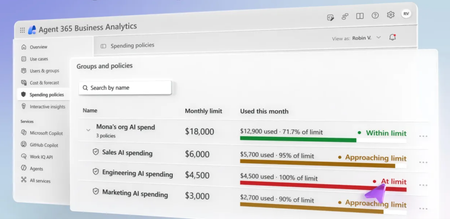
Take control of AI spend across Microsoft Copilot, Cowork, and agents inside and outside of Microsoft. Track your own Copilot Credit usage task by task, pin down your top cost drivers by service and model provider in Agent 365 Business Analytics, and weigh each use case’s cost against its measured AI value. Forecast month-end spend, model a shift to lower-cost models, and enforce hard budgets with spending policies scoped to users, groups, or shared agents in the Microsoft 365 admin center. Delegate budget control to the owners closest to the work. Jeremy Chapman, Microsoft 365 Director, shares how users, budget owners, and IT admins each play a part in turning AI spend into measurable value. Pin down exactly where your AI budget goes. Agent 365 Business Analytics breaks spend down by service, model provider, and use case, from GitHub Copilot to Cowork. See how it works. Cost per use case. Value per use case. Side by side. Track sessions, spend, and AI value across Sales and every business domain with Agent 365 Business Analytics. Check it out. Budgets that enforce themselves. Spending policies in the Microsoft 365 admin center cap AI spend, trigger alerts before limits hit, and control which models teams use. Start here. 👥 Who it’s for: IT admins and Microsoft 365 admins setting up usage-based billing and AI budgets, FinOps and budget owners managing Copilot and agent spend, and CIOs and business leaders measuring AI ROI across their organization. ⏱️ Chapters: 00:00 Control AI spend across Copilot and agents 00:46 Track your own Copilot usage and limits 01:22 How Copilot Credits measure AI consumption 01:36 Measure AI ROI in Agent 365 Business Analytics 02:52 Pin down top cost drivers by model 03:35 Spot top users and spread best practices 03:57 Weigh use case cost against AI value 05:04 Forecast month-end cost and model scenarios 05:51 Raise spending limits as a budget owner 06:37 Enable usage-based billing in Microsoft 365 07:19 Create spending policies with hard limits 08:35 Delegate budget roles to owners outside IT 09:32 Start with Business Analytics and admin setup Every advanced AI task in Microsoft Copilot, from a simple prompt to a complex Cowork or agent workflow, consumes Copilot Credits. One Copilot Credit currently equals one cent in US dollars. Users check their own consumption under Usage details in Copilot, with a seven-day view, remaining monthly limit, and credits used per task. Agent 365 Business Analytics gives managers, budget owners, and CIOs an organization-wide or filtered view of AI usage and cost by manager hierarchy, organization, or job function. Break down spend by service, model provider, and use case. Compare services like GitHub Copilot and Cowork, and use the combined view to see which models each service relies on and how that adds up to cost. The Use cases view maps sessions, cost, and AI value by business domain, with AI value calculated from the time it would take a person to do comparable work, using official sources including the US Department of Labor. Cost & Forecast projects month-end cost and shows what drives increases and decreases by job function, model, and service. Model what-if scenarios, such as a spending cap, expanded access, or a shift to lower-cost models, and compare the results with current usage. In the Microsoft 365 admin center, IT admins enable usage-based billing with an Azure subscription on pay-as-you-go or prepaid billing, then create spending policies under Cost Management. Scope policies by identity or by resource, such as a shared agent, set cumulative and per-user monthly limits, configure alerts, and control which models are allowed with templates. Assign Delegator, Writer, and Reader roles so budget owners outside IT manage policies directly from Agent 365 Business Analytics. 🔗 Related links: — Check out Agent 365 Business Analytics at https://aka.ms/A365Analytics — Activate usage-based billing and set up your policies at https://admin.microsoft.com Unfamiliar with Microsoft Mechanics? Microsoft’s Official Video Series for IT — Subscribe https://www.youtube.com/c/MicrosoftMechanicsSeries — Microsoft Tech Community: https://techcommunity.microsoft.com/t5/microsoft-mechanics-blog/bg-p/MicrosoftMechanicsBlog — Podcast: https://microsoftmechanics.libsyn.com/podcast Join us on social: — https://twitter.com/MSFTMechanics — https://www.linkedin.com/company/microsoft-mechanics/ — https://www.instagram.com/msftmechanics/ — https://www.tiktok.com/@msftmechanics Video Transcript: -With Agent 365 Observability Platform, you have the full visibility and control of your organization’s AI spend, including Copilot, Cowork, and agents inside and outside of Microsoft. In fact, everyone, whether you’re an individual user, an IT admin, or a group leader can play their part in tracking AI usage costs and maximizing value. Additionally, as a manager or business leader, you gain visibility into Copilot usage and costs across your organization or area of responsibility, helping you measure impact while optimizing your investments and value from these services. And as an IT admin, you can set budgets with thresholds to control spend and track how advanced capabilities are being adopted across your organization. -Let’s get started with the Copilot experience itself and how as a user you can track your own costs. So here I’m in Copilot on the Home tab and I’ve just run Cowork. So if I’m curious to know how much I’ve used across different advanced AI services, I can head up into the More actions ellipse menu and find usage details based on my activities across a seven-day period. And I can see here that I have 25% of my limit remaining in November. And if I scroll down and then I click into one of these days, it details the tasks from that day and the credits that were used for each. So as you saw, AI usage is measured using Copilot Credits as the unit of AI consumption. At present, one Copilot Credit equates to one cent in US dollars. Simple tasks use fewer credits while more complex agent workflows will use more. -Next, if you’re a manager, budget owner, or business leader, the new Agent 365 Business Analytics lets you view and assess whether your organization is getting the right level of value from your AI spend. I’m in Agent 365 Business Analytics. And based on your level in your organization and your permissions, you can see how AI is delivering results for your team, including total number of AI users across chat, usage-based services, and GitHub Copilot, as well as the high-level cost breakdown that you can use to optimize ROI. At the top, you can even drill down, and depending on your access that you have, you can see whether you want to look across your entire organization or different parts of your organization. -For example, here, I can see the top-level manager hierarchies, different organizations within my company, or even job functions. So I can get filtered views or organization-wide perspectives that I might want, say as a CIO, like I have here. Where you can easily see the impacts at a glance, you’ll find satisfaction metrics, most active groups, and also the most active job functions, just to name a few things. Then you’ll find detailed breakdowns for cost and budget, how it’s trending and forecast for future consumption. Importantly, you’ll find the top cost drivers on the right. -For example, here you can see that GitHub Copilot is making up over 42% of the total running cost, and you can drill in to see exactly how that compares with other services. And it looks like Cowork is another service that is heavily used with more than 40% of the total running spend. And you can see how that is broken down by different model providers. Then moving over to combined view, this shows the intersection of advanced AI services together with the specific models that each are leveraging and how those accrue to spend. And in use case, that shows the details for different ways that AI services are being used across business activities. -Next, moving into users & groups, those are also important because not every single user is going to engage at the same level. Usage levels will be different for each person. And if there are any best practices to be learned from the top users, here you can even survey those users to see what’s working and then take those learnings to democratize them across your entire organization. -Beyond cost, the next area is understanding whether your money is being well spent. Now for that, you’ll need to understand the task and what’s being done with AI across the different business functions. So here in use cases, these views are a really great way to see how services are being used. And you saw how Cowork accounted for over 40% of our running spend. And this gives the details for how it’s being used, where you can see the number of sessions, even the cost of identified use cases along with the AI value of identified use cases. Now these are calculated based on the task work and timing that it would take a person to perform comparable work. And we’re using official sources, including the U.S. Department of Labor to make those calculations. -So as I scroll down, you can see specific tasks by domain, like this one for sales, then across related categories and subcategories, and even all the way down to these specific use cases. Now below that, you can see how each domain stacks up in terms of active users, session count, cost, and AI value experience for each. Those are all insights into how services are currently being used and the associated cost drivers. Now you also have tools to forecast and model spend for further optimization. -Under Cost & Forecast, you can see how cost is trending, the projected month-end cost, and also different drivers of increases, as well as decreases by job function, model and service. And here is where you can model changes in how you plan to use AI in the future. For example, setting a spending cap, or expanding access to services, or maybe even changing the model mix. And when you apply these factors, like I’m doing here to predict the impact of a shift to lower-cost models, you can see the forecasted results and how they compare with what you’re using now to optimize your ROI. And the good news is that you can implement these controls as a budget owner right from Agent 365 Business Analytics. -So here inside spending policies, I’ve just been granted access to add, edit, and delegate group and spending policies right from here. Now I’ll show you where I can set these roles up in a moment. And I can see spend also across different policies within this group. Again, these are hard limits when they’re reached. So I know, for example, that the engineering team, they’re having a lot of success streamlining their work using AI, but you can see they’ve reached their limit. And here I can edit the policy. Then I can go into limits and alerts, and increase the limit to unblock them. -From there I can review and save my changes. And now the engineering team can keep working with the tools they need. Now let’s switch gears to the IT admin perspective where you can see lots of the same shared usage reporting in the Microsoft 365 Admin Center and also set up budgets as spending policies and delegate the permissions that we just saw for budget management. As a first step for implementing advanced AI features in your organization, you’ll need to have usage-based billing enabled for your tenant, or you can use an Azure subscription with either pay-as-you-go or prepaid billing. -So I’ve done that here in advance to save a little time. Going back to our budgeting and targeted spend for specific groups in your company, you’ll set that up under cost management. In this case, I already have a spending group and a few policies in place. Now I’ll show you how to set up a new spending policy. You have options for both identity scoping based on users or groups, or a resource scoping, for example, for shared resources like an agent. I’ll choose the identity scope and give it a name. -Next, I can also choose specific services for this policy. And here is where monthly budget limits come in, where you can set up limits at the cumulative level for everyone scoped in this policy, and optionally, also set limits per user. These limits, again, are hard limits and services will be interrupted when they’re hit. -Now I have the option to set up alerts, first with who should be alerted. In my case, I’ll make these values equal to about 80% of those limits I set before. And these policies also let you control which models can be used with templates. Now I have a few templates already set up for different use cases and also model providers. So I’m going to choose all models. And this is where you could assign a specific policy to a specific business group, where each, for example, would have separate Azure subscriptions. In my case though, I’ll keep the prepaid plan that I have here. And now I just need to review and add the policy, and it’s all set. -So now let me show you how you’d assign permissions that I showed before for other people across your organization to be able to read, write, or delegate spending policies and groups. This policy group on top for the sales team has delegates already assigned. I’ll click in to see its details. And you can already see that Adele and Pradeep currently have the delegator and writer roles respectively. -Now, if I go ahead and edit the policy, I can add or edit delegates as individuals or as groups. Now this is what you’ll do for budget controllers that are working outside of the IT team because they typically won’t have Microsoft 365 Admin Center access. Instead, they’re going to be using the Agent 365 Business Analytics experience, like I showed earlier. And along with the delegator and writer roles with edit permissions, there’s also a view-only reader role available. -So that’s how permissions are granted. And for the other steps in this group, at the parent level, those follow the same things I showed before with the spending policy. So whether you’re an individual user, an IT admin, or a group leader, you’re in full control over your budget and spend across advanced AI services for Microsoft Copilot and Agent 365, along with visibility that you need to make sure that you’re hitting your goals and optimizing how you use AI. -Check out Agent 365 Business Analytics at aka.ms/A365Analytics. And if you’re in IT, activate usage-based billing and set up your policies at admin.microsoft.com. Be sure to keep watching Microsoft Mechanics for the latest tech updates, and thanks for watching.197Views0likes0Comments