faq
17 TopicsMGDC for SharePoint FAQ: How to Run a PoC without Pulling Your Entire Tenant
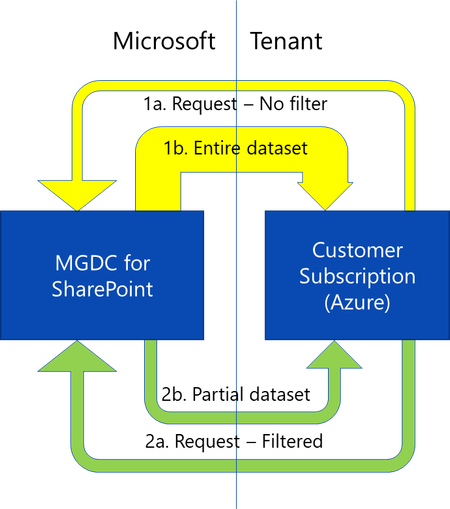
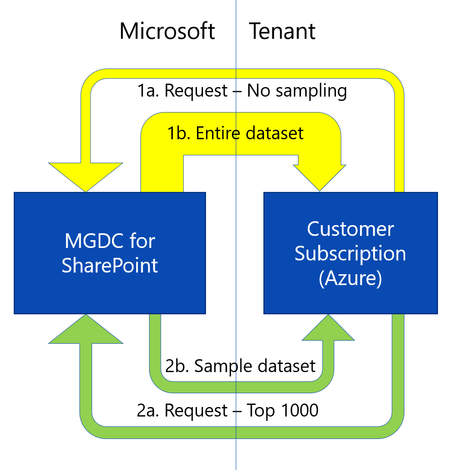
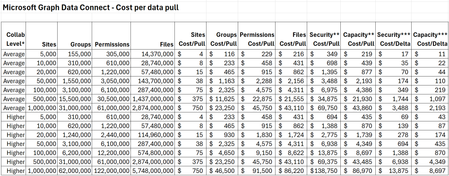
Overview When getting started with SharePoint data in Microsoft Graph Data Connect (MGDC) for SharePoint, many teams want to validate scenarios - such as reporting or analytics before committing to a full production deployment. A common first instinct is to pull a complete dataset from a production tenant. While this delivers the most comprehensive view of SharePoint usage, it also: Requires broad administrative authorization Consumes the most Azure compute and storage resources Increases MGDC extraction and processing costs Adds complexity to early experimentation Fortunately, MGDC for SharePoint provides multiple ways to run low‑cost experiments or proof‑of‑concept (POC) deployments using partial or scoped datasets. This guide presents these options using a uniform comparison model, helping you choose the right approach based on: Cost Representativeness of production behavior Implementation effort Dataset completeness Supported datasets Option 1: Use a Dev or Test Tenant Description Use an existing development or test tenant (or create a new trial tenant) to enable MGDC and run initial experiments. Pros Smaller datasets reduce MGDC and Azure costs Easier to obtain administrative permissions Lower operational impact Cons May not reflect production‑scale usage patterns Some SharePoint features or integrations may be missing Requires simulated user activity to generate meaningful data Trial tenants are time‑limited Learn More Microsoft 365 Trial Options Azure Trial Options Option 2: Start with the SharePoint Sites Dataset Description The Sites dataset is typically the smallest MGDC dataset for SharePoint and provides tenant‑wide metadata for all site collections. Pros Lower cost compared to Files or Permissions datasets Provides organization‑wide coverage Minimal MGDC configuration beyond standard onboarding Small dataset can be handled directly by a variety of analysis tools Cons Does not include permission or file details Limited insight compared to full datasets Learn More How can I estimate my Azure bill? Updated! Gather a detailed dataset on SharePoint Sites Option 3: Sample a Limited Number of Rows Description Some MGDC SharePoint datasets support returning only a subset of rows in query results. This is supported across the top 5 SharePoint datasets in MGDC (Sites, Permissions, Groups, Files and File Actions). Pros Minimal and predictable extraction cost Enables rapid schema inspection Provides total dataset row count in request metadata Cons Rows are not returned in a predictable order Sample is not randomized. It is not reproducible and could be biased Results should not be used to draw tenant‑level conclusions Learn More How can I sample or estimate the number of objects in a dataset? Option 4: Filter by SiteId Description Because SharePoint data is partitioned by site collection, MGDC filtering allows you to extract data from a single site or a small group of representative sites. This supports Sites, Permissions, Groups, Files and File Actions datasets. Pros Enables realistic workload simulation Reduces total extraction volume Simplifies downstream reporting Cons May introduce sampling bias Not suitable for tenant‑wide reporting Learn More How can I filter rows on a dataset? Option 5: Filter by TemplateId Description Instead of selecting individual sites, filter by site template to isolate specific workloads. For example, you could filter for OneDrives or SharePoint Embedded. Pros Consistent dataset scope Useful for workload‑specific analysis Cons Limited dataset support (supported only for Sites, Files and File Actions) May not reflect cross‑workload usage patterns Learn More How can I filter rows on a dataset? Option 6: Use Delta State Datasets Description Delta datasets allow you to retrieve only changes since your last data transfer for supported SharePoint State datasets. Pros Enables recurring analytics with lower extraction costs Supports daily or weekly trend analysis Reduces data movement after initial ingestion Cons Requires an initial full dataset pull Adds complexity to downstream merge processing Learn More How can I use Delta State Datasets? How do I process Deltas? Summary MGDC for SharePoint provides multiple approaches to extract targeted subsets of tenant data, allowing teams to: Run proof‑of‑concept deployments Validate analytics pipelines Test governance or migration scenarios Estimate ongoing MGDC and Azure costs By selecting the right combination of dataset scope, filtering strategy, sampling method or delta tracking, you can balance cost, representativeness, and implementation effort before scaling to a full production deployment. For additional guidance on MGDC for SharePoint, visit SharePoint Data in MGDC.MGDC for SharePoint FAQ: How to use Excel for analytics
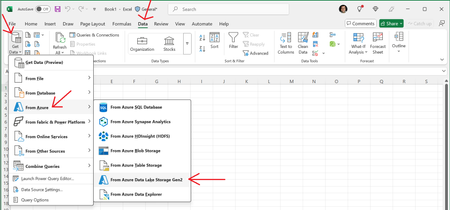
MGDC for SharePoint – Dataset types and features In this post, we’ll discuss how to use Microsoft Excel to consume the data from Microsoft Graph Data Connect (MGDC) for SharePoint. If you’re new to MGDC, get an overview at https://aka.ms/SharePointData. 1. Introduction In most examples on how to analyze the data from MGDC for SharePoint, we use Azure Synapse in combination with Power BI Desktop, which is a very capable tool that can turn your data into coherent, visually immersive, and interactive insights. But keep in mind that, when pulling datasets from MGDC with Azure Synapse, the data becomes available in an Azure storage account as a set of JSON files. From there, you can use many different tools beyond Power BI. In this article, we will focus on how to read and analyze that data using Microsoft Excel. 2. Get the data into Azure storage The first step in the process is to get your data from MGDC. I have a blog post that describes that process at Step-by-step: (Synapse) Gather a detailed dataset on SharePoint Sites using MGDC. Section 1 if that blog shows how to setup the Microsoft Graph Data Connect and section 2 describes how to run an Azure Synapse pipeline to pull the data. If you complete these first two sections, you will end up with your SharePoint Sites data in Azure. You can skip section 3 of that blog, that describes how to get the data into a Power BI dashboard. You will replace that section with the information in this article, which takes the data to Microsoft Excel instead. 3. Bring the data from Azure storage to Excel Next, you need to bring the data in the JSON files from the Azure storage account to your Excel spreadsheet. Fortunately, Excel has the perfect set of tools to bring in that data. You should start with a blank spreadsheet. Select the “Data” tab in the ribbon and use the option to “Get Data”. Then select the option “from Azure” and choose “From Azure Data Lake Storage Gen2”. This will make sure that you’re getting the data in your ADLS Gen2 storage account. > Get Data --> From Azure --> From Azure Data Lake Storage Gen2 Next, you will need to provide the URL to the ADLS Gen2 storage. Provide the full path, with the container and folder in the format: https://account.dfs.core.windows.net/container/folder. The account name is in step 1d of the at step-by-step guide mentioned before. The container and folder names are in step 1f of the guide. You can also find the URL in the Azure Portal, under the Settings/Endpoints section of the storage account. Once you provide the URL and click OK, you will need to authenticate. Select the option to use the storage account key and type in the key you saved in step 1d of the at step-by-step guide. You can find the key in the Azure Portal, under the “Security + Networking” / “Access Keys” section of the storage account. Once you have typed the account key, click “Connect”. At this point, you want to click on the “Transform Data” button to filter for the specific files you want. This will open the “Power Query Editor” window, where you can apply specific steps to filter the data coming in. The easiest way to filter out the metadata files is to scroll right until you find the “Folder Path” column and filter that column for paths that do not contain the word “metadata”. > down arrow --> Text filters --> Does not contain... After that, you can scroll left to the “Content” column and click on the button to “Combine files”. After that, the query will pull in the content of the files and expand all the columns from the JSON. > Content --> Combine files Finally, you can click on the “Close & Load” button to bring the data into a sheet. & Load With that, you can play with the data in Excel. 4. Create PivotTables Once the data is imported into your Excel spreadsheet, you will be able to create data visualizations from it. The most interesting way to do this is to use Excel PivotTables. For instance, here’s a pivot table with storage (Storage Used) by site type (RootWeb.WebTemplate) on the different dates you pulled data (SnapShotDate). See the sample PivotTable below after some adjustments and formatting. 5. Tips Here are a few additional comments. Distinct types of authentication: As you might have noticed, there are multiple ways to authenticate to get access to the Azure storage account. In addition to using a key to the entire storage account as shown here, you could use Azure to grant specific permissions to a user and log in as that user. This will help restrict access to specific folders and grant limited permissions (like read-only). Create custom columns: To help with your data analysis, you might want to add a few custom or calculated columns. You can in many ways, including transformations in Power Query, formulas in the Excel sheet or in the pivot table itself. You can read more about it at How to create custom columns in Power BI (this says Power BI but applies to Excel as well). More than one million rows: If you’re using this to visualize data from the SharePoint Sites dataset, you are likely to have fewer than one million rows, which is the Microsoft Excel limit. If you’re one of the few tenants that will have more than one million sites or if you’re analyzing a larger dataset like Permissions or Files, you can only pull the first one million rows into a sheet. To overcome this, you can load the data into a model and use that to drive your pivot tables. You can read more about it at Loading CSV/text files with more than a million rows into Excel (this says text files but applies to JSON as well). 6. Conclusion I hope this post helped you understand how to use Microsoft Excel to pull JSON data from an Azure storage account used by MGDC for SharePoint. For more information, visit https://aka.ms/SharePointData.MGDC for SharePoint FAQ: How to flatten datasets for SQL or Fabric
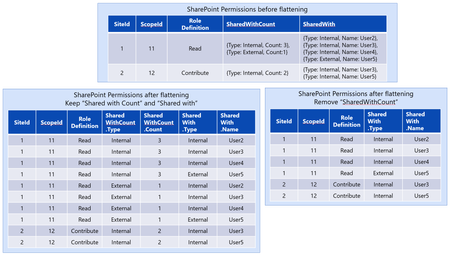
When you get your data from Microsoft Graph Data Connect (MGDC), you will typically get that data as a collection of JSON objects in an Azure Data Lake Storage (ADLS) Gen2 storage account. For those handling large datasets, it might be useful to move the data to a SQL Server or to OneLake (lakehouse). In those cases, you might need to flatten the datasets. This post describes how to do that. If you’re not familiar with MGDC for SharePoint, start with https://aka.ms/SharePointData. 1. Flattening Most of the MGDC for SharePoint datasets come with nested objects. That means that a certain object has other objects inside it. For instance, if you have a SharePoint Groups object, it might have multiple Group Members inside. If you have a SharePoint Permissions object, you could have many Permissions Recipients (also known as Sharees). For each SharePoint File object, you will have a single Author object inside. When you convert the datasets from JSON to other formats, it is possible that these other formats require (or perform better) if you don’t have any objects inside objects. To overcome that, you can turn those child objects into properties of the parent object. For instance, instead of having the File object with an Author object inside, you can have multiple author-related columns. For instance, you could have Author.Name and Author.Email as properties of the flattened File object. 2. Nested Objects You can get the full list of SharePoint datasets in MGDC at https://aka.ms/SharePointDatasets. Here is a table with a list of objects and their nested objects: Object How many? Primary Key Nested Object How many? Add to Primary Key Sites 1 per Site Id RootWeb 1 per Site Sites 1 per Site Id StorageMetrics 1 per Site Sites 1 per Site Id SensitivityLabelInfo 1 per Site Sites 1 per Site Id Owner 1 per Site Sites 1 per Site Id SecondaryContact 1 per Site Groups 1 per Group SiteId + GroupId Owner 1 per Group Groups 1 per Group SiteId + GroupId Members 1 per Member COALESCE(AADObjectId, Email, Name) Permissions 1 per Permission SiteId + ScopeId + RoleDefintion + LinkId SharedWithCount 1 per Recipient Type Type Permissions 1 per Permission SiteId + ScopeId + RoleDefintion + LinkId SharedWith 1 per Recipient or Sharee COALESCE(AADObjectId, Email, Name) Files 1 per File SiteId + WebId + ListId + ItemId Author 1 per File Files 1 per File SiteId + WebId + ListId + ItemId ModifiedBy 1 per File When you flatten a dataset and there is an object with multiple objects inside (like Group Members or Permission Recipients), the number of rows will increase. You also need to add to primary key to keep it unique. Also note that the File Actions, Sync Health and Sync Errors datasets do not have any nested objects. 3. One Object per Parent When the nested object has only one instance, things are simple. As we described for the Author nested object inside the File object, you promote the properties of the nested object to be properties of the parent object. This is because the Author is defined as the user that initially created the file. There is always one and only one Author. This can happen even happen multiple times for the same object. The File also has a ModifiedBy property. That is the single user that last changed the file. In that case, there is also only one ModifiedBy per File. The Site object also includes several properties in this style, like RootWeb, StorageMetrics, SensitivityLabelInfo, Owner and SecondaryContact. Note that, in the context of the Site object, there is only one owner. Actually two, but that second one is tracked in a separate object called SecondaryContact which is effectively the secondary owner. 4. Multiple Objects per Parent The SharePoint Permissions dataset has a special condition that might create trouble for flattening. There are two sets of nested objects with multiple objects each: SharedWith and SharedWithCount. SharedWith has the list of Recipients and SharedWithCount has a list of Recipient Types. If you just let the tools flatten it, you will end up a cross join of the two. As an example, if you have 4 recipients in an object and 2 types of recipients (internal users and external users, for instance) you will end up with 20 objects in the flattened dataset instead of the expected 10 objects (one per recipient). To avoid this, in this specific condition, I would recommend just excluding the SharedWithCount column from the object before flattening. 5. Conclusion I hope this clarifies how you can flatten the MGDC for SharePoint datasets, particularly SharePoint Permissions dataset. For further details about the MGDC for SharePoint, https://aka.ms/SharePointData.MGDC for SharePoint FAQ: Why does the file count not match?
I am frequently asked why the number of files in the Sites dataset does not match the count of the Files dataset. It is true that they sometimes don't. Here are the counts we are talking about: Sites: SELECT Id as SiteId, StorageMetrics.TotalFileCount AS FilesInSite FROM Sites Files: SELECT SiteId, COUNT(*) AS FilesInSite FROM Files GROUP BY SiteId The main reasons for the discrepancy are: The Files dataset is collected weekly, while the Sites dataset is collected daily, making it difficult to capture the exact same state. The Files dataset includes only items inside Document Libraries, whereas the Sites dataset counts all files, including those in other list types. The Files dataset does not include pages (files ending in .ASPX), while the Sites dataset counts all files. The Files dataset does not include items in the primary and secondary recycle bins, whereas the Sites dataset counts all files. Here are a few examples: A new site was created, and a few files were uploaded to a document library in this new site. Two days later, you get the SharePoint Sites dataset and find the new site with the right count of files. However, you cannot find these files in the SharePoint Files dataset. This is because the Files dataset may take one week to refresh. Wait a week and try pulling the Files dataset again. A team site was created with a few lists, where some of the items have file attachments. The SharePoint Files dataset does not show these file attachments. This is because the SharePoint Files dataset will only show files in document libraries. You deleted files from a document library in a SharePoint site a few weeks ago. Now the count of files in the SharePoint Sites is smaller than the count of files in the SharePoint Files dataset. That is because files in the recycle bins are excluded from the Files dataset. Once these deleted files go through the first and second level recycle bins, the count in the Sites dataset will also reflect that reduction.MGDC for SharePoint FAQ: Dataset types and features
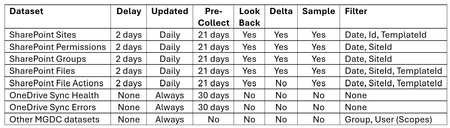
In this post, we’ll discuss the different types of datasets on Microsoft Graph Data Connect (MGDC) for SharePoint and which specific features apply to each one, including deltas, sampling and filtering. If you’re new to MGDC, get an overview at https://aka.ms/SharePointData.