fail-close
1 Topic
Locking down PAWs internet access when GSA drops
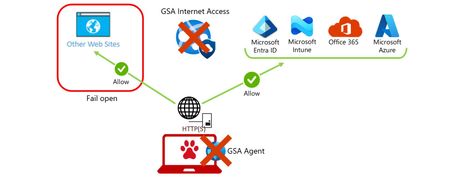
By: Christian Friedel-Jain - Sr. Security Consultant | James Noyce - Sr. Security Solution Engineer Introduction Privileged Access Workstations (PAWs) are among the most sensitive endpoints in any organization. A PAW, in most of our Microsoft consulting projects, exists to do one job safely: administer cloud services from a hardened device that is only ever allowed to reach a small, tightly controlled set of internet destinations. But an endpoint’s security posture is ultimately defined by its behavior under failure conditions. When we moved the internet access restriction for our PAW devices from a locally enforced restriction (more about that later) to a solution based on Microsoft Global Secure Access (GSA), we immediately identified a gap under failure conditions – but first a quick grounding on the moving parts. Global Secure Access (What is Global Secure Access?) is Microsoft’s umbrella term for Microsoft Entra Internet Access and Microsoft Entra Private Access — the components of Microsoft’s Security Service Edge solution. For a PAW device we are leveraging Microsoft Entra Internet Access as an identity centric secure web gateway solution to control exactly which internet destinations the workstation can reach, by applying a fine-grained set of rules and policies enforced through Conditional Access in Microsoft Entra. This configuration provides us better filtering capabilities, like web content filtering (Global Secure Access web content filtering) with TLS inspection (TLSi) (Global Secure Access transport layer security inspection) and additional features like Threat Intelligence (Global Secure Access threat intelligence), but it comes also with a downside. Currently by default, if the GSA client encounters an issue or cannot connect to its required GSA edge services, the GSA client will fall back to a fail-open state, rather than to a fail-close state. Difference between those two modes: Fail-Open: When a security or control mechanism fails, access is still allowed. Fail-Close: When the security or control mechanism fails, access is blocked. This blog post covers above problem and showcases a solution we built, as part of our projects, to achieve a “Fail-Close” state rather than having the current “Fail-Open” behavior. The enforcement of the “Fail-Close” solution we developed works at two independent layers, both are deployable through Microsoft Intune: A network layer: Windows Defender Firewall network profiles, a rule set with Windows Firewall Dynamic Keywords, and event-driven automation — restricts the device internet access in the moment GSA’s tunnels or services drop. An identity layer: an Intune custom compliance check paired with Conditional Access — denies the device access whenever the GSA client is missing or its services are not running. Together, they help to make sure a failure that slips past one layer is still caught by the other. From URL Lock Proxy to Global Secure Access Historically, we restricted internet access on PAW devices with the Windows Defender Firewall (for more details see here Microsoft Defender Firewall) and a “URL Lock Proxy” approach (and here URL lock proxy): an allow-list of permitted URLs that blocked every outbound HTTP(S) connection except the ones required for: Approved management portals, Authentication to Microsoft Entra ID, Management by Microsoft Intune, and Monitoring by Microsoft Defender for Endpoint. It worked, but it carried real limitations: No auditing of what was allowed or blocked, It did not scale and required a lot of wildcards to be used, A limited ruleset size — the size cap on the underlying registry key meant the solution simply could not grow, and It was not enterprise class. Microsoft Global Secure Access with its component Entra Internet Access replaces the URL Lock Proxy configuration entirely. We are using dedicated firewall rules for the GSA client, to allow the client to reach the Entra Internet Access edge service. Through Entra Condition Access, a GSA Internet Access traffic profile (security profile) is applied which blocks all internet access except the specific FQDNs needed for approved management portals/platforms, Entra ID authentication, Intune, and Defender for Endpoint. HTTP and HTTPS traffic is evaluated and filtered within the GSA Edge service itself, and a request to a destination that is not on the allow-list is blocked with a simple “You can’t access this destination” message. Additional features like filtering on URL level instead of FQDN, due to the use of TLSi, helped to remove most of the wildcards we had to use with the previous URL lock proxy approach. The result is: Access and the access results are auditable, More granular and centrally managed rule set, And genuinely enterprise class. The catch: Global Secure Access fails open GSA as the internet access restriction method is powerful, but it builds on the assumption that the GSA client is installed, running, and connected. When that assumption breaks, the client’s current behavior is to fail open. As a result, the device ends up with unrestricted internet access whenever: The GSA client is installed but cannot establish its tunnels with the GSA edge services (according to the Entra ID SLA this doesn’t happen that often – see Service Level Agreement performance for Microsoft Entra ID), The GSA client on the PAW is installed but suspended, or Its services are disabled, or The GSA client component is not installed at all on the PAW device. On a regular end user device, the fail-open mode is a convenience. On a PAW it is exactly the wrong default: the very moment the protection drops away, the device becomes its most exposed. Therefore, we had to develop a solution to have a fail-close behavior. The Fail-Close approach The core idea is deliberately simple, and it uses capability that already exists on most of the Windows devices: the Windows Defender Firewall network profiles (more details here Windows Firewall Network Profiles). Two of the available firewall profiles are repurposed to act as separate operating modes: Private profile: “unrestricted” HTTP(S). Internet access filtering is delegated to GSA Internet Access, so the firewall itself does not constrain destinations. Public profile: “restricted” HTTP(S). Outbound web traffic is limited to a mandatory set of FQDNs via Defender Dynamic Keywords and selected system processes — just enough for the device to stay managed and healthy. When the GSA client has successfully established its Internet access tunnel, the device is assigned the Private network profile. If GSA fails, the Windows Firewall profile is automatically switched to the Public network profile, restricting Internet access to essential destinations only. This profile transition implements the required fail-close behavior. Normal state — Private profile As soon as the GSA client is running, connected to the GSA edge services and has established the Internet Access tunnel (step 1), the client writes a success event to the GSA event log (step 2) (Internet Access tunnel connected — Event ID 142) When that event occurs, a scheduled task (step 3) runs a PowerShell script (step 4) that: Switches the device to the Private firewall network profile, Validates the state of all local GSA services, and Initiates an Intune custom compliance check (to perform additional validations). In case all validates were successfully passed, the PowerShell script enforces the Private firewall profile (step 5) and GSA Internet Access is being used to filter the internet access (step 6). Failure state — Public profile The moment GSA stops protecting (step 1) the device, one of several failure events is written to the GSA event log (step 2) and triggers a different scheduled task (step 3) which runs a PowerShell script (step 4) that switches the device to the Public firewall network profile (step 5) and initiates an Intune custom compliance check, too. The failure signals we watch for are: Entra or Internet Access tunnel disconnected — Event ID 141 (logged roughly every 10 seconds while the tunnel is down), GSA services stopped — Event IDs 106, 206, 406, and 705, No internet connectivity — Event ID 638, and Services start initiated — Event ID 701. On the Public profile, the HTTP(S) outbound rule has Reusable Settings (Defender Dynamic Keywords - Windows Firewall Dynamic Keywords) (step 6) assigned, which restricts the reachable FQDNs down to a mandatory set of endpoints. Additionally, mandatory applications and services are explicitly exempt from that restriction, so the device can still be managed, patched, and monitored even while it is locked down. Closing the gap when GSA is absent: custom compliance The firewall profile switch is event-driven — it reacts to the signals the GSA client writes to the event log. That works well for a device where the GSA client is present, but it leaves one blind spot: if the GSA client is not installed at all, or its services never start, there may be no events to react to. Those are exactly the scenarios where a device would otherwise fall back to unrestricted access, the solution uses a custom device compliance policy/check that does not depend on any event firing. It directly: Validates that the GSA client is installed on the device, and Checks the local GSA service state — confirming that the services are running, not just present. If either of those checks fails — GSA client is not installed, or its services are not running — Intune reports the device as non-compliant. Because a PAW’s access to cloud resources is gated by Conditional Access requiring a compliant device, a non-compliant PAW is denied access to the very cloud services it exists to manage. So even in the one case the event-driven firewall switch cannot see, access still fails closed — this time at the identity layer rather than the network layer. In addition, as soon as the local evaluation detected a non-compliant scenario, the custom compliance check flips the firewall profile to the Public profile, too. The profile-switching PowerShell scripts also initiate this compliance evaluation as they run in both the normal and failure states, so the device re-reports its posture promptly instead of waiting for the next routine Intune check-in. The result is defense in depth — two independent layers, neither relying on the other: Enforcement layer Mechanism What it catches Network Defender Firewall profile switch, driven by GSA event IDs (141, 106, 206, 406, 705, 638, 701) Tunnel drops and service stops while the GSA client is present and reporting Identity Intune custom compliance check + Conditional Access (require compliant device) GSA not installed, or its services not running — no event required to trigger it A failure that slips past one layer is caught by the other: If GSA stops mid-session, the firewall restricts access near real-time; If GSA is missing or disabled entirely, Conditional Access refuses the device to access Entra ID integrated resources. Under the hood: the building blocks The full solution is a set of several components, which all can be delivered and governed through Microsoft Intune: Component What it does Firewall profile Base firewall settings — default block all inbound and outbound connectivity across all profiles (public, private, and domain). Firewall rules Allow mandatory programs and services (~35 rules); restrict HTTP(S) in the Public profile using Dynamic Keywords; allow “unrestricted” HTTP(S) in the Private profile. Defender Dynamic Keywords (Reusable Settings) The set of FQDNs required for Entra ID, Defender for Endpoint, Intune, Windows Update, and Global Secure Access. Platform scripts Switch the firewall network profile to Private (unrestricted HTTP(S)); update the Defender anti-malware engine so it supports the Dynamic Keywords feature. Win32 app package Required app that deploys the scheduled tasks and the underlying PowerShell scripts. Custom device compliance check Validates that GSA is installed and checks the local GSA service state. The firewall rules that make it work The heart of the enforcement is a pair of “World Wide Web Services” outbound rules — one per firewall profile: Rule Profile Action Ports Remote destinations World Wide Web Services (HTTP & HTTPS Out) Private Allow 80, 443 Any address World Wide Web Services (HTTP & HTTPS Out) Public Allow 80, 443 Dynamic Keywords only The Private HTTP/HTTPS rule is deliberately open, because GSA is the gatekeeper. The Public HTTP/HTTPS rule scopes outbound web traffic down to the endpoint categories expressed as Dynamic Keywords: GSA Edge Endpoints, Microsoft 365 Common and Office Online, Microsoft 365 encryption chains, Windows 11, Intune & Autopilot, and Defender for Endpoint. Because these are Defender Dynamic Keywords with AutoResolve (AutoResolve dynamic keyword addresses) deployed via Microsoft Intune reusable settings (Use reusable groups of settings policies in Microsoft Intune), rather than hard-coded IP ranges, the allow-list includes endpoints centrally instead of being frozen into a brittle registry key — directly addressing the scale and maintainability limits of the old URL Lock Proxy. Besides the mentioned outbound HTTP/HTTPS firewall rule for the public and private network profile, additional rules are required for our scenario. With those additional firewall rules we cover: Basic Windows operating system network communication, Communication for Global Secure Access, and Critical Windows processes and services. Disclaimer: We are sharing the lists of firewall rules with you AS IS without warranty. Keep in mind that the config might require modifications to match to your scenario or environment. Firewall rules for basic network communication Name Action Network Types Direction Service / File / App Id Protocols Local Ports Local Address Ranges Remote Ports Remote Address Ranges Delivery Optimization (TCP-In) Allow All Inbound Service name: DoSvc File path: C:\windows\system32\svchost.exe TCP 7680 Any address Any remote port Any address Delivery Optimization (UDP-In) Allow All Inbound Service name: DoSvc File path: C:\windows\system32\svchost.exe UDP 7680 Any address Any remote port Any address Core Networking - DHCP (DHCP-Out) Allow All Outbound Service name: Dhcp File path: C:\windows\system32\svchost.exe UDP 68 Any address 67 Any address Core Networking - DHCP for IPv6 (DHCPV6-Out) Allow All Outbound Service name: Dhcp File path: C:\windows\system32\svchost.exe UDP 546 Any address 547 Any address Core Networking - DNS (TCP-Out) Allow All Outbound Service name: Dnscache File path: C:\windows\system32\svchost.exe TCP Any Any address 53 DNS 6.6.0.0-6.6.255.255 Core Networking - DNS (UDP-Out) Allow All Outbound Service name: Dnscache File path: C:\windows\system32\svchost.exe UDP Any Any address 53 DNS 6.6.0.0-6.6.255.255 Windows Time (UDP-Out) Allow All Outbound Service name: W32Time File path: C:\windows\system32\svchost.exe UDP Any Any address 123 Any address NCSI Probe (HTTP-Out) Allow All Outbound Service name: NlaSvc File path: C:\windows\system32\svchost.exe TCP Any Any address 80 Any address Firewall rules for Global Secure Access Name Action Network Types Direction Service / File / App Id Protocols Local Ports Local Address Ranges Remote Ports Remote Address Ranges GSA Client - Tray App (TCP-Out) Allow All Outbound File path: %ProgramFiles%\Global Secure Access Client\TrayApp\GlobalSecureAccessClient.exe TCP Any Any address 80, 443, 6543 Any address GSA Client - Mgmt Service (TCP-Out) Allow All Outbound File path: %ProgramFiles%\Global Secure Access Client\GlobalSecureAccessClientManagerService.exe TCP Any Any address 80, 443 Any address GSA Client - Tunneling Service (TCP-Out) Allow All Outbound File path: %ProgramFiles%\global secure access client\globalsecureaccesstunnelingservice.exe TCP Any Any address 80, 443 Any address GSA Client - Advanced Diagnostics (TCP-Out) Allow All Outbound File path: %ProgramFiles%\global secure access client\advanceddiagnostics\globalsecureaccessclientadvanceddiagnostics.exe TCP Any Any address Any Any address GSA Client - Forwarding Profile Service (TCP-Out) Allow All Outbound File path: %ProgramFiles%\Global Secure Access Client\GlobalSecureAccessForwardingProfileService.exe TCP Any Any address 80, 443 Any address GSA Client - Engine Service (TCP-Out) Allow All Outbound File path: %ProgramFiles%\Global Secure Access Client\GlobalSecureAccessEngineService.exe TCP Any Any address 80, 443 Any address Firewall rules for critical Windows processes and services Name Action Network Types Direction Service / File / App Id Protocols Local Ports Local Address Ranges Remote Ports Remote Address Ranges Microsoft Defender Antivirus Network Inspection Service (TCP-Out) Allow All Outbound Service: WdNisSvc TCP Any Any 80, 443 Any Microsoft Defender Core Service (TCP-Out) Allow All Outbound Service: MDCoreSvc TCP Any Any 443 Any Windows Defender Advanced Threat Protection Service (TCP-Out) Allow All Outbound Service: Sense TCP Any Any 80, 443 Any Microsoft Defender Antivirus Service (TCP-Out) Allow All Outbound Service: WinDefend TCP Any Any 443 Any Microsoft Intune Management Extension (TCP-Out) Allow All Outbound File path: C:\Program Files (x86)\Microsoft Intune Management Extension\Microsoft.Management.Services.IntuneWindowsAgent.exe TCP Any Any 80, 443 Any Runtimebroker (TCP-Out) Allow All Outbound File path: C:\windows\system32\runtimebroker.exe TCP Any Any 443 Any Windows Push Notifications System Service (TCP-Out) Allow All Outbound Service: WpnService File path: C:\windows\system32\svchost.exe TCP Any Any 443 Any Host Process for OMA-DM Client (TCP-Out) Allow All Outbound File path: C:\Windows\System32\omadmclient.exe TCP Any Any 80, 443 Any Microsoft Edge Update (TCP-Out) Allow All Outbound File path: C:\Program Files (x86)\Microsoft\EdgeUpdate\MicrosoftEdgeUpdate.exe TCP Any Any 443 Any Network List Service (TCP-Out) Allow All Outbound Service: netprofm File path: C:\WINDOWS\System32\svchost.exe TCP Any Any 80 Any Microsoft Health Attestation Client Agent (TCP-Out) Allow All Outbound File path: C:\Windows\System32\HealthAttestationClient\HealthAttestationClientAgent.exe TCP Any Any 80, 443 Any Windows Defender Advanced Threat Protection IMDSCollector module (TCP-Out) Allow All Outbound File path: C:\Program Files\Windows Defender Advanced Threat Protection\SenseImdsCollector.exe TCP Any Any 80, 443 Any API for MDM Enrollment (TCP-Out) Allow All Outbound File path: C:\Windows\System32\DeviceEnroller.exe TCP Any Any 443 Any Windows Defender SmartScreen (TCP-Out) Allow All Outbound File path: C:\Windows\System32\smartscreen.exe TCP Any Any 443 Any Windows Update (TCP-Out) Allow All Outbound Service: wuauserv File path: C:\WINDOWS\System32\svchost.exe TCP Any Any 80, 443 Any Device Management Enrollment Service (TCP-Out) Allow All Outbound Service: DmEnrollmentSvc File path: C:\WINDOWS\System32\svchost.exe TCP Any Any 443 Any Delivery Optimization (TCP-Out) Allow All Outbound Service: DoSvc File path: C:\WINDOWS\System32\svchost.exe TCP Any Any 80, 443 Any Company Portal (TCP-Out) Allow All Outbound App Id: Microsoft.CompanyPortal_8wekyb3d8bbwe TCP Any Any 80, 443 Any LSASS.exe (TCP-Out) Allow All Outbound File path: C:\Windows\system32\lsass.exe TCP Any Any 443 Any Windows License Manager Service Allow All Outbound Service: LicenseManager File path: C:\WINDOWS\System32\svchost.exe TCP Any Any 443 Any Background Intelligent Transfer Service (TCP-Out) Allow All Outbound Service: BITS File path: C:\WINDOWS\System32\svchost.exe TCP Any Any 80 Any Microsoft Intune ClientHealthEval (TCP-Out) Allow All Outbound File path: c:\program files (x86)\microsoft intune management extension\clienthealtheval.exe TCP Any Any 443 Any Microsoft Intune AgentExecutor (TCP-Out) Allow All Outbound File path: c:\program files (x86)\microsoft intune management extension\agentexecutor.exe TCP Any Any 80, 443 Any BitLocker Drive Encryption Service (TCP-Out) Allow All Outbound Service: BDESVC File path: C:\WINDOWS\System32\svchost.exe TCP Any Any 443 Any Microsoft Intune ClientCertCheck (TCP-Out) Allow All Outbound File path: c:\program files (x86)\microsoft intune management extension\clientcertcheck.exe TCP Any Any 443 Any Cryptographic Services (TCP-Out) Allow All Outbound Service: CryptSvc File path: C:\WINDOWS\System32\svchost.exe TCP Any Any 80, 443 Any Microsoft Malware Protection Command Line Utility (TCP-Out) Allow All Outbound File path: c:\program files\windows defender\mpcmdrun.exe TCP Any Any 443 Any Microsoft EPM Agent Service (TCP-Out) Allow All Outbound File path: C:\Program Files\Microsoft EPM Agent\EPMService\EpmService.exe TCP Any Any 443 Any Microsoft Store Install Service (TCP-Out) Allow All Outbound Service: InstallService File path: C:\WINDOWS\System32\svchost.exe TCP Any Any 80, 443 Any Update Orchestrator Service (TCP-Out) Allow All Outbound Service: UsoSvc File path: C:\WINDOWS\System32\svchost.exe TCP Any Any 80, 443 Any Note: List of mandatory programs & services is not a 100% complete list. We are still discovering additional exclusions. Microsoft Intune Reusable Settings As mentioned in the section before, several endpoint categories are being used as part of the Public "World Wide Web Services (HTTP & HTTPS Out)" Firewall rule. As part of this blog post, we cannot publish a one-size fits all list of FQDNs, since the actual list of FQDNs highly depends on the actual configuration, scenario or environment and are subject to change (as usual when it comes to endpoints). In our scenario it was important that PAW devices, when not connected to GSA, are able to: Perform authentication against Microsoft Entra ID, Remains fully managed by the MDM, in our case Microsoft Intune, Receive updates for the operating system (Windows 11 Enterprise) and the XDR solution (Defender for Endpoint), and Are able to connect to Microsoft Global Secure Access edge services. Based on the requirements we leveraged several publicly available endpoint lists, which include the following, to create our Reusable Settings configuration: GSA Edge Endpoints - FQDN and IP addresses where the Global Secure Access service receives traffic Microsoft 365 - Microsoft 365 URLs and IP address ranges Windows 11 - Connection endpoints for Windows 11 Enterprise Intune & Autopilot - Network endpoints for Microsoft Intune Defender for Endpoint - Microsoft Defender for Endpoint streamlined connectivity URLs Create Reusable Settings objects Attached to this blog post you will find several CSV files (GlobalSecureAccessEdgeEndpoints.csv, DefenderforEndpoint.csv, IntuneAutopilot.csv, Microsoft365Common.csv, Microsoft365encryptionchains.csv, Windows11.csv) which include the lists of FQDNs we are using as part of our deployments. Disclaimer: We are sharing those Reusable Settings lists with you AS IS without warranty. Keep in mind that the config might require modifications to match to your scenario or environment. The following code example can be used to create the Reusable Settings Object in Intune via Graph API. The code example doesn't include any error handling, since it should give you an idea how to perform the import, based on a CV file. Code example for Reusable Settings import via CSV: $csvFile = Get-Item 'C:\temp\GlobalSecureAccessEdgeEndpoints.csv' $definitionId = 'vendor_msft_firewall_mdmstore_dynamickeywords_addresses_{id}' $values = Import-Csv -LiteralPath $csvFile.FullName | ForEach-Object { $row = $_ $autoResolve = [bool]::Parse($row.AutoResolve) $autoResolveValue = $autoResolve.ToString().ToLowerInvariant() $choiceChildren = if (-not $autoResolve) { @{ '@odata.type' = '#microsoft.graph.deviceManagementConfigurationSimpleSettingCollectionInstance' settingDefinitionId = "${definitionId}_addresses" settingInstanceTemplateReference = $null simpleSettingCollectionValue = @( $row.Addresses -split ';' | Where-Object { -not [string]::IsNullOrWhiteSpace($_) } | ForEach-Object { @{ '@odata.type' = '#microsoft.graph.deviceManagementConfigurationStringSettingValue' settingValueTemplateReference = $null value = $_.Trim() } } ) } } @{ '@odata.type' = '#microsoft.graph.deviceManagementConfigurationGroupSettingValue' settingValueTemplateReference = $null children = @( @{ '@odata.type' = '#microsoft.graph.deviceManagementConfigurationSimpleSettingInstance' settingDefinitionId = "${definitionId}_id" settingInstanceTemplateReference = $null simpleSettingValue = @{ '@odata.type' = '#microsoft.graph.deviceManagementConfigurationStringSettingValue' settingValueTemplateReference = $null value = "{$([guid]::NewGuid())}" } } @{ '@odata.type' = '#microsoft.graph.deviceManagementConfigurationChoiceSettingInstance' settingDefinitionId = "${definitionId}_autoresolve" settingInstanceTemplateReference = $null choiceSettingValue = @{ '@odata.type' = '#microsoft.graph.deviceManagementConfigurationChoiceSettingValue' settingValueTemplateReference = $null value = "${definitionId}_autoresolve_$autoResolveValue" children = @($choiceChildren) } } @{ '@odata.type' = '#microsoft.graph.deviceManagementConfigurationSimpleSettingInstance' settingDefinitionId = "${definitionId}_keyword" settingInstanceTemplateReference = $null simpleSettingValue = @{ '@odata.type' = '#microsoft.graph.deviceManagementConfigurationStringSettingValue' settingValueTemplateReference = $null value = $row.Keyword } } ) } } $body = @{ '@odata.type' = '#microsoft.graph.deviceManagementReusablePolicySetting' displayName = $csvFile.BaseName description = '' settingDefinitionId = $definitionId settingInstance = @{ '@odata.type' = '#microsoft.graph.deviceManagementConfigurationGroupSettingCollectionInstance' settingDefinitionId = $definitionId settingInstanceTemplateReference = $null groupSettingCollectionValue = @($values) } } Connect-MgGraph -Scopes 'DeviceManagementConfiguration.ReadWrite.All' Invoke-MgGraphRequest ` -Method POST ` -Uri 'https://graph.microsoft.com/beta/deviceManagement/reusablePolicySettings' ` -Body ($body | ConvertTo-Json -Depth 20) ` -ContentType 'application/json' Important: A maximum of 100 properties can be stored in a single reusable settings group object. Therefore, it might be required to split a endpoint category into multiple Reusable Settings Group objects. Intune Win32 app package Besides the deployment of the actual Global Secure Access client, a dedicated application package will be used to deploy the local components (Scheduled Tasks and PowerShell scripts) for the fail-close approach. To react on the two different states (normal and failure), two Scheduled Tasks need to be deployed to the PAW device. The Scheduled Task creation can be simplified by using exported XML files, which can also include the event trigger itself (examples listed in the sections Normal State and Failure State). Please note, the creation of Scheduled Tasks with event log based triggers require that the actual event log already exists on the device. So it might be worth creating a dependency between the different application packages. Example code to register exported Scheduled Tasks via PowerShell: Register-ScheduledTask -Xml (Get-Content "$PSScriptRoot\GSA-Connected.xml" | Out-String) -TaskName 'GSA-Connected' Register-ScheduledTask -Xml (Get-Content "$PSScriptRoot\GSA-Disconnected.xml" | Out-String) -TaskName 'GSA-Disconnected' XML Sample Scheduled Task export GSA-Connected: <?xml version="1.0" encoding="UTF-16"?> <Task version="1.4" xmlns="http://schemas.microsoft.com/windows/2004/02/mit/task"> <RegistrationInfo> <Date>2026-09-10T17:46:11.8914414</Date> <Author>ChristianFriedel-Jain</Author> <URI>\GSA-Connected</URI> </RegistrationInfo> <Triggers> <EventTrigger> <Enabled>true</Enabled> <Subscription><QueryList><Query Id="0" Path="Microsoft-Windows-Global Secure Access Client-Operational"><Select Path="Microsoft-Windows-Global Secure Access Client-Operational"> *[System[(EventID=142)]] and *[EventData[Data[@Name='Channel Name'] and (Data='Internet')]] </Select></Query></QueryList></Subscription> </EventTrigger> </Triggers> <Principals> <Principal id="Author"> <UserId>S-1-5-18</UserId> <RunLevel>HighestAvailable</RunLevel> </Principal> </Principals> <Settings> <MultipleInstancesPolicy>IgnoreNew</MultipleInstancesPolicy> <DisallowStartIfOnBatteries>false</DisallowStartIfOnBatteries> <StopIfGoingOnBatteries>false</StopIfGoingOnBatteries> <AllowHardTerminate>true</AllowHardTerminate> <StartWhenAvailable>false</StartWhenAvailable> <RunOnlyIfNetworkAvailable>false</RunOnlyIfNetworkAvailable> <IdleSettings> <StopOnIdleEnd>true</StopOnIdleEnd> <RestartOnIdle>false</RestartOnIdle> </IdleSettings> <AllowStartOnDemand>true</AllowStartOnDemand> <Enabled>true</Enabled> <Hidden>false</Hidden> <RunOnlyIfIdle>false</RunOnlyIfIdle> <DisallowStartOnRemoteAppSession>false</DisallowStartOnRemoteAppSession> <UseUnifiedSchedulingEngine>true</UseUnifiedSchedulingEngine> <WakeToRun>false</WakeToRun> <ExecutionTimeLimit>PT1H</ExecutionTimeLimit> <Priority>7</Priority> </Settings> <Actions Context="Author"> <Exec> <Command>"C:\Windows\System32\WindowsPowerShell\v1.0\powershell.exe"</Command> <Arguments>-NoProfile -ExecutionPolicy Bypass -File "C:\Progra~1\GSA-NetDetection\Set-NetworkPrivate.ps1"</Arguments> </Exec> </Actions> </Task> Sample XML Scheduled Task export GSA-Disconnected: <?xml version="1.0" encoding="UTF-16"?> <Task version="1.4" xmlns="http://schemas.microsoft.com/windows/2004/02/mit/task"> <RegistrationInfo> <Date>2026-09-10T17:46:11.8914414</Date> <Author>ChristianFriedel-Jain</Author> <URI>\GSA-Disconnected</URI> </RegistrationInfo> <Triggers> <EventTrigger> <Enabled>true</Enabled> <Subscription><QueryList><Query Id="0" Path="Microsoft-Windows-Global Secure Access Client-Operational"><Select Path="Microsoft-Windows-Global Secure Access Client-Operational"> *[System[(EventID=141)]] and *[EventData[Data[@Name='Channel Name'] and (Data='Entra')]] </Select></Query></QueryList></Subscription> </EventTrigger> <EventTrigger> <Enabled>true</Enabled> <Subscription><QueryList><Query Id="0" Path="Microsoft-Windows-Global Secure Access Client-Operational"><Select Path="Microsoft-Windows-Global Secure Access Client-Operational"> *[System[(EventID=141)]] and *[EventData[Data[@Name='Channel Name'] and (Data='Internet')]] </Select></Query></QueryList></Subscription> </EventTrigger> <EventTrigger> <Enabled>true</Enabled> <Subscription><QueryList><Query Id="0" Path="Microsoft-Windows-Global Secure Access Client-Operational"><Select Path="Microsoft-Windows-Global Secure Access Client-Operational">*[System[Provider[@Name='Microsoft-Windows-Global Secure Access Client'] and EventID=106]]</Select></Query></QueryList></Subscription> </EventTrigger> <EventTrigger> <Enabled>true</Enabled> <Subscription><QueryList><Query Id="0" Path="Microsoft-Windows-Global Secure Access Client-Operational"><Select Path="Microsoft-Windows-Global Secure Access Client-Operational">*[System[Provider[@Name='Microsoft-Windows-Global Secure Access Client'] and EventID=206]]</Select></Query></QueryList></Subscription> </EventTrigger> <EventTrigger> <Enabled>true</Enabled> <Subscription><QueryList><Query Id="0" Path="Microsoft-Windows-Global Secure Access Client-Operational"><Select Path="Microsoft-Windows-Global Secure Access Client-Operational">*[System[Provider[@Name='Microsoft-Windows-Global Secure Access Client'] and EventID=406]]</Select></Query></QueryList></Subscription> </EventTrigger> <EventTrigger> <Enabled>true</Enabled> <Subscription><QueryList><Query Id="0" Path="Microsoft-Windows-Global Secure Access Client-Operational"><Select Path="Microsoft-Windows-Global Secure Access Client-Operational">*[System[Provider[@Name='Microsoft-Windows-Global Secure Access Client'] and EventID=705]]</Select></Query></QueryList></Subscription> </EventTrigger> <EventTrigger> <Enabled>true</Enabled> <Subscription><QueryList><Query Id="0" Path="Microsoft-Windows-Global Secure Access Client-Operational"><Select Path="Microsoft-Windows-Global Secure Access Client-Operational">*[System[Provider[@Name='Microsoft-Windows-Global Secure Access Client'] and EventID=638]]</Select></Query></QueryList></Subscription> </EventTrigger> <EventTrigger> <Enabled>true</Enabled> <Subscription><QueryList><Query Id="0" Path="Microsoft-Windows-Global Secure Access Client-Operational"><Select Path="Microsoft-Windows-Global Secure Access Client-Operational">*[System[Provider[@Name='Microsoft-Windows-Global Secure Access Client'] and EventID=701]]</Select></Query></QueryList></Subscription> </EventTrigger> </Triggers> <Principals> <Principal id="Author"> <UserId>S-1-5-18</UserId> <RunLevel>HighestAvailable</RunLevel> </Principal> </Principals> <Settings> <MultipleInstancesPolicy>IgnoreNew</MultipleInstancesPolicy> <DisallowStartIfOnBatteries>false</DisallowStartIfOnBatteries> <StopIfGoingOnBatteries>false</StopIfGoingOnBatteries> <AllowHardTerminate>true</AllowHardTerminate> <StartWhenAvailable>false</StartWhenAvailable> <RunOnlyIfNetworkAvailable>false</RunOnlyIfNetworkAvailable> <IdleSettings> <StopOnIdleEnd>true</StopOnIdleEnd> <RestartOnIdle>false</RestartOnIdle> </IdleSettings> <AllowStartOnDemand>true</AllowStartOnDemand> <Enabled>true</Enabled> <Hidden>false</Hidden> <RunOnlyIfIdle>false</RunOnlyIfIdle> <DisallowStartOnRemoteAppSession>false</DisallowStartOnRemoteAppSession> <UseUnifiedSchedulingEngine>true</UseUnifiedSchedulingEngine> <WakeToRun>false</WakeToRun> <ExecutionTimeLimit>PT1H</ExecutionTimeLimit> <Priority>7</Priority> </Settings> <Actions Context="Author"> <Exec> <Command>"C:\Windows\System32\WindowsPowerShell\v1.0\powershell.exe"</Command> <Arguments>-NoProfile -ExecutionPolicy Bypass -File "C:\Progra~1\GSA-NetDetection\Set-NetworkPublic.ps1"</Arguments> </Exec> </Actions> </Task> As soon as one of the Scheduled Tasks has been triggered, the corresponding PowerShell script (Set-NetworkPrivate.ps1 or Set-NetworkPublic.ps1) will be executed. Example content of Set-NetworkPrivate.ps1 (updated 2026-10-13) $NetworkName = (Get-NetConnectionProfile).Name $GSAServices = @( "GlobalSecureAccessClientManagerService" "GlobalSecureAccessEngineService" "GlobalSecureAccessForwardingProfileService" "GlobalSecureAccessTunnelingService" ) $GSAServicesRunning = 0 foreach ($service in $GSAServices) { if ((Get-Service -Name $Service -ErrorAction SilentlyContinue).Status -eq "Running") { $GSAServicesRunning += 1 } else { $GSAServicesRunning += 0 } } if ($GSAServices.Count -eq $GSAServicesRunning) { Set-NetConnectionProfile -Name $NetworkName -NetworkCategory Private } else { Set-NetConnectionProfile -Name $NetworkName -NetworkCategory Public Start-Process -FilePath "C:\Program Files (x86)\Microsoft Intune Management Extension\Microsoft.Management.Services.IntuneWindowsAgent.exe" -ArgumentList "intunemanagementextension://synccompliance" } Example content of Set-NetworkPublic.ps1 (updated 2026-10-13) $NetworkName = (Get-NetConnectionProfile).Name Set-NetConnectionProfile -Name $NetworkName -NetworkCategory Public Start-Process -FilePath "C:\Program Files (x86)\Microsoft Intune Management Extension\Microsoft.Management.Services.IntuneWindowsAgent.exe" -ArgumentList "intunemanagementextension://synccompliance" Platform scripts Install Microsoft Defender Antivirus updates during the device enrollment To leverage the AutoResolve dynamic keyword feature, Microsoft Defender Antivirus must be turned on and running with platform version 4.18.2209.7 or later (see reference here FQDN Feature requirements). Since the required version is not natively included in Windows yet, a Platform script is being used to install the required Defender updates (Use the command line to manage Microsoft Defender Antivirus) Example command to trigger Defender update: $MpCmdRun = "C:\Program Files\Windows Defender\MpCmdRun.exe" & $MpCmdRun -SignatureUpdate -MMPC Switch Defender Firewall profile to private during enrollment phase To avoid issues during the device enrollment phase, the Defender Firewall profile is being switched from the default Public profile to the unrestricted Private profile by using another Platform Script. Example code to switched the Firewall profile: $NetworkName = (Get-NetConnectionProfile).Name Set-NetConnectionProfile -Name $NetworkName -NetworkCategory Private Custom device compliance check A custom device compliance check is being used to validate if GSA is installed and if the services are running on the device. A custom device compliance check requires an underlying script to gather the required information. Example custom compliance script: # GSA services to check $Services = @( "GlobalSecureAccessClientManagerService" "GlobalSecureAccessEngineService" "GlobalSecureAccessForwardingProfileService" "GlobalSecureAccessTunnelingService" ) $GSAInstalled = $false $RunningGSAServices = 0 # Validate that all Services are present (GSA installed) if ((Get-Service $Services[0] -ErrorAction SilentlyContinue) -and (Get-Service $Services[1] -ErrorAction SilentlyContinue) -and (Get-Service $Services[2] -ErrorAction SilentlyContinue) -and (Get-Service $Services[3] -ErrorAction SilentlyContinue)) { $GSAInstalled = $true } else { $GSAInstalled = $false } # Validate Service State foreach ($Service in $Services) { if ((Get-Service -Name $Service -ErrorAction SilentlyContinue).Status -eq 'Running' ) { # Service running - increase number of running services by 1 $RunningGSAServices += 1 } else { # Service not running - will not increase number of running services $RunningGSAServices += 0 } } if (($RunningGSAServices -ne 4) -or ($GSAInstalled -eq $false)) { Set-NetConnectionProfile -NetworkCategory Public } # Create a hashtable with the collected data $hash = @{ "GSAinstalled" = $GSAInstalled "GSArunning" = $RunningGSAServices } return $hash | ConvertTo-Json -Compress The result of the custom compliance script will be evaluated against the custom compliance policy, which requires the custom compliance settings in a JSON format. Example custom compliance settings JSON: { "Rules": [ { "SettingName": "GSAinstalled", "Operator": "IsEquals", "DataType": "Boolean", "Operand": "true", "MoreInfoUrl": "https://learn.microsoft.com/en-us/entra/global-secure-access/overview-what-is-global-secure-access", "RemediationStrings": [ { "Language": "en_US", "Title": "Global Secure Access not detected", "Description": "Global Secure Access service not found on the device." } ] }, { "SettingName": "GSArunning", "Operator": "IsEquals", "DataType": "Int64", "Operand": "4", "MoreInfoUrl": "https://learn.microsoft.com/en-us/entra/global-secure-access/overview-what-is-global-secure-access", "RemediationStrings": [ { "Language": "en_US", "Title": "Global Secure Access services not running", "Description": "One or more Global Secure Access service is not running on the device." } ] } ] } Validating and monitoring How did we work out which rules and events mattered — and how do we confirm the solution keeps working? Two sources did the heavy lifting: The local security event log on the device, which is essential during enrollment and reset scenarios when the profile-switching lifecycle is first established; and Microsoft Defender advanced hunting, to surface blocked connection attempts while the device is in its restricted, fail-close state. For example, this advanced hunting query surfaces outbound connections from the PAW that were blocked while it was failing closed: DeviceNetworkEvents | where DeviceName == "paw" | where LocalIPType == "Private" and RemoteIPType == "Public" | where ActionType == "ConnectionFailed" | sort by Timestamp desc Reviewing these "ConnectionFailed" events tells you whether the restricted rule set is too tight (legitimate management traffic being blocked and needing an exemption) or working exactly as intended (unexpected destinations being denied while the device is locked down). Key takeaways Global Secure Access is the right tool for controlling PAW internet access — but its currently default fail-open behavior is unacceptable for a privileged workstation. You don’t need a new GSA client to fix it. Windows Defender Firewall network profiles, driven by GSA’s own event log, give you a reliable fail-close backstop. Defender Dynamic Keywords keep the locked-down state both minimal and maintainable, replacing brittle, unscalable allow-lists. Enforcement runs at two independent layers — network (Defender Firewall profiles) and identity (Intune custom compliance plus Conditional Access) — so a failure that evades one is still caught by the other. The compliance check specifically covers the case the firewall cannot see: GSA not installed or its services not running. The whole solution deploys through Intune — Win32 app, firewall profile and rules, and a custom compliance check — and is observable through the event log and Defender advanced hunting. The Fail-Close solution turns a gap into a safe default: the instant Global Secure Access stops protecting the workstation, the privileged access workstation stops trusting the internet. We hope this article gives you a practical pattern to harden your own privileged endpoints — and if you’d like to hear more about how we design and implement our Secure Privileged Access (SPA) strategy (for instance leveraging Global Secure Access to secure on-Premises management, secure access and management of Azure private resources, what Entra ID identity controls we are using to protect privileged access, or how we leverage Identity Governance to simplify governance for privileged users), feel free to reach out to us and stay tuned for more articles. I'd like to thank DagmarHeidecker for her review and help in getting my first blog post created. As well as, JamesNoyce who came up with the initial base concept which I built upon. Disclaimer The sample scripts are not supported under any Microsoft standard support program or service. The sample scripts are provided AS IS without warranty of any kind. Microsoft further disclaims all implied warranties including, without limitation, any implied warranties of merchantability or of fitness for a particular purpose. The entire risk arising out of the use or performance of the sample scripts and documentation remains with you. In no event shall Microsoft, its authors, or anyone else involved in the creation, production, or delivery of the scripts be liable for any damages whatsoever (including, without limitation, damages for loss of business profits, business interruption, loss of business information, or other pecuniary loss) arising out of the use of or inability to use the sample scripts or documentation, even if Microsoft has been advised of the possibility of such damages.