extension
72 Topics
When using touch mode, clicking the "extension" button on the toolbar causes Edge to crash
Version 146.0.3844.0 (Official build) dev (64-bit) When using touch mode, clicking the extensions button on the toolbar causes Edge to freeze for two to three seconds before crashing. Accessing edge://extensions/ displays normal functionality, I can open extension detail pages and configure settings without issue. Reinstalling Edge or uninstalling all extensions resolves the problem. Disabling touch mode restores normal behaviour.163Views0likes1Comment
Alternatives After the Deprecation of the Azure SQL Migration Extension in Azure Data Studio
The Azure SQL Migration extension for Azure Data Studio is being deprecated and will be retired by February 28, 2026. As part of our unified and streamlined migration strategy for Azure SQL, we are consolidating all migration experiences into a consistent, scalable platform. If you are currently using the Azure SQL Migration extension, this blog will guide you through recommended replacement options for every phase of migration, whether you are moving to Azure SQL Managed Instance, SQL Server on Azure Virtual Machines, or Azure SQL Database. What is happening to the Azure SQL Migration extension in ADS? As you already know, Azure data studio will officially retire on February 28, 2026. The Azure SQL Migration extension in Azure Data Studio will also retire along with Azure Data Studio on February 28, 2026. The Azure SQL Migration extension will no longer be available in the marketplace of Azure Data Studio. What should you use instead? Below is the updated guidance for the migration tool categorized by migration phase and target. 1) Pre‑Migration: Discovery & Assessments Prior to migration, it is advisable to evaluate the SQL Server environment for readiness and to determine the right-sized Azure SQL SKU. Below are the recommended options: A) SQL Server enabled by Azure Arc Use the SQL Server migration experience in the Azure Arc portal for: Instance discovery at scale Migration assessments at scale, including: Readiness assessment for all Azure SQL targets. Performance-based, right-sized target recommendations. Projected Azure costs with the recommended target configuration. Reference: Steps to get started with the Azure Arc assessments- Deploy Azure Arc on your servers. SQL Server instances on Arc-enabled servers are automatically connected to Azure Arc. See options to optimize this. B) Automated assessments at scale using Azure DMS PowerShell and Azure CLI The Azure DataMigration modules in Azure PowerShell and Azure CLI can be used to automate assessments at scale. Learn more about how to do this. Here are the sample templates to automate the assessment workflow: Azure PowerShell DataMigration cmdlets DMS Azure CLI commands C) Azure Migrate For scenarios where assessments are required at data center level including different types of workloads like Applications, VM Servers and databases, use Azure Migrate to perform discovery and assessments at scale. Learn more about Azure Migrate. References: Review inventory Create SQL Assessment Review SQL Assessment 2) Migrations Based on the migration targets, here are the recommended tools you can use to carry out the migration: A. To Azure SQL Managed Instance The following options are available for migrating data to Azure SQL Managed Instance: 1. SQL Migration experience in Azure Arc For migrations to Azure SQL MI, leverage the streamlined SQL Migration experience in Azure Arc which lets you complete the end-to-end migration journey in a single experience. This experience provides: Evergreen assessments and right-fit Azure SQL target recommendation. Inline Azure SQL Target creation. Free Azure SQL MI Next generation General Purpose service that lets you experience the power of Azure SQL MI for free for 12 months. Near zero downtime migration using Managed Instance link powered by Distributed Availability Group technology. Secure connectivity. Reference blog: SQL Server migration in Azure Arc 2. Automated migration at scale using Azure DMS PowerShell and Azure CLI To Orchestrate migrations to Azure SQL MI at scale programmatically, use: DMS PowerShell cmdlets DMS Azure CLI commands Learn more about how to do this. B. To SQL Server on Azure Virtual Machines To migrate to SQL Server on Azure Virtual Machines, use: 1. Azure Database Migration Service (DMS) DMS supports migrating to SQL Server on Azure Virtual Machines using both online and offline methods. Your SQL Server backups can be in Azure Blob Storage or on a network SMB file share. For details on each option, see: Backups stored in Azure Blob Storage Backups maintained on network SMB file shares Note: The migration experience from SQL Server on-premises to SQL Server on Azure VM will soon be available in SQL Server enabled by Azure Arc. 2. Automated migration at scale using Azure DMS PowerShell and Azure CLI For programmatic migrations to Azure SQL Virtual Machines: DMS PowerShell cmdlets DMS Azure CLI commands Learn more about how to do this. 3. SSMS option: SQL Server Management Studio (SSMS) migration component If you can connect to both SQL Server on-premises and SQL Server running on Azure VM using SQL Server Management Studio, the migration component in SSMS can help you to migrate to SQL Server on Azure VM. For details, see SSMS Migration component. C. To Azure SQL Database Migrating a SQL Server database to Azure SQL Database typically involves migrating schema and data separately. Here are the options to perform offline and online migration to Azure SQL Database: 1. Offline migration to Azure SQL Database a. Azure Database Migration Service (DMS) portal experience Use Azure DMS portal to migrate both schema and data. Azure DMS uses Azure Data Factory and leverages the Self-hosted Integration Runtime (SHIR). Installation steps are here. b. Automated migration at scale using Azure DMS PowerShell and Azure CLI Use Azure DMS PowerShell and Azure CLI command line to orchestrate the schema and data migration to Azure SQL Database at scale: DMS PowerShell cmdlets DMS Azure CLI commands Learn more about how to do this. 2. Online migration to Azure SQL Database Using Striim To enable online migration of your mission critical databases to Azure SQL Database leverage Striim. Microsoft and Striim have entered a strategic partnership to enable continuous data replication from off-Azure SQL Servers to Azure SQL Database with near-zero downtime. For more details, refer to: Zero downtime migration from SQL Server to Azure SQL Database | Microsoft Community Hub Removing barriers to migrating databases to Azure with Striim’s Unlimited Database Migration program... To leverage the Striim program for migrations, please reach out to your Microsoft contact or submit the below feedback to get started. Summary The table below provides a summary of the available alternatives for each migration scenario. Migration Scenario Guided experience Automation experience Pre-Migration (Discovery + Assessment) SQL Migration experience in Azure Arc / Azure Migrate DMS PowerShell / Azure CLI To Azure SQL Managed Instance SQL Migration experience in Azure Arc DMS PowerShell / Azure CLI To SQL Server on Azure Virtual Machine DMS Azure Portal / SSMS migration component DMS PowerShell / Azure CLI To Azure SQL Database DMS Azure portal (offline & schema migration) / Striim (online migration) DMS PowerShell / Azure CLI (offline & schema migration) Final Thoughts Simplify your SQL migration journey and improve migration velocity to all Azure SQL targets, leverage the connected migration experiences in SQL Server enabled by Azure Arc, DMS, and SSMS. For SSMS, as a first step we brought the capabilities to perform assessment and migration to higher versions of SQL Server including to SQL Server on Azure Virtual Machines. As a next step, we are bringing cloud migration capabilities as well into SSMS. Feedback We love hearing from our customers. If you have feedback or suggestions for the product group, please use the following form: Feedback form As you begin your migration to Azure, we welcome your feedback. If you do not see suitable alternatives for any migration phases, use the feedback form to let us know so we can update the options accordingly.2.8KViews1like0Comments
Extension ID: gdndpilddmlahjjcfmknlmindbklnbel Meeting Scheduler
Meeting Scheduler The extension is flagged with a warning that it contains malware. I am not aware how it got installed although The source of the extension is the "Microsoft Edge Add-ons Store but not able to find it on store. Can someone help with the triage how it could have got installed and what is this extension286Views1like0CommentsAdblock extensions stop working Edge iOS on clearing browsing data
Ghostery and uBlock Origin Lite are available on Edge iOS as MV3 extensions for ad blocking but they stops working when Clear Browsing Data option is clicked for either time period, Last hour or All Time For making them work, Edge needs to be restarted or extensions need to be re-enabled I request Edge iOS team to fix this issue94Views0likes0CommentsChrome extension managed storage policy
Hi there, I've developed a chrome extension and now we want to deploy it using Intune. Force install of extension works great but I can't pass managed data to the extension. Here is the scheme: { "type": "object", "properties": { "apiKey": { "title": "API Key", "description": "An API key to communicate with server.", "type": "string" } } } This is the policy that I created in Intune: OMA-URI: ./Device/Vendor/MSFT/Policy/Config/Chrome~Policy~googlechrome~3rdparty~extensions~eagefwefpbjpewefliifpgfgoewfknnmk~policy Data type: String Value: {"apiKey":"mykey123"} But it doesn't appear in chrome://policy and when I get policies in my code with: const result = await chrome.storage.managed.get(null); The result is empty! What is the problem here? And how to fix it?507Views0likes1CommentFeature Badge Request
Hello, How can I request a feature badge for my extension on the Edge Add-ons Store? My extension, https://microsoftedge.microsoft.com/addons/detail/free-vpn-proxy-1vpn/dalhgafbhpdolibignjckpmiejgfddjp, follows Microsoft’s best practices for privacy, security, and user experience. It has more users and a higher rating than many VPN proxy extensions that currently have a feature badge. Without the badge, it doesn’t even show up when https://microsoftedge.microsoft.com/addons/search/1vpn, which seems like a poor experience for users. Thank You188Views0likes0CommentsDefender Browser Protection Extension for Chrome
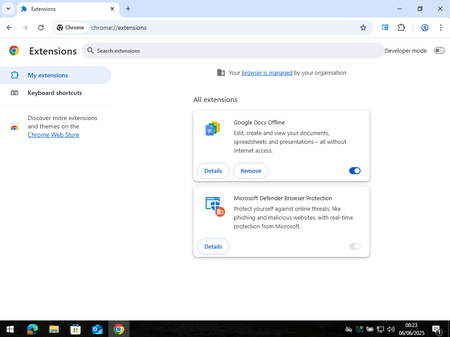
Has any one noticed how pointless this extension is? Deployed using Intune with tamper protection so the user is forced to use it, but Microsoft has built in a disable feature to the extension that can not be controlled, or can it? Any ideas on how to harden this, or something for Microsoft to fix? Tamper Protection enabled: User can bypass by disabling the protection:399Views1like1CommentPart 1 - Develop a VS Code Extension for Your Capstone Project
API Guardian - My Capstone Project As software and APIs evolve, developers encounter significant difficulties in maintaining and updating API endpoints. Breaking changes can lead to system instability, while outdated or unclear documentation makes maintenance less efficient. These challenges are further compounded by the time-consuming nature of updating dependencies and the tendency to prioritize new features over maintenance tasks. The absence of effective tools and processes to tackle these issues reduces overall productivity and developer efficiency. To address this, API Guardian was created as a Visual Studio Code extension that identifies API endpoints in a project and checks their functionality before deployment. This solution was developed to help developers save time spent fixing issues caused by breaking or non-breaking changes and to alleviate the difficulties in performing maintenance due to unclear or outdated documentation. Features and Capabilities This extension has 3 main features: Feature 1. Developers can decide if the extension will scan or skip specified files in the project. Press “Enter” to scan/skip all files. Type the file name (e.g., main.py) and press “Enter” to scan/skip a single file. Type file names with a delimiter (e.g., main.py | pythonFile.py) and press “Enter” to scan/skip multiple files. Feature 2. Custom hover messages when developers mouse over identified APIs This hover message will vary based on the status of the APIs. If the API returns a success status, the hover message will only show the completed API and its status. However, if an error occurs, the hover message will include this additional information: (1) API Name, (2) Official API Link, (3) Error Message, (4) Title of Recommended Fix and (5) Link to the Recommended Fix. Feature 3. Excel Report with Details of Identified APIs After all the identified APIs have been tested, an excel report will exported with the following information to allow developers to easily identify the APIs in the project. What Technology and Products does it involved? Building a Visual Studio Code extension and publishing it to the Visual Studio Marketplace involves a mix of technologies and tools. The project was initiated using the NPM package, generator-code, to set up a JavaScript project for developing the extension. All the extension's logic will be developed and managed within the "extension.js" file generated during the setup process. Once ready for deployment, we will package the extension using "vsce" to generate a ".vsix" file, which will then be used for deployment to the Visual Studio Code Marketplace. The deployment process involves requiring the user to create a publishing account and using tools like vsce to upload and manage the extension's version, updates, and metadata. As part of this process, you would need to create a Personal Access Token (PAT) from Azure DevOps. This token is used to verify your identity and authenticate the publishing tool, allowing you to securely upload your extension to the Visual Studio Marketplace. The PAT provides the necessary permissions for tasks such as version management, publishing new releases, and updating the extension metadata. What did I learn? Throughout this journey, I learned not just about the technical stack but also about the value of detailed project setup and secure publishing processes. While the technical steps can be challenging, they’re incredibly rewarding, and I’m excited to dive deeper into it moving forward. I’m looking forward to exploring how the extension can be further improved and enhanced. If you're interested in learning more about how my API guidance was built, keep an eye out for my next post! API Guardian https://marketplace.visualstudio.com/items?itemName=APIGuardian-vsc.api About the Authors Main Author - Ms Joy Cheng Yee Shing, BSc (Hon) Computing Science Academic Supervisor - Dr Peter Yau, Microsoft MVP865Views0likes0CommentsDeploy Your First App Using GitHub Copilot for Azure: A Beginner’s Guide
Deploying an app for the first time can feel overwhelming. You may find yourself switching between tutorials, scanning documentation, and wondering if you missed a step. But what if you could do it all in one place? Now you can! With GitHub Copilot for Azure, you can receive real time deployment guidance without leaving the Visual Studio Code. While it won’t fully automate deployments, it serves as a step-by-step AI powered assistant, helping you navigate the process with clear, actionable instructions. No more endless tab switching or searching for the right tutorial—simply type, deploy, and learn, all within your IDE i.e. Visual Studio Code. If you are a student, you have access to exclusive opportunities! Whether you are exploring new technologies or experimenting with them, platforms like GitHub Education and the Microsoft Learn Student Hub provide free Azure credits, structured learning paths, and certification opportunities. These resources can help you gain hands-on experience with GitHub Copilot for Azure and streamline your journey toward deploying applications efficiently. Prerequisites: Before we begin, ensure you have the following: Account in GitHub. Sign up with GitHub Copilot. Account in Azure (Claim free credits using Azure for Students) Visual Studio Code installed. Step 1: Installation How to install GitHub Copilot for Azure? Open VS Code, in the leftmost panel, click on Extensions, type – ‘GitHub Copilot for Azure’, and install the first result which is by Microsoft. After this installation, you will be prompted to install – GitHub Copilot, Azure Tools, and other required installations. Click on allow and install all required extensions from the same method, as used above. Step 2: Enable How to enable GitHub Copilot in GitHub? Open GitHub click on top rightmost Profile pic, a left panel will open. Click on Your Copilot. Upon opening, enable it for IDE, as shown in the below Figure. Step 3: Walkthrough Open VSCode, and click on the GitHub Copilot icon from topmost right side. This will open the GitHub Copilot Chat. From here, you can customize the model type and Send commands. Type azure to work with Azure related tasks. Below figure will help to locate the things smoothly: Step 4: Generate Boilerplate Code with GitHub Copilot Let’s start by creating a simple HTML website that we will deploy to Azure Static Web Apps Service. Prompt for GitHub Copilot: Create a simple "Hello, World!" code with HTML. Copilot will generate a basic structure like this: Then, click on "Edit with Copilot." It will create an index.html file and add the code to it. Then, click on "Accept" and modify the content and style if needed before moving forward. Step 5: Deploy Your App Using Copilot Prompts Instead of searching for documentation, let’s use Copilot to generate deployment instructions directly within Visual Studio Code. Trigger Deployment Prompts Using azure To get deployment related suggestions, use azure in GitHub Copilot’s chat. In the chat text box at the bottom of the pane, type the following prompt after azure, then select Send (paper airplane icon) or press Enter on your keyboard: Prompt: azure How do I deploy a static website? Copilot will provide two options: deploying via Azure Blob Storage or Azure Static Web App Service. We will proceed with Azure Static Web Apps, so we will ask Copilot to guide us through deploying our app using this service. We will use the following prompt: azure I would like to deploy a site using Azure Static Web Apps. Please provide a step-by-step guide. Copilot will then return steps like: You will receive a set of instructions to deploy your website. To make it simpler, you can ask Copilot for a more detailed guide. To get a detailed guide, we will use the following prompt: azure Can you provide a more detailed guide and elaborate on GitHub Actions, including the steps to take for GitHub Actions? Copilot will then return steps like: See? That’s how you can experiment, ask questions, and get step-by-step guidance. Remember, the better the prompt, the better the results will be. Step 6: Learn as You Deploy One of the best features of Copilot is that you can ask follow-up questions if anything is unclear—all within Visual Studio Code, without switching tabs. Examples of Useful Prompts: What Azure services should I use with my app? What is GitHub Actions, and how does it work? What are common issues when deploying to Azure, and how can I fix them? Copilot provides contextual responses, guiding you through troubleshooting and best practices. You can learn more about this here. Conclusion: With GitHub Copilot for Azure, deploying applications is now more intuitive than ever. Instead of memorizing complex commands, you can use AI powered prompts to generate deployment steps in real time and even debug the errors within Visual Studio Code. 🚀 Next Steps: Experience with different prompts and explore how Copilot assists you. Try deploying more advanced applications, like Node.js or Python apps. GitHub Copilot isn’t just an AI assistant, it’s a learning tool. The more you engage with it, the more confident you’ll become in deploying and managing applications on Azure! Learn more about GitHub Copilot for Azure: Understand what GitHub Copilot for Azure Preview is and how it works. See example prompts for learning more about Azure and understanding your Azure account, subscription, and resources. See example prompts for designing and developing applications for Azure. See example prompts for deploying your application to Azure. See example prompts for optimizing your applications in Azure. See example prompts for troubleshooting your Azure resources. That's it, folks! But the best part? You can become part of a thriving community of learners and builders by joining the Microsoft Learn Student Ambassadors Community. Connect with like-minded individuals, explore hands-on projects, and stay updated with the latest in cloud and AI. 💬 Join the community on Discord here.1.4KViews2likes1Comment