exchange
472 TopicsWhy is OOF an OOF and not an OOO?
Here's an interesting historical question - when we say Out of Office, why does it sometimes get shortened to ‘OOF’? Shouldn’t it be ‘OOO’? Inside Microsoft, ‘OOF’ means not just the message which says you’re Out of Office, but it has grown to mean the act of being Out of the Office too - so you’ll get people putting sticky notes on their door saying ‘OOF Thurs & Fri’ or even people verbally saying things like, "Oh, Kevin’s OOF on vacation for the rest of the week’. I suppose that sounds better than "Oh, Kevin’s OOO on vacation ..." OOF was a command used in the days of Microsoft’s Xenix mail system, which set a user as ‘Out of Facility’ - ie Out of the Office. The usage of the term ‘OOF’ just stuck, as did the term ‘Little r’ (e.g. on an email sent to a distribution list, "Who wants to go to the cinema tonight? Little ‘r’ if you’re interested", meaning reply just to me) - as preserved in Outlook with CTRL+R for Reply, and CTRL+SHIFT+R (aka Big R) for Reply All. Ewan Dalton401KViews43likes9CommentsMe Too!
One way of telling how long a Microsoft employee has been working here is their reaction to the phrase “Bedlam DL3”. Just for grins, I was at lunch in the cafeteria with a bunch of co-workers and I blurted out, totally out of context: “Bedlam DL3”. About 3 of the old-timers in the group responded, in chorus “Me Too!” So why does everyone know about this rather mysterious phrase? Well, Microsoft’s a pretty big organization. We’ve got well over 100,000 mailboxes in our email infrastructure, and at times it can become rather cumbersome to manage all these. One of the developers in our Internal Technologies Group (also known as ITG, basically the MIS department at Microsoft) was working on a new tool to manage communications with the various employees at Microsoft, and as a part of this tool, he created several distribution lists. Each distribution list had about a quarter of the mailboxes in the company on it (so there were about 13,000 mailboxes on each list). For whatever reason, the distribution lists were named “Bedlam DL<n>” (maybe the tool was named Bedlam? I’m not totally sure). Well the name of the lists certainly proved prophetic. It all started one morning when someone looked at the list of DL’s they were on, and discovered that they were on this mysterious distribution list called “Bedlam DL3”. So they did what every person should do in that circumstance (not!). They sent the following email: To: Bedlam DL3 From: <User> Subject: Why am I on this mailing list? Please remove me from it. Remember, there are 25,000 people on this mailing list. So all of a sudden, all 25,000 people received the message. And almost to a person, they used the “reply-all” command and sent: To: Bedlam DL3 From: <User> Subject: RE: Why am I on this mailing list? Please remove me from it. Me too! In addition, there were some really helpful people on the mailing list too: They didn’t respond with just “Me Too!” They responded with: To: Bedlam DL3 From: <User> Subject: RE: Why am I on this mailing list? Please remove me from it. Stop using reply-all – it bogs down the email system. You know what? They were right - the company’s email system did NOT deal with this gracefully. Why? Well, you’ve got to know a bit more about how Exchange works internally. First off, the original mail went to 13,000 users. Assuming that 1,000 of those 13,000 users replied, that means that there are 1,000 replies being sent to those 13,000 users. And it turns out that a number of these people had their email client set to request read receipts and delivery receipts. Each read and delivery receipt causes ANOTHER email to be sent from the recipient back to the sender (all 13,000 recipients). Assuming that 20% of the 1,000 users replying had read receipts or delivery receipts set, that meant that every one of the message that they sent caused another message to be sent for every one of the 13,000 recipients. So how many messages were sent? First there were the basic messages – that’s 13,000,000 messages. Next there were the receipts – 200 users, 13,000 receipts – that’s and additional 2,600,000 messages. So about 15.5 MILLION messages were sent through the system. In about an hour. So at a minimum, 15,600,000 email messages will be delivered into peoples mailboxes. But Exchange can handle 15,600,000 email messages EASILY. There’s another problem that’s somewhat deeper. An Exchange email message actually has TWO recipient lists – there’s the recipient list that the user sees in the To: line on their email message. This is called the P2 recipient list. This is the recipient list that the user typed in. There’s also a SECOND recipient list, called the P1 recipient list that contains the list of ACTUAL recipients of the message. The P1 recipient list is totally hidden from the user, it's used by the MTA to route email messages to the correct destination server. Internally, the P1 list is kept as the original recipient list, plus all of the users on the destination servers. As a result, the P1 list is significantly larger than the P2 list. For the sake of argument, let’s assume that 10% of the recipients on each message (130) are on each server. So each message had 100 recipients in the P1 header, plus the original DL. Assuming 100 bytes per recipient email address, this bloats each email message by 13K. And this assumes that there are 0 bytes in the message – just the headers involve 13K. So those 15,000,000 email messages collectively consumed 195,000,000,000 bytes of bandwidth. Yes, 195 gigabytes of bandwidth bouncing around between the email servers. Compounding this problem was a bug in the MTA that caused the MTA to crash that occurred only when it received a message with more than 8,000 recipients. But it crashed only AFTER processing up to 8,000 recipients. So 8,000 of the 13,000 recipients of the message would get it and 5,000 wouldn’t. When the MTA was restarted, it would immediately start processing the messages in its queue – and since the messages hadn’t been delivered yet, it would retry to deliver the message, sending to the SAME 8,000 recipients and crashing. And because of the way the Exchange store interacts with the MTA, even if we shut down the MTA, the messages would still queue up waiting on delivery to the MTA –shutting down the MTA wouldn’t fix the problem, it would only defer the problem (since the message store would immediately start delivering the queued messages into the MTA the second the MTA came back up). So what did we do to fix it? Well, the first thing that we did was to fix the MTA. And we tried to scrub the MTA’s message queues. This helped a lot, but there were still millions of copies of this message floating around the system. It took about 2 days of constant work before the email system recovered from this one. When it was over, the team firefighting the crisis had t-shirts made with “I survived Bedlam DL3” on the front and “Me Too! (followed by the email addresses of everyone who had replied)” on the back. To prevent anything like this happening in the future, we added a message recipient limit to Exchange – the server now has the ability to enforce a site-wide limit on the number of recipients in a single email message, which neatly prevents this from being a problem in the future. Larry Osterman327KViews13likes32CommentsImproving Security - Together
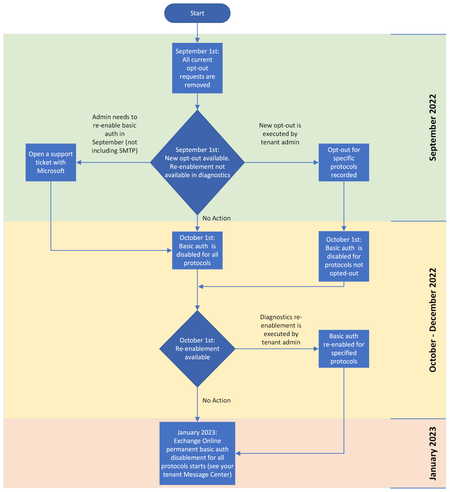
For many years, client apps have used Basic Authentication to connect to servers, services and endpoints. It is enabled by default on most servers and services and it’s super simple to set up. Simplicity isn’t at all bad in itself, but Basic Authentication makes it easier for attackers to capture user’s credentials and so we’re taking steps to improve data security in Exchange Online.295KViews23likes148CommentsRemoving specific messages from your Exchange Server
Ever so often, an Exchange administrator faces a situation where messages that fit specific criteria need to be removed from a large number of mailboxes or from Exchange transport queues. The need may arise due to some sort of mass mailing, a message sent accidentally to a large distribution group or individual recipients, or it could be one of the steps required to be taken as a part of cleanup efforts after a mass-mailing virus outbreak (although the latter have been increasingly rare and generally taken care of by Exchange-aware antivirus scanners). The steps for accomplishing this are documented in various places in Exchange documentation, but it can be difficult to refer to multiple sources if you have a mixed environment containing several versions of Exchange Server. We wanted to provide a single place with somewhat generic instructions on how to accomplish these tasks across all currently supported versions of Exchange Server - Exchange 2010, Exchange 2007, and Exchange 2003. Removing messages from mailboxes Removing messages using the Shell in Exchange 2010 RTM and Exchange 2007 In Exchange 2010 RTM and Exchange 2007, you can use the Export-Mailbox cmdlet to export or delete messages. In Exchange 2010 SP1, the functionality to export a mailbox is provided by the New-MailboxExportRequest cmdlet and is covered in a separate article. The functionality to search and delete messages is provided by the Search-Mailbox cmdlet. Permissions In Exchange 2010, the Mailbox Export Import RBAC role must be assigned to the account used to perform this operation (using Export-Mailbox in Exchange 2010 RTM or Search-Mailbox in Exchange 2010 SP1). If the role isn't assigned, you'll be unable to run or "see" the cmdlet. The versatile Export-Mailbox cmdlet can export mailbox content based on specific folder names, date and time range, attachment file names, and many other filters. A narrow search will go a long way in preventing accidental deletion of legitimate mail. For more details, syntax and parmeter descriptions, see the following topics: Export-Mailbox cmdlet reference How to Export Mailbox Data Exchange Server 2007 Export Mailbox task The account used to export the data must be an Exchange Server Administrator, a member of the local Administrators group of the target server, and have Full Access mailbox permission assigned on the source and target mailboxes. The target mailbox you specify must already be created; the target folder you specify is created in the target mailbox when the command runs. Adding and removing the necessary permissions This example retrieves all mailboxes from an Exchange organization and assigns the Full Access mailbox permission to the MyAdmin account. You must run this before exporting or deleting messages from user mailboxes. Note, if you need to export or delete messages only from a few mailboxes, you can use the Get-Mailbox cmdlet with appropriate filters, or specify each source mailbox. Get-Mailbox -ResultSize unlimited | Add-MailboxPermission -User MyAdmin -AccessRights FullAccess -InheritanceType all After exporting or deleting messages from mailboxes, you can remove the Full Access mailbox permission, as shown in this example: Get-Mailbox -ResultSize unlimited | Remove-MailboxPermission -User MyAdmin -AccessRights FullAccess -InheritanceType all Removing messages Here are a few examples that remove messages. This example removes all messages with the subject keyword "Friday Party" and received between Sept 7 and Sept 9 from the Inbox folder of mailboxes on Server1. The messages will be deleted from the mailboxes and copied to the folder DeleteMsgs of the MyBackupMailbox mailbox. The Administrator can now review these items or delete them from the MyBackupMailbox mailbox. The StartDate and EndDate parameters must match the date format setting on the server, whether it is mm-dd-yyyy or dd-mm-yyyy. Get-Mailbox -Server Server1 -ResultSize Unlimited | Export-Mailbox -SubjectKeywords "Friday Party" -IncludeFolders "\Inbox" -StartDate "09/07/2010" -EndDate "09/09/2010" -DeleteContent -TargetMailbox MyBackupMailbox -TargetFolder DeleteMsgs -Confirm:$false This example removes all messages that contain the words "Friday Party" in the body or subject from all mailboxes. Depending on the size of your environment, it is better to do the extraction/deletion in batches by using the Get-Mailbox cmdlet with the Server or Database parameters (Get-Mailbox -Server servername -ResultSize Unlimited or Get-Mailbox -Database DB_Name -ResultSize Unlimited), or specifying a filter using the Filter parameter. You can also use the Get-DistributionGroupMember cmdlet to perform this operation on members of a distribution group. Get-Mailbox -ResultSize Unlimited | Export-Mailbox -ContentKeywords "Friday Party" -TargetMailbox MyBackupMailbox -TargetFolder 'Friday Party' -DeleteContent It is recommended to always use a target mailbox (by specifying the TargetMailbox and TargetFolder parameters) so you have a copy of the data. You can review messages before purging them so any legitimate mail returned by the filter can be imported back to its owner mailbox. However, it is possible to outright delete all messages without temporarily copying them to a holding mailbox. This example deletes all messages that contain the string "Friday Party" in the message body or subject, without copying them to a target mailbox. Get-Mailbox | Export-Mailbox -ContentKeywords "Friday Party" -DeleteContent Removing messages on Exchange 2003 and Exchange 2000 using ExMerge The ExMerge utility can be used to extract mail items from mailboxes located on legacy Exchange Server versions. Follow the steps in KB 328202 HOW TO: Remove a Virus-Infected Message from Mailboxes by Using the ExMerge.exe Tool to remove unwanted messages from user mailboxes. Removing messages from Public Folders You can use the Outlook Object Model to remove messages from Public Folders. This works on any version of Exchange. The down side is that it's slower and may stumble when it hits huge folders with tens of thousands of items. In Exchange 2010/2007, you can use Exchange Web Services to remove messages from Public Folders. EWS has no problem running against large folders. The following posts have more details: Cleaning Viruses In Public Folders Using OOM Cleaning Viruses In Public Folders Using EWS Removing messages from mail queues There may be times where you need to purge messages from Exchange Server's mail queues to prevent delivery of unwanted mail. For more details about mail queues, see Understanding Transport Queues. Removing messages from mail queues on Exchange 2010 RTM and Exchange 2007 Removing a message from the queue is a two-step process. The first thing that must be done is that the message itself must be suspended. Once the messages have been suspended then you can precede with removing them from the queue. The below commands are based on suspending and removing messages based on the Subject of the message. Exchange 2007 SP1 and SP2 This command suspends messages with the string "Friday Party" from transport queues on all Hub Transport servers in your Exchange organization: Get-TransportServer | Get-Queue | Get-Message -ResultSize unlimited | where{$_.Subject -eq "Friday Party" -and $_.Queue -notlike "*\Submission*"} | Suspend-Message On Exchange 2007 RTM to SP2, you will not be able to suspend or remove message that are held in the Submission queue. So the command will not run against the messages in the submission queue. This command removes all suspended messages from queues other than the Submission queue. Get-TransportServer | Get-Queue | Get-Message -ResultSize unlimited | where{$_.status -eq "suspended" -and $_.Queue -notlike "*\Submission*"} | Remove-Message -WithNDR $False Exchange 2010 and Exchange 2007 SP3 This command suspends messages that have the string "Friday Party" in the message subject in all queues on Hub Tranpsort servers. Get-TransportServer | Get-Queue | Get-Message -ResultSize unlimited | where {$_.Subject -eq "Friday Party"} | Suspend-Message This command removes messages that have the string "Friday Party" in the message subject in all queues on Hub Transport servers: Get-TransportServer | Get-Queue | Get-Message -ResultSize unlimited | Where {$_.Subject -eq "Friday Party"} | Remove-Message -WithNDR $False Note, you can run the command against an individual Hub Transport server by specifiying the server name after Get-TransportServer. Suspend and remove messages from a specified transport queue You can also suspend and remove messages from a specified queue. To retrieve a list of queues on a transport server, use the Get-Queue cmdlet. This example suspends messages with the string "Friday Party" in the message subject in a specified queue. Get-Message -Queue "server\queue" -ResultSize unlimited | where{$_.Subject -eq "Friday Party"} | Suspend-Message This example removes messages with the string "Friday Party" in the message subject in the specified queue. Get-Message -Queue "server\queue" -ResultSize unlimited | where{$_.Subject -eq "Friday Party" } | Remove-Message -WithNDR $False Clear queues in Exchange Server 2000 and Exchange Server 2003 with MFCMAPI In Exchange 2003/2000, you can use MFCMapi to clear the queues. For details, see KB 906557 How to use the Mfcmapi.exe utility to view and work with messages in the SMTP TempTables in Exchange 2000 Server and in Exchange Server 2003. If there are a large number of messages in the queue, you may want to limit how many are displayed at a time. From the tool bar select Other > Options and under Throttle Level change the value to a more manageable number (for example, 1000). Preventing message delivery using Transport Rules In Exchange 2010 and Exchange 2007, you can use Transport Rules to inspect messages in the transport pipeline and take the necessary actions, such as deleting a message, based on the specified criteria. See Understanding Transport Rules for more details. On Exchange 2010 and Exchange 2007, you can use the New Transport Rule wizard from the EMC to easily create transport rules. The following examples illustrate how to accomplish this using the Shell. Note the variation in sytnax between the two versions. (The Exchange 2010 transport rule cmdlets have been simplified, allowing you to create or modify a transport rule using a one-line command.) Creating a Transport Rule to delete messages in Exchange 2010 This example creates a transport rule to delete messages that contain the string "Friday Party" in the message subject. New-TransportRule -Name "purge Friday Party messages" -Priority '0' -Enabled $true -SubjectContainsWords 'Friday Party' -DeleteMessage $true Creating a Transport Rule to delete messages in Exchange 2007 This example creates a transport rule to delete messages that contain the string "Friday Party" in the message subject. $condition = Get-TransportRulePredicate SubjectContains $condition.Words = @("Friday Party") $action = Get-TransportRuleAction DeleteMessage New-TransportRule -name "purge Friday Party messages" -Conditions @($condition) -Actions @($action) -Priority 0 Note: If your Exchange Organization has mixed Exchange 2007 and Exchange 2010 you will have to create a rule for each Exchange version. Angelique Conde, Ed Bringas276KViews0likes18CommentsBasic Authentication and Exchange Online – February 2021 Update
We previously announced we would begin to disable Basic Auth for five Exchange Online protocols in the second half of 2021. we are announcing some important changes to our plan to disable Basic Auth in Exchange Online.243KViews14likes67Comments