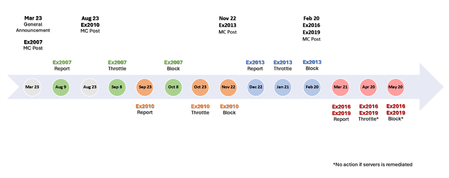
exchange 2007
622 TopicsReleased: March 2017 Quarterly Exchange Updates
With this month’s quarterly release we bid a fond farewell to Exchange Server 2007. Support for Exchange Server 2007 expires on 4/11/2017. Update Rollup 23 for Service Pack 3 will be the last update rollup released for the Exchange Server 2007 product. Today we are also releasing the latest set of Cumulative Updates for Exchange Server 2016 and Exchange Server 2013. These releases include fixes to customer reported issues and updated functionality. Exchange Server 2016 Cumulative Update 5 and Exchange Server 2013 Cumulative Update 16 are available on the Microsoft Download Center. Update Rollup 17 for Exchange Server 2010 Service Pack 3 is also now available. Exchange Server 2013 and 2016 require .Net 4.6.2 As previously announced, Exchange Server 2013 and Exchange Server 2016 now require .Net 4.6.2 on all supported operating systems. Customers who are still running .Net 4.5.2 should deploy Cumulative Update 4 or Cumulative Update 15, upgrade the server to .Net 4.6.2 and then deploy either Cumulative Update 5 or Cumulative Update 16. Arbitration Mailbox Migration Recently there have been reports of problems with customers migrating mailboxes to Exchange Server 2016. We wanted to take this opportunity to remind everyone that when multiple versions of Exchange co-exist within the organization, we require that all Arbitration Mailboxes be moved to a database mounted on a server running the latest version of Exchange. For more information, please consult the Exchange Server Deployment Assistance on TechNet. Update on S/MIME Control One year ago, we released an updated S/MIME Control for OWA. We have received questions from customers requesting clarification on what this release included. As stated previously, the control itself did not change. This was a packaging change necessary to prevent IE from throwing a certificate warning during installation due to SHA-1 deprecation. The Authenticode algorithm used to code sign the control uses a SHA-1 algorithm. SHA-1 ensures compatibility with Vista/Windows Server 2008 and Windows 7/Windows Server 2008R2 code signing. The Authenticode file hash and delivery package are signed with a SHA-2 certificate. Signing the package with a SHA-2 certificate prevents IE from throwing a certificate warning when the package is installed and provides the necessary protection for the entire package. Latest time zone updates All of the packages released today include support for time zone updates published by Microsoft through March 2017. TLS 1.2 Exchange Support Update coming in Cumulative Update 6 We would like to raise awareness of changes planned for the next quarterly update release. We are working to provide updated guidance and capabilities related to Exchange Server’s use of TLS protocols. The June 2017 release will include improved support for TLS in general and TLS 1.2 specifically. These changes will apply to Exchange Server 2016 Cumulative Update 6 and Exchange Server 2013 Cumulative Update 17. Late Breaking Issues not resolved in Cumulative Update 5 Cumulative Update 5 includes a couple of issues that could not be resolved prior to the product release. The unresolved items we are aware of include the following: When attempting to enable Birthday Calendars in Outlook for the Web, an error occurs and Birthday Calendars are not enabled. When failing over a public folder mailbox to a different server, public folder hierarchy replication may stop until the Microsoft Exchange Service Host is recycled on the new target server. Fixes for both issues are planned for Cumulative Update 6. Release Details KB articles that describe the fixes in each release are available as follows: Exchange Server 2016 Cumulative Update 5 (KB4012106), Download, UM Lang Packs Exchange Server 2013 Cumulative Update 16 (KB4012112), Download, UM Lang Packs Exchange Server 2010 Service Pack 3 Update Rollup 17 (KB4011326), Download Exchange Server 2007 Service Pack 3 Update Rollup 23 (KB4011325), Download Exchange Server 2016 Cumulative Update 5 does not include new updates to Active Directory Schema. If upgrading from an older Exchange version or installing a new server, Active Directory updates may still be required. These updates will apply automatically during setup if the logged on user has the required permissions. If the Exchange Administrator lacks permissions to update Active Directory Schema, a Schema Admin must execute SETUP /PrepareSchema prior to the first Exchange Server installation or upgrade. The Exchange Administrator should execute SETUP /PrepareAD to ensure RBAC roles are current. Exchange Server 2013 Cumulative Update 16 does not include updates to Active Directory, but may add additional RBAC definitions to your existing configuration. PrepareAD should be executed prior to upgrading any servers to Cumulative Update 16. PrepareAD will run automatically during the first server upgrade if Exchange Setup detects this is required and the logged on user has sufficient permission. Additional Information Microsoft recommends all customers test the deployment of any update in their lab environment to determine the proper installation process for your production environment. For information on extending the schema and configuring Active Directory, please review the appropriate TechNet documentation. Also, to prevent installation issues you should ensure that the Windows PowerShell Script Execution Policy is set to “Unrestricted” on the server being upgraded or installed. To verify the policy settings, run the Get-ExecutionPolicy cmdlet from PowerShell on the machine being upgraded. If the policies are NOT set to Unrestricted you should use the resolution steps in KB981474 to adjust the settings. Reminder: Customers in hybrid deployments where Exchange is deployed on-premises and in the cloud, or who are using Exchange Online Archiving (EOA) with their on-premises Exchange deployment are required to deploy the most current (e.g., 2013 CU16, 2016 CU5) or the prior (e.g., 2013 CU15, 2016 CU4) Cumulative Update release. For the latest information on Exchange Server and product announcements please see What's New in Exchange Server 2016 and Exchange Server 2016 Release Notes. You can also find updated information on Exchange Server 2013 in What’s New in Exchange Server 2013, Release Notes and product documentation available on TechNet. Note: Documentation may not be fully available at the time this post is published. The Exchange Team81KViews0likes51CommentsExchange 2007 reaches end of life on April 11th. What’s your plan to move?
On April 11, 2017, Exchange Server 2007 will reach End of Life. If you haven’t already begun your migration from Exchange 2007 to Office 365 or Exchange 2016, you need to start planning now. End of life means that Microsoft will no longer provide the following for Exchange 2007: Free or paid assisted support (including custom support agreements) Bug fixes for issues that are discovered and that may impact the stability and usability of the server Security fixes for vulnerabilities that are discovered and that may make the server vulnerable to security breaches Time zone updates Your installation of Exchange 2007 will continue to run after this date. However, because of the changes listed above, we strongly recommend that you migrate from Exchange 2007 as soon as possible. To learn about your options for migrating from Exchange 2007 to Office 365 or a newer version of Exchange Server, check out Exchange 2007 End of Life Roadmap. If you have other Office 2007 servers or clients, such as SharePoint Server 2007, PerformancePoint Server 2007, Office Communications Server, Project Server 2007, or Office 2007 client applications, check out Resources to help you upgrade from Office 2007 servers and clients for information about their end of life dates and upgrade options. Exchange Team10KViews0likes5CommentsReleased: December 2016 Quarterly Exchange Updates
Today we are announcing the latest set of Cumulative Updates for Exchange Server 2016 and Exchange Server 2013. These releases include fixes to customer reported issues and updated functionality. Exchange Server 2016 Cumulative Update 4 and Exchange Server 2013 Cumulative Update 15 are available on the Microsoft Download Center. Update Rollup 22 for Exchange Server 2007 Service Pack 3 and Update Rollup 16 for Exchange Server 2010 Service Pack 3 are also available. A new Outlook on the web compose experience Exchange Server 2016 Cumulative Update 4 includes a refresh to the compose experience. The body of the message is now “framed” and formatting controls have been moved to the bottom of the view. This mirrors the current experience in Office 365. Support for .Net 4.6.2 Exchange Server 2013 and Exchange Server 2016 now fully support .Net 4.6.2 on all supported operating systems. Customers who have already updated their Exchange servers to .Net 4.6.1 can proceed with the upgrade to 4.6.2 before or after installing the cumulative updates released today. Customers who are still running .Net 4.5.2 are advised to deploy Cumulative Update 4 or Cumulative Update 15 prior to upgrading to .Net 4.6.2. The upgrade to .Net 4.6.2, while strongly encouraged, is optional with these releases. As previously disclosed, the cumulative updates released in our March 2017 quarterly updates will require .Net 4.6.2. Change to Pre-Requisites installed by Setup Since Exchange Server 2013, the Windows feature Media Foundation has appeared as a pre-requisite in our setup checks on Windows Server 2012 and later. However, if you chose to allow Exchange setup to install the required OS Components, Desktop Experience has been installed on all supported operating systems. Desktop Experience is required on Windows Server 2008R2. The Desktop Experience feature includes additional components which are not necessary for Exchange Server and require frequent patching. Windows Server 2012 and later modified feature definitions to include Media Foundation. Exchange Setup in Exchange Server 2016 Cumulative Update 4 and Exchange Server 2013 Cumulative Update 15 has been updated to install Media Foundation instead of Desktop Experience on Windows Server 2012 and later. This change will only apply to newly installed servers. Applying either cumulative update will not change the existing configuration of the server. If desired, an administrator can add Media Foundation and remove Desktop Experience from the list of installed Windows features on Windows Server 2012 and later. Update on Windows Server 2016 support The Windows team has released KB3206632. This update addresses the issue where IIS would crash after a DAG is formed and the server is subsequently restarted. This update is now required on all servers running Exchange Server 2016 on Windows Server 2016. Setup will not proceed unless the KB is installed. Latest time zone updates All of the packages released today include support for time zone updates published by Microsoft through October 2016. Important Public Folder fix included in these releases Exchange Server 2013 Cumulative Update 14 and Exchange Server Cumulative Update 3 introduced an issue where new posts to a public folder may not have been indexed if there was an active public folder migration (KB3202691). This issue is now resolved. To ensure all public folders are indexed appropriately, all public folder mailboxes should be moved to a new database after applying the appropriate cumulative update released today. Release Details KB articles which contain greater depth on what each release includes are available as follows: Exchange Server 2016 Cumulative Update 4 (KB3177106), Download, UM Lang Packs Exchange Server 2013 Cumulative Update 15 (KB3197044), Download, UM Lang Packs Exchange Server 2010 Service Pack 3 Update Rollup 16 (KB3184730), Download Exchange Server 2007 Service Pack 3 Update Rollup 22 (KB3184712), Download Exchange Server 2016 Cumulative Update 4 does not include new updates to Active Directory Schema. If upgrading from an older Cumulative Update or installing a new server, Active Directory updates may still be required. These updates will apply automatically during setup if user permissions and AD requirements are met. If the Exchange Administrator lacks permissions to update Active Directory Schema, a Schema Admin needs to execute SETUP /PrepareSchema prior to the first Exchange server installation or upgrade. The Exchange Administrator should also execute SETUP /PrepareAD to ensure RBAC roles are updated correctly. Exchange Server 2013 Cumulative Update 15 does not include updates to Active Directory, but may add additional RBAC definitions to your existing configuration. PrepareAD should be executed prior to upgrading any servers to Cumulative Update 15. PrepareAD will run automatically during the first server upgrade if Setup detects this is required and the logged on user has sufficient permission. Additional Information Microsoft recommends all customers test the deployment of any update in their lab environment to determine the proper installation process for your production environment. For information on extending the schema and configuring Active Directory, please review the appropriate TechNet documentation. Also, to prevent installation issues you should ensure that the Windows PowerShell Script Execution Policy is set to “Unrestricted” on the server being upgraded or installed. To verify the policy settings, run the Get-ExecutionPolicy cmdlet from PowerShell on the machine being upgraded. If the policies are NOT set to Unrestricted you should use the resolution steps in KB981474 to adjust the settings. Reminder: Customers in hybrid deployments where Exchange is deployed on-premises and in the cloud, or who are using Exchange Online Archiving (EOA) with their on-premises Exchange deployment are required to deploy the most current (e.g., 2013 CU15, 2016 CU4) or the prior (e.g., 2013 CU14, 2016 CU3) Cumulative Update release. For the latest information on Exchange Server and product announcements please see What's New in Exchange Server 2016 and Exchange Server 2016 Release Notes. You can also find updated information on Exchange Server 2013 in What’s New in Exchange Server 2013, Release Notes and product documentation available on TechNet. Note: Documentation may not be fully available at the time this post was published. The Exchange Team95KViews0likes51CommentsDeprecating support for SmartScreen in Outlook and Exchange
What are we announcing? On November 1, 2016, Microsoft will stop generating updates for the SmartScreen spam filters in Exchange Server 2016 and earlier (2013, 2010, 2007), Outlook 2016 for Windows and earlier (2013, 2010, 2007) and Outlook 2011 for Mac. The SmartScreen spam filter will be removed from future versions of Exchange Server and Outlook for Windows. (SmartScreen is not available in any other version of Outlook). This announcement does not affect the SmartScreen Filter online protection features built into Windows, Microsoft Edge and Internet Explorer browsers. While branded similarly, those features are technically distinct. These SmartScreen Filters to help people to stay protected from malicious websites and downloads. What is SmartScreen? What does it provide customers today? In Exchange and Outlook, SmartScreen is a spam content filter. It evaluates each message and returns an overall Spam Confidence Level (SCL). Items that are rated as spam are sent to Outlook’s Junk folder. Microsoft provides periodic updates to the filters, and administrators and users can download and install the updates to improve their junk email protection. For more details, see articles describing how this was done for Exchange Server and Microsoft Outlook. In Windows, Microsoft Edge and Internet Explorer browsers, the SmartScreen Filter online protection feature helps consumers to stay protected from malicious websites and downloads. This feature is not affected and it is not subject of the today’s announcement. Why is Microsoft deprecating support for SmartScreen in Outlook and Exchange? SmartScreen spam filters in Outlook and Exchange Server have become obsolete and have been replaced by Exchange Online Protection (EOP), a more effective cloud-based email filtering service. EOP is built into all Office 365 and Outlook.com accounts and available for purchase to protect on-premises Microsoft Exchange Server. This spam filtering technology was first released in 2003, which provided Outlook and Exchange a content filter able to identify spam campaigns and direct them to the Junk folder. As spammers have evolved and increased the volume and sophistication of their attacks, this type of spam prevention is no longer a useful way to prevent spam. For example, spammers now routinely randomize their campaigns and use reputation hijacking from legitimate sending domains to trick content filters. Spam attacks no longer take days and weeks em; they often complete or significantly morph within minutes. To be effective, filters should be real-time, always tapping into the intelligence of email campaigns happening within recent minutes or hours. Further, SmartScreen often conflicts with EOP (or other 3 rd -party cloud filtering solutions). This is especially painful when emails declared legitimate by upstream filters or administrator policies (e.g. IP Allow Lists, ETR s) are actually junked by SmartScreen, because SmartScreen is unaware of the upstream settings. Microsoft developed Exchange Online Protection to protect Office 365 and Outlook.com mailboxes and remove the need for SmartScreen. Most customers using Exchange Server (on-premises) have either added EOP or use a 3 rd -party filtering service or appliance to sanitize their mail flow. What is Exchange Online Protection (EOP)? Microsoft Exchange Online Protection (EOP) is a cloud-based email filtering service that helps protect end users and organizations against spam and malware, and includes features to safeguard organization from messaging-policy violations. EOP is backed by a modern spam filtering stack, where content filters have a lesser role and sending IP and domain reputation, authentication, campaign detection, and spammer hosting infrastructure reputation are now responsible for filtering. For more details, review the EOP documentation on TechNet and this help article on Office 365 email anti-spam protection. What will happen on November 1, 2016? Microsoft will stop producing new spam definition updates to the SmartScreen filters in Exchange and Outlook. The existing SmartScreen filter and definitions will be left in place, and continue to provide a basic level of protection. The current definition will continue to junk some obvious spam emails, with an effectiveness that will degrade over time. As stated above, most users are protected by superior spam filtering arrangements and should not experience any change in their email experience or see an increase in spam. Again, this change does not affect the SmartScreen Filter online protection feature built into Windows, Microsoft Edge and Internet Explorer browsers. Will the deprecation of SmartScreen have any impact on users using Outlook with Office 365 or Outlook.com? No. Customers using Outlook with Office 365 (for work email) or Outlook.com (for personal email) already have the advanced spam and malware protection found in Exchange Online Protection built into those services. These customers don't need to take any action. Note: Some Office 365 customers may have replaced EOP with a 3 rd -party filtering solution. Those customers will also continue to be protected by those solutions and do not need to take any action. Will the deprecation of SmartScreen have any impact on users using Outlook with Exchange Server (on-premises)? Most likely not. Due to the reasons stated earlier, SmartScreen has stopped being a useful tool for combatting spam. The vast majority of customers using Exchange Server have either added Exchange Online Protection or use a 3 rd party filtering service or appliance to sanitize their mail flow. Customers using Exchange Server should ensure they have their spam protection solution properly configured before November 1, 2016. Customers not using a separate antispam solution today can purchase Exchange Online Protection for $1/user/month. Will the deprecation of SmartScreen have any impact on users using Outlook with Gmail, Yahoo or other online email solutions? Customers using Gmail, Yahoo or other online email solutions will be protected by the spam and malware protection found in those services. How does this deprecation impact Outlook’s Junk Email Options? Outlook’s Junk Email Options stay the same. Since the existing SmartScreen filter and definitions will be left in place, the Options tab will continue to control the SmartScreen protection level. As noted above, those definitions will continue to junk some obvious spam emails, with an effectiveness that will degrade over time. The other tabs are user driven settings and not related to SmartScreen. They will be unaffected by this change (e.g. items in your Safe/Blocked Senders list will still be filtered per your settings). Check out this help article for more on how the Junk Email options work. Will I still have a Junk folder in Outlook? All customers will continue to have a Junk folder. For customers using Outlook with their mailbox in Office 365 or Outlook.com, emails landing in the Junk folder will be determined by Exchange Online Protection (or a 3 rd -party solution) or by Outlook’s Blocked Senders list. Customers using Outlook with other email servers or services will benefit from upstream email filtering (such as EOP or 3 rd party solutions) in their respective environments. These email providers and filters will send items to Outlook’s junk folder. Does this affect the SmartScreen technologies in Windows, Edge and Internet Explorer? As stated earlier in this article, deprecating SmartScreen in Exchange and Outlook does not impact the SmartScreen Filter online protection feature built into Windows, Microsoft Edge and Internet Explorer browsers to protect users from malicious websites and downloads. Those protection tools will remain in place. For more information on how these SmartScreen technologies provide protection, see this link for Windows and this for Edge. The Exchange Team54KViews2likes14CommentsExchange Server 2007: T-1 year and counting
Today marks the start of the one-year countdown before Exchange Server 2007 reaches the end of extended support. If Exchange 2007 is still part of your messaging infrastructure, it’s not too early to start planning an update. It’s hard to believe that it’s been 9+ years since we released CCR , LCR and SCR . These technologies of course laid the ground work for the Database availability groups (DAGs) we’ve relied upon since Exchange Server 2010. Exchange Server 2007 also marked the start of the transition to building Exchange Server on the .Net Framework. We have continued that investment and .Net Framework is now the foundation of all critical Exchange processes in Exchange 2013, Exchange 2016 and Office 365. Exchange PowerShell, also new to Exchange 2007, is even more prevalent in current versions of Exchange and is the de facto management tool for modern Exchange Servers. As revolutionary as Exchange 2007 was at the time, our latest versions of Exchange Server and Office 365 have even more to offer. Customers running Exchange 2007 have the option to upgrade via mailbox move to Exchange 2010, Exchange 2013 or migrate directly to Office 365. Customers wanting to migrate to the latest version of Exchange Server, Exchange Server 2016, will need to first decrement Exchange Server 2007. Customers wanting to maximize their on-premises server investment should strongly consider migrating to Exchange Server 2016 as Exchange Server 2013 is already three years into its own 10-year lifecycle. Here are links which you may find helpful to start planning your migration off of Exchange Server 2007 and be on your way to experiencing the latest capabilities of Exchange Server. Microsoft Exchange Server Deployment Assistant Upgrade from Exchange Server 2007 to Exchange 2013 Planning and Deployment of Exchange Server 2016 Office 365 Fast Track Center The Exchange Team24KViews0likes5CommentsReleased: March 2016 Quarterly Exchange Updates
The Exchange team is happy to announce our spring quarterly updates for Exchange Server are now available on the Microsoft Download Center. Exchange Server 2016 receives its first Cumulative Update, and Exchange Server 2013 Cumulative Update 12 is also released. Exchange Server 2007 and Exchange Server 2010 Update Rollups provide an updated OWA S/MIME control signed with a SHA-2 certificate. More information and highlights of all these releases can be found below. Updated OWA S/MIME control All of the packages released today include an update to the OWA S/MIME control. The control itself has not changed, but has now been signed with a SHA-2 compliant certificate. All of the updates released will install the updated control onto the Exchange Server. Users who have installed the control into their browser will need to re-install this onto devices where the previous version was installed. Installing the control is straight forward and can be done quickly using OWA Options, Exchange Control Panel or Exchange Admin Center depending upon the release of Exchange you are using. New distribution package for Exchange Server 2016 updates With the introduction of Cumulative Updates for Exchange Server 2016, we are making a change to the update package type for this product version. Previous versions of Exchange used self-extracting packages to deliver service packs and cumulative updates. We have heard requests to release these updates as .ISO’s. With the capability to mount .ISO’s directly in Windows Server 2012 and later, we think it makes sense to ship Cumulative Updates as .ISO’s. At this time, we are not planning to do this for Exchange Server 2013 Cumulative Updates but could be persuaded to do so if enough people ask for it. One down side to this approach is that the package is much larger. However, copying a single .ISO vs. the ever growing number of files and folders over the network is much more efficient and faster. We hope you like this change. Change to Mailbox Anchoring for Remote PowerShell We heard your feedback on the changes to load balancing Remote PowerShell introduced into Exchange Server 2013 and 2016. As announced by Ross here, we have reverted this behavior in the Cumulative Updates being released today. Additional languages for Outlook on the Web Exchange Server 2016 Cumulative Update 1 adds support for 17 additional languages in Outlook on the Web. These languages will appear automatically in the language selection drop down after a server is updated to Cumulative Update 1. .Net 4.6.1 Support We know that many of you have been asking about .Net 4.6.1 and Exchange. Rest assured we are working closely with the .Net Framework team to resolve issues preventing us from supporting .Net 4.6.1 with Exchange Server. While we are not there yet, we hope to be very soon. Support for .Net 4.6.1 is planned for future Cumulative Updates for Exchange Server 2013 and 2016. Slow installations on Windows Server 2012 R2 For customers who are running Exchange on Windows Server 2012 R2, we want to make certain you are aware of a condition which can substantially increase the amount of time it takes to install Exchange Updates on this OS. Working with the .Net team, we have discovered that systems which have applied Windows Update KB3097966 can take 50% more time to install Exchange. The .Net team is working on a resolution to this and will include a fix in a future product update. In the meantime, customers who have deployed this Windows update can take a one-time action on their server before installing Exchange or a Cumulative Update to bring installation time back to normal. This procedure needs to be done once on every Exchange server running Windows Server 2012 R2. The command to execute is: “%windir%\Microsoft.NET\Framework64\v4.0.30319\ngen.exe update” Errors and warnings encountered running this command can be safely ignored provided the final exit status code of 0 is reported in the output. Support for Standalone Hybrid Configuration Wizard in Exchange Server 2010 Customers using Exchange Server 2010 in Hybrid mode with Office 365 will notice a new link in the EMC to use the Updated Standalone Hybrid Configuration Wizard. We encourage all customers to use this updated version of the Hybrid Configuration Wizard. Release Details KB articles which contain greater depth on what each release includes are available as follows: Exchange Server 2016 Cumulative Update 1 (KB3134844), Download, UM Lang Packs Exchange Server 2013 Cumulative Update 12 (KB3108023), Download, UM Lang Packs Exchange Server 2010 Service Pack 3 Update Rollup 13 (KB3141339), Download Exchange Server 2007 Service Pack 3 Update Rollup 19 (KB3141352), Download Note: Documentation may not be fully available at the time this post was published. Exchange Server 2016 Cumulative Update 1 does include updates to Active Directory Schema. These updates will apply automatically during setup if the permissions and AD requirements are met during installation. If the Exchange Administrator lacks permissions to update Active Directory Schema, a Schema Admin should execute SETUP /PrepareSchema before installing Cumulative Update 1 on your first server. The Exchange Administrator should also execute SETUP /PrepareAD to ensure RBAC roles are updated correctly. Exchange Server 2013 Cumulative Update 12 does not include updates to Active Directory or additional RBAC changes. However, depending on the version you are upgrading from, it may be required. PrepareAD will run automatically during the first server upgrade if Setup detects this is required and the logged on user has sufficient permission, otherwise, setup will require you to re-run setup with sufficient permissions. Additional Information Microsoft recommends all customers test the deployment of any update in their lab environment to determine the proper installation process for your production environment. For information on extending the schema and configuring Active Directory, please review the appropriate TechNet documentation. Also, to prevent installation issues you should ensure that the Windows PowerShell Script Execution Policy is set to “Unrestricted” on the server being upgraded or installed. To verify the policy settings, run the Get-ExecutionPolicy cmdlet from PowerShell on the machine being upgraded. If the policies are NOT set to Unrestricted you should use the resolution steps in KB981474 to adjust the settings. Reminder: Customers in hybrid deployments where Exchange is deployed on-premises and in the cloud, or who are using Exchange Online Archiving (EOA) with their on-premises Exchange deployment are required to deploy the most current (e.g., CU12) or the prior (e.g., CU11) Cumulative Update release. For the latest information on Exchange Server and product announcements please see What's New in Exchange Server 2016 and Exchange Server 2016 Release Notes. You can also find updated information on Exchange Server 2013 in What’s New in Exchange Server 2013, Release Notes and product documentation available on TechNet. The Exchange Team276KViews0likes40CommentsReleased: December 2015 Quarterly Exchange Updates
The Exchange team is announcing the availability of our latest quarterly update for Exchange Server 2013 as well as updates for Exchange Server 2010 Service Pack 3 and Exchange Server 2007 Service Pack 3. Cumulative Update 11 for Exchange Server 2013 and UM Language Packs are now available on the Microsoft Download Center. Cumulative Update 11 contains the latest set of fixes and builds upon Exchange Server 2013 Cumulative Update 10. The release includes fixes for customer reported issues, minor product enhancements and previously released security bulletins. A complete list of customer reported issues resolved can be found in Knowledge Base Article KB3099522. Customers running any previous release of Exchange Server 2013 can move directly to Cumulative Update 11. Customers deploying Exchange Server 2013 for the first time may skip previous releases and start their deployment with Cumulative Update 11 directly. Cumulative Update 11 does not include updates to Active Directory Schema, but may add additional RBAC definitions to your existing configuration. PrepareAD should be executed prior to upgrading any servers to CU11. PrepareAD will run automatically during the first server upgrade if Setup detects this is required and the logged on user has sufficient permission. We are also releasing Update Rollup 12 for Exchange Server 2010 Service Pack 3 (KB3096066). The Exchange Server 2010 update includes a DST update as well as a collection of important fixes. Update Rollup 18 for Exchange Server 2007 Service Pack 3 (KB3078672) is also being released. Update Rollup 18 is primarily a DST fix with an additional opportunistic fix. We would like to call attention to two particularly important changes included in these updates: Cumulative Update 11 and Update Rollup 12 each contain a time zone calculation fix to resolve the issue reported in KB3048372 – Exchange Calendar Items are shifted incorrectly when some Windows DST updates are applied. Customers in impacted time zones are encouraged to deploy these updates to address the issue identified after the release of the OS time zone changes in KB3039024. Cumulative Update 11 also includes a change in behavior when deploying/administering Exchange Server 2013 in a co-existent manner with Exchange Server 2010 or 2016. These changes are outlined in the following blog article: Exchange Management Shell and Mailbox Anchoring. For our customers running Exchange Server 2016, Exchange Server 2016 Cumulative Update 1 will be added to our next set of quarterly updates for Exchange Server. Microsoft recommends all customers test the deployment of any update in their lab environment to determine the proper installation process for your production environment. For information on extending the schema and configuring Active Directory, please review the appropriate TechNet documentation. Also, to prevent installation issues you should ensure that the Windows PowerShell Script Execution Policy is set to “Unrestricted” on the server being upgraded or installed. To verify the policy settings, run the Get-ExecutionPolicy cmdlet from PowerShell on the machine being upgraded. If the policies are NOT set to Unrestricted you should use the resolution steps in KB981474 to adjust the settings. Reminder: Customers in hybrid deployments where Exchange is deployed on-premises and in the cloud, or who are using Exchange Online Archiving (EOA) with their on-premises Exchange deployment are required to deploy the most current (e.g., CU11) or the prior (e.g., CU10) Cumulative Update release. For the latest information and product announcements please read What’s New in Exchange Server 2013, Release Notes and product documentation available on TechNet. Note: Documentation may not be fully available at the time this post was published. The Exchange Team67KViews0likes13Comments