excel
45126 Topics
Formulas in excel for items uploaded to Google
We have been using the sheet in the link on our google drive but we are having ongoing issues with the formula erroring. The sheet is not working again now but did work for several years. Often I can get them to work in excel on my desktop but once I drag them to our Google Drive for everyone to use, they seem to have interesting things happen. Can someone please help me with the formula for this one so I can have the students automatically populated in other sheets corresponding to the area of the school they are in please. Like I said, it was working, but will not even work when I open in excel now either. In the EY sheet, I have pasted the old formula that was working which is not returning zero. https://docs.google.com/spreadsheets/d/1d8ToveFB-raTakAXZ-buiflXOHBQc-sp/edit?usp=sharing&ouid=112080839837559797864&rtpof=true&sd=true35Views0likes2Comments
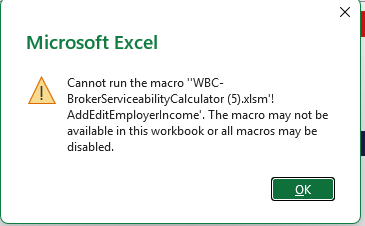
macro not avaliable in this workbook
1: Check whether Excel has blocked the macros Close the workbook. Open File Explorer and locate the .xlsm file. Right-click the file and select Properties. On the General tab, look at the bottom for a Security message with an Unblock checkbox. If it appears and you trust the file, check Unblock, click Apply, then OK. Reopen the workbook. 2: Enable macros in Excel Open Excel. Go to File → Options → Trust Center. Click Trust Center Settings → Macro Settings. Choose an appropriate setting that allows the workbook's macros to run, subject to your organization's security policies. Avoid enabling all macros globally. Click OK and reopen the workbook.40Views0likes1Comment
Excel 365 64-bit: Out of memory when editing VBA in an existing XLSM
Hello, Microsoft Support referred me to this community because they could not resolve an Excel VBE editing issue. Environment: Microsoft 365 Excel for Windows, 64-bit; Version 2610, build 16.0.20527.20088; Existing macro-enabled workbook (.xlsm); Calculation mode: Manual. Problem: While editing an existing standard VBA module, typing: Dim testeCompilacao As Long and pressing Enter triggers “Out of memory.” Adding a new procedure also triggers the error. This occurs before compiling or executing any macro. In a new blank workbook, I can create a VBA procedure normally. Tests already completed: Office Quick Repair: the error persists; Excel Safe Mode: the error persists; Checked VBA references: none marked MISSING; Tried another existing standard module: the same error occurs. A preserved version of the workbook previously compiled successfully and opened without a repair warning. The workbook contains 46 worksheets, 12,485 formulas, VBA and CustomXML used to persist scenario data. These elements must be preserved during troubleshooting. Support suggested importing native module exports into a separate new XLSM, without copying worksheets. That isolation test has not yet been completed. What diagnostic steps can distinguish an Office/VBE build or installation issue from a problem within this specific VBA project? What logs or additional evidence would help identify the cause? I can provide screenshots of the error and the Excel version. The complete workbook contains proprietary code and data and is not suitable for public posting. Thank you.34Views0likes2Comments
Problem with Excel's check boxes aspect/render/font
Ok, this may be a weird one. I just installed Windows 11 (fresh installation, not over an older version) and then installed Office 365. Windows 11 Pro 26H2 26300.9711 and Excel version 2609 Build 16.0.20430.20032 64-bit, if that matters. Now, I have this weird thing, and it may be difficult to explain. In my older SO, my work pc (W10) and Excel online, when I put a checkbox in a cell, it is a rounded square and when you checkmark it, the hole square gets colored as the text color and only the actual checkmark is colored as the background. It's very easy to distinguish them, because you have empty boxes that are only border-colored and checkmarked boxes that are completely colored. In my new installation, when I put a checkbox, it shows as a not-rounded square border, and if you checkmark it, it only adds the checkmark inside the square, but it doesn't fill the square, still just the border and the tickmark. Which makes them very easy to miss, specially in long lists. Since is difficult to understand just written, here is an illustation: Of course, to solve the visibility problem, I can add some conditional formatting to color the "TRUE" values or so, but that's besides the point. It used to work correctly and still works correctly in other installations, but not in the new one and that's what I want to solve, not just work around it. To add some info: it's not about the font chosen, nor about the , they don't change aspect independently of the font I have selected. The exact same file shows them different in the different computers. It may be a Windows thing, more than a Excel thing, but I don't know what to even check. It also may be some kind of font/symbol/character file that Office uses as default, but also don't know how to check. I already updated both Windows and Excel with no luck. Any ideas what may be?59Views0likes2Comments
Excel 4.0 macros are not working properly after last update Oct 2026
One of the functions I use in the name manager Eval1=LAMBDA(x,IF(TODAY(),EVALUATE(x),)) has stopped providing results. It only returns #NAME? as result. I have been using it for years without a problem and the last update (Oct 2026) I believe was the source of this issue. I have already checked the settings in the Trust Centre and are fine.57Views0likes2CommentsFeature Request: Repeat Rows at Bottom of Printed Pages
Excel currently supports "Rows to repeat at top" (Print Titles), but there is no equivalent feature for repeating rows at the bottom of every printed page. This would be useful for stocktaking sheets, picking lists, audit forms, inspection records and other printed worksheets where users need space for handwritten additions or notes. Proposed enhancement: Add a "Rows to repeat at bottom" option in Page Setup, similar to the existing "Rows to repeat at top" setting. The specified rows would be printed at the bottom of every page, regardless of sheet length or filtering. My current use case is stocktake reports generated from Power Query where counters need 3-5 blank lines at the bottom of every printed page to record items not listed.138Views0likes2CommentsContent Not Permitted, two-four-seven is not allowed in the community. Remove it & try again.
What does this mean? "Content Not Permitted, two-four-seven is not allowed in the community. Remove it and try again." My post had text and snipping-tool images from my Excel spreadsheet - that's all. What is "two-four-seven"? How can I display images from my spreadsheet without triggering this error? And as I tried to publish this question, I got the same warning! So I have spelled out the numerals.Solved123Views0likes3Comments