entra id
108 Topics
How to update the proxyAddresses of a Cloud-only Entra ID user
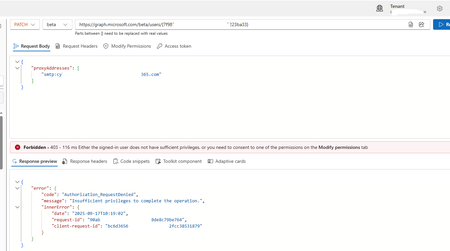
I currently have a client with an Entra ID user (not migrated from on-premises) that is cloud-based, but has proxyAddresses values assigned. Now, I want to update the proxyAddresses through the Graph Explorer and have used this link as a guide: https://learn.microsoft.com/en-us/answers/questions/2280046/entra-connect-sync-blocking-user-creation-due-to-h. Now this guide is suggesting you can use the BETA model and this URL format... https://graph.microsoft.com/beta/users/%USERGUID% It states you can use that URL to do both 'GET' and 'PATCH' queries - the PATCH query being the one that will change the settings. You have to put forth a body for the proxyAddresses property in the PATCH query, which represents all of the addresses you want the user to utilise as proxy addresses. Now the GET query works... The PATCH query does not... Screenshot provided: Now, regarding the error message, I have applied ALL possible permissions in the 'Modify Permissions' tab. It is still erroring, Now I cannot use Exchange Online PowerShell, as the user does not have a mailbox! Aside from potentially using a license for Exchange Online or provisioning a mailbox for the user, and making the necessary changes, would the only other option be to delete/recreate the user?Solved1.7KViews0likes4Comments
From Domain-Joined to Microsoft Entra Joined: A Low-Disruption Migration Framework
How the right in-place migration approach can preserve eligible user profiles, establish Intune management, and accelerate the move away from on-premises Active Directory. Cloud-native endpoint management is relatively straightforward when a Windows device is new. The harder problem is the installed base: hundreds or thousands of working laptops and desktops that already contain user profiles, local files, applications, certificates, security controls, and years of configuration. Resetting and re-provisioning those devices is a valid route, but it can introduce significant coordination, user downtime, application rebuilding, and service-desk demand. This often creates a practical gap between an organisation's cloud strategy and its ability to move the existing fleet. Can an existing domain-joined or hybrid Microsoft Entra joined Windows device move to Microsoft Entra join without being wiped or re-imaged? For eligible devices, the technical answer can be yes, when specialized migration tooling, careful preparation, and a controlled recovery model are used. However, an important support distinction must be made at the outset. The Microsoft support boundary matters Microsoft recommends Microsoft Entra joined, cloud-managed endpoints as the strategic direction for organisations that are ready to reduce their reliance on on-premises infrastructure. Microsoft also states that its supported path for converting an existing Active Directory-joined or hybrid Microsoft Entra joined device to Microsoft Entra join requires a Windows reset; it does not provide a Microsoft-supported, no-reset conversion path for that scenario. See Microsoft's guidance on Microsoft Entra join and hybrid join. A no-reset migration is therefore not a hidden Microsoft feature. It is a vendor-supported, tool-assisted workflow that orchestrates Windows, Microsoft Entra ID, Microsoft Intune, and Microsoft Graph capabilities and adds the missing profile-continuity and recovery layers. Microsoft may support the underlying platform components, but not the end-to-end no-reset conversion. That distinction does not put the approach in conflict with Microsoft's direction. The destination, Microsoft Entra joined devices managed by Intune, is aligned with Microsoft's cloud-native endpoint strategy. The bridge used to move the existing fleet is specialized and must be validated through a representative proof of concept, with clear ownership for support and recovery. The strategic destination can be Microsoft-native even when the migration bridge is specialized. What “seamless” should mean in practice “Seamless” should not mean that nothing changes. A credible low-disruption migration may still require a user sign-out, controlled restarts, a first sign-in with Microsoft Entra credentials, Windows Hello re-provisioning, and re-authentication to some applications. Instead, a successful in-place migration should aim to achieve the following: Retain the same physical device and Windows installation. Keep the eligible local Windows profile, local files, installed applications, and compatible settings in place. Re-associate that profile with the correct Microsoft Entra identity. Establish or re-establish Intune management in a controlled manner. Restore the intended application and policy targeting. Protect BitLocker and local-administrator recovery throughout the transition. Limit the interactive cutover to a predictable maintenance window. Produce verifiable evidence that identity, management, security, and user productivity are working after the change. The join operation is a milestone; it is not the entire migration. A device is truly migrated only when the user can work and the required security controls are demonstrably active. A step-by-step framework for an in-place migration Step 1: Define the complete target state Do not define success simply as “Microsoft Entra joined.” The target state should cover four connected layers: Device trust The endpoint is Microsoft Entra joined in the correct tenant and is no longer joined to the on-premises domain where that is the intended outcome. Management The endpoint is enrolled in Intune, has the correct corporate/personal ownership classification and primary user, has the required Microsoft Entra registered owner where applicable, and receives the required applications and configurations. User continuity The correct user can sign in to the existing eligible profile and access the files, applications, and services needed for work. Security and recovery Compliance is evaluated, Conditional Access behaves as designed, and BitLocker, Windows LAPS, Defender, certificates, and recovery access are validated. For new designs, a supported Windows 11 edition capable of Microsoft Entra join should be the forward-looking baseline; Windows Home editions cannot be Microsoft Entra joined. Windows 10 reached end of support on 14 October 2025; ESU, LTSC, or other exceptional servicing scenarios should be assessed separately against Microsoft's lifecycle information. Step 2: Discover dependencies and segment the estate An accurate inventory determines which devices are suitable for an in-place path. At a minimum, collect: Current join and management state. Windows version, edition, servicing status, disk health, free space, and pending restarts. Primary and additional local profiles, including profile health and size. Source account, target user principal name, and any identity-mapping exceptions. BitLocker status, recovery-key location, and local-administrator or LAPS recovery route. Applications that use AD computer authentication, legacy protocols, device certificates, or domain service accounts. GPO-delivered settings, mapped drives, printers, folder redirection, logon scripts, Wi-Fi, VPN, and certificate delivery. Windows Hello, Credential Manager, EFS, private keys, and other identity-bound data. Network location, proxy behavior, endpoint security controls, and remote-worker constraints. Use the findings to classify devices into practical groups: Ready for a tool-assisted in-place migration. Ready after remediation. Better suited to reset and Windows Autopilot. Better suited to hardware replacement. Temporarily retained as a managed hybrid exception because a dependency remains. This segmentation prevents a small number of unsuitable devices from setting the risk profile for the entire project. Step 3: Replace the policy dependencies—not merely the join state Once a device leaves Active Directory, Group Policy no longer refreshes. Existing registry-based settings may remain on the device, while mapped drives, printers, folder redirection, scripts, certificates, Wi-Fi, and VPN configuration may require a cloud-management replacement. Microsoft's Group Policy analytics in Intune can help identify which GPO settings have a cloud-management equivalent. The goal should not be to copy every historical setting. It should be to rebuild the controls the organisation still requires through Intune, rationalizing old policies along the way. Applications that rely on an AD computer account or machine authentication deserve particular attention. Device migration cannot make an application cloud-ready; application and infrastructure modernization remain separate work streams. Step 4: Prepare Microsoft Entra ID and Intune before touching a device The destination must be ready before the source trust is removed. Confirm: Target user identities exist, are enabled, and use the intended sign-in names. Required Microsoft Entra ID and Intune licences are active. Device-join permissions, device limits, MDM authority, enrollment restrictions, and ownership rules are correct. The correct users are included in the Intune MDM user scope. Required applications, configuration profiles, security baselines, certificates, Wi-Fi, VPN, and update policies are assigned. Compliance policies and Conditional Access rules include a safe enrollment and bootstrap path. Access to required on-premises resources has been tested from a Microsoft Entra joined device. Microsoft documents that eligible corporate devices can automatically enroll in Intune when they join Microsoft Entra ID, provided licensing and MDM scope are configured correctly. Conditional Access deserves careful sequencing. A device may need time to enroll, receive policy, and report compliance. Temporary exceptions, if required, should be narrow, documented, monitored, time-bound, and removed as soon as the migration wave is complete. Compliance does not migrate from the old device record; it must be evaluated again in the target state. Step 5: Secure the migration control plane A mature migration design should use a customer-controlled Microsoft Entra application with only the Microsoft Graph permissions required for the enabled functions. Application credentials should be protected, rotated, audited, and revoked when no longer required. Microsoft recommends applying the principle of least privilege to Microsoft Graph permissions. Where the selected workflow requires credentials to update, disable, or delete source AD computer objects, use a dedicated identity with narrowly delegated permissions rather than broad domain administration. If the workflow uses a Windows Configuration Designer provisioning package, treat it as a privileged credential. Microsoft's bulk enrollment documentation notes that the embedded bulk token can be valid for up to 180 days and that MFA is not supported in that particular token flow. Microsoft documents bulk provisioning for new devices, not as a native in-place profile-migration method, so any orchestration around it remains part of the specialized workflow. Protect the package, scope any necessary policy exception tightly, test it on a non-production device, and revoke it after use. Endpoint security controls also need advance preparation. Any approved migration executable and the system actions it performs must be tested against EDR, antivirus, WDAC, AppLocker, hardening policies, and proxy controls. A good architecture should not require a persistent endpoint agent after the migration is complete. Step 6: Build recovery into the design Changing device trust crosses several systems and is not one atomic transaction. A credible plan therefore starts with recovery, not optimism. Before migration: Confirm that critical user data is backed up or successfully synchronized to an approved location. Keeping files on the same disk is not a substitute for backup. Confirm that a working BitLocker recovery password is available through an approved location. Confirm a tested local-administrator or Windows LAPS break-glass route. Keep source recovery information available until target escrow is verified. Record the source join state, device identifiers, user-to-profile mapping, primary user, group assignments, and management state. Define stop points and avoid irreversible source cleanup until the target state has been validated, where the workflow permits. Document who owns endpoint recovery, identity recovery, and user support. Microsoft recommends storing BitLocker recovery information for Microsoft Entra joined devices in Microsoft Entra ID; see the BitLocker recovery overview. Windows LAPS can back up managed local-administrator passwords to Microsoft Entra ID on Microsoft Entra joined devices. Do not accept a vague “rollback” promise. Look for phase-aware, checkpoint-based recovery that can identify the failure stage, preserve administrative access, and safely resume or repair the workflow. Reset or re-image should remain the documented last-resort recovery path. Step 7: Run a representative proof of concept A pilot built only from clean IT laptops proves very little. Include representative devices and users, such as: AD-joined and hybrid Microsoft Entra joined endpoints. Office-based and fully remote users. Different hardware models and supported Windows builds. BitLocker-protected devices. Large or multiple eligible local profiles. Certificate-based Wi-Fi or VPN. Business-critical and internally developed applications. Users who still require on-premises file, print, or application access. Define success before the pilot begins. Measure device join, Intune enrollment, policy receipt, compliance evaluation, BitLocker escrow, pre-cutover local-administrator or LAPS recovery, post-migration Windows LAPS policy and backup operation, application access, profile continuity, user downtime, failure rate, and recovery effort. The purpose of the pilot is not merely to prove that a device can join Microsoft Entra ID. It is to prove that a real user can remain productive afterward. Step 8: Apply a strict per-device readiness gate Immediately before cutover, an automated preflight should verify: Supported source and target states. A healthy, supported Windows installation and local profile. A valid source-user-to-target-user mapping. Intune enrollment eligibility and available device capacity. Stable power, internet, DNS, and non-interactive system connectivity. Sufficient privileges for the required system operations. Accessible BitLocker and local-administrator recovery. No blocking restart, disk, encryption, proxy, or security-software condition. An unloaded profile during the identity-re association stage. Valid target-join material and required API access. Unsafe devices should be blocked and routed to remediation rather than allowed to fail halfway through the trust transition. Step 9: Capture the state that must be reconstructed Before changing identity, a capable workflow should record the data required to rebuild the intended management relationship, including: Source user, target user, profile path, and security identifiers used for correlation. Existing Microsoft Entra, Intune, and Autopilot device identifiers where relevant. Intune primary user and ownership information where applicable. Assigned device-group memberships and any groups that must not be recreated. Device attributes or tags used for policy and application targeting. BitLocker recovery-key identifiers and administrative recovery status. Local execution logs and a central audit record. In a cross-tenant migration, group object IDs and device records are different. Memberships cannot simply be copied; source intent must be mapped to equivalent target groups, while dynamic membership must recalculate from target-tenant attributes. Step 10: Execute a protected identity transition The exact order varies by tool and environment. The following three phases are an illustrative orchestration model, not a universal sequence for every tool. Prepare and detach The workflow confirms readiness, protects the starting state, prevents sign-in during sensitive operations, and removes or transitions the former domain, registration, or management relationship in the planned sequence. Establish the target identity The selected tooling establishes the target Microsoft Entra join using Windows join or provisioning interfaces. Use of documented platform interfaces does not make the overall no-reset conversion a Microsoft-supported migration path. Controlled restarts and state checks confirm that the target trust was created before the workflow continues. Re-associate and finalize While the old user profile is fully unloaded, specialized tooling associates the existing eligible local profile with the correct target Microsoft Entra identity and aligns the necessary permissions. The local files do not need to be copied to an intermediate location simply to maintain the profile. After the protected stage, the user signs in with the Microsoft Entra account and final management, recovery, and cleanup tasks complete. This is the specialized part of the process. Microsoft does not provide a native supported AD-to-Entra profile-conversion utility, and its documentation states that, USMT does not support moving profiles from AD-joined devices to Microsoft Entra joined devices. The capability, support, and recovery obligations therefore belong to the chosen migration method. Profile continuity must also be described honestly. Windows Hello, passkeys, cached authentication tokens, Credential Manager entries, user-bound certificates and private keys, EFS-encrypted files, application licences, and some Outlook, OneDrive, or browser state may require re-authentication, re-provisioning, or separate recovery. Installed software can remain on the device without every identity-bound secret remaining usable. Endpoint migration does not migrate Exchange mailboxes, OneDrive or SharePoint content, Teams data, or other Microsoft 365 workloads; cross-tenant data migration requires a separate plan. Step 11: Re-establish management and policy intent Following the identity transition, the workflow should ensure that the endpoint: Enrolls in the correct Intune tenant and obtains valid management certificates. Has the correct primary user and ownership classification where applicable. Receives the intended device-group assignments, attributes, applications, and configuration. Re-onboards to Microsoft Defender for Endpoint where required. Escrows BitLocker recovery information to the intended target record. Receives the target Windows LAPS policy and proves administrative recoverability. Registers with Windows Autopilot for future reset, re-purpose, or replacement workflows where that is part of the lifecycle design. Removes obsolete source objects or management components only after the target state is proven. Be precise with the language: the same physical Windows installation may be retained, but new Microsoft Entra and Intune objects can be created. Intune enrollment is re-established, not magically “preserved,” and compliance must be recalculated after check-in. Step 12: Validate, observe, and scale in waves Validation should cover four dimensions. Identity Correct Microsoft Entra tenant and device record. AzureAdJoined : YES, DomainJoined : NO where intended, and successful device authentication in dsregcmd /status. A Primary Refresh Token for the signed-in user where expected. Microsoft documents these checks in its dsregcmd troubleshooting guidance. Management and security Intune check-in, correct primary user, policy delivery, Defender status, and compliance evaluation. Expected Conditional Access behaviour. Verified BitLocker recovery escrow and Windows LAPS operation. Required security baselines, certificates, updates, Wi-Fi, and VPN profiles. User continuity Desktop, documents, permitted local data, and compatible application settings. Microsoft 365, OneDrive, browser, Outlook, printers, mapped resources, and line-of-business applications. Expected reauthentication and Windows Hello provisioning. Business productivity SaaS access, required on-premises access, collaboration tools, and help-desk acceptance tests. Scale only after results are visible per device. A capable platform should provide central status, phase-level telemetry, error details, local Windows event logging, retry or recovery controls, and auditable outcomes. Migration can then proceed through technical validation, representative pilot, early adopters, departmental or location-based waves, broad rollout, and an exception queue. Depending on the operating model, deployment may use Intune, Group Policy, another endpoint-management platform, or a controlled manual process. Suitable endpoint-local architectures can also avoid a dedicated on-premises migration server. Define pause thresholds for first-pass failures, Intune enrollment delays, compliance delays, application incidents, and manual-recovery volume. Both centrally scheduled and guided self-service execution can be useful, depending on the user population and support model. Remote migration may be possible over the internet, but “no VPN required” should never be treated as universal. The answer depends on the domain-leave method, deployment channel, proxy, certificates, Wi-Fi, applications, and source-cleanup requirements. Remote scenarios need stable power, reliable connectivity, clear user communication, and a tested break-glass channel. What capable migration tooling should provide Automated readiness assessment Stops unsuitable devices before they enter a sensitive transition. Explicit identity mapping Connects the correct existing profile to the correct target user. In-place profile reassociation Preserves eligible local user state without rebuilding or copying the entire profile. Eligible multi-user profile handling Supports shared devices only when every profile and identity mapping is explicitly supported and proven in the pilot. Controlled sign-in and restart handling Prevents a user or background process from loading the profile during reassociation. Join and enrollment orchestration Coordinates domain departure, Microsoft Entra join, and Intune enrollment in the correct order. Primary-user, group, and attribute handling Reconstructs policy and application targeting without claiming that compliance state transfers. BitLocker and administrative recovery controls Maintains a usable recovery path throughout the identity gap. Source and target object hygiene Reduces duplicate, orphaned, or stale identity and management records. Remote and wave-based deployment Supports distributed workforces, schedules, rings, pauses, and exceptions. IT-driven and guided user modes Allows the operating model to match different user groups and support capacity. Central telemetry and local logs Gives IT evidence of each phase rather than relying on user reports. Checkpoint-based recovery Resumes or repairs partial transitions without promising an unrealistic one-click rollback. Least-privilege and transparent data handling Limits tenant access and makes it clear what device, identity, recovery, and diagnostic data is processed. No persistent endpoint agent after completion Avoids adding a permanent management dependency solely for a one-time transition. The right question is not, “Can the tool run a join command?” It is, “Can it safely coordinate identity, profile, management, recovery, and validation at enterprise scale?” How this complements Windows Autopilot Windows Autopilot and in-place migration solve different lifecycle problems. Microsoft describes Autopilot as a set of technologies for setting up and pre-configuring new devices and for resetting, re-purposing, and recovering existing devices. It should remain a core part of the future device lifecycle; see the Windows Autopilot overview. Device situation - Sensible approach New, replacement, or intentionally reset device - Use Microsoft Entra join through Windows Autopilot. Healthy existing device where eligible working state must remain substantially intact - Evaluate a vendor-supported, tool-assisted in-place migration through a representative proof of concept. Unhealthy, unsupported, or end-of-life device - Reset, rebuild, or replace it. Device with an unresolved legacy dependency - Remediate the dependency first or retain the device temporarily as a controlled hybrid exception. Windows Autopilot Reset should also be described accurately. On supported Microsoft Entra joined devices it removes personal files, apps, and settings while maintaining the Microsoft Entra and Intune connections; it does not support hybrid Microsoft Entra joined devices. Microsoft's Autopilot Reset documentation explains that use case. In-place migration does not replace Autopilot. It can help modernize the installed fleet, after which Autopilot can support the device's future reset, repurpose, recovery, and replacement lifecycle. When an in-place path may not be the right choice Reset or replacement may be safer when a device has: An unhealthy Windows installation, damaged disk, or corrupted profile. An unsupported edition or servicing state. A roaming, mandatory, temporary, VDI, FSLogix, or other containerized profile that the selected method does not explicitly support. EFS-encrypted content or critical private keys without a verified recovery plan. Business applications that require the AD computer account or cannot operate from a Microsoft Entra joined device. Kiosk, shared, laboratory, privileged-access, or other specialized configurations that require a separate design. So much historical configuration debt that a clean baseline is more valuable than preserving the current state. Low disruption is an eligibility-based design choice, not a guarantee for every endpoint. The practical way forward Reducing dependency on on-premises Active Directory does not have to be a big-bang rebuild of every Windows device. With the right discovery, target preparation, specialized migration tooling, security controls, and phased validation, eligible devices can move to a Microsoft Entra joined and Intune-managed state while keeping much of the user's familiar working environment in place. The most successful programs treat the change as more than a device join. They coordinate device trust, endpoint management, user continuity, and recovery as one controlled process. They use Windows Autopilot for new and reset devices, a vendor-supported in-place path where preserving the existing working state has clear business value and reset or replacement where it is technically safer. That is the practical path to faster endpoint modernization: align the destination with Microsoft's cloud-native strategy, choose the migration route according to device condition and business need, and declare success only after both security and user productivity have been verified. Microsoft Resources Cloud-native Windows endpoints overview Microsoft Entra joined versus hybrid Microsoft Entra joined endpoints High-level planning guide for cloud-native endpoints Plan a Microsoft Entra device deployment Set up automatic enrollment for Windows devices What USMT migrates—and does not migrate Windows Autopilot overview BitLocker recovery overview Windows LAPS overview196Views0likes0CommentsImproper AVD Host Decommissioning – A Practical Governance Framework
Hi everyone, After working with multiple production Azure Virtual Desktop environments, I noticed a recurring issue that rarely gets documented properly: Improper host decommissioning. Scaling out AVD is easy. Scaling down safely is where environments silently drift. Common issues I’ve seen in the field: Session hosts deleted before drain completion Orphaned Entra ID device objects Intune-managed device records left behind Stale registration tokens FSLogix containers remaining locked Defender onboarding objects not cleaned Host pool inconsistencies over time The problem is not technical complexity. It’s lifecycle governance. So I built a structured approach to host decommissioning focused on: Drain validation Active session verification Controlled removal from host pool VM deletion sequencing Identity cleanup validation Registration token rotation Logging and execution safety I’ve published a practical framework here: The framework is fully documented and includes validation logic and logging. https://github.com/modernendpoint/AVD-Host-Decommission-Framework The goal is simple: Not just removing a VM — but preserving platform integrity. I’m curious: How are you handling host lifecycle management in your AVD environments? Fully automated? Manual? Integrated with scaling plans? Identity cleanup included? Would love to hear how others approach this. Menahem Suissa AVD | Intune | Identity-Driven Architecture671Views0likes1Comment