embeddings
10 TopicsBuild AI RAG Apps with LangChain, Azure DocumentDB and Microsoft Foundry: Step-by-Step Guide
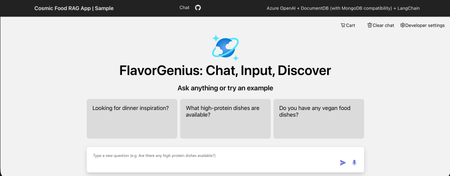
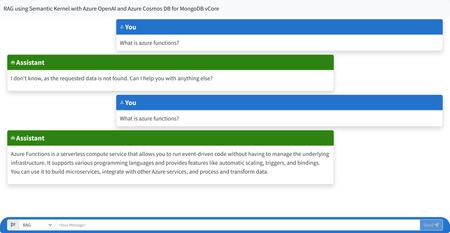
Scenario Imagine you are building your company’s RAG chat application using Microsoft Foundry - Azure OpenAI and orchestrating the flow with LangChain. The chat experience works, but now it needs to be grounded in your company’s data. You generate embeddings and want to store and query them without adding another database or complex sync pipeline. Instead of stitching services together, you use Azure DocumentDB (with MongoDB compatibility) with built-in vector search to store your JSON data and embeddings in one place. You deploy the app to Azure App Service and quickly compare vector search alone versus a full RAG pipeline, sharing it with your team for testing. What will you learn? In this blog, you'll learn to: Create an Azure DocumentDB (with MongoDB compatibility) resource. Create an embeddings and a chat deployment in Microsoft Foundry Azure OpenAI portal. Create an Azure App Service website with continuous deployment from GitHub. Configure Azure App Service application settings to enable communication between Azure resources. Configure GitHub workflow to work successfully. What is the main objective? Build AI Powered RAG Application using LangChain, Microsoft Foundry Azure OpenAI, and Azure DocumentDB (with MongoDB compatibility): Step-by-Step Guide Prerequisites An Azure subscription. If you don’t already have one, you can sign up for an Azure free account. For students, you can use the free Azure for Students offer which doesn’t require a credit card only your school email. A GitHub account. Summary of the steps: Step 1: Create an Azure DocumentDB (with MongoDB compatibility) resource Step 2: Create a Microsoft Foundry - Azure OpenAI resource and Deploy chat and embedding Models Step 3: Create an Azure App Service and Deploy the RAG Chat Application Step 1: Create an Azure DocumentDB (with MongoDB compatibility) resource In this step, you'll: Open the Azure Portal. Create an Azure DocumentDB (with MongoDB compatibility) resource. Open the Azure Portal 1. Visit the Azure Portal https://portal.azure.com in your browser and sign in. Now you are inside the Azure portal! Create a new Azure DocumentDB (with MongoDB compatibility) resource In this step, you create an Azure DocumentDB (with MongoDB compatibility) resource to store your data, vector embedding, and perform vector search. 1. Type documentdb in the search bar at the top of the portal page and select Azure DocumentDB (with MongoDB compatibility) from the available options. 2. Select Create from the toolbar to start provisioning your new cluster. 3. Add the following information to create a resource: What Value Subscription Use your preferred subscription. It's advised to use the same subscription across all the resources that communicate with each other on Azure. Resource group Select Create new to create a new resource group. Enter a unique name for the resource group. Cluster name Enter a globally unique name. Location Select a region close to you for the best response time. For example, Select UK South. MongoDB version Select the latest available version of MongoDB 4. Select Configure to configure your cluster tier. 5. Add the following information to configure the cluster tier. You can scale it up later: What Value Cluster tier Select M25 tier, 2 (Burstable) vCores. Storage Select 32 GiB. 6. Select Save. 7. Enter the cluster Admin Username and Password and store them in a secure location. 8. Select Next to configure the networking settings. 9. Select Allow Public Access from Azure services and resources within the Azure to this cluster. 10. Select Add current IP address to the firewall rules to allow local access to the cluster. 11. Select Review + create. 12. Confirm your configuration settings and select Create to start provisioning the resource. Note: The cluster creation can take up to 10 minutes. It's recommended to move on with the rest of the steps and get back to it later. Step 2: Create a Microsoft Foundry - Azure OpenAI resource and Deploy chat and embedding Models In this step, you'll: Create a Microsoft Foundry Azure OpenAI resource. Create chat and embedding model deployments. Create an Azure OpenAI resource In this step, you create an Azure OpenAI Service resource that enables you to interact with different large language models (LLMs). 1. Type openai in the search bar at the top of the portal page and select Azure OpenAI from the available options. 2. Select Create from the toolbar then select Azure OpenAI to provision a new Azure OpenAI resource. 3. Add the following information to create a resource: What Value Subscription Use the same subscription you used to apply for Azure OpenAI access. Resource group Use the resource group you created in the previous step. Region Select a region close to you for the best response time. For example, Select UK South. Name Enter a globally unique name. Pricing tier Select S0. Currently, this is the only available pricing tier. 4. Now that the basic information is added, select Next to confirm your details and proceed to the next page. 5. Select Next to confirm your network details. 6. Select Next to confirm your tag details. 7. Confirm your configuration settings and select Create to start provisioning the resource. Wait for the deployment to finish. 8. After the deployment finishes, select Go to resource to inspect your created resource. Here, you can manage your resource and find important information like the endpoint URL and API keys. Create chat and embedding model deployments In this step, you create an Azure OpenAI embedding model deployment and a chat model deployment. Creating a deployment on your previously provisioned resource allows you to generate text embeddings (i.e. numerical representation for text) and have a natural language conversation with your data. 1. Select Go to Foundry portal from the toolbar to open the studio. 2. Select Deployments from the Shared resources left side menu to go to the deployments tab. 3. Select + Deploy model from the toolbar then select Deploy base model from the options. A Deploy model window opens. 4. Type gpt-4o-mini to search for the model then select it then select Use model. 5. Select Continue with existing setup to proceed to next step. 6. Refresh page and repeat previous steps to select the model then select Confirm. 7. Review selected options then select Deploy. 8. Select + Deploy model from the toolbar then select Deploy base model from the options. A Deploy model window opens. 9. Type text-embedding-3-small to search for the model then select it then select Confirm. 10. Review selected options then select Deploy. Step 3: Create an Azure App Service and Deploy the RAG Chat Application In this step, you'll: Fork the sample repository on GitHub. Create an Azure App Service resource with a deployment from GitHub. Modify Azure App Service Application settings in the Azure portal. Configure the workflow to deploy your application from GitHub. Test the website before and after adding the data. Fork the Sample Repository on GitHub In this step, you create a copy from the source code on your GitHub account to be able to edit it and use it later. 1. Visit the sample github.com/Azure-Samples/Cosmic-Food-RAG-app in your browser and sign in. 2. Select Fork from the top of the sample page. 3. Select an owner for the fork then, select Create fork. Create an Azure App Service resource with a deployment from GitHub In this step, you create an Azure App service resource and connect it with your GitHub account to deploy a Python application. 1. Type app service in the search bar at the top of the portal page and select App Services from the available options. 2. Select Create Web App from the toolbar to start provisioning a new web application. 3. Add the following information to fill in the basic configuration of the application: What Value Subscription Use the same subscription you used to apply for Azure OpenAI access. Resource group Use the same resource group you created before. Name Enter a unique name for your website. For example, cosmic-food-rag. Publish? Select Code. This option specifies whether your deployment consists of code or a container. Runtime stack Select Python 3.12. Operating System Select Linux. Region Select UK South. This is the region where the rest of the resources you created reside. 4. Add the following information to create the app service plan. You can scale it up later: What Value Linux Plan Select a pre-existing plan or create a new plan. Pricing Plan Select Basic B1. 5. Select Deployment from the toolbar to move to the deployment configuration tab. 6. Add the following information to enable continuous deployment from GitHub: What Value Continuous deployment Select Enable. GitHub account Select your GitHub account. Organization Select your organization. If you are using your personal account then select it. Repository Select Cosmic-Food-RAG-app. Branch Select main. 7. Select Review + create. 8. Confirm your configuration settings and select Create to start provisioning the resource. Wait for the deployment to finish. 9. After the deployment finishes, select Go to resource to inspect your created resource. Here, you can manage your resource and find important information like the application settings and logs. Modify Azure App service Application settings in the Azure portal In this step, you configure the Application settings to make the website able to communicate with other cloud resources. 1. In the Web App resource, select Environment variables from the left side menu. 2. Select + Add to add new environment variables to the function configuration. 3. Add the following names and values one by one and select Ok. Make sure to add your own values. These application settings are for the Azure OpenAI resources that you created: What Value OPENAI_API_VERSION 2024-10-21 AZURE_OPENAI_CHAT_DEPLOYMENT_NAME gpt-4o-mini AZURE_OPENAI_CHAT_MODEL_NAME gpt-4o-mini AZURE_OPENAI_EMBEDDINGS_DEPLOYMENT_NAME text-embedding-3-small AZURE_OPENAI_EMBEDDINGS_MODEL_NAME text-embedding-3-small AZURE_OPENAI_EMBEDDINGS_DIMENSIONS 1536 AZURE_OPENAI_DEPLOYMENT_NAME <azureOpenAiResourceName> AZURE_OPENAI_ENDPOINT https://<azureOpenAiResourceName>.openai.azure.com/ AZURE_OPENAI_API_KEY <azureOpenAiResourceKey> You can get the Azure OpenAI key from the Azure OpenAI resource page. Select Keys and Endpoint from the Resource Management section and copy any of the available keys. These application settings are for Azure DocumentDB (with MongoDB compatibility): AZURE_COSMOS_USERNAME <documentUsername> AZURE_COSMOS_PASSWORD <documentPassword> AZURE_COSMOS_CONNECTION_STRING mongodb+srv://<user>:<password>@<clusterName>.global.mongocluster.cosmos.azure.com/?tls=true&authMechanism=SCRAM-SHA-256&retrywrites=false&maxIdleTimeMS=120000 You can get the DocumentDB connection string from the Azure DocumentDB (with MongoDB compatibility) resource page. Select Connection strings and copy the connection string. Make sure to replace the user and password with the ones you created. These application settings are new and are used for resources that will be created when the application starts you can use any value for them: AZURE_COSMOS_DATABASE_NAME <documentDatabaseName> ex. CosmicDB AZURE_COSMOS_COLLECTION_NAME <documentContainerName> ex. CosmicFoodCollection AZURE_COSMOS_INDEX_NAME <documentIndexName> ex. CosmicIndex 4. Select Apply to save your newly added environment variables. 5. Select Configuration then Stack settings to edit the application startup command. 6. Type entrypoint.sh in the startup command field then select Apply. Configure the Workflow to deploy your application from GitHub In this step, you modify the GitHub deployment workflow to point to the folder that contains the application. 1. Visit your forked repository on GitHub and notice the failing workflow. 2. Open the workflow file .github/workflows/main_cosmic-food-rag.yml. 3. Open the file and select the pen icon to edit it. 4. Modify line 41 from . to src/. 5. Remove the optional Local Build Section since the application already has tests that cover this part. 6. Add this section to Install Node 22 and build the static frontend. 7. Select Commit changes, and review your commit message and description. Select Commit changes. The final workflow file should look like this: # Docs for the Azure Web Apps Deploy action: https://github.com/Azure/webapps-deploy # More GitHub Actions for Azure: https://github.com/Azure/actions # More info on Python, GitHub Actions, and Azure App Service: https://aka.ms/python-webapps-actions name: Build and deploy Python app to Azure Web App - cosmic-food-rag on: push: branches: - main workflow_dispatch: jobs: build: runs-on: ubuntu-latest permissions: contents: read #This is required for actions/checkout steps: - uses: actions/checkout@v4 - name: Set up Node 22 uses: actions/setup-node@v6 with: node-version: 22 - name: Install Node Packages & Build Static Site run: cd frontend && npm install && npm run build # By default, when you enable GitHub CI/CD integration through the Azure portal, the platform automatically sets the SCM_DO_BUILD_DURING_DEPLOYMENT application setting to true. This triggers the use of Oryx, a build engine that handles application compilation and dependency installation (e.g., pip install) directly on the platform during deployment. Hence, we exclude the antenv virtual environment directory from the deployment artifact to reduce the payload size. - name: Upload artifact for deployment jobs uses: actions/upload-artifact@v4 with: name: python-app path: | src/ !antenv/ # 🚫 Opting Out of Oryx Build # If you prefer to disable the Oryx build process during deployment, follow these steps: # 1. Remove the SCM_DO_BUILD_DURING_DEPLOYMENT app setting from your Azure App Service Environment variables. # 2. Refer to sample workflows for alternative deployment strategies: https://github.com/Azure/actions-workflow-samples/tree/master/AppService deploy: runs-on: ubuntu-latest needs: build permissions: id-token: write #This is required for requesting the JWT contents: read #This is required for actions/checkout steps: - name: Download artifact from build job uses: actions/download-artifact@v4 with: name: python-app - name: Login to Azure uses: azure/login@v2 with: client-id: ${{ secrets.AZUREAPPSERVICE_CLIENTID_5672547ED09F46D59DD431ACF5A29F28 }} tenant-id: ${{ secrets.AZUREAPPSERVICE_TENANTID_0059913572C8467882D3999D0E0DD5B8 }} subscription-id: ${{ secrets.AZUREAPPSERVICE_SUBSCRIPTIONID_7C42E3352C5D47F084CB0CD14F549D27 }} - name: 'Deploy to Azure Web App' uses: azure/webapps-deploy@v3 id: deploy-to-webapp with: app-name: 'cosmic-food-rag' slot-name: 'Production' 8. Select Actions to review the workflow run status. Test the website before and After adding the data In this step, you test the application before adding the data, add the data, and test again. 1. Select the workflow name to open it and get the website URL. 2. Select any of the suggested messages or type your own and it should respond with No results found. 3. Navigate to your Azure App Service resource page and select SSH then select Go to open a new SSH page. 4. In the SSH terminal, run these commands: uv sync --active uv run --active ./scripts/add_data.py --file="./data/food_items.json" 5. Navigate back to the live website and type in the chat message Do you have any vegan food dishes? and it should respond with the correct answer now. Congratulations!! You successfully built the full application. Clean Up Once you finish experimenting on Microsoft Azure you might want to delete the resources to not consume any more money from your subscription. You can delete the resource group and it will delete everything inside it or delete the resources one by one that's totally up to you. Conclusion Congratulations! You've learned how to create an Azure DocumentDB (with MongoDB compatibility) cluster, how to create a Microsoft Foundry - Azure OpenAI resource, how to deploy an embedding model and a chat model from the Foundry portal, how to create an Azure App Service and configure continuous deployment with GitHub, and how to modify application settings to enable the communication across Azure resources. By using these technologies, you can build a RAG chat application with the option to perform vector search too over your own data and provide grounded (relevant) responses. Next steps Documentation Azure OpenAI in Microsoft Foundry models Understand embeddings in Azure OpenAI in Microsoft Foundry Models (classic) Azure DocumentDB (with MongoDB compatibility) documentation Integrated vector store in Azure DocumentDB LangChain Python documentation Training Content Develop generative AI apps in Azure Found this useful? Share it with others and follow me to get updates on: Twitter (twitter.com/john00isaac) LinkedIn (linkedin.com/in/john0isaac) Feel free to share your comments and/or inquiries in the comment section below.. See you in future demos!400Views1like1Comment
Ollama on HTTPS for SQL Server
Here is a quick procedure to deploy an Ubuntu container with Ollama and expose its API over HTTPS. The goal is to allow a fast deployment, even for those unfamiliar with Docker or Language Models, making it easy to set up an offline platform for generating embeddings and using Small Language Models This is particularly useful when testing SQL Server 2025 for fully on-premises environment use cases, since SQL Server only allows access to HTTPS endpoints. However, HTTP remains open for testing purposes. Please note that this example is CPU-based, as deploying with (integrated) GPU support involves additional, less straightforward steps. This example is provided solely to illustrate the concept, is not intended for production use, and comes without any guarantee of performance or security. Prerequisites To continue, you need to have Docker Desktop, WSL and SQL Server 2025 (currently Release Candidate 1) Docker Desktop Install WSL | Microsoft Learn SQL Server 2025 Preview | Microsoft Evaluation Center Create a Dockerfile First, create a working directory. In this example, C:\Docker\Ollama will be used. Simply create a file named Dockerfile (without an extension) and paste the following content into it. FROM ubuntu:25.10 RUN apt update && apt install -y curl gnupg2 ca-certificates lsb-release apt-transport-https software-properties-common unzip nano openssl net-tools RUN curl -fsSL https://ollama.com/install.sh | bash RUN curl -1sLf 'https://dl.cloudsmith.io/public/caddy/stable/gpg.key' | gpg --dearmor -o /usr/share/keyrings/caddy-stable-archive-keyring.gpg RUN curl -1sLf 'https://dl.cloudsmith.io/public/caddy/stable/debian.deb.txt' | tee /etc/apt/sources.list.d/caddy-stable.list RUN apt update && apt install -y caddy RUN mkdir -p /etc/caddy/certs RUN cat > /etc/caddy/certs/san.cnf <<EOF [req] default_bits = 2048 prompt = no default_md = sha256 req_extensions = req_ext distinguished_name = dn [dn] CN = 127.0.0.1 [req_ext] subjectAltName = @alt_names [alt_names] IP.1 = 127.0.0.1 DNS.1 = localhost EOF RUN openssl req -x509 -nodes -days 365 -newkey rsa:2048 -keyout /etc/caddy/certs/localhost.key -out /etc/caddy/certs/localhost.crt -config /etc/caddy/certs/san.cnf -extensions req_ext RUN echo "https://:443 {\n tls /etc/caddy/certs/localhost.crt /etc/caddy/certs/localhost.key\n reverse_proxy localhost:11434\n}" >> /etc/caddy/Caddyfile RUN echo "#!/bin/bash" > /usr/local/bin/entrypoint.sh && \ echo "set -e" >> /usr/local/bin/entrypoint.sh && \ echo "OLLAMA_HOST=0.0.0.0 ollama serve >> /var/log/ollama.log 2>&1 &" >> /usr/local/bin/entrypoint.sh && \ echo "caddy run --config /etc/caddy/Caddyfile --adapter caddyfile >> /var/log/caddy.log 2>&1 &" >> /usr/local/bin/entrypoint.sh && \ echo "tail -f /var/log/ollama.log /var/log/caddy.log" >> /usr/local/bin/entrypoint.sh && \ chmod 755 /usr/local/bin/entrypoint.sh ENTRYPOINT ["/usr/local/bin/entrypoint.sh"] For your information, this file allows the creation of an image based on Ubuntu 25.10 and includes: Ollama, for running the models Caddy, for the reverse proxy Creation of a certificate for the HTTPS endpoint on localhost Create the container After opening a Powershell terminal, execute the following commands: cd C:\Docker\Ollama #Build the image from the Dockerfile. docker build -t ollama-https . #Create a container based on the image ollama-https docker run --name ollama-https -d -it -p 443:443 -p 11434:11434 ollama-https #Copy the certificate created into the current Windows directory docker cp ollama-https:/etc/caddy/certs/localhost.crt . # Install the certificate in Trusted Root Certification Authorities Import-Certificate -FilePath "localhost.crt" -CertStoreLocation "Cert:\LocalMachine\Root" #Check Https (wget https://localhost).Content #Check Http (wget http://localhost:11434).Content Ollama is now running With a browser, connect to https://localhost Retrieve Models No model is retrieved when the image is created, as this depends on each use case, and for some models, the size can be substantial. Here’s a quick example for pulling an embedding model, Nomic, and a small language model, Phi3. Ollama Search docker exec ollama-https ollama pull nomic-embed-text docker exec ollama-https ollama pull phi3:mini A quick example with SQL Server 2025 A quick demonstration using the WideWorldImporters database (Wide World Importers sample database) use [master] GO ALTER DATABASE WideWorldImporters SET COMPATIBILITY_LEVEL = 170 WITH ROLLBACK IMMEDIATE GO DBCC TRACEON(466, 474, 13981, -1) GO Note: With RC1, you can use the PREVIEW_FEATURES database-scoped configuration T-SQL Declare an external model for embeddings. use [WideWorldImporters] GO CREATE EXTERNAL MODEL NomicLocal AUTHORIZATION dbo WITH ( LOCATION = 'https://localhost/api/embed', API_FORMAT = 'ollama', MODEL_TYPE = EMBEDDINGS, MODEL = 'nomic-embed-text' ) to enable semantic search capabilities on StockItems, we will create a dedicated table to store embeddings (no chunking in this example) along with a vector index optimized for cosine similarity use [WideWorldImporters] GO CREATE TABLE [Warehouse].[StockItemsEmbedding](StockItemEmbeddingID int identity (1,1) PRIMARY KEY, StockItemId int, SearchDetails nvarchar(max), Embedding vector(768)) GO INSERT INTO [Warehouse].[StockItemsEmbedding] SELECT si.StockItemID, si.SearchDetails, AI_GENERATE_EMBEDDINGS(si.SearchDetails USE MODEL NomicLocal) /* Generate embeddings from declared external model */ FROM [Warehouse].[StockItems] si GO /* Check */ SELECT * FROM [Warehouse].[StockItemsEmbedding] GO CREATE VECTOR INDEX IXV_1 ON [Warehouse].[StockItemsEmbedding] (Embedding) WITH (METRIC = 'cosine', TYPE = 'DiskANN') GO /* User Input */ DECLARE @UserInput varchar(max) = 'Which product is best suited for shipping small items?' /* and Generate embeddings for user input */ DECLARE @UserInputV vector(768) = AI_GENERATE_EMBEDDINGS(@UserInput USE MODEL NomicLocal) DECLARE @ModelInput nvarchar(max) DECLARE Payload nvarchar(max) DECLARE Response nvarchar(max) /* Similarity Search on StockItems and Model Input creation*/ SELECT @ModelInput = STRING_AGG('ProductDetails: ' + sie.SearchDetails + 'UnitPrice: ' + CAST(si.UnitPrice AS nvarchar(max)), ' \n\n') FROM VECTOR_SEARCH( TABLE = [Warehouse].[StockItemsEmbedding] as sie, COLUMN = Embedding, SIMILAR_TO = @UserInputV, METRIC = 'cosine', TOP_N = 10 ) JOIN [Warehouse].[StockItems] si ON si.StockItemId = sie.StockItemId /* Generate payload for response generation */ SELECT = '{"model": "phi3:mini", "stream": false, "prompt":"You are acting as a customer advisor responsible for recommending the most suitable products based on customer needs, providing clear and personalized suggestions. Question : ' + @UserInput + '\n\nList of Items : ' + @ModelInput + '"}'; EXECUTE sp_invoke_external_rest_endpoint @url = 'https://localhost/api/generate', @method = 'POST', = , @timeout = 230, = OUTPUT; PRINT JSON_VALUE(@response, '$.result.response') LangChain You can also have a try with LangChain. Same demo with a small difference, there is no vector index created on the vector store table. The table has been modified, but only for demonstration purposes. Reference: SQLServer | 🦜️🔗 LangChain # PREREQ #sudo apt-get update && sudo apt-get install -y unixodbc # sudo apt-get update # sudo apt-get install -y curl gnupg2 # curl https://packages.microsoft.com/keys/microsoft.asc | sudo apt-key add - # curl https://packages.microsoft.com/config/debian/11/prod.list | sudo tee /etc/apt/sources.list.d/mssql-release.list # sudo apt-get update # sudo ACCEPT_EULA=Y apt-get install -y msodbcsql18 # pip3 install langchain langchain-sqlserver langchain-ollama langchain-community import pyodbc from langchain_sqlserver import SQLServer_VectorStore from langchain_ollama import OllamaEmbeddings from langchain_ollama import ChatOllama from langchain.schema import Document from langchain_community.vectorstores.utils import DistanceStrategy #Prompt for testing _USER_INPUT = 'Which product is best suited for shipping small items?' ############### Params ########################################## print("\033[93mSetting up variables...\033[0m") _SQL_DRIVER = "ODBC Driver 18 for SQL Server" _SQL_SERVER = "localhost\\SQL2K25" _SQL_DATABASE = "WideWorldImporters" _SQL_USERNAME = "lc" _SQL_PASSWORD = "lc" _SQL_TRUST_CERT = "yes" _SQL_VECTOR_STORE_TABLE = "StockItem_VectorStore" # Table name for vector storage _MODIFY_TABLE_TO_USE_SQL_VECTOR_INDEX = True #As vector index not considered currently in langchain and structure does not match vector index requirements _CONNECTION_STRING = f"Driver={{{_SQL_DRIVER}}};Server={_SQL_SERVER};Database={_SQL_DATABASE};UID={_SQL_USERNAME};PWD={_SQL_PASSWORD};TrustServerCertificate={_SQL_TRUST_CERT}" _OLLAMA_API_URL = "https://localhost" _OLLAMA_EMBEDDING_MODEL = "nomic-embed-text:latest" _OLLAMA_EMBEDDING_VECTOR_SIZE = 768 _OLLAMA_SLM_MODEL = "phi3:mini" # Model for SLM queries ################################################################### #Define Ollama embeddings embeddings = OllamaEmbeddings( model=_OLLAMA_EMBEDDING_MODEL, base_url=_OLLAMA_API_URL ) conn = pyodbc.connect(_CONNECTION_STRING) cursor = conn.cursor() #Drop embeddings table if it exists print("\033[93mDropping existing vector store table if it exists...\033[0m") cursor.execute(f"DROP TABLE IF EXISTS Warehouse.{_SQL_VECTOR_STORE_TABLE};") print("\033[93mConnecting to SQL Server and fetching data...\033[0m") cursor.execute("SELECT StockItemId, SearchDetails, UnitPrice FROM Warehouse.StockItems;") rows = cursor.fetchall() print(f"\033[93mFound {len(rows)} records to process\033[0m") # Create documents from the fetched data documents = [ Document( page_content=row.SearchDetails, metadata={ "StockItemId": row.StockItemId, "UnitPrice": float(row.UnitPrice) # Convert Decimal to float } ) for row in rows ] conn.commit() #Creating vector store print("\033[93mCreating vector store...\033[0m") vector_store = SQLServer_VectorStore( connection_string=_CONNECTION_STRING, distance_strategy=DistanceStrategy.COSINE, # If not provided, defaults to COSINE embedding_function=embeddings, embedding_length=_OLLAMA_EMBEDDING_VECTOR_SIZE, db_schema = "Warehouse", table_name=_SQL_VECTOR_STORE_TABLE ) print("\033[93mAdding to vector store...\033[0m") try: vector_store.add_documents(documents) print("\033[93mSuccessfully added to vector store!\033[0m") except Exception as e: print(f"\033[91mError adding documents: {e}\033[0m") #Vector index not yet integrated in SQL Server VectorStore (drop auto-created nonclustered PK and generating int clustered PK if (_MODIFY_TABLE_TO_USE_SQL_VECTOR_INDEX): print("\033[93mModifying structure to create vector index...\033[0m") cursor.execute("DECLARE @AutoCreatedPK sysname, @SQL nvarchar(max);" f"SELECT @AutoCreatedPK = name FROM sys.key_constraints WHERE type = 'PK' AND parent_object_id = object_id('Warehouse.{_SQL_VECTOR_STORE_TABLE}');" f"SELECT @SQL = 'ALTER TABLE Warehouse.{_SQL_VECTOR_STORE_TABLE} DROP CONSTRAINT ' + @AutoCreatedPK + ';'" "EXEC sp_executesql @SQL;" f"ALTER TABLE Warehouse.{_SQL_VECTOR_STORE_TABLE} ADD Alt_Id int identity(1,1);" f"ALTER TABLE Warehouse.{_SQL_VECTOR_STORE_TABLE} ADD CONSTRAINT PK_{_SQL_VECTOR_STORE_TABLE} PRIMARY KEY (Alt_Id);") conn.commit() print("\033[93mCreating vector index...\033[0m") cursor.execute(f"CREATE VECTOR INDEX IV_{_SQL_VECTOR_STORE_TABLE} ON [Warehouse].[{_SQL_VECTOR_STORE_TABLE}] (embeddings) WITH (METRIC = 'cosine', TYPE = 'DiskANN');") conn.commit() #Generate prompt then answer print(f"\033[92mUser Input: {_USER_INPUT}\033[0m") context = [ { "Item": doc.page_content, "UnitPrice": doc.metadata.get("UnitPrice", None) } for doc in vector_store.similarity_search(_USER_INPUT, k=3) ] llm = ChatOllama(model=_OLLAMA_SLM_MODEL,base_url=_OLLAMA_API_URL) prompt = ( f"You are acting as a customer advisor responsible for recommending the most suitable products based on customer needs, providing clear and personalized suggestions" f"Context: {context}\n\nQuestion: {_USER_INPUT}\n\n") response = llm.invoke(prompt) print(f"\033[36m{response.content}\033[0m") Note : If using devcontainer with VSCode add "runArgs": [ "--network=host" ] to devcontainer.json to allow connections to “localhost”. Import and install the previously created certificat docker cp C:\Docker\Ollama\localhost.crt <devcontainer name>:/usr/local/share/ca-certificates/localhost.crt docker exec <devcontainer name> "update-ca-certificates" Disclaimer The sample scripts are not supported under any Microsoft standard support program or service. The sample scripts are provided AS IS without warranty of any kind. Microsoft further disclaims all implied warranties including, without limitation, any implied warranties of merchantability or of fitness for a particular purpose. The entire risk arising out of the use or performance of the sample scripts and documentation remains with you. In no event shall Microsoft, its authors, or anyone else involved in the creation, production, or delivery of the scripts be liable for any damages whatsoever (including, without limitation, damages for loss of business profits, business interruption, loss of business information, or other pecuniary loss) arising out of the use of or inability to use the sample scripts or documentation, even if Microsoft has been advised of the possibility of such damages.Configure Embedding Models on Azure AI Foundry with Open Web UI
Introduction Let’s take a closer look at an exciting development in the AI space. Embedding models are the key to transforming complex data into usable insights, driving innovations like smarter chatbots and tailored recommendations. With Azure AI Foundry, Microsoft’s powerful platform, you’ve got the tools to build and scale these models effortlessly. Add in Open Web UI, a intuitive interface for engaging with AI systems, and you’ve got a winning combo that’s hard to beat. In this article, we’ll explore how embedding models on Azure AI Foundry, paired with Open Web UI, are paving the way for accessible and impactful AI solutions for developers and businesses. Let’s dive in! To proceed with configuring the embedding model from Azure AI Foundry on Open Web UI, please firstly configure the requirements below. Requirements: Setup Azure AI Foundry Hub/Projects Deploy Open Web UI – refer to my previous article on how you can deploy Open Web UI on Azure VM. Optional: Deploy LiteLLM with Azure AI Foundry models to work on Open Web UI - refer to my previous article on how you can do this as well. Deploying Embedding Models on Azure AI Foundry Navigate to the Azure AI Foundry site and deploy an embedding model from the “Model + Endpoint” section. For the purpose of this demonstration, we will deploy the “text-embedding-3-large” model by OpenAI. You should be receiving a URL endpoint and API Key to the embedding model deployed just now. Take note of that credential because we will be using it in Open Web UI. Configuring the embedding models on Open Web UI Now head to the Open Web UI Admin Setting Page > Documents and Select Azure Open AI as the Embedding Model Engine. Copy and Paste the Base URL, API Key, the Embedding Model deployed on Azure AI Foundry and the API version (not the model version) into the fields below: Click “Save” to reflect the changes. Expected Output Now let us look into the scenario for when the embedding model configured on Open Web UI and when it is not. Without Embedding Models configured. With Azure Open AI Embedding models configured. Conclusion And there you have it! Embedding models on Azure AI Foundry, combined with the seamless interaction offered by Open Web UI, are truly revolutionizing how we approach AI solutions. This powerful duo not only simplifies the process of building and deploying intelligent systems but also makes cutting-edge technology more accessible to developers and businesses of all sizes. As we move forward, it’s clear that such integrations will continue to drive innovation, breaking down barriers and unlocking new possibilities in the AI landscape. So, whether you’re a seasoned developer or just stepping into this exciting field, now’s the time to explore what Azure AI Foundry and Open Web UI can do for you. Let’s keep pushing the boundaries of what’s possible!2.2KViews0likes0CommentsOptimizing Vector Similarity Search on Azure Data Explorer – Performance Update
This post is co-authored by Anshul_Sharma (Senior Program Manager, Microsoft). This blog is an update of Optimizing Vector Similarity Searches at Scale. We continue to improve the performance of vector similarity search in Azure Data Explorer (Kusto). We present the new functions and policies to maximize performance and the resulting search times. The following table and chart present the search time for the top 3 most similar vectors to a supplied vector: # of vectors Total time [sec.] 25,000 0.03 50,000 0.035 100,000 0.047 200,000 0.062 400,000 0.094 800,000 0.125 1,600,000 0.14 3,200,000 0.15 6,400,000 0.19 12,800,000 0.35 25,600,000 0.55 51,200,000 1.1 102,400,000 2.3 204,800,000 3.9 409,600,000 7.6 This benchmark was done on a medium size Kusto cluster (containing 29 nodes), searching for the most similar vectors in a table of Azure OpenAI embedding vectors. Each vector was generated using ‘text-embedding-ada-002’ embedding model and contains 1536 coefficients. These are the steps to achieve the best performance of similarity search: Use series_cosine_similarity(), the new optimized native function to calculate cosine similarity Set the encoding of the embeddings column to Vector16, the new 16 bit encoding of the vectors coefficients (instead of the default 64 bit) Store the embedding vectors table on all nodes with at least one shard per processor. This can be achieved by limiting the number of embedding vectors per shard by altering ShardEngineMaxRowCount of the sharding policy and RowCountUpperBoundForMerge of the merging policy. Suppose our table contains 1M vectors and our Kusto cluster has 20 nodes each has 16 processors. The table’s shards should contain at most 1000000/(20*16)=3125 rows. These are the KQL commands to create the empty table and set the required policies and encoding: .create table embedding_vectors(vector_id:long, vector:dynamic) // more columns can be added .alter-merge table embedding_vectors policy sharding '{ "ShardEngineMaxRowCount" : 3125 }' .alter-merge table embedding_vectors policy merge '{ "RowCountUpperBoundForMerge" : 3125 }' .alter column embedding_vectors.vector policy encoding type = 'Vector16' Now we can ingest the vectors into the table. And here is a typical search query: let searched_vector = repeat(1536, 0); // to be replaced with real embedding vector. embedding_vectors | extend similarity = series_cosine_similarity_fl(vector, searched_vector, 1, 1) | top 10 by similarity desc The current semantic search times enable usage of ADX as embedding vectors storage platform for RAG (Retrieval Augmented Generation) scenarios and beyond, We continue to improve vector search performance, stay tuned!5.4KViews4likes2CommentsOptimizing Vector Similarity Searches at Scale
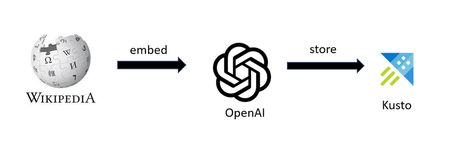
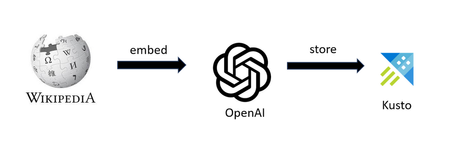
This post is co-authored by @adieldar (Principal Data Scientist, Microsoft) In a previous blog – Azure Data Explorer for Vector Similarity Search, we focused on how Azure Data Explorer (Kusto) is perfectly suited for storing and searching vector embeddings. In this blog, we will focus on performance tuning and optimizations for running vector similarity searches at scale. We will continue working on the Wikipedia scenario where we generate the embeddings of wiki pages using OpenAI and store them in kusto. We then use series_cosine_similarity_fl kusto function to perform similarity searches. Demo scenario Optimizing for scale To optimize the cosine similarity search we need to split the vectors table to many extents that are evenly distributed among all cluster nodes. This can be done by setting Partitioning Policy for the embedding table using the .alter-merge policy partitioning command: .alter-merge table WikipediaEmbeddingsTitleD policy partitioning ``` { "PartitionKeys": [ { "ColumnName": "vector_id_str", "Kind": "Hash", "Properties": { "Function": "XxHash64", "MaxPartitionCount": 2048, // set it to max value create smaller partitions thus more balanced spread among all cluster nodes "Seed": 1, "PartitionAssignmentMode": "Uniform" } } ], "EffectiveDateTime": "2000-01-01" // set it to old date in order to apply partitioning on existing data } ``` In the example above we modified the partitioning policy for WikipediaEmbeddingsTitleD. This table was created from WikipediaEmbeddings by projecting the documents’ title and embeddings. Notes: The partitioning process requires a string key with high cardinality, so we also projected the unique vector_id and converted it to string. The best practice is to create an empty table, modify its partition policy then ingest the data. In that case there is no need to define the old EffectiveDateTime as above. It takes some time after data ingestion until the policy is applied. To test the effect of partitioning we created in a similar manner multiple tables containing up to 1M embedding vectors and tested the cosine similarity performance on clusters with 1, 2, 4, 8 & 20 nodes (SKU Standard_E4d_v5). The following table and chart compare search performance (in seconds) before and after partitioning: Number of Nodes # of vectors 1* (no partitioning) 2 4 8 20 25,000 Vectors 3.4 0.95 0.67 0.57 0.51 50,000 Vectors 6.2 1.5 0.92 0.65 0.55 100,000 Vectors 12.4 2.6 1.55 1 0.57 200,000 Vectors 24.2 5.2 2.8 1.65 0.63 400,000 Vectors 48.5 10.3 5.4 2.95 0.87 800,000 Vectors 96.5 20.5 10.5 6 1.2 1,000,000 Vectors 102 26 13.3 7.2 1.4 * Note that the cluster has 2 nodes, but the tables are stored on a single node (this is our baseline before applying the partitioning policy) You can see that even on the smallest 2 nodes cluster the search speed is improved by more than x4 factor, and in general the speed is inversely proportional to the number of nodes. The number of embedding vectors that are needed for common LLM scenarios (e.g. Retrieval Augmented Generation) rarely exceeds 100K, thus by having 8 nodes searching can be done in 1 sec. How can you get started? If you would like to try this demo, head to the azure_kusto_vector GitHub repository and follow the instructions. The Notebook in the repo will allow you to - Download precomputed embeddings created by OpenAI API. Store the embeddings in ADX. Convert raw text query to an embedding with OpenAI API. Use ADX to perform cosine similarity search in the stored embeddings You can start by - Using KQL Database in Microsoft Fabric by signing up for a free trial - https://aka.ms/try-fabric Spinning up your own free Kusto cluster - https://aka.ms/kustofree We look forward to your feedback and all the exciting things you build with kusto & vectors!7.5KViews3likes4Comments