edtech
89 TopicsStudy and Learn Agent: Now in 48 Languages, images improvements, ready when you open Copilot
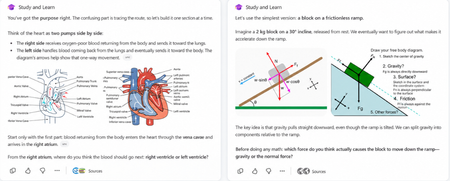
When we brought Study and Learn Agent to general availability, the promise was simple: the student does the thinking. Study and Learn asks before it tells. It pushes you to try. It makes learning interactive and quizzes you on what you missed. It lives at aka.ms/studyandlearn inside your Microsoft Education tenant. It coaches learners across any subject; explaining concepts, walking through problems step by step, supporting writing without doing the writing, and generating flashcards, quizzes, matching, and fill-in-the-blank activities from a learner's own materials. The design principle underneath all of it: preserve the productive effort that makes learning stick. The learner does the thinking. The agent coaches the thinking. 👥 Who can use it Study and Learn is available and pinned by default for every adult learner in a Microsoft Education tenant. No setup required — it's right there in the left navigation of Microsoft 365 Copilot. For K-12 students aged 13–17, there's one step first: Copilot Chat has to be enabled. Until it is, students in your tenant can't reach the agent. The good news is that it's a simple set of steps tutorial shows the exact enablement steps for IT admins. Watch the enablement walkthrough. 🎥 Full video tutorial If you want the full tour, Mike Tholfsen made an end-to-end tutorial that walks through every feature, start to finish. It's the fastest way to see the agent in action: Watch it here: ✨ Copilot Chat now opens with Study and Learn pre-selected For K-12 students who already have Copilot Chat enabled, Study and Learn is now pre-selected the moment they open Copilot Chat. The coach is right there, ready - no hunting through a menu, no wondering which agent to pick. Copilot Chat opens by default in the learning mode. A student who wants to work with something else can dismiss it in a tap. IT admins stay in control. The setting lives in the Education settings panel in the Microsoft 365 admin center. It's ON by default for K-12 and OFF by default for higher education, where admins can turn it on when they're ready. 🌍 Now available in 48 languages At GA, Study and Learn was optimized for English (US). Now it speaks the way your learners do. The agent is available in 48 languages beyond English. Set your browser or operating system to a supported locale and visit aka.ms/studyandlearn. The user experience and conversation are set in your language. The learning activities - flashcards, quizzes, matching, fill-in-the-blank - appear in your chosen app language. Additional language support is rolling out now and will be available to all users in the coming days. And you're not locked in. A learner can switch languages mid-conversation for a genuinely multilingual study session. Learning a new language and want the vocabulary words in the new language but the explanations in your native language? No problem. Want to switch languages to practice the vocabulary with Study and Learn, no problem, you can do that too. The coaching language follows you. For a student learning in their second language, or a family where the kitchen-table language isn't the classroom language this is the difference between a tool that talks at them and one that meets them where they are. 🖼️ Images that show, instead of just tell Some things are easier to see than to describe. A cell's structure. The layers of the atmosphere. Where the femur meets the hip. Study and Learn conversations can now include a carousel of relevant, web-safe images sourced through search, woven right into the flow of the agent's response. Each image supports the next step in a learner's understanding, a visual nudge toward the answer they're working out for themselves, without shortcutting the effort that gets them there. This is especially powerful for visual subjects like biology, geography, and chemistry, where a single well-placed image does what a paragraph can't. This experience will get better over time. It is rolling out now and will be available to all users in the coming days. You can always share feedback here. 💬 A prompt pack to help learners get started Here’s a prompt pack - a set of ready-to-use prompts that show learners exactly how to put the agent to work, organized around the moments they actually face: Understand a difficult topic — “Use these materials to find the most important ideas and help me understand them.”, “Explain [topic] step by step, then check my understanding.” Practice what you know — “Create a matching activity for the key terms in this chapter.”, “Make a fill-in-the-blanks activity from these materials.” Improve my work — “Review what I missed and explain the ideas I need to practice.”, “Help me understand why my answer was incorrect, then let me try again Work on an assignment — “Help me brainstorm ideas for this assignment.”, “Review my draft and help me find one area to strengthen.”, “Help me check whether my evidence supports my main point.” Get ready for a test — “Use these materials to identify the topics I should focus on.”, “Give me a five-minute review of these concepts I’m still struggling with.” Every prompt keeps the learner in the driver's seat — the agent helps them think and practice, never hands over the answer. Share the pack at the start of a unit and watch how it changes the way students engage. 📋 Coming soon: educators can assign the agent from Teams Everything so far puts the coach in the learner's hands. This next one puts it in the educator's. Rolling out soon, educators will be able to assign the use of Study and Learn Agent directly from a Teams assignment. Instead of a blanket "you can use this," you'll be able to point learners to the agent for a specific assignment built right into the assignment they're already opening. The through-line Every one of these (the languages, the pre-select, the prompt pack, the images, the assignments) meet the learner where they are. In their language. The moment they open Copilot. With the words to get started and the visuals to see it clearly. Pointed there, when it counts, by the educator who knows them. Open Microsoft 365 Copilot. Look in the left navigation. Then watch Mike's full tutorial and try it on the thing you're studying next. Educators can also access the full professional development course on Study and Learn complete with suggestions on introducing the agent to students. Try Study and Learn Agent · Microsoft Education license required. K-12 student access (ages 13–17) requires IT to enable Copilot Chat. Resources: Try Study and Learn in your tenant: https://aka.ms/studyandlearn Full tutorial on Study and Learn: https://aka.ms/studyandlearnvideo Professional development for educators: https://aka.ms/studyandlearnmodule Enable Copilot Chat: https://aka.ms/enablecopilotchatvideo Support documentation: https://aka.ms/studyandlearndocumentation Anoo Padte is Principal Product Manager for AI in Education at Microsoft.1.1KViews1like0CommentsHands-on Webinar: Copilot Notebooks and Microsoft Learning Zone
Join us on Wednesday, October 21 @ 8am Pacific Time for a practical, educator-focused webinar exploring Copilot Notebooks, Study Guide, and Microsoft Learning Zone. Discover ways to bring AI into everyday teaching and learning, from working with classroom materials to supporting independent student learning and active participation in the classroom. We’ll walk through classroom scenarios, demonstrate key features, and share ideas you can adapt for your students. Whether you’re getting started with AI or looking for new ways to use it, this session will help you connect these tools to real classroom needs. What we’ll cover: Copilot Notebooks: Explore ways to work with your teaching and learning materials. This includes the Study Guide embedded in Copilot Notebooks to support student review and independent learning. Microsoft Learning Zone: Learn how to turn any teaching idea into an interactive lesson in minutes, then share it with students for self-paced learning or use it to facilitate active participation in the classroom. Register here: https://msit.events.teams.microsoft.com/event/msit.b38c4730-d9e5-49ba-aa00-4cbaefce36bc@72f988bf-86f1-41af-91ab-2d7cd011db47 We look forward to seeing you at the webinar! Mike Tholfsen Group Product Manager Microsoft Education201Views0likes0CommentsPreview the new Microsoft 365 LTI® for your LMS
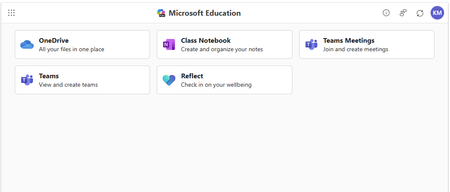
Enhance your LMS with the power of Microsoft 365 We are excited to announce the public preview of Microsoft 365 LTI. Experience the full potential of Microsoft 365 directly within your Learning Management System (LMS) through a simple to integrate learning tool interoperability (LTI). Microsoft 365 LTI makes LMS integrations simple, with a powerful tool designed to introduce new capabilities to streamline and simplify deployment. Deploy and access the new Microsoft 365 LTI in your LMS with the overview and deployment guides. At-a-glance: The Microsoft 365 LTI is now in Public Preview, bringing all your favorite Microsoft Education tools into a single, seamless experience inside your LMS. No more juggling multiple integrations - just streamlined access to everything educators and students need, right where they work. This includes: Unified access to OneDrive, Teams, Class Notebook, Reflect, and more, directly in your LMS Add content, create assignments, and schedule meetings - all from one place No need to enable multiple tools separately or clutter your LMS menus Replaces deprecated Teams Meetings and Team Classes LTI tools Expanding support for Microsoft Assignments, OneDrive, OneNote Class Notebooks, and Reflect Available for Canvas, Schoology, Blackboard, D2L Brightspace, Moodle, and more Let’s dive into the new Microsoft 365 LTI to streamline your learning management system experience We are bringing our Microsoft Education capabilities for learning management systems together into a single tool and streamlined user experience. Educators will be able to access Learning Accelerators, Reflect, OneDrive, Teams, and more in their LMS courses, without having to enable multiple tools separately, and without overcrowding menus where LTI tools are surfaced. Whether adding content to a module, creating an assignment, or scheduling a meeting for a class, you will be able to easily access Microsoft Education related features directly in your LMS workflow. Microsoft 365 LTI debuts with replacements for the deprecated Teams Meetings and Team Classes LTI tools that sunset on 9/15/2025. The capabilities of Microsoft Assignments, OneDrive, OneNote Class Notebooks, and Reflect will also be added to the Microsoft 365 LTI in preview, and those existing LTIs will continue to be supported as their capabilities transition. Microsoft 365 LTI will be available for all currently supported LMS platforms, including Canvas by Instructure, PowerSchool Schoology Learning, Blackboard by Anthology, D2L/Brightspace, and Moodle™, and for any LTI 1.3 Advantage compliant platform. Learning Accelerators and AI-enhanced assignments in your LMS (without Microsoft Teams) With the Microsoft 365 LTI, you will be able to use Learning Accelerators, multiple-document submissions, AI rubric and instructions generation, AI-assisted feedback, auto-graded Forms and other Microsoft Education assignment capabilities directly within your learning management system (LMS), without the need to create and sync a Microsoft Team for your class. Assignments in Microsoft 365 LTI no longer require Teams, enabling more LMS users to benefit from advanced, AI-enhanced capabilities that were formerly exclusive to Microsoft Teams for Education. Assignments can be created, managed, completed, and graded, without leaving your LMS, and grades and feedback will sync automatically to the LMS gradebook. This capability is included automatically in the new Microsoft 365 LTI tool. Existing, Teams-based assignments will continue to work and can be copied to new courses, so no migration is necessary. This enhancement will apply to all currently supported LMS platforms, including Canvas, Schoology, Blackboard, D2L Brightspace, and Moodle. Teams and Teams Meetings Microsoft 365 LTI replaces the former Teams Classes LTI and Teams Meetings LTI tools, with improved user experience. Users can easily schedule, manage, and launch meetings from directly within their LMS course. The tool provides streamlined views of future and past meetings, consolidated attendance reports, and a new “Meet Now” capability. Automatic rostering in Class Notebooks returns with the Microsoft 365 LTI In March, we announced the retirement of automatically adding newly rostered students and co-educators to OneNote Class Notebooks provisioned through the LMS using the LTI 1.1 integration. This much-loved feature is back in the new Class Notebook app in Microsoft 365 LTI. Any instructor in the LMS course can create a Class Notebook and all co-educators and students automatically added to the notebook, even as the LMS roster changes. In addition, the new integration enables OneNote with the benefits of LTI 1.3 conformance and a modernized provisioning flow for educators to easily deploy new Class Notebooks for their courses. Existing notebooks created in the LTI 1.1 integration will continue to work, and sections and pages can be easily copied to new notebooks. OneDrive and Microsoft 365 files with embedded editors and new placements The new Microsoft 365 LTI tool expands beyond the capabilities of the existing OneDrive LTI tool. The full capabilities of Word, PowerPoint, and Excel, including Microsoft 365 Copilot, are now available within the LMS experience for attaching content resources, collaborative documents (including Collaborations for Canvas Courses and Groups!), and students editing and submitting Microsoft 365 documents as an assignment without leaving the LMS. Documents can be embedded or linked into courses and other LMS activities like discussions, announcements, pages, with proper management of permissions to prevent oversharing, and with dedicated course-level storage to support proper document lifecycle management, assignment workflows, and use of Microsoft 365 Copilot. Easily add Reflect to your classroom toolset Microsoft 365 LTI provides easy access to Microsoft Reflect to support student wellbeing in the classroom. Educators can create check-ins, view responses, and monitor trends within an LMS course. Users can access activities from Microsoft and partners such as Calm to support physical and mental wellbeing. For more information, and to keep up with future product announcements Please visit the Microsoft Tech Community Education Blog and subscribe to keep up with what’s new in Microsoft Education. We also hold bi-monthly office hours every first and third Thursday where lots of LMS + Microsoft 365 customers come to discuss scenarios and get assistance from peers, please join us! Microsoft 365 LTI Office Hours 1 st and 3 rd Thursday of each month @11am EST Join link: https://aka.ms/LTIOfficeHours We can’t wait to hear your feedback! Try out the preview today. How to get help or send feedback For any issues deploying the integration, our Education Support team is here to help. Please visit https://aka.ms/EduSupport Once deployed, the Teams Assignments integration has links to Contact Support and Send Feedback from right within the app. These can be found in the user voice menu in the upper right on any view that appears within the LMS. Learn more about Microsoft feedback for your organization. Learning Tools Interoperability® (LTI®) is a trademark of the 1EdTech Consortium, Inc. (1edtech.org) The word Moodle and associated Moodle logos are trademarks or registered trademarks of Moodle Pty Ltd or its related affiliates.11KViews3likes8CommentsHands on webinar: Build Student Skills with Learning Accelerators in Microsoft Teams
Join us on Wednesday, September 16th @ 8am Pacific Time and discover how Learning Accelerators in Microsoft Teams for Education can help students build foundational and future ready skills while giving educators actionable insights to personalize instruction. In this webinar, we’ll explore the latest capabilities across the Learning Accelerators suite, including: 📖 Reading Progress - Help students build reading fluency with personalized practice and AI-powered feedback 🎤 Speaker Progress – Develop confident presentation and communication skills with real-time coaching ➗ Math Progress – Create, assign, and review math practice while gaining deeper insight into student understanding 🔎 Search Progress – Teach students how to search effectively, evaluate sources, and build information literacy skills 📊 Education Insights – Turn learning activity into actionable data to identify trends and better support individual students We’ll walk through practical classroom scenarios, demonstrate key features, and share tips for getting the most from Learning Accelerators in Microsoft Teams. Join us to see how Learning Accelerators can help educators save time, personalize learning, and give every student more opportunities to practice, improve, and succeed. Wednesday, September 16th @ 8am Pacific time: Register here: https://df.events.teams.microsoft.com/event/df.2cc31453-8761-4442-9b9e-eceb4a80859f@72f988bf-86f1-41af-91ab-2d7cd011db47?source=copyLinkOneEventsShareDialog Mike Tholfsen Group Product Manager Microsoft Education373Views0likes0CommentsFour opportunities for IT admins to get ready with Copilot Chat for education
Microsoft Education is offering four live webinar opportunities for IT administrators who want to confidently deploy and manage Microsoft 365 Copilot Chat. Each session covers the same practical guidance, so you can select the date that best fits your schedule. What you’ll learn We’ll walk through Copilot Chat configuration from the tenant level to the end-user experience, including options for students ages 13+, CSV, SDS, and PowerShell uploads, agents and extensibility, and current licensing and security controls. You’ll leave with actionable guidance to help deploy, manage, and optimize Copilot Chat safely across your organization. We’ll also share a brief look at some Microsoft Education experiences including Teach in Copilot, the Study and Learn agent, Copilot Notebooks, and Learning Activities. Choose a session and register September 16th, Wed @ 8am Pacific time - Register for the September 16 session September 30th, Wed @ 8am Pacific time - Register for the September 30 session October 14th, Wed @ 8am Pacific time - Register for the October 14 session October 28 th , Wed @ 8am Pacific time - Register for the October 28 session Reserve your spot today. Pick the session that works best for you and join us to build a secure, manageable path to Copilot Chat adoption in your education environment. Mike Tholfsen Group Product Manager Microsoft Education811Views1like0CommentsWhat's New in Microsoft EDU - Back to School August 2026
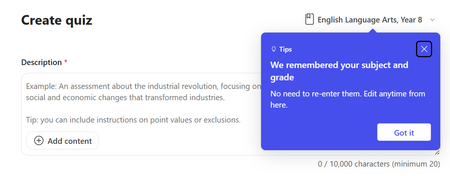
Welcome to our monthly update for Microsoft Education and thank you so much for being part of our growing community! Topics Teach in Microsoft Copilot updates Learning Zone updates Teams for Education updates Study and Learn agent updates Copilot Notebooks and OneNote updates Learning management system integration updates We’ve loved seeing the early impact at schools and institutions such as Brisbane Catholic Education and Miami Dade College and the exploration of new capabilities like agents. Get started with Copilot Chat, our no-cost AI-powered chat with data protection, and learn more about Microsoft 365 Copilot. 1. Teach in Microsoft Copilot updates Teach remembers your classes and settings Educators no longer need to re-enter their subject and grade level every time they use an AI creation tool. Remember Settings automatically saves previously-used Subjects and Grades and carries them across Teach, Teams, LTI, and OneNote Class Notebook. Set your course information once and reuse it, or switch between multiple courses in one click. This means a teacher with "Biology, Grade 9" and "Chemistry, Grade 11" can move between AI tools - lesson plans, quizzes, flashcards, rubrics - without ever filling in the same fields twice. Course details appear as a chip in the upper right of creation form, replacing blank fields with familiar context from day one. When: Available now Teach in your language and region AI creation tools across Teach, Teams, and Classwork now automatically detect language from the educator's content and browser settings - no manual language picker required. Whether you're working in Spanish, French, Japanese, or any supported language, generated content matches your actual teaching language without extra steps. When: Available now Unit Plans in Teach Unit Plans, the most requested tool in Teach, arrives soon! It brings standards, learning goals, pacing, lessons, and assessments together in one coherent plan for the entire unit. Set the unit length and weekly teaching schedule and ground it on your standards and materials. Teach builds a structured week-by-week sequence, maps standards to individual lessons, and places assessments at the right points across the unit. From there, you can refine the pacing, reorder lessons, and create connected lesson plans and assessments while keeping the whole unit in view. When: Coming September 2. Microsoft Learning Zone updates As AI becomes part of everyday learning, classroom experiences are becoming more active and interactive. Teachers are no longer limited to presenting content while students passively consume it. Instead, AI is helping teachers create engaging lessons faster, while giving students more opportunities to participate, practice, and receive feedback in real time. Learning Zone was built to support this shift, connecting AI-powered interactive lesson creation, classroom delivery, and learning insights in one experience. Create lessons on any Windows 11 device This school year, educators on any Windows 11 PC can create Learning Zone's interactive lessons through August 2027. Teachers can create lessons of up to 10 slides in minutes from an idea, standard, or trusted content source, making it easier to bring relevant and customized learning experiences into the classroom while saving valuable preparation time. When: Available Now Make classroom sessions more engaging and active Learning Zone is also expanding to support engaging live classroom experiences through educator-led interactive lessons. Students can join from their own devices and participate together in a live lesson experience, while teachers guide instruction, control pacing, and receive real-time insights into student understanding. When: Available Now Create lessons in more languages This September, Learning Zone is also expanding lesson creation support to French, Italian, Portuguese, and Japanese, alongside English and Spanish, helping more educators create lessons in their preferred language. When: September Interactive lessons in Copilot Teach and in Teams assignments To fit naturally into existing teaching workflows, Learning Zone integrates with Teach in the Microsoft 365 Copilot app, Teams Assignments, and LMS platforms through Microsoft LTI. Lessons can be created and assigned from the tools educators already use, while students complete work in familiar environments and grades sync automatically. When: Available Now And we're not stopping there. Based on ongoing feedback, Learning Zone continues to evolve with new capabilities that make lesson creation faster, teaching more effective, and learning more accessible and engaging. Recent additions include standards lookup, enhanced image support through Bing integration, new interactive activity types, Immersive Reader integration, and tablet support for students, with more improvements on the way. Together, these updates make it easier for educators to save time, create engaging learning experiences, and make purposeful use of the devices already in their classrooms. 3. Teams for Education updates Learning Activities in Assignments and Classwork Learning Activities - flashcards, fill in the blanks, matching, and quizzes - can now be added directly within Assignments and Classwork in Teams. Educators can attach an existing Learning Activity or create a new one without leaving the assignment workflow. Student progress is captured as part of the assignment experience, keeping interactive practice and review in one familiar place. Students can also create their own Learning Activities from educator-shared resources within an assignment. Share a document or PDF, and students can generate flashcards or study activities from it, supporting self-directed learning without extra setup from the teacher. When: Available Now Group assignments updates Creating differentiated groups for assignments just got easier. Educators can now reuse student groups from previous assignments - select a past assignment, pick the groups you want, and apply them to a new assignment in seconds. No more recreating the same reading groups, project teams, or skill-level clusters from scratch each time. After publishing an assignment, educators can move students between groups without recreating the assignment. Need to shift a student from one reading level to another mid-unit? A single "move member" action handles it cleanly while preserving existing student work. When: Available Now Control when students can undo turn-in Educators can now choose whether students can undo a submission after turning in an assignment. When creating or editing an assignment, set Students can undo turn-in to No to make each submission final until you return the work for revision. The setting can be changed for each assignment, and educators can choose their preferred default for new assignments in Assignments Settings. When: Available Now 4. Study and Learn agent updates Study and Learn Agent is available at aka.ms/studyandlearn in your Microsoft Education tenant. An AI coach based on learning science, it tutors learners by preserving productive struggles essential for learning instead of just giving answers or doing the work for them. Copilot chat needs to be enabled for K12 students 13-17 years to get access to the agent (see tutorial video for exact enablement steps). It is available and pinned for all adult learners by default. Copilot chat now opens with Study and Learn pre-selected For K-12 students who already have Copilot Chat enabled, Study and Learn Agent is now pre-selected when they start using Copilot Chat. Students can dismiss the agent. IT admins control this setting in the Education settings panel in the Microsoft 365 admin center. It is ON by default for K-12 and OFF by default for higher education, where admins can enable it. Study and Learn includes images to “show” instead of “tell” concepts Study and Learn conversations can now include a carousel of relevant, web-safe images sourced through search. Images support the next step in a student’s understanding, helping them work toward their own answer while preserving productive effort. Further improvements to images are planned. Available in 40 languages The agent is now available in 40 languages beyond English (US). Set your browser or operating system to a supported locale and visit https://aka.ms/studyandlearn. Learning activities will appear in your chosen app locale, and you can switch languages during a conversation for a multilingual learning experience. 5. Copilot Notebooks and OneNote updates We’re expanding what educators can create and do across OneNote, with new Copilot experiences coming along for the ride: Share links from Learning Activities now work across OneNote on the web, desktop, iPad, and iOS. When pasted into a OneNote page, these links automatically unfurl into interactive activities directly on the page. Coming soon to preview for Technology Adoption Program (TAP) customers: Copilot Teaching Tools directly in the OneNote Class Notebook toolbar. Want to try upcoming features early? Ask your IT admin to complete the form at aka.ms/joinEDUTAP to join TAP. Copilot Notebooks and Study guide are available to all educators and students Copilot Notebooks are available to all Microsoft 365 Education licenses (A1, A3, A5) without requiring an additional Copilot Premium license. Copilot Notebooks are AI-powered workspaces to gather all your materials on a single topic, chat with Copilot and create Study guide with interactive activities like flashcards, quizzes, matching and fill-in-the-blanks, Mind map, Word, Excel, and PowerPoint. 6. Learning management system integration updates Support for new learning management systems Welcome Skooler, Infinite Campus, and Blackbaud into our officially supported LMS platforms alongside Canvas, Blackboard, D2L/Brightspace and Moodle. The Microsoft 365 LTI app is LTI 1.3 Advantage Complete certified so able to support any platform that is conformant to the LTI 1.3 Advantage standard, but we partner closely with these LMS platforms to make sure our customers have a great experience. Copilot teaching tools are generally available Copilot teaching tools are a set of tools available in familiar LMS flows for creating and updating content. Educators can easily access AI-powered teaching tools to quickly make modifications to language, reading level, length, difficulty, alignment to relevant standards. They can also create Microsoft Learning Activities like flashcards, fill in the blanks, and matching games that can be shared with a class as study aids. Meetings keep in sync and recordings view Keeping your current roster in sync with meeting invites is easy – Enabling the keep in sync option in meetings ensures that your meeting invites to the are always in sync with the current LMS roster and students can co-teachers have invites and can join your meetings. We have also added a new (default) option for meeting recordings that allows teachers to explicitly publish recordings for the class, ensuring that all students and co-teachers have access to view or edit the recording and also giving a chance for educators to add captions or edit recordings before publishing for the class. Add co-teachers as meeting co-organizers The new setting to add co-teachers in a course as co-organizers to a meeting allows you to easily give your co-teachers in a course the ability to help you manage meetings and moderate online sessions. OneDrive 2tb file upload limit File upload limit for sharing files with a course is now 2tb, ensuring that large files like meeting recordings can be shared with a course without issues. ____________________________________ And finally, just to recap all the news we have for you this month, here’s a quick review of all the features that are generally available or are rolling out now: Teach module in Microsoft Copilot updates Settings to remember your classes Language and regional settings auto-detect and improvements Unit Plans Microsoft Learning Zone Available as a trial for Windows 11 Integration in to Teach, Teams and LMS Teach in Class mode Standards support New languages Improved images Teams for EDU updates Learning Activities in Assignments Reuse Groups Undo Turn-in Study and Learn agent updates IT Admin controls to enable "pre-selected" as the default 40+ languages supported Image improvements Copilot Notebooks available to all M365 education teachers and students LMS integration and Microsoft 365 LTI Support for new LMSes - Skooler, Infinite Campus and Blackbaud Copilot teaching tools generally available Meetings keep in sync and recording views Add co-teachers as meeting co-organizers OneDrive 2tb file upload limit Mike Tholfsen Group Product Manager Microsoft Education2KViews5likes0CommentsWhat's New in Microsoft EDU - Back to School 2026 webinar
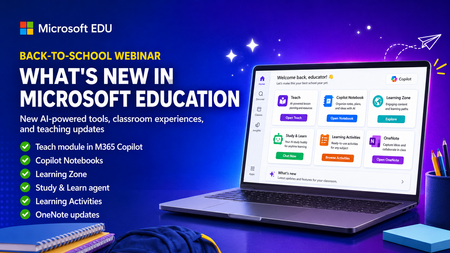
Get ready for back to school (Northern Hemisphere) with the latest product updates from Microsoft Education. In this webinar, we’ll showcase new AI-powered tools, teaching resources, and product updates designed to help educators save time, personalize learning, and support every student. You’ll see what’s new across Microsoft 365 Copilot, Teams for Education, OneNote, and more, including: ✅ Teach module in Microsoft 365 Copilot ✅ Copilot Notebooks ✅ Study and Learn agent ✅ Learning Zone ✅ Teams for EDU updates ✅ The latest OneNote EDU updates And more! Join us for practical demonstrations, helpful tips, and new ideas you can put to work as you prepare for a successful school year. And don't worry if you can't make it live, we will be recorded and posting this on the Microsoft Education YouTube channel afterwards. 📅 When: Wednesday, August 26th @ 8am Pacific Time 🔗 Register here: https://df.events.teams.microsoft.com/event/df.8c4f06fc-399f-4603-8023-f5fd92601bd1@72f988bf-86f1-41af-91ab-2d7cd011db47?source=copyLinkOneEventsShareDialog Mike Tholfsen Group Product Manager Microsoft Education743Views1like1CommentCalling all IT Admins - webinar on configuring Copilot Chat and updates for Students 13+
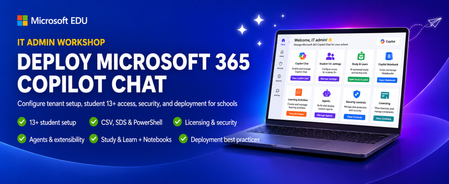
This IT Admin-focused workshop walks through how to configure Microsoft 365 Copilot Chat, from your tenant all the way to the end-user experience. When you enable Copilot Chat for students 13+, they will also get access to the new Study & Learn agent, Copilot Notebooks, Learning Activities and more. We cover the latest features that are available — including the new 13+ student configuration options, CSV, SDS and Powershell uploads, Copilot agents & extensibility, and updated licensing & security controls. By the end, you’ll be able to confidently deploy, manage, and optimize Copilot Chat in your environment so your users can safely harness AI productivity from day one. This 45-minute webinar will be led by Bill Sluss Principal Product Manager from the Microsoft Education team. When: Wednesday, August 19th @ 8am Pacific time Register: https://df.events.teams.microsoft.com/event/df.95feda23-419a-4d99-bfad-f7e4fd52a498@72f988bf-86f1-41af-91ab-2d7cd011db47?source=copyLinkOneEventsShareDialog Mike Tholfsen Group Product Manager Microsoft Education422Views0likes0CommentsHands-on webinar: Set up your classroom in Teams for Education plus the new Study and Learn Agent
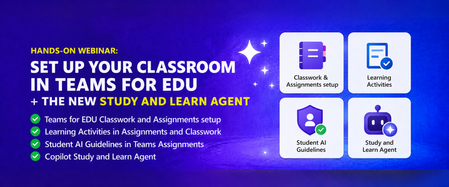
Join us on Wednesday, August 5th at 8:00 AM Pacific Time for a practical, 60-minute webinar to get your Microsoft Teams classroom ready for the new school year in the Northern hemisphere. Get your class set up in Assignments and Classwork, learn about new tools like Learning Activities, use Student AI Guidelines to set the right expectations for your students, and see how the Study and Learn Agent can be a study partner for your students. Follow along with your own Microsoft 365 Education account as we walk through each one. Register here: https://aka.ms/August5Training The session will be recorded and posted to the Microsoft Education YouTube channel so you can watch it later or share it with colleagues. Agenda - Get your Teams EDU classroom ready and learn about the Study and Learn Agent. ✅ Teams EDU Classwork / Assignments setup ✅ Learning Activities in Assignments and Classwork ✅ Student AI Guidelines in Teams Assignments ✅ Copilot Study and Learn Agent We look forward to seeing you on August 5th! Also, be sure to check out and sign up for our Microsoft Elevate Educator community. Mike Tholfsen Group Product Manager Microsoft Education294Views0likes0CommentsCopilot Notebooks and Study guide now available to Copilot Chat users
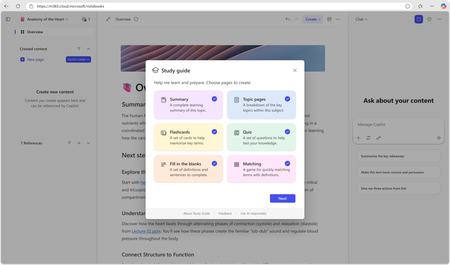
Every student knows the feeling: the test is coming, the materials are everywhere— and the hardest part is not finding information, it is knowing where to start. There is a PDF from the teacher. Slides from last week. A Word document with notes. Each piece has value. But studying means turning all of it into something usable: what to review first, what connects together, what still feels fuzzy, and what to practice learning. That is why we are excited to share two updates for education. First, Copilot Notebooks is now rolling out to Copilot Chat users, available with Microsoft 365 Education licenses. Copilot Notebooks are AI-powered workspaces for a subject or group project built on reference materials—bringing together all context behind a topic in one place for you or your study group and Copilot to collaborate on. This addresses one of the top asks we have heard from Microsoft 365 Education customers: bring the power of Copilot Notebooks to the education licenses schools already use. This education expansion builds on the broader Copilot Notebooks announcement that brings Notebooks to all education and enterprise Copilot Chat users, including new ways to work with your own materials in Notebooks with mind maps, Study Guides, and coming soon - the ability to create Word documents, Excel spreadsheets, and PowerPoint presentations. You can read that announcement in the broader commercial Copilot Notebooks blog. Copilot Notebooks are available in the Microsoft 365 Copilot web and desktop versions for Education users. Expect them to be available in Education tenants in the next two weeks. They will be available in OneNote in the weeks to follow. Get started: Find Copilot Notebooks located in the Microsoft 365 Copilot app waffle. Second, Copilot Notebook Study Guide is now generally available both for education and enterprise users. Study Guide is an AI-powered feature in Notebooks that turns the learning materials you provide into a complete, interactive study companion. Organized, editable, grounded in your references. Ready when you are. For Education IT admins - what you need to know Study guide lives inside Copilot Notebooks. Copilot Notebooks are available in the Microsoft 365 Copilot app. Copilot Notebooks are located in the Microsoft 365 Copilot app waffle. With this update, Copilot Notebooks are available to Microsoft 365 Education A1, A3, and A5 users. Study guide is available for education users ages 13+. Student accounts need the right Age Group in Microsoft Entra ID, and K-12 students ages 13-17 need Microsoft 365 Copilot Chat enabled by an IT admin before they can use Copilot Notebooks and Study Guide. No additional deployment is needed for Study Guide. Study Guide is rolling out to enterprise and education customers starting June 11. It may take a few days to show up in your account. What Study guide does Study Guide takes the materials learners already have and helps turn them into a collection of organized study topics and activities of your choice. Drop in PDFs, Word documents, PowerPoint presentations, or Excel files. Study Guide reads across those references, identifies the key ideas, and creates a multi-page study guide inside the notebook. The important part: it is grounded in the sources you provide. It is not pulling random facts from the internet. Summary pages and Topic pages include citations back to the original materials, so learners can check where information came from and return to the source when something needs a closer look. That matters for learning. It helps students stay connected to the actual course materials. It helps educators trust what students are practicing from turns citation-checking into a habit, not an afterthought. What is available in Study guide Study Guide creates materials that span all phases of learning: understand, practice, and test. Understand: deepen your knowledge of the material Summary page: Start with a high-level overview of the materials you added. The Summary includes an overview, why the topic matters, key topics, a glossary, common misconceptions, and citations back to the source materials. Topic pages: Study Guide creates deeper pages for the major topics it finds in your content. These pages work like mini-chapters that cover content across all your references. They include explanations, sub-topic deep dives, worked examples, questions that make you think critically and analyze concepts, short exercises, and citations throughout. Practice: strengthen recall, and make connections Flashcards: Study Guide generates interactive cards from the learner's materials. Learners can flip cards, use hints, and edit the set so the wording matches how they think about the concept. Fill in the blanks: Key terms are removed from important sentences, and learners choose from a set of distraction answers to complete sentences. It is especially useful for processes, and sequences of events where the order and relationships matter. Matching: Study Guide creates matching tiles that ask learners to connect related ideas: terms to definitions, causes to effects, structures to functions, or concepts to examples. Test: check what is sticking Quiz: Study Guide creates a Microsoft Forms-powered quiz with questions generated from the materials. Learners can answer directly from the page, review results, and see explanations for multiple-choice answers. Results are private to the learner unless they choose to share them. Every one of these formats is designed to move studying from passive review to active practice. Not just rereading or highlighting. Actually trying to remember, connect, explain, and check. Study Guide supports 21 languages at launch: Arabic, Chinese (Simplified), Chinese (Traditional), Danish, Dutch, English (US), Estonian, French (Canada), French (France), German, Hebrew, Italian, Japanese, Korean, Norwegian Bokmal, Portuguese (Brazil), Spanish (Mexico), Spanish (Spain), Swedish, Ukrainian, and Vietnamese. That means students can study from the materials they already use, in the language they already learn in, without having to move everything into a separate tool. For educators A few ways you can bring Study guide to your students or use it yourself: Get started by taking the Microsoft Learn course. Available now at aka.ms/notebooksandstudyguidemodule Point learners to a specific study moment. "Before Friday's quiz, add this week's slides and generate flashcards" is more useful than "use AI to study." Encourage active practice. Flashcards, fill-in-the-blanks, matching, and quizzes help your students retrieve information from memory instead of only rereading it. Use citations as an AI literacy moment. Study Guide shows where information came from. That opens a natural classroom conversation about checking sources, verifying AI-generated content, and staying grounded in the material. Keep assessment separate from practice. Study Guide quizzes are for self-checking. They are not a gradebook, and quiz results are private unless a student chooses to share them. Keep building your own AI fluency. Study Guide is built with privacy, safety, and learner control in mind. Study Guide pages are private by default, stored in the learner's Microsoft 365 notebook, and can be edited or deleted by the learner. Prompts and outputs are not used to train AI models, and quiz results are private unless a learner chooses to share them. Get started Take the professional development course at aka.ms/notebooksandstudyguidemodule Learn more about Study guide Anoo Padte is Principal Product Manager for AI in Education at Microsoft.14KViews4likes11Comments