dns
108 Topics
Static IP Issue with Windows Server 2022
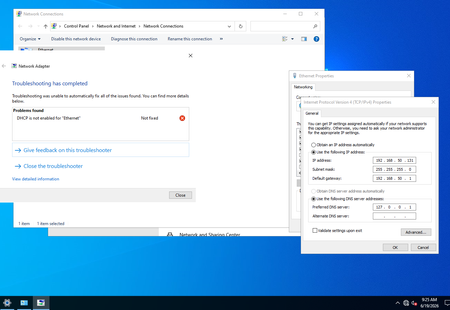
Hi Community, I installed my first Windows server to learn about the server and Active Directory. I installed Windows Server 2022. I configured a static IP and disabled IPv6. Then I installed Active Directory/DNS. After the reboot, the system is up, and I can access the internet and ping hosts. However, there is a world icon (No internet access) instead of a computer icon (internet access). In the static IP config, it replaced the DNS with 127.0.0.1, I know it'll use the local host as DNS. When I click on Network & Internet settings and Troubleshoot, I see an error 'DHCP is not enabled for "Ethernet"'. The only way it goes away is if I change the static to automatic. How can I fix this issue? Thanks, Also, I added forwarders such as 1.1.1.3 and 1.1.1.2 to DNS.182Views0likes2Comments
Creating parent reverse lookup zone when child zones already exist — what happens?
We have an AD-integrated DNS environment that has accumulated a large number of reverse lookup zones over time, created without any parent zone — essentially DNS sprawl from years of admins creating individual subnet zones rather than working from a parent. We currently have approximately 80+ reverse lookup zones including: Dozens of x.10.in-addr.arpa zones covering various 10.x.x.x subnets Multiple x.172.in-addr.arpa zones A handful of others including 100.192.10.in-addr.arpa, 168.192.in-addr.arpa, 204.167.in-addr.arpa, 215.204.167.in-addr.arpa, 135.7.in-addr.arpa None of these were ever delegated from a parent zone — they were just created independently. The 10.in-addr.arpa zone does not exist. Domain controllers are a mix of Windows Server 2019 Standard (majority) and Windows Server 2025 Standard. Our goal is to create 10.in-addr.arpa as the consolidation point going forward — new registrations go there, and we migrate existing child zones into it one at a time, deleting old ones as we go at a pace we're comfortable with. Before touching anything, we need to understand what creating 10.in-addr.arpa will actually do to the existing child zones. Specifically: Will existing records in the child zones be deleted? We've seen the TechNet article documenting records vanishing when creating a child zone under an existing parent — does the same destructive behaviour occur in the reverse direction? Will auto-delegations be created in the new parent zone pointing to the existing child zones, and if so how quickly? Will the child zones continue to function normally for queries while the parent exists alongside them? Will dynamic registration start hitting the parent zone for subnets not covered by an existing child zone, or will something unexpected happen? We can't test this in a lab as we don't have a replica environment available, and can't risk touching production without understanding the behaviour first. Pointers to any documentation covering this specific scenario would also be appreciated — we've been unable to find anything that addresses creating the parent after the children already exist independently.86Views0likes1CommentConnect to Azure SQL Database using a custom domain name with Microsoft Entra ID authentication
Many of us might prefer to connect to Azure SQL Server using a custom domain name (like devsqlserver.mycompany.com) rather than the default fully qualified domain name (devsqlserver.database.windows.net), often because of application-specific or compliance reasons. This article details how you can accomplish this when logging in with Microsoft Entra ID (for example, user@mycompany.com) in Azure SQL Database specific environment. Frequently, users encounter errors similar to the one described below during this process. Before you start: If you use SQL authentication (SQL username/password), the steps are different. Refer the following article for that scenario: How to use different domain name to connect to Azure SQL DB Server | Microsoft Community Hub With SQL authentication, you can include the server name in the login (for example, username@servername). With Microsoft Entra ID authentication, you don’t do that—so your custom DNS name must follow one important rule. Key requirement for Microsoft Entra ID authentication In an Azure SQL Database (PaaS) environment, the platform relies on the server name portion of the Fully Qualified Domain Name (FQDN) to correctly route incoming connection requests to the appropriate logical server. When you use a custom DNS name, it is important that the name starts with the exact Azure SQL server name (the part before .database.windows.net). Why this is required: Azure SQL Database is a multi-tenant PaaS service, where multiple logical servers are hosted behind shared infrastructure. During the connection process (especially with Microsoft Entra ID authentication), Azure SQL uses the server name extracted from the FQDN to: Identify the correct logical server Route the connection internally within the platform Validate the authentication context This behavior aligns with how Azure SQL endpoints are designed and resolved within Microsoft’s managed infrastructure. If your custom DNS name doesn’t start with the Azure SQL server name, Azure can’t route the connection to the correct server. Sign-in may fail and you might see error 40532 (as shown above). To fix this, change the custom DNS name so it starts with your Azure SQL server name. Example: if your server is devsqlserver.database.windows.net, your custom name must start with 'devsqlserver' devsqlserver.mycompany.com devsqlserver.contoso.com devsqlserver.mydomain.com Step-by-step: set up and connect Pick the custom name. It must start with your server name. Example: use devsqlserver.mycompany.com (not othername.mycompany.com). Create DNS records for the custom name. Create a CNAME or DNS alias to point the custom name to your Azure SQL server endpoint (public) or to the private endpoint IP (private) as per the blog mentioned above. Check DNS from your computer. Make sure devsqlserver.mycompany.com resolves to the right address before you try to connect. Connect with Microsoft Entra ID. In SSMS/Azure Data Studio, set Server to your custom server name and select a Microsoft Entra ID authentication option (for example, Universal with MFA). Sign in and connect. Use your Entra ID (for example, user@mycompany.com). Example: Also, when you connect to Azure SQL Database using a custom domain name, you might see the following error: “The target principal name is incorrect” Example: This happens because Azure SQL’s SSL/TLS certificate is issued for the default server name (for example, servername.database.windows.net), not for your custom DNS name. During the secure connection process, the client validates that the server name you are connecting to matches the name in the certificate. Since the custom domain does not match the certificate, this validation fails, resulting in the error. This is expected behavior and is part of standard security checks to prevent connecting to an untrusted or impersonated server. To proceed with the connection, you can configure the client to trust the server certificate by: Setting Trust Server Certificate = True in the client settings, or Adding TrustServerCertificate=True in the connection string This bypasses the strict name validation and allows the connection to succeed. Note: Please use the latest client drivers (ODBC/JDBC/.NET, etc.). In some old driver versions, the 'TrustServerCertificate' setting may not work properly, and you may still face connection issues with the same 'target principal name is incorrect' error. So, it is always better to keep drivers updated for smooth connectivity with Azure SQL. Applies to both public and private endpoints: This naming requirement and approach work whether you connect over the public endpoint or through a private endpoint for Azure SQL Database scenario, as long as DNS resolution for the custom name is set up correctly for your network.584Views4likes1CommentLots of DNS Server events 5504 on AD DNS server from Cloudflare etc
Hi! I'm getting about 18 events with id 5504 while trying to resolve some DNS names, like fullfiles.xyz. The DNS server is configured to use provider DNS and root hints. I can suppress these messages by disabling root hints or by disabling EDNS0 with dnscmd /config /enablednsprobes 0. I tried to use packet capture on the DC and on the router, and analyzed the results with AI, which answered: "You receive malformed patterns on the WAN interface." Can anybody explain the cause of this problem? Any ideas to fix it? Thanks!372Views0likes1Comment
Edge now crashes bind due to it doing TCP DNS in the clear
Not sure if there is a option to turn this off on Edge as I have not looked. So all was fine with my setup I have BIND9.16.50 I have Acrylic DNS Proxy to send DNS to the bind server then the bind kept crashing and it seem Edge is now doing DNS by TCP in the clear if it can resulting Acrylic DNS Proxy to do DNS by TCP to bind I don't know why Microsoft has done this anyone know? After some testing to stop BIND from crashing you need to increase a added option for “tcp-clients” I set to 1000 the default was 150110Views0likes2CommentsZero Trust DNS is Here: Elevating Enterprise Security on Windows 11
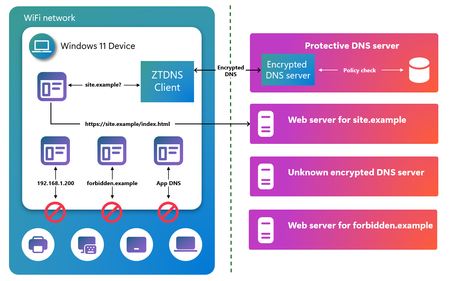
When attackers target an enterprise today, they rarely begin with a blunt smash-through-the-front-door intrusion. They begin quietly by resolving a domain. In most cases, modern malware, phishing kits, and human-operated ransomware operators rely on DNS as the entry point to discover infrastructure, beacon command-and-control, and exfiltrate data. Thus, it is becoming even more important to secure DNS to help protect against increasingly frequent, complex, and expensive cyberattacks. Enterprises have invested heavily in Protective DNS services with cutting-edge threat intelligence to identify and block malicious domains in real time but if an endpoint device can simply bypass them, the entire Zero Trust posture is weakened. Today, Microsoft is closing that gap. Introducing Zero Trust DNS (ZTDNS) We are excited to announce that Zero Trust DNS (ZTDNS) is now generally available on Windows 11 Enterprise and Windows 11 Education editions. ZTDNS is a new enterprise security feature in Windows that helps ensure DNS policy configured on the enterprise DNS server is enforced on the device. This is an important advancement for organizations working to enable that outbound connectivity on managed Windows devices aligns with enterprise authorization and policy. ZTDNS provides device-level enforcement of an enterprise’s DNS policy, in-box on Windows 11 helping ensure devices only communicate with destinations the organization intends. It doesn’t require installing and managing additional agents or maintaining a “best effort” block list on each endpoint device. With ZTDNS, the enterprise DNS resolver becomes the policy source of truth and Windows becomes the enforcement point. For more information, check out our documentation. This can be particularly useful for organizations in highly regulated industries, or where compliance with NIST standards is of paramount importance. Without ZTDNS, the system DNS client could be pointed to a network-provided malicious DNS server, which can resolve unapproved domains and return incorrect resolutions to redirect the system to attacker’s endpoint. If the malicious DNS server uses encrypted DNS, IT administrators won’t be able to analyze the DNS traffic to prevent or mitigate potential attacks. Applications can use their own DNS client to completely bypass system policies. Also, system remains vulnerable to in-network attackers. ZTDNS protects against these attack vectors by mandating the use of Windows DNS client and only sending encrypted DNS queries to the trusted DNS servers. Since ZTDNS blocks all outbound connections and local name resolution by default, the system is protected against in-network threats. Why is ZTDNS needed? In enterprise scenarios, DNS is no longer just a lookup mechanism but a policy decision point. However, without device-level enforcement, attackers can hijack device DNS to: Redirect DNS queries from the device to a malicious or compromised DNS server Use their own encrypted DNS client and bypass system DNS client Bypass DNS completely with direct IP connections In such cases, organizations lose the ability to control which network destinations the endpoint is allowed to reach even if a Protective DNS service is used. ZTDNS addresses this by only allowing outbound connections to IP addresses that were resolved by the trusted DNS server for a query issued by the Windows DNS client. More importantly, it achieves this without terminating end-to-end encryption. How does ZTDNS work? ZTDNS integrates the Windows DNS client with the Windows Filtering Platform to help enforce domain-name-based network lockdown using encrypted DNS. ZTDNS is off by default and can be configured on a Windows 11 device with an enterprise-approved DNS over HTTPS (DoH) or DNS over TLS (DoT) server. When enabled, ZTDNS blocks all outbound IP-based connections by default and only allows outbound connections to IP addresses resolved by the trusted DNS server or those added to the manual exception list by the IT administrator. It mandates the use of encrypted DNS (DoH or DoT) and only trusts the DNS resolutions initiated by the Windows DNS client and answered by the trusted DNS server to create outbound allow exceptions. This helps provide a strong, enforceable control that aligns with Zero Trust principles: all destinations are untrusted by default unless specifically permitted. In a nutshell, when configured and enabled, ZTDNS will have the following effects on your Windows 11 device: Encrypted DNS enforcement (DoH or DoT) Default deny for outbound IPv4 and IPv6 traffic Dynamic allow listing of IP addresses returned by trusted DNS servers Static allow listing of IP addresses approved by the IT administrator via manual exceptions Centralized logging of permitted and blocked connections Deploying ZTDNS ZTDNS is available in the latest builds of Windows 11 Enterprise and Windows 11 Education. To deploy ZTDNS, enterprises can configure and enable it via: netsh commands JSON configuration We are also actively developing a Microsoft Intune experience for ZTDNS and we will share more information when the details are available. For detailed deployment guidance, check out our official documentation. Connect with us For customers attending Microsoft Ignite 2025, please join us at session BRK258: Inside Windows Security, from client to cloud to learn more about ZTDNS. Alternatively, you can also visit the Windows Resiliency Initiative & Windows Security booth to discuss ZTDNS in depth. For customers who are unable to attend Microsoft Ignite 2025, we would still welcome the opportunity to connect. If you have questions about Zero Trust DNS, deployment considerations, or would like to share feedback from your evaluation, please contact us at ztdnsteam@microsoft.com. Securing the Present, Innovating for the Future Security is a shared responsibility. Through collaboration across hardware and software ecosystems, we can build more resilient systems secure by design and by default, from Windows to the cloud, enabling trust at every layer of the digital experience. The updated Windows Security book is available to help you understand how to stay secure with Windows. Learn more about Windows 11 and Copilot+ PCs. To learn more about Microsoft Security solutions, visit our website. Bookmark the Security blog to keep up with our expert coverage on security matters. Also, follow us on LinkedIn (Microsoft Security) and X (@MSFTSecurity) for the latest news and updates on cybersecurity.2.8KViews0likes1CommentGo Links on Edge Mobile
Dear community members, We use Intune managed computer and Zscaler that delivers DNS Search Domain. When user type a https://go/links in Edge browser, it automatically appends the FQDN to the address bar to become https://go.mycompanydomain.com/links. It is a quite common practice for Enterprise to provide convenience to access internal shortened URLs. With Intune managed mobile (also has Zscaler), can we achieve the same goal for Edge mobile? For the mobile use case, it is less of typing the go links directly in the browser. Because there are a lot of go links shared in Email and Chats from communications and newsletters, when user click them in Outlook or Teams on the phone, it will open in Edge. I am hoping when Edge opens these links, it automatically appends the search domain like on computers. I have looked up all Intune device and Edge documentation, chatted with three different LLMs, couldn't figure out a solution. All ideas are welcome! Thanks. Best regards,Solved263Views0likes1Comment
Windows Server 2019 AD & DNS replication
Hello, I'm running into issues with AD & DNS replication on a recently joined server in our environment. Environment: Three writable DCs in separate sites: Server A (Site A) – Windows Server 2019, AD DS & DNS (healthy) Server B (Site B) – Windows Server 2019, AD DS & DNS (healthy) Server C (Site B, new) – Windows Server 2019, AD DS & DNS (failing) Issues Observed Inbound replication to Server C from Server A & Server B successfully propagates for both AD and DNS zone/record changes. Outbound replication from Server C to Server A & Server B fails for both AD and DNS zone/record changes. Server A logs Event ID 1311 (KCC). Server A & B logs Event ID 1925 when trying to establish the link to Server C. What I’ve Tried: Pointed each servers NIC's to a heathy DC with the correct suffix. I've checked any windows FW and network FW rules to make sure no blockages. Verified A+SRV records for both heathy DC's. Confirmed AD-Integrated zones on all 3 servers show correct ACLs and records. I've tried running repadmin → still errors. Tested RPC connectivity: TCP 135 open. Ensured subnets/site mappings are correct in Sites and Services. I've tried to seed a zone and record on the healthy servers in efforts of t/s. Any help would be greatly appreciated!231Views0likes1Comment