diagnostics
8 Topics
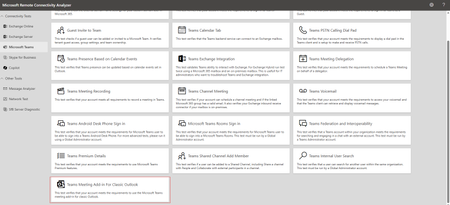
New MRCA Diagnostic: Teams Meeting Add-in For Classic Outlook
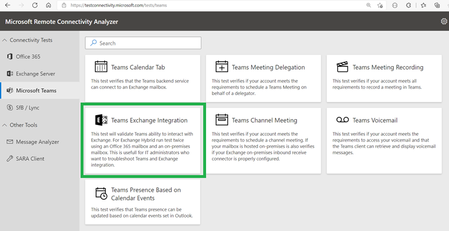
Hi Teams Community, We're back with another great addition from Christopher Tart to Support Diagnostics for Microsoft Teams. We're excited to share that the Teams Support team has added a new diagnostic to the Microsoft Remote Connectivity Analyzer — the Teams Meeting Add-in For Classic Outlook diagnostic. If you manage Teams in your organization, you've likely seen this scenario come through your support queue more than once: a user opens classic Outlook to schedule a meeting and the Teams Meeting button is simply nowhere to be found. This new diagnostic is here to help you quickly pinpoint what's blocking the add-in — whether it's a policy misconfiguration, a licensing gap, or a coexistence mode that's incompatible with the Teams add-in. Some common symptoms this diagnostic helps you troubleshoot: The Teams Meeting button is missing from the Outlook ribbon The Teams add-in doesn't appear in Outlook's list of COM add-ins Users are unable to schedule a Teams meeting directly from Outlook Only the Skype Meeting option appears in Outlook, with no Teams option in sight To access the new diagnostic, navigate to Microsoft Remote Connectivity Analyzer, select Microsoft Teams, then click on Teams Meeting Add-in For Classic Outlook. You'll need to sign in with a Teams account to run the test. Once authenticated — the diagnostic will then validate that user's configuration end to end. At a high level, the test checks a couple of things: The user is licensed for Microsoft Teams The Teams Outlook add-in policy is enabled (TeamsUpgradePolicy / Teams meeting policies) The user's coexistence and upgrade mode is compatible with the Teams Meeting add-in — users set to Skype for Business Only mode will not see the Teams add-in in Outlook The Teams desktop client is installed and signed in on the user's machine Exchange Online or on-premises connectivity is verified to confirm Outlook can reach Teams for meeting scheduling Admin policies that may be suppressing the add-in are flagged (e.g., Outlook add-in management policies) For more information, check out these resources: Use the Teams Meeting add-in in Outlook Teams Meeting add-in missing in Outlook Setting your coexistence and upgrade settings Please give the new diagnostic a try — and let us know if it helped! Thanks! Microsoft Teams Support486Views0likes2CommentsNew MRCA Diagnostic: Guest Invite to Teams
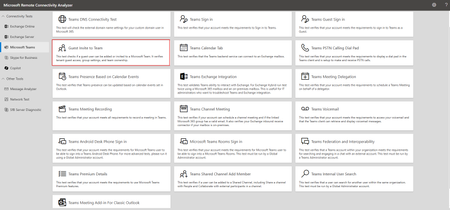
Hi Teams Community, We're back with another great addition from RuiTabaresMsft to Support Diagnostics for Microsoft Teams. We're excited to share a new test now available in the Microsoft Remote Connectivity Analyzer — the Guest Invite to Team diagnostic. Getting guest access working properly in Teams requires several settings across Microsoft 365 to all line up correctly, and when one of them is misconfigured it can be frustratingly difficult to pinpoint. This new diagnostic is designed to help admins quickly identify exactly where the configuration has gone wrong. If you're experiencing any of the following symptoms, you should give this diagnostic a try: A team owner is unable to add or invite a guest user to a Microsoft Team. You receive an error such as "You don't have permission to add guests" when attempting to invite an external user. Guest access appears to be enabled in the Teams admin center, but external users still can't join a team. Guest users were previously able to be invited to teams, but invitations have stopped working after a recent configuration change. To access the new diagnostic, navigate to Microsoft Remote Connectivity Analyzer, select Microsoft Teams, then click on Guest Invite to Team. We recommend signing in with a Teams or Microsoft 365 Administrator account. Because this diagnostic validates tenant-wide settings and Microsoft 365 group configuration, admin-level credentials are needed to return complete and accurate results. At a high level, the test checks a couple of things: Tenant guest access setting — Validates that "Allow guest access in Teams" is enabled in the Teams admin center. Microsoft Entra ID external collaboration settings — Confirms B2B external collaboration is not blocked at the Entra ID level. Microsoft 365 Groups guest settings — Checks that group owners are permitted to add external people as guests. Team ownership — Verifies the team has at least one owner, as required to invite guests. For background reading: Guest access in Microsoft Teams Collaborate with guests in a team Manage guest access in Microsoft 365 Groups Please give the new diagnostic a try — and let us know if it helped! Thanks! Microsoft Teams Support207Views0likes0Comments
New Diagnostic: Microsoft Teams Shared Channels now available in MRCA
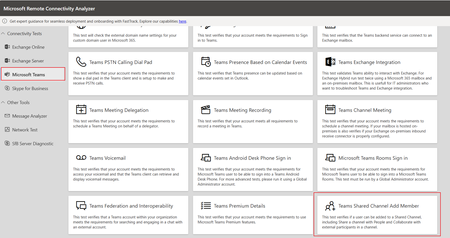
We're excited to release another new diagnostic to the MRCA for troubleshooting issues related to Teams Shared channels. Thanks to RuiTabaresMsft who has done it again this time bringing you a comprehensive Microsoft Remote Connectivity Analyzer diagnostic for Shared channels. To access the customer facing diagnostic, navigate to Microsoft Remote Connectivity Analyzer, select Microsoft Teams, then click on the “Teams Shared Channel Add Member”. Since the release of Shared channels on Teams, one of the common trends reported is the issue related to adding internal and external users to channels. This involves configurations on Teams policies, O365 groups, and Entra B2B Direct Connect, along with additional prerequisites. We discuss the configuration and troubleshooting options in the following article: Collaborate with external participants in a shared channel This new diagnostic will help you troubleshoot and test if you meet requirements for an internal or external user from outside tenant could be added to a shared channel including Share a channel with People and Collaborate with external participants in a channel. At a high level the test checks a few things: Checking the prerequisites for user to be add a member into a shared channel. Validates that the user can generate an authentication token in Microsoft Teams. Verifies that the specified mailbox is supported for the intended operation. Retrieves the user's backend settings which includes configuration settings and preferences associated with the user in Microsoft Teams. Validates the Teams and channel policies related to shared channels. Validates the shared channel URI, retrieves the channel thread, and checks connectivity to chat services. Validates that the group has the AllowToAddGuests setting enabled. Validates that the tenant group settings for the AllowToAddGuests setting is enabled. Retrieves the tenant ID associated with the external user. Validates the cross-tenant access policies (XTAP) to ensure that they permit B2B direct collaboration. Performs a cross-tenant access policy (XTAP) search. Please try the new diagnostic if you're having trouble adding members or sharing a shared channel and let us know if it helped. As always, we welcome your comments, feedback, and questions. Got an idea for a new diagnostic? Issues with this one? Let us know! Thanks! Microsoft Teams Support2KViews0likes0Comments