detection
58 TopicsHunting AI Agent Configuration Drift with Microsoft Sentinel
Four KQL patterns for detecting instruction changes, new MCP servers, ownership changes, and organization-wide sharing I recently authored and contributed four new Microsoft Sentinel hunting queries for detecting security-relevant configuration drift in AI agents. They have been reviewed, approved, and merged into Microsoft's public Azure-Sentinel repository. I built the queries around four changes that can materially affect an agent's behavior, access, or exposure: instructions being modified, MCP servers being connected, owners being added, and sharing being expanded to the entire organization. Each modification may be legitimate, but each deserves enough context for a security team to verify that it was expected and authorized. For a security operations team, the difficult question is often not what does this agent look like now? It is what changed since the last known state? Microsoft Sentinel's AgentsInfo table provides inventory-style snapshots of AI agents and their associated configuration. That makes it useful for more than posture reporting. By comparing a recent snapshot with an earlier baseline, we can hunt for configuration drift that deserves investigation. This post walks through four practical hunting scenarios: Instructions changed on a previously published agent A newly observed MCP server on an existing agent An owner added to an MCP-enabled agent Sharing expanded from a restricted scope to the entire organization The complete hunting queries are available in Microsoft's public https://github.com/Azure/Azure-Sentinel/tree/master/Hunting%20Queries/AI%20Agents. The focus here is the detection design behind them, the KQL patterns they share, and the investigation questions they help answer. What I contributed I wrote the four standalone hunting queries discussed in this article and submitted them to Azure/Azure-Sentinel in https://github.com/Azure/Azure-Sentinel/pull/14702: AI Agents - Instructions changed on previously published agent AI Agents - Newly observed MCP server on existing agent AI Agents - Owner added to MCP-enabled agent AI Agents - Sharing expanded to organization-wide The contribution went through several rounds of technical review. Across six commits, I aligned the queries with the unified AgentsInfo schema, added schema-tolerant IdentityInfo enrichment, improved entity mappings, bounded the identity lookback, expanded all owner values, and kept the ATT&CK mappings limited to scenarios where a precise technique could be defended. Repository collaborator v-atulyadav approved the final revision, and the four queries were merged into master on July 20, 2026. This article explains the detection logic and engineering decisions behind that contribution rather than simply reproducing the final YAML files. Why current-state queries are not enough A current-state query can answer questions such as: Which agents are published? Which agents have MCP servers configured? Which agents are shared with the organization? Who owns a particular agent? Those are important posture questions, but they do not tell us whether the state is new. An agent with an MCP server might have been reviewed and approved months ago. The same MCP server appearing for the first time today is a different security signal. Configuration-drift hunting adds the missing time dimension. Instead of treating a risky-looking property as an event, it compares two states of the same agent and reports only meaningful transitions. The common detection pattern I used the same basic time model across all four hunts: let lookback = 14d; let recent = 2d; The latest snapshot observed during the last two days becomes the current state. The latest snapshot from the preceding portion of the 14-day lookback becomes the baseline. Conceptually, the comparison looks like this: let CurrentState = AgentsInfo | where Timestamp > ago(recent) | summarize arg_max(Timestamp, *) by AgentId | where LifecycleStatus != "Deleted"; let BaselineState = AgentsInfo | where Timestamp between (ago(lookback) .. ago(recent)) | where LifecycleStatus != "Deleted" | summarize arg_max(Timestamp, *) by AgentId; CurrentState | join kind=inner BaselineState on AgentId Several details matter here: arg_max(Timestamp, *) by AgentId selects the latest available state for each agent in the relevant time range. The inner join restricts results to agents that exist in both periods. A newly created agent is therefore not automatically treated as configuration drift on an existing agent. Deleted lifecycle snapshots are excluded so that a deletion record does not become the effective baseline or current configuration. The two-day current window is operationally significant. To retain coverage, these hunts should run within two days of a change. The 14-day and two-day values are practical defaults, not universal constants. Environments with different ingestion cadence or retention requirements can adjust them, but the current and baseline windows must remain non-overlapping. Scenario 1: Instructions changed on a published agent An agent's instructions define its default behavior, persona, and operating boundaries. Changing them can be part of normal development, but it can also weaken restrictions, redirect the agent's behavior, or modify how it uses connected capabilities. The first hunt compares the current and previous instruction values only when the agent was published in both snapshots: CurrentState | join kind=inner BaselineState on AgentId | where CurrentInstructions != PreviousInstructions | extend PreviousInstructionsHash = hash_sha256(PreviousInstructions), CurrentInstructionsHash = hash_sha256(CurrentInstructions), InstructionsLengthDelta = strlen(CurrentInstructions) - strlen(PreviousInstructions) I deliberately chose to expose hashes and a length delta rather than returning both instruction bodies in plaintext. This confirms that a change occurred without unnecessarily spreading potentially sensitive prompts through query results, exports, or screenshots. Useful investigation questions include: Was the change associated with an approved development or release process? Did the agent remain published while the instructions changed? Were guardrails, declared tools, permissions, or sharing settings modified around the same time? Do audit records identify an expected actor and change path? The query maps well to an integrity-focused investigation. Its MITRE ATT&CK mapping is T1565.001 (Stored Data Manipulation), but the result is still a hunting lead rather than proof of malicious manipulation. https://github.com/Azure/Azure-Sentinel/blob/master/Hunting%20Queries/AI%20Agents/AgentsInfoInstructionsChangedOnPublishedAgent.yaml Scenario 2: A newly observed MCP server Model Context Protocol servers can extend an agent with external tools, data sources, or actions. From a defender's perspective, the important transition is not simply that an MCP server exists. It is that a server name appears in the current configuration but was absent from the baseline. The query expands the dynamic McpServers array and builds a set of server names for each agent: let CurrentMcp = CurrentRaw | mv-expand Mcp = McpServers | extend McpName = tostring(Mcp.name) | where isnotempty(McpName) | summarize CurrentMcpServers = make_set(McpName) by AgentI It performs the same normalization for the baseline, then calculates the difference: | extend AddedMcpServers = set_difference(CurrentMcpServers, BaselineMcpServers) | where array_length(AddedMcpServers) > 0 Using set_difference() avoids raising a result merely because the order of array elements changed. The hunt reports only MCP server names present in the current set and absent from the previous set. An analyst should validate more than the displayed name: Is the MCP integration part of the approved inventory? What endpoint, authentication method, and permissions are associated with it? Which tools or data can the server expose to the agent? Was the integration introduced through an expected deployment path? Did ownership, instructions, or sharing change in the same period? I did not assign an ATT&CK technique to this query. Adding an MCP server does not, by itself, prove command execution, persistence, or a specific attacker behavior. Avoiding an overly broad mapping keeps the signal honest. https://github.com/Azure/Azure-Sentinel/blob/master/Hunting%20Queries/AI%20Agents/AgentsInfoNewlyObservedMcpServer.yaml Scenario 3: An owner added to an MCP-enabled agent Ownership is a control-plane relationship. A newly added owner may be able to modify an agent's configuration, instructions, integrations, or publication state. The risk becomes more interesting when the agent already has MCP servers configured. The hunt first limits the current state to MCP-enabled agents: | where array_length(coalesce(McpServers, dynamic([]))) > 0 | project AgentId, Timestamp, Name, Platform, CreatedDateTime, CurrentOwners = coalesce(Owners, dynamic([])), McpServers It then compares the owner arrays as sets: | extend AddedOwners = set_difference(CurrentOwners, PreviousOwners) | where array_length(AddedOwners) > 0 | mv-expand AddedOwnerId = AddedOwners to typeof(string) Expanding AddedOwners produces one row per newly observed owner. This is more useful than returning one opaque dynamic array because every added identity can be enriched, mapped, and investigated independently. I kept the raw object identifier in the result even when identity enrichment fails: | extend AddedOwnerUpn = AccountUpn, UnresolvedAddedOwnerId = iff(isempty(AccountUpn), AddedOwnerId, "") That fallback matters. A missing UPN should not hide the underlying ownership change. Investigation should establish: Is the added owner an expected person, service identity, or administrative group? Does the identity's role and business function justify control of this agent? Was the owner added before other configuration changes? Does the identity appear in related sign-in, audit, or privileged-access activity? Should ownership be removed while the change is reviewed? This query maps to T1098 (Account Manipulation) under Persistence and Privilege Escalation. As with the instruction-change hunt, the mapping frames an investigation hypothesis; it does not label every ownership change as malicious. https://github.com/Azure/Azure-Sentinel/blob/master/Hunting%20Queries/AI%20Agents/AgentsInfoOwnerAddedToMcpAgent.yaml Scenario 4: Sharing expanded to the entire organization An agent can move from a limited audience to organization-wide availability without changing its underlying tools or instructions. That transition can materially increase exposure, especially when the agent has MCP integrations or declared tools. The hunt treats "*" in SharedWith as the organization-wide state. The current snapshot must contain it, while the baseline must not: // Current state | where set_has_element(coalesce(SharedWith, dynamic([])), "*") // Baseline state | where not(set_has_element(coalesce(SharedWith, dynamic([])), "*")) The result also counts MCP servers and declared tools: | extend McpServerCount = array_length(coalesce(McpServers, dynamic([]))), DeclaredToolCount = array_length(coalesce(DeclaredTools, dynamic([]))) | extend HasElevatedCapabilities = McpServerCount > 0 or DeclaredToolCount > 0 | sort by HasElevatedCapabilities desc, Timestamp desc I use HasElevatedCapabilities as a prioritization field, not a verdict. It brings agents with connected capabilities to the top of the result set so analysts can review the potentially larger blast radius first. Questions for triage include: Was organization-wide publication explicitly approved? Is the agent intended for every user, or was a group-based scope expected? What data sources, tools, and MCP servers can organization-wide users reach through it? Do the instructions contain assumptions that were safe only for a restricted audience? Were access reviews or user-acceptance tests completed before the expansion? No ATT&CK mapping is assigned because a broader sharing scope is a security-relevant exposure change, but not a sufficiently precise adversary technique on its own. https://github.com/Azure/Azure-Sentinel/blob/master/Hunting%20Queries/AI%20Agents/AgentsInfoSharingExpandedToOrgWide.yaml Resolving owners without making the hunt schema-fragile The Owners field contains identifiers. Human-readable identity context makes results easier to triage, and entity mappings make those identities more useful in Sentinel investigations. I built a small, materialized IdentityInfo lookup that is shared by the four hunts: let IdentityIdtoUPN = materialize( IdentityInfo | extend ResolvedAccountUpn = tostring( column_ifexists("AccountUpn", column_ifexists("AccountUPN", ""))), IdentityTimestamp = todatetime( column_ifexists("Timestamp", column_ifexists("TimeGenerated", datetime(null)))) | where IdentityTimestamp >= ago(lookback) | where isnotempty(AccountObjectId) and isnotempty(ResolvedAccountUpn) | summarize arg_max(IdentityTimestamp, ResolvedAccountUpn) by AccountObjectId | project AccountObjectId = tostring(AccountObjectId), AccountUpn = ResolvedAccountUpn); There are three design choices worth noting: column_ifexists() accommodates observed IdentityInfo naming variants without maintaining separate query versions. The lookup is bounded by the same lookback period instead of scanning unbounded identity history. arg_max() keeps the latest usable identity record for each object ID. After enrichment, the queries map the account using the UPN components and the Entra object ID: entityMappings: - entityType: Account fieldMappings: - identifier: Name columnName: OwnerAccountName - identifier: UPNSuffix columnName: OwnerAccountUPNSuffix - identifier: AadUserId columnName: OwnerId The strong AadUserId identifier remains valuable even when display information changes. Microsoft Sentinel can use mapped entities in bookmarks and investigation experiences, so mapping the changed owner is more than cosmetic enrichment. Turning a result into an investigation These queries intentionally stop at the configuration transition. AgentsInfo tells us that two snapshots differ; it does not necessarily tell us who performed the change, through which interface, or whether the action was authorized. A practical investigation workflow is: Confirm that the two snapshots represent the expected agent and time period. Review the exact changed property and the agent's current capabilities. Identify the owner or newly added owner through IdentityInfo and Entra ID context. Correlate the transition with the relevant audit source for actor attribution. Check for related changes to permissions, tools, data sources, publication state, and sharing. Validate the change against an approved request, release, or ownership process. Restrict, unpublish, or revert the agent if the exposure cannot be justified. Expected changes can still be useful findings. Repeated legitimate results may reveal that a deployment process lacks a stable change window, that ownership is managed through noisy automation, or that the hunt's timing needs to be aligned with release activity. Tuning the hunts for your environment Before operational use, consider the following adjustments: Run cadence: Execute within the two-day current window. A daily cadence provides overlap without blending current and baseline periods. Lookback: Increase the 14-day lookback only if snapshot history and query cost support it. A longer lookback does not compensate for missing the current window. Known change windows: Add watchlists or environment-specific suppression logic for well-controlled automated deployments, while retaining enough context to audit the change. Agent scope: Filter by platform, business unit, agent naming convention, or owner if different teams require separate triage queues. Risk prioritization: Raise agents with sensitive declared data sources, powerful tools, privileged owners, or broad availability to the top of the result set. Audit correlation: Keep attribution logic separate unless the audit source and join keys are stable in your environment. This makes the configuration-drift hunt reusable while allowing each organization to attach its own control-plane evidence. Test with representative snapshots before treating any hunt as an operational control. In particular, validate array shapes for Owners, McpServers, and SharedWith, confirm the identity fields present in your workspace, and exercise both changed and unchanged states. Using the queries The four YAML definitions have been merged into the Hunting Queries/AI Agents folder of Microsoft's Azure-Sentinel repository. Each file contains the complete KQL, description, entity mappings, and ATT&CK mappings where a precise technique applies. https://github.com/Azure/Azure-Sentinel/blob/master/Hunting%20Queries/AI%20Agents/AgentsInfoInstructionsChangedOnPublishedAgent.yaml https://github.com/Azure/Azure-Sentinel/blob/master/Hunting%20Queries/AI%20Agents/AgentsInfoNewlyObservedMcpServer.yaml https://github.com/Azure/Azure-Sentinel/blob/master/Hunting%20Queries/AI%20Agents/AgentsInfoOwnerAddedToMcpAgent.yaml https://github.com/Azure/Azure-Sentinel/blob/master/Hunting%20Queries/AI%20Agents/AgentsInfoSharingExpandedToOrgWide.yaml The broader pattern is reusable beyond these four scenarios: select a stable current snapshot, select a non-overlapping baseline, normalize dynamic properties into comparable sets, calculate the transition, and enrich only after the drift has been identified. That keeps the core detection explainable and gives the analyst the before-and-after context needed for a defensible investigation. References https://learn.microsoft.com/en-us/azure/azure-monitor/reference/tables/agentsinfo https://learn.microsoft.com/en-us/azure/azure-monitor/reference/queries/agentsinfo https://learn.microsoft.com/en-us/azure/azure-monitor/reference/tables/identityinfo https://learn.microsoft.com/en-us/azure/sentinel/entities-reference https://github.com/Azure/Azure-Sentinel/pull/14702 I authored the four hunting queries discussed in this article and contributed them to Microsoft's Azure-Sentinel repository as https://github.com/Azure/Azure-Sentinel/pull/14702. The complete implementations and review history are publicly available through the links above.275Views1like2Comments
Ingest Microsoft XDR Advanced Hunting Data into Microsoft Sentinel
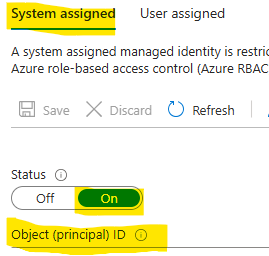
I had difficulty finding a guide that can query Microsoft Defender vulnerability management Advanced Hunting tables in Microsoft Sentinel for alerting and automation. As a result, I put together this guide to demonstrate how to ingest Microsoft XDR Advanced Hunting query results into Microsoft Sentinel using Azure Logic Apps and System‑Assigned Managed Identity. The solution allows you to: Run Advanced Hunting queries on a schedule Collect high‑risk vulnerability data (or other hunting results) Send the results to a Sentinel workspace as custom logs Create alerts and automation rules based on this data This approach avoids credential storage and follows least privilege and managed identity best practices. Prerequisites Before you begin, ensure you have: Microsoft Defender XDR access Microsoft Sentinel deployed Azure Logic Apps permission Application Administrator or higher in Microsoft Entra ID PowerShell with Az modules installed Contributor access to the Sentinel workspace Architecture at a Glance Logic App (Managed Identity) ↓ Microsoft XDR Advanced Hunting API ↓ Logic App ↓ Log Analytics Data Collector API ↓ Microsoft Sentinel (Custom Log) Step 1: Create a Logic App In the Azure Portal, go to Logic Apps Create a new Consumption Logic App Choose the appropriate: Subscription Resource Group Region Step 2: Enable System‑Assigned Managed Identity Open the Logic App Navigate to Settings → Identity Enable System‑assigned managed identity Click Save Note the Object ID This identity will later be granted permission to run Advanced Hunting queries. Step 3: Locate the Logic App in Entra ID Go to Microsoft Entra ID → Enterprise Applications Change filter to All Applications Search for your Logic App name Select the app to confirm it exists Step 4: Grant Advanced Hunting Permissions (PowerShell) Advanced Hunting permissions cannot be assigned via the portal and must be done using PowerShell. Required Permission AdvancedQuery.Read.All PowerShell Script # Your tenant ID (in the Azure portal, under Azure Active Directory > Overview). $TenantID=”Your TenantID” Connect-AzAccount -TenantId $TenantID # Get the ID of the managed identity for the app. $spID = “Your Managed Identity” # Get the service principal for Microsoft Graph by providing the AppID of WindowsDefender ATP $GraphServicePrincipal = Get-AzADServicePrincipal -Filter "AppId eq 'fc780465-2017-40d4-a0c5-307022471b92'" | Select-Object Id # Extract the Advanced query ID. $AppRole = $GraphServicePrincipal.AppRole | ` Where-Object {$_.Value -contains "AdvancedQuery.Read.All"} # If AppRoleID comes up with blank value, it can be replaced with 93489bf5-0fbc-4f2d-b901-33f2fe08ff05 # Now add the permission to the app to read the advanced queries New-AzADServicePrincipalAppRoleAssignment -ServicePrincipalId $spID -ResourceId $GraphServicePrincipal.Id -AppRoleId $AppRole.Id # Or New-AzADServicePrincipalAppRoleAssignment -ServicePrincipalId $spID -ResourceId $GraphServicePrincipal.Id -AppRoleId 93489bf5-0fbc-4f2d-b901-33f2fe08ff05 After successful execution, verify the permission under Enterprise Applications → Permissions. Step 5: Build the Logic App Workflow Open Logic App Designer and create the following flow: Trigger Recurrence (e.g., every 24 hours Run Advanced Hunting Query Connector: Microsoft Defender ATP Authentication: System‑Assigned Managed Identity Action: Run Advanced Hunting Query Sample KQL Query (High‑Risk Vulnerabilities) Send Data to Log Analytics (Sentinel) On Send Data, create a new connection and provide the workspace information where the Sentinel log exists. Obtaining the Workspace Key is not straightforward, we need to retrieve using the PowerShell command. Get-AzOperationalInsightsWorkspaceSharedKey ` -ResourceGroupName "<ResourceGroupName>" ` -Name "<WorkspaceName>" Configuration Details Workspace ID Primary key Log Type (example): XDRVulnerability_CL Request body: Results array from Advanced Hunting Step 6: Run the Logic app to return results In the logic app designer select run, If the run is successful data will be sent to sentinel workspace. Step 7: Validate Data in Microsoft Sentinel In Sentinel, run the query: XDRVulnerability_CL | where TimeGenerated > ago(24h) If data appears, ingestion is successful. Step 8: Create Alerts & Automation Rules Use Sentinel to: Create analytics rules for: CVSS > 9 Exploit available New vulnerabilities in last 24 hours Trigger: Email notifications Incident creation SOAR playbooks Conclusion By combining Logic Apps, Managed Identities, Microsoft XDR, and Microsoft Sentinel, you can create a powerful, secure, and scalable pipeline for ingesting hunting intelligence and triggering proactive detections.292Views1like1Comment
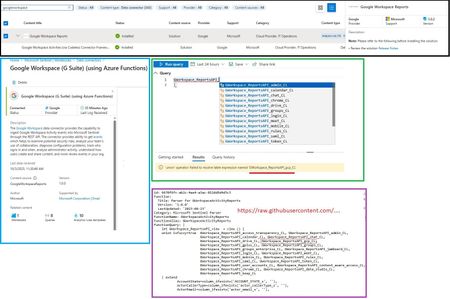
Sentinel Data Connector: Google Workspace (G Suite) (using Azure Functions)
I'm encountering a problem when attempting to run the GWorkspace_Report workbook in Azure Sentinel. The query is throwing this error related to the union operator: 'union' operator: Failed to resolve table expression named 'GWorkspace_ReportsAPI_gcp_CL' I've double-checked, and the GoogleWorkspaceReports connector is installed and updated to version 3.0.2. Has anyone seen this or know what might be causing the table GWorkspace_ReportsAPI_gcp_CL to be unresolved? Thanks!291Views1like2CommentsLookup data from the last == ingestion_time()
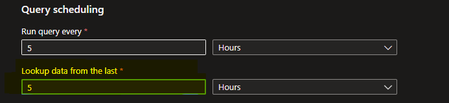
Howdy! In "Analytics rule wizard - Create a new Scheduled rule" under Query scheduling you have to fill out "Lookup data from the last" What time field is Sentinel looking at when determine which events to include in the lookup data? Is it ingestion_time()? Is it TimeGenerated? How does it know?239Views1like3CommentsNew Blog Post | What are DEV-#### indicator designations for detections?
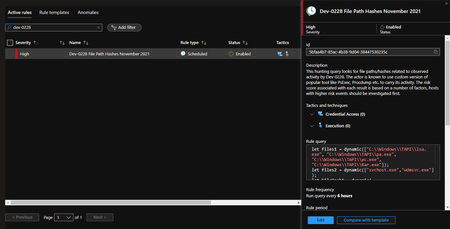
What are DEV-#### indicator designations for detections? - Azure Cloud & AI Domain Blog (azurecloudai.blog) I had this question come up today, but I’ve been asked a few times before recently, so I believe it’s prudent to supply and explanation and guidance on what to do with these. Microsoft uses DEV-#### designations as a temporary name given to an unknown, emerging, or a developing cluster of threat activity, allowing MSTIC to track it as a unique set of information until we reach a high confidence about the origin or identity of the actor behind the activity. Once it meets the criteria, a DEV is converted to a named actor. Here’s an example of one in Microsoft Sentinel… Original Post: New Blog Post | What are DEV-#### indicator designations for detections? - Microsoft Tech Community806Views1like1Comment
AMA vs MMA which one should we go ahead???
Hello there, we have an issue with one of the Azure sentinel clients, where the cost has considerably increased due to a particular Event ID generating alot of traffic. Event ID 4663: Attempt to access an object” has highest count of “8263330” within 24 hours We dont want to just filter out this event all togather since this event ID is important specially for monitoring of OS level executables which at times attackers exploit/misuse. Going through the documentation, I see that AMA has capability to filter the event IDs using the XPath queries. I went through one of the blog post that says that when using AMA instead of MMA, we need to consider below: AMA can co-exist with MMA however, we will receive two heartbeats from one endpoint, one for each agent AMA will also collect logs and MMA as well, so rather than reducing logs, we will be having more logs coming in. I have customer who already has MMA installed and I cannot just ask him to uninstall all the MMA agents and install AMA agents from scratch? any easy resolution for this problem? We have new customers coming in and I dont want to end up in the same situation, so shall we start using AMA agent, is it stable enough as compared to MMA? or recommended by Microsoft to move ahead instead of MMA.? I dont see AMA agent installed within sentinel portal, only MMA is there. so from where can i download this?? I need answers on the above queries, any help will be much appreciated? Thanks Fahad.27KViews1like5Comments