defender for endpoint linux
1 TopicMDATP Linux agent latest release reporting
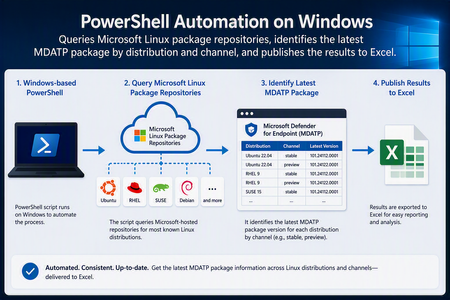
Executive Summary The solution provides a repeatable way to determine which Microsoft Defender for Endpoint for Linux package is released by configured Microsoft package repositories for each operating-system family, version, architecture, and update channel. It runs from Windows using PowerShell and writes a structured Excel report for operational review. A single report replaces repeated manual browsing and package-manager checks across multiple Linux distributions and release channels. What the automation delivers Queries packages.microsoft.com over HTTPS. Checks RPM-based and APT-based repository metadata. Locates package records named mdatp. Selects the latest version represented by repository metadata. Captures source URLs, architecture, available timestamps, and collection status. Creates Latest Releases and Configuration worksheets. Continues processing when an individual repository fails. Scope and Limitations The report reflects package availability in the configured Microsoft repositories. It is intended for release visibility and operational review only. What the report does not do Confirm that a package has been deployed to an endpoint. Validate compatibility with a customer-specific environment. Replace published Microsoft support or deployment guidance. Change an endpoint’s configured update channel. Solution Structure Scheduler Collector Source Processing Output Windows Task Scheduler PowerShell 7 Microsoft Linux package repositories Metadata discovery and version selection Excel workbook The scheduler launches the script. The script enumerates configured targets, retrieves metadata, identifies an mdatp package record, normalizes the result, and exports it to the workbook. End-to-End Processing Walkthrough 1. Initialize the environment Confirm that ImportExcel is available. The first interactive run can use -InstallDependencies to install the module for the current user. The module creates .xlsx files without desktop Excel. 2. Load the target matrix Use the built-in target list for RHEL, Rocky Linux, Amazon Linux, Ubuntu, Debian, and SLES. The current design evaluates prod, insiders-slow, and insiders-fast URL patterns. 3. Construct endpoints Substitute the channel into each repository or configuration URL so every query has a traceable source. 4. Process RPM metadata Download repodata/repomd.xml, follow its primary-metadata reference, decompress when needed, and search package records for mdatp. 5. Process APT metadata Read the Microsoft repository configuration, identify the base, suite, and component, obtain Packages.gz indexes, and search for mdatp. 6. Select the latest record Compare RPM epoch, version, and release fields or the APT version field, then retain the winning package record. 7. Normalize output Create one row per attempted OS, version, and channel combination with package details, traceability URLs, collection time, status, and errors. 8. Isolate failures Record a failed query as an ERROR row and continue processing other targets. 9. Publish Excel Create a formatted Latest Releases table and Configuration worksheet. 10. Schedule execution (optional) Use Windows Task Scheduler to run PowerShell 7 with full script and output paths, network availability, and Start when available settings.cd \ Repository Metadata by Package Family Family Example systems Metadata source Fields used RPM RHEL, Rocky, Amazon Linux, SLES repodata/repomd.xml and referenced primary metadata Name, epoch, version, release, architecture, location, time APT Ubuntu, Debian Repository .list file and Packages.gz Package, Version, Architecture, Filename Excel Workbook Structure Worksheet Audience Purpose Latest Releases Security and operations teams One row per attempted target, with version, architecture, status, source URLs, and timestamps. Configuration Platform owners Documents about the target systems, channels, and URL patterns included by the script. Operational Runbook First interactive run Store the script in a specific folder such as C:\MDATPTracker. IMPORTANT: Script requires PowerShell 7.6.2 minimum version to run. Open PowerShell 7 as the account that will own the task, with elevated privileges Run once with -InstallDependencies as shown in the example below Example: .\ GetMDATPLinuxLatestReleases.ps1 -InstallDependencies This will generate an excel spreadsheet named “MDATP_Linux_Latest_Releases.xlsx” Review the workbook and investigate ERROR column to confirm no errors. Run a second time without -InstallDependencies to validate steady state. Scheduled execution For each tab on the Windows task scheduler, configure the tabs like the example screenshots or to your desired schedule when the task needs to be run. The only tab that needs to be configured as described is the tab “Actions” however, the working directories can be adjusted to your needs, just take into consideration the directories exist and the Powershell logic is configured as described below in the Actions tab section. General tab: Triggers tab: Actions tab: Details for the highlighted fields in the “Actions” tab: - Program/script value: NOTE: your Powershell 7 directory may be different than the example "C:\Program Files\WindowsApps\Microsoft.PowerShell_7.6.4.0_x64__8wekyb3ch388r\pwsh.exe" - Add arguments(optional): but this is required for the script to run -NoProfile -NonInteractive -ExecutionPolicy Bypass -File "C:\MDATPLinuxVersionTracker\Get-MDATPLinuxLatestReleases-Corrected.ps1" -OutputPath "C:\MDATPLinuxVersionTracker\MDATP_Linux_Releases.xlsx" - Start in(optional): C:\MDATPLinuxVersionTracker Conditions tab: Settings tab: Validation checklist Description Validation Confirm Powershell required version PowerShell 7.6.2 or later is available. The PowerShell switch -InstallDependencies The Powershell script needs to be run the first time with that switch to guarantee an .xlsx file can be generated, even if Excel is not installed on the device. Main URL to check for Linux MDATP release packages for MDE packages.microsoft.com is reachable over HTTPS. The working directory where the script runs from The output folder is writable. Check the columns generated by the script are visible The workbook timestamp changes after a test run. Rows for update channels Insiders-fast, Insiders-slow and Prod are present Expected target rows are present. Last column in the spreadsheet registers any errors if the checked URL is not reachable. No logs are generated as part of this check. The error field means the URL for that particular package wasn’t reachable via https ERROR rows are reviewed. Use Windows Task Scheduler to program a recurring capture of the latest MDATP Linux releases for review. Task Scheduler shows a successful result (0x0) If you see an error 0x40 after the task runs, you won’t see the excel file being generated. Check that the parameters in the Actions tab on the task are configured as described in the previous section. Assumptions, Risks, and Governance Validate the target URL matrix against current Microsoft documentation before customer deployment. The report is not an endpoint software inventory or compliance view. Test representative version strings before treating script comparison logic as a formal release-control mechanism. An ERROR can reflect an unavailable URL, network restriction, layout change, missing architecture, or absent package record. Preview packages require customer change-management and validation. Code-review and sign the script if required, store it in source control, and use least privilege. Retain dated snapshots if historical reporting is required. Reference Links Microsoft Linux Software Repository: https://learn.microsoft.com/en-us/linux/packages Deploy Microsoft Defender for Endpoint on Linux manually: https://learn.microsoft.com/en-us/defender-endpoint/linux-install-manually PowerShell Gallery: ImportExcel: https://www.powershellgallery.com/packages/ImportExcel Appendix #1: Key Report Fields Field Interpretation OS / OS Version Configured distribution and major release. Family RPM or APT processing path. Channel prod, insiders-slow, or insiders-fast. Latest Version Package version selected from metadata. Architecture Architecture is associated with the selected record. Repository Metadata Build Time UTC Current workbook label for the RPM metadata time value. See the clarification below. Checked UTC Time when the script evaluated the target. Status OK or ERROR. Repository / Config URL Starting endpoint. Metadata URL Metadata index used for discovery. Package URL Package location from metadata. Error Failure details. Important Clarification: Package Timestamp Semantics The current Excel column labeled “Repository Metadata Build Time UTC” is populated differently from the timestamp displayed beside a package in the packages.microsoft.com directory-browsing page. These values should not be treated as interchangeable. Key correction For RPM-based repositories, the script reads the build attribute from the package time element in the repository primary metadata and converts the Unix epoch value to UTC. Therefore, the current column is more accurately described as Repository Metadata Build Time UTC. Where the current workbook value comes from For RPM-based distributions, the script follows repomd.xml to the primary metadata, locates the selected mdatp package record, reads the repository metadata time build value, and converts that epoch value through PowerShell to a UTC date and time. What the directory-listing time represents The timestamp displayed beside the RPM in the packages.microsoft.com directory browser is the timestamp exposed by that directory listing for the file. For the customer-observed SLES 15 Insiders Fast package, the listing displays 25-Jul-2026 13:44. The existing script does not parse that HTML directory-listing value. Why the values may differ Value Current source Recommended interpretation Repository metadata build time expressed in UTC. RPM primary metadata: package time build attribute Current workbook label for the RPM metadata time value. Directory-listing timestamp packages.microsoft.com HTML directory listing File timestamp displayed by the repository browser. Checked UTC The script runtime Time the automation queried the repository. Reporting changes done at script level Renamed Package Published UTC to Repository Metadata Build Time UTC. Keep Checked UTC as the collection timestamp. Appendix #2: PowerShell script – raw format Be mindful of spaces or blank spaces that might be added when you copy and paste the script to use. Disclaimer: The sample scripts are not supported under any Microsoft standard support program or service. The sample scripts are provided AS IS without warranty of any kind. Microsoft further disclaims all implied warranties including, without limitation, any implied warranties of merchantability or of fitness for a particular purpose. The entire risk arising out of the use or performance of the sample scripts and documentation remains with you. In no event shall Microsoft, its authors, or anyone else involved in the creation, production, or delivery of the scripts be liable for any damages whatsoever (including, without limitation, damages for loss of business profits, business interruption, loss of business information, or other pecuniary loss) arising out of the use of or inability to use the sample scripts or documentation, even if Microsoft has been advised of the possibility of such damages. <# Disclaimer The sample scripts are not supported under any Microsoft standard support program or service. The sample scripts are provided AS IS without warranty of any kind. Microsoft further disclaims all implied warranties including, without limitation, any implied warranties of merchantability or of fitness for a particular purpose. The entire risk arising out of the use or performance of the sample scripts and documentation remains with you. In no event shall Microsoft, its authors, or anyone else involved in the creation, production, or delivery of the scripts be liable for any damages whatsoever (including, without limitation, damages for loss of business profits, business interruption, loss of business information, or other pecuniary loss) arising out of the use of or inability to use the sample scripts or documentation, even if Microsoft has been advised of the possibility of such damages. Author: Edgar Parra, Microsoft v1.0 #> #requires -Version 7.2 [CmdletBinding()] param( [string]$OutputPath = (Join-Path $PWD 'MDATP_Linux_Latest_Releases.xlsx'), [switch]$InstallDependencies ) Set-StrictMode -Version Latest $ErrorActionPreference = 'Stop' $ProgressPreference = 'SilentlyContinue' function Initialize-ImportExcel { if (-not (Get-Module -ListAvailable ImportExcel)) { if (-not $InstallDependencies) { throw 'ImportExcel is required. Run this script again with -InstallDependencies.' } if (Get-Command Install-PSResource -ErrorAction SilentlyContinue) { Install-PSResource ImportExcel -Scope CurrentUser -TrustRepository -Quiet } else { Install-PackageProvider NuGet -Scope CurrentUser -Force | Out-Null Install-Module ImportExcel -Scope CurrentUser -Force -AllowClobber } } Import-Module ImportExcel -ErrorAction Stop } function Get-RemoteBytes { param([Parameter(Mandatory)][string]$Uri) $temporaryFile = [IO.Path]::GetTempFileName() try { Invoke-WebRequest -Uri $Uri -OutFile $temporaryFile -UserAgent 'MDATPReleaseTracker/3.0' -MaximumRetryCount 3 -RetryIntervalSec 2 [IO.File]::ReadAllBytes($temporaryFile) } finally { Remove-Item $temporaryFile -Force -ErrorAction SilentlyContinue } } function Expand-GzipBytes { param([Parameter(Mandatory)][byte[]]$Bytes) $inputStream = [IO.MemoryStream]::new($Bytes) $gzipStream = [IO.Compression.GZipStream]::new($inputStream, [IO.Compression.CompressionMode]::Decompress) $outputStream = [IO.MemoryStream]::new() try { $gzipStream.CopyTo($outputStream) $outputStream.ToArray() } finally { $gzipStream.Dispose() $inputStream.Dispose() $outputStream.Dispose() } } function Compare-VersionText { param([string]$Left, [string]$Right) $pattern = '[0-9]+|[A-Za-z]+|~' $leftParts = @([regex]::Matches(($Left ?? ''), $pattern) | ForEach-Object Value) $rightParts = @([regex]::Matches(($Right ?? ''), $pattern) | ForEach-Object Value) for ($index = 0; $index -lt [Math]::Max($leftParts.Count, $rightParts.Count); $index++) { if ($index -ge $leftParts.Count) { return -1 } if ($index -ge $rightParts.Count) { return 1 } $leftPart = $leftParts[$index] $rightPart = $rightParts[$index] if ($leftPart -eq $rightPart) { continue } if ($leftPart -eq '~' -or $rightPart -eq '~') { if ($leftPart -eq '~') { return -1 } return 1 } $leftNumeric = $leftPart -match '^\d+$' $rightNumeric = $rightPart -match '^\d+$' if ($leftNumeric -ne $rightNumeric) { if ($leftNumeric) { return 1 } return -1 } if ($leftNumeric) { $leftPart = $leftPart.TrimStart('0'); if (-not $leftPart) { $leftPart = '0' } $rightPart = $rightPart.TrimStart('0'); if (-not $rightPart) { $rightPart = '0' } if ($leftPart.Length -ne $rightPart.Length) { if ($leftPart.Length -gt $rightPart.Length) { return 1 } return -1 } } $comparison = [string]::CompareOrdinal($leftPart, $rightPart) if ($comparison -gt 0) { return 1 } if ($comparison -lt 0) { return -1 } } return 0 } function Compare-RpmPackage { param($Left, $Right) foreach ($property in 'Epoch', 'Version', 'Release') { $result = Compare-VersionText ([string]$Left.$property) ([string]$Right.$property) if ($result -ne 0) { return $result } } return 0 } function Get-LatestRpmPackage { param([Parameter(Mandatory)][string]$BaseUrl) $repomdUrl = [Uri]::new([Uri]$BaseUrl, 'repodata/repomd.xml').AbsoluteUri [xml]$repomd = [Text.Encoding]::UTF8.GetString((Get-RemoteBytes $repomdUrl)) $namespace = [Xml.XmlNamespaceManager]::new($repomd.NameTable) $namespace.AddNamespace('repo', 'http://linux.duke.edu/metadata/repo') $primary = $repomd.SelectSingleNode("//repo:data[@type='primary']", $namespace) if (-not $primary) { throw 'Primary RPM metadata was not found.' } $relativePath = $primary.SelectSingleNode('repo:location', $namespace).href $metadataUrl = [Uri]::new([Uri]$BaseUrl, $relativePath).AbsoluteUri $metadataBytes = Get-RemoteBytes $metadataUrl if ($relativePath.EndsWith('.gz')) { $metadataBytes = Expand-GzipBytes $metadataBytes } [xml]$metadata = [Text.Encoding]::UTF8.GetString($metadataBytes) $common = [Xml.XmlNamespaceManager]::new($metadata.NameTable) $common.AddNamespace('common', 'http://linux.duke.edu/metadata/common') $packages = @($metadata.SelectNodes('//common:package[common:name="mdatp"]', $common) | ForEach-Object { $versionNode = $_.SelectSingleNode('common:version', $common) $timeNode = $_.SelectSingleNode('common:time', $common) $packagePath = $_.SelectSingleNode('common:location', $common).href [pscustomobject]@{ Epoch = if ($versionNode.epoch) { $versionNode.epoch } else { '0' } Version = $versionNode.ver Release = $versionNode.rel Architecture = $_.SelectSingleNode('common:arch', $common).InnerText Published = if ($timeNode.build) { [DateTimeOffset]::FromUnixTimeSeconds([int64]$timeNode.build).UtcDateTime } else { $null } MetadataUrl = $metadataUrl PackageUrl = [Uri]::new([Uri]$BaseUrl, $packagePath).AbsoluteUri } }) if ($packages.Count -eq 0) { throw 'The mdatp package was not found in RPM metadata.' } $latest = $packages[0] foreach ($package in $packages | Select-Object -Skip 1) { if ((Compare-RpmPackage $package $latest) -gt 0) { $latest = $package } } $latest | Add-Member FullVersion "$($latest.Version)-$($latest.Release)" -PassThru } function ConvertFrom-DebianIndex { param([Parameter(Mandatory)][string]$Text) foreach ($block in $Text -split '(?:\r?\n){2,}') { $values = [ordered]@{} foreach ($line in $block -split '\r?\n') { if ($line -match '^([^:]+):\s*(.*)$') { $values[$Matches[1]] = $Matches[2] } } if ($values.Count -gt 0) { [pscustomobject]$values } } } function Get-LatestAptPackage { param([Parameter(Mandatory)][string]$ConfigUrl) $config = [Text.Encoding]::UTF8.GetString((Get-RemoteBytes $ConfigUrl)) $repositoryLine = $config -split '\r?\n' | Where-Object { $_ -match '^\s*deb\s+' } | Select-Object -First 1 if (-not $repositoryLine) { throw 'APT repository declaration was not found.' } $repositoryLine = $repositoryLine -replace '^\s*deb\s+(\[[^\]]+\]\s+)?', '' $tokens = $repositoryLine.Trim() -split '\s+' $baseUrl = $tokens[0] $suite = $tokens[1] $components = @($tokens[2..($tokens.Count - 1)]) $packages = @() foreach ($component in $components) { foreach ($architecture in 'amd64', 'arm64') { $indexUrl = "$($baseUrl.TrimEnd('/'))/dists/$suite/$component/binary-$architecture/Packages.gz" try { $text = [Text.Encoding]::UTF8.GetString((Expand-GzipBytes (Get-RemoteBytes $indexUrl))) foreach ($entry in ConvertFrom-DebianIndex $text | Where-Object Package -eq 'mdatp') { $packages += [pscustomobject]@{ Version = $entry.Version Architecture = $architecture Published = $null MetadataUrl = $indexUrl PackageUrl = "$($baseUrl.TrimEnd('/'))/$($entry.Filename)" } } } catch { Write-Verbose "Skipped $indexUrl because $($_.Exception.Message)" } } } if ($packages.Count -eq 0) { throw 'The mdatp package was not found in APT metadata.' } $latest = $packages[0] foreach ($package in $packages | Select-Object -Skip 1) { if ((Compare-VersionText $package.Version $latest.Version) -gt 0) { $latest = $package } } $latest | Add-Member FullVersion $latest.Version -PassThru } Initialize-ImportExcel $channels = @('prod', 'insiders-slow', 'insiders-fast') $targets = @( @{ OS='RHEL'; Version='8'; Family='rpm'; Template='https://packages.microsoft.com/rhel/8/{channel}/' }, @{ OS='RHEL'; Version='9'; Family='rpm'; Template='https://packages.microsoft.com/rhel/9/{channel}/' }, @{ OS='Rocky'; Version='8'; Family='rpm'; Template='https://packages.microsoft.com/rocky/8/{channel}/' }, @{ OS='Rocky'; Version='9'; Family='rpm'; Template='https://packages.microsoft.com/rocky/9/{channel}/' }, @{ OS='Amazon Linux'; Version='2'; Family='rpm'; Template='https://packages.microsoft.com/amazonlinux/2/{channel}/' }, @{ OS='Amazon Linux'; Version='2023'; Family='rpm'; Template='https://packages.microsoft.com/amazonlinux/2023/{channel}/' }, @{ OS='Ubuntu'; Version='20.04'; Family='apt'; Template='https://packages.microsoft.com/config/ubuntu/20.04/{channel}.list' }, @{ OS='Ubuntu'; Version='22.04'; Family='apt'; Template='https://packages.microsoft.com/config/ubuntu/22.04/{channel}.list' }, @{ OS='Ubuntu'; Version='24.04'; Family='apt'; Template='https://packages.microsoft.com/config/ubuntu/24.04/{channel}.list' }, @{ OS='Debian'; Version='11'; Family='apt'; Template='https://packages.microsoft.com/config/debian/11/{channel}.list' }, @{ OS='Debian'; Version='12'; Family='apt'; Template='https://packages.microsoft.com/config/debian/12/{channel}.list' }, @{ OS='SLES'; Version='15'; Family='rpm'; Template='https://packages.microsoft.com/sles/15/{channel}/' } ) $checked = [DateTime]::UtcNow $results = @(foreach ($target in $targets) { foreach ($channel in $channels) { $source = ([string]$target.Template).Replace('{channel}', $channel) try { $package = if ($target.Family -eq 'rpm') { Get-LatestRpmPackage $source } else { Get-LatestAptPackage $source } [pscustomobject]@{ OS = $target.OS; 'OS Version' = $target.Version; Family = $target.Family.ToUpperInvariant() Channel = $channel; 'Latest Version' = $package.FullVersion; Architecture = $package.Architecture 'Repository Metadata Build Time UTC' = $package.Published; 'Checked UTC' = $checked; Status = 'OK' 'Repository / Config URL' = $source; 'Metadata URL' = $package.MetadataUrl 'Package URL' = $package.PackageUrl; Error = '' } } catch { [pscustomobject]@{ OS = $target.OS; 'OS Version' = $target.Version; Family = $target.Family.ToUpperInvariant() Channel = $channel; 'Latest Version' = ''; Architecture = ''; 'Repository Metadata Build Time UTC' = $null 'Checked UTC' = $checked; Status = 'ERROR'; 'Repository / Config URL' = $source 'Metadata URL' = ''; 'Package URL' = ''; Error = $_.Exception.Message } } } }) if (Test-Path $OutputPath) { Remove-Item $OutputPath -Force } $results | Export-Excel -Path $OutputPath -WorksheetName 'Latest Releases' -TableName 'MdatpLatestReleases' -TableStyle Medium2 -AutoSize -FreezeTopRow -AutoFilter -BoldTopRow $targets | ForEach-Object { [pscustomobject]@{ OS = $_.OS 'OS Version' = $_.Version Family = $_.Family Channels = $channels -join ', ' Template = $_.Template } } | Export-Excel -Path $OutputPath -WorksheetName 'Configuration' -TableName 'MdatpConfiguration' -TableStyle Medium2 -AutoSize -FreezeTopRow -AutoFilter -BoldTopRow -Append Write-Host "Excel report created: $OutputPath" Output of the script After the script runs, which can be few seconds, it will generate in the active folder where the script is, a file called “MDATP_Linux_Latest_Releases.xlsx” with a similar view like the one shown below. Image below used for reference.