database platform cse
59 Topics
Azure SQL’s Native JSON Type: Optimized for Performance
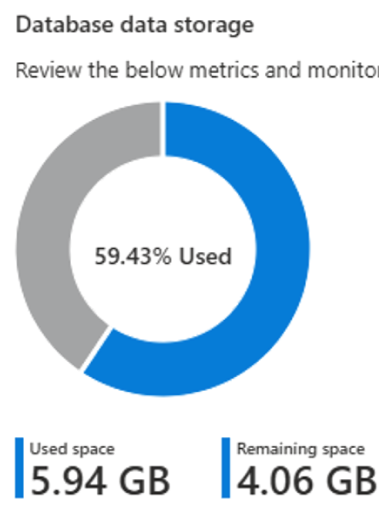
Introduction JSON has become the de-facto format for modern applications from web APIs to microservices and event-driven systems. Azure SQL has supported JSON for years, but JSON was treated just like text (stored as nvarchar or varchar). That meant every query involving JSON required parsing, which could get expensive as data volume grew. The new native JSON binary type changes that story. Instead of saving JSON as raw text, Azure SQL can store it in a binary representation that’s optimized for fast reads, efficient in-place updates, and compact storage. You get the flexibility of JSON with performance that behaves more like a structured column. Learn more about the JSON data type in the documentation – Textual data format - https://learn.microsoft.com/en-us/sql/relational-databases/json/json-data-sql-server?view=sql-server-ver17 Native binary format - https://learn.microsoft.com/en-us/sql/t-sql/data-types/json-data-type?view=sql-server-ver17 A few useful things to know upfront: JSON data is stored in a native binary format, not as plain text Reads are faster because the JSON is already parsed Improved write efficiency, since queries can update individual values without accessing the entire document. Storage is more compact, optimized for compression Existing JSON functions continue to work so app changes are minimal Internally, JSON is stored using UTF-8 encoding (Latin1_General_100_BIN2_UTF8) This blog shares the performance gains observed after migrating JSON from nvarchar/varchar to the native JSON binary type. Results will vary across JSON structures and workloads, so consider this a guide rather than a universal benchmark. Note: The purpose of this blog is to introduce the native JSON binary data type. We are not covering JSON indexes or JSON functions at this time in order to maintain clarity and focus. Test Environment Details: To measure the performance impact of migrating JSON from nvarchar/varchar to the native JSON binary type, a test environment was set up with six tables on Azure SQL Database (General Purpose, Gen5, 2 vCores). Note: The dataset used in the testing was generated using AI for demonstration purposes. JSON data stored as nvarchar/varchar data types: Table Name Number of Records Size (GB) InventoryTrackingJSON 400,003 4.21 OrderDetailsJSON 554,153 1.29 CustomerProfileJSON 55,001 0.16 ProductCatalogJSON 100,001 0.10 SalesAnalyticsJSON 10,000 0.08 EmployeeRecordsJSON 5,000 0.02 Total database size: 5.94 GB (59.43% used), based on a maximum configured size of 10 GB, with JSON stored as nvarchar/varchar. Example schema (OrderDetailsJSON) One of the core tables used in testing: CREATE TABLE JSONTest.OrderDetailsJSON ( OrderDetailID INT IDENTITY(1,1) PRIMARY KEY, OrderMetadata NVARCHAR(MAX), -- JSON: order info,source, salesperson ShippingDetails NVARCHAR(MAX), -- JSON: carrier, priority, addresses CustomizationOptions NVARCHAR(MAX), -- JSON: customizations and add-ons CreatedDate DATETIME2 DEFAULT SYSDATETIME(), ModifiedDate DATETIME2 DEFAULT SYSDATETIME() ); Each JSON column simulated realistic business structure - for example: OrderMetadata { "orderSource": "Mobile App", "salesPerson": "Jane Smith", "orderDate": "2025-11-14T10:30:00Z", "customerType": "Premium" } ShippingDetails { "carrier": "FedEx", "priority": "standard", "address": { "city": "Anytown", "state": "CA" } } CustomizationOptions { "color": "Green", "size": "Medium", "giftWrap": true } Performance before migration: To measure performance differences accurately, a continuous 12-minute test session was run. The load sizes referenced in the results (500, 1K, 2.5K, 5K, 10K, and 25K) represent the number of records read, and each record goes through the following operations: Multiple JSON_VALUE extractions JSON validation using ISJSON Safe type conversions using TRY_CONVERT Aggregation logic During the 12-minute continuous workload, JSON stored as nvarchar/varchar showed consistent resource pressure, primarily on CPU and storage IO. The monitoring tools reported: These results are for illustration purposes only. Actual performance will vary depending on system hardware (CPU cores, memory, disk I/O), database configurations, network latency, and table structures. We recommend validating performance in dev/test to establish a baseline. Data migration to native JSON binary data type For testing, native JSON columns were added to the existing tables, and JSON data stored in nvarchar/varchar columns was migrated to the new native JSON binary columns using the CAST function. Migration Script (example used for all tables) Add native JSON columns ALTER TABLE JSONTest.OrderDetailsJSON ADD OrderMetadata_native JSON, ShippingDetails_native JSON, CustomizationOptions_native JSON; Migrate existing NVARCHAR/VARCHAR JSON into native JSON UPDATE JSONTest.OrderDetailsJSON SET OrderMetadata_native = CAST(OrderMetadata AS JSON), ShippingDetails_native = CAST(ShippingDetails AS JSON), CustomizationOptions_native = CAST(CustomizationOptions AS JSON); Note: After validating that the migrated data was consistent, the original nvarchar/varchar JSON columns were dropped. A rebuild index operation was then performed to remove fragmentation and reclaim space, ensuring that the subsequent storage comparison reflected the true storage footprint of the native JSON binary type. The same pattern was repeated for all tables. Storage footprint after migration: Table Name Number of Records Size_Before (GB) Size_After (GB) InventoryTrackingJSON 400,003 4.21 0.60 OrderDetailsJSON 554,153 1.29 0.27 ProductCatalogJSON 100,001 0.16 0.11 SalesAnalyticsJSON 10,000 0.10 0.04 CustomerProfileJSON 55,001 0.08 0.01 EmployeeRecordsJSON 5,000 0.02 0.00 Total database size: 1.06 GB (10.64% used), based on a maximum configured size of 10 GB, with JSON in native binary data type. After migrating all JSON columns from nvarchar/varchar to the native JSON type, the total database size dropped from 5.94 GB to 1.06 GB - an ~82% reduction in storage. Performance after migration After moving all JSON columns from nvarchar/varchar to native JSON, the exact same 12-minute workload was rerun - same query patterns, same workload distribution. Only the JSON storage format was different. Here are the results: Key Metrics (Before vs. After) The migration didn’t just shrink storage - it made JSON workloads easier for the engine to process. With the native JSON type, the same workload completed with ~27% lower CPU and ~80% lower Data IO. Query duration, Throughput, & Logical Reads Query duration A comparison was conducted using the same workload, dataset, indexes, and query patterns - with the only variable being the JSON storage format. The outcome showed a clear trend in query duration. Across every single load level, native JSON cut query duration by 2.5x - 4x. Even more interesting: as the workload scaled 50x, native JSON latency stayed almost flat, while text JSON steadily slowed down. Note: The duration values shown represent the average across multiple runs within the performance test described earlier. Throughput improvement The benefits also translated directly into throughput. Overall, native JSON enabled 20x to 40x more records processed per second (rps). For example: Load Throughput Before (rps) Throughput After (rps) Small load ~60 ~240 High load ~690 ~2300 Peak load ~1360 ~4700 Logical reads improvement Native JSON significantly reduced I/O work as well: Logical reads per run dropped from ~168,507 → ~33,880 An ~80% reduction in pages read Lower logical reads directly correlate with improved scalability - fewer pages scanned means less work required to serve each request, especially under increasing load. Sample results: JSON (nvarchar/varchar) JSON (native binary) Cache management To ensure the performance improvement was not simply a result of native JSON fitting more easily in memory, the test cleared the cache at regular intervals using DBCC DROPCLEANBUFFERS, forcing repeated cold-start execution. As expected, query duration increased immediately after each cache clear for both text JSON and native JSON, yet the relative benefit remained consistent: native JSON continued to show a 2.5x–4x reduction in duration across all load levels. This confirms that the gains are not due to buffer pool residency alone, but from reduced JSON parsing work during execution. For example, in the chart below for the small load, runs 3 and 6 were executed right after clearing cache. Although both formats show higher duration, the relative performance advantage remains unchanged. Conclusion Native JSON storage in Azure SQL isn’t just a new way to store semi-structured data - it delivers tangible performance and efficiency gains. In our case, migrating JSON from NVARCHAR to the new binary JSON type resulted in: If your workload involves frequent reading or updating of JSON documents - especially large or deeply nested ones, the native JSON type is worth evaluating. Your gains may vary based on JSON structure, indexing strategy, and workload patterns - but the benefits of eliminating repeated text parsing + reducing storage cost are difficult to ignore. As SQL workloads continue to blend structured and semi-structured data, native JSON brings Azure SQL more in line with modern application design while preserving the maturity and stability of the relational engine. Feedback and Suggestions If you have feedback or suggestions, please contact the Databases SQL Customer Success Engineering (Ninja) Team (datasqlninja@microsoft.com). Note: For additional information about migrating various source databases to Azure, see the Azure Database Migration Guide.Azure SQL Managed Instance Point-In-Time Restore Service Level Expectation
Customers evaluating or already using SQL Managed Instance (SQL MI) need to estimate how much time a database point in time restore would take to complete. This estimation could be required when designing an SLA and/or SLO, or to assess whether a database with certain characteristics would be able to fit into predefined recovery time objectives (RTO). This Point-In-Time Restore Service Level Expectation (SLE) solution was created to provide guidance for the expected time it would take to restore a database with certain characteristics to a point in time, by providing a database restore time expectation based on input parameters. Note that this SLE was built for PITR database restore operations, and not for Long Term Retention backups restore operations. Reference documentation: Point-in-time restore - Azure SQL Managed Instance | Microsoft LearnHandling Sybase BIGTIME Data Type During Migration to Azure SQL
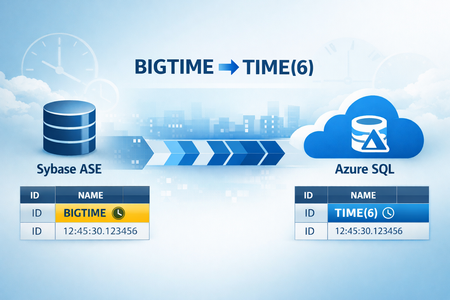
Introduction Migrating databases from Sybase to SQL Server or Azure SQL is a common modernization scenario. However, not all Sybase data types have direct equivalents in SQL Server, and one such challenge is the BIGTIME data type. The BIGTIME data type in Sybase stores time-of-day values with microsecond precision (format: hh:mm:ss.SSSSSS). It is commonly used in applications that require high-precision time tracking. To unblock and accelerate this conversion, we have developed an script (sybase_bigtime_migration.sh) that provides automation to migrate schemas from Sybase ASE to SQL Server specifically where tables contain the BIGTIME datatype. It systematically discovers affected tables, then generates ALTER statements to convert BIGTIME columns to SQL Server’s TIME (6) with a controlled, auditable flow. General Guidelines The purpose of this blog is to provide end‑to‑end flow for discovering BIGTIME columns in Sybase and converting them to SQL Server’s TIME (6). Run the scripts on a host that has Sybase ASE installed and running and SQL Server tools ("sqlcmd") installed and available on the PATH. Provide accurate connection details, passwords are read securely without echoing to the terminal. Functionality of the scripts The script (sybase_bigtime_migration.sh) validates and sources the Sybase environment, then locates "isql" to query system catalogs for tables with BIGTIME columns. It writes a clean, header-free list to "tablist.txt", ensuring a usable input for the next steps. For each table, it generates an individual ALTER script converting BIGTIME → TIME (6) so you can review or apply changes per object. When SQL migration is enabled, it detects "sqlcmd", tests connectivity, executes each ALTER script, and saves rich logs for verification and troubleshooting. Prerequisites The script (sybase_bigtime_migration.sh) must be executed from the same host where Sybase ASE is installed and running, to ensure reliable access to system catalogs and local client utilities. The schema conversion of all tables must be performed using SQL Server Migration Assistant (SSMA) prior to running this script, ensuring that all non-BIGTIME columns are properly migrated and aligned with Azure SQL standards. Ensure access to Sybase ASE instance with permissions to query metadata in "sysobjects", "syscolumns", and "systypes". If you plan to apply changes, you must have SQL Server client tools installed and permissions to run "ALTER TABLE" on the target database objects. Network connectivity from the host to both Sybase and SQL Server is required. If you want to run the script only for a specific set of BIGTIME tables in Sybase, create a file named tablist.txt in the same directory as the script. This file should contain the list of BIGTIME tables (one table name per line) that the script should process. Sybase datatype: Schema conversion using SSMA: Azure SQL datatype after schema conversion using SSMA: How to Use Run the script (sybase_bigtime_migration.sh) and provide Sybase server, username, password, and database when prompted. Choose whether to perform migration against SQL Server; if yes, supply SQL Server host, credentials, and database. After the detection step, confirm whether to proceed with all tables that have BIGTIME in the specified Sybase database. Selecting “yes” triggers script generation and optional application, selecting “no” exits after guidance, letting you tailor "tablist.txt" before rerunning. Output Files "tablist_Final.txt" output file contains the clean list of tables with BIGTIME columns and is regenerated on each run to reflect the current database. Each run writes an overall validation report, including per-table status and counts to "validation_summary_timestamp.log" where valid=tables with BIGTIME columns, missing=tables not found in DB, no_bigtime=tables without BIGTIME columns, unverified=validations errors, total_tablist_count=total tables checked from "tablist.txt". Per table ALTER scripts are created as "alter_<SYB_DB>_<TABLE>.sql", enabling fine-grained review and targeted application. When executing against SQL Server, output logs are saved under "sql_outputs/alter_<SYB_DB>_<TABLE>.out". These logs assist with validating results, identifying failures. Final Azure SQL datatype output: Data Migration Strategy After the schema conversion and BIGTIME data type handling are completed, the data migration should be performed as a separate activity. The migration can be executed using Azure Data Factory (ADF) or a custom BCP-based export and import process, based on factors such as data volume, performance requirements, and operational considerations. Separating schema preparation from data movement provides greater flexibility, improved control, and reduced risk during the data migration phase. Steps to Download the script Please send an email to the alias datasqlninja@microsoft.com, and we will share the download link along with instructions. Feedback and suggestions If you have feedback or suggestions for improving this data migration asset, please contact the Databases SQL Customer Success Engineering (Ninja) Team (datasqlninja@microsoft.com). Thanks for your support! Note: For additional information about migrating various source databases to Azure, see the Azure Database Migration Guide.Implementing Oracle Autonomous Transactions in Azure SQL for Seamless Logging
In Oracle PL/SQL, the directive PRAGMA AUTONOMOUS_TRANSACTION allows a block of code such as a procedure, function, or trigger to run in its own independent transaction. This means: It can commit or rollback changes without affecting the main transaction. It is fully isolated from the calling transactions, no shared locks or dependencies. It is ideal for logging, auditing, and error tracking, where you want to preserve data even if the main transaction fails. Example in Oracle PL/SQL: CREATE OR REPLACE PROCEDURE log_error(p_message VARCHAR2) IS PRAGMA AUTONOMOUS_TRANSACTION; BEGIN INSERT INTO error_log (log_time, message) VALUES (SYSDATE, p_message); COMMIT; END; This ensures that the error log is saved even if the main transaction rolls back. How to Implement Autonomous Transactions in Azure SQL If you need logs that persist through rollbacks in Azure SQL, you can recreate the behavior of Oracle’s PRAGMA AUTONOMOUS_TRANSACTION using external logging via Azure Function External logging via sp_invoke_external_rest_endpoint to an Azure Function This blog post shows concrete code for Oracle PL/SQL vs. T‑SQL, and provides a secure, sample Azure Function example. There’s no direct PRAGMA AUTONOMOUS_TRANSACTION in Azure SQL as on the date when this blog is written. To persist logs even if the current transaction rolls back, consider calling an external logger (e.g., Azure Function) using sp_invoke_external_rest_endpoint. Oracle vs. Azure SQL at a glance Feature Oracle (PRAGMA AUTONOMOUS_TRANSACTION) Azure SQL (workarounds) Native support Yes No Isolation from caller txn True Partial (via external logging) Rollback independence Yes Yes (external logging only) Complexity Low Moderate (extra components) Logging persistence Immediate External or deferred Common use cases Audit, error logging, notifications Audit, error logging, compliance External logging via Azure Function and sp_invoke_external_rest_endpoint In SQL use this when the application might wrap your stored procedure in its own transaction. If the app rolls back after your proc finishes, any in-database transactions (including your logs) also roll back. An external logger runs outside the database transaction and remains durable. Prerequisites and notes sp_invoke_external_rest_endpoint is available in Azure SQL Database and Azure SQL Managed Instance. Ensure outbound network access to your Function endpoint. Prefer Azure AD (Managed Identity) auth for your Function endpoint. If you must use function keys, pass them via header (x-functions-key), not query strings. Set reasonable timeouts and add retry/backoff for transient failures. Minimal SQL prerequisites for Function App Managed Identity Grant your Function App’s managed identity access to the database and tables: -- In your Azure SQL Database (connected as an Entra admin) CREATE USER [<FUNCTION_APP_MI_NAME>] FROM EXTERNAL PROVIDER; ALTER ROLE db_datawriter ADD MEMBER [<FUNCTION_APP_MI_NAME>]; -- Or grant explicit permissions GRANT INSERT ON dbo.ErrorLogs TO [<FUNCTION_APP_MI_NAME>]; T‑SQL: emit a log via REST CREATE OR ALTER PROCEDURE dbo.add_numbers @x INT, @y INT, INT OUTPUT AS BEGIN SET NOCOUNT ON; BEGIN TRY -- Log process start INSERT INTO dbo.ProcessLogs (LogMessage, ProcedureName) VALUES (CONCAT('Started adding numbers: ', @x, ' + ', @y), 'add_numbers'); -- Add numbers SET = @x + @y; -- Log process success INSERT INTO dbo.ProcessLogs (LogMessage, ProcedureName) VALUES (CONCAT('Successfully calculated sum = ', ), 'add_numbers'); END TRY BEGIN CATCH -- Log error details locally INSERT INTO dbo.ErrorLogs (ErrorMessage, ErrorProcedure, ErrorLine) VALUES (ERROR_MESSAGE(), ERROR_PROCEDURE(), ERROR_LINE()); -- Prepare JSON payload DECLARE @jsonPayload NVARCHAR(MAX) = N'{ "LogMessage": "Some error occurred", "ProcedureName": "add_numbers", "ErrorMessage": "' + ERROR_MESSAGE() + N'" }'; -- Call external REST endpoint (Azure Function) EXEC sp_invoke_external_rest_endpoint @method = 'POST', @url = 'https://yourfunctionapp.azurewebsites.net/api/WriteLog', @headers = '{"Content-Type": "application/json", "x-functions-key": "<FUNCTION_KEY>"}', = @jsonPayload; -- Re-throw original error to caller THROW; END CATCH; END; GO Azure Function: HTTP-triggered logger (C#) Auth: use AuthorizationLevel.Function (or Azure AD), avoid Anonymous in production. DB access: use Managed Identity User to request an access token for Azure SQL. Once the request token is generated, next step is to insert logs/messages into a permanent log/error table. Below is an end-to-end Function App code in C# which demonstrates above. using Azure.Core; using Azure.Identity; using Microsoft.AspNetCore.Http; using Microsoft.AspNetCore.Mvc; using Microsoft.Azure.WebJobs; using Microsoft.Azure.WebJobs.Extensions.Http; using Microsoft.Data.SqlClient; using Microsoft.Extensions.Logging; using System; using System.IO; using System.Text.Json; using System.Threading; using System.Threading.Tasks; namespace FunctionApp_MI_HTTPRequest { public static class ManagedInstance_Http_Request { private static readonly string SqlConnectionString = Environment.GetEnvironmentVariable("SqlConnectionString"); public class ProcedureLog { public string ProcedureName { get; set; } public string LogMessage { get; set; } } [FunctionName("WriteLog")] public static async Task<IActionResult> Run( [HttpTrigger(AuthorizationLevel.Function, "post")] HttpRequest req, ILogger log) { log.LogInformation("WriteLog invoked."); string requestBody = await new StreamReader(req.Body).ReadToEndAsync(); log.LogInformation($"Received Log Request: {requestBody}"); ProcedureLog logData; try { logData = JsonSerializer.Deserialize<ProcedureLog>(requestBody, new JsonSerializerOptions { PropertyNameCaseInsensitive = true }); if (logData == null || string.IsNullOrWhiteSpace(logData.ProcedureName)) { return new BadRequestObjectResult(new { status = "Error", message = "Invalid log data." }); } } catch (JsonException) { return new BadRequestObjectResult(new { status = "Error", message = "Invalid JSON format." }); } try { // Acquire access token for Azure SQL using Managed Identity var tokenCredential = new DefaultAzureCredential(); var accessToken = await tokenCredential.GetTokenAsync( new TokenRequestContext(new[] { "https://database.windows.net/.default" }), CancellationToken.None); using var conn = new SqlConnection(SqlConnectionString) { AccessToken = accessToken.Token }; await conn.OpenAsync(); using var transaction = conn.BeginTransaction(); var query = @" INSERT INTO dbo.ErrorLogs (ErrorMessage, ErrorProcedure) VALUES (@LogMessage, @ProcedureName);"; try { using var cmd = new SqlCommand(query, conn, transaction); cmd.Parameters.AddWithValue("@LogMessage", (object?)logData.LogMessage ?? string.Empty); cmd.Parameters.AddWithValue("@ProcedureName", logData.ProcedureName); await cmd.ExecuteNonQueryAsync(); transaction.Commit(); log.LogInformation($"Log inserted: {logData.ProcedureName} | {logData.LogMessage}"); return new OkObjectResult(new { status = "Success", message = "Log inserted successfully." }); } catch (SqlException ex) { transaction.Rollback(); log.LogError(ex, "Database transaction failed."); return new ObjectResult(new { status = "Error", message = "Database transaction failed." }) { StatusCode = 500 }; } } catch (Exception ex) { log.LogError(ex, "Internal Server Error"); return new ObjectResult(new { status = "Error", message = "Internal Server Error" }) { StatusCode = 500 }; } } } } Calling the Function from T‑SQL Header-based key (preferred): DECLARE @jsonPayload NVARCHAR(MAX) = N'{ "LogMessage": "Some error occurred", "ProcedureName": "ProcessData" }'; EXEC sp_invoke_external_rest_endpoint @method = 'POST', @url = 'https://yourfunctionapp.azurewebsites.net/api/WriteLog', @headers = '{"Content-Type": "application/json", "x-functions-key": "<FUNCTION_KEY>"}', = @jsonPayload; CREATE TABLE dbo.ErrorLogs ( Id INT IDENTITY(1,1) PRIMARY KEY, ErrorMessage NVARCHAR(MAX), ErrorProcedure NVARCHAR(255), ErrorLine INT NULL, ErrorDateTime DATETIME2 DEFAULT SYSDATETIME() ); GO CREATE TABLE dbo.ProcessLogs ( Id INT IDENTITY(1,1) PRIMARY KEY, LogMessage NVARCHAR(MAX), ProcedureName NVARCHAR(255), LogDateTime DATETIME2 DEFAULT SYSDATETIME() ); GO Architecture diagram PL/SQL reference (Oracle) For comparison, here’s the autonomous transaction pattern in Oracle. Note the autonomous pragma on the logger procedure. -- ========================================= -- Table: ERRORLOGS -- ========================================= CREATE TABLE errorlogs ( log_id NUMBER GENERATED ALWAYS AS IDENTITY PRIMARY KEY, procedure_nm VARCHAR2(100), error_msg VARCHAR2(4000), log_time TIMESTAMP DEFAULT SYSTIMESTAMP ); / -- ========================================= -- Procedure: LOG_ERROR (Autonomous Transaction Logger) -- ========================================= CREATE OR REPLACE PROCEDURE log_error ( p_procedure VARCHAR2, p_error VARCHAR2 ) IS PRAGMA AUTONOMOUS_TRANSACTION; BEGIN INSERT INTO errorlogs (procedure_nm, error_msg) VALUES (p_procedure, p_error); COMMIT; END; / -- ========================================= -- Procedure: ADD_NUMBERS (Sample Procedure) -- ========================================= CREATE OR REPLACE PROCEDURE add_numbers ( p_x NUMBER, p_y NUMBER, p_sum OUT NUMBER ) IS BEGIN p_sum := p_x + p_y; EXCEPTION WHEN OTHERS THEN log_error('add_numbers', SQLERRM); RAISE; END; / Troubleshooting and FAQ - Why aren’t my logs saved after a rollback in Azure SQL? Inserts performed inside the same transaction are rolled back together. Use external logging via 'sp_invoke_external_rest_endpoint' to guarantee persistence regardless of the caller’s transaction. Can I use CLR or linked servers for autonomous transactions in Azure SQL? No. CLR integration and linked servers for DML aren’t supported in Azure SQL Database. Prefer external REST endpoints. What are the security considerations for external logging? Avoid 'Anonymous' Functions. Prefer Azure AD; second-best is 'AuthorizationLevel.Function' with keys in headers. Validate payloads and avoid logging sensitive data unless encrypted. Store secrets in Key Vault. How do I monitor and validate the logging pipeline? Use Application Insights in your Function. Emit structured logs for both success and failure. Configure alerts on failure rates and latency. What performance impact should I expect? External calls add network latency. For high-volume scenarios, batch logs, use async fire-and-forget patterns on the app side, and set sensible timeouts. Summary In summary, external logging offers durable visibility across services, making it ideal for distributed systems. Be sure to implement retries and validation, set up monitoring and alerts, and document the behavior clearly for your team to ensure everyone understands the trade-offs involved. If you have any feedback or suggestion, please reach out to us at datasqlninja@microsoft.com
Automating the setup of Azure SQL Managed Instance Link
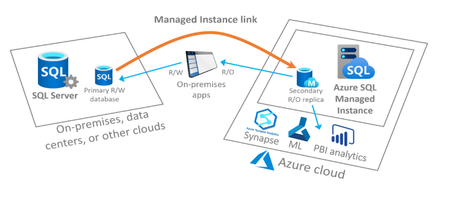
In this post we will be discussing how to automate the setup of the Managed Instance Link feature which enables near real-time data replication from SQL Server to Azure SQL Managed Instance. This feature is an extremely powerful migration tool for moving your databases from SQL Server running on-premises, in Azure VMs or on other cloud providers to Azure SQL Managed Instance and can also be used to provide a readable copy of your database(s) on Azure SQL Managed Instance for offloading specific real only workloads. The scripts we have created and referenced here in this post are a joint effort between the SQL CSE Engineering team and the Azure SQL Managed Instance team at Microsoft.Data Migration Strategies for Large-Scale Sybase to SQL Migrations Using SSMA, SSIS and ADF- Part 1
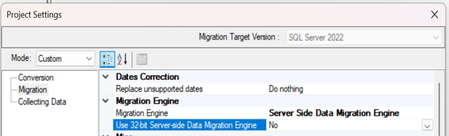
Introduction In today’s data-driven landscape, the migration of databases is a crucial task that requires meticulous planning and execution. Our recent project for migrating data from Sybase ASE to MSSQL set out to illuminate this process, using tools like Microsoft SQL Server Migration Assistant (SSMA), Microsoft SQL Server Integration Service (SSIS) packages, and Azure Data Factory (ADF). We carefully designed our tests to cover a range of database sizes: 1GB, 10GB, 100GB, and 500GB. Each size brought its own set of challenges and valuable insights, guiding our migration strategies for a smooth transition. For the smaller databases (1GB and 10GB), we utilized SSMA, which demonstrated strong efficiency and reliability in handling straightforward migrations. SSMA was particularly effective in converting database schemas and moving data with minimal complication. As we scaled up larger datasets (100GB and 500GB), we incorporated SSIS packages alongside Azure Data Factory to address the increased complexity and ensure robust performance throughout the migration process. Our exercises yielded important findings related to performance metrics such as data throughput, error rates during transfer, and overall execution times for each migration approach. These insights helped us refine our methodologies and underscored the necessity of selecting the right tools for each migration scenario when transitioning from Sybase to MSSQL. Ultimately, our experience highlighted that thorough analysis is essential for identifying potential bottlenecks and optimizing workflows, enabling successful and efficient migrations across databases of all sizes. The results reassure stakeholders that, with a well-considered approach and comprehensive testing, migrations can be executed seamlessly while maintaining the integrity of all datasets involved. There are 2 parts in the Strategy, the 1st part covers the overview, source database environment setup for Sybase, target database environment setup for Azure SQL, migration steps, time consumed and key learnings for SSMA and SSIS, the remaining sections are covered in Part 2 here :- Part 2 Objectives of the Evaluation Assess the migration duration for various database sizes. Evaluate the capabilities and limitations of each tool. Identify optimal patterns for bulk data movement. Recommend the best tool or parameter combination for various scenarios which gives the best results for different sample datasets. Overview of Tools SQL Server Migration Assistant (SSMA) for SAP ASE Microsoft SQL Server Migration Assistant (SSMA) for Sybase Adaptive Server Enterprise (ASE) is a tool for migrating SAP ASE databases to SQL Server 2012 (11.x) through SQL Server 2022 (16.x) on Windows and Linux, Azure SQL Database or Azure SQL Managed Instance. It supports schema conversion, data migration, and limited post-migration testing. SSMA converts Sybase ASE database objects (tables, views, stored procedures, etc.) to Azure SQL-compatible formats and migrates data using a client-side or server-side engine. SQL Server Integration Services (SSIS) SQL Server Integration Services is a platform for building enterprise-level data integration and data transformations solutions. It offers flexibility in handling non-compatible objects, custom transformations, and large-scale data transfers through its pipeline architecture. SSIS is particularly useful when SSMA cannot migrate certain objects or when additional data transformation is required like Unparsed SQL, SET option conversion issues, Identifier conversion and issues, date format conversion and with NON-ANSI joins Azure Data Factory (ADF) ADF is a fully managed, serverless, cloud-based data integration service for orchestrating and automating data movement and transformation across on-premises and cloud environments. It is well-suited for hybrid migrations, large-scale data pipelines, and integration with Azure services like Azure SQL. ADF excels in scenarios requiring scalability and parallel processing. Environment Setup For testing, we used the following setup: Source Environment Sybase ASE Version: 16.0 SP03 OS: SUSE Linux Enterprise Server 15 SP6 VM Size: Standard B12ms (12 vcpus, 48 GiB memory) Target Environment SQL Server 2022: hosted on Azure VM OS: Windows Server 2022 VM Size: Standard D16as v4 (16 vcpus, 64 GiB memory) Network Both VMs hosted in same Azure region Premium SSD LRS disks for source and target Metrics We evaluated the tools based on: Data Migration Time: Time to migrate 1 GB, 10 GB, 100 GB (1 x 100 GB table) and 500 GB (5 x 100 GB tables) of data. Scalability: Performance with increased data volumes (up to 500 GB). SQL Server Migration Assistant (SSMA) Migration steps: Install SSMA for SAP ASE 10.3 or above and required drivers (Sybase ASE ODBC/ADO.NET providers). Create an SSMA project, configure source (Sybase ASE) and target (Azure SQL) connections. Assess database compatibility, customize data type mappings (e.g., Sybase TEXT to SQL Server NVARCHAR(MAX)), and convert schema. Migrate data using SSMA’s client-side or server-side engine. Validate migrated objects and data. Test Results: Test Scenario Data Size Time Taken Throughput Threads Notes Single Copy 1 GB 28 seconds ~36 Mbps 1 Single Threaded Single Copy 10 GB 4 minutes 36 seconds ~37 Mbps 1 Single Threaded Parallel Copy 100 GB 44 minutes ~38 Mbps 40 Parallel Threads - Using project level setting changes, like Migration engine, batch size, parallel data migration mode and multi loading Scalability Test 500 GB 3 hours 44 minutes ~38 Mbps 40 Parallel Threads - Same performance as of sequential nature of SSMA’s processing engine, which limits parallelism Key learnings: Excellent for schema conversion and small data sets Not scalable beyond 100 GB, memory issues and slow single-threaded loads Limited configuration for tuning bulk inserts Performance Tuning Insights: Migration Engine: Configured server-side data migration to optimize performance and reduce processing overhead. Client-side data migration refers to SSMA client retrieving the data from the source and bulk inserting that data into Azure SQL. Server-side data migration refers to SSMA data migration engine (bulk copy program) running on the Azure SQL box as a SQL Agent job retrieving data from the source and inserting directly into Azure SQL thus avoiding an extra client-hop (better performance). When choosing this method, you will need to specify which version of the BCP is intended to use (32bit or 64bit): Batch Size: Data is migrated in batches from the source tables into Azure SQL tables within transactions. The batch size option determines how many rows are loaded into Azure SQL per transaction. By default, it is 10,000, but we increased it to 270,000 since our dataset contained 26,214,400 rows (around 100 GB). Parallel Data Migration Mode: This option is available only when using the Client Side Data Migration Engine mode. It defines the number of parallel threads to be used during migration. By default, it is set to Auto (10 threads). To modify it, select Custom and specify the desired number of parallel threads. We changed this to 40 to get the best results. Multi loading: With Multi-Loading enabled, SSMA uses multiple parallel threads to load data batches at the same time, which can significantly speed up migration for large tables. It essentially breaks the source data into chunks (based on your batch size setting) and loads them concurrently. SQL Server Integration Services (SSIS) Migration steps: Create an SSIS project in SQL Server Data Tools (SSDT). Configure ODBC / ADO .NET Source (Sybase ASE) and ADO .NET/OLE DB Destination (Azure SQL) with appropriate drivers. Build Control flow and data flow tasks for each table, applying transformations for incompatible data types or business logic. Execute packages in parallel for large tables, optimizing buffer size and commit intervals. Monitor and log errors for troubleshooting. Test Results: Test Scenario Data Size Time Taken Throughput Threads Notes Single Copy 1 GB 31 seconds ~33 Mbps 1 Single Threaded Single Copy 10 GB 4 minutes 16 seconds ~40 Mbps 1 Single Threaded Parallel Copy 100 GB 38 minutes ~44 Mbps 5 Parallel Threads – Regulating MaxConcurrentExecutable, DefaultBufferMaxRows, Engine threads and Azure SQL maximum server memory Scalability Test 500 GB 3 hours 12 minutes ~44 Mbps 5 Parallel Threads - Performance improved with larger buffer sizes (100 MB) and SSD I/O. Key learnings: Very fast for large data volumes with tuning Requires development time (package design, error handling) Bottleneck: network throughput on 500 GB run Best suited for 10–500 GB on-prem or IaaS migrations Performance Tuning Insights: DefaultBufferSize: The task’s buffer settings can be configured using the DefaultBufferSize property, which defines the buffer size, and the DefaultBufferMaxRows property, which specifies the maximum number of rows per buffer. By default, the buffer size is 10 MB (with a maximum of 100 MB), and the default maximum number of rows is 10,000. DefaultBufferMaxRows: The data flow engine begins the task of sizing its buffers by calculating the estimated size of a single row of data. It then multiplies the estimated size of a row by the value of DefaultBufferMaxRows to obtain a preliminary value for the buffer size. If the result is greater than the value of DefaultBufferSize, the engine reduces the number of rows. If the result is less than the minimum buffer size calculated inside the engine increases the number of rows. If the result falls between the minimum buffer size and the value of DefaultBufferSize, the engine sizes the buffer as close as possible to the estimated row size times the value of DefaultBufferMaxRows. If sufficient memory is available, it is better to use fewer large buffers instead of many small ones. In other words, performance improves when the number of buffers is minimized, and each buffer holds as many rows as possible. IsSorted: Sorting using a SSIS task is a slow operation by definition. Avoiding unnecessary sorting can enhance the performance of data flow in the package. Set the IsSorted property of a component in the output data flow upstream to True. ADO .NET Source: When retrieving data from a view using an OLE DB data source, choose SQL command as the data access mode and provide a SELECT statement. Using a SELECT statement ensures that the view is accessed in the most efficient way. OLEDB Destination: Several OLE DB Destination settings can significantly impact data transfer performance: Data Access Mode – This setting offers the Fast Load option, which internally uses a BULK INSERT statement to load data into the destination table, instead of executing individual INSERT statements for each row. Unless you have a specific reason to change it, keep the default Fast Load option enabled. When using Fast Load, additional performance-related settings become available (listed below). Keep Identity – By default, this is unchecked. If the destination table has an identity column, SQL Server generates identity values automatically. Checking this option ensures that identity values from the source are preserved and inserted into the destination. Keep Nulls – By default, this is unchecked. If a NULL value is encountered in the source and the target column has a default constraint, the default value will be inserted. Enabling this option preserves the NULL values from the source instead of applying the default constraint. Table Lock – This is checked by default, meaning a table-level lock is acquired during data load instead of multiple row-level locks. This prevents lock escalation issues and generally improves performance. Keep this enabled unless the table is actively being used by other processes at the same time. Check Constraints – Checked by default. This validates incoming data against the destination table’s constraints. If you are confident the data will not violate constraints, unchecking this option can improve performance by skipping the validation step. Rows per Batch – The default value is -1, which means all incoming rows are treated as a single batch. You can change this to a positive integer to divide the incoming rows into multiple batches, where the value specifies the maximum number of rows per batch. Maximum Insert Commit Size – The default value is 2147483647 (the maximum for a 4-byte integer), which commits all rows in a single transaction once the load completes successfully. You can set this to a positive integer to commit data in smaller chunks. While committing more frequently does add overhead to the data flow engine, it helps reduce pressure on the transaction log and tempdb, preventing excessive growth during high-volume data loads. DelayValidation: SSIS uses validation to determine if the package could fail at runtime. SSIS uses two types of validation. First is package validation (early validation) which validates the package and all its components before starting the execution of the package. Second SSIS uses component validation (late validation), which validates the components of the package once started. If you set it to TRUE, early validation will be skipped and the component will be validated only at the component level (late validation) which is during package execution. MaxConcurrentExecutables: It's the property of the SSIS package and specifies the number of executables (different tasks inside the package) that can run in parallel within a package or in other words, the number of threads SSIS runtime engine can create to execute the executables of the package in parallel. EngineThreads: This property specifies the number of source threads (does data pull from source) and worker thread (does transformation and upload into the destination) that can be created by data flow pipeline engine to manage the flow of data and data transformation inside a data flow task, it means if the EngineThreads has value 5 then up to 5 source threads and also up to 5 worker threads can be created. Please note, this property is just a suggestion to the data flow pipeline engine, the pipeline engine may create less or more threads if required. IsolationLevel: In SQL Server Integration Services (SSIS), IsolationLevel is a property that defines how a transaction within a package interacts with other concurrent transactions in the database. It determines the degree to which one transaction is isolated from the effects of other transactions. Default is ‘Serializable’ which Locks the entire data set being read and keeps the lock until the transaction completes. Instead set it to ‘ReadUncommited’ or ‘ReadCommited’. ‘ReadUncommited’ Reads data without waiting for other transactions to finish. Can read rows that are not yet committed (a.k.a. dirty reads). While ‘ReadCommited’ only reads committed rows. Prevents dirty reads by waiting until other transactions commit or roll back. Use ReadUncommited when you need speed and can tolerate inaccurate data else use ReadCommited but it is slower than Read Uncommitted because it must wait for locks to release. TransactionOption: The TransactionOption property in SQL Server Integration Services (SSIS) is used to control how tasks, containers, or the entire package participate in transactions to ensure data integrity. It determines whether a task or container starts a transaction, joins an existing one, or does not participate in any transaction. The property is available at the package level, container level (e.g., For Loop, Foreach Loop, Sequence), and for individual Control Flow tasks (e.g., Execute SQL Task, Data Flow Task). Set this to ‘NotSupported’ by which the task or container does not participate in any transaction, even if a parent container or package has started one. If a transaction exists at a higher level (e.g., package or parent container), the task or container operates outside of it. It is the fastest because there’s no transaction overhead. Database Recovery Model: The source database is configured to use the Bulk-logged recovery model, which aims to minimally log bulk operations. This should be significantly more performant than the Full recovery model, assuming the bulk insert meets the criteria required to be minimally logged. The criteria for the target table are as follows – The target table is not being replicated. Table locking is specified (using TABLOCK). If the table has no indexes, data pages are minimally logged. If the table does not have a clustered index but has one or more non-clustered indexes, data pages are always minimally logged. How index pages are logged, however, depends on whether the table is empty – If the table is empty, index pages are minimally logged. If table is non-empty, index pages are fully logged. If the table has a clustered index and is empty, both data and index pages are minimally logged. In contrast, if a table has a clustered index and is non-empty, data pages and index pages are both fully logged regardless of the recovery model. Pulling High Volumes of Data: To enhance the speed and efficiency of the data migration process, we devised an optimized approach that involves transforming the target table into a heap by dropping all its indexes at the outset, thereby eliminating the overhead of index maintenance during data insertion. Following this, we transfer the data to the heap table, which is significantly faster due to the absence of indexes. Once the data transfer is complete, we recreate the indexes on the target table to restore its original structure and optimize query performance. This streamlined method of dropping indexes, transferring data to a heap, and then recreating indexes substantially accelerates the overall migration process compared to maintaining indexes throughout. Feedback and suggestions We hope this post has helped you configure your migration solution and choose the right options to successfully migrate your databases. The remaining steps are covered in Part 2 here :- Part 2 If you have feedback or suggestions for improving this data migration asset, please contact the Databases SQL Customer Success Engineering (Ninja) Team (datasqlninja@microsoft.com). Thanks for your support! Note: For additional information about migrating various source databases to Azure, see the Azure Database Migration Guide.Data Migration Strategies for Large-Scale Sybase to SQL Migrations Using SSMA, SSIS and ADF- Part 2
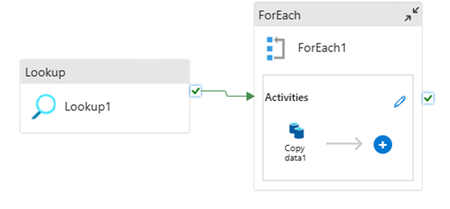
Introduction In today’s data-driven landscape, the migration of databases is a crucial task that requires meticulous planning and execution. Our recent project for migrating data from Sybase ASE to MSSQL set out to illuminate this process, using tools like Microsoft SQL Server Migration Assistant (SSMA), Microsoft SQL Server Integration Service (SSIS) packages, and Azure Data Factory (ADF). We carefully designed our tests to cover a range of database sizes: 1GB, 10GB, 100GB, and 500GB. Each size brought its own set of challenges and valuable insights, guiding our migration strategies for a smooth transition. For the smaller databases (1GB and 10GB), we utilized SSMA, which demonstrated strong efficiency and reliability in handling straightforward migrations. SSMA was particularly effective in converting database schemas and moving data with minimal complication. As we scaled up larger datasets (100GB and 500GB), we incorporated SSIS packages alongside Azure Data Factory to address the increased complexity and ensure robust performance throughout the migration process. Our exercises yielded important findings related to performance metrics such as data throughput, error rates during transfer, and overall execution times for each migration approach. These insights helped us refine our methodologies and underscored the necessity of selecting the right tools for each migration scenario when transitioning from Sybase to MSSQL. Ultimately, our experience highlighted that thorough analysis is essential for identifying potential bottlenecks and optimizing workflows, enabling successful and efficient migrations across databases of all sizes. The results reassure stakeholders that, with a well-considered approach and comprehensive testing, migrations can be executed seamlessly while maintaining the integrity of all datasets involved. There are 2 parts in the solution. Part 1 covers SSMA and SSIS. Part 2 covers the Azure Data Factory (ADF), tests results, performance improvement guidelines and conclusion. Azure Data Factory (ADF) Migration steps: Set up an Azure Data Factory instance and Integration Runtime (IR) for on-premises connectivity. Create pipelines with Copy data activities, mapping Sybase ASE tables to SQL Server/Azure SQL. Configure parallel copy settings and staging storage (Azure Blob Storage) for large datasets (if required). Monitor pipeline execution and retry failed activities. Test Results: Test Scenario Data Size Time Taken Throughput Threads Notes Single Copy 1 GB 40 seconds ~25 Mbps 1 Single Threaded Single Copy 10 GB 4 minutes 22 seconds ~40 Mbps 1 Single Threaded Parallel Copy 100 GB 39 minutes ~44 Mbps 16 Parallel Threads Scalability Test 500 GB 3 hours 10 minutes ~45 Mbps 16 Parallel Threads - ADF scaled better due to cloud elasticity Key learnings: Cloud-native, scalable: handled 500 GB with ease Parallel copy and batch tuning make it faster as volume increases Auto-scaling prevents many typical OOM (Out of Memory) errors seen with SSMA Recommended for cloud targets (Azure SQL MI, Azure SQL DB) Performance Tuning Insights: In our setup we added a lookup, a foreach and one copy data within our pipeline. Lookup: In the Settings tab, select the SQL dataset as the source. Instead of choosing the entire table, go to the “Use query” section and provide the query shown below. This query uses a recursive Common Table Expression (CTE) to dynamically generate partition ranges across a large integer sequence (representing the total number of rows). Here is a sample output of this query for top 20 rows– ForEach: Use this query in the Pipeline expression builder which is a reference to the Lookup output in our pipeline. Copydata: Use below query at source which allows you to dynamically query different partitions of a large table (like Table_1_100GB) in parallel or sequentially. On Sink, change “write batch size” and “Max concurrent connections as per the rowset and assigned memory. Optimizing these values can improve performance and reduce overhead during data transfers. For small rows, increase writeBatchSize to reduce batch overhead and improve throughput. For large rows, use a smaller value to avoid memory or database overload. If the source data exceeds the specified batch size, ADF processes data in multiple batches automatically. Additionally adjust “Maximum data integration unit” and “Degree of copy parallelism”. A Data Integration Unit (DIU) is a measure that represents the power of a single unit in Azure Data Factory and Synapse pipelines. Power is a combination of CPU, memory, and network resource allocation. DIU only applies to Azure integration runtime. DIU doesn't apply to self-hosted integration runtime. While Degree of copy parallelism determines how many parallel copy activities can run simultaneously, optimizing the data transfer process. Cumulative Tests Result Disclaimer: All test results published herein are provided solely for reference purposes and reflect performance under ideal conditions within our controlled environment. Actual performance in the user's environment may vary significantly due to factors including, but not limited to, network speed, system bottlenecks, hardware limitations, CPU cores, memory, disk I/O, firewall configurations, and other environmental variables. On the source and target databases also multiple performance optimization and configuration adjustments have been implemented to enhance the migration efficiency. We strongly recommend that users conduct their own testing to determine performance under their specific conditions. Data Size Best Performer Observation 1 GB All tools performed efficiently Minimal overhead; no significant performance difference. 10 GB SSIS Optimized batch processing led to better performance. 100 GB SSIS and ADF Both benefited from parallelism. 500 GB ADF and SSIS ADF's scalability and retry mechanisms proved valuable. SSIS was equivalent with tuned data flow components. Data Volume Row Count SSMA Time / Speed SSIS Time / Speed ADF Time / Speed 1 GB 262,144 28 sec / ⚡ 36 MB/s 31 sec / ⚡33 MB/s 40 sec / ⚡25 MB/s 10 GB 2,621,440 4 min 36 sec / ⚡37 MB/s 4 min 16 sec / ⚡40 MB/s 4 min 22 sec / ⚡40 MB/s 100 GB 26,214,400 44 min / ⚡38 MB/s 38 min / ⚡44 MB/s 39 min / ⚡44 MB/s 500 GB 26,214,400 x 5 3 hr 44 min / ⚡38 MB/s 3 hr 12 min / ⚡44 MB/s 3 hr 10 min / ⚡45 MB/s Performance Improvement Guidelines Use SSMA for Schema Conversion: SSMA is the primary tool for automating schema conversion. Customize data type mappings (e.g., Sybase DATETIME to SQL Server DATETIME2) and handle case-sensitive databases carefully. Leverage SSIS for Complex Data Transformations: Use SSIS for tables with non-compatible data types or when business logic requires transformation. Optimize performance with parallel tasks and appropriate buffer settings. Use ADF for Large-Scale or Hybrid Migrations: ADF is ideal for large datasets or migrations to Azure SQL Database. Use staging storage and parallel copy to maximize throughput. Ensure stable network connectivity for on-premises to cloud transfers. Tips to improve ADF performance: Use staging areas (e.g., Azure Blob Storage) to offload source systems and speed up data transfers. Enable parallel copy in Copy Activity to increase throughput. Use the Integration Runtime closest to your data source to reduce network latency. Enable data partitioning on large tables to parallelize read/write operations. Adjust degree of parallelism to match your compute capacity. Use Self-Hosted IR or Azure IR with higher compute for large or complex migrations. Enable Auto-Scaling where supported to handle spikes efficiently. Monitor IR utilization to avoid under-provisioning or over-provisioning. Please refer below links for more details related to ADF – Sybase ASE to Azure SQL full and incremental data copy using ASE Transfer Table Tool and ADF Copy activity performance optimization features - Azure Data Factory & Azure Synapse | Microsoft Learn Db2 to Azure SQL fast data copy using ADF Migration Readiness Testing: Conduct performance testing on production-scale environments prior to the actual migration to obtain an accurate baseline of system behavior and identify potential bottlenecks under real workload conditions. Hybrid Approach: Combine SSMA for schema conversion, SSIS for complex data migrations, and ADF for orchestration in large-scale or cloud-based scenarios. For example, use SSMA to convert schemas, SSIS to migrate problematic tables, and ADF to orchestrate the overall pipeline. Validation: Post-migration, validate data integrity using checksums or row counts and test stored procedures for functional equivalence. Use SQL Server Management Studio (SSMS) for debugging. In the end we can use Microsoft Database Compare Utility that allows comparison of multiple source and target databases. Challenges and Mitigations Sybase-Specific Syntax: SSMA may fail to convert complex stored procedures with Sybase-specific T-SQL. Manually rewrite these using SQL Server T-SQL. LOB Data: Large Object (LOB) data types (e.g., TEXT, IMAGE) may cause truncation errors. Map to NVARCHAR(MAX) or VARBINARY(MAX) and validate data post-migration. Network Latency in ADF: For on-premises to Azure migrations, ensure high-bandwidth connectivity or use Azure ExpressRoute to minimize latency. Case Sensitivity: Sybase ASE databases may be case-sensitive, while SQL Server defaults to case-insensitive. Configure SQL Server collations (e.g. SQL_Latin1_General_CP1_CS_AS) to match source behavior. Conclusion SSMA, SSIS, and ADF each offer unique strengths for migrating Sybase ASE to SQL Server, Azure SQL Database or Azure SQL Managed Instance. SSMA excels in schema conversion, SSIS in complex data transformations, and ADF in scalability and cloud integration. A hybrid approach, leveraging SSMA for schema conversion, SSIS for problematic data, and ADF for orchestration, often yields the best results. Evaluation shows ADF’s superior scalability for large datasets, while SSIS provides flexibility for complex migrations. Proper planning, including schema assessment, data type mapping, and performance tuning, is critical for a successful migration. For further details refer to Microsoft’s official documentation: SSMA for Sybase: SQL Server Migration Assistant for Sybase (SybaseToSQL) - SQL Server | Microsoft Learn SSMA Project Settings: Project Settings (Migration) (SybaseToSQL) - SQL Server | Microsoft Learn SSIS: SQL Server Integration Services - SQL Server Integration Services (SSIS) | Microsoft Learn ADF: Azure Data Factory - Data Integration Service | Microsoft Azure Feedback and suggestions If you have feedback or suggestions for improving this data migration asset, please contact the Databases SQL Customer Success Engineering (Ninja) Team (datasqlninja@microsoft.com). Thanks for your support! Note: For additional information about migrating various source databases to Azure, see the Azure Database Migration Guide.Seamless Online Homogeneous SQL Family Migration via Azure Data Factory using SQL CDC
Migrating data across SQL platforms, be it SQL Server, Azure SQL Database, Managed Instance, or SQL Server on IaaS, often involves operational complexity and potential downtime. Azure Data Factory (ADF) removes those barriers by enabling seamless, logical data movement across these services in either direction. Whether using SQL Change Data Capture (CDC) for near-zero downtime or traditional batch-based strategies, ADF ensures data consistency and operational continuity throughout the process. While physical data migration strategies remain valuable in many scenarios, this blog focuses on how ADF delivers a unified, scalable approach to logical database migration, in modernizing the database environments with minimal downtime. Prerequisites NOTE: Please make sure to go through the limitations of CDC as this blog doesn't cover those. SQL CDC Limitations Known Issues with CDC Before proceeding, please ensure you have the following prerequisites: An Azure subscription. Access to Azure Data Factory. Source and target databases, such as SQL Server, Azure SQL Database, Azure SQL MI etc. Enable Change Data Capture (CDC) on the source database for online migration. CDC captures changes like insert, update, and delete (DML) operations in the source database, allowing near real-time replication to a target database with minimal latency. To enable CDC, run: -- Enable CDC on the database EXEC sys.sp_cdc_enable_db; -- Enable CDC on the source table EXEC sys.sp_cdc_enable_table @source_schema = N'dbo', @source_name = N'SourceTable', @role_name = NULL; Azure Data Factory Provisioning ADF should be provisioned to provide a runtime environment for executing the pipeline. Self-hosted Integration Runtime (SHIR) SHIR is required to connect to the data source or destination which is not natively reachable by Azure (e.g., on-premises, private VNET, behind firewall). Linked Services These should be created to connect to the source and target. Datasets Datasets identify data within different data stores, such as tables, files, folders, and documents. Performance Optimization To speed up the process, primary keys, non-clustered indexes and constraints should be dropped on the target to reduce blocking/deadlocks and minimize resource contention. Script Components Adf_source.sql This script should be deployed on the source SQL Server. It will populate information in the dbo.data_extraction_config_adf table to run Change Data Capture (CDC) and the initial load pipeline. Adf_target.sql This script should be deployed on the target SQL server. It will create stored procedures to help merge CDC changes and create objects necessary for running pipelines smoothly. Master tables dbo.cdc__watermark__adf contains information about the CDC tables for the last watermark. dbo.data__extraction__config__adf contains information about the heap tables for initial load and CDC tables. dbo.sqlqueries contains information about the clustered tables for initial load. Let's deep dive into pipelines to handle different scenarios Pipeline 1: ClusteredTableMigration_Initial This pipeline migrates data only from clustered tables. The dbo.sqlqueries table automatically populates with clustered table info via the pipeline (Stored Procedure Activity). Ensure the source table schema matches the target table schema. To run the pipeline for specific tables, set the IsActive flag to 0 (inactive) or 1 (active) in the sqlqueries table or add the table name in the Lookup activity. Pipeline 2: HeapTableMigration_Initial This pipeline is designated for migrating heap tables. Prior to executing this pipeline, ensure that the heap table information has been added to the dbo.data__extraction__config__adf table. The source table schema should be synchronized with the target table schema. To execute the pipeline for a set of tables, the IsActive flag may be set to 0 (inactive) or 1 (active) in the dbo.data__extraction__config__adf table. Pipeline 3: CDCTableMigration This pipeline facilitates the migration of clustered tables with Change Data Capture (CDC) enabled. Prior to execution, please ensure that the relevant information for these clustered tables is entered into the dbo.data__extraction__config__adf table. Ensure the table schema is synchronized with the target schema, and that all tables intended for CDC synchronization possess a primary key and matching schema definition on the target system (excluding constraints and non-clustered indexes). To execute the pipeline for specific tables, the IsActive flag can be set to 0 (inactive) or 1 (active) in the dbo.data__extraction__config__adf table. Schedule the Pipeline - For CDC load only Create a trigger: Create a trigger to schedule the pipeline to run at regular intervals (e.g., every 5-30 minutes based on application requirements) to capture and apply changes incrementally. Monitor the pipeline: Monitor the pipeline runs to verify that the data is being migrated and synchronized accurately. Cutover and cleanup Once the delta changes are synchronized fully on source and target database, cutover can be initiated by setting the source database to read-only and then changing the connection string of the application (or all apps, agent jobs etc. that are impacted) to use the new target database and perform cleanup by deleting the SPs in target database and stop the CDC, remove tables, and SPs in source database. Conclusion Using Azure Data Factory allows for both online and offline data migration with minimal downtime, ensuring consistency between source and target databases. Change Data Capture enables near real-time data migration, suitable for environments requiring continuous data synchronization. Note - To get ADF Pipelines and T-SQL Queries mentioned in this blog please reach out to our team alias : datasqlninja@microsoft.comOptimized Data Transfer from Sybase ASE to Azure SQL via Chunked BCP Processing
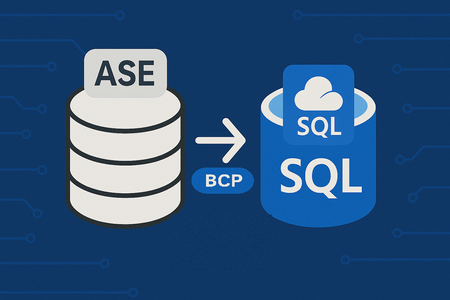
Introduction Enterprises upgrading legacy databases often face challenges in migrating complex schemas and efficiently transferring large volumes of data. Transitioning from SAP ASE (Sybase ASE) to Azure SQL Database is a common strategy to take advantage of enhanced features, improved scalability, and seamless integration with Microsoft services. With business growth, the limitations of the legacy system become apparent, performance bottlenecks, high maintenance costs, and difficulty in integrating with modern cloud solutions. SQL Server Migration Assistant for SAP Adaptive Server Enterprise (SSMA) Automates migration from SAP ASE to SQL Server, Azure SQL Database and Azure SQL Managed Instance. While SSMA provides a complete end-to-end migration solution, the custom BCP script (ASEtoSQLdataloadusingbcp.sh) enhances this process by enabling parallel data transfers, making it especially effective for migrating large databases with minimal downtime. Script Workflow One of the most common challenges we hear from customers migrating from Sybase ASE to SQL Server is: “How can we speed up data transfer for large tables without overwhelming the system?” When you are dealing with hundreds of tables or millions of rows, serial data loads can quickly become a bottleneck. To tackle this, we created a script called ASEtoSQLdataloadusingbcp.sh that automates and accelerates the data migration process using parallelism. It starts by reading configuration settings from external files and retrieves a list of tables, either from the source database or from a user-provided file. For each table, the script checks if it meets criteria for chunking based on available indexes. If it does, the table is split into multiple views, and each view is processed in parallel using BCP, significantly reducing the overall transfer time. If chunking is not possible, the script performs a standard full-table transfer. Throughout the entire process, detailed logging ensures everything is traceable and easy to monitor. This approach gives users both speed and control , helping migrations finish faster without sacrificing reliability. Prerequisites Before running the script, ensure the following prerequisites are met: Database schema is converted and deployed using SQL Server Migration Assistant (SSMA). Both the source (SAP ASE) and target (Azure SQL DB) databases are accessible from the host system running the script. Source ASE database should be hosted on Unix or Linux. The target SQL Server can be hosted on Windows, Linux, or as an Azure. Configuration Files The configuration aspect of the solution is designed for clarity and reuse. All operational parameters are defined in external files, this script will use following external config files during bcp_config.env The primary configuration file, bcp_config.env, contains connection settings and control flags. In the screenshot below you can see the format of the file. chunking_config.txt The chunking_config.txt file defines the tables to be partitioned, identifies the primary key column for chunking, and specifies the number of chunks into which the data should be divided. table_list.txt Use table_list.txt as the input if you want a specific list of tables. Steps to run the script Script Execution Log The script log records tables copied, timestamps, and process stages. Performance Baseline A test was run on a 32-core system with a 10 GB table (262,1440 rows) for ASE and SQL. Migration using SSMA took about 3 minutes. Using the BCP script with 10 chunks, the entire export and import finished in 1 minute 7 seconds. This demonstrates how parallelism and chunk-based processing greatly boost efficiency for large datasets. Disclaimer: These results are for illustration purposes only. Actual performance will vary depending on system hardware (CPU cores, memory, disk I/O), database configurations, network latency, and table structures. We recommend validating performance in dev/test to establish a baseline. General Recommendation Larger batch sizes (e.g., 10K–50K) can boost throughput if disk IOPS and memory are sufficient, as they lower commit overhead. More chunks increase parallelism and throughput if CPU resources are available; otherwise, they may cause contention when CPU usage is high. Monitor system’s CPU and IOPS: When the system has high idle CPU and low I/O wait, increasing both the number of chunks and the batch size is appropriate. If CPU load or I/O wait is high, reduce batch size or chunk count to avoid exhausting resources. This method aligns BCP operations with your system's existing capacity and performance characteristics. Steps to Download the script Please send an email to the alias: datasqlninja@microsoft.com and we will send you the download link with instructions. What’s Next: Upcoming Enhancements to the Script Smart Chunking for Tables Without Unique Clustered Indexes Enable chunk-based export using any unique key column, even if the table lacks a unique clustered index. This will extend chunking capabilities to a broader range of tables, ensuring better parallelization. Multi-Table Parallel BCP with Intelligent Chunking Introduce full parallel execution across multiple tables. If a table qualifies for chunking, its export/import will also run in parallel internally, delivering two-tier parallelism: across and within tables. LOB Column Handling (TEXT, IMAGE, BINARY) Add robust support for large object data types. Include optimized handling strategies for exporting and importing tables with TEXT, IMAGE, or BINARY columns, ensuring data fidelity, and avoiding performance bottlenecks. Feedback and Suggestions If you have feedback or suggestions for improving this asset, please contact the Data SQL Ninja Team (datasqlninja@microsoft.com). Note: For additional information about migrating various source databases to Azure, see the Azure Database Migration Guide. Thank you for your support!