data sync
8 TopicsAzure SQL BACPAC Export Failure with CDC & db_cdcreader (SQL71501)
Contributor: hudajazmawi vittorionoca_msftit Overview Exporting an Azure SQL Database to a BACPAC using SqlPackage / SSMS may fail when Change Data Capture (CDC) is enabled and database users (or Entra groups) are assigned to CDC-related roles such as db_cdcreader. A common error observed: Error SQL71501: Error validating element: Role Membership: has an unresolved reference to Role [db_cdcreader]. This issue can be confusing because: The database is healthy CDC is functioning correctly The error occurs only during export Scenario From a real customer case: Azure SQL Database with CDC enabled An Entra (AAD) group added to db_cdcreader Export attempted via SqlPackage (v170+) Export fails during schema validation phase Root Cause Explained 1. SqlPackage performs strict schema modeling During export, SqlPackage (via DacFx) builds a logical schema model of the database. Every object must be fully resolvable Roles and role memberships are validated Any missing/unsupported object → export fails This is why the error appears as: SQL71501 – unresolved reference 2. CDC introduces system-managed objects When CDC is enabled, SQL automatically creates: cdc schema System tables Special roles: db_cdcreader cdc_admin These objects are not treated as regular user-defined objects: They are system-managed Some are implicitly created Some are not fully modeled/exported by DacFx 3. Role membership is the breaking point The failure does not happen because the role exists It happens because: The role membership exists (e.g., Entra group → db_cdcreader) But the role itself is not included or resolved in the export model Result: Membership → cannot resolve target role → validation failure (SQL71501) This behavior aligns with documented patterns where CDC roles are excluded or not recognized during BACPAC export. Reproducing the Issue You are likely impacted if: CDC is enabled Users or Entra groups are assigned to: db_cdcreader cdc_admin Export is attempted via: SqlPackage SSMS “Export Data-tier Application” Workarounds Option 1: Temporarily remove role membership Remove the CDC role membership before export: ALTER ROLE db_cdcreader DROP MEMBER [your_user_or_group]; Run export, then reassign: ALTER ROLE db_cdcreader ADD MEMBER [your_user_or_group]; This is the simplest and most reliable workaround Confirmed in Microsoft Q&A guidance for CDC roles Option 2: Export from a cleaned database copy If you cannot modify production (e.g., tooling restrictions): Create a database copy Remove CDC-related role memberships Export from the copy Recommended when: Using automation tools (e.g., Commvault) Production changes are restricted Option 3: Cleanup unsupported references General best practice: Remove unsupported / system-bound references before export Especially: CDC role memberships Legacy system objects Option 4: Use SqlPackage with ExtractAllTableData=True Another practical workaround is to leverage the SqlPackage option ExtractAllTableData=True, which allows you to extract all data from all user tables. When set to True: Data is extracted from all user tables You cannot specify individual tables When set to False (default): You can selectively extract data from specific tables only This reduces exposure to unsupported or problematic objects during validation Example SqlPackage /Action:Extract /SourceServerName:<server> /SourceDatabaseName:<database> /TargetFile:<output.bacpac> /p:ExtractAllTableData=True Additional Validation: CDC Role Ownership When investigating export failures involving CDC roles, it is also recommended to verify the ownership of the db_cdcreader role. SqlPackage relies on schema metadata to determine whether an object should be treated as a system-managed CDC object or as a user-defined database object during model validation. If the ownership of db_cdcreader has been changed from its default value, SqlPackage may not correctly identify it as a system CDC role, which can contribute to validation errors such as SQL71501. How to Validate SELECT name, USER_NAME(owning_principal_id) AS role_owner FROM sys.database_principals WHERE name = 'db_cdcreader'; Expected result: db_cdcreader dbo If the role owner is not dbo, the following can be used as a resolution: Resolution “ ALTER AUTHORIZATION ON ROLE::[db_cdcreader] TO [dbo]; “ Maintaining the default ownership ensures that SqlPackage can correctly recognize db_cdcreader as a system-managed CDC role during export operations When to use this option When the export fails due to CDC roles or related schema validation issues (SQL71501) As a targeted workaround when full export is blocked Important Considerations This is not a runtime database issue It is a schema validation limitation in DacFx / SqlPackage CDC itself is supported, but: Certain security objects are not fully exportable Key Takeaways SQL71501 during export is often a model validation issue, not a data issue CDC roles (db_cdcreader, cdc_admin) can break export due to partial modeling The failure is triggered by role membership, not CDC itself Workarounds involve: Removing memberships Exporting from a cleaned copyAzure SQL Database Data Sync Retirement: Migration Scenarios and Recommended Alternatives
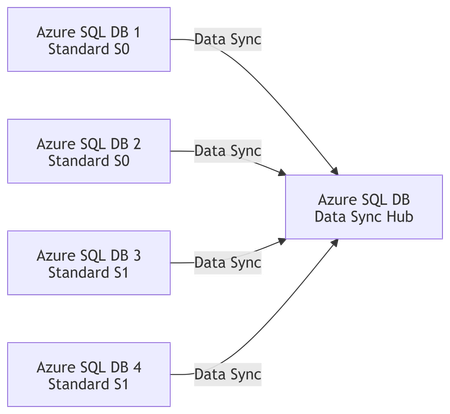
Why Azure SQL Data Sync Retirement Matters Azure SQL Data Sync relies on: Triggers Metadata tables Hub-and-spoke topology While functional, this architecture introduces complexity, performance overhead, and operational risks, especially as data volumes and workloads grow. Microsoft’s long-term direction favors scalable, resilient, and observable data integration services, such as Azure Data Factory (ADF) and event-driven replication patterns. If you are currently using Data Sync, planning a migration early is strongly recommended. Official guidance: https://learn.microsoft.com/azure/azure-sql/database/sql-data-sync-data-sql-server-sql-database Sample Customer Scenario Let’s consider a real scenario commonly seen in the field: 4 Azure SQL Databases Subscription: Contoso-DEV Current topology: Azure SQL Data Sync Target state: Consolidate all data into one Azure SQL Database Environment flow: DEV → UAT → PROD Database tiers: Standard (S0 / S1) Size: Below 250 GB per database Key requirements: Minimal data loss Quick replication Azure-native and supported replacement Clear operational model Migration Design Considerations Before selecting a tool, several factors must be evaluated: ✅ Latency tolerance (near real-time vs scheduled sync) ✅ Write patterns (conflicts, bidirectional vs unidirectional) ✅ Schema compatibility ✅ Operational overhead ✅ Long-term supportability For most consolidation scenarios, unidirectional replication (many → one) provides the best balance of simplicity and reliability. Diagram 1: Current State – Azure SQL Data Sync (Before Retirement) This diagram represents the existing topology, where multiple databases are synchronized using Azure SQL Data Sync into a single consolidated database. Characteristics Trigger‑based synchronization Additional metadata tables Limited observability Service approaching retirement Diagram 2: Target State – Azure Data Factory Based Consolidation This diagram shows the recommended replacement architecture using Azure Data Factory. Advantages No triggers or sync metadata tables Parallel ingestion Built‑in retry, monitoring, and alerting Fully supported and future‑proof Diagram 3: Incremental Replication Logic (ADF) This diagram explains how minimal data loss is achieved using incremental replication. Key Points No continuous connection required Typical RPO: 1–5 minutes Safe restart after failures Diagram 4: DEV → PROD Migration Flow This diagram highlights the recommended rollout approach starting with POC in DEV. Best Practices Build once, reuse across environments Parameterize connection strings Enable monitoring before PROD cutover Recommended Alternatives to Azure SQL Data Sync ✅ Option 1: Azure Data Factory (ADF) – Primary Recommendation Azure Data Factory provides a fully supported and scalable replacement for Data Sync when consolidating databases. Architecture Overview One pipeline per source database Initial full load Incremental replication using: Change Tracking, or CDC (if applicable), or Watermark columns (ModifiedDate / identity) Why ADF? Microsoft’s strategic data integration platform Built-in monitoring and retry logic Parallel ingestion Schema mapping and transformation support 📌 Best fit when: You need consolidation Near real‑time (minutes) is acceptable You want a future‑proof design 📘 References: https://learn.microsoft.com/azure/data-factory/copy-activity-overview https://learn.microsoft.com/azure/data-factory/incremental-copy-overview https://learn.microsoft.com/azure/data-factory/connector-azure-sql-database ⚠️ Option 2: SQL Transactional Replication (Limited Use) Transactional replication can still work in narrow scenarios, but: Adds operational complexity Limited flexibility for schema changes Not recommended for new designs 📘 Reference: https://learn.microsoft.com/azure/azure-sql/database/replication-to-sql-database 🧭 Option 3: Azure SQL Managed Instance Link (Future‑Facing) If your long-term roadmap includes Azure SQL Managed Instance, the MI Link feature enables near real-time replication. However: Not applicable if your target remains Azure SQL Database Requires infrastructure change 📘 Reference: https://learn.microsoft.com/azure/azure-sql/managed-instance/link-feature Recommended Migration Approach (DEV → PROD) Phase 1 – Assessment Review schema overlaps and key conflicts Identify identity and primary key strategies Confirm availability of: Change Tracking ModifiedDate / watermark columns 📘 Change Tracking: https://learn.microsoft.com/sql/relational-databases/track-changes/about-change-tracking-sql-server Phase 2 – Initial Seeding (DEV) Use ADF Copy Activity for full loads Ingest each source DB into: Dedicated schemas, or Logical partitions Validate: Row counts Referential integrity Performance impact Phase 3 – Incremental Replication Enable incremental pipelines Recommended frequency: every 1–5 minutes Use parallelism for scalability Simulate Data Sync behavior without triggers Phase 4 – Cutover Optional short write freeze Final delta sync Application validation Promote pipelines to PROD Data Loss and Performance Expectations Metric Expected Outcome RPO Minutes (configurable) Downtime Near‑zero Performance impact Predictable and controllable Observability Built‑in via ADF monitoring Final Recommendation Summary ✅ Azure Data Factory with initial full load + incremental replication ✅ Azure-native, strategic, and supported ✅ Ideal for Data Sync retirement scenarios ✅ Scales from DEV to PROD with minimal redesign Azure SQL Data Sync retirement is an opportunity—not a setback. With services like Azure Data Factory, customers can move toward: Better observability Cleaner architectures Easier production operations Long-term platform alignment If you are still relying on Azure SQL Data Sync, now is the right time to assess, plan, and migrate. Helpful Resources Azure SQL Data Sync overview https://learn.microsoft.com/azure/azure-sql/database/sql-data-sync-data-sql-server-sql-database Azure Data Factory incremental copy https://learn.microsoft.com/azure/data-factory/incremental-copy-overview Azure SQL change tracking https://learn.microsoft.com/sql/relational-databases/track-changes/about-change-tracking-sql-server