data & ai
159 TopicsAzure Availability Zone Mapping and VM Resilience Analysis Guidance using SRE.AZURE.COM Agent
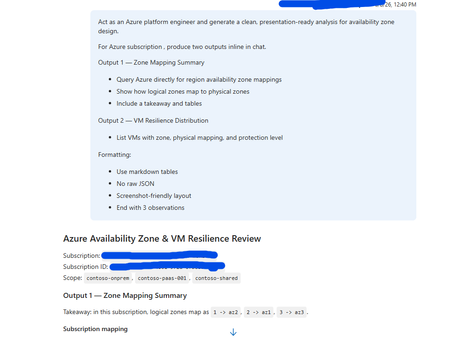
Overview This guidance, supported and tested using SRE.Azure.com, helps Azure platform engineers understand how Availability Zones are mapped within their subscription and how virtual machines (VMs) are distributed across those zones. SRE.Azure.com enables discovery and analysis of zone mappings, VM placement, and infrastructure resilience. Why This Matters Azure uses logical zones (1, 2, 3), but these map differently to physical datacenter zones (az1, az2, az3) in each subscription. This means workloads in the same logical zone across subscriptions may not be physically co-located. Understanding this is critical for high availability, disaster recovery, compliance, and resilience planning. Example sub-prod-eastus-01 -> Zone 1 → az3 sub-prod-eastus-01 -> Zone 2 → az1 sub-prod-eastus-01 -> Zone 3 → az2 sub-prod-weu-01 -> Zone 1 → az1 sub-prod-weu-01 -> Zone 2 → az2 sub-prod-weu-01 -> Zone 3 → az3 Key takeaway: Logical zone numbers do not guarantee physical separation across subscriptions. What SRE.Azure.com agent Enables - Discover logical-to-physical zone mappings - Analyze VM distribution across zones - Identify resilience gaps - Generate presentation-ready reports Suggested Prompt “Act as an Azure platform engineer and generate a clean, presentation-ready analysis for availability zone design. For Azure subscription <subscription-id>, produce two outputs inline in chat. Output 1 — Zone Mapping Summary - Query Azure directly for region availability zone mappings - Show how logical zones map to physical zones - Include a takeaway and tables Output 2 — VM Resilience Distribution - List VMs with zone, physical mapping, and protection level Formatting: - Use markdown tables - No raw JSON - Screenshot-friendly layout - End with 3 observations” Example output: And so on …… Next Steps: Get Started | Azure SRE Agent What is SRE Agent? | Azure SRE Agent301Views2likes0CommentsDeploying DNS Private Resolvers and Private DNS Zones for Azure AI Supported Services
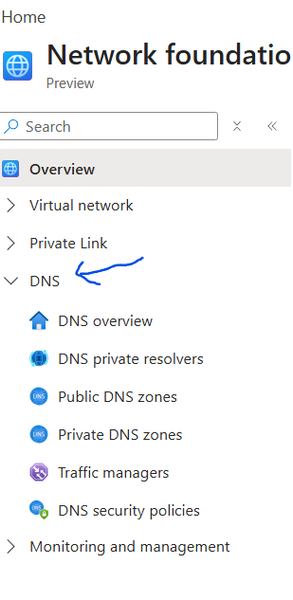
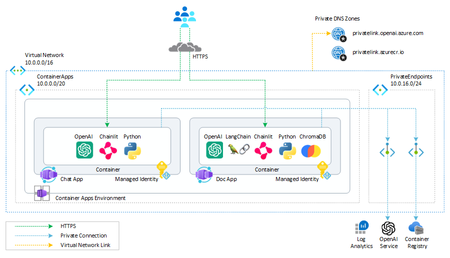
Private Networks: Private DNS Zones: Resolves domain names to private IPs within Azure virtual networks without exposing them to the internet. Private DNS Zones are global, you don’t need to create multiple same private DNS Zones, you can reuse the same zones as it’s global DNS Private Resolvers: Fully managed service that enables DNS resolution between Azure VNets and on-premises networks without custom DNS servers. DNS Private resolvers are regional, which means if you have Azure EAST US and WEST US 2 regions, you need to create DNS Private resolvers in both regions linked to Private DNS Zones, you can adopt centralized or distributed DNS Private resolvers, I will discuss both options later in this article Public Networks: <In this part – not focusing on Public Networks> Public DNS Zones: Resolves internet-facing domain names to publicly accessible IP addresses Traffic Managers: DNS-based traffic load balancer that routes client requests to the best available global endpoint DNS Security Policy: Controls and protects DNS resolution behavior (e.g., filtering, forwarding, and access rules) to secure name resolution and prevent misuse **Note: 1. Follow Prerequisites to deploy resources. 2. A common misconception is that VNet peering enables DNS resolution. In reality, private DNS zones are only accessible to VNets that are explicitly linked to them, peering provides connectivity, but not name resolution. In the following snapshot à Azure Portal à Network Foundations à DNS, lets explore individual DNS Services offered and later in this document, we will interconnect **Credits to Microsoft Azure Portal Design team for creating new grouped views – you can check out for more – like compute infrastructure, Hybrid, Backup Now, let’s delve into scenario 01: I have grabbed the following snapshot from Azure AI Landing Zones and removed non-network Azure resources to focus only on private Network components, **Credits to AI Landing Zone team for the diagram, Original Version: Inbound Zoom in view with End-to-End Flow Hop Summary 1 Client initiates request 2 DNS query sent to on-prem DNS 3 DNS query forwarded to Azure 4 Azure DNS Resolver processes query 5 Private DNS resolves to Private Endpoint IP 6 Traffic routed via VNet peering 7 Traffic hits Private Endpoint 8 Request served by Azure Files *Link Private DNS to DNS resolvers in other regions, Private DNS is GLOBAL and DNS Resolvers are regional Example Snapshot of entire flow: Nslookup from Client machine, Domain – DNS Conditional Forwarder configuration Note 1: Make sure you selected “All DNS Servers in this forest” for replication, otherwise users pointed to some other domain will be unable to resolve Verifying Connectivity with PsPing <credit to Sysinternals team PsPing > PsPing, a tool from Sysinternals, is highly effective for verifying network connectivity from on-premises environments to Azure resources on specific ports. This is particularly useful when you need to ensure connectivity to ports such as 445, 443, 1433, 1521, or any other port required by Azure services you intend to access from either on-premises locations or other cloud environments. By using PsPing, you can test and confirm that the necessary ports are open and accessible, which is crucial for troubleshooting connectivity issues and ensuring smooth communication between your on-premises infrastructure and Azure-hosted resources. Ensure your firewall is set to allow traffic DNS private resolvers – inbound configuration Private DNS Configuration Virtual Network links enable to your private dns Make sure you have peer between hub and spoke Private Endpoint configuration Storage Account configuration “Replace the file share with any supported Azure service that uses Private Endpoints, and follow the same guidance.” 2. Outbound <flow and resources colored with blue> part 2 upcoming soon656Views0likes0CommentsGrounding LLMs
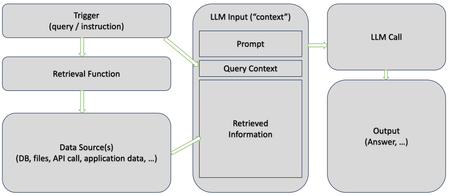
I recently gave a talk at a Microsoft-internal event on everything I learned (so far) about grounding LLMs with Retrieval Augmented Generation and other techniques to get the to generate output that is accurate, reliable, and relevant. I am sharing it here in article form (masterfully produced by GPT-4 from the transcript and slides of the talk). Hope you find some of this useful as you start building solutions with LLMs.178KViews51likes15Comments
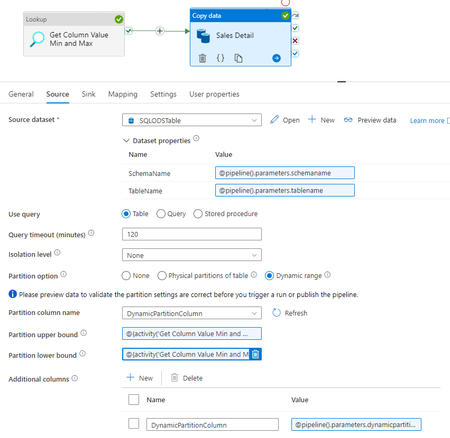
Leverage Copy Data Parallelism with Dynamic Partitions in ADF/Synapse Metadata-driven Pipelines
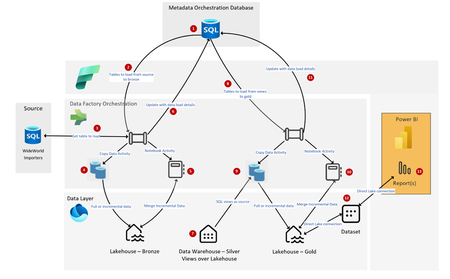
Follow this Azure Data Factory/Synapse Analytics pipeline pattern to take advantage of parallel Copy Data activity by partition, even when you don’t have partitioned source data, all within a metadata-driven pipeline!27KViews6likes3Comments
Microsoft Fabric - Multi-Tenant Architecture
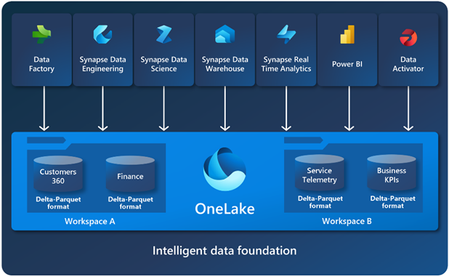
Fabric Multi-Tenant Architecture (updated version - August 24) Organization often faces challenges in managing data for multiple tenants in a secure manner while keeping costs low. Traditional solutions may prove costly for scenarios with more than 100 tenants, especially with the common ISV scenario where the volume of trial and free tenants is much larger than the volume of paying tenants. The motivation for ISVs to use Fabric is that it brings together experiences such as Data Engineering, Data Factory, Data Science, Data Warehouse, Real-Time Analytics, and Power BI onto a shared SaaS foundation. In this article, we will explore the Workspace per tenant-based architecture, which is a cost-effective solution for managing data for all tenants in Microsoft Fabric, including ETL and reporting.24KViews5likes0Comments