copilot in excel
32 TopicsAn Inside Look at Copilot in Excel
When you ask Copilot in Excel to “add a drop-down menu to this column” or “fix this formula in the team inventory tracker,” behind the scenes, Copilot reasons about your intent, picks and applies the right Excel features, and then edits the workbook. This can feel straight forward for some tasks but, now imagine you’re a Finance professional asking Copilot in Excel: “What’s broken in this valuation model, and how does fixing it change the outcome?” This is not a simple single formula request; it is an end-to-end finance workflow. To tackle it, Copilot needs to inspect the workbook, understand the finance specific business question, identify assumptions and formulas that may be wrong, correct the model, recalculate outputs, and explain the impact in a way a finance professional can trust. A good answer is not just “here is the new result.” A good answer is a clear, auditable explanation of what changed, why it changed, and its impact on values in the model. That kind of prompt is what we think of as an L4 workflow: an open-ended business problem that requires multiple steps, multiple Excel capabilities, and domain judgment. It is also a great way to understand why evals matter. To provide a great response to this question, many different operations and features need to ladder together successfully to deliver the final result. So how do we make sure every part comes together to solve the customer's intent? This is the job of our evaluation system, aka our "evals.” We’ll provide a brief tour through how we think about evals in Excel: what they are, how we organize them, the benchmarks they produce, and how we use these results to make Copilot in Excel better every week. What are evals, and why do we have them? An eval is a repeatable test of Copilot quality. We give Copilot in Excel a task and a starting workbook, let it do its work, and then grade the output against a series of checks and rubrics. These checks go beyond just confirming whether a value is correct. They also assess whether the workbook is usable, auditable, well- formatted, and aligns to Excel best practices. We evaluate more than the final workbook output. For agentic workflows, the path to the result matters too: what steps the agent took, which tools it called, how many turns it needed, how long the experience took end to end, and more. Looking at that trajectory helps give us a clearer measurement of whether the agent is becoming more accurate, capable, and efficient at how it reaches the desired result. Evals measure Copilot quality and are how we move from “this feels better” to “this is measurably better.” A prompt tweak, model upgrade, or a new tool can improve one customer intents while quietly making another worse. Our evals help us catch those regressions before they reach customers, as well as quantify improvements from new capabilities and find quality gaps early enough to prioritize fixes. How we organize our evals Excel is used by millions to complete a wide range of work: tracking lists, analyzing sales, managing operations, building financial models, planning budgets, and much more. Even the same task can have different expected answers whether you’re a finance professional or a small business owner. To measure Copilot in Excel quality reliably, we ensure our eval cases represent the breadth of customer workflows and all the different flavors of spreadsheets they use. We organize eval cases across several dimensions. Complexity is one of the most important dimensions, because it lets us test the building blocks separately while also testing the full customer workflow. We also categorize cases by customer role, domain, workbook characteristics, Excel feature usage, and more, so our benchmarks reflect the breadth and depth of real Excel work. Complexity: L1 through L4 We think about task complexity as a ladder. At the bottom are atomic actions and individual features. Higher up are multi-step tasks. At the top are open-ended workflows that sound more like business problems. The important point is that an L4 workflow is only as strong as the L1, L2, and L3 capabilities underneath it. L4 workflows: solving an open-ended business problem, such as debugging a valuation model or determining how much cash is available for debt service. L3 multi-step tasks: combining features to complete a defined goal, such as creating a sales summary worksheet or building a cash-flow bridge. L2 feature usage: using an Excel capability correctly, such as creating a PivotTable, applying conditional formatting, building a chart, or using formula auditing. L1 actions: single operations such as inserting a row, editing a formula, formatting a cell, or creating a label. Let’s go back to the valuation example at the start of the blog: “What’s broken in this valuation model, and how does fixing it change the outcome?” Copilot needs to break the work into several major steps: inspect the model structure, locate the key assumptions, audit the formulas, correct the calculation logic, compare the before-and-after outputs, and summarize the business impact. Each step sounds simple at the surface, but each depends on many smaller capabilities working reliably. Level What it means How it shows up in the valuation scenario L4: Workflow Solving an end-to-end business problem “What’s broken in this valuation model, and how does fixing it change the outcome?” L3: Multi-step task Composing multiple Excel capabilities to reach a goal Identify incorrect assumptions Correct formulas Recalculate outputs Quantify the impact L2: Feature usage Using one Excel capability correctly Apply formula auditing Update cross-sheet references Build comparison tables Document changes L1: Action Performing a single atomic operation on the grid Edit a formula Insert a table Format cells, values Write a label and notes Check cell reference Customer role and vertical domain What a good workbook looks like in Excel is often domain-specific. A formula that is acceptable in a general spreadsheet may not meet the bar for a finance model. A summary that works for a small business owner may not be enough for a consultant preparing a client deliverable for a large enterprise. That is why we build and review eval cases with domain-specific expectations in mind. We’ve worked closely with industry partners and customers to validate coverage, review input and output workbooks, and author grading rubrics and success criteria. Through these processes, we ensure our evals are realistic, aligned to expert human judgement, and reflect their taste and domain specific expertise. For example, we look at the shape of the workbook itself: number of sheets, workbook size, data density, formulas, tables, charts, and other Excel features. Real workbooks are rarely tidy single-tab examples. They can be large, messy, and full of context. Another example is our finance-specific rubrics for model structure, formula construction, auditability, and presentation quality. From categories to benchmarks Once we have categorized our eval cases, we curate them into benchmarks. Our goal here isn’t a single benchmark or a single number. Rather, we have different benchmarks for the different types of decisions we face while building Copilot in Excel. Some of our benchmarks provide broad coverage with an emphasis on comparability. Others target Excel-specific behaviors and customer workflows for specific feature areas or customer segments. Here is a subset of the benchmarks we use internally: Public benchmarks One public benchmark used by many spreadsheet products is SpreadsheetBench, a benchmark of spreadsheet tasks that provides broad coverage of common operations. Internally, we’ve further curated and validated subsets of this benchmark to adjust ambiguous queries, improve grader correctness, and improve signal to make results more easily applicable. However, we believe our internal benchmarks better reflect the type of work and expectations of Excel customers. Private benchmarks In addition to public benchmarks we maintain several internal benchmarks within the Excel team. Some examples include: RegressionBench helps us detect whether a change has broken something that used to work. CustomerBench focuses on matching production customer distributions across task complexity, domains, workbook shapes, and other dimensions. This provides an signal that mirrors customer usage. OfficeJSBench measures whether the operations Copilot generates to act on the workbook execute reliably and produce the intended result. FinanceBench is one of our deep and challenging vertical benchmarks focused on finance workflows and uses finance-specific rubrics for correctness, structure, and auditability. We developed FinanceBench with input and review from partners like Financial Modeling Institute (FMI), Microsoft Finance, and other finance professionals and customers. The collection of these benchmarks provides both broad and granular measurements on quality. They allow us to measure where the agent is strong, where it can improve, and whether a change has the intended impact on the customer experience. How eval results make Copilot in Excel better Evals are not just a reporting mechanism - they are deeply integrated into how we build the AI experience in Excel. Eval benchmarks help: Gate releases: Benchmark runs are part of how we decide whether a feature is ready to advance from our validation environments to customer availability. If evals detect issues or the improvement doesn’t show intend impact, the change does not move forward. Improve based on customer signals: When a customer conversation or signal reveals opportunity for improvement, we classify it and then create representative eval cases for it. We can then fix it and measure improvement in subsequent eval runs. Model training: We use rubrics and graders from evals to provide signal to tune models for spreadsheet work. Inform the right model for the job: Comparable benchmark results help us route tasks to models that balance quality, latency, and capability, to provide the best experience to customers. Over time, this creates a virtuous cycle: feedback and usage identify opportunities, evals quantify them, fixes and training address them, benchmarks confirm the win, and the next release starts from a higher bar. Why the hero scenario matters Coming back to the valuation prompt, the reason it matters is that it represents the kind of work people increasingly want Copilot in Excel to help with. They do not just want help inserting a chart or writing one formula. They want help completing meaningful work: understanding a model, finding an issue, improving the analysis, and making the result easier to trust. We can only deliver that L4 experience if the underlying layers are strong. Formula edits have to be correct, feature usage has to be reliable, multi-step plans have to stay coherent, and the final workbook has to be clear, complete, and auditable. That is why our eval system measures both the broad set of things people do in Excel and the deep workflows that matter most in demanding domains like finance.8.6KViews6likes1Comment
New ways to customize how Copilot edits your workbooks
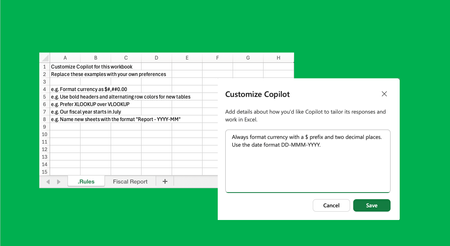
If you’ve ever typed the same formatting and style instructions into your Copilot prompt every single time - don’t merge cells,” “use my header style,” “name the tables this way”- we built two new features for you! These new customization options let you set your rules once and have Copilot follow them automatically. Personalization is now generally available, and workbook rules are rolling out to general availability across Excel for Web, Windows, and Mac. Personalization: your rules that follow you Personalization lets you tell Copilot your standing preferences once, and it follows them across every workbook you touch. No more repeating yourself. Copilot learns your preferences before it starts editing, so the output always reflects the guidance you provide. Set preferences for things like: Formatting: “Never merge cells.” “Don’t use red in charts.” “Always format currency in USD with no decimals.” Naming conventions: “Name tables with a tbl prefix.” “Use clear, descriptive sheet names.” Formulas: “Write formulas with structured table references, not cell ranges.” PivotTables & report styles: “Default to my standard summary layout with bold headers and subtotals.” How to access it Open Copilot in Excel. Open Settings (...) → Personalization. Add your preferences in natural language and save. Copilot applies them every time you prompt it. Workbook rules: standards that follow the workbook Where Personalization is about you, workbook rules are about a specific workbook. Rules live in the workbook and travel with it when you share it, so teams and organizations can standardize how a file should look and behave, and everyone who uses Copilot to edit it stays consistent. These rules are stored in the workbook as a sheet with the “.Rules” naming convention, which signals to Copilot that they should be followed for all edits made in the workbook, regardless of the user. What makes workbook rules especially powerful is the ability to tap into Excel’s calculation engine, giving you a low-barrier way to leverage the Excel functionality you already know how to use. Unique ways to leverage workbook rules: Point to an exact example: Format a sample range exactly how you want it, then tell Copilot “match this formatting”—an exact example beats a written description. Make rules dynamic with formulas: Reference cells, ranges, or other sheets so rules can change based on what’s already in the workbook. For example, applying one instruction when a project is over budget and another when it is on track. Use Copilot to build and edit the rules sheet: Start from a blank .Rules sheet or an existing template, then ask Copilot to draft, refine, or update the rules. Aim it at an existing, well-built example sheet and ask it to infer the rules automatically for a fast way to standardize an established template. Share for consistency: Because the rules are stored in the workbook, every collaborator and every future version stays on-standard. Share rules sheets with others to bring into their own workbooks for consistency. How to access it Open Copilot in Excel. Open + → Create workbook rules. This creates a new template. Add rules in plain language, point to an example range, or ask Copilot to generate rules from a sample sheet. Rules must be in column A of the sheet, but can reference other areas of the sheet (e.g. example of a formatted table of range). Note: If you have an existing sheet you'd like to leverage, simply rename the sheet with ".Rules" and start adding your rules in column A. Try it today: Personalization is available to all Copilot in Excel users on Excel for Web, Windows, and Mac. Learn more about Copilot in Excel personalization. Workbook rules is available in the Insiders channel for Windows and Mac and rolling out to general availability in the coming weeks. Learn more about Copilot in Excel workbook rules.4.3KViews1like0CommentsIntroducing federated Copilot connectors for LSEG and Moody's in Excel
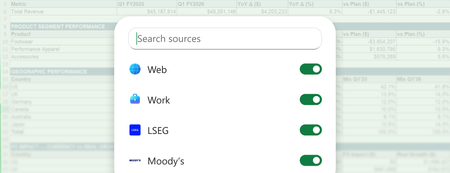
Earlier this month, we announced Microsoft 365 Copilot federated connectors were coming to Copilot in Excel. Built on the emerging industry standard Model Context Protocol (MCP), federated connectors pull data into Microsoft 365 Copilot live at query time, helping bring institutional data sources into the tools customers already use every day. Starting today, Copilot can now pull the latest data from LSEG and Moody’s directly into your Excel workbook. This is the first set of trusted data providers we’re bringing into Excel, with more on the way. For many finance teams, the work starts before the analysis even begins: finding the right market data, copying values into a model, and making sure nothing got lost along the way. With federated connectors in Excel, Copilot helps bring that information into the workbook where the real work is already happening. Because these connectors query source systems at the moment a request is made, responses reflect the latest available data, helping with scenarios such as checking a deal’s current status or a company’s stock rating. That means less time stitching together inputs and more time analyzing, modeling, and making decisions with the most current data. How it works In Copilot, open the Sources menu, connect to LSEG or Moody’s with your provider credentials, and turn the source toggle on. From there, when you specify a data provider in the prompt or your request references specific data sources such as credit ratings or spot rates, Copilot will retrieve the relevant data and ask you to confirm the data source before incorporating it into responses or results inserted into the sheet. LSEG The LSEG connector brings institutional market data — including foreign exchange rates, equities, and pricing — straight into Excel. This makes LSEG data and services available through a standardized, AI-ready interface and enables both users and agents to access trusted LSEG context inside the workflows they already use, while preserving governance, entitlements and control. For a treasury team updating a hedging model or preparing a leadership readout, that means less exporting, less manual copy-paste, and faster analysis with current market inputs already in the workbook. For a wealth advisor reviewing a client portfolio, it means easier access to current pricing, performance, risk and market context to support faster, more informed client conversations. Prompts to try: Pull current FX spot rates for EUR/USD, GBP/USD, and JPY/USD from LSEG into a new sheet. What would it cost to roll our six-month forward hedges on EUR/USD out another six months? Pull the forward points from LSEG and show the all-in rate. Bring in the USD swap curve from LSEG so I can model the impact of issuing 10-year debt at current levels. Moody’s The Moody’s connector brings credit ratings, research, entity data, and news into Excel so teams can work with decision-grade credit intelligence alongside the rest of their model. Whether you’re evaluating an issuer, pressure-testing exposure, or building a credit view for internal stakeholders, you can bring trusted credit context directly into the workbook instead of piecing it together across systems. Prompts to try: Pull the latest Moody’s rating, outlook, and recent research for each company in the portfolio, then summarize the key credit considerations in a new column. For each issuer in column B, pull the Moody's company profile, 5-year financial summary, peer group, and sector outlook — then flag any peers where the sector outlook is negative. For the issuers in this portfolio, bring in Moody’s sector outlook, recent news, and any notable credit risks so I can compare exposures across the list. Availability LSEG and Moody’s connectors are available starting today in Excel for Web, Windows, and Mac for commercial customers with a Microsoft 365 Copilot license. MCP servers and agentic solutions are available through a Bring Your Own License (BYOL) model, with customers licensing directly from partner services. Commercial marketplace availability will follow. Learn more Learn more about LSEG Learn more about Moody's Learn more about federated Copilot connectors Learn more about Copilot in Excel3.8KViews2likes0CommentsUse Copilot in Excel to build your brackets
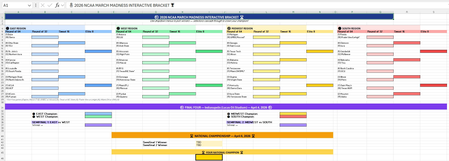
The matchups are finally set, and the annual question is back: how do you pick a bracket that’s fun and gives you a real shot at predicting the winner—whether you’re following the men’s tournament, the women’s tournament, or both? This year, you can use Copilot in Excel as your bracket sidekick—turning past tournament patterns into quick “what-if” scenarios, stress-testing upset paths, and sanity-checking your picks against historic data. Instead of manually building an analysis, copy/pasting data, and building multiple versions, you can ask in natural language and let Copilot build the analysis for you right inside an Excel workbook. Below are a few fast, practical ways to use Copilot in Excel to build a bracket workbook, explore upside picks (hello, Cinderella runs), and model “if this happens, then what?” outcomes so you can fill your bracket with more confidence than the rest of the group. 1) Set up a bracket workbook Open a new workbook, then open Copilot in Excel. Make sure “Edit with Copilot” is turned on. Start by asking Copilot to create a bracket template: “Create a 2026 [men’s or women’s] college basketball bracket including all the latest teams and seeds. Build dropdowns for each round so I can choose the winner of each matchup all the way to a champion, formatted like a standard bracket. For each dropdown, show only the 2 teams in the matchup based on the winners chose in previous rounds using helper columns." With that foundation in place, you’ve got a clean structure for picks and scenario assumptions. From here, you can make your picks and Copilot can help you add calculations, create “what-if” views, and summarize the implications of different upset paths. Bonus: Want to theme your brackets around your favorite team? First have Copilot generate a simple skills sheet and ask it to follow the instructions when creating brackets. “Create a skills sheet for my favorite team, [Team]. Include the official team colors (with hex codes), mascot/nickname, text colors, and conditional formatting rules for winners/losers.” 2) Stress-test your bracket with real-world scenarios Now for the part that can actually give you an edge: use Copilot to spin up scenario tabs and see how your bracket performs under outcomes that happen all the time in March—Cinderella runs, unexpected seed collapses, and “hot team” momentum that goes against conventional logic. Try some follow-up Copilot prompts like: Cinderella path: “Pick a 10–13 seed to reach the Sweet 16 based on past tournament frequency. Create a version to reflect that upset path, and show which higher-seeded teams I’m fading.” All the 1-seeds don’t make it: “Create a version of my bracket where at least two 1-seeds lose before the Elite Eight. Identify the earliest-round upsets needed and how my champion pick changes.” Favorite team: “Assume my favorite team is [Team]. Build two paths: (1) optimistic (reach the Final Four) and (2) realistic (based on projected path). For each path, show who they’d likely face by seed line and which matchup round matters most for them.” Momentum model: “Calculate a “momentum multiplier” using the conference tournament games and recent performance for each team and use that to fill out a version of my bracket weighted by momentum.” 3) Compare bracket variants and choose your entry Once you’ve built a few scenario versions, Copilot can help you compare them—so you’re not guessing which bracket is better, you’re choosing the one whose risk/reward matches your needs. Use a prompt like: “Create a comparison analysis for all my bracket scenarios in this workbook including charts. Include number of upset picks by round, and my top 5 most ‘contrarian’ picks across all my brackets. Give a recommendation for which to submit if I’m trying to win my bracket challenge or simply play it safe.” Copilot can generate the comparison table, highlight the key differences, and summarize the tradeoffs in plain language—so you can decide whether you want a safer entry, a balanced upset strategy, or a bold bracket designed to win big. Your turn: build your bracket with Copilot Ready to try it? Open Excel, start a new workbook, and use Edit with Copilot to create your brackets. Once you’ve got a bracket you like, share it with your league, your family, or your coworkers.36KViews3likes0CommentsApp Skills is evolving with Copilot in Excel
We are continuing to streamline the ways people engage with Copilot in Excel, and we've heard your feedback that working across multiple Copilot entry points can feel fragmented. To address this, Copilot in Excel is transitioning toward a more unified experience so users can easily choose between conversational assistance and direct editing capabilities. As part of this effort, the editing capabilities that App Skills provided will be integrated into Copilot Chat and Agent Mode in Excel, which became generally available earlier this year. This update is part of our broader work to simplify the Copilot entry points and make it clearer how to interact with Copilot depending on the task. We know that when you find a workflow that works, change can feel disruptive. That's why we want to give you a clear picture of what's evolving in how you use Copilot in Excel and how these changes provide an even better experience. Why this change matters We've heard your feedback about wanting a more capable experience when working with Copilot inside the spreadsheet. The enhanced editing experience that Agent Mode introduced was built specifically to address this. It's designed to handle more complex requests, work across multiple steps, and give you greater control over how Copilot edits your workbooks. Rather than maintaining separate experiences that can feel fragmented, we're bringing everything together so you have: More power: Copilot with Agent Mode can now handle complex, multi-step reasoning tasks that go beyond what App Skills could do. Better clarity: You'll know exactly where to go depending on what you need—direct editing happens with Agent Mode; quick answers and simple actions work best in Copilot Chat. Continued innovation: By focusing on improvements toward a unified experience, we can deliver new capabilities faster. As part of this, we also plan to better integrate Agent Mode’s editing capabilities into the Copilot Chat experience in the coming months. What’s changing? App Skills entry points in Excel are going away. You will no longer find an App Skills button in the ribbon or be able to use App Skills from the context menu. Existing skills are consolidating into Copilot Chat and Agent Mode. When you want Copilot to make changes directly in your workbook, Agent Mode is designed to support many core editing tasks, such as creating or updating tables, applying formatting, or generating charts and PivotTables. Copilot Chat remains available for tasks that don’t require modifying content, such as interpretation or exploration of your data and using agents like Analyst. If you can open the App Skills chat pane and submit a prompt, you may receive an error message instead of a response. During this transition, some users may still see App Skills entry points for a short time. In some cases, opening the App Skills pane may result in an error message indicating that App Skills is no longer available. If this happens, you can continue your workflow using Agent Mode or Copilot Chat based on the type of assistance you need. When is it happening? This update is rolling out now. Depending on your Excel version, you may see the App Skills entry point up until the end of February. App Skill scenarios not yet available Certain scenarios that previously used App Skills—specifically the Advanced Analysis mode that used Python in Excel and advanced text analysis capabilities—are not yet available within Copilot Chat or Agent Mode. We are continuing to expand support for these capabilities in Copilot Chat and Agent Mode—watch for updates as these become available over time. Note: this was originally communicated to commercial customers via the M365 Message Center (MC1184407) on November 10, 2025.5.4KViews0likes0Comments
Explain Formulas with Copilot—Now on the Grid
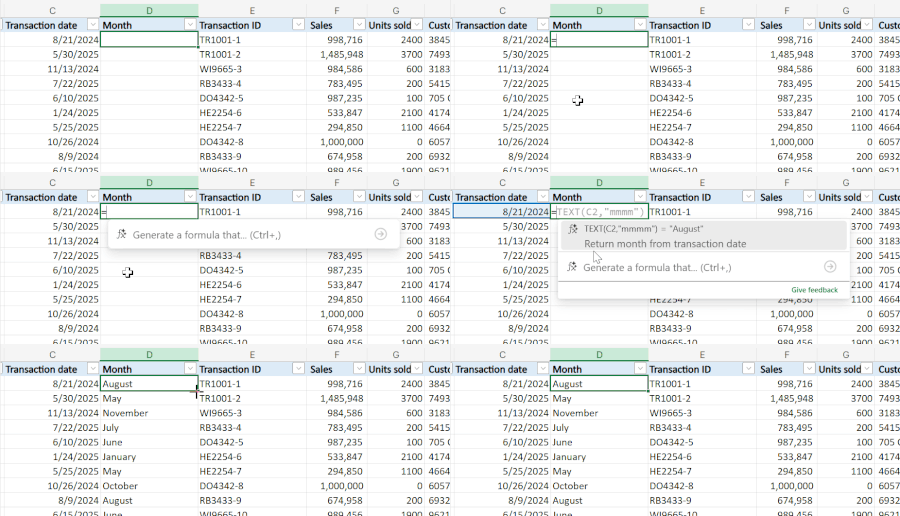
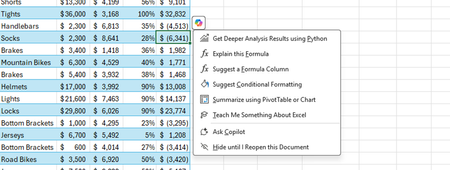
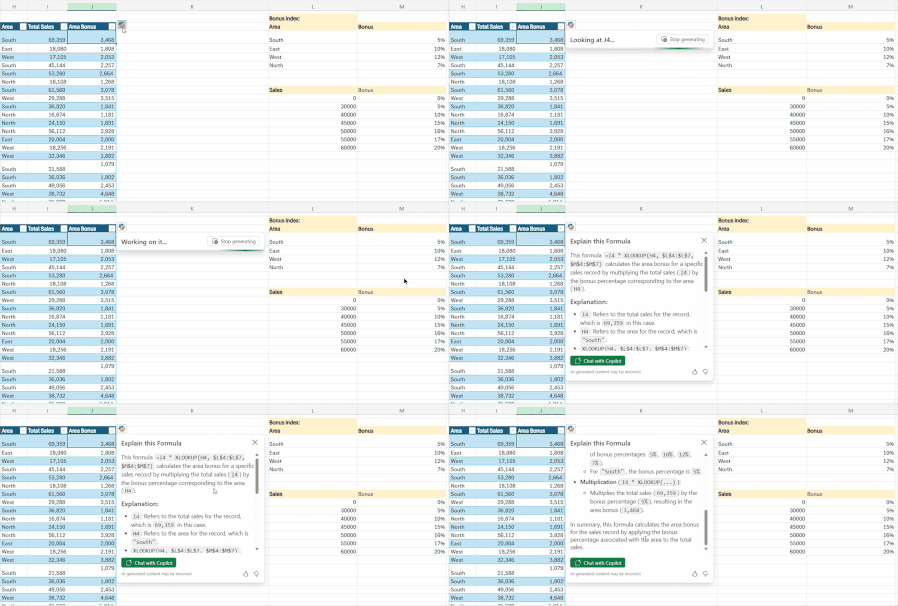
Understanding complex formulas in Excel just got a lot easier. The new Explain Formula feature turns Copilot into your inline assistant, delivering clear, step-by-step breakdowns directly on the grid, right next to your data, no need to switch context or open the chat pane. What makes this especially powerful is that the explanations are contextual, grounded in your actual data and workbook, not generic descriptions. By bringing the explanation to where you’re working, Copilot helps you stay in flow. It’s a seamless, in-the-moment experience that makes it easy to scan, understand, and act on formulas right where you need it most. How It Works Here’s how to get an explanation in just a few clicks: Select a cell with a valid formula A Copilot icon appears next to the cell Click “Explain this formula” from the dropdown Copilot shows a step-by-step explanation directly on the grid Need to dive deeper? Click “Chat with Copilot” to continue the conversation in the side pane Note: If the Copilot chat pane is already open, the explanation will be displayed there instead of on the grid. What It Does: Contextual Formula Explanations When you select a formula cell, Copilot can now explain what that formula does using a dedicated card shown in the grid. Helping you quickly understand what the formula does based on your actual data and context, not just a generic description. This makes it easy to: ✅ Understand the formula’s goal in your workbook ✅ Learn how it works, function by function ✅ Build confidence without ever leaving your sheet For example, given this formula: =I4 * XLOOKUP(H4, $L$4:$L$7, $M$4:$M$7) With just a click, Copilot will explain that: Because the explanation is tailored to your actual data and scenario, it’s faster to grasp, easier to verify, and more relevant to your work. Copilot provides the clarity you need right where you need it. Copilot Can Explain Any Excel formula No matter how simple or complex, Copilot can explain any Excel formula. Whether you're working with math, logic, references, arrays, or text manipulation, Copilot helps you understand what’s going on and why. Availability This feature is gradually rolling out to Excel for Windows and Excel for the web. Feedback We’d love to hear how this new experience is working for you. Let us know: ✔️ Was the explanation clear and easy to understand? ✔️ Was it easy to access the explanation when you needed it? ✔️ Did the overall experience feel intuitive and helpful? Just click the 👍 or 👎 at the bottom of the Copilot response to share your thoughts. Your feedback helps us refine the experience and prioritize what’s next.7.7KViews4likes6Comments