copilot chat
1 TopicStudy and Learn Agent: Now in 50 Languages, images improvements, ready when you open Copilot
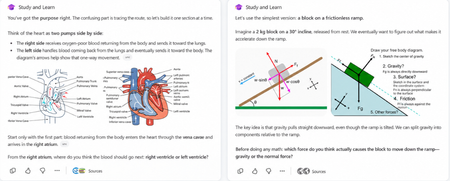
When we brought Study and Learn Agent to general availability, the promise was simple: the student does the thinking. Study and Learn asks before it tells. It pushes you to try. It makes learning interactive and quizzes you on what you missed. It lives at aka.ms/studyandlearn inside your Microsoft Education tenant. It coaches learners across any subject; explaining concepts, walking through problems step by step, supporting writing without doing the writing, and generating flashcards, quizzes, matching, and fill-in-the-blank activities from a learner's own materials. The design principle underneath all of it: preserve the productive effort that makes learning stick. The learner does the thinking. The agent coaches the thinking. 👥 Who can use it Study and Learn is available and pinned by default for every adult learner in a Microsoft Education tenant. No setup required — it's right there in the left navigation of Microsoft 365 Copilot. For K-12 students aged 13–17, there's one step first: Copilot Chat has to be enabled. Until it is, students in your tenant can't reach the agent. The good news is that it's a simple set of steps tutorial shows the exact enablement steps for IT admins. Watch the enablement walkthrough. 🎥 Full video tutorial If you want the full tour, Mike Tholfsen made an end-to-end tutorial that walks through every feature, start to finish. It's the fastest way to see the agent in action: Watch it here: ✨ Copilot Chat now opens with Study and Learn pre-selected For K-12 students who already have Copilot Chat enabled, Study and Learn is now pre-selected the moment they open Copilot Chat. The coach is right there, ready - no hunting through a menu, no wondering which agent to pick. Copilot Chat opens by default in the learning mode. A student who wants to work with something else can dismiss it in a tap. IT admins stay in control. The setting lives in the Education settings panel in the Microsoft 365 admin center. It's ON by default for K-12 and OFF by default for higher education, where admins can turn it on when they're ready. 🌍 Now available in 50 languages At GA, Study and Learn was optimized for English (US). Now it speaks the way your learners do. The agent is available in 50 languages beyond English. Set your browser or operating system to a supported locale and visit aka.ms/studyandlearn. The user experience and conversation are set in your language. The learning activities - flashcards, quizzes, matching, fill-in-the-blank - appear in your chosen app language. Additional language support is rolling out now and will be available to all users in the coming days. And you're not locked in. A learner can switch languages mid-conversation for a genuinely multilingual study session. Learning a new language and want the vocabulary words in the new language but the explanations in your native language? No problem. Want to switch languages to practice the vocabulary with Study and Learn, no problem, you can do that too. The coaching language follows you. For a student learning in their second language, or a family where the kitchen-table language isn't the classroom language this is the difference between a tool that talks at them and one that meets them where they are. 🖼️ Images that show, instead of just tell Some things are easier to see than to describe. A cell's structure. The layers of the atmosphere. Where the femur meets the hip. Study and Learn conversations can now include a carousel of relevant, web-safe images sourced through search, woven right into the flow of the agent's response. Each image supports the next step in a learner's understanding, a visual nudge toward the answer they're working out for themselves, without shortcutting the effort that gets them there. This is especially powerful for visual subjects like biology, geography, and chemistry, where a single well-placed image does what a paragraph can't. This experience will get better over time. It is rolling out now and will be available to all users in the coming days. You can always share feedback here. 💬 A prompt pack to help learners get started Here’s a prompt pack - a set of ready-to-use prompts that show learners exactly how to put the agent to work, organized around the moments they actually face: Understand a difficult topic — “Use these materials to find the most important ideas and help me understand them.”, “Explain [topic] step by step, then check my understanding.” Practice what you know — “Create a matching activity for the key terms in this chapter.”, “Make a fill-in-the-blanks activity from these materials.” Improve my work — “Review what I missed and explain the ideas I need to practice.”, “Help me understand why my answer was incorrect, then let me try again Work on an assignment — “Help me brainstorm ideas for this assignment.”, “Review my draft and help me find one area to strengthen.”, “Help me check whether my evidence supports my main point.” Get ready for a test — “Use these materials to identify the topics I should focus on.”, “Give me a five-minute review of these concepts I’m still struggling with.” Every prompt keeps the learner in the driver's seat — the agent helps them think and practice, never hands over the answer. Share the pack at the start of a unit and watch how it changes the way students engage. 📋 Coming soon: educators can assign the agent from Teams Everything so far puts the coach in the learner's hands. This next one puts it in the educator's. Rolling out soon, educators will be able to assign the use of Study and Learn Agent directly from a Teams assignment. Instead of a blanket "you can use this," you'll be able to point learners to the agent for a specific assignment built right into the assignment they're already opening. The through-line Every one of these (the languages, the pre-select, the prompt pack, the images, the assignments) meet the learner where they are. In their language. The moment they open Copilot. With the words to get started and the visuals to see it clearly. Pointed there, when it counts, by the educator who knows them. Open Microsoft 365 Copilot. Look in the left navigation. Then watch Mike's full tutorial and try it on the thing you're studying next. Educators can also access the full professional development course on Study and Learn complete with suggestions on introducing the agent to students. Try Study and Learn Agent · Microsoft Education license required. K-12 student access (ages 13–17) requires IT to enable Copilot Chat. Resources: Try Study and Learn in your tenant: https://aka.ms/studyandlearn Full tutorial on Study and Learn: https://aka.ms/studyandlearnvideo Professional development for educators: https://aka.ms/studyandlearnmodule Enable Copilot Chat: https://aka.ms/enablecopilotchatvideo Support documentation: https://aka.ms/studyandlearndocumentation Anoo Padte is Principal Product Manager for AI in Education at Microsoft.899Views1like0Comments