containers
421 TopicsQwen3.8-Flash-Next on two H100s in an Azure Spot VM
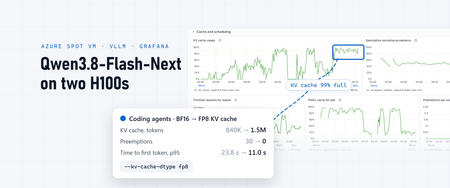
With 150,000 tokens of context, one request to Qwen3.8-Flash-Next decoded at about 200 tokens a second, and its first token arrived in under a second, because 95% of the prompt came from the cache. That held while the agents kept up to five requests running at once. At seven, one request in twenty waited 23 seconds or more for its first token. No error explained it; the dashboard did, one panel after another. This post covers how to run the model on two H100 GPUs in one Azure VM and how to observe it: which signals matter for this kind of model, three places where a standard dashboard misreads it, and one serving flag that made a measurable difference. My previous post, Qwen3.8-27B on a $2 H100 Azure Spot VM: does it pay off?, walks through the base setup (the VM, the Compose stack, the LiteLLM gateway and the OpenTelemetry pipeline into Application Insights and Grafana) in more detail; here I focus on what changes for a bigger model. What you're running Qwen3.8-Flash-Next is a mixture-of-experts (MoE) model from Qwen, released in August 2026 under the qwen-community-1.0 license. A few of its properties shape how you serve it: 125B parameters, 6B active per token. Each token passes through a small share of the experts, so decoding reads far less than the full weights. Mostly linear attention. Its 48 layers come in 12 blocks of three Gated DeltaNet layers, which keep a fixed-size state, and one Qwen Sparse Attention layer. Only those 12 sparse-attention layers keep a per-token KV cache. A 51B n-gram embedding table (20 million bigram and trigram entries), which vLLM keeps in host memory on H100 GPUs. A multi-token prediction (MTP) layer for speculative decoding, a 262,144-token context window (extendable to about one million with YaRN), and vision input. Thinking on by default, with a reasoning_effort setting ( xhigh by default, or medium or low ). Qwen's FP8 checkpoint, Qwen/Qwen3.8-Flash-Next-FP8 , is 185.6 GB, too much for one 94 GB H100 even with the n-gram table in host memory. Split across two with tensor parallelism, it fits with room left for the KV cache: Per GPU GiB Weights, n-gram table excluded, split in two 65.6 vLLM's share of the GPU at --gpu-memory-utilization 0.90 ~84 Left for the KV cache, activations and CUDA graphs ~18 Why not 4-bit weights? FP4 weights would save memory, but on an H100 they can be slower. The H100's tensor cores compute in FP8, not FP4, which arrived with Blackwell. NVIDIA publishes an NVFP4 checkpoint of this model, 132.7 GB, quantized for and tested on B200 and B300 GPUs, under the NVIDIA Open Model License in addition to Qwen's. vLLM v0.31.0 still loads it on an H100 by falling back to a Marlin kernel, which keeps the expert weights in 4 bits and unpacks them to BF16 for each matrix multiplication. That saves memory, not compute: the experts then multiply in BF16, whose peak rate on an H100 is half that of FP8. In that checkpoint, only the routed experts are FP4. Attention, the shared experts and the other layers stay in BF16, and the n-gram table and the MTP layer stay in FP8. My estimate from its file sizes: FP8 (this post) NVFP4 on H100 (estimate) Weights on the GPUs, n-gram table excluded 131 GiB ~76 GiB On one H100 Doesn't fit Only just: a few GiB left for the KV cache, about one long agent session KV cache on two H100s 1.5 million tokens, FP8 cache About three times as much Expert matrix math FP8 tensor cores BF16, after unpacking the weights Which way it goes depends on the workload. Decoding mostly reads weights, so smaller weights can keep it fast. Prefill is mostly math, and coding agents send long prompts, so a slower prefill shows up as a longer wait for the first token whenever the cache misses. A cache three times larger would miss less often. I haven't measured this trade; if you try it, the panels later in this post show it, with time to first token and computed prefill set against the prefix-cache hit rate. For one GPU today, see the one-GPU alternative near the end of this post. Step 1: Get a two-GPU Spot VM The size is Standard_NC80adis_H100_v5 : two H100 NVL GPUs with 94 GB each, 80 vCPUs and 640 GiB of memory. On October 12, 2026 it cost $3.22 an hour as an Azure Spot Virtual Machine in UK South, against $17.45 at the pay-as-you-go price: about 80% less, for capacity that Azure can take back with 30 seconds' notice (prices change; check the pricing page). In the two regions I compared, the Spot price was exactly twice the one-GPU size's. Spot draws on your regional low-priority vCPU quota. This size takes 80 vCPUs of it, which in my subscription left no room in the same region for the one-GPU VM from the previous post. Plan for evictions: my two VMs of this size in UK South zone 2 ran 6 h 17 min and 6 h 30 min before Azure reclaimed them. Both kept their disks under the Deallocate eviction policy, so a restart in place reloads the model from disk in a few minutes. The sample's infra/provision-spot-vm.sh creates this size, with the same private network as in the previous post: no public IP, outbound traffic through a NAT gateway, and administration through az vm run-command : LOCATION=southeastasia ZONE=2 infra/provision-spot-vm.sh Step 2: Prepare the host The host bootstrap is the same as for one GPU: the data disk, the NVIDIA datacenter driver (595 branch), Docker and the NVIDIA Container Toolkit, in about four minutes. Then check how the two GPUs are connected, because tensor parallelism exchanges data between them in every layer: $ nvidia-smi topo -m GPU0 GPU1 CPU Affinity NUMA Affinity GPU0 X NV12 0-39 0 GPU1 NV12 X 40-79 1 NV12 means an NVLink bridge with 12 links. nvidia-smi nvlink --status lists 18 links per GPU, 12 active at 26.6 GB/s each and 6 inactive. Remember those six; they come back in the monitoring section. Step 3: Serve it with vLLM NVIDIA's NGC vLLM container that served the 27B predates this model, so the stack uses vLLM's own vllm/vllm-openai:v0.31.0 image, which knows the architecture and its MTP layer. The flags follow vLLM's recipe for this model, adjusted for two GPUs: vllm serve /models/Qwen3.8-Flash-Next-FP8 \ --served-model-name qwen3.8-flash-next-vllm \ --tensor-parallel-size 2 \ --max-model-len 262144 \ --gpu-memory-utilization 0.90 \ --max-num-seqs 32 \ --max-num-batched-tokens 16384 \ --enable-prefix-caching \ --kv-cache-dtype fp8 \ --attention-config.indexer_kv_dtype fp8 \ --moe-backend triton \ --no-enable-flashinfer-autotune \ --spec-method mtp --spec-tokens 3 \ --reasoning-parser qwen3 \ --enable-auto-tool-choice --tool-call-parser qwen3_coder Flag Why --tensor-parallel-size 2 Splits every layer across the two GPUs. --gpu-memory-utilization 0.90 Under load each GPU reached 92 of 96 GB at this setting, so I left it there. --kv-cache-dtype fp8 , --attention-config.indexer_kv_dtype fp8 Stores the KV cache, and the sparse-attention indexer's, in FP8. The recipe's H100 command leaves these out; its H200 command, also a Hopper GPU, includes them. Why I added them is the subject of One flag, measured, below. --moe-backend triton , --no-enable-flashinfer-autotune The recipe's MoE kernels for Hopper GPUs. --spec-method mtp --spec-tokens 3 Speculative decoding with the model's MTP layer. --reasoning-parser qwen3 , --tool-call-parser qwen3_coder Thinking returned separately from the answer, and OpenAI-style tool calls. Two container settings matter as well. vLLM pins each GPU's share of the n-gram table in host memory, so the container needs ulimits: memlock: -1 , and the two tensor-parallel workers communicate through shared memory, so it needs ipc: host . On a new VM, the download takes about 20 minutes and loading about 4 more. The startup log then tells you the two numbers that decide everything later: Model loading took 65.58 GiB memory GPU KV cache size: 1,506,691 tokens, Maximum concurrency for 262,144 tokens per request: 5.75x Step 4: Check it The smoke test from the previous post (an exact answer, a required tool call and a decode-speed run) passes, and one request generates 260 tokens a second with thinking off, against 166 for the 27B on one GPU. A 45-case basic evaluation (math and logic with and without thinking, knowledge, instruction following, generated code run against tests, tool calls, and needle retrieval at 30K and 120K tokens) scores 44 of 45, the same as the 27B. An agentic coding evaluation on 10 short Terminal-Bench 2.0 tasks solved 8. Step 5: Observe it The telemetry pipeline is the one from the previous post: an OpenTelemetry Collector on the VM scrapes vLLM, LiteLLM and NVIDIA's DCGM exporter, reads host and container statistics, receives LiteLLM's spans and tails the container logs, and sends all of it to Application Insights, which stores the metrics in an Azure Monitor workspace as Prometheus data. Grafana reads both. Two things changed for this model. One dashboard for several models The collector stamps every metric, span and log record with an upstream_model label naming the model the VM serves. A model variable at the top of the dashboard filters every panel by it and lets you pick one model, several or all. With more than one, each graph draws a line per model, so the 27B and Flash-Next appear side by side. Two details made it work. The Azure Monitor workspace's label-values API requires exactly one metric name, so the variable's query is label_values(vllm:num_requests_running, upstream_model) . And the VM's cost is now computed from the GPUs reporting in each minute times a price per GPU-hour, so a one-GPU and a two-GPU model are both costed correctly from one price. Three numbers the dashboard got wrong at first Per-request speed. The usual formula, 1 / histogram_quantile(0.5, ...inter_token_latency_seconds...) , read a constant 57 tokens a second on this model while requests were really getting 150 to 260. Two things go wrong at once. With speculative decoding, vLLM records one inter-token interval per decode step, and each step produced about 2.4 tokens. And 99.7% of the steps landed in the histogram's 10–25 ms bucket, so the median is that bucket's midpoint, 17.5 ms, whatever the real speed. I used the same formula in the previous post's table; this one holds up better: (sum(rate(vllm:generation_tokens_total[5m])) > 0) / clamp_min(sum(avg_over_time(vllm:num_requests_running[5m])), 1) That's output tokens per second divided by the requests running. The clamp_min matters because the collector samples the running-request gauge every 15 seconds and misses short requests that start and end between samples. Without it, a minute of short requests read up to 668 tokens a second. GPU health. DCGM's health check reported Fail on a healthy VM. Its NVLink watch reports the six inactive links on each GPU as down ( dcgm_fr_nvlink_down ), while the bridge's 12 links are up. The dashboard's health tile now leaves that one error code out, which leaves the Warn that power throttling raises under normal load. Histogram means. OTLP histograms arrive in the Azure Monitor workspace as native histograms. histogram_quantile works on them, but histogram_sum , histogram_count and histogram_avg returned 0 or NaN for these metrics, so averages come from counter rates, as above, rather than from the histograms. The panels that matter for this model Question PromQL Are requests waiting, and for what? sum by (reason) (vllm:num_requests_waiting_by_reason) : capacity means the KV cache is full Is the KV cache holding the sessions? max(vllm:kv_cache_usage_perc) , and the prefix-cache hit rate sum(rate(vllm:prefix_cache_hits_total[5m])) / sum(rate(vllm:prefix_cache_queries_total[5m])) Is the GPU recomputing prompts? sum(rate(vllm:prompt_tokens_by_source_total{source="local_compute"}[5m])) against {source="local_cache_hit"} , and sum(increase(vllm:num_preemptions_total[5m])) How far does speculative decoding get? sum by (position) (rate(vllm:spec_decode_num_accepted_tokens_per_pos_total[5m])) / scalar(sum(rate(vllm:spec_decode_num_drafts_total[5m]))) What crosses the PCIe bus? sum(dcgm_fi_prof_pcie_rx_bytes) , host to GPU in bytes per second The spans complete the picture. Each LiteLLM call carries its input and output tokens, time to first token, duration and finish reason, so decode speed per call is output tokens / (duration - time to first token) , and you can group calls by prompt size. The spans also record each tool the client declares, which tells different agents apart without capturing a single prompt. Load it with coding agents A benchmark sends synthetic prompts at a fixed rate. Agents don't: their prompts grow with every turn, most of each prompt is the previous turn's, and between turns they run tools while the model waits. To see the model under that shape of load, I ran opencode, an open-source coding agent, as a load generator: one instance per local repository, each asked to review every file. Agents that can edit files and run commands shouldn't be pointed at a dozen repositories for a load test, so every instance ran with an inline configuration that limits it to read-only tools. Passed in OPENCODE_CONFIG_CONTENT , it overrides the global and project opencode config files; only managed settings rank higher. The sample's load-test/review-readonly.json is a copy of the one I ran that also defines the gateway as an OpenAI-compatible provider and keeps agents away from .env files: { "provider": { "litellm": { "npm": "@ai-sdk/openai-compatible", "name": "LiteLLM gateway", "options": { "baseURL": "{env:LOCAL_LLM_URL}/v1" }, "models": { "local-llm": { "name": "local-llm", "limit": { "context": 245760, "output": 16384 } } } } }, "model": "litellm/local-llm", "small_model": "litellm/local-llm", "permission": { "read": { "*": "allow", "*.env": "deny", "*.env.*": "deny", "*.env.example": "allow" }, "glob": "allow", "grep": "allow", "list": "allow", "todowrite": "allow", "edit": "deny", "bash": "deny", "webfetch": "deny", "websearch": "deny", "external_directory": "deny", "question": "deny", "task": "deny", "doom_loop": "deny" }, "mcp": { "playwright": { "enabled": false } }, "lsp": false, "formatter": false, "snapshot": false, "autoupdate": false, "share": "disabled" } List your own MCP servers under mcp the same way. To run one agent by hand: export LOCAL_LLM_URL=https://<your-domain>.ngrok-free.dev export OPENCODE_CONFIG_CONTENT="$(cat load-test/review-readonly.json)" cd ~/src/some-repo && opencode run --pure -m litellm/local-llm "Review every file in this repository." The sample's load-test/launch.sh starts one per folder you list, a few seconds apart, and stops launching when the workstation runs low on memory. Check it in a scratch folder first: ask an agent to create a file and run a command. In my test the agent wasn't offered those tools, and the folder stayed unchanged. Three settings in it matter beyond safety. The context limit tells opencode when to compact the conversation; without it, sessions grew until the gateway rejected them as too long. Denying task stops an agent from starting sub-agents, so each instance is one session; with sub-agents allowed, 29 instances had 69 requests in flight. And each instance took 0.7–0.9 GB of memory on my workstation, so the workstation, not the GPU, capped the first run at 46 agents. What the telemetry showed Decode speed barely depends on context length From the spans, here is the median decode speed of calls with at least 300 output tokens, by prompt size, next to the 27B's from the previous post's busy window: Prompt size Flash-Next, 1–2 requests at once Flash-Next, 3–5 at once 27B, about 3 at once Under 50K tokens 197–221 201 60–78 50–100K 192 183 63 150–200K 217 200 54 Over 200K 195 166 51 The 27B slowed by about a fifth as its prompts grew; Flash-Next held its speed. The architecture explains it: 36 of its 48 layers keep a fixed-size state, and the other 12 use sparse attention, so the work per token grows little with the context. The n-gram table shows up on the PCIe bus With the model decoding, DCGM reported 4.6–8.6 GB/s flowing from host to GPU over PCIe, rising and falling with the output rate and dropping to almost nothing when idle. On the 27B, which keeps everything in GPU memory, the same counter read 0.03 GB/s. The n-gram table is the part of this model that lives in host memory, so it's the likely source. That's at most an eighth of what the GPUs' PCIe 5.0 x16 links carry, so it isn't a bottleneck at this load, but it's worth a panel if you run more requests at once. Sessions, not requests, fill the KV cache Agentic traffic is mostly reused prompt. For hours, 88–95% of input tokens came from the prefix cache, and time to first token stayed under a second at 100,000 tokens and more. vLLM keeps each session's prompt in the cache between turns, so the next turn only processes what's new. That works only while every active session's prompt fits, including the sessions that are between turns, running tools. With the KV cache in BF16, the cache held 840,277 tokens. Here is what happened when the agents went from five requests running at once to seven, with prompts of about 110,000 tokens at the median and up to 230,000: 15 minutes to (UTC) Requests running, peak KV cache, peak Prefix-cache hits Input recomputed Preemptions Time to first token, p50 / p95 04:15 5 72% 91% 2.1M tokens 0 0.7 s / 2.7 s 04:30 7 97% 45% 9.0M tokens 4 1.4 s / 25.5 s 04:45 7 98% 50% 6.8M tokens 2 3.9 s / 23.2 s 05:00 7 99% 74% 5.2M tokens 24 0.6 s / 14.5 s At no point did vLLM run more than seven requests, against a limit of 32. The limit that mattered was memory: the sessions evicted each other's cached prompts, and each turn recomputed 100,000 tokens or more. The waiting-requests metric says so directly: up to four requests at a time waited, all with the reason label capacity . One flag, measured The KV cache in FP8 takes half the memory per token. With --kv-cache-dtype fp8 and --attention-config.indexer_kv_dtype fp8 , the cache grew from 840,277 to 1,506,691 tokens in the same memory, and from 3.2 to 5.75 full-length contexts. The weights don't change, and neither did the checks: 260 tokens a second for one request and 44 of 45 on the evaluation, including both long-context retrievals. Then I repeated the load on a fresh VM with eight of the read-only review agents described above, one session each. Their prompts grew to a median of 122,000 tokens and up to 235,000, a little larger than in the BF16 window. Measured the same way for both windows: BF16 cache, 04:15–05:00 FP8 cache, 07:23–07:38 Requests running, average / peak 3.3 / 7 6.4 / 8 Prompt size, p50 / max 112K / 229K 122K / 235K KV cache, peak 99% 88% Prefix-cache hits 58% 74% Preemptions 30 0 Time to first token, p50 / p95 / max 0.9 s / 23.8 s / 42.2 s 1.1 s / 11.0 s / 20.7 s Output tokens per second, all requests 219 415 Twice as many requests ran at once, the cache never filled, nothing was preempted, and the slowest first tokens arrived in half the time. The hit rate didn't climb back to 90%: review agents read new files on every turn, and no cache can serve tokens it hasn't seen. The two windows come from different agents, so take the comparison as indicative rather than exact; the cache panels tell the same story. Past the cache More agents don't help once the cache is full. With 46 agents on the FP8 cache, 21 requests ran and 24 waited for capacity, the cache stayed 97% full, and the prefix-cache hit rate fell to 0%. The GPUs spent their time on about 12,000 tokens a second of recomputed prompts against 400–450 of output, and the median time to first token passed 30 seconds. Stopping the agents didn't free the server right away either. Their disconnects didn't make it through the gateways to vLLM, which worked through the 35 requests the agents had left queued, a few minutes of work for nobody, before the next test could start. Rules of thumb Size by sessions, not requests. The number of agent sessions that stay cached is roughly the KV cache size divided by a typical session's context: about 1.5 million / 100,000–150,000, so 10 to 15 here. The startup log gives you the first number, and the spans give you the second. Watch why requests wait. vllm:num_requests_waiting_by_reason{reason="capacity"} rising means memory, which --max-num-seqs won't fix. Read prefix-cache hits and recomputed input together. A falling hit rate with rising computed input is the cache thrashing, and time to first token follows within minutes. Mind the thinking. 87–94% of output tokens were reasoning. For routine tool calls, a lower reasoning_effort is the client-side lever. The one-GPU alternative If one H100 is all you have, Strata, an open-source engine built for this model on consumer GPUs, runs Unsloth's ~4-bit GGUF on a single H100 NVL with every expert in GPU memory: 151 tokens a second for one request, 44 of 45 on the same evaluation and 9 of 10 agentic tasks. Concurrency is where it differs from vLLM: in version 0.1.42, four batch slots added only about 20% (177 tokens a second in total), and under the evaluation's mixed concurrent load they started failing requests, so I ran it one request at a time. Check newer releases if you need concurrency. Try it Sample code: wuyi-labs/2610-h100-qwen-38-flash-next, with provisioning, the vLLM Compose stack, the dashboard and the read-only opencode load test. The model: Qwen3.8-Flash-Next on Hugging Face and vLLM's recipe for it. The base setup: Qwen3.8-27B on a $2 H100 Azure Spot VM: does it pay off?, and Ingest OTLP data into Azure Monitor with the OpenTelemetry Collector. KV cache quantization: Quantized KV cache in vLLM. Load generation: opencode and its permissions. Spot: Azure Spot Virtual Machines and Linux VM pricing.164Views1like1CommentQwen3.8-27B on a $2 H100 Azure Spot VM: does it pay off?
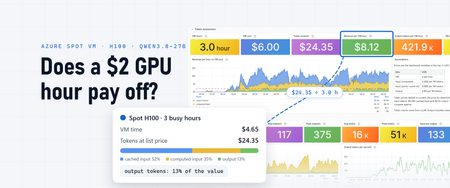
For three hours on the morning of October 9, a single H100 in Azure served 1,434 requests to Qwen3.8-27B: 168.7 million input tokens in, 1.27 million output tokens out. At a public list price for this model that day ($0.425 per million input tokens, $0.085 per million cached input tokens and $2.55 per million output tokens), those tokens are worth $24.35. The three hours of VM time cost $4.65 at that region's Spot price; the dashboard below counts them at a round $2 an hour. This post is the guide I'd have wanted before I started: how to run Qwen3.8-27B on an Azure GPU VM, how to tune it, and how to monitor it end to end, with metrics, logs and traces, using Application Insights and Grafana. The answer to the title comes at the end. The dashboard that measured it comes from the monitoring setup in the middle. What you're running Qwen3.8-27B is a 27-billion-parameter dense model from Qwen, released under the Apache 2.0 license. A few of its properties shape how you serve it: Hybrid attention. 48 of its 64 layers use Gated DeltaNet linear attention, which keeps a fixed-size state instead of a per-token KV cache. Only the 16 full-attention layers grow with the context, which is why long contexts fit on one GPU. A 262,144-token context window, which Qwen documents how to extend to about one million tokens with YaRN. Thinking on by default, with a per-request switch to turn it off. Multi-token prediction (MTP) layers, which vLLM can use for speculative decoding. Vision: it reads images and video as well as text. The GPU is a Standard_NC40ads_H100_v5 : one H100 NVL with 94 GB of memory and 40 vCPUs. Both official checkpoints fit on it: BF16 ( Qwen/Qwen3.8-27B ) FP8 ( Qwen/Qwen3.8-27B-FP8 ) Download 55.6 GB 30.9 GB Weights in GPU memory 51.9 GiB 29.0 GiB KV cache left over 805K tokens 1.45M tokens One request, 512 tokens, thinking off 124 tok/s 172 tok/s Use FP8. The H100 runs FP8 natively, each decode step reads fewer bytes, and the memory the smaller weights free up nearly doubles the KV cache. The NVFP4 builds you'll see in vLLM's recipes target Blackwell GPUs, since the H100 has no FP4 tensor cores. Step 1: Get a Spot H100 VM Azure Spot Virtual Machines sell spare capacity at a discount, with no SLA, and Azure can evict them with 30 seconds' notice. In October 2026 this size cost $1.55 to $1.84 an hour on Spot in the regions I settled on, which this post rounds to $2 (prices change; check the pricing page). Spot draws on your regional low-priority vCPU quota, 40 vCPUs for this size, not on the H100 family quota, which was zero in my subscription. Pick the region with data rather than habit. The sample's infra/spot-regions.sh lists each region's eviction-rate bucket and Spot price history, and the current placement score per zone; there's more on that in the Spot section below. Then create the VM with infra/provision-spot-vm.sh: LOCATION=southeastasia ZONE=2 IDENTITY_RG=rg-llm-telemetry infra/provision-spot-vm.sh In about five minutes that gives you: a resource group, a VNet and a network security group with only the default rules, which deny inbound traffic from the internet a NAT gateway for outbound traffic: Docker images, Hugging Face downloads and telemetry the VM: Ubuntu 24.04 and no public IP. It uses Trusted Launch with Secure Boot off, because Secure Boot rejects the unsigned NVIDIA kernel modules. It has a 512 GB data disk for weights and images, the Spot Deallocate eviction policy so an eviction keeps the disks, and a managed identity for telemetry With no public IP and no SSH, you administer the VM through az vm run-command , which the sample's scripts/vm-run.sh wraps: scripts/vm-run.sh <script> runs a local script on the VM as root and prints the output. Step 2: Prepare the host scripts/vm-run.sh scripts/bootstrap-host.sh The bootstrap takes about four minutes. It mounts the data disk at /data , installs the NVIDIA datacenter driver (the 595 branch with open kernel modules, which loads without a reboot), installs Docker Engine with its data root on /data , and registers the NVIDIA Container Toolkit with Docker. At the end, nvidia-smi should report one H100 NVL with 95,830 MiB. Step 3: Serve the model with vLLM The stack is a Docker Compose project: a one-shot job that downloads the pinned checkpoint, vLLM, a LiteLLM gateway, and optional overlays for telemetry and a public URL. The sample's scripts/deploy.sh, run with up , copies the folder to the VM through run-command and starts it in the background. On a new VM everything is healthy about 20 minutes later. Most of that is image pulls and the 31 GB download, and later restarts of the model take a few minutes. The model runs in NVIDIA's NGC vLLM container, release 26.07 (vLLM 0.24). One fix was needed there: tool calls failed with HTTP 500 because the bundled xgrammar 0.2.0 lacks a function vLLM's frontend imports, so the sample's image adds xgrammar 0.2.3. The checkpoint is pinned to a revision and downloaded once to the data disk, so restarts don't depend on Hugging Face. This is the serve command: vllm serve /models/Qwen3.8-27B-FP8 \ --served-model-name qwen3.8-27b \ --trust-remote-code \ --max-model-len 262144 \ --gpu-memory-utilization 0.93 \ --max-num-seqs 32 \ --max-num-batched-tokens 16384 \ --kv-cache-dtype fp8 \ --enable-prefix-caching \ --spec-method mtp --spec-tokens 3 \ --reasoning-parser qwen3 \ --enable-auto-tool-choice --tool-call-parser qwen3_coder \ --limit-mm-per-prompt '{"image":{"count":4,"width":1024,"height":1024},"video":0}' Flag Why --max-model-len 262144 The native context window. --gpu-memory-utilization 0.93 Lets vLLM use 93% of the GPU's memory. After the weights, that leaves 1.5 million tokens of KV cache, about 5.7 full-length requests at once. --max-num-seqs 32 Throughput barely grows beyond 32 concurrent requests on this GPU (measured below). --max-num-batched-tokens 16384 The prefill chunk per step. 32K gained nothing and cost 5% of the KV cache. --kv-cache-dtype fp8 Halves the KV cache's memory compared with BF16. --enable-prefix-caching Reuses the KV blocks of a repeated prefix instead of recomputing them. Agentic traffic resends long prefixes, so this matters: 88% of the input tokens in the busy window below came from the cache. --spec-method mtp --spec-tokens 3 Speculative decoding with the model's own MTP layers. vLLM's Qwen3.8 recipe writes the same setting as --speculative-config '{"method":"mtp","num_speculative_tokens":3}' . --reasoning-parser qwen3 Returns the thinking separately from the answer, so clients get a clean reply. --enable-auto-tool-choice --tool-call-parser qwen3_coder OpenAI-style tool calls. --limit-mm-per-prompt Up to four images per prompt, and no video. Step 4: Call it vLLM serves an OpenAI-compatible API, and so does the LiteLLM gateway in front of it, under one stable alias, local-llm , so clients don't change when the model does: curl http://127.0.0.1:4000/v1/chat/completions -H 'Content-Type: application/json' -d '{ "model": "local-llm", "messages": [{"role": "user", "content": "Explain prefix caching in two sentences."}], "temperature": 0.7, "top_p": 0.8, "presence_penalty": 1.5, "chat_template_kwargs": {"enable_thinking": false} }' Thinking is on unless a request turns it off with chat_template_kwargs . Qwen's model card recommends temperature 1.0, top_p 0.95 and top_k 20 with thinking on, and temperature 0.7, top_p 0.8, top_k 20 and presence_penalty 1.5 with it off. Tool calls work as they do with OpenAI: send tools , and the parser turns the model's tool-call markup into tool_calls . The sample's smoke test ( scripts/vm-run.sh scripts/smoke-test.sh ) checks an exact answer, a required tool call and the decode speed. On this VM, one request generates about 166 tokens a second with thinking off. The VM has no public IP, so the gateway is published through an ngrok tunnel with an IP allow-list. The gateway has no authentication of its own, so that allow-list is the only access control on the public URL. That suited my own tests. For anything more, add a LiteLLM key or an authentication policy at the tunnel. Step 5: Tune it Two settings were worth measuring. How many tokens to draft. Speculative decoding drafts tokens with the MTP layers and verifies them in one pass. On natural-language prompts with 512-token replies: Draft tokens 1 2 3 4 One request (tok/s) 105 131 151 146 32 requests (tok/s) 1,497 1,546 1,548 1,342 Three came out on top at both ends. vLLM warns that drafting more than one token reuses the same MTP layer and can lower acceptance, so watch the acceptance rate on the dashboard rather than trusting the setting. How many requests at once. On synthetic 2,000-token prompts, output grows to 32 concurrent requests and then flattens: 150 tokens a second at 1, 821 at 16, 1,187 at 32 and 1,212 at 48, while each stream slows from 150 to 25 tokens a second. On natural text, where more drafts are accepted, 32 requests reach about 1,550 output tokens a second. That's the measured ceiling: 5.6 million output tokens an hour, worth $14.23 an hour at $2.55 per million. Step 6: Monitor it: metrics, logs and traces A self-hosted model has no provider status page. When it's slow, you need to know whether the cause is the queue, the cache, the GPU or the client, and when it's idle, you're still paying for it. Azure Monitor ingests OpenTelemetry natively (generally available since June 2026), so one Application Insights resource can receive all three signals. Create the destination Create an Application Insights resource with OTLP support set to On. That provisions a Log Analytics workspace for logs and traces, an Azure Monitor workspace that stores metrics as Prometheus data, and the data collection endpoint and rule that route OTLP into them. Ingest OTLP data into Azure Monitor with the OpenTelemetry Collector walks through it. On the resource's Overview page, copy the OTLP connection info: the endpoint URLs for traces, logs and metrics, and the data collection rule ID. Give the VM's managed identity the Monitoring Metrics Publisher role on that data collection rule. The collector signs in with Microsoft Entra ID, so you don't have to store a key on the VM. The sample's infra/telemetry-identities.sh creates one identity per region you run in and assigns the role. Point a collector at it One OpenTelemetry Collector (the contrib distribution) runs next to the model and gathers everything: Metrics: it scrapes vLLM's and LiteLLM's Prometheus endpoints and NVIDIA's DCGM exporter for the GPU, and reads host and container statistics. Traces: LiteLLM sends its spans to the collector over OTLP. Each model call is a span with the token counts, time to first token and finish reason as gen_ai.* attributes. Logs: it tails every container's log, plus the host's syslog, where GPU Xid errors and out-of-memory kills appear. The part that talks to Azure Monitor is short (abridged from the sample's observability/otelcol/config.yaml, collector 0.161): extensions: azure_auth: managed_identity: client_id: ${env:TELEMETRY_UAMI_CLIENT_ID} scopes: [https://monitor.azure.com/.default] processors: resource: attributes: - {key: microsoft.applicationId, value: "${env:AZMON_APPLICATION_ID}", action: upsert} exporters: otlp_http/azuremonitor: traces_endpoint: ${env:AZMON_TRACES_ENDPOINT} logs_endpoint: ${env:AZMON_LOGS_ENDPOINT} metrics_endpoint: ${env:AZMON_METRICS_ENDPOINT} auth: authenticator: azure_auth Here's where each signal lands and how you query it: Signal Sources Stored in Query with Metrics vLLM, LiteLLM, GPU (DCGM), host, containers Azure Monitor workspace PromQL Traces LiteLLM request and model-call spans Application Insights (Log Analytics) KQL, or the Application Insights transaction view Logs every container, host syslog Application Insights (Log Analytics) KQL Four things that tripped me up Set microsoft.applicationId on everything you send. The data collection rule that Application Insights creates routes data on that resource attribute, which is why the processor above sets it on every resource. Metrics keep only a few resource attributes. The metrics rule keeps service.* , host.name and cloud.region , and drops the rest, so per-container series merged into one until a transform processor copied the container name onto each data point. The sample does the same for an upstream_model label, so a second model on the same VM shows up as its own series. In logs, fields you want to filter on also belong on the record, not the resource. OTLP histograms arrive as native histograms. histogram_quantile takes the bare metric name, with no _bucket suffix and no le label, and OpenTelemetry-native names keep their dots, so you write {__name__="system.cpu.utilization"} . Check what your spans carry. LiteLLM records the useful parts of each call (token counts, time to first token, finish reason) without prompts or responses when message capture is off. It still records every tool definition the client declares, though. Decide whether that's acceptable in your Application Insights resource, and choose the fields carefully before you share a dashboard. Build the dashboard in Grafana In Azure Managed Grafana, connect the Azure Monitor workspace as a Prometheus data source for the metrics (Connect Grafana to Azure Monitor managed service for Prometheus), and use the built-in Azure Monitor data source for KQL over the logs and traces. If you'd rather not run a Grafana instance, Azure Monitor dashboards with Grafana work in the Azure portal. You don't have to build the dashboard yourself. The one in these screenshots is in the sample repository as h100-llm.json. To use it: In Grafana, go to Dashboards > New > Import and upload the file. When it asks, enter your Application Insights resource ID. At the top of the dashboard, pick your Azure Monitor workspace's Prometheus data source and your Azure Monitor data source. It has ten rows: overview, token economics, throughput, the gateway, traffic and latency, cache and scheduling, the GPU, host and containers, the telemetry pipeline itself, and traces and logs. These are the questions I look at first: Question PromQL How long until the first token? histogram_quantile(0.95, sum(rate(vllm:time_to_first_token_seconds[5m]))) How fast does one request generate? 1 / histogram_quantile(0.5, sum(rate(vllm:inter_token_latency_seconds[5m]))) Is the KV cache full? max(vllm:kv_cache_usage_perc) : near 1, vLLM starts preempting requests Are requests queuing? sum(vllm:num_requests_waiting) next to sum(vllm:num_requests_running) Is prefix caching working? sum(rate(vllm:prefix_cache_hits_total[5m])) / sum(rate(vllm:prefix_cache_queries_total[5m])) Is speculative decoding paying off? sum(rate(vllm:spec_decode_num_accepted_tokens_total[5m])) / sum(rate(vllm:spec_decode_num_draft_tokens_total[5m])) Is the GPU doing work? max(dcgm_fi_prof_sm_active) Metrics tell you that something is slow. Traces and logs tell you which request and why. The dashboard's last row has both. LLM calls lists one row per model call from the LiteLLM spans, with its time to first token, input tokens, finish reason and trace ID. Model server log shows vLLM's own log lines: the engine stats it prints every ten seconds (throughput, running and waiting requests, KV cache usage, prefix cache hit rate) and any warning. There's one more step I haven't taken yet: vLLM can export its own spans over OTLP with --otlp-traces-endpoint , and NVIDIA's container already includes the OpenTelemetry SDK. Pointed at the same collector, that would add vLLM's own timing for each request, such as time in the queue, next to the gateway's spans. Change the dashboard and ask the data with an agent You don't have to edit dashboard JSON or write every query by hand. Azure Managed Grafana instances in the Azure public cloud include a remote MCP server at https://<grafana-endpoint>/api/azure-mcp (Configure an Azure Managed Grafana Remote MCP server). Connect an MCP client to it, and an AI agent can work with this dashboard and the telemetry behind it. GitHub Copilot in Visual Studio Code signs in with Microsoft Entra ID; Claude Code and other clients can use a Grafana service account token. Author and change dashboards. amgmcp_dashboard_inspect reads a dashboard's panels, variables and queries, and amgmcp_dashboard_update creates a dashboard or patches one panel, query or title at a time. A request such as "add a panel for preemptions per minute next to KV cache usage" becomes a targeted patch instead of a JSON edit. Query the telemetry. amgmcp_prometheus_query runs PromQL against the Azure Monitor workspace, amgmcp_query_resource_log runs KQL against Application Insights, and amgmcp_query_application_insights_trace fetches a trace. Questions like "which requests waited longest for their first token this morning?" or "how many output tokens did the model generate per VM hour this week?" come back with numbers from the same data the dashboard shows. The agent acts with the Grafana permissions of the identity it signs in with, so give that identity the role the job needs: Grafana Viewer to ask questions, Grafana Editor to change dashboards. My previous post, Dashboards are for AI agents too, not just humans, shows the other half: how an agent uses a dashboard's queries and descriptions as context. What the dashboard showed The traffic in these screenshots is a real agentic workload: long-running sessions that call tools and send the whole conversation back with each request. In the busy window it looked nothing like the benchmark: Prompts were long. The median request carried about 120,000 input tokens, and the 95th percentile 186,000. Most of it was cached. 88% of input tokens were prefix-cache hits. Output was small. There were 133 input tokens for every output token, and 62% of the output tokens were reasoning. Concurrency was low. At most 10 requests ran at once, with room for 32. Output averaged 117 tokens a second, under 8% of the 1,550 ceiling, yet the GPU was busy 77% of the time. The work went into prefill (19.9 million computed input tokens in three hours) and into attention over contexts of 100,000 tokens and more. A single request saw about 34 tokens a second at the median, not 166. Long contexts also fill the KV cache with only a few requests. Around 08:00 the cache reached 88.6%, and at the same moment the 95th-percentile time to first token jumped to 2.6 minutes: new requests were waiting for memory, not compute. The traces show it request by request, with 200,000-token prompts waiting 40 seconds or more for their first token. About 60 of the window's 64 failed requests were prompts that had outgrown the 262K-token context window, which is where the dashboard's 4.47% error rate comes from. Measure the shape of your own traffic, not the shape of a benchmark. For this workload the numbers that matter are prefill throughput, the cache hit rate and how many long contexts fit in memory at once. Spot, honestly Here is what one VM met in its first week: # Region (eviction-rate bucket) Ran before eviction 1 West US 3 (5–10%) about a minute, just after a restart 2 West US 3 (5–10%) 2 h 01 min 3 West US 3 (5–10%) 2 h 16 min 4 UK South (0–5%) 2 h 36 min 5 UK South (0–5%) 5 h 34 min 6 North Europe (0–5%) 8 h 28 min 7 UAE North (0–5%) 2 h 58 min Seven evictions in about 40 hours of running, and five attempts to create or restart a VM in UK South that failed for lack of capacity. An eviction deallocates the VM with the model still on its disk, so a restart in place brings the stack back in a few minutes once capacity returns. I pick regions with two public data sources, which infra/spot-regions.sh combines: The SpotResources table in Azure Resource Graph has the eviction-rate bucket and recent Spot price history for each size and region. Spot Placement Score rates how likely a Spot request is to succeed right now, per zone, and shows zones where the size is restricted for your subscription. It needs the Compute Recommendations Role. region eviction usd/h since min-max northeurope 0-5 1.55 2026-02 1.55-1.55 uksouth 0-5 1.61 2026-09 1.61-2.06 southeastasia 0-5 1.68 2026-09 1.68-2.28 ... Region Zone Score QuotaAvailable southeastasia 1 Low True southeastasia 2 Low True southeastasia 3 RestrictedSkuNotAvailable True My rule is the lowest eviction bucket, then the lower price, then a zone that isn't restricted. For this size the placement score was Low in almost every unrestricted zone I checked, all week. Low isn't a refusal, though: VMs scored Low in West US 3, North Europe, UAE North and Southeast Asia all allocated on the first try. Two things I got wrong at first: The eviction rate is per hour. Microsoft Learn describes the eviction rate in the portal as the chance of being evicted within the next hour, based on recent history. At 5% an hour, an eight-hour run has roughly a one-in-three chance of being evicted. Read 0–5% as "plan for evictions", not "evictions are rare". Changing zones didn't change much. The first five evictions were all in zone 1, so I moved to other zones. North Europe zone 3 and UAE North zone 2 were evicted too. Spot fits workloads that can wait for a restart. For steady serving, request quota for regular capacity and drop the Spot flags: the same scripts work, at the regular price. Does it pay off? The token economics row at the top of this post turns the dashboard into a running answer. VM hours are the minutes in which the collector could scrape vLLM, so stopped or evicted time doesn't count. The prices are dashboard variables: the VM's hourly price and the per-million prices for input, cached input and output, defaulting to the list prices above. Every stat is an instant query, so after an eviction it reads "Off" instead of holding its last value. Over the busiest three hours it reads $8.12 of tokens per VM hour, about four times the VM's price. Over the first week it's a different story: Busiest 3 hours (Oct 9, 05:35–08:35 UTC) First week (Oct 3–10) Hours the model server was up 3.0 37.9 Requests 1,434 5,469 Input tokens (share served from the prefix cache) 168.7M (88%) 564.2M (88%) Output tokens 1.27M 6.11M Worth at the list price $24.35 $85.94 Per hour the model server was up $8.12 $2.27 The VMs actually ran about 46 hours that week, counting setup, model loading, benchmarks and the first runs before the telemetry existed. At each region's Spot price that was about $98 of compute, plus a little for disks and the NAT gateway, against $86 of tokens. The first nine and a half hours ran in West US 3 at $3.95 an hour, before I started choosing regions with the data above; the rest averaged $1.67 an hour. Look at where the value comes from, too. In the busy window, cached input brought in 52% of it ($12.65), computed input 35% ($8.48) and output only 13% ($3.23). Benchmarks measure output tokens per second, but for this workload output was less than a fifth of the value. So the answer to the title is: it pays off when it's busy. At $8.12 of tokens per busy hour against about $2 of VM, the H100 needs to be busy roughly a quarter of the time to break even, and it can't earn while it's evicted, loading or idle. Self-hosting on an H100 Spot VM makes sense when: traffic is steady and its prompts share long prefixes, which is where prefix caching makes input cheap to serve you want control over the exact checkpoint, the serving flags and where requests go the workload tolerates an occasional restart, or you pay for regular capacity It makes less sense for bursty traffic that leaves the GPU idle most of the day, or for anything that needs an SLA on a Spot VM. Try it Sample code: wuyi-labs/2610-h100-qwen-38-27b has everything in this post: provisioning, the host bootstrap, the Compose stack, the collector configuration, the smoke test and benchmarks, and spot-regions.sh. The dashboard: h100-llm.json, ready to import into Azure Managed Grafana. The sample's README has the import steps. The model: Qwen3.8-27B on Hugging Face and vLLM's Qwen3.8-27B recipe. Monitoring: Ingest OTLP data into Azure Monitor with the OpenTelemetry Collector, Connect Grafana to Azure Monitor managed service for Prometheus, and, for AI coding agents rather than the model behind them, Monitor AI coding agents with Grafana. Agents: the Azure Managed Grafana MCP server, to change dashboards and query telemetry from an AI agent. Spot: Azure Spot Virtual Machines, Linux VM pricing and Spot Placement Score. Then keep it busy.329Views1like0CommentsRun an Ollaya decision model on Azure Container Apps
Many AI calls are not really conversations. A support message needs an intent. A workflow needs a route. A policy check needs a yes or no. An agent needs to select its next action from a known list. These are bounded decisions, but they are often sent to a general-purpose LLM. The LLM reads the request, generates an answer token by token, and then the application validates and parses the response. That is useful when the task needs reasoning or language generation. It is more machinery than necessary when the only valid answer is one of 60 labels. On September 15, 2026, TypeSafe released Jev, its first public System One Model, in early access. Jev has helped bring attention to models built specifically for decisions: structured state goes in, and typed choices with probabilities come out. Ollaya approaches the same problem from a self-hosted direction. It is a model runtime that can serve open decision models, including the winnow:e4b model used here. Jev and Ollaya are not connected products. Jev is a hosted model from TypeSafe; Ollaya provides a way to run decision models in infrastructure you control. They are related by the kind of work they target. What decision models are good at A decision model scores predefined options rather than generating open-ended text: Decision model Traditional LLM Selects from allowed choices Generates text Returns a probability for each decision Usually returns one generated answer Has a bounded, typed output Needs schema constraints and validation Supports confidence thresholds Often needs a separate confidence strategy Fits classification, routing, scoring, policy, and prioritization Fits generation, summarization, coding, and open-ended reasoning That narrower interface creates several practical benefits: Predictable outputs: the application receives an allowed value rather than text that must be repaired or parsed. Lower decision latency: there is no autoregressive output sequence to generate. Token savings: a decision can be returned without generating output tokens. Useful uncertainty: calibrated probabilities let the application act, reject, or escalate. Smaller infrastructure: a specialized model can fit on hardware that would be modest for a general LLM. Decision models are not replacements for every LLM call. They make sense when the possible outcomes are known before the request arrives. An LLM remains the better tool when the output itself is language, code, or open-ended reasoning. Why Azure Container Apps serverless GPU Azure Container Apps serverless GPUs make self-hosted inference feel much closer to consuming a managed API. You bring the container and model; Azure manages the underlying GPU infrastructure. The Consumption GPU profile provides: NVIDIA T4 or A100 GPUs without managing GPU nodes or a Kubernetes cluster. Automatic scaling with the option to scale to zero. Per-second GPU billing while replicas are running. Container Apps networking, identity, ingress, logging, and revision management. A private inference path where the model and request data stay inside your Azure environment. That last point matters for data-sensitive decisions. In the Ollaya-only configuration, text is sent to an internal Ollaya endpoint rather than an external model API. The model, API, persistent cache, and operational controls remain in the application's Azure environment. Serverless does not remove the need to think about cold starts. A model still needs to be loaded into VRAM. For low or sporadic traffic, scaling to zero can avoid idle GPU cost. For latency-sensitive traffic, a warm minimum replica avoids making a user wait for the model to load. Azure Files can retain the model layers across revisions so a new deployment does not download the full model again. The T4 is also an important part of this experiment. It is not the largest GPU available, but the goal is not to run the largest model. The goal is to match the hardware to a model designed for the task. A focused decision model on a T4 can compete with a hosted API when the workload is a bounded classification rather than text generation. The experiment I deployed winnow:e4b through Ollaya on an Azure Container Apps Consumption-GPU-NC8as-T4 workload profile. An authenticated API exposed the classifier while Ollaya remained on internal-only ingress. A second path sent the same requests to GPT-5.4 Nano through Azure OpenAI using managed identity. The evaluation used the complete 2,974-record test partition from Amazon MASSIVE 1.1. It contains 18 scenarios and 60 intents. Both providers received the same records, labels, and descriptions. The benchmark measured latency at concurrency 1 and throughput at concurrency 8. Providers and modes ran sequentially so one measurement did not load the service used by another. This was not a direct benchmark of Jev; it tested the same decision-model pattern with an open model that could run inside the Azure environment. What the results showed The benchmark ran on September 30, 2026. Provider Successful Intent accuracy Macro-F1 p50 p95 Winnow on T4 2,974 / 2,974 75.59% 76.40% 946 ms 960 ms GPT-5.4 Nano 2,974 / 2,974 79.12% 78.07% 1,369 ms 2,489 ms Nano led intent accuracy by 3.53 percentage points. Winnow was 30.9% faster at p50 and 61.4% faster at p95. This is the useful T4 result: a smaller GPU running the right specialized model matched and beat the hosted endpoint on response latency, though not on accuracy. At concurrency 8, Nano delivered 1.367 requests per second compared with Winnow's 1.120. Nano also had 25 requests fail after eight retries because the deployment exceeded its token-rate limit. Winnow completed all 2,974 requests, but its single loaded runner serialized work and increased queue time. The token comparison shows what the decision-only path removes: Provider, both benchmark passes Input tokens Cached input tokens Output tokens Winnow on T4 9,252,872 0 0 GPT-5.4 Nano 8,501,200 7,564,800 122,759 Winnow returned every decision without generating output tokens. Nano generated 122,759 output tokens across the latency and throughput passes. The rows do not represent equivalent billing models: Winnow consumes self-hosted GPU time, while Nano is metered by hosted token usage. The comparison isolates the generated tokens that a bounded decision did not need. Winnow also returned calibrated probabilities. At a 0.90 threshold, it accepted 53.73% of the records and was correct on 94.43% of those accepted decisions. An application could handle that high-confidence group locally and send only the uncertain remainder to an LLM or human reviewer. In brief A decision model is useful when software needs a bounded answer rather than generated language. In this experiment, Winnow on a serverless T4 traded some accuracy for lower latency, zero generated output tokens, private inference, and an explicit confidence signal. The practical design is often a combination: use the decision model for fast, high-confidence choices and reserve LLM calls for uncertain or open-ended work. Try it with the template The Azure Developer CLI template packages the Container Apps environment, T4 workload profile, authenticated API, internal Ollaya service, persistent model cache, GPU readiness checks, and benchmark. It supports two deployment modes: Mode What it deploys ollaya-only Private Winnow inference on a serverless T4 plus the authenticated API full The Ollaya deployment, GPT-5.4 Nano, and the comparison benchmark Read the deployment guide Inspect every benchmark prediction and retry Review the shared MASSIVE taxonomy525Views0likes0CommentsAzure Container Apps Express is now Generally Available
For many web apps and APIs, a container image should be enough to get started. Developers should not have to choose and configure an environment before the first deployment. Today, Azure Container Apps Express reaches general availability. It is the fastest way to go from a container image to a production-ready app on Azure, with instant provisioning, startup optimized for sub-second performance, and scale-from-zero. Customers created many thousands of Express apps during public preview and told us, clearly and often, what was missing. That feedback set the priorities for general availability, and it continues to guide what comes next. From container image to running app Express starts with the application. Bring a container image, choose a region, add the configuration your app needs, and deploy. In the Express experience, there is no environment to stand up first. Azure provisions the underlying compute, ingress, and scaling. That shorter path matters when you are shipping a web app or API. It matters even more when the thing doing the shipping is an agent: AI-assisted workflows can create and update apps far faster than anyone can configure infrastructure by hand. Speed continues after deployment. Express apps can scale to zero when idle and are optimized for sub-second startup when traffic returns. For a measured look at that experience, see Express scale from zero. Broad regional availability At general availability, Express is available in more than 40 Azure regions, covering almost every public region where Azure Container Apps is offered. You get the same direct deployment experience while placing applications close to users and data. See the current list in the Express region availability documentation. Built on Azure Container Apps Sandboxes Azure Container Apps Express runs on Azure Container Apps Sandboxes, the isolated compute layer behind its provisioning and startup speed. Developers can also use Sandboxes directly to build agent platforms, secure code-execution services, and other systems that need isolated compute on demand. The Azure Container Apps Sandboxes announcement covers the compute platform underneath Express. Where Express goes next We launched Express in public preview while its focused feature set was still taking shape. That gave customers access sooner and let real usage shape the work that followed. Since preview, we have expanded regional availability, strengthened Express for production workloads, and added capabilities that fit its direct application model. General availability makes Express ready for production use. We will continue adding features while preserving its focus on fast, simple deployment. Express offers a focused subset of Azure Container Apps capabilities. Choose Express when speed and simplicity matter most. Choose a standard Container Apps environment when you need greater control over networking, GPU compute, advanced configuration, or environment-level capabilities such as Dapr. Deploy your first Express app Ready to try it? Create an Azure Container Apps Express app. Then read the Express documentation, see Express scale from zero, or learn about Azure Container Apps Sandboxes.1.3KViews0likes0CommentsEnhancements to Windows Containers
Everyone, I have created a github issue list for getting Windows Containers on par with linux containers: Here are the issues I documented: Syscall/capability-scoped restriction policy for process-isolated containers (seccomp/capabilities parity) #649 — Syscall/capability-scoped restriction policy for process-isolated containers (seccomp/capabilities parity) True PID namespace isolation for process-isolated containers (server silos) #650 — True PID namespace isolation for process-isolated containers (server silos) CimFS-backed overlay mount performance parity with Linux overlayfs for container image layers #651 — CimFS-backed overlay mount performance parity with Linux overlayfs for container image layers Decouple container base image version from host OS version for process-isolated containers #652 — Decouple container base image version from host OS version for process-isolated containers Please check them out and upvote them. We need to make Windows containers as capable as Linux containers.149Views0likes0Comments
Azure VM Agent Status not ready
I have created a red hat openshift private cluster but the VMS are stuck in the state of "agent status not ready." I have followed these troubleshooting steps: Linux Virtual Machine Agent Status "Not Ready" - Microsoft Community Hub However, all of them seem to point to trying to check and see what is on the VM itself. I am unable to do this because I can't SSH into the machine. Has anyone else ran into this issue and been able to resolve it? I am deploying it via CLI as I was not able to do it via GUI for some reason. This is my script: #az login az account set --name "accountnamehidden" #az provider register -n Microsoft.RedHatOpenShift --wait #az provider register -n Microsoft.Compute --wait #az provider register -n Microsoft.Storage --wait #az provider register -n Microsoft.Authorization --wait $LOCATION= "eastus" # the location of your cluster $RESOURCEGROUP= "sample-rg" # the name of the resource group where you want to create your cluster $CLUSTER= "K8sDev1test" # the name of your cluster $arovnet= "sample-vnet" $mastersubnet = "k8sDev1-master-ue-snet" $workersubnet = "k8sDev1-worker-ue-snet" az aro create --resource-group "samplerg" --vnet-resource-group "sample-vnet-rg" --name $CLUSTER --vnet $arovnet --master-subnet "k8sDev1-master-ue-snet" --worker-subnet "k8sDev1-worker-ue-snet" --apiserver-visibility Private --ingress-visibility Private --fips true --outbound-type UserDefinedRouting --client-id hidden --client-secret hiddenAzure Red Hat OpenShift with hosted control planes now available in public preview
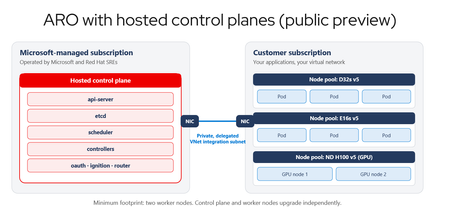
Red Hat OpenShift momentum on Azure keeps building, driven by teams standardizing on Kubernetes for application modernization and, increasingly, by AI-enabled applications that need a consistent platform for the services around them. Azure Red Hat OpenShift gives those teams a jointly engineered, first-party Azure service, and today's announcement adds a new way to run it. Today we are excited to announce the public preview of Azure Red Hat OpenShift with hosted control planes. Hosted control planes is a new deployment option that runs the OpenShift control plane as a fully managed service in a Microsoft-managed Azure subscription, operated by Microsoft and Red Hat site reliability engineers (SREs), separate from the worker nodes that run your applications. This deployment option helps organizations accelerate application modernization, increase developer velocity, streamline operations, and strengthen security while maintaining the familiar OpenShift experience jointly engineered and supported by Microsoft and Red Hat. Azure Red Hat OpenShift with standard architecture remains fully supported and actively developed. Azure Red Hat OpenShift provides a unified platform for managing different workloads such as AI-enabled applications alongside VMs and containers, offloading ongoing infrastructure management to a team of Red Hat SREs, giving you a robust foundation to build, deploy and manage applications at scale. One service, two places the control plane can live The two deployment models compare like this: Dimension Control plane in your subscription Hosted control plane Control-plane location Your Azure subscription Microsoft-managed Azure subscription Who operates it Red Hat SREs, in a single-tenant control plane. You pay for control-plane nodes on every cluster Red Hat SREs, in a multi-tenant hosted control plane Upgrade coupling Control plane and workers move as one Independent; Control plane can run on 2 minor versions ahead of worker node pools. Nodepools can also be on different versions with each other. Minimum cluster footprint 3 Control-plane nodes plus 3 worker nodes Two worker nodes Figure 1. Today the control plane runs in your subscription alongside your workers. With a hosted control plane, it moves into a Microsoft-managed Azure subscription operated by Red Hat SREs, and the two planes meet through a delegated VNet integration subnet. Key benefits of Azure Red Hat Openshift with hosted control planes Organizations can modernize at their own pace and run virtual machines, containers, and cloud-native applications on a single platform while extending existing applications for AI-ready workloads. Hosted control planes also help developers move faster. Clusters provision in minutes, and development and test environments can scale down during idle periods and scale back up when needed. This enables teams to accelerate experimentation, shorten testing cycles, and bring applications to production more quickly while optimizing infrastructure spend. To support growing multi-cluster environments, hosted control planes simplify platform operations and provide greater flexibility and control. Independent control plane and worker node lifecycles give organizations more control over application upgrade timing while Microsoft and Red Hat manage the underlying platform. Organizations can scale clusters across teams, environments, and regions, customize networking with bring-your-own container network interface (CNI), and maintain operational consistency without increasing management complexity. What the Azure platform adds What sets Azure Red Hat OpenShift apart is how deeply it integrates with the broader Azure platform, helping organizations simplify operations, accelerate adoption of OpenShift, and reduce the complexity of running cloud-native applications at scale. Customers gain access to Azure's global infrastructure, enterprise security capabilities, and rich portfolio of data and AI services, accelerating modernization and innovation without requiring changes to familiar OpenShift tools and workflows. For organizations already invested in Azure, Azure Red Hat OpenShift operates as a first-party Azure service that fits naturally into existing cloud operations. Clusters can be managed, governed, secured, and monitored using the same Azure tools, policies, and automation practices already used across the broader Azure estate. Customers also benefit from a unified commercial model, integrated billing, and Azure-native management experience, while Azure Red Hat OpenShift consumption contributes toward Microsoft Azure Consumption Commitment, helping maximize the value of existing cloud investments. Customers are already building on that foundation. Banco Bradesco, one of the largest financial institutions in Latin America, runs its enterprise AI platform on Azure Red Hat OpenShift, using integration with Azure identity, security, and policy capabilities to unify governance across more than 200 AI initiatives in a highly regulated environment. Topicus runs its Akkuro lending platform on Azure Red Hat OpenShift and deploys in Switzerland North to keep financial data in-country, using the same Azure-native controls to maintain a repeatable deployment model across regions. Both illustrate what the Azure platform adds: a consistent operating model, enterprise-grade security and compliance, and native access to Azure data and AI services on a service jointly operated by Microsoft and Red Hat. Figure 2. The Azure platform around the service: Microsoft Entra ID managed and workload identities, a customer-managed key in Azure Key Vault for etcd encryption, Azure Monitor diagnostic settings for control-plane logs, Customer Lockbox for Microsoft Azure for support-access approval, portal (upcoming), CLI, REST API and Bicep self-service, and native integration with Azure compute, database, analytics, and machine learning services. Secure by design Azure Red Hat OpenShift with hosted control planes is secure by design, helping you run sensitive and regulated workloads with confidence without adding operational complexity. By running the control plane in a Microsoft-managed subscription, the platform reduces infrastructure exposure while maintaining secure access to applications through managed ingress. Identity management is seamless. Cluster operators and applications use managed identities and workload identities that authenticate with short-lived, automatically rotated tokens, eliminating the need to manage service principals or long-lived credentials. Organizations can also integrate with their existing identity providers, preserving established authentication and access management practices. Azure-native protections help safeguard data and support compliance requirements. Data is encrypted by default with etcd encryption, with the option to use customer-managed keys through Azure Key Vault for additional control. Confidential and sandboxed containers provide additional protection for data in use, helping organizations address stringent security, data residency, and digital sovereignty requirements without deploying a separate cloud environment. The platform is backed by enterprise-grade compliance and support. Azure Red Hat OpenShift (with standard architecture) is pre-certified for HIPAA, FedRAMP, DoD IL4, PCI-DSS, ISO, and SOC standards, supported by joint Microsoft and Red Hat incident response. Customer Lockbox for Microsoft Azure adds another layer of control by requiring explicit customer approval before Microsoft support personnel can access cluster resources. Get started now Availability is expanding, with UK South, Canada Central, Australia East, Switzerland North, Brazil South, Central India, US East 2, and West Europe among the regions supported at public preview launch. The fastest way to get started is to create three resources: a cluster, a node pool, and an external authentication provider, using either the Azure CLI extension or a Bicep template. From there, deploy a single application using workload identity to see the full flow end to end, signing in with your existing identity provider, and an application reaching Azure services with no stored credentials. See the Azure Red Hat OpenShift documentation for the current region list, supported versions, and the deployment reference, and tell us in the comments what you would like covered next. What it costs Component Price Purchasing Options OpenShift license (per worker core) $0.171 per hour per 4 worker vCPUs. The same flat rate applies to every VM series, size, and generation. Pay-as-you-go, or a 1- or 3-year reservation on the OpenShift license (available at GA) Azure infrastructure (worker VMs, storage, networking, plus control-plane nodes) Billed separately at standard Azure rates for Linux VMs. Standard clusters are also billed for the control-plane deployment; clusters with a hosted control plane are not. Pay-as-you-go, reservations, or Azure savings plan for compute Cluster management (only applicable to Azure Red Openshift with hosted control planes) A flat $0.25 per cluster per hour. Applies only to clusters with a hosted control plane. Pay-as-you-go A hosted control plane takes control-plane node cost off your bill and replaces it with a single, predictable cluster management fee. Pricing for hosted control planes is not yet reflected on the Azure Red Hat OpenShift pricing page; pricing calculator support is coming soon. Azure Red Hat OpenShift with hosted control planes is in public preview, and this pricing is preliminary and subject to change prior to general availability.1.2KViews2likes0Comments
Konto got hacked and the hacker deleted it
A few weeks ago my email konto got hacked. The hacker also also deleted it. Now i cant log in in video games and in microsoft itsself but in like Disney or Gmail. I also went to the microsoft support but it dont work because they want to sent a code to a phone number or email(the email has @neplys in it) I dont know. Does somebody know my problem and could help me?127Views0likes0CommentsStop restricting the agent. Start restricting its environment.
Human review improves safety but limits autonomy. Standing credentials preserve autonomy but increase risk. With Azure SRE Agent, we found a safer middle by moving control out of the model and into the runtime around it.1.1KViews1like1Comment