connectivity
157 Topics
Mobile Plans moves to the web
Windows is retiring the built-in Mobile Plans app to simplify how you connect your PC to mobile data. Instead of using Mobile Plans app to buy or manage cellular plans, you’ll use your web browser and the Windows Settings app going forward. This change means a more integrated experience: no extra app installations, just a direct link between Windows and your mobile operator’s website. In this post, we’ll outline why this change is happening, what the new experience looks like, and how it benefits both consumers and mobile operators. A more streamlined web-based experience Direct purchase on operator websites: Instead of launching an app, you’ll purchase and activate your cellular data plan directly on your mobile operator’s website. This change to a web-centric and operator-driven model better aligns with familiar experiences on other platforms. From Windows, when you want to add a mobile plan, you’ll navigate to your carrier’s web portal in your browser. Each operator will handle their own sign-up and payment flow. No separate app needed: Windows 11 has new built-in functionality to make this web-based activation seamless, meaning one less app installed on your PC. When you purchase a plan on the site of participating carriers, Windows might prompt you via the Settings app to share your device’s cellular identifiers (like EID, IMEI) with the operator. With your consent, these details are securely passed to the carrier, so they can automatically provision your eSIM without you needing to type in codes or scan QR images. You can then download and start using cellular data right away. By using industry-standard web flows, HTTPS, and confirmation steps, this system remains streamlined and secure. Timeline of the transition Windows already supports activating eSIM using the web, via QR codes, and manual entry. The new experience to share your device’s cellular identifiers is available for Windows Insiders and will release publicly in the last half of 2025. Mobile operators will be adding support throughout the next year. The You can continue using the Mobile Plans app until February 27, 2026. After that date, the app will be retired and you may uninstall it, and references to the app in Windows will be removed. If you face issues with this transition, please contact your mobile operator or visit their website to buy and manage eSIM data plans for your PC. What it means for users For most Windows users, this change should be convenient: connecting your device to a mobile network should be as easy as buying something online. If you already have an active mobile plan, you don’t need to take any action. Here are the key impacts: No loss of cellular functionality: Existing cellular features on Windows remain intact. Any eSIM profiles or data plans you’ve already activated on your PC will continue to work normally. Any plans you purchased through Mobile Plans will continue working, but you’ll need to go to the operator’s website to manage them. Other ways of activating eSIM (like scanning a QR code from a carrier or manually entering activation codes) will continue to be supported just as before. Mobile Plans app will be going away: You will see a message within the app about the end of support date. After that date, the app will be retired and may be uninstalled. The app will be removed from the Microsoft Store, and any links to open the app from within Windows will be removed. Seamless user experience: If you have a laptop or tablet with LTE/5G and eSIM support, you’ll no longer need the Mobile Plans app. Instead, you can go directly to your carrier’s online sign-up page and then follow the Windows Settings prompts to install the eSIM profile and get connected. Where to get and manage plans now: After the transition, to sign up for a new cellular plan on your PC, directly visit your mobile operator’s website and look for their section on activating an eSIM for Windows devices. After the transition, documentation will be updated to guide you through the new flow. What it means for mobile operators Microsoft has reached out to mobile operators participating in the Mobile Plans app, providing them the necessary details to transition to this new model. Operator enablement: Carriers are adapting their systems to support eSIM activation for Windows PCs via web. This involves adding an option on their websites to initiate the Windows activation flow and handle the secure sharing of device identifiers and eSIM profiles. Microsoft is providing technical guidance so that each operator’s implementation meets the necessary criteria for a seamless user experience. Information on how to download eSIM profile is available here: Use a QR code or URI link to download an eSIM profile. Trials and feedback: Starting in June 2025, selected operator partners began trialing the new flow with Microsoft. These trials allow operators to test the end-to-end process (from website to Windows device) and ensure any issues are ironed out before broad launch. All mobile operators with Windows data plan offerings are encouraged to participate in testing so that they’re ready by the time the app is retired. Please reach out to your local Microsoft representative with questions. Removal from Mobile Operator Portal and COSA profiles: Following the retirement of the app, the Mobile Operator Portal will be updated to remove "Mobile Plans" as an option when creating a new draft. The COSA definition for enabling GetBalance will also be removed from all the provider profiles. Only the two entries “SupportDataMarketPlace” and “MobilePlansIdentifier” will be removed. Updating “View My Account” links: In the current Windows UI, some carriers integrated with Mobile Plans have a “View my account” link in the network settings or Quick Settings. Those links used to point to the Mobile Plans app. Going forward, those need to point to the carrier’s own account management webpage. Operators should submit updated configurations (via COSA, the provisioning database) to ensure their customers can easily click from Windows UI to the correct web page for account info. More information is available here: Microsoft Mobile Operator Configuration Portal Guide. Continued collaboration: This change enables the operators to have more control when building and providing a great activation experience. Microsoft will continue to work in partnership with mobile operators to ensure a seamless transition. Next steps The retirement of the Mobile Plans app is a move toward a simpler, web-powered, and more streamlined future for Windows connectivity. For users, it means one less app and an easier way to get your device online. For operators, it gives them direct control of the customer purchase experience. Over the coming months, Microsoft will roll out the necessary Windows updates and work with carriers to finalize the new system. Keep an eye on the official Windows release notes and your carrier’s communications for announcements of support for the new eSIM activation flow. In the meantime, if you’re a user looking to add cellular service to your Windows PC, you can continue to use the Mobile Plans app until it’s retired or check your operator’s website for information. Many operators already allow eSIM activation via QR code or manual entry, which is what the new flow streamlines. We’re confident that moving to a web-centric solution will provide a smoother, more consistent connectivity experience for everyone. Thank you for being part of this journey to simplify Windows networking! Additional information Microsoft Mobile Operator Configuration Portal Guide Use a QR code or URI link to download an eSIM profile3.9KViews2likes2CommentsGeneric Best Practices for HikariCP with Azure Database for PostgreSQL
Author: Mohamed Baioumy Technology: Azure Database for PostgreSQL (Flexible Server & Single Server) Category: Connectivity | Performance | Application Design Introduction Connection pooling is a critical component of application performance when connecting to Azure Database for PostgreSQL. Creating a new PostgreSQL connection is an expensive operation that consumes CPU, memory, and networking resources. Reusing existing connections through a connection pool significantly reduces connection latency, improves throughput, and helps applications scale more efficiently. Many Java applications use HikariCP, one of the most popular high-performance JDBC connection pools. While HikariCP provides excellent performance out of the box, improperly configured connection pool settings can lead to issues such as: Connection pool exhaustion Stale or invalid connections Increased connection acquisition latency Excessive connection creation and destruction Database resource contention Application timeouts This article summarizes generic guidance and best practices for configuring HikariCP when working with Azure Database for PostgreSQL Flexible Server and Azure Database for PostgreSQL Single Server. Understanding Key HikariCP Parameters 1. Maximum Lifetime (maxLifetime) The maxLifetime property controls how long a connection can remain in the pool before HikariCP retires it and creates a new one. Why It Matters Connections can become stale over time due to: Network interruptions Infrastructure updates Connection state changes TCP idle behavior Recycling connections periodically helps prevent applications from using long-lived connections that may no longer be healthy. Recommended Practice Avoid configuring the value too low. When maxLifetime is set aggressively, HikariCP continuously destroys and recreates connections, resulting in: Additional authentication overhead Increased connection establishment latency Higher CPU utilization Reduced application throughput A reasonable starting point is: spring.datasource.hikari.maxLifetime=1800000 30 minutes (1,800,000 ms) is commonly used and aligns well with many production workloads. Depending on workload characteristics, values between 30 minutes and 1 hour are generally suitable Avoid maxLifetime=300000 (5 minutes) This often causes unnecessary connection churn without providing additional benefits. 2. Minimum Idle Connections (minimumIdle) The minimumIdle setting defines how many idle connections HikariCP should keep ready for immediate use. Why It Matters A pool with available idle connections can serve application requests immediately without waiting for new connections to be established. However, maintaining too many idle connections consumes unnecessary database resources. Recommended Practice For most workloads: minimumIdle = maximumPoolSize Or minimumIdle slightly lower than maximumPoolSize This ensures sufficient connections are already available during traffic spikes while avoiding excessive connection creation delays. Example maximumPoolSize=20 minimumIdle=15 Avoid maximumPoolSize=20 minimumIdle=20 only when the application experiences long periods of inactivity and conserving resources is more important than immediate responsiveness. 3. Idle Timeout (idleTimeout) The idleTimeout property determines how long an unused connection remains in the pool before being removed. Why It Matters Connections that sit idle for extended periods consume resources on both: The application server Azure Database for PostgreSQL However, removing idle connections too quickly causes the application to repeatedly establish new connections. Recommended Practice Keep the default value unless there is a specific requirement. spring.datasource.hikari.idleTimeout=600000 which equals: 10 minutes (600,000 ms) This setting provides a good balance between resource utilization and responsiveness. [Re: EXT: R...0040002947 | Outlook] The timeout should also be comfortably longer than any expected short application idle periods. Avoid idleTimeout=10000 (10 seconds) Such aggressive settings often result in unnecessary connection creation cycles. 4. Maximum Pool Size (maximumPoolSize) This parameter determines the maximum number of concurrent database connections the application can maintain. Why It Matters This is often the most important HikariCP setting. If the Pool Is Too Small Applications may experience: Connection is not available, request timed out because all available connections are already in use. Similar scenarios have been observed during customer investigations involving Hikari pool exhaustion. If the Pool Is Too Large Applications can overwhelm the database server with excessive concurrent sessions, resulting in: Connection contention Increased context switching Higher memory consumption Reduced overall performance Recommended Practice Pool size should be based on: Database compute configuration CPU core count Query execution duration Application concurrency requirements Workload characteristics There is no universal value that fits every workload. Start conservatively: maximumPoolSize=10 or maximumPoolSize=20 maximumPoolSize=20 and increase only after load testing demonstrates a need for additional concurrency. Fixed-Size Pool Recommendation For many production workloads, a fixed-size pool provides the simplest and most predictable behavior. Configure: maximumPoolSize=20 minimumIdle=20 or omit minimumIdle entirely so it defaults to maximumPoolSize. HikariCP commonly recommends maintaining a fixed-size pool for responsiveness during demand spikes. Benefits Faster connection acquisition Predictable performance Reduced connection creation latency Better handling of traffic spikes When using a small fixed-size pool, there is often little need to aggressively tune: minimumIdle idleTimeout Instead, simply recycle connections using: maxLifetime maxLifetime Additional Recommendations Enable TCP Keepalive One common cause of stale connections is network devices silently dropping inactive TCP sessions. For PostgreSQL applications, consider enabling TCP keepalive: tcpKeepAlive=true tcpKeepAlive=true The HikariCP project specifically recommends enabling TCP keepalive to prevent rare situations where pools can lose valid connections. Monitor Connection Usage Track: Active connections Idle connections Connection acquisition time Pool exhaustion events Database connection counts These metrics help identify whether pool sizing is appropriate. Investigate Long-Running Queries Connection pool problems are often symptoms rather than root causes. A frequent scenario is: A query becomes slow. Connections remain occupied longer. The pool becomes exhausted. Applications start timing out. When analyzing HikariCP issues, always review: Query performance Blocking situations Database resource utilization Application connection handling logic Sample Production Configuration spring.datasource.hikari.maximumPoolSize=20 spring.datasource.hikari.minimumIdle=15 spring.datasource.hikari.maxLifetime=1800000 spring.datasource.hikari.idleTimeout=600000 spring.datasource.hikari.connectionTimeout=30000 spring.datasource.hikari.keepaliveTime=60000 spring.datasource.hikari.maximumPoolSize=20 spring.datasource.hikari.minimumIdle=15 spring.datasource.hikari.maxLifetime=1800000 spring.datasource.hikari.idleTimeout=600000 spring.datasource.hikari.connectionTimeout=30000 spring.datasource.hikari.keepaliveTime=60000 This configuration provides a solid starting point for many Azure Database for PostgreSQL workloads and can be adjusted based on application-specific requirements. a { text-decoration: none; color: #464feb; } tr th, tr td { border: 1px solid #e6e6e6; } tr th { background-color: #f5f5f5; } Conclusion HikariCP is extremely efficient when configured appropriately. The goal is not to maximize the number of connections, but rather to maintain a healthy balance between application responsiveness and database resource consumption. As a general rule: Use a reasonable maxLifetime (30–60 minutes) Keep enough idle connections available for traffic spikes Avoid aggressive idleTimeout values Size the pool based on workload characteristics, not guesses Consider fixed-size pools for predictable performance Monitor connection usage and query performance regularly By following these practices, applications connecting to Azure Database for PostgreSQL can achieve improved scalability, lower latency, and more reliable connectivity. References Connection pooling best practices - Azure Database for PostgreSQL Performance best practices for using Azure Database for PostgreSQL – Connection Pooling HikariCP Documentation and Pool Sizing GuidanceLessons Learned #552:10 Lines in an SSMS MSAL Trace That Tell You Almost Everything You Need to Know
In one of our support cases, a customer reported higher-than-expected connection times when connecting from SQL Server Management Studio (SSMS) to Azure SQL Database using Microsoft Entra authentication. The behavior was also not completely consistent. Sometimes the connection required interaction with the account selection experience. Other times, subsequent connections were noticeably faster. At first, there were several possible areas to investigate: Was Azure SQL taking too long to authenticate the user? Was there a networking, proxy, or firewall issue? Was access to login.microsoftonline.com being delayed or denied? Was Microsoft Entra authentication itself taking the time? Was Conditional Access or MFA involved? Was SSMS using the expected Microsoft Entra account? Was the delay happening before or after the access token was obtained? The important question became: Where exactly was the connection time being spent? Instead of treating the SSMS connection as a single operation, I enabled verbose MSAL tracing in SSMS and started following the authentication process. SSMS exposes the MSAL Output Window Trace Level under Tools → Options → Azure Services. The same options page exposes the Microsoft Entra authority, Azure SQL Database service principal name, and Web Account Manager settings. The resulting trace was large—hundreds of lines. But while analyzing it, I realized something useful: I didn't need to understand every line in the MSAL trace. A small number of search strings were enough to reconstruct almost the entire authentication story. These are the 10 things I learned to look for. 1. CorrelationId — First, make sure I am following the same authentication request One of the first things I learned was not to read the trace only by timestamp. MSAL performs several related operations: GetAccounts. AcquireTokenSilent. ReadAccountById AcquireTokenInteractive Broker operations Token cache operations Some can happen almost at the same time, and they don't necessarily share the same correlation ID. For example, in one reproduction, the silent authentication attempt had one correlation ID, while the subsequent interactive request used another one. So my first search became: CorrelationId I learned not to calculate latency by simply subtracting two nearby timestamps. First I identify: Operation + CorrelationId + Start / End and only then interpret the timing. This becomes particularly valuable if the logs later need to be correlated with identity-service investigations. MSAL exposes the correlation ID specifically to piece together an authentication flow. 2. ApiId — Was SSMS trying silent or interactive authentication? My second search became: ApiId In the first connection attempt I found: ApiId - AcquireTokenSilent That immediately told me that SSMS was not initially trying to display an authentication UI. It first attempted to obtain the token silently. But later in the same reproduction I found: ApiId - AcquireTokenInteractive Now the flow was becoming clearer: SSMS ->AcquireTokenSilent -> Silent authentication cannot continue -> AcquireTokenInteractive This was my first important lesson from the case: An SSMS Microsoft Entra connection isn't necessarily interactive from the beginning. MSAL can first try silent authentication and only switch to an interactive mechanism if necessary. Microsoft documents MsalUiRequiredException precisely for situations in which a non-interactive acquisition cannot continue without user interaction—for example because sign-in, MFA, consent, or another requirement must be satisfied. 3. Authority — Where was the authentication request actually going? The next thing I wanted to know was whether the delay could be associated with reaching Microsoft Entra. I searched for: Authority - The trace showed: Authority - https://login.microsoftonline.com/<tenant-id>/ This single line gives us two very important pieces of information: https://login.microsoftonline.com/ -> Microsoft Entra tenant -> Identity authority That means that before blaming Azure SQL, I can establish which identity endpoint SSMS/MSAL is using. This is also where a frequently reported problem such as: "It looks like access to login.microsoftonline.com is denied." can be investigated much more precisely. If I see something such as: MsalServiceException StatusCode: 403 AADSTS.... then I need to inspect the Microsoft Entra response and its error code. If I see a DNS, TLS, proxy, connection timeout, or similar exception, the network path to the identity endpoint becomes much more relevant. Those are very different problems. MSAL distinguishes client/library errors (MsalClientException), token-provider/service responses (MsalServiceException), and scenarios requiring interaction (MsalUiRequiredException). Network failures that MSAL doesn't handle are propagated to the application. One thing I would not conclude from a 403 alone is: "The firewall is blocking login.microsoftonline.com." The ErrorCode, AADSTS code, StatusCode, and ResponseBody together are much more useful than the HTTP status alone. 4. Scopes — Which resource was SSMS requesting the token for? Another line that became essential was: Scopes - Our trace showed: Scopes - https://database.windows.net//.default This helped me separate two parts of the connection that are easy to mix together: Microsoft Entra Authority login.microsoftonline.com -> issues / obtains identity token Token requested for database.windows.net -> Azure SQL The Authority tells me where authentication is being performed. The scope tells me for which resource the token is being requested. SSMS documents https://database.windows.net/ as the Azure SQL Database service principal name used when obtaining a Microsoft Entra token. That gave me another troubleshooting rule: Don't treat a Microsoft Entra token acquisition problem and an Azure SQL authorization problem as the same thing. 5. LoginHint — What identity did SSMS suggest? The next search gave us one of the most interesting findings of the investigation: LoginHint In one reproduction we had: LoginHint provided: True and later: LoginHint - user@contoso.com In another reproduction, a different login hint was supplied, and MSAL eventually returned: MsalUiRequiredException ErrorCode: no_account_for_login_hint with the explanation that no account in the token cache matched that login hint. At first sight, it is tempting to interpret: no_account_for_login_hint as: Incorrect username But the other traces showed me that this interpretation is too simplistic. LoginHint is better understood as: "Try to locate or preselect this identity" It doesn't necessarily mean: "This is already the resolved MSAL account" . That distinction turned out to be very important. 6. Account provided and GetAllAccounts — LoginHint and Account are not the same thing This became perhaps my favorite finding from the investigation. I started searching for: GetAllAccounts and: Account provided In one trace we had: GetAllAccounts ... found 1 accounts but: LoginHint provided: True Account provided: false MSAL nevertheless ended with: no_account_for_login_hint This originally looked contradictory. There was an account in the cache, but MSAL said there was no account for the login hint. It isn't contradictory. What I learned was: An account exists ≠ An account matching this LoginHint exists Then I captured another scenario: LoginHint provided: False Account provided: Account username: user@contoso.com Now SSMS/MSAL wasn't trying to resolve a textual login hint. It already had a concrete account. I started thinking of the two cases like this: LoginHint -> "Try this identity" Account provided -> "Use this resolved identity" This distinction can be especially useful when investigating aliases, UPNs, multiple Windows accounts, cached identities, or cross-tenant accounts. The same error can also have another explanation Another reproduction made the lesson even clearer. This time the trace started with: GetAllAccounts ... found 0 accounts Found 0 RTs and 0 accounts SSMS attempted: LoginHint provided: True Account provided: false and again received: ErrorCode: no_account_for_login_hint But this time the UPN itself was valid. The cache simply contained no suitable account. So another important lesson was: Never diagnose no_account_for_login_hint from the error text alone. Check GetAllAccounts, LoginHint, and Account provided together. 7. ErrorCode, AADSTS, StatusCode — The error tells me where to investigate next At this point I realized that one of the fastest troubleshooting searches was simply: ErrorCode together with: AADSTS StatusCode ResponseBody MsalUiRequiredException MsalServiceException MsalClientException For example: MsalUiRequiredException ErrorCode: no_account_for_login_hint immediately tells me that I am still dealing with token acquisition/account resolution. I haven't reached the point where Azure SQL database permissions would explain this particular failure. This became my mental decision table: Evidence in the trace Where I would investigate first no_account_for_login_hint LoginHint / cached account / account resolution MsalUiRequiredException Why silent authentication requires interaction authentication_canceled Interactive UI / broker / user cancellation AADSTSxxxxx Microsoft Entra authentication or policy MsalServiceException Token provider/service response MsalClientException Client/library/device side DNS/TLS/proxy exception Connectivity to identity service Access token obtained successfully Move the investigation beyond token acquisition 8. Broker, WAM, authorization_type — Who was really authenticating me? This was another part that changed how I read SSMS authentication traces. I searched for: Broker WAM RuntimeBroker auth_flow authorization_type and found: Broker is configured followed by: Using Windows account picker and: Calling SignInInteractivelyAsync The telemetry then reported: auth_flow: Broker authorization_type: Interactive So the authentication path was more accurately represented as: SSMS -> MSAL -> Windows Web Account Manager -> Account / authentication broker -> Microsoft Entra WAM is a Windows component that MSAL can use as an authentication broker. It can integrate with accounts already known to Windows and provide SSO and account-selection capabilities. But another trace showed: authorization_type: WindowsIntegratedAuth during a silent acquisition. That taught me something else: The same SSMS connection target does not necessarily follow the same identity path every time. Account state, cache state, WAM, tenant, identity configuration, MFA, Conditional Access, and whether interaction is required can all affect the path. 9. AccessToken returned — This is the line that changes the investigation Eventually, I found the line that I consider one of the most useful in the entire trace: AccessToken returned: True In our successful authentication we also had: AccessToken Type: Bearer and later: === Token Acquisition finished successfully source: Broker This became a very useful troubleshooting boundary for me: Identity troubleshooting: Account LoginHint MSAL WAM MFA / CA Authority Token acquisition -> AccessToken returned: True -> Azure SQL Token validation Principal resolution Database authentication Authorization Permissions If the token has been successfully obtained, asking: "Why can't MSAL authenticate?" is probably no longer the most useful question. Now I want to know: "What happens when this token is presented to Azure SQL?" That doesn't prove that the complete SQL connection will succeed, but it gives us a very useful point at which to change troubleshooting direction. 10. DurationTotalInMs — Finally, I could see where the connection time was going This was the original reason for the support investigation. The customer reported high connection times. So eventually the most important searches became: DurationTotalInMs DurationInHttpInMs DurationInCacheInMs request_duration time_in_queue_ms Microsoft defines DurationTotalInMs as the total time spent by MSAL acquiring a token, including network and cache operations. DurationInHttpInMs represents time spent in HTTP calls made by MSAL to the identity provider, and DurationInCacheInMs measures cache activity. And now we finally had evidence from our reproduction. The first token acquisition reported: DurationTotalInMs: 2185 DurationInCacheInMs: 0 DurationInHttpInMs: 0 But the broker telemetry contained another very interesting metric: time_in_queue_ms: 2152 and request_duration: 2183 That changed the quality of the diagnosis completely. Instead of saying: "SSMS authentication seems to take around two seconds." I could say: The captured token acquisition took approximately 2.18 seconds, and approximately 2.15 seconds were represented as broker queue time in the MSAL/WAM telemetry. That is actionable evidence. Putting the 10 searches together By the end of the investigation, this became the sequence I would use when somebody sends me an SSMS MSAL trace: Search for What I want to know CorrelationId Am I following the same authentication operation? ApiId Silent or interactive token acquisition? Authority Which Microsoft Entra endpoint and tenant? Scopes Which resource is the token intended for? LoginHint Which identity did SSMS suggest? Account provided / GetAllAccounts Is an identity already resolved or cached? ErrorCode / AADSTS Why did the authentication step fail? Broker / WAM / authorization_type Which authentication mechanism actually handled the request? AccessToken returned / source: Was a usable token obtained, and from where? DurationTotalInMs and related metrics Where was the authentication time spent? With those ten searches, a trace containing hundreds of lines becomes much easier to read. Appendix – Sanitized MSAL Trace Sample The following extract is a sanitized and condensed version of the MSAL trace used in this investigation. User names, tenant IDs, correlation IDs, account identifiers, and other PII have been replaced with placeholders. The goal is to provide a practical sample where you can apply the 10 searches described in this article. First connection ==== GetAccounts started ==== GetAllAccounts ... found 0 accounts Found 0 RTs and 0 accounts in MSAL cache === AcquireTokenSilent Parameters === LoginHint provided: True Account provided: false Authority - https://login.microsoftonline.com/<tenant-id>/ Scopes - https://database.windows.net//.default ApiId - AcquireTokenSilent CorrelationId - <correlation-id-1> === Token Acquisition (SilentRequest) started === MsalUiRequiredException ErrorCode: no_account_for_login_hint No account was found in the token cache having this login hint. MSAL then moved to interactive authentication: === InteractiveParameters Data === LoginHint provided: True Prompt: select_account Authority - https://login.microsoftonline.com/<tenant-id>/ Scopes - https://database.windows.net//.default ApiId - AcquireTokenInteractive LoginHint - user@contoso.com CorrelationId - <correlation-id-2> Broker is configured Using Windows account picker Calling SignInInteractivelyAsync The broker successfully obtained the token: auth_flow: Broker authorization_type: Interactive time_in_queue_ms: 2152 request_duration: 2183 WAM response status success Successfully retrieved token AccessToken returned: True AccessToken Type: Bearer === Token Acquisition finished successfully === source: Broker DurationTotalInMs: 2185 DurationInCacheInMs: 0 DurationInHttpInMs: 0 Second connection A few seconds later, the account was already available: GetAllAccounts ... found 1 accounts Returning 1 accounts === AcquireTokenSilent Parameters === LoginHint provided: False Account provided: Account username: user@contoso.com Authority - https://login.microsoftonline.com/<tenant-id>/ Scopes - https://database.windows.net//.default ApiId - AcquireTokenSilent CorrelationId - <correlation-id-3> This time the broker completed the request silently: Acquiring token silently authorization_type: WindowsIntegratedAuth auth_flow: AT request_duration: 2 WAM response status success Successfully retrieved token AccessToken returned: True === Token Acquisition finished successfully === source: Broker DurationTotalInMs: 13 DurationInCacheInMs: 0 DurationInHttpInMs: 0 What changed? First connection No account → LoginHint → AcquireTokenSilent → no_account_for_login_hint → Interactive / WAM → Token → 2185 ms Second connection Resolved Account → AcquireTokenSilent → WAM → Token → 13 ms These extracts contain the main strings I now look for when reviewing an SSMS MSAL trace: CorrelationId ApiId Authority Scopes LoginHint Account provided / GetAllAccounts ErrorCode / AADSTS Broker / WAM AccessToken returned DurationTotalInMs397Views0likes0CommentsLessons Learned #543: Evaluating MultiSubnetFailover with Azure SQL Database
Last week, I worked on a support case in which the use of the MultiSubnetFailover connection-string feature was being considered for an application connecting to Azure SQL Database. The expectation was that enabling the following option could improve connection recovery during a database failover changing MultiSubnetFailover to True. This option is commonly associated with SQL Server high availability, and Azure SQL Database is also designed to remain available by moving databases between replicas when required. However, after reviewing the Azure SQL Database connectivity architecture and comparing the behavior with the property enabled and disabled, I did not observe a clear improvement. The property could be added to the connection string without generating an error, and the application was able to connect successfully with both configurations. What MultiSubnetFailover is designed for MultiSubnetFailover was introduced primarily for SQL Server high-availability configurations such as: Always On Availability Group listeners. SQL Server Failover Cluster Instance virtual network names. In a multi-subnet Availability Group, a listener name may resolve to multiple IP addresses located in different network subnets. Without MultiSubnetFailover=True, the application may try those addresses sequentially. If the first address is not currently active, the connection can be delayed while the attempt waits for a timeout. When the option is enabled, supported SQL client drivers can attempt connections to the listener addresses in parallel and use the first address that responds successfully. This can reduce connection time after an Availability Group failover because the SQL client is directly involved in selecting the reachable listener address. Why Azure SQL Database is different Azure SQL Database uses a different connectivity architecture. The application connects to a logical server endpoint: <server-name>.database.windows.net. The Azure SQL connectivity layer receives the connection and routes it to the infrastructure currently hosting the database. Depending on the configured connection policy, the Azure SQL gateway either proxies the connection or redirects the application to the appropriate database node. The important difference is that the SQL client does not receive a list containing the IP addresses of the Azure SQL Database primary and secondary replicas. The decision and the associated routing are managed by the Azure SQL Database platform. Although Azure SQL Database internally uses multiple replicas for high availability, this is not the same connectivity model as a SQL Server Availability Group listener that publishes multiple addresses through DNS. What about Failover Groups? Azure SQL Database Failover Groups provide a stable listener endpoint such as: <failover-group-name>.database.windows.net. Following a regional failover, the listener is updated so that it points to the logical server hosting the new primary databases. This process depends partly on DNS. The listener name remains the same, but its DNS target changes after the failover. This is still different from a SQL Server multi-subnet Availability Group listener. The Failover Group listener does not expose the addresses of the Azure SQL Database replicas to the SQL client. Therefore, MultiSubnetFailover=True cannot directly select the new primary replica. In this scenario, application recovery continues to depend on the service transition, DNS resolution, and retry behavior. The importance of retry logic One of the main lessons from this case was that retry logic is more relevant to Azure SQL Database resiliency than enabling MultiSubnetFailover. An application connecting to Azure SQL Database must expect occasional transient connectivity errors. These can occur during maintenance, scaling, failover, network interruptions, or temporary service conditions. An appropriate retry strategy should normally include: A limited number of retry attempts. A short delay before the first retry. Increasing delays between subsequent attempts. A maximum retry interval. Creation of a fresh SQL connection. For transactions, retry logic requires additional care. The application must determine whether the transaction was committed, rolled back, or left in an unknown state before repeating the complete operation.Lessons Learned #545:Understanding client_ip = 0.0.0.0 in Azure SQL Auditing
During my analysis, I reproduced the same behavior in a test environment using a client connection to Azure SQL Database through a Microsoft.Sql Virtual Network Service Endpoint . After enabling Azure SQL Auditing and reviewing the original Azure SQL Database Audit file (.xel), the connection was also recorded with client_ip = 0.0.0.0. This confirms that 0.0.0.0 can represent a valid client connection using a Service Endpoint and should not automatically be interpreted as internal Azure platform. When the original client IP is not exposed, one of the best ways to identify the originating application is to configure a meaningful Application Name property in the SQL connection string:Application Name=Customer-Production; Therefore, when reviewing Azure SQL audit records with client_ip = 0.0.0.0, check the original .xel audit file and use the application_name, host_name, authenticated principal, database name, and timestamp to correlate the activity with the correct application.170Views0likes0Comments
Using ClientConnectionId to Correlate .NET Connection Attempts in Azure SQL
Getting Better Diagnostics with ClientConnectionId in .NET A few days ago, I was working on a customer case involving intermittent connectivity failures to Azure SQL Database from a .NET application. On the surface, nothing looked unusual. Retries were happening. In this post, I want to share a simple yet effective pattern for producing JDBC-style trace logs in .NET — specifically focusing on the ClientConnectionId property exposed by SqlConnection. This gives you a powerful correlation key that aligns with backend diagnostics and significantly speeds up root cause analysis for connection problems. Why ClientConnectionId Matters Azure SQL Database assigns a unique identifier to every connection attempt from the client. In .NET, this identifier is available through the ClientConnectionId property of SqlConnection. According to the official documentation: The ClientConnectionId property gets the connection ID of the most recent connection attempt, regardless of whether the attempt succeeded or failed. Source: https://learn.microsoft.com/en-us/dotnet/api/system.data.sqlclient.sqlconnection.clientconnectionid?view=netframework-4.8.1 This GUID is the single most useful piece of telemetry for correlating client connection attempts with server logs and support traces. What .NET Logging Doesn’t Give You by Default Unlike the JDBC driver, the .NET SQL Client does not produce rich internal logs of every connection handshake or retry. There’s no built-in switch to emit gateway and redirect details, attempt counts, or port information. What you do have is: Timestamps Connection attempt boundaries ClientConnectionId values Outcome (success or failure) If you capture and format these consistently, you end up with logs that are as actionable as the JDBC trace output — and importantly, easy to correlate with backend diagnostics and Azure support tooling. Below is a small console application in C# that produces structured logs in the same timestamped, [FINE] format you might see from a JDBC trace — but for .NET applications: using System; using Microsoft.Data.SqlClient; class Program { static int Main() { // SAMPLE connection string (SQL Authentication) // Replace this with your own connection string. // This is provided only for demonstration purposes. string connectionString = "Server=tcp:<servername>.database.windows.net,1433;" + "Database=<database_name>;" + "User ID=<sql_username>;" + "Password=<sql_password>;" + "Encrypt=True;" + "TrustServerCertificate=False;" + "Connection Timeout=30;"; int connectionId = 1; // Log connection creation Log($"ConnectionID:{connectionId} created by (SqlConnection)"); using SqlConnection connection = new SqlConnection(connectionString); try { // Log connection attempt Log($"ConnectionID:{connectionId} This attempt No: 0"); // Open the connection connection.Open(); // Log ClientConnectionId after the connection attempt Log($"ConnectionID:{connectionId} ClientConnectionId: {connection.ClientConnectionId}"); // Execute a simple test query using SqlCommand cmd = new SqlCommand("SELECT 1", connection) { Log($"SqlCommand:1 created by (ConnectionID:{connectionId})"); Log("SqlCommand:1 Executing (not server cursor) SELECT 1"); cmd.ExecuteScalar(); Log("SqlDataReader:1 created by (SqlCommand:1)"); } } catch (SqlException ex) { // ClientConnectionId is available even on failure Log($"ConnectionID:{connectionId} ClientConnectionId: {connection.ClientConnectionId} (failure)"); Log($"SqlException Number: {ex.Number}"); Log($"Message: {ex.Message}"); return 1; } return 0; } // Simple logger to match JDBC-style output format static void Log(string message) { Console.WriteLine( $"[{DateTime.Now:yyyy-MM-dd HH:mm:ss}] [FINE] {message}" ); } } Run the above application and you’ll get output like: [2025-12-31 03:38:10] [FINE] ConnectionID:1 This attempt server name: aabeaXXX.trXXXX.northeurope1-a.worker.database.windows.net port: 11002 InstanceName: null useParallel: false [2025-12-31 03:38:10] [FINE] ConnectionID:1 This attempt endtime: 1767152309272 [2025-12-31 03:38:10] [FINE] ConnectionID:1 This attempt No: 1 [2025-12-31 03:38:10] [FINE] ConnectionID:1 Connecting with server: aabeaXXX.trXXXX.northeurope1-a.worker.database.windows.net port: 11002 Timeout Full: 20 [2025-12-31 03:38:10] [FINE] ConnectionID:1 ClientConnectionID: 6387718b-150d-482a-9731-02d06383d38f Server returned major version: 12 [2025-12-31 03:38:10] [FINE] SqlCommand:1 created by (ConnectionID:1 ClientConnectionID: 6387718b-150d-482a-9731-02d06383d38f) [2025-12-31 03:38:10] [FINE] SqlCommand:1 Executing (not server cursor) select 1 [2025-12-31 03:38:10] [FINE] SqlDataReader:1 created by (SqlCommand:1) [2025-12-31 03:38:10] [FINE] ConnectionID:2 created by (SqlConnection) [2025-12-31 03:38:11] [FINE] ConnectionID:2 ClientConnectionID: 5fdd311e-a219-45bc-a4f6-7ee1cc2f96bf Server returned major version: 12 [2025-12-31 03:38:11] [FINE] sp_executesql SQL: SELECT 1 AS ID, calling sp_executesql [2025-12-31 03:38:12] [FINE] SqlDataReader:3 created by (sp_executesql SQL: SELECT 1 AS ID) Notice how each line is tagged with: A consistent local timestamp (yyyy-MM-dd HH:mm:ss) A [FINE] log level A structured identifier that mirrors what you’d see in JDBC logging If a connection fails, you’ll still get the ClientConnectionId logged, which is exactly what Azure SQL support teams will ask for when troubleshooting connectivity issues.625Views3likes0CommentsAzure PostgreSQL Lesson Learned #3: Fix FATAL: sorry, too many clients already
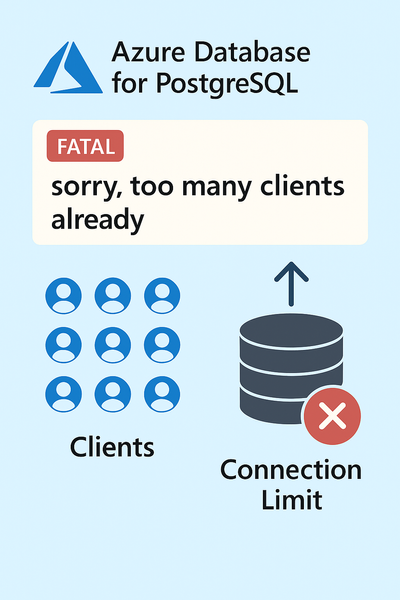
We encountered a support case involving Azure Database for PostgreSQL Flexible Server where the application started failing with connection errors. This blog explains the root cause, resolution steps, and best practices to prevent similar issues.740Views4likes0CommentsHelping to enable secure, connected work: Surface with built-in 5G on the Verizon network
Surface for Business devices with built-in 5G, powered by Verizon, deliver secure, reliable connectivity and AI-optimized performance to enable seamless productivity anywhere without dependence on Wi-Fi.873Views0likes0CommentsLesson Learned #533: Intermittent Azure SQL Database Connectivity and Authentication Issues
While working on a recent service request, we helped a customer troubleshoot intermittent connection and authentication failures when accessing Azure SQL Database using Active Directory (Entra ID) authentication from a Java-based application using HikariCP with JDBC/ODBC. They got the following error: com.zaxxer.hikari.pool.HikariPool$PoolInitializationException: Failed to initialize pool: Failed to authenticate.. Request was throttled according to instructions from STS. Retry in 29701 ms. java.sql.SQLTransientConnectionException: HikariPool-application1 - Connection is not available, request timed out after The first insight was focusing in the error message: Request was throttled according to instructions from STS. Retry in 29701 ms. This message seems it is returned by the Azure Active Directory Security Token Service (STS) when the client is sending too many token requests in a short period of time, exceeding the allowed threshold. We don't have all the details about, but, in high-concurrency environments (e.g., multiple threads, large connection pool) causes each thread to independently request a new token and we could reach a limit in this service, even, if the connection pool retries frequently or fails authentication, the number of token requests can spike. This is the reason, that HikariCP tries to initialize or refresh connections quickly, as many threads attempt to connect at once, and all trigger token requests simultaneously, STS throttling is reached. In order to avoid this situation, could be different topics, like, ensure our application caches tokens and reuses them across threads, using Managed Identity, increase the retry after delay, or perhaps, depending on HikariCP configuration, pre-warm connections gradually. Of course, discuss with your EntraID administration is other option.