configuration
60 Topics
Unexpected Private Access rule after rebuilding Global Secure Access v2
Hello everyone, I'm rebuilding a Microsoft Entra Global Secure Access / Private Access POC after initially creating several configurations while learning the platform. I performed a clean functional rebuild: removed the previous application segments and assignments, reinstalled the Private Network Connector, created a new connector group, rebuilt Quick Access, and created a new custom Private Access traffic forwarding profile assigned only to my test account. My intended Quick Access configuration currently contains only three TCP destinations on the same private server: ports 80, 445 and 9000. However, the effective forwarding profile received by the Global Secure Access Client also contains an unexpected rule: 192.168.1.208 | All protocols | 54-65535 | Tunnel This rule existed in the original default Private Access profile and continues to appear even in a newly created custom profile. There is another unusual behavior in Acquisition Rules. An internal GUID reference is displayed in the profile, but the application selector shows Selected (0). The GUID cannot be removed through the UI, is not visible as a normal Enterprise Application, and I could not resolve it as either an Application or Service Principal through Microsoft Graph. I also found: ZTNA Network Access Client -- Private, which previously contained segments and assignments that I have since removed; two different objects named Carbomix - Rede Interna, with different identifiers; an error when attempting to remove an inherited link from the system-created profile: Only Profiles with IsCustomProfile set to true can be updated with bulk policy links. The connector itself appears healthy. I completely reinstalled it and the official Connector Diagnostics Tool passes certificate, TLS, CRL, Bootstrap, Trust Renewal, Service Bus, SLB and endpoint connectivity checks. Private Access also works for normal TCP traffic. TCP 445 and 9000 are successfully tunneled, including a sustained TCP session on port 9000. I'm mainly trying to understand: Where does the unexpected All protocols / 54-65535 rule come from? Why does it survive a clean custom Private Access profile? What are these internal application references that appear in Acquisition Rules but are not selectable/removable or resolvable through Graph? Could this be configuration inherited during migration to Traffic Forwarding Profiles v2? Is there a supported way to inspect and clean this inherited state? Has anyone working with Microsoft Entra Private Access v2 seen similar behavior? I have screenshots, effective forwarding-profile data, Connector Diagnostics results and Graph tests available and can share the relevant details as needed. Thanks!31Views0likes0CommentsEntra External ID email OTP send event requestType always set to "signIn" regardless of user action
Hi, In a recent workload, I'm assisting a client with implementation of Entra External ID for identity management and app authentication, which includes sending OTP codes with customized email templates. To accomplish this, a custom authentication extension has been created that authorizes the request and then communicates with an email service via an event-driven, loosely coupled architecture. While implementing and testing this feature together with the client, we noticed that it seems like the different modes or states in the user flows are not reflected in the requestType property in the request payload posted to the OnOtpSend auth extension configured. E.g., if a user tries to sign in but has forgotten their password and navigates to the password reset view and requests to send the OTP code to their email address to reset the password, the following payload is sent to the auth extension endpoint (the original payload below was logged with Application Insights, with identifiers below then redacted and formatted, otherwise intact): { "type": "microsoft.graph.authenticationEvent.emailOtpSend", "source": "/tenants/aaaaaaaa-bbbb-cccc-dddd-eeeeeeeeeeee/applications/11111111-2222-3333-4444-555555555555", "data": { "@odata.type": "microsoft.graph.onOtpSendCalloutData", "otpContext": { "identifier": "email address removed for privacy reasons", "oneTimeCode": "<REDACTED>" }, "tenantId": "aaaaaaaa-bbbb-cccc-dddd-eeeeeeeeeeee", "authenticationEventListenerId": "22222222-3333-4444-5555-666666666666", "customAuthenticationExtensionId": "33333333-4444-5555-6666-777777777777", "authenticationContext": { "correlationId": "44444444-5555-6666-7777-888888888888", "client": { "ip": "192.0.2.10", "locale": "en-gb", "market": "en-gb" }, "protocol": "UNDEFINED", "requestType": "signIn", "clientServicePrincipal": { "id": "55555555-6666-7777-8888-999999999999", "appId": "11111111-2222-3333-4444-555555555555", "appDisplayName": "Example Web App", "displayName": "Example Web App" }, "resourceServicePrincipal": { "id": "55555555-6666-7777-8888-999999999999", "appId": "11111111-2222-3333-4444-555555555555", "appDisplayName": "<client-app-name>-Web", "displayName": "<client-app-name>-Web" } } } } The above payload was captured using browser-based authentication (native auth is not used), with the below parameters passed (identifiers, tenant name etc. redacted, otherwise intact): https://example.ciamlogin.com/ aaaaaaaa-bbbb-cccc-dddd-eeeeeeeeeeee/oauth2/v2.0/authorize ?response_type=code &client_id=11111111-2222-3333-4444-555555555555 &redirect_uri=https%3A%2F%2Fexample.com%2Fsignin%2Fcallback%2F &scope=openid+profile+email &state=<REDACTED> &prompt=login &ui_locales=de-DE &mkt=de-DE &nonce=<REDACTED> &code_challenge=<REDACTED> &code_challenge_method=S256 Following having navigated to the authorize endpoint above, the issue can be reproduced by entering an email address or an existing user identity, then on the password entry view, press the “Forgot Password?” link under the password input field, and then press the button/element “Email code to <user-email>”. I have looked at using the requestType in the email OTP send event payload to determine which email template and email content are used as per client requirement, but noted that the requestType seemingly always contains the value "signIn" even if the OTP code was sent as part of a password reset operation. At first glance, it would seem like this property indicates which step in the UI the user is currently at, even though I’m not certain whether that is what the property is actually meant to represent or indicate or not. However, for the above scenario and requirement, some identifier or value indicating the action would be needed in order to tailor the email content. The alternatives to having a reliable context property in the payload to indicate user action would require more or less significant additional components and infrastructure, thus increasing the complexity of the solution. Based on its name and values, it would seem like the requestType property appears be a good candidate to carry a user action context identifier. A suitable alternative solution has been adopted currently, using a generalized OTP template, which works well, but the requirement that it would be preferable to tailor the content based on user context and intent, e.g., whether the request was triggered as part of a password reset action or for another authentication scenario, is still present, ideally via the event payload sent from Entra External ID to the auth extension. If there would be any further/follow-up questions on the above, e.g., to clarify the requirement, or further explain the reproduction steps and behaviour observed, or anything else, please tell, and I'll ensure to get back as soon as possible. Also, would someone have some input on potential other/additional ways to make the requestType include a context identifier, that would be much appreciated as well, thanks! Regards Kristoffer203Views0likes0CommentsAn Entra app credential is expiring. Which workload still uses it?
A credential rotation ticket often starts with three things: an application name, an expiry date and a deadline. That is enough to know something must happen, but not enough to rotate safely. Before touching the credential, I want to know whether that exact key is still requesting tokens, which resources it accesses and where those requests appear to come from. If Microsoft Entra sign-in logs are already connected to Log Analytics or Microsoft Sentinel, KQL can answer most of that without changing anything in the tenant. This is the workflow I use. What needs to be in the workspace The important diagnostic category is ServicePrincipalSignInLogs. In Log Analytics it becomes the AADServicePrincipalSignInLogs table. Normal SigninLogs are for interactive user sign-ins and are not the right data source for an app authenticating with its own secret or certificate. The diagnostic setting is configured under: Microsoft Entra ID > Monitoring & health > Diagnostic settings Make sure ServicePrincipalSignInLogs is being sent to the workspace you are querying. Microsoft documents the available log categories and their purpose here: https://learn.microsoft.com/en-us/entra/identity/monitoring-health/concept-diagnostic-settings-logs-options From the Entra recommendation or the affected application, copy the Application (client) ID. Do not confuse it with the application object ID or the service principal object ID. In the Kusto table: AppId is the Application (client) ID. ServicePrincipalId is the object ID of the service principal in the tenant. ServicePrincipalCredentialKeyId identifies the secret or certificate key used for the token request. ServicePrincipalCredentialThumbprint can help identify a certificate. ResourceDisplayName and ResourceServicePrincipalId identify the target resource. Those fields are part of the documented AADServicePrincipalSignInLogs schema: https://learn.microsoft.com/en-us/azure/azure-monitor/reference/tables/aadserviceprincipalsigninlogs Step 1: See every credential recently used by the application Replace TargetAppId with the Application (client) ID from Entra: let Lookback = 30d; let TargetAppId = "00000000-0000-0000-0000-000000000000"; AADServicePrincipalSignInLogs | where TimeGenerated >= ago(Lookback) | extend SignInTime = coalesce(CreatedDateTime, TimeGenerated) | where SignInTime >= ago(Lookback) | where AppId =~ TargetAppId | extend SignInSucceeded = tostring(ResultType) == "0" | summarize FirstSeen = min(SignInTime), LastSeen = max(SignInTime), Attempts = count(), SuccessfulSignIns = countif(SignInSucceeded), FailedSignIns = countif(SignInSucceeded == false), CredentialTypes = make_set(ClientCredentialType, 10), SourceIPs = make_set(IPAddress, 20), UserAgents = make_set(UserAgent, 10), TargetResources = make_set( strcat(ResourceDisplayName, " [", ResourceServicePrincipalId, "]"), 20 ) by AppId, ServicePrincipalId, ServicePrincipalName, ServicePrincipalCredentialKeyId, ServicePrincipalCredentialThumbprint, FederatedCredentialId | order by LastSeen desc This gives me a short usage map for the application. If the expiring credential's key ID appears in the result, that exact credential was used for at least one recorded token request during the selected lookback period. The target resources show what it requested a token for. Source IPs and user agents usually help narrow down the workload. They are clues, not host identification. A source IP might be a NAT gateway, proxy or shared outbound address, and user-agent strings are neither guaranteed nor trustworthy. I use them to narrow the search in deployment settings, automation jobs, Key Vault references and CI/CD configuration, not as final proof of where the workload runs. Rows with a populated FederatedCredentialId represent workload identity federation. They should not be mistaken for use of the expiring secret or certificate. Step 2: Inspect the exact credential Once the expiring key ID is known, this query shows the individual sign-in records for that key: let Lookback = 30d; let TargetAppId = "00000000-0000-0000-0000-000000000000"; let ExpiringCredentialKeyId = "11111111-1111-1111-1111-111111111111"; AADServicePrincipalSignInLogs | where TimeGenerated >= ago(Lookback) | extend SignInTime = coalesce(CreatedDateTime, TimeGenerated) | where SignInTime >= ago(Lookback) | where AppId =~ TargetAppId | where ServicePrincipalCredentialKeyId =~ ExpiringCredentialKeyId | extend Result = iff(tostring(ResultType) == "0", "Success", "Failure") | project SignInTime, Result, ResultType, ResultDescription, ServicePrincipalName, ServicePrincipalId, ClientCredentialType, ServicePrincipalCredentialKeyId, ServicePrincipalCredentialThumbprint, IPAddress, UserAgent, ResourceDisplayName, ResourceServicePrincipalId, CorrelationId | order by SignInTime desc A successful row is direct evidence that Entra accepted that credential for a token request at that time. Repeated failures can also be useful: they might show an incomplete rotation, an expired credential that is still configured somewhere, or a forgotten workload that keeps retrying. No rows do not mean "safe to delete." They only mean that no matching event exists in the data currently available to this workspace for the selected period. The workload might run monthly, the event might be outside retention, the diagnostic category might have been enabled recently, or the relevant logs might be routed elsewhere. The table also does not contain the application's business owner. I confirm ownership on the application or enterprise application in Entra, or enrich the result from an existing CMDB or Sentinel watchlist. I would not invent an owner from the last source IP or from whoever originally created the app. Step 3: Prove the replacement is actually in use After adding the replacement credential and updating the workload, I use the cutover time plus the old and new key IDs to verify the change: let CutoverTime = datetime(2026-08-26T12:00:00Z); let TargetAppId = "00000000-0000-0000-0000-000000000000"; let OldCredentialKeyId = "11111111-1111-1111-1111-111111111111"; let NewCredentialKeyId = "22222222-2222-2222-2222-222222222222"; AADServicePrincipalSignInLogs | where TimeGenerated >= CutoverTime | extend SignInTime = coalesce(CreatedDateTime, TimeGenerated) | where SignInTime >= CutoverTime | where AppId =~ TargetAppId | where ServicePrincipalCredentialKeyId in~ (OldCredentialKeyId, NewCredentialKeyId) | extend Credential = case( ServicePrincipalCredentialKeyId =~ OldCredentialKeyId, "old", ServicePrincipalCredentialKeyId =~ NewCredentialKeyId, "new", "other" ) | where Credential != "other" | summarize FirstSeen = min(SignInTime), LastSeen = max(SignInTime), Attempts = count(), SuccessfulSignIns = countif(tostring(ResultType) == "0"), FailedSignIns = countif(tostring(ResultType) != "0"), SourceIPs = make_set(IPAddress, 20), TargetResources = make_set(ResourceDisplayName, 20) by Credential, ServicePrincipalCredentialKeyId | order by LastSeen desc Before I remove the old credential, I want to see a successful token request with the new key ID after the cutover. I also run a real operation against the intended resource. A generic process health check is not enough if it never exercises the dependency that uses Entra authentication. Continued sign-ins with the old key after the cutover are a clear sign that another instance, deployment slot or workload still has the old value. An absence of old-key sign-ins becomes meaningful only after the expected workload schedule has been covered and the logs have arrived in the workspace. One final trap is token caching. Service principal sign-in logs show token requests, not every API call made with a token. Removing the old client credential prevents it from obtaining new tokens, but an access token already issued by Microsoft Entra normally remains valid until it expires. The rotation test must therefore force the workload to acquire a fresh token. Access token documentation: https://learn.microsoft.com/en-us/entra/identity-platform/access-tokens My rotation order is simple: Identify the exact old credential and the workload using it. Add the replacement while the old credential is still valid. Deploy the new credential to the workload's secret store. Force a fresh token request and execute a real operation. Confirm the new key ID in AADServicePrincipalSignInLogs. Watch for unexpected use of the old key for an appropriate period. Remove the old credential after the evidence and rollback window are sufficient for that workload. Microsoft Entra's preview recommendations for expiring application credentials and expiring service principal credentials are useful starting points. For me, the KQL correlation is the part that turns the warning into a controlled change instead of a blind rotation. Recommendation documentation: https://learn.microsoft.com/en-us/entra/identity/monitoring-health/recommendation-renew-expiring-application-credential https://learn.microsoft.com/en-us/entra/identity/monitoring-health/recommendation-renew-expiring-service-principal-credential How are you carrying application ownership into Sentinel? A maintained watchlist works, but it can easily become just another stale inventory.278Views0likes0CommentsUnexpected button behaviour when using the prompt=create parameter in Entra External ID user flows
Hi, In a recent workload, I'm assisting a client to implement Entra External ID for streamlined authorization as well as single sign-on for associated registered external facing third-party applications for external customer users through their Entra External ID identity, as well as assisting the client with auth branding and other UI customizations, and preparing Entra ID federation custom OIDC providers and configuration for enabling SSO with organizational internal and remote work- and school accounts etc. The sign-up / create account experience is of importance to the client, as a rather substantial amount of users are expected to sign-up via self-service sign-up following having received an invite via another app. To ensure that the user lands on the create account view, in order to minimize the number of steps and actions the users need to take to get there, the prompt=create parameter is used to pre-select the sign-up/register experience in the user flows UI. Having stress-tested the user flows and experience recently, we noticed that in a specific scenario, some UI elements behave in a manner that could be described as unexpected, and even though a workaround has mitigated it to some extent, the behaviour of some elements could probably be improved a bit to ensure an even more consistent user experience in the built-in user flows. Specifically, if the user flow is invoked with the prompt parameter set, the user lands on the create account screen as expected, however, unless custom CSS modification is applied, the Back button that would typically be there, as if having arrived there from the initial sign-in screen where it’s also displayed. If pressing the Back button displayed on the Create account view when having navigated there with the prompt=create set in the /authorize request, pressing the button seemingly doesn’t have any impact or result in any action, one can click it, but nothing happens. I'd suspect it's perhaps a "remnant" from if the flow is invoked without any prompt parameter set, or with prompt=login set, but when prompt=create is set, there is no state/page history in the UI to navigate back to, as no previous page has been displayed or rendered yet and added to the history, and the Back button click thus doesn’t have any effect. In general, I think buttons that don't have any tangible action should not be displayed, also, if prompt=login is set, the Back button isn't shown then either on the very initial user flow view shown then, so it would seem the built-in user flows actually already follow such approach in fact, but not when the prompt=create has been set, thus causing some inconsistency in the UI that users could notice unless custom CSS styling is applied. The expected behaviour for our business case would be that if prompt=create is set, then, similar to the prompt=login, no Back button should be displayed, or, if shown, it should result in some navigation (perhaps something like javascript.go(-1), but that could/would be dependent on from where the user arrived, e.g., going back a step in the browser history won't work if the user clicked a link from an invite email ) and preferably not be non-actionable. Furthermore, on the topic of the Back button and its behaviour when the prompt=create parameter is set, there is another case at which we observed some unexpected button behaviour as well, that could probably benefit from some attention. At a specific second scenario, it seems that the Continue button is displayed without providing any action, and when clicking the Back button then, clicking it seemingly resets the "create account", state likely set by the prompt=create initially, and instead switches the flow back to the sign-in state, which can at least affect the display text of some subsequent buttons shown in later steps in the UI. The user arrives at a built-in Entra External ID user flow /authorize endpoint, with the prompt=create query parameter set The user triggers the OTP challenge by entering an email address to verify the email address The user receives the OTP code but enters it incorrectly, i.e., doesn't copy the full code length of eight digits, and instead enters/pastes six of the eight code digits. The UI then shows an error message that the code could not be used/validated, and the email address field is displayed again with the email address that was used for the verification attempt prefilled. If the user clicks the Continue button at this stage, nothing happens. If the user clicks the Back button instead (given that it’s not hidden), it shows the same view one more time, with the Back and Continue buttons at the bottom. However, if the user clicks the Continue button this time, it works and a new code is sent. On the next screen, where the newly sent code can be entered, instead of a button named "Continue", it will now instead show a button with the text "Sign-in" (it would seem like the create account state has gotten lost somewhere along the way at this point, perhaps when the back button in the step 5 above was pressed). If one omits the prompt=create parameter, or when using prompt=login, things seem to work fine, the above occurs when the prompt=create is set. The reason why is the prompt=create is used is due to a business requirement to try to minimize the steps, especially in conjunction with the registration/sign-up, as far a possible when signing up. We have opted for the built-in user flows, not the self-hosted native authentication UI pages, for this project, and then as I understand it, it is the prompt=create parameter that can/should be used to enable the user to land directly on the registration page without having to navigate there manually via the sign-up link, that is otherwise shown on the initial sign-in page. It would thus be great if the prompt=create parameter could have some attention (or perhaps if a dedicated sign-up user flow type could be added potentially, even though that would perhaps warrant some update to the user flow app linking as well, as my understanding is that one user flow can be linked to one app registration at a time currently) to avoid that some buttons become unresponsive when the parameter is used, or falls back to sign-in, to improve the built-in user flows further, as the prompt=create fulfils the business requirement well otherwise. If there would be any further/follow-up questions on the above, e.g., to clarify the requirement, or further explain the reproduction steps and behaviour observed, or anything else, please tell, and I'll ensure to get back as soon as possible. Also, would someone have some input on potential other/additional ways to pre-select the create account/sign-up experience, that would naturally be much appreciated as well, thanks! Regards Kristoffer336Views0likes0CommentsDoes Rights Management Service currently support MFA claims from EAM?
We've been testing EAM (external authentication methods) for a few months now as we try to move our Duo configuration away from CA custom controls. I noticed today that when my Outlook (classic) client would not correctly authenticate to Rights Management Service to decrypt OME-protected emails from another org. It tries to open the message, fails to connect to RMS, and opens a copy of the email with the "click here to read the message" spiel. It then throws a "something is wrong with your account" warning in the Outlook client's top right corner. If I try to manually authenticate & let it redirect to Duo's EAM endpoint, it simply fails with an HTTP 400 error. When you close that error, it then presents another error of "No Network Connection. Please check your network settings and try again. [2603]". I can close/reopen Outlook and that warning message in the top right stays suppresses unless I attempt signing into RMS all over again. However.. If I do the same thing and instead use an alternate MFA method (MS Authenticator, for example), it signs in perfectly fine and will decrypt those OME-protected emails on the fly in the Outlook client, as expected. I verified that we excluded "aadrm.com" from SSL inspection and that we're not breaking certificate pinning. So all I can assume at the moment is that Rights Management Service isn't honoring MFA claims from EAM. Any experience/thoughts on this? Thanks in advance!339Views0likes1Comment
Can the built-in "No account? Create one" link redirect to a custom sign-up page?
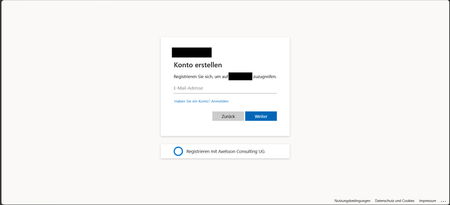
I'm using Microsoft Entra External ID with a built-in sign-in/sign-up user flow. On the Microsoft-hosted sign-in page, the "No account? Create one" link always redirects users to the default Entra sign-up page. I already have a custom registration page and would like this built-in link to redirect to my custom URL instead. Is there any supported way to customize the destination of this link in a built-in user flow? If not, could someone confirm whether this behavior is fixed by design? Thanks!539Views0likes2CommentsDisabling PIN-based login on Entra-joined PCs
Hi guys. Yesterday I took two machines off the domain and Entra joined them. The goal was 1) remove their access to domain resources 2) have tenant users login to the machine and get enriched tokens every time. this works as desired. The problem is every user gets prompted to set a pin. these are both shared secondary/tertiary PC's - there is no point to having a 6 digit PIN on them. I thought the new Authentication Methods tools had controls for this, but apparently not. A script was run to change certain related Reg Keys (by my onsite tech) but this had no change on reboot. textreg add "HKEY_LOCAL_MACHINE\SOFTWARE\Policies\Microsoft\PassportForWork" /v Enabled /t REG_DWORD /d 0 /freg add "HKEY_LOCAL_MACHINE\SOFTWARE\Policies\Microsoft\PassportForWork" /v DisablePostLogonProvisioning /t REG_DWORD /d 1 /f HKEY_LOCAL_MACHINE\SOFTWARE\Policies\Microsoft\PassportForWork Enabled key was set to 0, and DisablePostLogonProvisioning was set to 1. These are from various help threads I found here and other resources. Unfortunately, they do not work. Not sure what to do here. I've read there are InTune controls for this - but I don't really have the time to work out WindowsPC ennrollment profiles for 2 machines. The site has InTune, but only for iOS mobile management. Thoughts?6.2KViews0likes7Comments
Cloud Kerberos Trust with 1 AD and 6 M365 Tenants?
Hi, we would like to enable Cloud Kerberos Trust on hybrid joined devices ( via Entra connect sync) In our local AD wie have 6 OUs and users and devices from each OU have a seperate SCP to differnt M365 Tenants. I found this Article to configure the Cloud Kerberos Trust . Set-AzureADKerberosServer 1 2 The Set-AzureADKerberosServer PowerShell cmdlet is used to configure a Microsoft Entra (formerly Azure AD) Kerberos server object. This enables seamless Single Sign-On (SSO) for on-premises resources using modern authentication methods like FIDO2 security keys or Windows Hello for Business. Steps to Configure the Kerberos Server 1. Prerequisites Ensure your environment meets the following: Devices must run Windows 10 version 2004 or later. Domain Controllers must run Windows Server 2016 or later. Install the AzureADHybridAuthenticationManagement module: [Net.ServicePointManager]::SecurityProtocol = [Net.ServicePointManager]::SecurityProtocol -bor [Net.SecurityProtocolType]::Tls12 Install-Module -Name AzureADHybridAuthenticationManagement -AllowClobber 2. Create the Kerberos Server Object Run the following PowerShell commands to create and publish the Kerberos server object: Prompt for All Credentials: $domain = $env:USERDNSDOMAIN $cloudCred = Get-Credential -Message 'Enter Azure AD Hybrid Identity Administrator credentials' $domainCred = Get-Credential -Message 'Enter Domain Admin credentials' Set-AzureADKerberosServer -Domain $domain -CloudCredential $cloudCred -DomainCredential $domainCred As I understand the process, a object is created in local AD when running Set-AzureADKerberosServer What happens, if I run the command multiple times, for each OU/Tenant. Does this ovveride the object, or does it create a new objects?Solved672Views0likes3CommentsConditional Access - Block all M365 apps private Mobile Device
Hello, Ive try to block all private mobile phone from accessing all apps from m365, but it wont work. Im testing it at the moment with one test.user@ I create a CA rule: Cloud Apps Include: All Cloud Apps Exclude: Microsoft Intune Enrollment Exclude: Microsoft Intune Conditions Device Platforms: Include: Android Include: iOS Include: Windows Phone Filter for Devices: Devices matching the rule: Exclude filtered devices from Policy device.deviceOwnership -eq "Company" Client Apps Include: All 4 points Access Controls Block Access ----------------------- I take a fresh "private" installed mobile android phone. Download the Outlook App and log in with the test.user@ in the outlook app and everything work fine. What im doing wrong? Pls help. PeterSolved652Views0likes5CommentsJoin Merill Fernando and other guests for our Identity and Network Practitioner Webinar Series!
This October, we’re hosting a three-part webinar series led by expert Merill Fernando for Identity and Network Access practitioners. Join us as we journey from high-level strategy to hands-on implementation, unifying identity and network access every step of the way. Each session builds on the last, helping you move from understanding why a unified approach matters to what are the foundations to get started, and finally to how to configure in practice. The goal is to equip you with actionable skills, expert insights, and resources to secure your organization in a unified, Zero Trust way. Register below: Identity and Network Security Practitioner Webinar Series | Microsoft Community Hub163Views1like0Comments