command
2 TopicsMaster the Command Line with GitHub Copilot CLI:
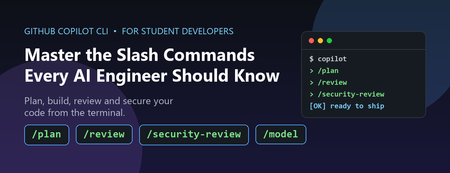
If you are a student aiming to become an AI engineer or a software developer, the terminal is about to become your most powerful classroom. https://github.com/features/copilot/cli/ brings an AI agent directly into your command line, and its slash commands (typed as /something ) are the shortcuts that unlock its real capabilities. The problem most students hit is simple: they install a powerful tool and then only ever use 10% of it. They type questions, get answers, and never discover the commands that turn Copilot CLI from a chatbot into a genuine pair programmer. This post fixes that. We will walk through the most useful slash commands, explain why you would reach for each one, and give you concrete student scenarios for every command. Why This Matters Now AI-assisted development is no longer optional in the industry. Employers increasingly expect graduates to be fluent with AI developer tools, not just programming languages. Learning the Copilot CLI slash commands early gives you two advantages: Speed: You spend less time context-switching between docs, terminal, and editor. Good habits: Commands like code review and security review teach you professional workflows while you are still learning. Everything below is grounded in the actual command set shipped in Copilot CLI. To see the full, current list at any time, just type /help inside the CLI. How to Run a Slash Command Slash commands are typed at the Copilot CLI prompt. Start a command with a forward slash and the CLI shows you an autocomplete menu: # Launch the CLI copilot # Then, at the prompt, type a slash to browse commands / # Or jump straight to one /model /plan /review A few related shortcuts are worth memorising on day one: ? — show quick help @ — mention files so Copilot reads them # — mention GitHub issues and pull requests ! — execute a raw shell command without leaving the prompt The Most Useful Slash Commands for Students The table below groups the highest-value commands by the job you are trying to do. Each row includes a realistic student scenario so you know exactly when to reach for it. Learning and Planning Command What it does Student scenario: why use it /plan Creates an implementation plan before any code is written. You have a coursework project ("build a sentiment classifier") but no idea where to start. Run /plan to get a step-by-step roadmap you can follow and learn from, instead of diving in blind. /research Runs a deep research investigation using GitHub search and web sources. For a dissertation or capstone, you need to compare approaches (e.g. "vector databases for RAG"). Use /research to gather grounded, cited findings rather than guessing. /ask Asks a quick side question without adding it to the conversation history. Mid-project you forget what a Python decorator does. Ask with /ask so your main task context stays clean and focused. /model Selects which AI model to use (or auto to let Copilot pick). A simple formatting fix needs a fast model; a tricky algorithm needs a stronger one. Learn to match the model to the task — a real engineering skill. Writing and Reviewing Code Command What it does Student scenario: why use it /diff Reviews the changes made in the current directory. Before submitting an assignment, run /diff to see exactly what changed — catch that debug print() you forgot to remove. /review Runs a code review agent to analyse your changes. No teaching assistant available at 2am? /review gives you professional-style feedback on bugs and logic errors so you learn before the deadline, not after grading. /security-review Analyses staged and unstaged changes for security vulnerabilities. Building a web app for a module? Run /security-review to spot issues like injection flaws — and start building the security mindset employers want. /pr Operates on pull requests for the current branch. Contributing to a group project or open source? Use /pr to manage pull requests and learn the collaboration workflow used in every real engineering team. /ide Connects Copilot to an IDE workspace. You prefer working in VS Code. Connect with /ide so Copilot understands your open files and editor context. Managing Your Work Session Command What it does Student scenario: why use it /resume Switches to a different saved session. You worked on a lab yesterday and want to continue today. /resume brings back the full context instead of starting from scratch. /context Shows context-window token usage and a visualization. Copilot seems to be "forgetting" earlier details. Check /context to understand how much conversation history fits — a core concept for any aspiring AI engineer. /compact Summarises conversation history to reduce context usage. Long debugging session running out of context? /compact condenses it so you can keep going without losing the thread. /undo / /rewind Rewinds the last turn and reverts file changes. Copilot made an edit that broke your tests. /undo safely rolls it back so you can experiment fearlessly. /usage Displays session usage metrics and statistics. Curious how much you are relying on the AI? /usage helps you stay aware of your consumption and learning balance. Setting Up and Extending the Environment Command What it does Student scenario: why use it /init Initialises Copilot instructions for the current repository. Starting a new project repo? /init sets up custom instructions so Copilot follows your project's conventions consistently. /mcp Manages Model Context Protocol (MCP) server configuration. Want Copilot to query a database or external tool? /mcp connects MCP servers — a cutting-edge skill for AI engineering portfolios. /agent Browses and selects specialised agents. Different tasks suit different agents. /agent lets you pick the right specialist for the job. /memory Shows memory status, or enables/disables memory across sessions. Want Copilot to remember your preferences (e.g. "I use Python type hints")? Manage that with /memory . A Realistic Student Workflow, End to End Here is how these commands fit together for a typical assignment — building a small machine learning script. Notice how the commands chain into a professional development loop: # 1. Plan the work before touching code /plan # 2. Pick an appropriate model for the task /model # 3. Let Copilot reference your data file @data/train.csv # 4. After Copilot writes code, see what changed /diff # 5. Get an automated code review /review # 6. Check for security issues before you submit /security-review # 7. If an edit broke something, roll it back /undo This loop —> plan, build, review, secure, iterate, is exactly the cycle used by professional engineering teams. By practising it now with Copilot CLI, you are rehearsing the workflow you will use in your first job. Responsible Use: Learn With AI, Not Instead Of It A quick but important note for students. AI assistance is a learning accelerator, not a replacement for understanding. Keep these principles in mind: Read the explanations, not just the code. Use /ask and /review to understand why something works. Check your institution's policy. Many courses have rules about AI use in assessed work, make sure you comply and cite appropriately. Never paste secrets. Keep API keys, passwords, and personal data out of prompts. Verify before you trust. Run the code, read the security review, and confirm claims against official documentation. Key Takeaways Slash commands turn Copilot CLI from a Q&A box into a full development partner. Start with /plan , /diff , /review , and /security-review they build professional habits immediately. Use /model , /context , and /compact to understand how AI systems actually work under the hood. Type /help any time to see the complete, current command list for your version. Next Steps and Resources Read the official guide: Use GitHub Copilot CLI Explore the broader docs: GitHub Copilot documentation Open the CLI and run /help to browse every command interactively. Pick one assignment this week and run the full plan → review → security-review loop on it. The fastest way to learn is to try. Launch Copilot CLI, type a single / , and start exploring. Your future engineering self will thank you.1.6KViews0likes0CommentsSS29: disable apple trackpad gestures
Suggestion (SS): 29 Classification: APPLE PRIORITY IN MY OPINION: 8 on a scale from 1 (low) to 10 (high) I already reported such problem to Apple different times in the last years, but they never fixed it. Please add (if possible) a way to disable trackpad gesture in edge for the video player. i don't want pause/start (not really a problem, but i generally do this via space) return to second 0 (especially this... is so ** annoying) change volume faster slower etc. features at all when i use the trackpad. i need the trackpad for browsing, not to control videos, otherwise you/apple create only conflicts. 99% of the time they activate it, even if i don't need it. please disable such things inside the video if possible. obviously with an additional option, because probably other user need it... PS: now i think i submitted all suggestions that i forgot to do previously. wish you a good day. ciao1.1KViews0likes0Comments