change tracking
5 TopicsWhen Change Tracking Cleanup Falls Behind: A Safe Playbook for Azure SQL
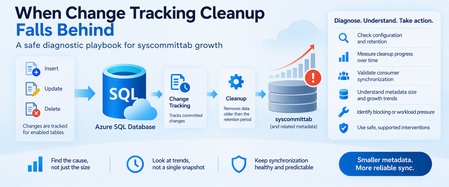
A growing Change Tracking table is a symptom. The useful question is whether cleanup is slow, blocked, or behaving as configured. Change Tracking is a lightweight mechanism for applications that need to determine which rows have changed without building a custom tracking framework. Azure SQL Database supports Change Tracking, including its built-in background cleanup mechanism. Track Data Changes But in long-running or high-change-rate environments, you may eventually encounter a different question: Why does Change Tracking metadata continue to grow? Possible explanations include: The observed growth is still within the configured retention window. Cleanup is progressing, but slower than new changes are arriving. Cleanup isn't making meaningful progress. The workload has changed substantially. A synchronization consumer has fallen behind. A long-running workload requires further investigation. The situation requires Azure support investigation. The important lesson is simple: Don't start by deleting Change Tracking metadata. Start by measuring it. 1. Understand the Change Tracking Contract Change Tracking records committed inserts, updates, and deletes for enabled tables. Applications typically maintain a synchronization version and later ask Azure SQL Database which rows changed after that version. Change Tracking Functions Three concepts are particularly important. Current version SELECT CHANGE_TRACKING_CURRENT_VERSION() AS current_version; CHANGE_TRACKING_CURRENT_VERSION() returns a version associated with the last committed transaction. An application can preserve this version and subsequently use it when enumerating changes. Change Tracking Functions Minimum valid version For individual tracked tables: SELECT s.name AS schema_name, t.name AS table_name, CHANGE_TRACKING_MIN_VALID_VERSION(t.object_id) AS min_valid_version FROM sys.tables AS t JOIN sys.schemas AS s ON t.schema_id = s.schema_id JOIN sys.change_tracking_tables AS ct ON t.object_id = ct.object_id ORDER BY s.name, t.name; The minimum valid version defines how far back a consumer can safely request changes. If the consumer's saved version falls below the minimum valid version, a subsequent CHANGETABLE result might no longer contain the complete change history the consumer expects. CHANGE_TRACKING_MIN_VALID_VERSION Retention The database's retention setting defines how long Change Tracking information should be retained before becoming eligible for cleanup. That's important because: Retention is not the same thing as a synchronization schedule. A consumer must synchronize frequently enough that its saved version doesn't fall behind the minimum valid version. 2. Start With the Configuration Before investigating cleanup, verify that Change Tracking is configured the way you think it is. SELECT DB_NAME(database_id) AS database_name, is_auto_cleanup_on, retention_period, retention_period_units_desc FROM sys.change_tracking_databases WHERE database_id = DB_ID(); Check: Is Change Tracking enabled? Is automatic cleanup enabled? What is the retention period? Does the retention period match the application's synchronization expectations? Microsoft documents sys.change_tracking_databases as one of the catalog views used to determine databases where Change Tracking is enabled. Manage Change Tracking If cleanup was intentionally disabled, metadata growth has a very different explanation than an environment where automatic cleanup is enabled. 3. Inventory Every Change-Tracked Table Next, understand the scope. SELECT s.name AS schema_name, t.name AS table_name, ct.is_track_columns_updated_on, ct.begin_version, ct.cleanup_version, ct.min_valid_version FROM sys.change_tracking_tables AS ct JOIN sys.tables AS t ON ct.object_id = t.object_id JOIN sys.schemas AS s ON t.schema_id = s.schema_id ORDER BY s.name, t.name; sys.change_tracking_tables returns one row for each Change Tracking-enabled table in the current database and exposes several useful diagnostic columns. sys.change_tracking_tables In particular: begin_version Represents the database version associated with the beginning of Change Tracking for the table. cleanup_version Represents the version up to which cleanup might have removed Change Tracking information. min_valid_version Represents the minimum Change Tracking version that's still valid for synchronization. sys.change_tracking_tables This immediately establishes: How many tables are tracked. Which tables started tracking at different points. Whether cleanup-related metadata differs significantly across tables. Whether your investigation affects one table or the entire database. 4. Capture Current and Minimum Valid Versions Together For a concise health snapshot: SELECT s.name AS schema_name, t.name AS table_name, CHANGE_TRACKING_CURRENT_VERSION() AS current_version, ct.begin_version, ct.cleanup_version, CHANGE_TRACKING_MIN_VALID_VERSION(t.object_id) AS min_valid_version FROM sys.change_tracking_tables AS ct JOIN sys.tables AS t ON ct.object_id = t.object_id JOIN sys.schemas AS s ON t.schema_id = s.schema_id ORDER BY s.name, t.name; This isn't a complete cleanup-health metric by itself. Instead, use it to understand how the Change Tracking version boundaries evolve over time. The key is: One snapshot isn't enough. A single sample can make healthy cleanup appear stuck, and a temporary movement can make an unhealthy trend look normal. 5. Measure Progress Over Time A better investigation takes repeated observations. For example: Sample Current Version Minimum Valid Version Cleanup Version T1 850000 710000 709900 T2 870000 728000 727900 T3 892000 746000 745900 These are synthetic values, but they demonstrate the important question. Ask: Are the boundaries moving forward over time? If yes: Cleanup is demonstrating progress. The next question is whether that progress is sufficient relative to the workload and retention expectations. If no: Extend the observation window. Validate configuration. Check workload conditions. Determine whether the lack of progress is persistent. Do not diagnose cleanup failure from a single observation. 6. Monitor Change Tracking Storage Safely Microsoft documents that Change Tracking creates internal tables, and sys.internal_tables can be used to identify those objects. Manage Change Tracking For investigation, you can inventory Change Tracking internal objects without modifying them: SELECT it.object_id, it.name AS internal_table_name, it.internal_type_desc, OBJECT_SCHEMA_NAME(it.parent_object_id) AS parent_schema_name, OBJECT_NAME(it.parent_object_id) AS parent_table_name FROM sys.internal_tables AS it WHERE it.internal_type_desc LIKE '%CHANGE_TRACKING%' ORDER BY parent_schema_name, parent_table_name; This is a diagnostic inventory. Do not: Delete rows directly from internal tables. Modify internal-table schema. Create unsupported indexes on internal objects. Treat internal Change Tracking tables like customer-owned tables. Microsoft explicitly documents that sys.internal_tables lists the internal objects created when Change Tracking is enabled. Manage Change Tracking 7. Estimate the Storage Footprint If you need to understand whether Change Tracking storage is increasing, combine the documented internal-table catalog metadata with partition statistics for measurement. SELECT it.name AS internal_table_name, OBJECT_SCHEMA_NAME(it.parent_object_id) AS parent_schema_name, OBJECT_NAME(it.parent_object_id) AS parent_table_name, SUM(ps.row_count) AS approximate_rows, CAST ( SUM(ps.reserved_page_count) * 8.0 / 1024 AS decimal(18,2) ) AS reserved_mb, CAST ( SUM(ps.used_page_count) * 8.0 / 1024 AS decimal(18,2) ) AS used_mb FROM sys.internal_tables AS it JOIN sys.dm_db_partition_stats AS ps ON it.object_id = ps.object_id WHERE it.internal_type_desc LIKE '%CHANGE_TRACKING%' GROUP BY it.name, it.parent_object_id ORDER BY reserved_mb DESC; Use this as a measurement query only. The most useful information isn't usually the absolute number. It's the trend: T1 → 800 MB T2 → 900 MB T3 → 1,050 MB T4 → 1,220 MB versus: T1 → 800 MB T2 → 820 MB T3 → 790 MB T4 → 810 MB The first pattern suggests sustained net growth. The second could simply reflect normal accumulation and cleanup behavior. 8. Validate the Synchronization Consumer Cleanup health is only half of the story. You must also protect the consumer's synchronization contract. Imagine an application stores its last synchronized Change Tracking version: DECLARE @last_sync_version bigint = 700000; DECLARE @table_id int = OBJECT_ID(N'dbo.SampleTable'); DECLARE Min_valid_version bigint = CHANGE_TRACKING_MIN_VALID_VERSION(@table_id); SELECT @last_sync_version AS last_sync_version, Min_valid_version AS min_valid_version, CASE WHEN Min_valid_version IS NULL THEN N'Unable to validate' WHEN @last_sync_version < Min_valid_version THEN N'Reinitialization required' ELSE N'Incremental synchronization valid' END AS sync_status; Microsoft specifically recommends validating a saved synchronization version against CHANGE_TRACKING_MIN_VALID_VERSION(). If last_sync_version is lower than the minimum valid version, subsequent CHANGETABLE results might not be valid for the intended synchronization. CHANGE_TRACKING_MIN_VALID_VERSION That's why simply shortening retention to reduce storage isn't necessarily harmless. You may create a different problem: Consumers can fall outside the valid synchronization window. 9. Use the Safe Change Enumeration Pattern Once the consumer's saved version is known to be valid, it can request subsequent changes. For example: DECLARE @last_sync_version bigint = 700000; SELECT CT.SampleID, CT.SYS_CHANGE_VERSION, CT.SYS_CHANGE_CREATION_VERSION, CT.SYS_CHANGE_OPERATION FROM CHANGETABLE ( CHANGES dbo.SampleTable, @last_sync_version ) AS CT; CHANGETABLE(CHANGES...) returns Change Tracking information for changes that occurred since the supplied version. Change Tracking Functions But validate first: DECLARE @last_sync_version bigint = 700000; DECLARE Min_valid_version bigint = CHANGE_TRACKING_MIN_VALID_VERSION ( OBJECT_ID(N'dbo.SampleTable') ); IF Min_valid_version IS NULL BEGIN THROW 50001, 'Unable to validate the Change Tracking version.', 1; END; IF @last_sync_version < Min_valid_version BEGIN THROW 50002, 'Saved synchronization version is no longer valid. Reinitialization is required.', 1; END; SELECT CT.SampleID, CT.SYS_CHANGE_VERSION, CT.SYS_CHANGE_CREATION_VERSION, CT.SYS_CHANGE_OPERATION FROM CHANGETABLE ( CHANGES dbo.SampleTable, @last_sync_version ) AS CT; This is much safer than assuming a consumer can request changes indefinitely. 10. Don't Confuse Consumer Lag With Cleanup Failure Suppose: Auto-cleanup is enabled. Cleanup versions are moving forward. Internal-table size fluctuates. A synchronization consumer hasn't run for longer than the retention window. Then the consumer's failure doesn't automatically mean cleanup malfunctioned. Cleanup may have behaved exactly as configured. The real issue may be: The consumer failed to synchronize within the retention contract. This distinction is important because increasing cleanup aggression wouldn't solve that problem. Instead, investigate: Synchronization frequency. Retention configuration. Consumer outages. Failed synchronization jobs. Whether the retention period reasonably accommodates normal recovery time. 11. Slow Cleanup and Blocked Cleanup Aren't the Same Consider three possible behaviors. Pattern A: Progressing normally You observe: Auto-cleanup enabled. Minimum valid versions advancing. Cleanup versions advancing. Storage fluctuating around a range. Consumers healthy. Interpretation: No evidence of a persistent cleanup failure. Pattern B: Progressing but falling behind You observe: Cleanup versions advance. Minimum valid versions advance. Change Tracking storage nonetheless grows over repeated observations. Interpretation: Cleanup appears to be making progress. Net Change Tracking generation may be exceeding cleanup throughput during the observation period. More investigation is warranted. Pattern C: Persistently no observable progress You observe over an appropriate period: Auto-cleanup enabled. Significant stale metadata is expected based on retention. Cleanup version doesn't materially advance. Storage continues growing. The behavior persists. Interpretation: A sustained cleanup backlog becomes a stronger hypothesis. Gather evidence before intervention. Escalation may be appropriate. 12. Check the Workload Before Blaming Cleanup Change Tracking operates alongside your application workload. Consider whether anything changed recently: More tracked tables? Higher DML rates? Larger transaction volumes? More databases using Change Tracking? New bulk workloads? Changes to synchronization frequency? Change Tracking enabled on high-churn tables? Increased contention or long-running operations? Change Tracking adds synchronous work to DML and uses a background cleanup mechanism for stale tracking information. Track Data Changes Therefore, a meaningful diagnosis should correlate metadata growth with: Change rate. Database workload. Cleanup progress. Retention. Consumer behavior. 13. Be Careful With Long-Running Transactions Change Tracking records changes on the basis of committed transactions. Microsoft specifically notes that its ordering is based on transaction commit time, allowing reliable behavior when transactions overlap or run for extended periods. Track Data Changes If you're investigating unusual cleanup timing, long-running workload activity deserves consideration. For currently active database transactions: SELECT s.session_id, r.status, r.command, r.start_time, r.total_elapsed_time, r.cpu_time, r.wait_type, r.wait_time, r.blocking_session_id FROM sys.dm_exec_sessions AS s JOIN sys.dm_exec_requests AS r ON s.session_id = r.session_id WHERE s.is_user_process = 1 AND r.database_id = DB_ID() ORDER BY r.total_elapsed_time DESC; Don't automatically conclude that a long-running request blocks Change Tracking cleanup. Instead, treat the workload evidence as another variable to correlate with cleanup behavior. 14. Use a Safe Intervention Hierarchy When metadata growth becomes concerning, resist the temptation to modify system objects. Use this order instead. Step 1: Confirm configuration Check: Change Tracking enabled. Retention. Auto-cleanup. Enabled tables. Step 2: Validate consumers Check: Last synchronization version. Minimum valid version. Synchronization frequency. Failed synchronization jobs. Step 3: Establish a trend Record over time: Current version. Minimum valid version. Cleanup version. Internal storage estimate. Step 4: Check workload changes Correlate: DML volume. Concurrent workload. Long-running operations. Newly tracked tables. Step 5: Reduce avoidable pressure If the workload itself changed, investigate it before assuming an engine defect. Step 6: Use only documented management mechanisms Avoid direct manipulation of Change Tracking internal objects. Step 7: Escalate when evidence shows a persistent backlog Provide: Configuration. Trend measurements. Tracked-table inventory. Version progression. Storage trend. Relevant workload timeline. Consumer status. That creates a much stronger support package than: "syscommittab is large." 15. Validate Recovery Suppose configuration or workload changes are made. Don't validate recovery with one query. Observe an appropriate workload cycle and compare: Metadata size trend. cleanup_version. Minimum valid version. Current version. Consumer synchronization success. Change Tracking-related errors. Workload rate. The desired outcome isn't necessarily: Change Tracking storage becomes tiny. The useful outcome is: Cleanup demonstrates sustainable progress, metadata growth stabilizes relative to workload, and consumers remain inside their valid synchronization window. 16. Prevent the Problem From Returning A healthy Change Tracking deployment needs operational monitoring. Consider tracking: Configuration health Is automatic cleanup enabled? Did retention change? Were new tables added? Cleanup trend Are cleanup versions advancing? Are minimum valid versions advancing? Is metadata storage continuously growing? Consumer health When did each consumer last synchronize? How close is its saved version to the minimum valid version? Are synchronization jobs failing? Workload health Has the write rate changed? Have new bulk workloads appeared? Has database scale changed substantially? The most useful alerts often focus on trend and synchronization safety, not simply: "syscommittab exceeded X GB." Absolute size tells you very little without workload and cleanup context. 17. A Practical Diagnostic Decision Table Observation Interpretation Next step Auto-cleanup disabled Configuration explains lack of automatic cleanup Confirm whether intentional Consumer version below minimum valid version Consumer fell outside valid window Reinitialize according to application design Cleanup versions advancing Cleanup demonstrating progress Continue trend analysis Versions advancing but storage growing Creation may exceed cleanup during observation Correlate workload and change rate No version movement in one snapshot Inconclusive Collect repeated samples Persistent lack of progress + sustained growth Cleanup backlog becomes plausible Gather escalation evidence Storage fluctuates but remains broadly stable Could represent normal operation Continue monitoring Consumer repeatedly approaches minimum valid version Retention/sync schedule may be misaligned Review synchronization design Final Takeaway When Change Tracking metadata grows, don't start with: "How do I delete syscommittab?" Start with: "Is cleanup progressing, is the workload outpacing it, or is the system behaving exactly as configured?" Azure SQL Database provides documented interfaces that let you answer much of that safely: sys.change_tracking_databases sys.change_tracking_tables CHANGE_TRACKING_CURRENT_VERSION() CHANGE_TRACKING_MIN_VALID_VERSION() CHANGETABLE sys.internal_tables for inventory and diagnostic observation Microsoft documents Change Tracking as having a built-in automatic cleanup mechanism and exposes catalog views and functions for managing and consuming its metadata. Track Data Changes Manage Change Tracking The most reliable investigation follows a simple sequence: Confirm configuration. Inventory tracked tables. Validate synchronization consumers. Measure version progression over time. Measure storage as a trend. Correlate growth with workload. Avoid direct system-object manipulation. Escalate with evidence when progress persistently stalls. Most importantly: Don't modify Change Tracking internal tables directly. Those objects are implementation details owned by the database engine. Observe them when documented metadata makes that appropriate, but manage Change Tracking through supported, documented interfaces. Because with Change Tracking cleanup: One snapshot tells you the size. A trend tells you the story. Further reading Track Data Changes About Change Tracking Manage Change Tracking sys.change_tracking_tables CHANGE_TRACKING_MIN_VALID_VERSION Change Tracking FunctionsTroubleshooting Change Tracking cleanup growth and orphaned rows in Azure SQL Database
Applies to: Azure SQL Database Scenario: Change Tracking (CT) side tables grow unexpectedly, and “orphaned” rows appear after switching between auto-cleanup and custom/scheduled manual cleanup. The problem (what we observed) In the case tracked, the discussion focused on Change Tracking cleanup behavior—including unexpected growth in CT side tables and orphaned records. The customer also referenced earlier guidance to move away from auto-cleanup due to locking concerns during upgrades, and the team needed to propose safe next steps quickly. A parallel concern was that CT auto-cleanup could block DDL during upgrades (schema lock behavior), which triggered work to deploy a fix and validate it in a lab before broader rollout. Why this is tricky The engagement highlighted that manual cleanup and auto-cleanup can behave differently in real-world, high-scale environments (large number of CT-enabled tables, heavy activity, and operational constraints like access and auditing). Investigation efforts included: validating where orphaned rows exist and how many CT side tables are affected, checking whether auto-cleanup is enabled/disabled, and using auditing / Extended Events to identify who/what is dropping related history objects. Additionally, Snapshot Isolation can prevent cleanup from progressing in some cases. it was noted that long-running snapshot transactions can prevent a safe cleanup point from advancing, which can block removal of expired entries from internal commit tracking tables until those transactions complete. Practical troubleshooting steps (what helped) 1) Confirm CT configuration (retention + auto-cleanup) Use the Change Tracking configuration options to validate retention and whether auto-cleanup is enabled. Microsoft Learn documents enabling CT at the database level (including CHANGE_RETENTION and AUTO_CLEANUP). Enable and Disable Change Tracking - SQL Server | Microsoft Learn 2) Quick backlog signal: commit table “oldest commit_time” During the investigation, the team used a lightweight query to sanity-check backlog in the commit table: SELECT TOP (1) * FROM sys.dm_tran_commit_table ORDER BY commit_time ASC; if the returned commit_time is close to the retention horizon, auto-cleanup is likely keeping up (this query doesn’t require DAC). 3) Detect orphaned rows in CT side tables (read-only script) A key artifact from this case is the following T-SQL script, which calculates a cleanup point based on configured retention and then iterates over CT side tables (sys.internal_tables where internal_type = 209) to identify rows whose sys_change_xdes_id no longer has a matching entry in sys.syscommittab at/below the cleanup point. -- use <[DBName]> -- switch to the right database SET NOCOUNT ON -- find the invalid clean version based on configured retention DECLARE time DATETIME, @csn BIGINT = 0, @minCleanupPoint BIGINT = 0 DECLARE @retention_period INT, @retention_period_units NVARCHAR(10) SELECT @retention_period = retention_period, @retention_period_units = retention_period_units FROM sys.change_tracking_databases where database_id = DB_ID() SELECT time = CASE WHEN @retention_period_units = 1 then DATEADD(minute, (-1 * @retention_period), GETUTCDATE()) WHEN @retention_period_units = 2 then DATEADD(hour, (-1 * @retention_period), GETUTCDATE()) ELSE DATEADD(day, (-1 * @retention_period), GETUTCDATE()) END EXEC sp_changetracking_time_to_csn time = time, @csn = @csn OUTPUT SELECT @minCleanupPoint = @csn SELECT @minCleanupPoint as minCsn -- 688118 -- iterate over all the change tracking side tables DECLARE @sideTable SYSNAME; DECLARE ct_cursor CURSOR FAST_FORWARD FOR SELECT name FROM sys.internal_tables WHERE internal_type = 209; -- internal_type = 209 is for change tracking side tables OPEN ct_cursor; FETCH NEXT FROM ct_cursor INTO @sideTable; WHILE @@FETCH_STATUS = 0 BEGIN -- find the minimum expired xdes id declare @minXdesId BIGINT SELECT @minXdesId = min(xdes_id) FROM sys.dm_tran_commit_table where commit_ts <= @minCleanupPoint -- SELECT @minXdesId as minXdes -- create temp table for storing orphaned xdes id DROP TABLE IF EXISTS #OrphanedXdes; CREATE TABLE #OrphanedXdes ( sys_change_xdes_id BIGINT NOT NULL ); DECLARE @sql NVARCHAR(MAX); SET @sql = N' INSERT INTO #OrphanedXdes(sys_change_xdes_id) SELECT ct.sys_change_xdes_id FROM sys.' + QUOTENAME(@sideTable) + N' AS ct WHERE ct.sys_change_xdes_id < @minXdesId AND NOT EXISTS ( SELECT 1 FROM sys.syscommittab AS s WHERE s.xdes_id = ct.sys_change_xdes_id AND s.commit_ts <= @minCleanupPoint );'; EXEC sys.sp_executesql @sql, N'@minXdesId BIGINT, @minCleanupPoint BIGINT', @minXdesId = @minXdesId, @minCleanupPoint = @minCleanupPoint; DECLARE @orphanedIdsCount BIGINT; SET @sql = N' SELECT @cnt = COUNT_BIG(sys_change_xdes_id) FROM #OrphanedXdes; '; EXEC sys.sp_executesql @sql, N'@cnt BIGINT OUTPUT', @cnt = @orphanedIdsCount OUTPUT; -- Raise error if any orphaned xdes exists IF (@orphanedIdsCount > 0) BEGIN DECLARE @msg NVARCHAR(4000) = @sideTable + N' : ' + CONVERT(NVARCHAR(30), @orphanedIdsCount); RAISERROR (@msg, 16, 1) WITH NOWAIT; DECLARE @newLine NVARCHAR(10) = CHAR(13) + CHAR(10) PRINT (@newLine) END DROP TABLE IF EXISTS #OrphanedXdes; FETCH NEXT FROM ct_cursor INTO @sideTable; END CLOSE ct_cursor; DEALLOCATE ct_cursor; SET NOCOUNT OFF Here’s the high-level logic (excerpted/annotated from the script): Read retention settings from sys.change_tracking_databases Convert “retention window” to a cleanup CSN using sp_changetracking_time_to_csn For each CT side table (sys.internal_tables internal_type = 209): compare side-table sys_change_xdes_id vs. sys.syscommittab and count “orphaned” xdes ids emit a message when orphaned counts are present Tip: This is read-only diagnostic logic. In your environment, validate permissions and impact before running in production. 4) If auto-cleanup is unexpectedly disabled, re-enable and monitor In the email thread, the team observed auto-cleanup was disabled in at least one environment and recommended re-enabling it, then monitoring the CT history table to confirm cleanup activity resumes. 5) Use auditing / Extended Events to identify unexpected object drops When investigating why a “history table” disappeared, the team reviewed extended event data and noted evidence of a specific application context associated with the drop (shared in the meeting discussion). This is a key lesson: without auditing, it can be difficult to determine who/what disabled auto-cleanup or dropped relevant objects; the email thread explicitly called this out. Mitigation options discussed (often safest): disable & re-enable Change Tracking on affected tables As an alternative to running manual deletion scripts, the troubleshooting recommended disabling and re-enabling Change Tracking on the set of tables containing orphaned rows—described as a well-established and safer cleanup method that avoids needing elevated access to run cleanup scripts directly. Trade-off: disabling CT on a table removes existing change data from the corresponding side tables for that table. About auto-cleanup performance improvements (why “stay on auto” may be preferred) The troubleshooting included discussion that auto-cleanup is the area that continues to receive improvements and that performance enhancements exist (for example, improved adaptive behavior in newer SQL Server versions). Microsoft Learn describes that SQL Server 2025 introduces an “adaptive shallow cleanup approach” for large side tables, enabled by default, and explains how cleanup behavior changes compared to prior versions. While Azure SQL Database implementation details differ from boxed SQL Server, the key operational takeaway from the discussion was: if possible, prefer auto-cleanup and avoid manual cleanup unless you have a strong reason, because manual cleanup may lack telemetry and can be harder to reason about at scale. Key takeaways Start with read-only validation: use a backlog signal query and an orphan-detection script to quantify scope before making changes. Auditability matters: without auditing/trace evidence, identifying who disabled auto-cleanup or dropped related objects is difficult. Snapshot Isolation can block cleanup progress: long-running snapshot transactions may prevent safe cleanup from advancing. Keep snapshot transactions short where possible. A safe mitigation exists disable/re-enable Change Tracking on affected tables (with awareness of change data loss) can be safer than running deletion scripts. References Microsoft Learn: Change Tracking management overview (permissions, internal tables, behavior considerations). Manage Change Tracking - SQL Server | Microsoft Learn Microsoft Learn: Enable and Disable Change Tracking (retention + auto-cleanup configuration). Enable and Disable Change Tracking - SQL Server | Microsoft Learn294Views0likes0CommentsEnable auditing to identify Change Tracking history table drops using Extended Events (Azure SQL Db)
When Change Tracking is enabled, the system-maintained history table dbo.MSChange_tracking_history is a key place to look for cleanup progress and errors. For example, Microsoft’s troubleshooting guidance for Change Tracking auto-cleanup explicitly references querying the history table to validate whether cleanup is running and whether there are cleanup errors. In real-world environments, teams sometimes observe that dbo.MSChange_tracking_history “disappears” unexpectedly (for example, during cleanup troubleshooting), which then blocks visibility into cleanup progress and error history. When that happens, the most practical way to answer “who/what dropped the history table?” is to audit the DDL using Extended Events (XEvents)—a lightweight monitoring capability designed for troubleshooting. This post shows how to create a database-scoped XEvent session in Azure SQL Database that captures Change Tracking history table drops and related events, using the script you provided. Why Extended Events for this scenario? Extended Events are built to capture internal engine activities with relatively low overhead, and are supported across SQL Server and Azure SQL. In Azure SQL Database, XEvents are commonly used for investigation and troubleshooting when you need evidence of what happened and who initiated it. In this specific case, we want to capture: A history table drop event (Change Tracking-specific) A syscommittab truncate event (Change Tracking-specific) A generic object deletion event filtered to the history table name And we want to enrich each event with context (app, host, user, SQL text, stack, timestamps, etc.). The Extended Events session (copy/paste) Below is your script to create a database-scoped session named CTXEvent that audits the Change Tracking history table drop and related events: CREATE EVENT SESSION [CTXEvent] ON DATABASE ADD EVENT sqlserver.change_tracking_historytable_drop( ACTION(mdmtargetpkg.mdmget_TimeStampUTC,sqlserver.client_app_name,sqlserver.client_hostname,sqlserver.context_info,sqlserver.database_name,sqlserver.external_script_request_id,sqlserver.session_id,sqlserver.sql_text,sqlserver.transaction_id,sqlserver.tsql_stack,sqlserver.username)), ADD EVENT sqlserver.change_tracking_syscommittab_truncate( ACTION(mdmtargetpkg.mdmget_TimeStampUTC,sqlserver.client_app_name,sqlserver.client_hostname,sqlserver.context_info,sqlserver.database_name,sqlserver.external_script_request_id,sqlserver.session_id,sqlserver.sql_text,sqlserver.transaction_id,sqlserver.tsql_stack,sqlserver.username)), ADD EVENT sqlserver.object_deleted( ACTION(mdmtargetpkg.mdmget_TimeStampUTC,sqlserver.client_app_name,sqlserver.client_hostname,sqlserver.context_info,sqlserver.database_name,sqlserver.external_script_request_id,sqlserver.session_id,sqlserver.sql_text,sqlserver.transaction_id,sqlserver.tsql_stack,sqlserver.username) WHERE ([object_name]=N'MSchange_tracking_history')) WITH (MAX_MEMORY=16384 KB,EVENT_RETENTION_MODE=NO_EVENT_LOSS,MAX_DISPATCH_LATENCY=10 SECONDS,MAX_EVENT_SIZE=0 KB,MEMORY_PARTITION_MODE=NONE,TRACK_CAUSALITY=ON,STARTUP_STATE=OFF) GO Why these three events? sqlserver.change_tracking_historytable_drop: directly captures the Change Tracking “history table dropped” operation (purpose-built for this investigation). sqlserver.change_tracking_syscommittab_truncate: captures maintenance actions on syscommittab, which is central to Change Tracking’s internal state. sqlserver.object_deleted with a predicate on MSchange_tracking_history: provides a generic “safety net” if the drop manifests via generic DDL deletion paths. Why these actions? The actions you selected are the practical “who/what/where” context you usually need to attribute the operation: sqlserver.client_app_name / sqlserver.client_hostname: which app + which machine initiated the DDL sqlserver.username: identity executing the statement sqlserver.sql_text + sqlserver.tsql_stack: the statement and call stack (helpful if the drop occurs via a job, framework, or tooling) sqlserver.session_id / sqlserver.transaction_id: correlate activity across events TRACK_CAUSALITY=ON: enables correlation across related events within the session context. Starting and stopping the session Your session is created with STARTUP_STATE=OFF, meaning it does not start automatically. That’s typically a good practice for targeted investigations: enable it only during the window where you expect the issue. For Azure SQL Database, you can manage the session using SSMS or equivalent T-SQL workflows. Microsoft’s Extended Events QuickStart walks through creating sessions and working with session data, including the general workflow concepts. Tip (practical): Turn it on shortly before your expected “drop window,” reproduce/observe, then turn it off after you capture the event to minimize overhead. Where does the data go? Your script defines the events + actions + session options, but it does not define a target (for example, event_file). That’s OK for short, in-the-moment investigations, but for durable evidence and easy sharing, many teams prefer writing to an event file target. Option: Persist captured events to Azure Storage (recommended for multi-hour investigations) Microsoft provides a dedicated walkthrough for Azure SQL Database to create an event session with an event_file target stored in Azure Storage, including: creating a storage account + container granting access (RBAC or SAS) creating a database credential creating/starting the session viewing the event data If you choose this route, you can then read event files using sys.fn_xe_file_target_read_file (supported in Azure SQL Database, commonly used to consume XEL files from blob storage). How to interpret the results (what to look for) When the table drop happens, the captured event payload should allow you to confidently answer: Who initiated the operation? Look at sqlserver.username plus client_app_name and client_hostname. What executed the drop? Look at sql_text and tsql_stack. Was this tied to cleanup activity or another workflow? If you see change_tracking_syscommittab_truncate around the same time (and correlated via session/transaction/casuality identifiers), that can indicate the drop happened in proximity to Change Tracking maintenance behavior. Was the drop recurring or one-off? If you capture repeated events at a steady cadence, it points to an automated process (job, deployment pipeline, scheduled task, framework) rather than an ad-hoc human action. Why this matters: the history table is part of Change Tracking troubleshooting Microsoft’s Change Tracking cleanup troubleshooting guidance explicitly uses dbo.MSChange_tracking_history as the place to validate whether cleanup is running and whether errors are being logged. So if the history table is being dropped, you effectively lose an important “black box recorder” that you rely on to understand cleanup behavior—exactly why auditing the drop is so valuable. Operational tips (minimize noise, maximize signal) These are practical recommendations commonly used in incident investigations (treat them as operational guidance you can adapt to your environment): Run the session for a limited time window (enough to catch the drop). Keep actions focused (your list is already purpose-built for attribution). Prefer file target if you need durable evidence (especially when coordinating across teams). Document what “good” looks like before you enable the session (e.g., confirm whether the history table exists and whether it’s being written to), using the troubleshooting query from Microsoft docs. Common troubleshooting steps (when the audit session “doesn’t capture anything”) When you set up a targeted Extended Events session like CTXEvent, there are usually three places where things can go wrong: (1) Change Tracking state, (2) XEvent session scope/permissions, or (3) the target (storage/credential). The checklist below is written to help you isolate which layer is failing—quickly, and with minimal guesswork. 1) First, validate the Change Tracking baseline (so you’re not “tracing a ghost”) Does the history table exist—and is it expected to exist? Microsoft’s Change Tracking guidance uses dbo.MSChange_tracking_history as the first place to look for cleanup status and errors. If the table doesn’t exist, that can be a signal that auto-cleanup has never run (or hasn’t run since CT was re-enabled). Check whether auto-cleanup is enabled and whether it’s been running recently. The Change Tracking troubleshooting doc recommends checking sys.change_tracking_databases (to validate auto-cleanup is enabled) and querying the history table for recent entries (to validate cleanup is actually running). If dbo.MSChange_tracking_history is missing, confirm whether that’s due to CT lifecycle. A common “gotcha” is assuming the history table is created the moment CT is enabled. In practice, the table can be missing if CT was disabled and then re-enabled, or if only manual cleanup was used—because the history table is tied to auto-cleanup behavior. Why this matters: If the history table never existed (or is missing for expected reasons), your “history table drop” symptom might actually be a different behavior than a true DDL DROP—and you’ll want to confirm the CT lifecycle first before you rely on drop-auditing as the primary signal. 2) Confirm the Extended Events session is created in the right place (Azure SQL DB specifics) Make sure the session is database-scoped (Azure SQL Database requirement). In Azure SQL Database, Extended Events sessions are always database-scoped, and the event_file target writes to Azure Storage blobs (not local disk). If you accidentally create or manage the session as if it were server-scoped, you’ll hit confusing errors or see “no data.” Confirm you created the session in a user database (not master). Azure SQL Database doesn’t support creating database-scoped sessions from master. If you try, you can run into failures that look like target/session problems but are actually scope issues. Verify permissions: least privilege that still works. If the session creation/alter/start fails silently (or you can’t start it), confirm the principal has the right database permission. A practical minimum that works for managing DB-scoped sessions is ALTER ANY DATABASE EVENT SESSION (instead of granting broad CONTROL/db_owner). 3) If you’re using event_file: storage + credential is the most common failure point If the session starts but no .xel ever shows up, focus here first—because event_file in Azure SQL DB depends on a correct Storage setup. Validate the “happy path” prerequisites (in order): Storage account exists and a container exists. The Database Engine has access to that container either via RBAC (managed identity) or via a SAS token. A credential is created in the same database where the session is created. Microsoft’s event_file walkthrough is explicit about these steps, and missing any one of them can cause “target initialization” or “no output” symptoms. Quick diagnostic: temporarily switch to an in-memory target to prove events are firing. The Azure SQL Extended Events guidance notes you can use a ring_buffer target as a quick way to validate that the session is collecting events (without involving storage). If ring_buffer shows events but event_file does not, the issue is almost certainly storage/credential access. Common “it looks correct but still fails” causes (practical): You created the credential in the wrong database (or the session is in a different DB than the credential). The container permissions don’t actually include write access for the engine identity/token. The session was created correctly but never started (especially if STARTUP_STATE = OFF). 4) If you do capture events, but can’t attribute “who did it” Once the session is logging events, attribution usually comes down to having the right actions attached. The docs emphasize that Extended Events are designed to collect “as much or as little as necessary,” and in investigations you typically want the “who/what/where” context: app name, hostname, username, session_id, sql_text, etc. Practical tip: Start with your curated set of actions (like client_app_name, client_hostname, username, session_id, and sql_text), and only add more fields if you still can’t triangulate the origin. This keeps overhead and noise down while staying evidence driven. 5) If the table drop is periodic (hourly / scheduled), treat it like an automation clue In real customer scenarios, the symptom can be “history table disappears repeatedly,” which makes it especially important to correlate drops with client_app_name / hostname / username (and optionally transaction/session details) to determine whether this is a scheduled job, maintenance task, or application behavior. This is exactly the type of “pattern identification” where XEvents tends to outperform ad-hoc guessing. Quick “decision tree” summary History table missing? Start with CT lifecycle + auto-cleanup checks. Session exists but captures nothing? Confirm DB scope + permissions. Captures to ring_buffer but not to event_file? Storage/credential access problem. Captures events but no “who”? Add/verify the right actions (client_app_name/hostname/username/sql_text). References Extended Events QuickStart and overview (applies to Azure SQL Database). Change Tracking cleanup troubleshooting and history table usage (dbo.MSChange_tracking_history). Event File target for Azure SQL Database stored in Azure Storage + steps (RBAC/SAS + credential). Reading XEL output from blob using sys.fn_xe_file_target_read_file.359Views0likes0CommentsMissing MSchange_tracking_history Table in SQL Server: Causes, Cleanup Behavior
Change Tracking (CT) in SQL Server is a lightweight mechanism for tracking data changes without the overhead of full auditing or CDC. However, when troubleshooting CT cleanup behavior, one issue that often surprises engineers is the absence of the MSchange_tracking_history table—a system table expected to exist when auto-cleanup is running normally. In this blog, we walk through the scenarios that can lead to a missing history table, what to validate in your environment, and how to collect the right data for deeper investigation. Confirming Whether Auto-Cleanup Has Run Successfully When diagnosing Change Tracking cleanup issues, the first step is verifying whether the auto‑cleanup process has executed at least once on the affected database. Here are key questions to ask: ✔ Was the auto‑cleanup process ever triggered? SQL Server's CT cleanup runs automatically in the background based on internal scheduling. You should validate whether it has executed at least once since CT was enabled (or re‑enabled). ✔ Were there rows outside the retention period at the time cleanup ran? The cleanup task only deletes rows older than the configured retention period. If no such rows existed, cleanup may have run—but removed nothing. ✔ Did the cleanup task complete successfully? It’s important to know whether cleanup: Started, Scanned eligible rows, Deleted entries, and Completed without interruption. If cleanup is running but not making progress, SQL Server provides internal diagnostics that can help determine whether the process is blocked, paused, or skipped. Why the MSchange_tracking_history Table May Be Missing Microsoft’s Product Team has clarified an important behavioral detail: ➡ The MSchange_tracking_history table is created only by the auto-cleanup process. This means the table may be missing if: 🔸 CT was disabled previously If Change Tracking was turned off at any point, SQL Server removes internal structures associated with CT. 🔸 CT was later re-enabled, but auto-cleanup never ran Re‑enabling CT does not immediately recreate the history table. It will only be created once auto-cleanup executes naturally for the first time. 🔸 Only manual cleanup was performed Manual cleanup (using internal stored procedures or scripts) does not generate the MSchange_tracking_history table. Only the automated engine-driven cleanup does. ➡ Resolution: Ensuring that the auto-cleanup process runs at least once is typically enough to recreate the missing history table. How to Collect Deeper Diagnostics: SQL Server Profiler Trace For deeper analysis—especially when the cleanup process appears stalled, not deleting rows, or not creating the history table—you should collect a SQL Server Profiler trace that captures a full auto-cleanup cycle. What the trace helps with: Verifying which CT internal procedures are being executed. Determining whether the cleanup scans and deletion operations occur. Identifying blocking, timeouts, or internal errors. Confirming if the engine attempts to initialize or update the history table. When to collect the trace: Run it during an auto-cleanup cycle. Ensure that the cycle actually deletes records, not just scans without action. This allows the Product Team or DBA staff to analyze real cleanup behavior from the engine side. T‑SQL: Check Change Tracking Cleanup Status These queries help you verify whether auto‑cleanup has been running, whether it’s enabled, and whether there are expired records (outside your retention window) still present in CT side tables or syscommittab. The approach aligns with Microsoft’s troubleshooting guidance. Is auto‑cleanup enabled? What’s the retention? -- Run in the target database SELECT db.database_id, DB_NAME(db.database_id) AS database_name, db.is_auto_cleanup_on, -- 1 = ON, 0 = OFF db.retention_period, db.retention_period_units -- 1 = MINUTES, 2 = HOURS, 3 = DAYS FROM sys.change_tracking_databases AS db WHERE db.database_id = DB_ID(); This view reports whether auto‑cleanup is ON and shows the retention. 2) Has auto‑cleanup run recently? (History table) -- History is created only when auto‑cleanup runs SELECT TOP (1000) start_time, end_time, cleanup_version, -- engine cleanup version recorded comments FROM dbo.MSchange_tracking_history ORDER BY start_time DESC; If dbo.MSchange_tracking_history doesn’t exist or is empty, auto‑cleanup most likely has never run (or hasn’t run since CT was re‑enabled). The table itself is created by the auto‑cleanup process. Note: The missing MSchange_tracking_history table can occur if CT was disabled and re‑enabled but auto‑cleanup hasn’t run since; manual cleanup alone won’t create it. A single successful auto‑cleanup cycle will create the table. 3) Are there rows outside the retention window? (Per‑table scan) The following script checks each CT‑enabled table and estimates whether its side table contains rows older than the current min valid version (i.e., candidates for cleanup): /* This script enumerates CT-enabled tables, derives the min_valid_version, and checks whether rows exist with SYS_CHANGE_VERSION < min_valid_version. It uses dynamic SQL because each CT side table is an internal table named: change_tracking_<object_id> See Microsoft guidance on CT side tables. */ SET NOCOUNT ON; DECLARE @sql NVARCHAR(MAX) = N''; DECLARE @CRLF NCHAR(2) = NCHAR(13) + NCHAR(10); ;WITH ct AS ( SELECT t.object_id, QUOTENAME(OBJECT_SCHEMA_NAME(t.object_id)) + N'.' + QUOTENAME(OBJECT_NAME(t.object_id)) AS table_name, t.min_valid_version FROM sys.change_tracking_tables AS t ) SELECT @sql = STRING_AGG(CONVERT(NVARCHAR(MAX), N' BEGIN TRY DECLARE SYSNAME = N''' + table_name + N'''; DECLARE @oid INT = ' + CAST(object_id AS NVARCHAR(20)) + N'; DECLARE @side SYSNAME = N''change_tracking_'' + CAST(@oid AS NVARCHAR(20)); DECLARE @minver BIGINT = ' + CAST(min_valid_version AS NVARCHAR(20)) + N'; -- Build dynamic statement to count expired rows in the side table DECLARE @dyn NVARCHAR(MAX) = N'' SELECT ''''''+@tbl+'''''' AS ct_table, ''''''+@side+'''''' AS side_table, @minver AS min_valid_version, COUNT(*) AS expired_rows FROM '' + QUOTENAME(@side) + N'' WHERE SYS_CHANGE_VERSION < @minver''; DECLARE @params NVARCHAR(400) = N''@minver BIGINT''; EXEC sp_executesql @dyn, @params, @minver = @minver; END TRY BEGIN CATCH SELECT ''' + table_name + N''' AS ct_table, ERROR_NUMBER() AS error_number, ERROR_MESSAGE() AS error_message; END CATCH' ), @CRLF ) FROM ct; -- Execute the generator EXEC sys.sp_executesql @sql; How it works: CT stores changes in internal “side tables” (named change_tracking_<object_id>), and the minimum valid version per CT‑enabled table is tracked in sys.change_tracking_tables. Rows with SYS_CHANGE_VERSION below min_valid_version are eligible for cleanup and should be deleted by auto‑cleanup; the script surfaces a count of such rows. 4) Check the commit table for expired records (syscommittab) Auto‑cleanup also clears entries in the commit table (syscommittab) once they fall outside retention. This quick check compares the latest commit version with your tables’ min_valid_version to see if commit entries are lagging: -- Approximate commit backlog vs. min_valid_version SELECT DB_NAME() AS database_name, MAX(ctv.commit_ts) AS latest_commit_ts, MAX(ctv.commit_lsn) AS latest_commit_lsn FROM sys.syscommittab AS ctv; -- internal commit table used by CT If you see a large backlog in syscommittab relative to table min_valid_version, it can indicate cleanup isn’t keeping up or hasn’t run. (Microsoft’s troubleshooting doc lists syscommittab growth as a symptom when cleanup is stalled.) 5) Optional: Force a manual cleanup (diagnostics only) Use manual cleanup with caution and preferably when AUTO_CLEANUP = OFF, to avoid contention with the background task. -- Flush commit table in batches (example batch size = 100,000) EXEC sys.sp_flush_commit_table_on_demand _batch_size = 100000; -- Flush a specific CT internal table (replace with your user table name) EXEC sys.sp_flush_CT_internal_table_on_demand @table_name = N'dbo.YourTable'; Manual cleanup procedures are documented in community guidance and Microsoft KBs; prefer auto‑cleanup for normal operation. Relevant Behaviors & Known Issues History table creation: dbo.MSchange_tracking_history is created only by the auto‑cleanup process. If CT was disabled and later re‑enabled but only manual cleanup has run since, the history table won’t exist until one successful auto‑cleanup cycle completes. [learn.microsoft.com] “Auto‑cleanup runs but isn’t making progress”: Follow Microsoft’s troubleshooting flow; symptoms include many rows outside retention in side tables or syscommittab. [learn.microsoft.com] Fixes and trace flags: Certain builds of SQL Server 2016/2017/2019 had issues where cleanup versions could go negative or overflow INT in the history table. Microsoft provides KBs and guidance (e.g., TF 8290) to reset invalid cleanup versions and CU updates to fix history table datatype problems. If you suspect these issues, review the KBs and apply the relevant CUs Summary A missing MSchange_tracking_history table often indicates that Change Tracking was disabled at some point and auto-cleanup has not run since re-enabling it. Auto-cleanup is the only mechanism that creates this table—manual cleanup will not. To resolve or further investigate: Confirm that auto-cleanup has executed at least once. Validate whether cleanup deleted rows beyond the retention period. Capture a SQL Server Profiler trace for a successful cleanup cycle. This ensures complete visibility into the CT engine behavior and helps determine whether remediation is needed. Official Reference Microsoft Learn — Troubleshoot change tracking auto‑cleanup issues (status, history table, retention, syscommittab symptoms): learn.microsoft.com/sql/.../cleanup-and-troubleshoot-change-tracking-sql-server' Microsoft Support — KB4538365 (negative cleanup versions; TF 8290 guidance): support.microsoft.com/.../kb4538365 Microsoft Support — KB5007039 (INT overflow in MSchange_tracking_history cleanup_version; CU fix): support.microsoft.com/.../kb5007039 Community references explaining CT side tables and cleanup mechanics: mssqltips.com — Change Tracking performance troubleshooting Stack Overflow — manual cleanup examples & cautions324Views0likes0Comments
SQL 2016 SP2 CU12 Change Tracking error
Hello! I have a table dbo.UserGroup under CT. Table has primary key with two columns UserInfoID, GroupInfoID, both numeric(35). There were several operations over that table. Starting version (change_tracking_current_version) was 2622. Final version was 2713. We are interesting in operation over the record with UserInfoID = 283887247 and GroupInfoID = 48. We can see all operations with query (over DAC connection): select T.* ,CT.* from sys.change_tracking_144719568 as CT left join sys.dm_tran_commit_table as T on T.xdes_id = CT.sys_change_xdes_id where CT.k_UserInfoID_00000001 = 283887247 and CT.k_GroupInfoID_00000002 = 48 and T.commit_ts >= 2622 order by CT.sys_change_xdes_id ,CT.sys_change_xdes_id_seq There are two operations: delete and insert operations with same primary key. If we read all operations at once with query select * from changetable(changes dbo.UserGroup, 2622) as T where T.SYS_CHANGE_VERSION <= 2713 and T.UserInfoID = 283887247 and T.GroupInfoID = 48 we will see one update operation (CT merged changes): But our service read data in a middle of a process. So it made two queries with version ranges from 2622 to 2684 and from 2684 to 2713. select * from changetable(changes dbo.UserGroup, 2622) as T where T.SYS_CHANGE_VERSION <= 2684 and T.UserInfoID = 283887247 and T.GroupInfoID = 48 select * from changetable(changes dbo.UserGroup, 2684) as T where T.SYS_CHANGE_VERSION <= 2713 and T.UserInfoID = 283887247 and T.GroupInfoID = 48 And we've got: As u can see, delete operation is missing. Delivering single insert operation to subscriber server gives expected error of primary key violation. There are three more CU's for 2016 SQL server. But none of it mentions CT. I deliver DB backup on 2017 (RTM-GDR) and still getting this error. I've upgraded it to 2017 (CU22) and error still persists. Thank you in advance.857Views0likes0Comments