browser automation tool
2 TopicsPublic preview: OS-level dependency support via containers for Azure Functions Flex Consumption
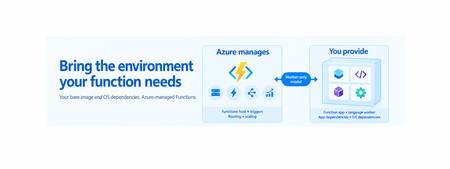
Your function needs Chromium to generate a PDF. Or GnuPG to encrypt data. Or a native Linux library that isn’t available in the managed execution environment. Until now, an OS-level dependency could require redesigning the application, moving part of the workload to another service, or selecting another hosting option. Today, we’re announcing the public preview of OS-level dependency support via containers on Azure Functions Flex Consumption. With this capability, you can build a Linux container image containing your function application, one supported Functions language worker, application dependencies, and the OS-level software your workload needs. Azure continues to operate the Functions host, trigger integration, routing, and Flex Consumption scaling outside your image. See it in action: Generate PDFs with .NET and Chromium Consider a function that converts HTML into a PDF by using .NET, Puppeteer Sharp, and Chromium. The application needs more than a NuGet package. Puppeteer Sharp needs a compatible browser and the native Linux libraries and fonts required by Chromium. These dependencies aren’t part of the standard managed execution environment. With OS-level dependency support, the application can package those components in its worker image: The .NET isolated function application The .NET isolated Functions worker supplied through the application’s NuGet dependencies Puppeteer Sharp Chromium and its required Linux libraries Fonts and other assets used when rendering the document After the image is deployed to Flex Consumption, an HTTP request invokes the function. Puppeteer Sharp launches the packaged Chromium browser, renders the supplied HTML, and returns the generated PDF. You can explore the complete implementation in the Azure Functions Flex Consumption .NET isolated container sample. A worker-only container model Flex Consumption uses a different container model from other hosting options where the complete Function App runtime is packaged in the customer image. Bring your preferred compatible Linux or language base image to Flex Consumption. As long as the final image satisfies the Flex worker-image contract, you control the base OS, language runtime, application dependencies, and OS-level packages, while Azure provides and maintains the Functions host. Your Flex Consumption container image contains: Your function application One supported Functions language worker Language and application dependencies OS packages, native libraries, browsers, fonts, drivers, executables, and command-line tools required by the application Azure provides and operates: The Azure Functions host and platform components Trigger integration Request and event routing Communication with the language worker Flex Consumption managed scaling This worker-only boundary is important. The feature isn’t arbitrary web-container hosting, and you don’t package or operate the Functions host. You customize the environment in which your function code runs while retaining the Azure-managed Functions programming and scaling model. For broader context on how Azure Functions separates the managed host from the compute that runs your application, see Separating Compute in Azure Functions: Building for scale, efficiency, and reliability. What makes a Flex app registry-backed? A registry-backed Flex app uses the same `Microsoft.Web/sites` resource as a code-package app. The deployment storage type identifies the deployment model: A code-package app uses `properties.functionAppConfig.deployment.storage.type` set to `BlobContainer`. A worker-image app uses the same property set to `Registry`. For a registry-backed app, `deployment.storage.value` contains the fully qualified image reference, and `deployment.storage.authentication` tells Azure how to pull the image. Registry-backed apps omit `functionAppConfig.runtime` because the language runtime and Functions worker are supplied inside the image. properties: { functionAppConfig: { deployment: { storage: { type: 'Registry' value: '<registry>/<repository>:<tag-or-digest>' authentication: { type: '<authentication-type>' } } } // No runtime property for a Registry-backed app. } } Other Function App configuration, including scale and concurrency settings, remains part of the resource and should be preserved when changing the deployment model. See the complete documentation for authentication options, Azure CLI commands, and the complete resource shape. How it works The end-to-end flow is straightforward: Start with the sample Dockerfile for your supported Functions language. Add the OS packages and native dependencies required by your application. Test the source application locally using the normal Functions development experience. Build and scan the linux/amd64 image, then push it to a supported registry. Configure the Flex Consumption app with the fully qualified image reference. Deploy and validate the complete image integration in Azure, then monitor it through logs and Application Insights. For deterministic deployments and rollback, use an immutable image digest for each release. When you need to update the language worker, runtime, base image, OS packages, or application dependencies, rebuild and test the image, push a new version, and update the function app to reference it. Microsoft publishes supported worker artifacts or packages, depending on the language, along with sample Dockerfiles, but doesn’t provide a Flex Consumption base image. You select and maintain the Linux or language base image that meets your application and organizational requirements. When should you use this feature? Use OS-level dependency support when you want the Flex Consumption programming and scaling model but your function requires software that can’t be supplied through the language package manager alone. Examples include: Browser automation with Chromium and Puppeteer PDF generation with Chromium and Puppeteer Sharp Data encryption and signing with GnuPG Image, audio, or video processing with native libraries Database drivers or vendor-provided native SDKs Custom fonts required for document generation Linux executables and command-line tools invoked by application code This capability isn’t intended as a blanket replacement for other Azure Functions hosting options or general container platforms. Choose it when Flex Consumption fits your workload and OS-level dependencies are the missing requirement. Public preview considerations During the preview, keep these considerations in mind: The preview is currently available in East Asia, West Central US and North Europe, and is rolling out to additional Azure regions over the next few weeks. Use only the documented Functions languages and supported language versions. Images must target Linux amd64. Durable Functions isn’t supported. The Azure Service Bus extension (trigger and output bindings) isn’t supported. Availability zone support isn’t available. The preview doesn’t currently provide a supported experience for running the Flex worker container locally. Continue to test the source application locally and validate the complete image integration in Azure. You are responsible for selecting, securing, scanning, patching, rebuilding, testing, and redeploying the base image, language worker, application dependencies, and OS-level dependencies in your image. Preview capabilities and limitations can change. See the complete documentation for the current language versions, configuration procedures, registry authentication options, operational behavior, and known limitations. Get started Start with the sample for your preferred language: .NET isolated container sample Python container sample Node.js container sample Go container sample Read Use OS-level dependencies via containers with Azure Functions Flex Consumption for the complete image contract and deployment guidance. Try the preview with a workload that needs Chromium, GnuPG, a native library, a driver, a font, or another Linux dependency and share what this capability enables for your application!129Views0likes0Comments
Bring managed browser automation to your agent applications
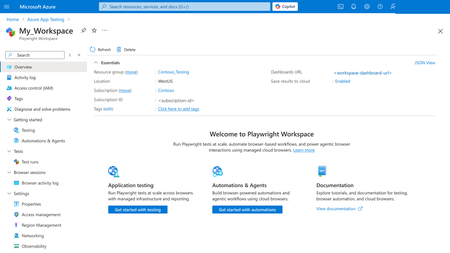
AI agents become more useful when they can move beyond conversation and complete real workflows. Playwright Cloud Browsers provides managed, on-demand browser capacity that agent applications can access through Model Context Protocol (MCP). You can connect Playwright Cloud Browsers to agent applications, including coding agents such as the GitHub Copilot app and Visual Studio Code: when they support custom remote MCP servers. Once connected, an agent can navigate an approved application, complete forms, verify results, capture evidence, and close the managed browser session. Your team gets browser automation without maintaining browsers in every user or agent environment. In this example, we use the GitHub Copilot app to show the connection and workflow. You can extend the same approach to other compatible applications by adding the Playwright workspace endpoint through their custom remote MCP configuration. Example: Follow one registration request from start to finish If your team processes employee registrations for approved training programs, each request can involve several repetitive steps: open the portal, enter employee and course information, check required fields, review the details, submit the form, and retain confirmation evidence. After you connect the workspace MCP endpoint, you can ask your agent application to handle the browser steps. In the GitHub Copilot app, for example, you could use this prompt: "Use Playwright Cloud Browsers to open <approved-registration-portal-url> and process case <number>. Enter the employee and course information I provide, validate all required fields, and show me a structured summary. Do not submit until I approve it. After approval, submit once, verify the confirmation number and success message, capture a screenshot, and close the browser session. If submission times out, inspect the page before deciding whether a retry is safe." The prompt defines the outcome, approved destination, human decision point, evidence, and cleanup expectation. The agent handles repetitive browser interaction while you remain in control of the consequential submission. Connect managed browser capacity in minutes Every Playwright workspace provides a workspace-scoped MCP endpoint: https://<region>.mcp.playwright.microsoft.com/playwrightworkspaces/<workspace-id>/mcp Provision a Playwright workspace in the Azure portal. Open the workspace and copy its MCP endpoint. In the GitHub Copilot app, open Customize, select Add, and then select MCP. Choose HTTP, enter a server name, paste the endpoint, and select Save. For this illustrated setup, only the server name and workspace endpoint are entered. Follow your organization's authentication and access policies for the workspace. Figure 1. Open the Playwright workspace Overview page in the Azure portal Figure 2. Copy the workspace-scoped MCP endpoint Figure 3. Open Customize in the GitHub Copilot app Figure 4. Select 'MCP' Tab, and add the workspace endpoint as a custom HTTP MCP server This article demonstrates Add > MCP in the GitHub Copilot app. Other compatible applications use their own custom remote MCP configuration. Using another compatible application? In Visual Studio Code or another client that supports custom remote MCP servers, add the same workspace endpoint through that application’s MCP configuration. The interface can differ, but the endpoint and connection model remain the same. Features of Playwright Cloud Browsers 1. Watch the agent complete the form When the task begins, the agent creates a managed browser session and uses its browserSessionId throughout the registration flow. Session creation might also return a liveViewUrl; Live View availability depends on the session. When available, Live View lets you watch while the agent opens the portal, finds the registration fields, and enters the supplied information. The agent follows an observe-act-verify loop: inspect the page, enter the required values, wait for validation or dependent fields, and observe the page again. If you need to intervene rather than observe, Playwright Cloud Browsers provides Take Control for supported active sessions. An authorized operator can interact directly with the running browser to address an unexpected page state, complete an action that requires human judgment, or help troubleshoot the flow. Control can then return to automation. 2. Review before the consequential action Before submission, the agent presents a structured summary with the case ID, employee name, selected course, date, contact information, required acknowledgements, and any validation warning. It waits for explicit approval. Automation removes repetitive entry and navigation, while you retain authority over the action that creates the registration. After approval, the agent submits once. It verifies the success message and confirmation identifier, captures a screenshot when evidence is required, and reports the outcome. 3. Investigate errors before retrying A timeout or disconnected caller does not prove that submission failed. Repeating a non-idempotent action can create a duplicate registration. If the result is unclear, the agent first checks the page for a confirmation number, success message, changed status, or validation error. It retries only when the page state shows that repeating the action is safe. Console messages and network activity can explain client-side errors, failed requests, authentication problems, or validation behavior. Playwright Cloud Browsers also provides built-in observability and browser session data, including logs, traces, screenshots, recordings, and execution artifacts. Availability depends on the workflow, session, and configuration. 4. Close the session and monitor the result The agent closes the browser session whether the registration succeeds, fails, or is cancelled. Closed or expired sessions cannot be reopened. Explicit cleanup releases browser capacity promptly and reduces unexpected activity. Figure 5. Review MCP created sessions in the Azure portal Browser activity log Use Browser sessions > Browser activity log to review MCP-created sessions, source, start time, and duration. The result is one connected workflow: your agent application provides the conversational or coding experience, MCP provides the connection, and Playwright Cloud Browsers provides managed execution, visibility, human intervention, evidence, diagnostics, and auditability. Responsible use: Use browser automation only with approved websites, accounts, and data. Retain human review before consequential submissions, and never place workspace credentials, access tokens, or sensitive form data in prompts, source control, screenshots, or logs. Learn more Azure portal: https://portal.azure.com/ What is Playwright Workspaces?: https://learn.microsoft.com/azure/app-testing/playwright-workspaces/overview-what-is-microsoft-playwright-workspaces Create and manage a workspace: https://learn.microsoft.com/azure/app-testing/playwright-workspaces/how-to-manage-playwright-workspace Playwright Workspaces remote MCP server: https://learn.microsoft.com/en-us/azure/app-testing/playwright-cloud-browsers/quickstart-automate-browser-tasks-remote-mcp Manage workspace access tokens: https://learn.microsoft.com/azure/app-testing/playwright-workspaces/how-to-manage-access-tokens Customize the GitHub Copilot app: https://docs.github.com/copilot/how-tos/github-copilot-app/customize-github-copilot-app Add and manage MCP servers in Visual Studio Code: https://code.visualstudio.com/docs/agent-customization/mcp-servers570Views0likes0Comments