blog
153 TopicsUse Copilot in Excel to build your brackets
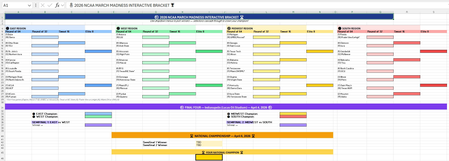
The matchups are finally set, and the annual question is back: how do you pick a bracket that’s fun and gives you a real shot at predicting the winner—whether you’re following the men’s tournament, the women’s tournament, or both? This year, you can use Copilot in Excel as your bracket sidekick—turning past tournament patterns into quick “what-if” scenarios, stress-testing upset paths, and sanity-checking your picks against historic data. Instead of manually building an analysis, copy/pasting data, and building multiple versions, you can ask in natural language and let Copilot build the analysis for you right inside an Excel workbook. Below are a few fast, practical ways to use Copilot in Excel to build a bracket workbook, explore upside picks (hello, Cinderella runs), and model “if this happens, then what?” outcomes so you can fill your bracket with more confidence than the rest of the group. 1) Set up a bracket workbook Open a new workbook, then open Copilot in Excel. Make sure “Edit with Copilot” is turned on. Start by asking Copilot to create a bracket template: “Create a 2026 [men’s or women’s] college basketball bracket including all the latest teams and seeds. Build dropdowns for each round so I can choose the winner of each matchup all the way to a champion, formatted like a standard bracket. For each dropdown, show only the 2 teams in the matchup based on the winners chose in previous rounds using helper columns." With that foundation in place, you’ve got a clean structure for picks and scenario assumptions. From here, you can make your picks and Copilot can help you add calculations, create “what-if” views, and summarize the implications of different upset paths. Bonus: Want to theme your brackets around your favorite team? First have Copilot generate a simple skills sheet and ask it to follow the instructions when creating brackets. “Create a skills sheet for my favorite team, [Team]. Include the official team colors (with hex codes), mascot/nickname, text colors, and conditional formatting rules for winners/losers.” 2) Stress-test your bracket with real-world scenarios Now for the part that can actually give you an edge: use Copilot to spin up scenario tabs and see how your bracket performs under outcomes that happen all the time in March—Cinderella runs, unexpected seed collapses, and “hot team” momentum that goes against conventional logic. Try some follow-up Copilot prompts like: Cinderella path: “Pick a 10–13 seed to reach the Sweet 16 based on past tournament frequency. Create a version to reflect that upset path, and show which higher-seeded teams I’m fading.” All the 1-seeds don’t make it: “Create a version of my bracket where at least two 1-seeds lose before the Elite Eight. Identify the earliest-round upsets needed and how my champion pick changes.” Favorite team: “Assume my favorite team is [Team]. Build two paths: (1) optimistic (reach the Final Four) and (2) realistic (based on projected path). For each path, show who they’d likely face by seed line and which matchup round matters most for them.” Momentum model: “Calculate a “momentum multiplier” using the conference tournament games and recent performance for each team and use that to fill out a version of my bracket weighted by momentum.” 3) Compare bracket variants and choose your entry Once you’ve built a few scenario versions, Copilot can help you compare them—so you’re not guessing which bracket is better, you’re choosing the one whose risk/reward matches your needs. Use a prompt like: “Create a comparison analysis for all my bracket scenarios in this workbook including charts. Include number of upset picks by round, and my top 5 most ‘contrarian’ picks across all my brackets. Give a recommendation for which to submit if I’m trying to win my bracket challenge or simply play it safe.” Copilot can generate the comparison table, highlight the key differences, and summarize the tradeoffs in plain language—so you can decide whether you want a safer entry, a balanced upset strategy, or a bold bracket designed to win big. Your turn: build your bracket with Copilot Ready to try it? Open Excel, start a new workbook, and use Edit with Copilot to create your brackets. Once you’ve got a bracket you like, share it with your league, your family, or your coworkers.36KViews3likes0CommentsWhat's New in Excel (February 2026)
Welcome to the February 2026 update. This month we are excited to announce expanded availability for Agent Mode in Excel, as well that you can now query modern Excel workbooks (like .xlsx, .xlsb, .xlsm, .ods) stored locally on your device using Microsoft 365 Copilot Chat, on Windows and Mac. In addition, we've heard your feedback that working across multiple Copilot entry points can feel fragmented; and to address this, the editing capabilities that App Skills provided will be integrated into Copilot Chat and Agent Mode in Excel, which became generally available earlier this year. Click here to read more > Excel for Windows and Mac: - Agent Mode in Excel expanded availability - Query your local Excel files with Copilot Chat Excel for Windows and Mac Agent Mode in Excel expanded availability Agent Mode in Excel is now also available for Copilot in Excel users in the EU, including Current Channel and Monthly Enterprise Channel. Read more here > Query your local Excel files with Copilot Chat Copilot in Excel now works with locally stored modern workbooks. This gives users faster, more consistent assistance across all their files, improving productivity without requiring changes to how workbooks are stored. Previously, insights and analysis from Copilot Chat were limited to Excel workbooks stored in the cloud. With this new feature, analyzing your locally saved Excel workbooks with Copilot Chat makes it possible to stay productive even when you’re offline. This feature is currently rolling out on Windows and Mac. Read more here > Check if a specific feature is in your version of Excel Click here to open in a new browser tab Many of these features are the result of your feedback. THANK YOU! Your continued Feedback in Action (#FIA) helps improve Excel for everyone. Please let us know how you like a particular feature and what we can improve upon—"Give a compliment" or "Make a suggestion".. You can also submit new ideas or vote for other ideas via Microsoft Feedback. Subscribe to our Excel Blog and the Insiders Blog to get the latest updates. Stay connected with us and other Excel fans around the world – join our Excel Community and follow us on X, formerly Twitter. Special thanks to our Excel MVPs David Benaim, Bill Jelen, Alan Murray, and John Michaloudis for their contribution to this month's What's New in Excel article. David publishes weekly YouTube videos and regular LinkedIn posts about the latest innovations in Excel and more. Bill is the founder and host of MrExcel.com and the author of several books about Excel. Alan is an Excel trainer, author and speaker, best known for his blog computergaga.com and YouTube channel with the same name. John is the Founder & Chief Inspirational Officer at MyExcelOnline.com where he passionately teaches thousands of professionals how to use Excel to stand out from the crowd.16KViews3likes0Comments