block
16 TopicsBlock Microsoft from running experiments in the Microsoft Edge browser
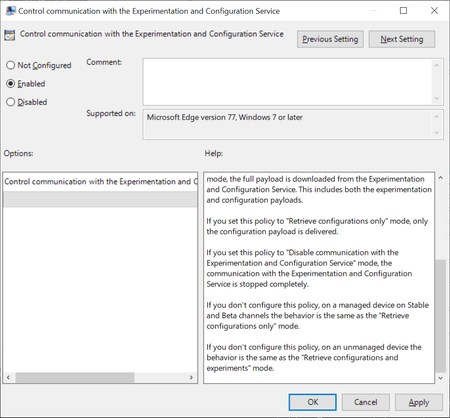
Browsers like Firefox, Chrome or Microsoft Edge come with built-in functionality to run experiments. Browser makers like Mozilla or Google may enable or disable features or changes in select browsers; this is often used to A-B test features or get early feedback on new implementations. While most users may not even notice that experiments are running in their browsers, it happened in the past that experiments caused issues. The latest case was revealed in November when administrators from around the world reported that a Chrome experiment would crash browsers in organizations worldwide. Negative side-effects of experiments are a problem for home users and business users alike, and it is often desirable to disable or block experiments from being downloaded and run. Microsoft distinguishes between controlled feature rollouts and experiments in the company's new Chromium-based Microsoft Edge web browser. Both are made available to part of the user base when they start to roll out but similarities end here. Microsoft notes: Microsoft Edge builds have features and functionality that are still in development or are experimental. Experiments are like CFR, but the size of the user group is much smaller for testing the new concept. These features are hidden by default until the feature's rolled out or the experiment's finished. Experiment flags are used to enable and disable these features. System administrators may use the "Control communication with the Experimentation and Configuration Service" on pro and Enterprise editions of Windows 7, 8.1 or 10 to prevent experiments in the browser. Here is what is needed for that: Get the latest Microsoft Edge policy file from the Microsoft Edge Insider website. It is likely that the policies will become available natively eventually when Edge is released and integrated in Windows. Extract the file (first a cab, then a zip). Open Windows > Admx. Copy the two .admx template files to C:\Windows\PolicyDefinitions\. Open the language folder that matches the system language and copy the .adml files to the corresponding language folder of C:\Windows\PolicyDefinitions\ Open Start, type gpedit.msc and hit the Enter-key to open the Group Policy Editor. Consult this Docs page on the Microsoft website for additional scenarios, e.g. when domain controllers are used. Open Computer Configuration > Administrative Templates > Microsoft Edge. Open the policy "Control communication with the Experimentation and Configuration Service" policy. Set the policy to Enabled. Set it to either "Retrieve configurations only" or "Disable communication with the Experimentation and Configuration Service". Retrieve will download configuration payloads only, disable won't download or enable them. The behavior of not configuring the policy differs depending on whether it is a managed or unmanaged device. Managed devices will download the configuration only while unmanaged devices will retrieve configurations and experiments. Source9.3KViews0likes4CommentsFast Microsoft recommended driver block rules update with automatic scheduled task
Microsoft recommended driver block rules in Windows are automatically updated starting with Windows 11 22H2, twice per year, but the list itself is updated more often. Microsoft provides ways to update them faster and out of the schedule. I've created a PowerShell script that does this automatically and you only need to run the script once, then it will create a scheduled task in Windows that runs every 7 days and renews the recommended drivers block list. # create a scheduled task that runs every 7 days if (-NOT (Get-ScheduledTask -TaskName "MSFT Driver Block list update" -ErrorAction SilentlyContinue)) { $action = New-ScheduledTaskAction -Execute 'Powershell.exe' ` -Argument '-NoProfile -WindowStyle Hidden -command "& {Invoke-WebRequest -Uri "https://aka.ms/VulnerableDriverBlockList" -OutFile VulnerableDriverBlockList.zip;Expand-Archive .\VulnerableDriverBlockList.zip -DestinationPath "VulnerableDriverBlockList" -Force;Rename-Item .\VulnerableDriverBlockList\SiPolicy_Enforced.p7b -NewName "SiPolicy.p7b" -Force;Copy-Item .\VulnerableDriverBlockList\SiPolicy.p7b -Destination "C:\Windows\System32\CodeIntegrity";$job = Start-Job -Name "Job1" -ScriptBlock { CiTool.exe -r };Start-Sleep -s 15;Stop-Job $job;Remove-Item .\VulnerableDriverBlockList -Recurse -Force;Remove-Item .\VulnerableDriverBlockList.zip -Force;}"' $TaskPrincipal = New-ScheduledTaskPrincipal -LogonType S4U -UserId $env:USERNAME -RunLevel Highest # trigger $Time = New-ScheduledTaskTrigger ` -Once -At (Get-Date).AddHours(3) ` -RepetitionInterval (New-TimeSpan -Days 7) ` # register the task Register-ScheduledTask -Action $action -Trigger $Time -Principal $TaskPrincipal -TaskPath "MSFT Driver Block list update" -TaskName "MSFT Driver Block list update" -Description "Microsoft Recommended Driver Block List update" # define advanced settings for the task $TaskSettings = New-ScheduledTaskSettingsSet -AllowStartIfOnBatteries -DontStopIfGoingOnBatteries -Compatibility Win8 -StartWhenAvailable -ExecutionTimeLimit (New-TimeSpan -Minutes 3) # add advanced settings we defined to the task Set-ScheduledTask -TaskPath "MSFT Driver Block list update" -TaskName "MSFT Driver Block list update" -Settings $TaskSettings } https://github.com/HotCakeX/Harden-Windows-Security/wiki/Fast-and-Automatic-Microsoft-Recommended-Driver-Block-Rules-updates2.5KViews0likes0Comments
Blocking a number from being dialed - how do I do this?
To set up the situation, lets assume the tenant has received phishing emails where users are being told to remediate call XXX-XXX-XXXX for support. In order to help mitigate potential damages, blocking the number from being dialed in Teams and other phone systems we have control over. For Teams the only thing I could think of to address this would be to use a dial plan and set up a translation rule to redirect the number in the phishing email to one our company owns that hosts a pre-recorded message saying "This number was detected as a phishing attempt. We are preventing this number from being dialed." Does this sound doable? Am I missing something else that might be better to do? We are using Microsoft Calling Plans, in case this makes a difference in a solution for versus Direct Routing or Operator Connect in Teams. Thanks!2.3KViews0likes3Comments
How to block the use of profanity and obscene language In Teams posts and chats?
Hello everyone, I am trying to figure out how to block students from using certain word (profanity, obscene language) while in the chat portion of a Meeting or in the Teams>general> post page or any channel for that matter. I have gone to Azure what I found there is Naming policy, but I think that is only for Teams names not actual chats/conversations. Any one has any suggestions? ThanksSolved52KViews1like8CommentsBlock USB Drive by Serial Number
I would love to see the ability to block a USB drive by it's serial number in Defender. When you see a USB storage device as the origin of a new threat introduced on the network it would be great to block it so it cannot continue to spread. Notes: I do not want to block all USB drives. Auto USB actions already blocked.Microsoft Family safety feature is not working with Edge Android or stable on Windows 10
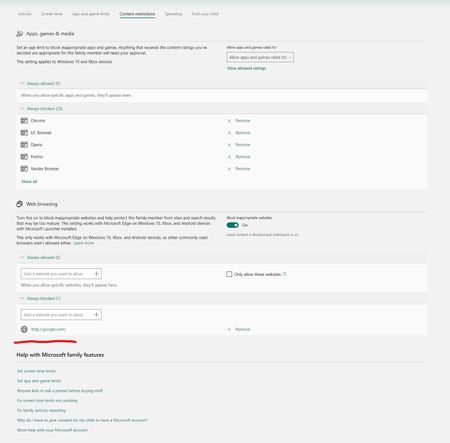
My account is the group's organizer, the Microsoft account that I've added to my family group, as a member has Windows 10 latest version 20H2 with Edge stable and Windows Defender on laptop. signed in with the same Microsoft account in Windows 10 and Edge profile. when I add a website to be blocked in here, it's never blocked, I can still access it on Windows 10 using Edge stable 87. does anyone have any experience with this that can help? only if you've done this before successfully.3.2KViews0likes8Comments