biztalk migration
40 Topics
Announcing the public preview of Oracle Database built-in connector for Azure Logic Apps Standard
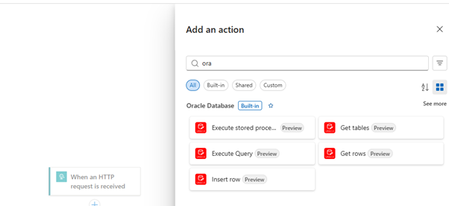
Announcing the public preview of Oracle Database built-in connector for Azure Logic Apps Standard Run Oracle Database operations natively in your Logic Apps Standard workflows. Today we’re excited to announce the public preview of Oracle Database built-in connector for Azure Logic Apps (Standard). This connector brings first-class Oracle Database connectivity to single-tenant workflows by running in-process with the Logic Apps runtime, helping you build reliable, high-throughput integrations with Oracle-backed systems while keeping network traffic within your chosen network boundary. Why this matters? In-process execution: Operations execute within the Logic Apps Standard runtime for streamlined connectivity and lower latency. No on-premises data gateway (when your Logic App has network connectivity to Oracle): Simplify architecture and reduce operational overhead. Better fit for enterprise network topologies: Use VNET integration, private endpoints, and network controls consistent with your environment. Purpose-built Oracle capabilities: Get Oracle-focused actions including Execute stored procedure, a common gap for generic JDBC-based approaches. Designed for scale: Built-in connectors align with the direction of Logic Apps Standard for performance and operational consistency across workloads. On-premises integrations: With Hybrid Logic Apps, you can connect on-premises Oracle databases from on-premises-hosted Logic Apps. What can you do with the connector? The Oracle Database built-in connector currently supports the following actions: Get tables: Discover tables (and views, depending on permissions) available to your connection. Get rows: Read rows from a selected table with pagination support. Insert row: Insert a row into a selected table. Execute query: Run SQL statements (for example, select, update, delete) and return results when applicable. Execute stored procedure: Call stored procedures to encapsulate business logic and advanced operations. Connector details at a glance Logic Apps SKU: Standard (single-tenant). Execution model: Built-in (in-process) connector. Connectivity: No gateway required when your Logic App runtime can reach the Oracle endpoint (for example, via VNET integration). Oracle versions: Supports Oracle Database 11 and later (compatible with the managed driver). Authentication: Username and password. Triggers: The connector is actions-only in the current release. Getting started Ensure network connectivity from your Logic App Standard runtime to your Oracle Database endpoint (host and port), including any required DNS and firewall rules. Create a new Oracle Database connection in the Logic Apps designer. Provide connection parameters o Server address o Username o Password Choose a server address format that matches your environment: o Easy Connect (host/port/service name) for quick setup. o TNS descriptor for advanced connection configuration. Add an action (for example, Get rows or Execute stored procedure) and start building your workflow. Known limitations (current release) No triggers: The connector currently supports actions only. Update/Delete actions: Use Execute query or Execute stored procedure for update/delete scenarios. Connection validation: Some connection issues may surface at workflow runtime rather than during connection creation. Timeouts: Default query timeout is 30 seconds (configurable via app settings). The function host may impose an upper limit (commonly up to 10 minutes depending on configuration). Case sensitivity: Oracle identifiers can be case sensitive; ensure table/column names match your schema as defined. Troubleshooting and observability When issues occur, you’ll typically see failures surfaced through workflow run history and diagnostics. Oracle error details are returned as standard connector failures, and many common Oracle error conditions map to familiar HTTP status codes (for example, authentication failures, connectivity issues, and timeouts). 401 (authentication): Verify username/password, account lock status, and password expiry policies. 502 (connectivity): Verify host/port reachability, DNS resolution, firewall rules, and Oracle listener availability. 504 (timeout): Verify query complexity, indexes, and configured timeouts (query timeout and host timeout). 404 (object not found): Verify schema/table/view names and permissions; ensure correct casing. 429 (resource/session limits): Review Oracle session limits and workflow concurrency patterns. Get started today If you’re building new integrations with Oracle, or modernizing legacy workloads, try the Oracle Database built-in connector in your Logic Apps Standard workflows and let us know what you build. We’re especially interested in feedback on triggers, advanced authentication options, and additional Oracle operations you’d like to see next. Thank you for your continued feedback and partnership as we expand built-in connectivity across Azure Logic Apps. References: Connect to Oracle Database from Workflows - Azure Logic Apps | Microsoft LearnAzure Arc Jumpstart Template for Hybrid Logic Apps Deployment
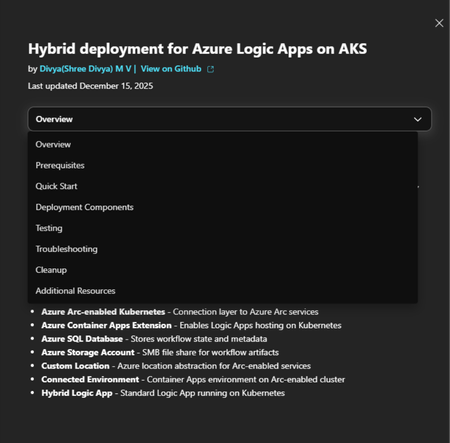
Today I’m sharing a new Azure Arc Jumpstart template (Jumpstart Drop) that implements a hybrid deployment for Azure Logic Apps (Standard) on Azure Arc-enabled AKS cluster which enables deployment with a single command that sets up a complete, working environment for testing your scenarios. Jumpstart Drop link: Azure Arc Jumpstart Hybrid deployment model allows you to run Logic Apps workloads on your own infrastructure, providing you with the option to host your integration solutions on premises, in a private cloud, or even in a third-party public cloud. You can find more information in this article:Set up your own infrastructure for Standard logic app workflows - Azure Logic Apps | Microsoft Learn Demo video: Given that Hybrid Logic Apps is designed to support mission-critical, enterprise-level integration scenarios, with provision to configure on custom infrastructure across both Azure and Kubernetes environments—the setup can naturally be complex. This Jumpstart template addresses these intricacies by simplifying onboarding and providing an all-in-one script for comprehensive testing and validation. This Jumpstart template deploys the following components and verifies each deployment stage. You can customize each step as per your requirements by modifying the script. An AKS cluster as the Kubernetes substrate for the scenario. Azure Arc enablement for Kubernetes to onboard the cluster into Azure for centralized governance and operations. ACA extension, Custom location and Connected Environment. Azure SQL Server for runtime storage. Azure storage account for SMB artifacts storage. A hybrid logic Apps resource. Getting started : Visit the Jumpstart URL Azure Arc Jumpstart and follow the steps below. Check prerequisites and permissions (see Prerequisites tab). Download the GitHub repo and run the deployment command (see Quick Start tab). After deployment, run test commands to confirm everything works (see Testing tab). Feedback and contributions Jumpstart templates are built for the community and improved with community input. If you try this drop and have suggestions (documentation clarity, additional validation, new scenarios, or fixes), please share feedback through the https://github.com/ShreeDivyaMV/LogicApps_Jumpstart_Templates repository associated with the drop. References: Announcement: General Availability of Logic Apps Hybrid Deployment Model | Microsoft Community Hub Create Standard logic app workflows for hybrid deployment - Azure Logic Apps | Microsoft Learn https://github.com/ShreeDivyaMV/LogicApps_Jumpstart_Templates Azure Arc Jumpstart2.1KViews3likes0CommentsMicrosoft BizTalk Server Product Lifecycle Update
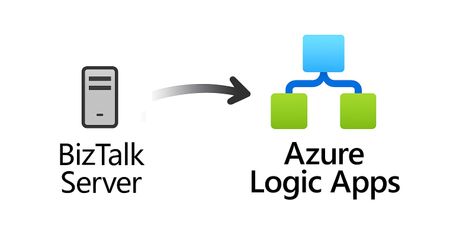
For more than 25 years, Microsoft BizTalk Server has supported mission-critical integration workloads for organizations around the world. From business process automation and B2B messaging to connectivity across industries such as financial services, healthcare, manufacturing, and government, BizTalk Server has played a foundational role in enterprise integration strategies. To help customers plan confidently for the future, Microsoft is sharing an update to the BizTalk Server product lifecycle and long-term support timelines. BizTalk Server 2020 will be the final version of BizTalk Server. Guidance to support long-term planning for mission-critical workloads This announcement does not change existing support commitments. Customers can continue to rely on BizTalk Server for many years ahead, with a clear and predictable runway to plan modernization at a pace that aligns with their business and regulatory needs. Lifecycle Phase End Date What’s Included Mainstream Support April 11, 2028 Security + non-security updates and Customer Service & Support (CSS) support Extended Support April 9, 2030 CSS support, Security updates, and paid support for fixes (*) End of Support April 10, 2030 No further updates or support (*) Paid Extended Support will be available for BizTalk Server 2020 between April 2028 and April 2030 for customers requiring hotfixes for non-security updates. CSS will continue providing their typical support. BizTalk Server 2016 is already out of mainstream support, and we recommend those customers evaluate a direct modernization path to Azure Logic Apps. Continued Commitment to Enterprise Integration Microsoft remains fully committed to supporting mission-critical integration, including hybrid connectivity, future-ready orchestration, and B2B/EDI modernization. Azure Logic Apps, part of Azure Integration Services — which includes API Management, Service Bus, and Event Grid — delivers the comprehensive integration platform for the next decade of enterprise connectivity. Host Integration Server: Continued Support for Mainframe Workloads Host Integration Server (HIS) has long provided essential connectivity for organizations with mainframe and midrange systems. To ensure continued support for those workloads, Host Integration Server 2028 will ship as a standalone product with its own lifecycle, decoupled from BizTalk Server. This provides customers with more flexibility and a longer planning horizon. Recognizing Mainframe modernization customers might be looking to integrate with their mainframes from Azure, Microsoft provides Logic Apps connectors for mainframe and midrange systems, and we are keen on adding more connectors in this space. Let us know about your HIS plans, and if you require specific features for Mainframe and midranges integration from Logic Apps at: https://aka.ms/lamainframe Azure Logic Apps: The Successor to BizTalk Server Azure Logic Apps, part of Azure Integration Services, is the modern integration platform that carries forward what customers value in BizTalk while unlocking new innovation, scale, and intelligence. With 1,400+ out-of-box connectors supporting enterprise, SaaS, legacy, and mainframe systems, organizations can reuse existing BizTalk maps, schemas, rules, and custom code to accelerate modernization while preserving prior investments including B2B/EDI and healthcare transactions. Logic Apps delivers elastic scalability, enterprise-grade security and compliance, and built-in cost efficiency without the overhead of managing infrastructure. Modern DevOps tooling, Visual Studio Code support, and infrastructure-as-code (ARM/Bicep) ensure consistent, governed deployments with end-to-end observability using Azure Monitor and OpenTelemetry. Modernizing Logic Apps also unlocks agentic business processes, enabling AI-driven routing, predictive insights, and context-aware automation without redesigning existing integrations. Logic Apps adapts to business and regulatory needs, running fully managed in Azure, hybrid via Arc-enabled Kubernetes, or evaluated for air-gapped environments. Throughout this lifecycle transition, customers can continue to rely on the BizTalk investments they have made while moving toward a platform ready for the next decade of integration and AI-driven business. Charting Your Modernization Path Microsoft remains fully committed to supporting customers through this transition. We recognize that BizTalk systems support highly customized and mission-critical business operations. Modernization requires time, planning, and precision. We hope to provide: Proven guidance and recommended design patterns A growing ecosystem of tooling supporting artifact reuse Unified Support engagements for deep migration assistance A strong partner ecosystem specializing in BizTalk modernization Potential incentive programs to help facilitate migration for eligible customers (details forthcoming) Customers can take a phased approach — starting with new workloads while incrementally modernizing existing BizTalk deployments. We’re Here to Help Migration resources are available today: Overview: https://aka.ms/btmig Best practices: https://aka.ms/BizTalkServerMigrationResources Video series: https://aka.ms/btmigvideo Feature request survey: https://aka.ms/logicappsneeds Reactor session: Modernizing BizTalk: Accelerate Migration with Logic Apps - YouTube Migration Agent (Complete refactoring from BizTalk to Logic Apps): Bringing all your Integration workloads to Logic Apps Standard | Microsoft Community Hub We encourage customers to engage their Microsoft accounts team early to assess readiness, identify modernization opportunities, and explore assistance programs. Your Modernization Journey Starts Now BizTalk Server has played a foundational role in enterprise integration success for more than two decades. As you plan ahead, Microsoft is here to partner with you every step of the way, ensuring operational continuity today while unlocking innovation tomorrow. To begin your transition, please contact your Microsoft account team or visit our migration hub. Thank you for your continued trust in Microsoft and BizTalk Server. We look forward to partnering closely with you as you plan the future of your integration platforms. Frequently Asked Questions Do I need to migrate now? No. BizTalk Server 2020 is fully supported through April 11, 2028, with paid Extended Support available through April 9, 2030, for non-security hotfixes. CSS will continue providing their typical support. You have a long and predictable runway to plan your transition. Will there be a new BizTalk Server version? No. BizTalk Server 2020 is the final version of the product. What happens after April 9, 2030? BizTalk Server will reach End of Support, and security updates or technical assistance will no longer be provided. Workloads will continue running but without Microsoft servicing. Is paid support available past 2028? Yes. Paid extended support will be available through April 2030 for BizTalk Server 2020 customers looking for non-security hotfixes. CSS will continue to provide the typical support. What is the end of sale date for BizTalk Server? We will announce an end of sale date for BizTalk Server on July 2026. What about BizTalk Server 2016 or earlier versions? Those versions are already out of mainstream support. We strongly encourage moving directly to Logic Apps rather than upgrading to BizTalk Server 2020. Will Host Integration Server continue? Yes. Host Integration Server (HIS) 2028 will be released as a standalone product with its own lifecycle and support commitments. Can I reuse BizTalk Server artifacts in Logic Apps? Yes. Most of BizTalk maps, schemas, rules, assemblies, and custom code can be reused with minimal effort using Microsoft and partner migration tooling. We welcome feature requests here: https://aka.ms/logicappsneeds Does modernization require moving fully to the cloud? No. Logic Apps supports hybrid deployments for scenarios requiring local processing or regulatory compliance, and fully disconnected environments are under evaluation. More information of the Hybrid deployment model here: https://aka.ms/lahybrid. Does modernization unlock AI capabilities? Yes. Logic Apps enables AI-driven automations through Agent Loop, improving routing, decisioning, and operational intelligence. Where do I get planning support? Your Microsoft account team can assist with assessment and planning. Migration resources are also linked in this announcement to help you get started. Microsoft Corporation7.4KViews3likes1CommentAnnouncing the BizTalk Server 2020 Cumulative Update 7
The BizTalk Server product team has released the Cumulative Update 7 for BizTalk Server 2020. The Cumulative Update 7 contains all released functional and security fixes for customer-reported issues for BizTalk Server 2020. Also, CU7 includes support for the following new Microsoft platforms: Microsoft Visual Studio 2022 Microsoft Windows Server 2022 Microsoft SQL Server 2022 Microsoft Windows 11 BizTalk Server 2016 is currently out of support with its end of life in 2027. If you are running BizTalk 2016, or earlier versions of the product, you must upgrade to BizTalk Server 2020 CU6 or strongly consider migrating to Azure Logic Apps. Please fill this survey: https://aka.ms/biztalklogicapps. More Information about the CU7: This is an optional update only if you require VS 2022. If you don’t need VS2022, you can continue running on BizTalk Server CU6. CU7 requires that you re-create BizTalk groups for BizTalk Server instances that already were part of a BizTalk group before the installation. Existing BizTalk groups can't have different instances at different cumulative update level. We will provide support to our CU6 and CU7 customers. You can obtain the software from the Microsoft 365 admin center or the Visual Studio Subscriber site. For more information about the BizTalk Server 2020 CU7, read the Microsoft Knowledgebase article posted to https://aka.ms/BTS2020CU7KB .1.8KViews3likes2CommentsAnnouncing the BizTalk Server 2020 Cumulative Update 6
The BizTalk Server product team has released the Cumulative Update 6 for BizTalk Server 2020. The Cumulative Update 6 contains all released functional and security fixes for customer-reported issues for BizTalk Server 2020. Also, CU6 includes support for the following new Microsoft platforms: Microsoft Windows Server 2022 Microsoft SQL Server 2022 Microsoft Windows 11 BizTalk Server 2016 is currently out of support with its end of life in 2027. If you are running BizTalk 2016, or earlier versions of the product, you must upgrade to BizTalk Server 2020 CU6 or strongly consider migrating to Azure Logic Apps. Please fill this survey: https://aka.ms/biztalklogicapps. More Information about the CU6: This cumulative update includes all the product components. However, only those components that are currently installed on the system are updated. This CU6 includes fixes for the following areas: BizTalk Server Adapters Updates WCF-SAP adapter SFTP adapter BizTalk Server Administration Tools and Management APIs Lost changes to SQL Server Agent jobs You can obtain the software from the Microsoft Download Center, at https://aka.ms/BTS2020CU6. For more information about the BizTalk Server 2020 CU6, read the Microsoft Knowledgebase article posted to https://aka.ms/BTS2020CU6KB.1.1KViews3likes1CommentHybrid Logic Apps deployment on Rancher K3s Kubernetes cluster
K3s is a lightweight Kubernetes distribution, certified by the Cloud Native Computing Foundation (CNCF) and originally developed by Rancher. It is optimized for on-premises environments with limited resources, making it ideal for edge computing and lightweight hybrid scenarios. Unlike a full Kubernetes distribution, K3s reduces overhead while maintaining full Kubernetes API compatibility. This makes K3s an ideal choice for hosting Logic Apps Standard near your data sources—such as on-premises SQL Server or local file shares—when you have lightweight workloads. There are 5 steps which are followed to setup the Hybrid Logic Apps including infrastructure which is illustrated in the following diagram. Most of these 5 steps are same as discussed in the Hybrid Logic Apps doc except the K3s Setup part Set up your own infrastructure for Standard logic app workflows - Azure Logic Apps | Microsoft Learn. Step 1: Prepare the K3s Cluster Docker desktop setup - In this case, the host machine is Windows 11 so decided to user Docker with WSL2 to setup the containers. Install the docker desktop using WSL2 Docker Desktop: The #1 Containerization Tool for Developers | Docker and make sure we select WSL2 Install K3s on your infrastructure and create single node cluster using k3d. #Install choco , kubectl and Helm Set-ExecutionPolicy Bypass -Scope Process -Force; [System.Net.ServicePointManager]::SecurityProtocol = [System.Net.ServicePointManager]::SecurityProtocol -bor 3072; iex ((New-Object System.Net.WebClient).DownloadString('https://community.chocolatey.org/install.ps1')) powershell choco install kubernetes-cli -y choco install kubernetes-helm -y choco install k3d -y k3d cluster create "k3d-rancher" # open in new powershell window powershell k3d cluster create # deleting the default load balancer Traefik as it conflicts with 80 and 443 port - we can configure the load balancer to other ports if needed kubectl delete svc traefik -n kube-system kubectl delete deployment traefik -n kube-system Next two steps are same as given Set up your own infrastructure for Standard logic app workflows - Azure Logic Apps | Microsoft Learn Step 2: Connect the Kubernetes cluster to Azure Arc Step 3: Setup the Azure Container Apps extension and environment You need to skip the core DNS setup required for Azure Local as given in Update CoreDNS Step 4: Conduct the Storage Configuration for SQL and SMB SQL Database (Runtime Store): Hybrid Logic Apps use SQL database for runtime operations and run history. In this scenario I used on-premise SQL server using SQL Authentication. I setup the SQL Server 2022 on the Windows host machine, enabled SQL server authentication and added new SQL admin user. Please follow the link for more details.. The SQL connection string can be validated using following PowerShell script $connectionString = "Server=<server IP address>;Initial Catalog=<databaseName>;Persist Security Info=False;User ID=<sqluser>;Password=<password>;MultipleActiveResultSets=False;Encrypt=True;TrustServerCertificate=True;Connection Timeout=30;" try { $connection = New-Object System.Data.SqlClient.SqlConnection $connection.ConnectionString = $connectionString $connection.Open() Write-Host "✅ Connection successful" $connection.Close() } catch { Write-Host "❌ Connection failed: $($_.Exception.Message)" } SMB is used as local file share on Windows host machine; it is advised to use a new user for the Windows SMB share $Username = "k3suser" $Password = ConvertTo-SecureString "<password complex>" -AsPlainText -Force $FullName = "K3s user" $Description = "Created via PowerShell" # Create the user New-LocalUser -Name $Username -Password $Password -FullName $FullName -Description $Description Add-LocalGroupMember -Group "Users" -Member $Username Once the above user is created you can use Windows hosted machine to create Artifacts folder and allow read and write access. Please follow the link for more details Step 5: Create your Logic App (Hybrid) With all prerequisites and infrastructure in place for creating Hybrid Logic Apps, the next step is to build the Logic Apps using the specified connection string and SMB share path. This can be accomplished through the Azure Portal, as outlined below. Now you can create Logic Apps workflows using the designer and execute the Logic Apps workflow.1.1KViews2likes1CommentBizTalk Server 2020 End-of-Sale Announcement
Executive Summary: BizTalk Server 2020 is the final release of BizTalk Server, and Microsoft expects sales of BizTalk Server 2020 and Host Integration Server 2020 to end March 31, 2027. Mainstream support for BizTalk Server 2020 continues through April 12, 2028, after which the product remains subject to Microsoft’s Fixed Lifecycle Policy. Microsoft also plans to offer eligible customers an optional, paid extended-mainstream support offering through April 10, 2030. Customers should begin planning their migration to Azure Logic Apps Standard or Azure Logic Apps Hybrid now, based on their deployment requirements. Closing a chapter Microsoft currently expects sales of BizTalk Server 2020 and Host Integration Server 2020 to end on March 31, 2027. Customers with existing valid licenses may continue to deploy and use the software in accordance with their licensing terms. Mainstream support for BizTalk Server 2020 continues through April 12, 2028. The end-of-sale date does not require customers to stop running licensed deployments, but customers should begin migration and licensing planning now because the extended-mainstream support offering described below remains subject to final eligibility, coverage, pricing, and purchasing terms. Microsoft plans to offer eligible BizTalk Server 2020 customers a paid, time-limited extended-mainstream support option from April 13, 2028, through April 10, 2030. The offering is intended to provide additional migration time, will have narrower coverage than the original mainstream-support phase, and will not add new product features. Eligibility, availability, supported components, servicing commitments, purchasing terms, and the official offering name will be published before enrollment opens. If you need to buy BizTalk Server 2020, or Host Integration Server 2020, you can do it until March 31, 2027. Recommended action Begin migrating your BizTalk Server workloads now, selecting Azure Logic Apps Standard or Azure Logic Apps Hybrid according to your organization’s hosting, networking, latency, data-residency, and operational requirements. Treat additional support coverage as contingency time rather than the default destination. Starting early gives teams time to inventory dependencies, redesign excluded capabilities, validate migrated solutions, and make commercial decisions before mainstream support ends. The Logic Apps Migration Agent can accelerate assessment and planning, convert supported artifacts, and assist with validation and deployment of refactored solutions on Azure Logic Apps Standard or Azure Logic Apps Hybrid. Extended-mainstream support scope Paid extended-mainstream support is planned as an optional, temporary bridge for eligible customers completing their migration. It is separate from the Extended Support phase available under Microsoft’s Fixed Lifecycle Policy and is expected to provide a different, narrower scope than the original mainstream-support phase. Microsoft expects the paid offering to run from April 13, 2028, through April 10, 2030. Certain BizTalk Server capabilities are expected to be excluded from the paid offering; the following list identifies the currently expected exclusions. Business Activity Monitoring (BAM) — The framework and tooling for capturing, tracking, and presenting near real-time business milestones, KPIs, and operational data from running BizTalk processes. Servicing, fixes, and updates for BAM components will not be provided under extended support. Enterprise Service Bus Toolkit (ESB Toolkit) — The libraries, itinerary services, and patterns that extend BizTalk with dynamic, itinerary-based routing, transformation, and centralized exception handling for service-oriented solutions. The ESB Toolkit will not receive servicing or support under extended support. Industry accelerators (SWIFT, HL7, and RosettaNet) — The domain-specific accelerators that provide schemas, pipelines, and validation for financial (SWIFT), healthcare (HL7), and supply-chain (RosettaNet) messaging standards. These accelerators will not receive servicing, schema updates, or support under extended support. Legacy enterprise adapters — The adapters that connect BizTalk to line-of-business and enterprise applications such as Siebel, PeopleSoft, TIBCO, and JD Edwards. These adapters will not receive servicing or support under extended support. Application Lifecycle Management (ALM) tooling and integrations — The BizTalk-specific tooling and integrations used for source control, automated build, deployment, and testing of BizTalk applications. These BizTalk-specific ALM components will not receive servicing or support under extended support. BizTalk Server images in Azure Marketplace — Microsoft currently expects to deprecate the BizTalk Server virtual-machine offer in Azure Marketplace. This affects the future availability of the Marketplace deployment image; it does not, by itself, make an otherwise eligible existing BizTalk Server 2020 deployment ineligible for paid extended-mainstream support. Microsoft will publish the effective date and guidance for existing virtual machines, new or replacement deployments, scaling, disaster recovery, customer-managed images, licensing, billing, patching, and support. New Visual Studio version support — Compatibility with Visual Studio versions newer than Visual Studio 2022 will not be added under extended support. Customers should review the Visual Studio 2022 lifecycle and support offering separately, because its coverage terms are independent of BizTalk Server extended support. Customers that depend on an excluded capability should prioritize the affected workloads in their migration plan. Use the Logic Apps Migration Agent to assess dependencies, inform target-architecture decisions, convert supported artifacts, and validate the migrated solution. Excluded BizTalk capabilities may require architectural redesign or manual implementation outside the agent. Customers are not required to purchase paid extended-mainstream support. Customers that do not enroll remain subject to Microsoft’s Fixed Lifecycle Policy and the applicable BizTalk Server 2020 lifecycle dates. The availability of technical support, non-security updates, security updates, and other services during the standard Extended Support phase depends on the policy requirements and the customer’s applicable support arrangement. The paid extended-mainstream support offering described here is an optional, separate offering for eligible customers that require additional coverage while completing their migration. After the end-of-sale date, customers that already hold valid BizTalk Server 2020 licenses may continue to deploy and use the software in accordance with the applicable licensing terms. Eligibility Paid extended mainstream support will be available to eligible customers with properly licensed BizTalk Server 2020 deployments. The final eligibility requirements will be provided in the published offering terms. Eligible products and versions: Paid extended-mainstream support is expected to be available for eligible deployments of BizTalk Server 2020 Enterprise, Standard, or Branch editions. Customers using Host Integration Server 2020 may also purchase the BizTalk Server paid extended-mainstream support offering to receive the applicable extended mainstream-support coverage for their HIS 2020 deployments, including customers that acquired BizTalk Server licences primarily to obtain HIS usage rights. BizTalk Server 2016, HIS 2016, and earlier versions will not be eligible. Azure Marketplace deployments: Existing BizTalk Server 2020 deployments created from eligible Azure Marketplace images are expected to qualify for paid extended-mainstream support, subject to the final offering terms. Customers must meet the applicable licensing, Software Assurance, supported-configuration, and complete-deployment coverage requirements. Microsoft will clarify how eligibility, licensed-core quantities, pricing, and purchasing apply when BizTalk Server software charges are included in the Azure Marketplace virtual-machine rate rather than acquired through a separate BizTalk Server licence agreement. Valid licenses: Customers are expected to maintain sufficient BizTalk Server licenses for each covered deployment in accordance with the applicable licensing model, including relevant core minimums, licensing of physical or virtual environments, and license-reassignment rules. Final extended-support licensing requirements will be stated in the published offering terms. Software Assurance: Active Software Assurance will be required at enrollment and throughout the applicable coverage period. Complete deployment coverage: Extended mainstream support must be purchased for all licensed cores in each enrolled deployment. Partial coverage of an enrolled production environment will not be permitted. Supported configuration: Covered environments must remain on a supported BizTalk Server 2020 configuration and meet published requirements for cumulative updates, operating systems, databases, and dependent components. Annual validation: Eligibility and licensed-core quantities will be confirmed for each coverage year. Customers must remain eligible to purchase Year 2 coverage. As part of the eligibility review, Microsoft may request licensing records, deployment inventories, configuration details, and migration-plan information. Complete requirements and enrollment instructions will be published before the offering becomes available. Purchasing details Paid extended mainstream support will be offered as annual coverage based on the licensed cores in each enrolled BizTalk Server 2020 deployment. Microsoft will publish final pricing, availability, enrollment dates, purchasing channels, and transaction terms before sales begin. Purchasing paid extended-mainstream support is optional and is not required for BizTalk Server 2020 to follow the Fixed Lifecycle Policy. Host Integration Server 2020: Eligible HIS 2020 customers will purchase coverage through the BizTalk Server paid extended-mainstream support offering. Customers that do not require HIS IBM Systems Network Architecture (SNA) capabilities should also evaluate Azure Logic Apps Standard or Azure Logic Apps Hybrid as a modernization alternative before purchasing additional support coverage. Azure Logic Apps Standard does not support SNA; customers that depend on HIS 2020 SNA capabilities must transition to Host Integration Server 2028. Coverage periods: Year 1 is expected to begin the next day mainstream support ends, on April 13, 2028, and continue through April 13, 2029. Year 2 is expected to run from April 14, 2029, through April 10, 2030. The final offering terms will confirm whether the boundary dates are inclusive and will specify the exact enrollment and coverage periods. Purchase sequence: Microsoft expects customers to purchase Year 1 coverage by April 11, 2028, to remain eligible to purchase Year 2 coverage. The final enrollment deadline and Year 2 eligibility conditions will be specified in the published offering terms. Price: Microsoft expects annual extended-mainstream support pricing to be 100% of the applicable BizTalk Server license cost under the customer's licensing agreement. Extended mainstream support is expected to be offered as an annual add-on for eligible BizTalk Server licenses. Final pricing and costs may vary by licensing agreement, geography, currency, available discounts, and the published offering terms. How to purchase: Customers will purchase coverage through an authorized Microsoft commercial licensing channel with support from their Microsoft account team or licensing partner. Separate support services: The annual extended-mainstream support fee is expected to cover only the servicing and support rights defined in the final offering terms. It will not include unlimited incident support, advisory services, migration delivery, solution implementation, or other professional services; customers may need a separate support plan or services agreement for those needs. Annual purchase: Coverage will not renew automatically. Customers must place a separate order and complete an eligibility review for each year. Support beyond April 10, 2030, is not planned. Contact your Microsoft account team or licensing partner to review eligible deployments, confirm licensed-core quantities, and obtain a quote when the offering becomes available. Discounts and incentives Microsoft plans to offer a targeted incentive for eligible existing BizTalk Server customers that are actively migrating to Azure Logic Apps Standard or Azure Logic Apps Hybrid. The incentive is designed to reduce near-term migration costs and support a faster move to the selected Logic Apps deployment model. It will not be automatic or broadly available; eligibility, approval, and final commercial terms must be confirmed by the customer’s Microsoft account team. Timing and important conditions Who can qualify: The incentive is intended exclusively for existing BizTalk Server 2020 customers approaching the announced BizTalk Server lifecycle milestones and actively migrating workloads to Azure Logic Apps Standard or Azure Logic Apps Hybrid. Redemption period: The incentive is expected to become available on August 31, 2026, and remain available through April 12, 2028, subject to publication of the program terms, eligibility approval, continued availability, and any applicable funding limits. Discount duration: The approved discount is expected to apply during the customer’s first qualifying Enterprise Agreement term after approval. The published program terms will define the eligible agreement types, qualifying start date, covered Azure services, discount duration, and treatment of renewals or agreement changes. Qualification: The incentive is subject to eligibility review and approval. Recommended action Ask your Microsoft account team or licensing partner to assess your migration scope, confirm which eligible migration path applies, and request consideration for the incentive. Migration support Contact your Microsoft account team to determine whether your organization is eligible for migration assistance delivered by the Azure Logic Apps product group or through another available migration-factory program. Program names, eligibility criteria, engagement scope, and availability will be confirmed through your account team. Migration options for Host Integration Server workloads Customers using Host Integration Server 2020 for application, data, messaging, or terminal integration—and who do not depend on HIS SNA capabilities—should evaluate Azure Logic Apps Standard or Azure Logic Apps Hybrid as a modernization target. Azure Logic Apps provides mainframe and midrange integration capabilities for scenarios involving IBM CICS, IMS, IBM i programs, DB2, IBM MQ, host files, and 3270 applications. Customers should assess each workload against the available connectors, supported protocols, networking, security, and operational requirements. Azure Logic Apps Standard does not support SNA. Customers running HIS 2020 workloads that depend on SNA capabilities must plan to transition to Host Integration Server 2028. Key dates March 31, 2027: Sales of BizTalk Server 2020 and Host Integration Server 2020 are expected to end. April 12, 2028: Mainstream support for BizTalk Server 2020 ends. April 13, 2028: BizTalk Server 2020 enters the Extended Support phase under Microsoft’s Fixed Lifecycle Policy, subject to the applicable policy requirements and lifecycle dates. April 13, 2028–April 10, 2030: Planned paid extended-mainstream support period for eligible BizTalk Server 2020 customers, subject to the final published offering terms. September 30, 2027: Host Integration Server 2028 is planned for release as a standalone product. Release timing is subject to change. July 7, 2030: Extended Support for Host Integration Server 2020 is currently scheduled to end. This date is separate from the planned BizTalk Server 2020 paid extended mainstream support period, which is expected to end April 10, 2030. Start your modernization journey with the Logic Apps Migration Agent. Use the agent to inventory and assess your BizTalk applications, prioritize integrations, build a phased migration plan, convert supported artifacts and workflows, and support validation, testing, and deployment to Azure Logic Apps Standard or Azure Logic Apps Hybrid. Excluded or unsupported BizTalk capabilities may require architectural redesign or manual implementation outside the agent. The agent’s AI-assisted, human-in-the-loop approach can accelerate modernization while your teams retain control of architecture and implementation decisions. Contact your Microsoft account team to discuss migration-assistance eligibility and commercial options. Learn more: BizTalk Server product lifecycle update | Bringing all your integration workloads to Logic Apps Standard | Fixed Lifecycle Policy – Extended Support1.1KViews1like0CommentsAnnouncing Flat File Schema Generation support in Azure Logic Apps Standard
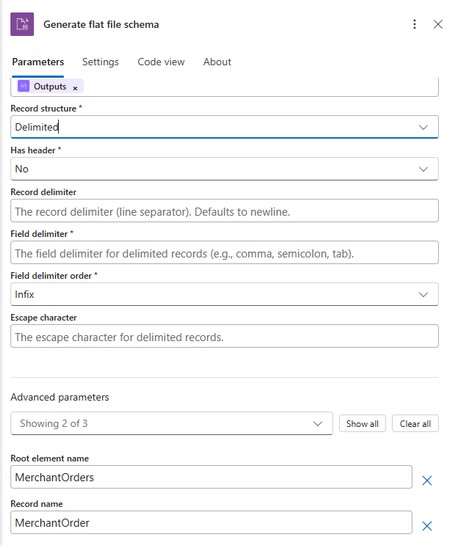
We’re excited to announce the preview of Flat File Schema Generation for Azure Logic Apps Standard. This new built-in action helps integration teams move faster by generating BizTalk compatible flat-file XSD schemas directly from sample flat-file payloads, reducing the manual effort required to model CSV, delimited, and positional files before encoding or decoding them in workflows. Why this matters Flat files continue to power enterprise mission critical integrations, from partner feeds and batch exports to finance ledgers, operational reports, and legacy system exchanges. While Azure Logic Apps already helps teams encode and decode flat files, creating the required flat-file schema has often been a separate design-time step. With Flat File Schema Generation, you can now accelerate that onboarding experience by generating a starter schema from real sample data within the workflow itself. What’s new The new Flat File Schema Generation action generates a flat-file XSD schema from sample content that you pass into the action. The generated schema includes BizTalk-compatible flat-file annotations, making it suitable for downstream Flat File Encoding and Flat File Decoding actions in Azure Logic Apps Standard workflows. Runtime schema generation: Generate schemas directly from sample flat-file payloads in the workflow. Delimited and positional support: Create schemas for common CSV, semicolon-delimited, tab-delimited, and fixed-width files. BizTalk-compatible annotations: Use generated schemas with the existing flat-file processing model familiar to BizTalk and enterprise integration teams. Flexible naming: Configure root element names, namespaces, record names, delimiters, and field positions to match your integration needs. How it works You provide a representative sample payload, specify whether the file structure is delimited or positional, and configure the relevant parsing details such as field delimiters, record delimiters, header handling, or fixed-width field positions. Once you run the workflow, the action returns the generated XSD schema as XML output, which can then be passed into subsequent flat-file operations or stored as part of your onboarding flow. Get started To try the preview, add the Flat File Schema Generation action to a Logic Apps Standard workflow, provide a sample flat-file payload, choose the record structure, and configure the field or record settings that match your format. Use the generated schema output with Flat File Decoding or Encoding in the same workflow or incorporate it into your broader onboarding process for flat-file integrations. Reference document: Encode, Decode, or Generate Schemas for Flat Files - Azure Logic Apps | Microsoft Learn. A walkthrough of generating a flat-file schema from sample data Use the following walkthrough to try the preview end to end with a simple customer order file. The same pattern can be adapted for semicolon-delimited, tab-delimited, or fixed-width positional files. Delimited sample: For this example, assume a trading partner sends a comma-separated order file with a header row and repeating order records. Sample file: OrderId,CustomerName,OrderDate,Amount,Region 10001,Contoso Retail,2026-07-01,1250.75,North 10002,Fabrikam Foods,2026-07-02,890.00,West 10003,Northwind Traders,2026-07-03,2400.50,South Configuration values Parameter Example value Record Structure Delimited Has header Yes Record delimiter newline Field delimiter , Field delimiter order Infix Escape character Double quote, if the source file uses quoted values Root element name (Advanced Parameters) Orders Record name (Advanced Parameters) Order Target namespace (Advanced Parameters) http://schemas.contoso.com/orders In the Azure portal, open your Logic Apps Standard resource and select the workflow where you want to generate the schema. Add a trigger, such as When an HTTP request is received, or use any trigger/action that provides the sample flat-file content. Add a new action and search for Flat File. Select the Flat File Schema Generation action. In the action, provide the sample flat-file content. Select the file structure type. For this example, choose Delimited. Enter the schema metadata under advanced parameters, such as the root element name, record name, and target namespace. Configure the delimiter settings, including the field delimiter and record delimiter. If the first row contains column names, enable the option to use the first row as headers. Save and run the workflow. Open the workflow run history and review the action output. The action returns a generated XSD schema with flat-file annotations. Review the generated schema, validate field names and inferred data types, and use the schema with Flat File Decoding or Flat File Encoding in your workflow. Positional sample: Fixed-width customer order file Use this example when the source flat file doesn’t use delimiters. In a positional, or fixed-width, file each field starts and ends at a known character position. The schema generation action needs those field positions so it can split each record correctly. Sample positional file: 10001CONTOSO00120260701000125075NORTH 10002FABRIKAM0120260702000089000WEST· 10003NORTHWIND120260703000240050SOUTH Note: The dot symbol in the second record represents a trailing space used for fixed-width padding. Replace it with an actual space in your real sample payload. Field position map Field Start position Length Justification Example value OrderId 1 5 Right 10001 CustomerCode 6 10 Left CONTOSO001 OrderDate 16 8 Right 20260701 Amount 24 9 Right 000125075 Region 33 5 Left NORTH Configuration values for the positional sample Parameter Example value Record Structure Positional Has Header No Record delimiter newline Field positions Use the field names, lengths, and justification values from the field position map. Root element name (Advanced Parameters) Orders Record name (Advanced Parameters) Order Target namespace (Advanced Parameters) http://schemas.contoso.com/orders/positional Step-by-step walkthrough for positional files In the Azure portal, open your Logic Apps Standard resource and select the workflow where you want to generate the schema. Add a trigger, such as When an HTTP request is received, or use an existing action that provides the fixed-width file content. Add a new action and search for Flat File. Select the Flat File Schema Generation action. Paste the positional sample payload into the sample content input. Make sure every record has the same total length. For the structure type, choose Positional. Enter the schema metadata, including root element name, record name, and target namespace. Configure the record delimiter. For this example, use newline. Add the field positions in order: OrderId length 5, CustomerCode length 10, OrderDate length 8, Amount length 9, and Region length 5. Set justification for each field. Use Right for numeric or date-like fields and Left for text fields that may contain trailing space padding. Save and run the workflow. Open the workflow run history and review the generated XSD schema output. Confirm that the field names, order, lengths, and positional annotations match the source record layout. Use the generated schema with Flat File Decoding to parse incoming fixed-width files into XML, or with Flat File Encoding to generate outbound fixed-width files. Limitations and known issues Limitation Description Type inference uses a single record. The first non-empty data record determines column types. Single record type only The action generates one repeating record structure and doesn't support heterogeneous record layouts. No nested or hierarchical records The generated schema is flat, meaning you have a root element with one repeating child record and fields. Positional boundaries aren't automatically detected. You must provide exact field lengths in field Positions. UTF-8 code page only Generated schema sets codepage="65001" and doesn't expose encoding selection. Escape-character behavior is literal. Escape handling matches literal value and skips only the next single character. recordName default If unspecified, defaults to {RootElementName}_Record. Designer justification input fieldPositions[].justification supports only Left and Right. Looking ahead This preview is another step toward making Azure Logic Apps Standard, a more complete and productive platform for enterprise integration modernization. Whether you are onboarding new partner feeds, modernizing BizTalk-style flat-file processing, or automating recurring operational files, Flat File Schema Generation helps reduce setup friction and get integration workflows moving faster.Modernize Any Integration Platform to Azure Logic Apps Standard with the Logic Apps Migration Agent
Explore the open-source Logic Apps Migration Agent Enterprise integration is entering a new era Enterprise integration platforms have powered business-critical processes for decades. They connect applications, data, partners, devices, and industries, often carrying transactions that an organization cannot afford to interrupt. Expectations have changed. Organizations want cloud-native architectures, AI-assisted automation, stronger governance, improved developer productivity, and faster response to business change. Yet many integration estates contain years of accumulated dependencies, custom code, transformations, operational procedures, and platform-specific knowledge. The challenge is not simply moving an orchestration or flow from one runtime to another. This is not lift and shift. It is a refactoring exercise that preserves business intent and expected behavior while translating source-platform constructs into cloud-ready workflows, connectors, code, operational patterns, and deployment practices for Azure Logic Apps Standard. That is why we created the Logic Apps Migration Agent. Introducing the Logic Apps Migration Agent: An Open-source project to provide an AI End-to-End Modernization Experience The Logic Apps Migration Agent is an open-source Visual Studio Code extension that provides an AI-assisted, end-to-end modernization experience. It uses GitHub Copilot and the Visual Studio Code Language Model API to guide teams through a structured five-stage workflow, while keeping people in control at every stage. Rather than treating modernization as a single conversion step, the agent helps teams discover what they have, understand dependencies, design an appropriate target, generate baseline implementation artifacts, validate expected behavior, and prepare the solution for deployment to Azure Logic Apps Standard. Refactor the implementation, preserve the business intent Lift and shift attempts to reproduce the source platform as closely as possible in a new environment. That approach can carry forward legacy topology, operational assumptions, platform-specific patterns, and technical debt. The Migration Agent supports a different outcome. It uses the source implementation as evidence of the required business behavior, then helps teams design and generate an appropriate Logic Apps Standard implementation. Some components may map directly, while others require restructuring, consolidation, decomposition, replacement, or custom implementation. The objective is functional and semantic continuity, not structural duplication. A successful migration should preserve contracts, transformations, routing rules, ordering requirements, error behavior, and essential business outcomes while allowing the target solution to adopt Azure-native identity, connectivity, observability, resiliency, deployment, and operating practices. Preserve what the integration must do. Refactor how it does it. Start by understanding what you have For many organizations, discovery is one of the most difficult parts of modernization. Documentation may be incomplete, original developers may no longer be available, and relationships between applications, endpoints, schemas, maps, pipelines, and custom components may be difficult to reconstruct. The Migration Agent scans the source project, catalogs supported artifacts, organizes related components into flow groups, and identifies dependencies and migration gaps. It can also generate architecture and message-flow visualizations for review before conversion begins. This discovery output becomes the foundation for migration sequencing, refactoring decisions, effort discussions, and risk management. Use AI to accelerate the work, not remove accountability The Migration Agent uses specialized GitHub Copilot agents for analysis, planning, and conversion. AI helps interpret source artifacts, propose mappings, create task plans, and generate baseline Logic Apps artifacts. Enterprise integration, however, requires more than plausible code generation. Human-in-the-loop checkpoints let teams review discovered flows, resolve missing dependencies, reshape the proposed architecture, approve conversion plans, and validate generated behavior before progressing. This combines the speed of AI assistance with the governance and technical review required for mission-critical integration. Modernize incrementally and reduce migration risk Large integration estates do not need a single big-bang program. The Migration Agent organizes work into logical flow groups so teams can refactor one business capability or integration path at a time. Prioritize workloads by business value, risk, complexity, or platform urgency. Validate target architecture and operating patterns with a representative first migration. Run phased cutovers and coexistence strategies when required. Apply reusable refactoring patterns, templates, and engineering standards to subsequent waves. A phased approach helps teams build experience with Azure Logic Apps while reducing migration risk and preserving delivery momentum. Bring your own tests and validate continuously Migration confidence depends on behavior, not structural similarity. The agent supports validation using source specifications, sample files, test cases, and customer-provided black-box tests. This helps compare expected inputs and outputs and identify semantic differences earlier. Generated artifacts are a baseline. Domain-specific transformations, error-handling behavior, performance characteristics, security controls, and edge cases still require customer and partner expertise. Built for BizTalk today and extensible for other platforms BizTalk Server 2016 and BizTalk Server 2020 are the first fully implemented source platforms. MuleSoft Anypoint support is represented as an in-progress built-in parser. The architecture is open and extensible so contributors can add parsers and platform-specific migration capabilities for other integration technologies. That extensibility is central to the vision. A common modernization workflow can help teams apply consistent governance, target patterns, refactoring practices, and validation across mixed integration estates. Why Azure Logic Apps Standard? Azure Logic Apps Standard provides a modern destination with a local project structure, Visual Studio Code development experience, source-control alignment, CI/CD support, stateful and stateless workflows, enterprise connectivity, and Azure and hybrid deployment options. Modernization is not about reproducing a legacy topology component by component. The target design should be optimized for Logic Apps Standard rather than constrained by the source architecture. The migration preserves valuable business logic while refactoring the implementation around modern practices for identity, networking, observability, reliability, deployment, and operations. What your team should still own The Migration Agent accelerates repeatable work, but it does not replace the decisions that define a production-ready integration platform. Responsibility Refactoring focus Target architecture Refactor application and workflow boundaries for Logic Apps Standard. Select reliability, networking, deployment, and supporting Azure patterns rather than copying the source topology. Semantic equivalence Validate contracts, mappings, transformations, business rules, error behavior, ordering, retries, and edge cases. Capability gaps Redesign source capabilities without direct equivalents using connectors, custom code, local functions, API Management, Service Bus, or other appropriate Azure patterns. Production hardening Implement identity, secrets management, security policies, monitoring, cost controls, performance testing, resiliency, and operational ownership. Cutover and coexistence Plan backlog reconciliation, dual-run periods, data consistency, partner coordination, rollback, and decommissioning. More mission critical features for Logic Apps Standard and Hybrid We are weeks away from shipping the following features, aimed at any customers in the Enterprise Application Integration space: HL7 In-App operations in general availability. MLLP Receive/Send In-App connector in Public Preview. Rules Engine In-App operation for XML facts in Public Preview. MSMQ In-App connector in Public Preview. Oracle DB In-App connector in Public Preview. Flat File generation In-App operations in Public Preview. Integration accounts support (Hybrid On premises). NMS In-App connector in Public Preview. Improvements to our EDI capabilities. BizTalk Mapper to Data Mapper Migration path What about other integration platforms? Yes—the Logic Apps Migration Agent is designed to be customizable so you can migrate from any integration platform to Logic Apps (not just BizTalk). The open architecture lets you plug in new discovery, analysis, and conversion skills for the source product you’re modernizing, while keeping the same stage-gated workflow and human-in-the-loop checkpoints. We provide guidance and examples to help you extend the agent for other platforms than BizTalk —so you can tailor mappings, transformation rules, and validation to your customer’s standards and target patterns in Logic Apps. Benefits Faster time to value with a guided process: A structured discovery→planning→conversion workflow reduces uncertainty and helps teams move from assessment to execution with clear checkpoints. Higher confidence migrations: Human-in-the-loop validation, artifacts generation, and black-box testing support mission‑critical correctness and governance. Customizable for your source platform and standards: Extend the agent with product-specific discovery and conversion steps, tailor mappings and transformation rules, and align outputs with your target Logic Apps patterns and engineering conventions. Open-source transparency and control: Review how the tool works end-to-end, validate what it produces, and adopt changes at your pace without waiting for a closed release cycle. Community-driven innovation: Benefit from contributions across Microsoft, partners, and customers—new adapters, mapping packs, and best practices can be shared and reused. Lower total migration cost: Automating repeatable tasks reduces manual effort while preserving the ability to invest partner expertise where it matters most (architecture, governance, reliability, and operations). Reusable accelerators for partners: Partners can create differentiated offerings by packaging templates, validation suites, CI/CD pipelines, and domain-specific patterns on top of the agent. An accelerator for customers and partners For customers, the Migration Agent provides a practical starting point and a consistent process for moving from assessment to a refactored implementation. For professional services organizations and system integrators, the agent augments delivery rather than replacing it. Automating inventory, analysis, baseline generation, and validation scaffolding allows experts to focus on architecture, governance, security, reliability, domain-specific transformation, DevOps, performance, cutover, and operating-model change. Because the project is open source, partners can contribute parsers or package reusable templates, mapping packs, test suites, CI/CD assets, and industry-specific modernization patterns. Review our public documentation here: https://learn.microsoft.com/en-us/azure/logic-apps/migration/migration-agent-overview How to get started Download VSCode and install the Logic Apps Migration Agent extension. Organize source projects and dependencies in a clear directory structure. Include project files, bindings, schemas, maps, pipelines, orchestrations, custom code, configuration, certificates or certificate references, and available documentation. Once you have all your artifacts ready, point the Migration Agent to the directory with all the artifacts. Review every migration stage. Confirm the discovered architecture, resolve missing dependencies, and refine the target design before authorizing conversion. Prepare a representative test environment. The workstation running Visual Studio Code must be able to reach the systems needed for local or end-to-end validation. Bring known inputs, expected outputs, specifications, and existing test cases whenever possible. These materials improve validation and reduce ambiguity. Treat the first migration as a reusable foundation. Capture architecture patterns, naming standards, deployment templates, observability practices, and lessons that can accelerate subsequent waves. Use Claude Opus 4.8 or higher. Make sure you increase the Maximum number of requests for the Copilot Chat as follows (we recommend changing the value from 60 to 1000) Check the following video for a demonstration on how the Agent works and let us know if you have any questions in the comments.2.1KViews1like0CommentsLogic Apps Newsletter - May 2026
In this issue: Ace Aviator of the Month News from our product group News from our community Ace Aviator of the Month May 2026's Ace Aviator: Yahya Ajwad What's your role and title? What are your responsibilities? I work as Chief Architect and AI Lead at Epical. My role is centered around technical leadership, architecture, and advisory mostly within cloud adoption and transformation programs. I help customers design and implement integration platforms. I also support customers in navigating the AI landscape, with a focus on how integration platforms impact AI readiness and how AI can be used to create value in the platforms we build. Internally at Epical, I lead our Microsoft and Azure cloud integration offering, as well as our CoreAI team and AI initiatives. Can you give us some insights into your day-to-day activities? One moment it is about how we can utilize AI to deliver things cheaper and faster without compromising security, governance and quality. Next, a customer contacts us with an undocumented BizTalk environment asking us what to do next (that's where the fun begins). Usually followed up by the question about how much does their future integration platform in Azure will cost down to the last cent (good luck answering that 😜 hint: the right answer is always: "less than BizTalk"). And hey, public cloud might not be good enough for their security, so thank God for private connectivity. I also spend time helping customers identify the best cloud integration strategies and patterns and for their business needs, choosing the right platforms and components for specific use cases, and ensuring that the platforms we design are as secure, scalable, maintainable, and cost-efficient as possible. Increasingly, this also includes sprinkling AI so bosses are happy (joking I'm a true AI believer myself). Internally, I support Epical with technical business development and help ensure that we stay relevant. What motivates and inspires you to be an active member of the Aviators/Microsoft community? I honestly believe that IT in general would never have been the same without communities and the willingness to share knowledge and support one another. The Logic Apps and Azure Integration community is especially unique because it is both practical and open. People share real experiences which makes it incredibly valuable when trying to solve real-world challenges. What motivates me is the opportunity to learn by sharing, receive feedback, and be part of a community where everyone contributes to each other’s growth. Between us, I'm here for the stickers ;) Looking back, what advice do you wish you had been given earlier? Be kind, stay curious and be helpful. Share what you know, even if it feels small or irrelevant. Those small insights often help others more than you think and that will definitely help you grow. Also, focus on learning the fundamentals. Tools and platforms change quickly, and what is popular today might not matter in a few weeks. Strong basics will always stay relevant. Keep learning and try new things all the time. What has helped you grow professionally? Being around kind, skilled, and generous people both in the community and at work who are willing to teach, challenge my thinking, and share their knowledge. Also, finding mentors who are open to mentor me, listen to all my questions even the silly ones, and who are willing to guide me and correct me when I’m hallucinating. If you had a magic wand that could create a feature in Logic Apps, what would it be? I don’t need to wish for one, you guys (Shout-out to Harold, Dyvia and the team) have already created it: Logic Apps Migration Assistant Agents. That stuff is definitely magic. News from our product group Network Connectivity Check APIs for Logic App Standard This post introduces built-in network troubleshooting APIs for Logic App Standard when integrated with a virtual network. Three endpoints—connectivityCheck, dnsCheck, and tcpPingCheck—let you validate end‑to‑end connectivity to services such as Azure SQL, Key Vault, Storage, Service Bus, and Event Hubs, perform DNS resolution, and test TCP reachability from the actual worker hosting your workflows. It covers supported provider types, credential options including Managed Identity and app settings, example payloads, and known limitations (e.g., SMB port 445 cannot be tested). Step-by-step guidance shows how to call the APIs via Azure API Playground or CLI to quickly isolate network issues. Service Bus SBMP Retirement: What BizTalk Server 2020 Customers Need to Know Azure Service Bus will retire the Service Bus Messaging Protocol (SBMP) on September 30, 2026, impacting BizTalk Server 2020 customers using the SB‑Messaging adapter. Microsoft has released a hotfix that adds Advanced Message Queuing Protocol (AMQP) support to the adapter for CU6 and CU7. With the hotfix, AMQP becomes the default transport while SBMP remains an opt‑in fallback; an updated hotfix based on the new Service Bus SDK is expected in June. Guidance includes migrating configurations to AMQP, installing and validating the hotfix in non‑production, and testing large message/file scenarios. The hotfix can be requested via support (KB5091375). Migrate Data Ingestion from Data Collector to Log Ingestion With the HTTP Data Collector API for Log Analytics deprecated and heading out of support in September 2026, this guide shows Logic Apps users how to move to the Log Ingestion API. It explains impacts—such as 403 errors for new Data Collector connections and missing data in newly created custom log tables—and provides a migration path using the HTTP action. Steps include creating a Data Collection Endpoint (DCE) and Data Collection Rule (DCR), deriving the full ingestion URL, mapping sample data to define schema, assigning the Monitoring Metrics Publisher role to the Logic App’s managed identity, and verifying success (HTTP 204). Introducing AI Skill Assessment in Azure API Center Azure API Center now includes automated AI skill assessment, providing governance and quality scoring for skills at scale using an “LLM‑as‑a‑judge” approach. The system evaluates outputs against defined criteria and ships with four default dimensions—Documentation Clarity, Help Completeness, Discoverability, and Safe Usage—each scored 1–5 with configurable thresholds. Developers get detailed reports showing pass/fail, per‑dimension scores, structural checks, and schema validation, helping them decide which skills are production‑ready. Platform administrators can extend or customize criteria to match organizational standards. The feature centralizes oversight and reduces manual review effort, improving confidence when adopting AI skills across integration solutions. Introducing the plugin marketplace for Azure API Center Azure API Center adds a plugin marketplace endpoint (public preview) that exposes a version‑controlled catalog of organizational AI plugins—such as MCP servers and skills—directly from your API Center data plane. Developers can discover and install plugins from familiar tools like Claude Code and GitHub Copilot CLI using simple marketplace commands. The endpoint inherits the API Center portal’s authentication model, ensuring governance and security while platform teams control publication. The article explains the problem it addresses, the marketplace.git URL format, quick start commands, and documentation to enable the feature—streamlining how teams curate, manage, and consume AI plugins in enterprise environments. News from our community Control the Initial State of Logic Apps Standard Workflows Post by Sandro Pereira This tip explains how to prevent Logic Apps Standard workflows from auto-starting after deployment, a risky default in production. Unlike Consumption, Standard doesn’t expose a state property in ARM. Instead, each workflow’s initial state is controlled via App Service application settings using the pattern “Workflows.<WorkflowName>.FlowState=Disabled.” The post shows how to define these keys in local.settings.json (or pipelines/Bicep), deploy with workflows disabled, and enable them when ready. It also notes acceptable values (Disabled/disabled) and clarifies that omitting the keys leaves workflows enabled by default—reducing unwanted executions and noisy alerts. 10 Azure Function App Limitations for Enterprise Integration Post by Tarun Garg The post outlines ten reasons Azure Function Apps may be a poor fit for enterprise integration workloads. Issues include cold-start latency, limited orchestration and state management, operational complexity at scale, and the need to hand-roll observability. It also highlights security and network isolation challenges, cost variability under heavy throughput, strong dependence on custom code, risks around versioning and breaking changes, and insufficient governance controls for integration use cases. The takeaway: Function Apps excel at granular compute, but integration programs often benefit from managed orchestration layers and patterns better aligned to enterprise requirements. Logic Apps Standard: how accidentally blocking access from Edge results in CORS errors Post by Şahin Özdemir Şahin Özdemir explains a troubleshooting case where Logic Apps Standard action inputs/outputs stopped loading in the Azure portal, appearing like a CORS issue. The root cause was a blocked “Local Network Access” permission in Microsoft Edge, not misconfigured CORS. The article advises checking Edge’s site permissions and re-enabling local network access before diving into CORS diagnostics. By validating browser settings first, engineers can avoid unnecessary changes to integration apps and resolve portal rendering failures quickly—saving time and reducing confusion when workflow views suddenly fail to load. Logic apps – Handling AND OR conditions Post by Anitha Eswaran Anitha Eswaran explains how to correctly implement combined AND/OR logic in Azure Logic Apps when the designer view becomes confusing. Using a real example—validating item numbers—she shows how to check for empty values or specific suffixes (W/WN) and when to terminate processing. The article demonstrates building expressions to explicitly control evaluation order and outcomes, avoiding unintended behavior from default AND logic. Practical screenshots and expression snippets help readers structure conditions, handle arrays from trigger data, and create maintainable workflows that reflect real business rules. Why Enterprises Are Migrating from Logic Apps (Consumption) to Logic Apps (Standard): Practical Insights from the Field Post by Kunal Saha Kunal Saha outlines why organizations reach an inflection point where Logic Apps Standard becomes a better fit than Consumption. Drawing from field experience, he highlights drivers like consolidated app-level management, richer local development workflows, environment isolation, and cost predictability for sustained workloads. The piece discusses when per-execution billing ceases to be efficient, how Standard’s hosting model supports enterprise governance, and migration considerations around triggers, connectors, and stateful patterns. The article encourages teams to evaluate workload characteristics and operational needs to determine the right time to modernize to Standard. Event Debouncing with Logic Apps and Azure Table Storage Post by Daniel Jonathan This article presents an event debouncing pattern for webhook-heavy systems using three Logic Apps and a single Azure Table Storage table. Incoming events are buffered by upserting rows keyed by entity ID, ensuring only the latest state is retained. A timer-driven workflow processes pending rows after a cooldown window, fetches fresh state from the source, and calls downstream APIs, deleting entries on success or resetting on failure. Benefits include implicit deduplication, reduced downstream load, and operational transparency in Storage Explorer. The pattern suits moderate scale without Service Bus, with caveats for strict ordering or very high throughput scenarios. XML to JSON in Logic Apps: Fixing the “Object vs Array” Trap Post by Prashant Singh Prashant Singh explains a common pitfall when converting XML to JSON in Logic Apps: json(xml(...)) yields an array when multiple nodes exist, but a single object when only one node is present—breaking For each loops. He outlines three remedies: debatch directly with xpath() to always return a node set; wrap the target node with array() to normalize object/array differences; or use coalesce() with array() to safely handle missing nodes. With clear examples and expressions, the post helps engineers avoid brittle assumptions and build resilient workflows that handle single, multiple, or absent records cleanly. DevUP Talks 02 - 2026 Q1 Reflections with Ahmed Bayoumy, Sebastian Meyer and Andrew Wilson Video by Mattias Lögdberg This 12‑minute panel discussion surveys how AI and automation are changing day‑to‑day engineering work. Mattias Lögdberg hosts Ahmed Bayoumy, Sebastian Meyer, and Andrew Wilson to share early field perspectives: the shift from experimentation to production, emerging testing responsibilities around AI‑assisted code, and how integration teams are adapting operating models and skills. The conversation favors practical observations over hype, offering a snapshot of what practitioners are seeing at the start of 2026. It’s a compact watch for leaders tracking real impacts rather than theoretical roadmaps. How low can you code? From ‘drag-and-drop’ dreams to try–catch reality Post by Sonny Gillissen Sonny Gillissen argues that early low‑code promised simplicity but often obscured complexity with visual designers and limited tooling. He suggests AI can shift low‑code from diagramming boxes to describing intent—letting teams express business behavior in natural terms, with systems generating implementations. The piece calls for focusing on domain clarity, robust data/APIs, and guardrails over chasing more drag‑and‑drop. For integration engineers, it frames a path where Logic Apps and related platforms become orchestration shells around AI‑assisted specifications, improving maintainability without hiding the hard parts. Legacy Integration to Azure: 40% Cost Savings and Faster Delivery Post by Adaptiv (post by Simon Clendon) This piece outlines lessons from migrating legacy integration platforms to Microsoft Azure. It details the discovery work needed to untangle historical integrations, the diplomacy required with stakeholders, and the engineering patterns that de-risk cutovers. Highlights include modernizing HR workflows, establishing clear migration decision trees, and treating AI as a force multiplier rather than a silver bullet. The article emphasizes measurable outcomes—around 40% cost savings and faster delivery—while cautioning against underestimating analysis, testing, and organizational change, and recommending experienced partners to accelerate the journey. Using the Right Tool Is Not Over‑Engineering Post by Marcelo Gomes Marcelo Gomes argues that many integration failures stem from tool misalignment rather than flawed logic. Using a market‑stall analogy, he outlines when to rely on API Management for exposure and control, where Logic Apps should orchestrate rather than absorb all work, and why Azure Storage underpins durable, production‑ready designs. The piece encourages architects to map responsibilities explicitly—governance at the edge, orchestration in workflows, compute where it belongs—so systems scale cleanly without masking complexity under a single service. Choosing fit‑for‑purpose components, he suggests, is discipline—not over‑engineering. Using Event Grid to detect deleted files and trigger Logic App Post by Sandro Pereira (author: Luis Rigueira) This walkthrough shows how to capture Azure Storage blob deletion events with Event Grid and invoke a Logic App for downstream actions like audit, recovery, or notifications. It explains why native Blob triggers don’t fire on delete, then sets up a System Topic on the storage account, configures a Logic App with the “When a resource event occurs” trigger for Microsoft.Storage.BlobDeleted, and parses the event payload for container, file name, content‑type, and timestamp. The post provides expressions and screenshots to build the flow end‑to‑end, enabling reliable reactions to file deletions without custom functions.