biz apps
15 Topics
Service Principals in Microsoft Power Platform
Shared Passwords Are a Ticking Time Bomb Let’s be blunt: if your Power Platform automation runs on a shared service account password that three people know, you are one resignation away from every flow going dark, one password reset, one MFA change… That is all it takes. The fix? A service principal, a non‑human application identity in Microsoft Entra ID that authenticates with certificates, never logs in interactively, and keeps running no matter who leaves. In Power Platform, it shows up as an Application User in Dataverse and can own flows, manage Power BI datasets, run Dataverse operations, and power your CI/CD pipelines. Unlike a traditional shared service account (which carries the risk of password expiration, MFA prompts breaking automation, and credentials being overshared), a service principal authenticates using certificates or client secrets, has no mailbox, no interactive login, and cannot be accidentally used by a person. For organizations running Power Automate flows, calling APIs, running Power Platform Pipelines or managing environments programmatically, service principals offer a fundamentally more secure, auditable, and manageable identity. They enable least-privilege access, integrate cleanly with Conditional Access policies, and eliminate the single point of failure that comes with tying critical automation to an individual employee's account. This lack of tether to an individual account means workloads do not need to be reassigned once someone leaves your organization. Put more simply, if your Power Platform workloads are still running under a named user or a shared "svc_powerautomate@company.com" account, it's time to reconsider. Microsoft Advisory: “Best practice is to use service principals as the preferred identity model for Power Automate wherever supported, because shared user‑based service accounts introduce security, audit, and operational risks.” In this blog, we will highlight opportunities to strengthen your security posture across the Power Platform with Service Principals alongside ideas for when a Service Principal may not be applicable for your scenario. Getting Started: Setting up a service principal is straightforward. Everything is documented on Microsoft Learn: 🔗Register an app in Entra ID — Microsoft Learn 🔗Manage application users — Microsoft Learn 🔗Service principal owned flows — Microsoft Learn There are also many good blogs about step-by-step setup of the service principal, assigning permissions and assigning to an application user we won't be covering the setup here. Let's go into detail how you can utilize a Service Principal to secure your Power Platform workloads. Where Service Principals Shine in the Power Platform ⚡ Power Automate In Power Automate, service principals establish durable ownership and authentication for enterprise automation. Flows run under a non‑human application identity, eliminating dependency on individual users and preventing failures caused by password rotation, MFA enforcement, or user departure. Flow Ownership: Assign the service principal as the primary owner to ensure flows continue running regardless of personnel changes. Service Principal‑owned flows require either a Process license (~$150/flow/month, stackable up to 10 for 2.5M actions/day) or pay‑as‑you‑go billing via Azure. Authentication: Service principals authenticate using client credentials, removing the standard 90‑day connection expiry. Only the client secret or certificate has an expiration, which can be configured (up to 24 months). For production workloads, store secrets in Azure Key Vault with rotation alerts. Dataverse Connector: Dataverse is the only standard connector with native service principal sign‑in. Selecting Connect with Service Principal ensures all Dataverse actions execute under the application identity with full audit attribution. Non‑Service Principal Connectors: Connectors such as SharePoint, Outlook, and Teams require delegated user context by design. Where app‑only execution is required, the HTTP connector can be used to call Microsoft Graph with application permissions, introducing a premium dependency. ✓ Service Principal‑Friendly ✓ Microsoft Dataverse (native SP sign‑in) ✓ Custom connectors (app‑only OAuth) ✓ HTTP via Graph API (app permissions) ⚠ Requires User Context ⚠ SharePoint (standard connector) ⚠ Outlook / Office 365 ⚠ Teams (many actions) ⚠ Planner, OneDrive 🔗Support for service principal owned flows - Power Automate | Microsoft Learn 🔗 Manage connections to Dataverse — Microsoft Learn 📱 Power Apps and Dataverse Your Service Principal’s Application User executes Dataverse operations from flows triggered by model‑driven apps. Audit logs clearly separate automated changes from human activity. Assign custom security roles scoped to exact tables (skip System Admin), use separate Service Principalss per solution area, and know that canvas apps can trigger Service Principal‑backed flows behind the scenes. 🔗Create a Dataverse application user — Microsoft Learn 📊 Power BI This is where Service Principals quietly save organizations from one of the most common Power BI failures: dataset refresh breaking because the owner left. Take over semantic model ownership via the REST API and refreshes never fail from expired tokens again. Workspace access: add Service Principal as Member or Admin Semantic model ownership takeover via REST API Automated refresh from PowerShell, Logic Apps, Azure Data Factory, or custom apps XMLA endpoint access for model deployment and DAX queries (Premium/Fabric) App Owns Data embedding for external users without Power BI licenses Requirement: Tenant admin enables “Service principals can use Fabric APIs”. Service Principal added to workspace. API refresh needs Premium, Premium Per User, or Fabric capacity. 🔗Automate Premium tasks with Service Principals — Microsoft Learn 🔗Enhanced refresh REST API — Microsoft Learn 🛠️ Application Lifecycle Management (ALM) with Pipelines Power Platform Pipelines are a built-in option for application lifecycle management native to the Power Platform. Pipelines bring ALM automation and continuous integration and continuous delivery (CI/CD) functionality into a native service that's designed to be usable by all members of your low-code team, regardless of technical capability. To learn how to set up pipelines in Power Platform, Microsoft has some fantastic documentation as well as a learning path on Learn.microsoft to guide you through the process. We can utilize Service Principals in Pipelines as well. By default, a pipeline deploys as the requesting maker, meaning the maker needs elevated permissions to deploy to the target environment. Delegated deployments with Service Principals allow deployment without the maker needing elevated permissions in the downstream environment. The pipeline can run as a service principal (or pipeline stage owner), allowing makers to deploy without needing elevated permissions in target environments like production. Approvals may be required for security reasons, and can be automated or manual depending on your security requirements. 🔗PAC CLI: createserviceprincipal - Microsoft Learn 🛡️ Alternatives for Secure Workloads While service principals offer an avenue to securing most workload scenarios on the Power Platform, they cannot cover all workload scenarios. In these cases, there are alternative approaches. Azure Logic Apps support system-assigned and user-assigned managed identities, allowing workflows to authenticate directly to Azure resources without storing or managing any login credentials. This can offer an option when your workload can live outside Power Automate. Some teams opt to retain shared service accounts. This is not best practice, but when undertaken, there are steps to harden these accounts. Dedicated Entra Conditional Access policies to enforce MFA, restricting sign in locations and devices can provide additional protection. For password rotation, Azure Key Vault centralizes credential storage and enables automatic secret rotation, reducing the risk of stale or exposed passwords. Each of these approaches can be layered or combined with service principals depending on your organization's risk tolerance, licensing constraints, and connector support limitations. 🔗Governing Entra service accounts — Microsoft Learn All Your Options at a Glance Not sure which approach fits? Here is every option compared — from the gold standard to the fallback you hope to leave behind: Option MS Rec? Key Benefit Main Tradeoff Security SP + Process License Yes Gold standard. Certificate auth, clean audit. ~$150/flow/mo. Solutions required. Highest SP + Flow Groups Yes (GA May ’26) 1 license across up to 25 flows. Shared 250K/day action pool. Highest SP + Pay-as-you-go Yes Available today. No upfront cost. Variable cost. Azure sub needed. Highest Hybrid: SP + SA Pragmatic SP owns; SA for delegated connectors. SA still exists for connections. Med‑High Hardened SA Only No Simplest and no migration needed. Interactive login risk. MS discourages. Low Logic Apps + MI Yes (diff product) Zero credentials. Consumption billing. Full platform migration required. Highest ⚠ All costs are approximate and vary by enterprise agreement. Verify with your Microsoft representative. Microsoft‑validated: The dedicated service account fallback is a supported approach, not a workaround. Any alternative to service principals would need to be designed and accepted at the customer’s own risk. Summary Service principals replace shared, user‑based accounts with a non‑human application identity that is secure, auditable, and resilient. Eliminating password risk, improving governance, and ensuring Power Platform workloads continue running independent of employee lifecycle events across the entire platform. The result is higher security, operational stability, and governance consistency. The Bottom Line Service principals are not optional polish. They are how Microsoft expects you to run enterprise automation in 2026. One Entra ID app registration. Four products. Zero shared passwords. ✓ Blocking interactive admin logins is correct. No supported scenario requires it. ✓ Hybrid model when needed. Service Principals where supported, hardened service accounts where not. Both documented by Microsoft. ✓ Start with pay‑as‑you‑go. Pilot a batch. Measure costs. Then commit. No upfront purchase needed. Authors: Sheldon Dsouza + Marc Lotorto | Contributors: Rasha Al-Silmi, Ahmed Shaalan, Josh Flicker All guidance aligned with Microsoft Learn and validated by Microsoft Advisory, April 20262.9KViews1like2Comments
Token Cache Service Inside D365 CE Plugin Base
Introduction This document explores a performance optimization technique for Dynamics 365 plugins by implementing centralized token caching using static variables in a plugin base class. Since plugin instances are recreated for every request, holding variables in memory is not feasible. However, static variables—such as a ConcurrentDictionary—defined in a base class can persist across executions, enabling efficient reuse of authentication tokens. This approach avoids tens or even hundreds of thousands of daily calls to identity management endpoints, which can overload those services. Additionally, plugin execution time can increase by 500 milliseconds to one second per request if authentication is performed repeatedly. **Token caching is neither a universal requirement nor a general best practice; its value depends on whether small latency reductions meaningfully compound at scale and materially reduce repeated authentication traffic against the identity provider—conditions that most implementations do not experience**. 🔐 TokenService Implementation for Plugin Token Caching To optimize authentication performance in Dynamics 365 plugins, a custom TokenService is implemented and injected into the plugin base architecture. This service enables centralized token caching using a **static, read-only **ConcurrentDictionary, which persists across plugin executions. 🧱 Design Overview The TokenService exposes two methods: GetAccessToken(Guid key) – retrieves a cached token if it's still valid. SetAccessToken(Guid key, string token, DateTime expiry) – stores a new token with its expiry. The core of the service is a static dictionary: private static readonly ConcurrentDictionary<Guid, CachedAccessToken> TokenCache = new(); This dictionary is shared across plugin executions because it's defined in the base class. This is crucial since plugin instances are recreated per request and cannot hold instance-level state. 🧩 Integration into LocalPluginContext The TokenService is injected into the well-known LocalPluginContext alongside other services like IOrganizationService, ITracingService, and IPluginExecutionContext. This makes the token service available to all child plugins via the context object. public ITokenService TokenService { get; } public LocalPluginContext(IServiceProvider serviceProvider) { // Existing service setup... TokenService = new TokenService(TracingService); } 🔁 Token Retrieval Logic GetAccessToken checks if a token exists and whether it’s about to expire: public string GetAccessToken(Guid key) { if (TokenCache.TryGetValue(key, out var cachedToken)) { var timeRemaining = (cachedToken.Expiry - DateTime.UtcNow).TotalMinutes; if (timeRemaining > 2) { _tracingService.Trace($"Using cached token. Expires in {timeRemaining} minutes."); return cachedToken.Token; } } return null; } If the token is expired or missing, it returns null. It does not fetch a new token itself. 🔄 Token Refresh Responsibility The responsibility to fetch a new token lies with the child plugin, because: It has access to secure configuration values (e.g., client ID, secret, tenant). It knows the context of the external service being called. Once the child plugin fetches a new token, it calls: TokenService.SetAccessToken(key, token, expiry); This updates the shared cache for future executions. 🧱 Classic Plugin Base Pattern (Preserved) public abstract class PluginBase : IPlugin { protected internal class LocalPluginContext { public IOrganizationService OrganizationService { get; } public ITracingService TracingService { get; } public IPluginExecutionContext PluginExecutionContext { get; } public LocalPluginContext(IServiceProvider serviceProvider) { PluginExecutionContext = (IPluginExecutionContext)serviceProvider.GetService(typeof(IPluginExecutionContext)); TracingService = (ITracingService)serviceProvider.GetService(typeof(ITracingService)); OrganizationService = ((IOrganizationServiceFactory)serviceProvider.GetService(typeof(IOrganizationServiceFactory))) .CreateOrganizationService(PluginExecutionContext.UserId); } } public void Execute(IServiceProvider serviceProvider) { try { var localContext = new LocalPluginContext(serviceProvider); localContext.TracingService.Trace("Plugin execution started."); ExecutePlugin(localContext); localContext.TracingService.Trace("Plugin execution completed."); } catch (Exception ex) { var tracingService = (ITracingService)serviceProvider.GetService(typeof(ITracingService)); tracingService.Trace($"Unhandled exception: {ex}"); throw new InvalidPluginExecutionException("An error occurred in the plugin.", ex); } } protected abstract void ExecutePlugin(LocalPluginContext localContext); } 🧩 TokenService Implementation public interface ITokenService { string GetAccessToken(Guid key); void SetAccessToken(Guid key, string token, DateTime expiry); } public sealed class TokenService : ITokenService { private readonly ITracingService _tracingService; private static readonly ConcurrentDictionary<Guid, CachedAccessToken> TokenCache = new(); public TokenService(ITracingService tracingService) { _tracingService = tracingService; } public string GetAccessToken(Guid key) { if (TokenCache.TryGetValue(key, out var cachedToken)) { var timeRemaining = (cachedToken.Expiry - DateTime.UtcNow).TotalMinutes; if (timeRemaining > 2) { _tracingService.Trace($"Using cached token. Expires in {timeRemaining} minutes."); return cachedToken.Token; } } return null; } public void SetAccessToken(Guid key, string token, DateTime expiry) { TokenCache[key] = new CachedAccessToken(token, expiry); _tracingService.Trace($"Token stored for key {key} with expiry at {expiry}."); } private class CachedAccessToken { public string Token { get; } public DateTime Expiry { get; } public CachedAccessToken(string token, DateTime expiry) { Token = token; Expiry = expiry; } } } 🧩 Add TokenService to LocalPluginContext public ITokenService TokenService { get; } public LocalPluginContext(IServiceProvider serviceProvider) { // ... existing setup ... TokenService = new TokenService(TracingService); } 🧪 Full Child Plugin Example with Secure Config and Token Usage public class ExternalApiPlugin : PluginBase { private readonly SecureSettings _settings; public ExternalApiPlugin(string unsecureConfig, string secureConfig) { // Parse secure config into settings object _settings = JsonConvert.DeserializeObject<SecureSettings>(secureConfig); } protected override void ExecutePlugin(LocalPluginContext localContext) { localContext.TracingService.Trace("ExternalApiPlugin execution started."); // Get token string token = AccessTokenGenerator(_settings, localContext); // Use token to call external API CallExternalService(token, localContext.TracingService); localContext.TracingService.Trace("ExternalApiPlugin execution completed."); } private string AccessTokenGenerator(SecureSettings settings, LocalPluginContext localContext) { var token = localContext.TokenService.GetAccessToken(settings.TokenKeyGuid); if (!string.IsNullOrEmpty(token)) { var payload = DecodeJwtPayload(token); var expiryUnix = long.Parse(payload["exp"]); var expiryDate = DateTimeOffset.FromUnixTimeSeconds(expiryUnix).UtcDateTime; if ((expiryDate - DateTime.UtcNow).TotalMinutes > 2) { return token; } } // Fetch new token var newToken = FetchTokenFromOAuth(settings); var newPayload = DecodeJwtPayload(newToken); var newExpiry = DateTimeOffset.FromUnixTimeSeconds(long.Parse(newPayload["exp"])).UtcDateTime; localContext.TokenService.SetAccessToken(settings.TokenKeyGuid, newToken, newExpiry); return newToken; } private Dictionary<string, string> DecodeJwtPayload(string jwt) { var parts = jwt.Split('.'); var payload = parts[1].PadRight(parts[1].Length + (4 - parts[1].Length % 4) % 4, '='); var bytes = Convert.FromBase64String(payload); var json = Encoding.UTF8.GetString(bytes); return JsonConvert.DeserializeObject<Dictionary<string, string>>(json); } private string FetchTokenFromOAuth(SecureSettings settings) { // Simulated token fetch logic return "eyJhbGciOi..."; // JWT token } private void CallExternalService(string token, ITracingService tracingService) { tracingService.Trace("Calling external service with token..."); // Simulated API call } } 🧩 Wrapping It All Together By combining these patterns into the base class–child class structure, we get a plugin framework that is: ✅ Familiar and extensible ⚡️ Optimized for performance with token caching 🗣️ Final Thoughts These patterns weren’t invented in a vacuum—they were shaped by real customer needs and constraints. Whether you're modernizing legacy plugins or building new ones, I hope these ideas help you deliver more robust, scalable, and supportable solutions.1.7KViews1like4Comments
Microsoft Sentinel and Dataverse Integration
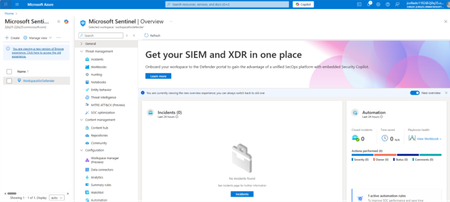
Integrating Microsoft Sentinel with Microsoft Dataverse brings advanced, unified security monitoring to your Power Platform environments. Microsoft Sentinel is a cloud-native SIEM (Security Information and Event Management) that collects and correlates logs from across Azure, Microsoft 365, and more to detect and respond to threats in real time. By streaming Dataverse audit logs into Sentinel, organizations gain centralized visibility into Power Platform activity and can leverage Sentinel’s analytics and automation to rapidly detect suspicious behavior and enhance governance. Benefits of Connecting Dataverse to Sentinel Unified Visibility and Threat Detection: All Dataverse audit events (e.g. record access, changes, logins) are ingested into Sentinel, where they can be correlated with signals from identities, devices, and other applications. This holistic view enables detection of suspicious patterns that might be missed in isolation. For example, security analysts can spot anomalies like: mass data exports unusual access locations sudden policy changes in Dataverse operations Sentinel provides out-of-the-box analytics rules to flag many of these risky behaviors (such as a departing user downloading large datasets or deleting records) without requiring custom queries. 2. Faster Investigation and Response: With Dataverse logs in Sentinel, analysts can use Kusto Query Language (KQL) to quickly search and correlate Dataverse activity with other security logs (identity sign-ins, Office 365 events, etc.). This speeds up root-cause analysis during incidents. Moreover, Sentinel’s SOAR capabilities mean you can trigger automated playbooks in response to Dataverse threats. For instance, if Sentinel detects an anomalous privilege escalation in Dataverse, it could automatically disable the user’s account or alert an admin via Teams. This rapid, automated response helps contain threats immediately, reducing the time to mitigate incidents. 3) Improved Governance and Compliance: Integrating Dataverse with Sentinel strengthens oversight of Power Platform usage. All audit logs are stored in Sentinel’s scalable data lake, allowing long-term retention for compliance at a lower cost than storing in Dataverse. By correlating Dataverse activity with other enterprise logs, organizations can ensure that Power Platform apps adhere to security policies and can prove compliance. Prerequisites Before deploying the integration, ensure the following prerequisites are in place: Microsoft Sentinel workspace: Microsoft Sentinel enabled in the workspace: (See Here to Onboard to a Microsoft Sentinel Workspace) 2. You must have permission to create Data Collection Rules (DCR) and Data Collection Endpoints in that workspace. Roles and permissions in the Microsoft Sentinel platform | Microsoft Learn Data collection rules in Azure Monitor - Azure Monitor | Microsoft Learn Dataverse environment: 3. The Dataverse environment must be a production environment (Dataverse logging for Sentinel is only supported for production, not sandbox). 4. Your organization should be using Dynamics 365 Customer Engagement and/or Power Platform apps (since those rely on Dataverse). 5. Audit logging enabled: Auditing must be turned on for the Dataverse environment in the Power Platform admin settings (which also routes audit logs to Microsoft Purview). Setup With prerequisites met, follow these high-level steps to set up the Sentinel integration: Enable Dataverse Auditing (if not already enabled).In the Power Platform admin center, ensuretenant-level and environment-level auditing is on. Dataverse auditing is not enabled by default, so this is critical. You’ll also need to enable auditing on the entity (table) level for all relevant Dataverse tables. Microsoft provides a managed solution to simplify this: Import the Audit Settings solution: If your environment uses Dynamics 365 CE apps, import the solution from aka.ms/AuditSettings/Dynamics; otherwise use aka.ms/AuditSettings/DataverseOnly. This managed solution will turn on detailed auditing for all standard tables (entities) in Dataverse. For any custom tables, manually enable auditing in their settings (toggle on Auditing for the entity). In each entity’s settings, under Auditing, enable the options for “Single record auditing” and “Multiple record auditing” to capture detailed create/update/delete events. Then save and publish these changes. Enabling these ensures you capture granular audit logs needed for Sentinel. 2. Install the Sentinel Solution and Connect Data Sources. In the Azure Sentinel portal Azure Portal or the Security Admin Portal Defender Portal navigate to the Content hub (or in Microsoft Defender portal, go to Content hub for Sentinel) and install the “Microsoft Sentinel Solution for Microsoft Business Applications.” This deploys all the components (analytics rules, workbooks, connectors, etc.) for Power Platform integration. Once installed, go to Configuration > Data connectors in Sentinel. You will see new connectors available for: Microsoft Dataverse Microsoft Power Platform Admin Activity Microsoft Power Automate (A connector for Dynamics 365 Finance & Operations is also included for organizations using Dynamics F&O). Follow this link for more details on F&O connector: Connect Microsoft Dynamics 365 Finance and Operations to Microsoft Sentinel | Microsoft Learn For each relevant data connector (Dataverse, Power Platform Admin, Power Automate), open its page and select Connect. This step links your Dataverse environment’s audit stream to Sentinel via the Azure Monitor DCR infrastructure. After connecting, Sentinel will start listening for the audit logs from Purview. ValidateData Ingestion. With auditing enabled and connectors in place, perform some sample activities in your Dataverse environment to generate logs (for example, create or update a row in a Dataverse table, change a Power Platform environment setting, run a Power Automate flow). In general, Dataverse and Power Automate activity logs should begin flowing into Sentinel within a few minutes, whereas Power Platform admin logs (e.g. environment or D365 admin actions) may take up to an hour for the first time. Be patient and then verify ingestion by querying the logs in Sentinel. You can run KQL queries in the Logs blade of the Sentinel Azure portal (or the Hunting section of Defender portal) to confirm data is arriving. For example, run a query on the PowerPlatformAdminActivity table to see if recent records exist. After a successful setup, Microsoft Sentinel will be populating three main Log Analytics tables with your Dataverse-related logs (as listed below): Log Analytics Table Data Collected PowerPlatformAdminActivity Power Platform administrative logs (e.g. environment settings changes, user role assignments) PowerAutomateActivity Power Automate (Flow) activity logs (creation, runs, etc.) DataverseActivity Dataverse and model-driven app business data activity logs (create, update, delete events on records, etc.) These tables contain the audit data that Sentinel will use for analysis. For instance, an update to a row in a Dataverse table will generate an event in the DataverseActivity table, whereas an administrative action like changing a Data Loss Prevention (DLP) policy or adding a user to an environment appears in PowerPlatformAdminActivity. Analytics and Threat Detection Capabilities Once the data is flowing, you can leverage Microsoft Sentinel’s powerful analytics and automation on your Dataverse logs. The Microsoft Business Apps Sentinel solution you installed comes with prebuilt analytics rules tailored to Dataverse and Power Platform scenarios. These rules will automatically generate incidents for suspicious patterns, such as: Mass record downloads or deletions (which could indicate a potential data theft or misuse) Anomalous access, like a user accessing Dataverse from an unusual location or at an odd time Privilege escalations or policy changes, e.g. a user suddenly gaining a system admin role, or a DLP policy being turned off. Security teams can also create custom detection rules using KQL to address organization-specific threats. All the Dataverse audit logs in Sentinel are fully queryable – for example, you could write a query to find when a particular record was modified and by whom, or to detect an unusual spike in Power Automate flow failures. These queries can be turned into new alert rules as needed. Sentinel provides interactive workbooks and a hunting interface to help visualize and drill into this data for proactive threat hunting. In addition to detection, Sentinel enables automated response for Power Platform incidents. Using Playbooks (Logic Apps), you might automate actions like disabling a user’s Power Platform account, alerting the IT team via Microsoft Teams, or creating a ticket in ServiceNow whenever a high-severity Dataverse incident is detected. For example, if multiple deletion events are detected in a short span on a sensitive table, a playbook could immediately notify a security channel and suspend the user's access pending investigation. This kind of end-to-end automation greatly improves your security posture by reducing response times and ensuring consistent actions. In summary, connecting Dataverse auditing to Microsoft Sentinel equips organizations with a unified view of business application activity and the advanced tools to detect, investigate, and respond to potential security issues in their Power Platform environments. It marries the rich audit data from Dataverse with Sentinel’s powerful SIEM capabilities – enabling proactive monitoring of user actions, quick identification of anomalies, and automated defense measures to protect your low-code applications. With the integration set up, Power Platform admins and security analysts can rest easier knowing that any unusual or malicious activity in Dataverse will light up on the Sentinel radar and be handled swiftly. For detailed step-by-step guidance, refer to Microsoft’s documentation on connecting Power Platform (Dataverse) to Sentinel and Connect Microsoft Dynamics 365 Finance and Operations to Microsoft Sentinel | Microsoft Learn These resources provide deeper instructions and additional tips for a successful integration.1.4KViews0likes0CommentsBreaking the Shackles of Legacy Portals: Power Pages as Enterprise SaaS
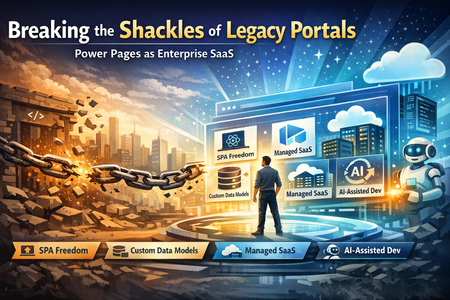
It's time to stop building "Portals" and start deploying Enterprise SaaS. For years, enterprise teams building web portals have been shackled by rigid Dynamics 365 schemas and heavy, template-driven UIs. Traditional Power Apps Portals required developers to follow the portal's own schema structure—page templates, web forms, lists, content snippets—and inherit data models dictated by D365 modules. That era is over. Power Pages has evolved into a secure, enterprise-grade, low-code SaaS platform for creating, hosting, and administering business websites—and as of early 2026, two milestone GA releases have removed the last remaining constraints. Here are six ways those shackles are broken: 🎨 1. UI Liberation with Single-Page Applications — Now GA Single-Page Application support in Power Pages reached General Availability on February 8, 2026, starting with site version 9.8.1.x and later. Developers can now build fully custom, client-side rendered web applications using React, Angular, or Vue and deploy them directly to Power Pages using the Power Platform CLI. This is not a workaround or a bolt-on—Microsoft describes this GA release as making the SPA experience "production ready". What this means in practice: the traditional portal constructs—ASP.NET and Liquid templates, web forms, lists—become optional implementation details, not architectural constraints. Your UI is completely custom and API-driven, calling Power Pages Web APIs for all data operations. The GA release also resolved issues where Power Pages platform styles could override custom CSS, and included updated guidance for authentication configuration and local development setup. Developers can run SPAs locally with full authentication and Web API access, enabling JavaScript hot reload and local debugging without deploying changes to the portal on every iteration. At this point, the traditional portal schema becomes an implementation option—not a constraint. (Ensure your Power Platform CLI is on the latest version for full capabilities.) 🗄️ 2. Data Model Autonomy — Your Entities, Your Rules Power Pages connects to Microsoft Dataverse, but you are no longer forced to borrow a Dynamics 365 schema. Teams can design their own data model from scratch—whether it has five tables or hundreds with complex relationships—tailored to the business domain. Those custom Dataverse tables serve the SPA directly via Web APIs, without needing to build model-driven or canvas apps. This is a fundamental departure. The platform uses the same shared business data stored in Dataverse that other Power Platform components can leverage, but your portal is no longer tethered to any pre-existing Dynamics module. You own your entity model entirely. The result: headless CMS flexibility backed by the security and reliability of Dataverse, without the overhead of a CRM schema you didn't ask for. ☁️ 3. Fully Managed Platform — No Infrastructure Burdens Goodbye, custom web hosting and plumbing. Power Pages is a fully managed SaaS platform—Microsoft handles provisioning, hosting, CDN, scaling, and availability. Authentication is built in, with full support for enterprise identity providers including Microsoft Entra ID and Microsoft Entra External ID, along with table permissions and web roles enforcement on every API call. Organizations can also allow anonymous access or configure private sites as needed. Even advanced backend needs are now covered natively. Server Logic in Power Pages reached General Availability on April 1, 2026, delivering native server-side JavaScript execution with the maturity, governance, and extensibility required for enterprise production workloads. Alongside GA, Microsoft announced two enhancements that reinforce enterprise readiness: Governance control to disable external calls — administrators can restrict outbound connectivity from the Server Logic layer to comply with internal policies and regulatory requirements. Support for unbound Dataverse custom actions — enabling deeper integration with existing business logic layers. The result? Teams focus only on business logic, integrations, and user experience. As Hope Bradford, Senior Director of IT at Kelly Staffing, stated: "Power Pages lets us build personalized client experiences without managing complex infrastructure while maintaining enterprise trust and security." Kelly Staffing's Helix UX portal, built on Power Pages, Dataverse, and Power Automate, now handles over 38,000 client interactions per day. 🛡️ 4. Enterprise-Grade Security and Telemetry Security and governance are first-class citizens on the platform. The 2025–2026 release wave introduced enterprise-grade controls for Power Pages including role-based access and authentication through Entra, Data Loss Prevention (DLP) rules for external data access, IP-based restrictions, maintenance mode options, and built-in diagnostics and monitoring dashboards. Across the broader Power Platform, Microsoft is investing in enterprise observability—the April 2026 update introduced alerting and data metrics in Power Platform Monitor (covering metrics such as app open success rate, time to interactive, data request success rate, and data request latency), enabling IT teams to define health thresholds, receive proactive notifications, and take guided action. This level of governance—audit, monitoring, diagnostics—traditionally required significant custom engineering. Now it is out of the box. 💲 5. Scalable, Usage-Based Licensing One of the most significant licensing shifts: Power Pages became its own product, decoupling from Power Apps licensing entirely. Both internal and external users now fall under the same licensing model, making Power Pages viable for internal use cases like HR services and request management—not just external portals. The model is usage-based (Monthly Active Users), purchased as capacity packs per site: Authenticated Users (Pre-paid): $200 per site/month for 100 users Anonymous Users (Pre-paid): $75 per site/month for 500 users Authenticated Users (Pay-As-You-Go): $4.00 per user/site/month, on-demand Anonymous Users (Pay-As-You-Go): $0.30 per user/site/month, on-demand Each authenticated-user subscription plan includes 2 GB database capacity and 16 GB file capacity. For applications serving tens of thousands of users, this capacity-based model is strategically superior to per-user or per-app seat licenses. Pay-as-you-go costs roughly twice as much as pre-paid capacity packs but suits seasonal or unpredictable usage patterns (e.g., tax season, annual HR enrollment). Tradeoff to consider: Pre-paid packs require upfront commitment and do not roll over month to month, so organizations with highly variable traffic must carefully model usage to avoid over- or under-provisioning. ⚠️ Pricing disclaimer: The figures above are illustrative examples sourced from publicly available Microsoft documentation. Actual costs may vary based on customer type (enterprise vs. corporate), volume commitments, negotiated agreements, and account structure. Final pricing is determined through Microsoft account teams and contracts. ⚡ 6. Rapid Modernization with AI-Assisted Development Power Pages now integrates directly with AI-assisted development workflows. Microsoft announced the public preview of the Power Pages plugin for GitHub Copilot CLI and Claude Code on February 24, 2026, providing an AI-assisted workflow for creating, deploying, and managing modern SPA sites on Power Pages. Developers can scaffold pages, configure data access, and wire up logic using natural language commands, dramatically reducing the time to modernize large enterprise applications. SPAs are deployed using Power Platform CLI commands, and the entire development loop is designed to be streamlined for professional developers. This means that even large, complex in-house enterprise applications—hundreds of tables, complex relationships, tens of thousands of users—can be remodeled on Power Pages far more efficiently than legacy approaches required. You migrate your own custom model into Dataverse, build your SPA, wire up integrations, and the platform handles everything else. The Bottom Line If you are still managing custom Azure websites, maintaining SQL servers, or stitching together bespoke PaaS stacks for internal business tools, you are carrying unnecessary operational weight. Power Pages is no longer just a D365 portal. It is a fully managed, enterprise-grade SaaS platform that gives you total UI freedom (SPA support: GA since February 2026), native server-side logic (GA since April 2026), your own data architecture without D365 schema dependencies, built-in security and governance, and a licensing model that scales to enterprise volumes. The industry is underestimating this shift. The shackles are off. Deploy, don't build.
Conditional Access for Canvas Apps with Entra
In today's Power Platform landscape, administrators have a tough task securing the ever-increasing inventory of Canvas Apps across their tenant. Canvas apps often connect to sensitive data, run on a variety of devices, and serve diverse groups of users. That is why Conditional Access has become one of the most powerful tools in an admin’s toolkit, giving you fine grained control over how, where, and under what conditions users can access your apps. In this post, I will walk through what Conditional Access means for canvas apps, how it empowers admins to maintain strong security without adding friction for legitimate users, and example steps to apply your own conditional access policies to an app with PowerShell. What Conditional Access Brings to Canvas Apps Conditional Access brings granular, app-level security controls from Microsoft Entra ID directly into Power Apps. Instead of applying blanket restrictions across the entire tenant, you can enforce requirements—like MFA, compliant devices, or trusted networks—only on the apps that need them. This lets you match security to the sensitivity of each individual app. Key Benefits for Admins Tailored Protection for Sensitive Apps Not every app requires strict controls. Conditional Access allows you to tighten security only for apps that handle sensitive or regulated data, without over restricting everything else. Control Access by Device Type Admins can easily block or allow specific device categories—like preventing mobile access to a high-risk app or requiring managed devices for apps that contain confidential information. Alignment With Zero Trust Conditional Access enforces identity, device, and session checks in real time, supporting a Zero Trust approach without adding unnecessary friction for legitimate users. Environment-Specific Flexibility You can apply stricter policies in production and lighter ones in development or testing, helping teams build efficiently while keeping sensitive environments locked down. A Stronger Security Model Conditional Access does not replace existing apps or data permissions—it complements them. App-level security roles control what users can do inside an app, while Conditional Access governs whether they can get into the app at all. Together, they create a much more robust security posture. How to enable conditional access for a Canvas App example In this example, I will detail steps to set up conditional access for a Canvas App to ensure tenant guest users are not able to access the app. Step 1: Create an Authentication Context in Entra ID Go to the Microsoft Entra Admin Center. Navigate to Protection → Conditional Access → Authentication context. Click + New authentication context. Name it (e.g., BlockGuests_PowerAppX) Enable Publish to apps Save and note the Authentication Context ID Step 2: Create a Conditional Access Policy Go to Conditional Access → Policies → + New policy. Name the policy (e.g., Block Guests from Power App X). Assignments: Users or workload identities: Include: Guest or external users Target resources: Choose Authentication context Select the one you created earlier Access controls: Grant: Select Block access Enable the policy and click Create. Step 3: Assign the Authentication Context to the Power App Use PowerShell to bind the Authentication Context to the specific Power App: Open PowerShell as Administrator. Connect to Power Apps Add-PowerAppsAccount Run the command to attach the context to your canvas app Set-AdminPowerAppConditionalAccessAuthenticationContextIds -EnvironmentName "<your-environment-name>" ` -AppName "<your-app-id>" ` -AuthenticationContextIds "<your-auth-context-id>" This binding tells Power Apps: “When this app opens, trigger the Conditional Access policy tied to this context.” Step 4: Test the Policy Try accessing the app as a guest user. You should see access blocked based on the Conditional Access policy. Wrap Up A Stronger Security Model Conditional Access does not replace existing apps or data permissions—it complements them. App-level security roles control what users can do inside an app, while Conditional Access governs whether they can get into the app at all. Together, they create a much more robust security posture. Bottom Line Conditional Access gives admins the flexibility to apply the right security to the right app. Whether you are enforcing MFA, restricting device types, or securing production environments, it helps you protect sensitive data without slowing down the organization. Documentation for further reading: Manage Power Apps - Power Platform | Microsoft Learn Demo from Power CAT: Conditional Access Policies for Canvas Apps - Power CAT Live900Views2likes1Comment🚀 Scaling Dynamics 365 CRM Integrations in Azure: The Right Way to Use the SDK ServiceClient
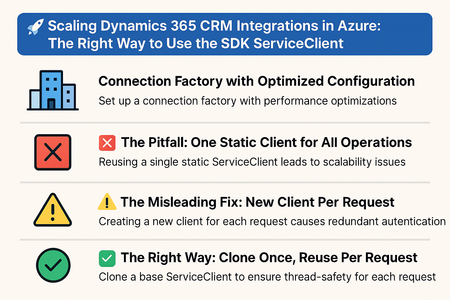
This blog explores common pitfalls and presents a scalable pattern using the .Clone() method to ensure thread safety, avoid redundant authentication, and prevent SNAT port exhaustion. 🗺️ Connection Factory with Optimized Configuration The first step to building a scalable integration is to configure your ServiceClient properly. Here's how to set up a connection factory that includes all the necessary performance optimizations: public static class CrmClientFactory { private static readonly ServiceClient _baseClient; static CrmClientFactory() { ThreadPool.SetMinThreads(100, 100); // Faster thread ramp-up ServicePointManager.DefaultConnectionLimit = 65000; // Avoid connection bottlenecks ServicePointManager.Expect100Continue = false; // Reduce HTTP latency ServicePointManager.UseNagleAlgorithm = false; // Improve responsiveness _baseClient = new ServiceClient(connectionString); _baseClient.EnableAffinityCookie = false; // Distribute load across Dataverse web servers } public static ServiceClient GetClient() => _baseClient.Clone(); } ❌ Anti-Pattern: One Static Client for All Operations A common anti-pattern is to create a single static instance of ServiceClient and reuse it across all operations: public static class CrmClientFactory { private static readonly ServiceClient _client = new ServiceClient(connectionString); public static ServiceClient GetClient() => _client; } This struggles under load due to thread contention, throttling, and unpredictable behavior. ⚠️ Misleading Fix: New Client Per Request To avoid thread contention, some developers create a new ServiceClient per request, however the below does not truly create seperate connection unless RequireNewInstance=True connection string param or useUniqueInstance:true constructor param are utilized. Many a times these intricate details are missed out and causing same connection be shared across threads with high lock times compounding overall slowness. public async Task Run(HttpRequest req) { var client = new ServiceClient(connectionString); // Use client here } Even with above flags there is a risk of auth failures and SNAT exhaustion in a high throughout service integration scenario due to repeated OAuth authentication every time a ServiceClient instance is created with constructor. ✅ Best Practice: Clone Once, Reuse Per Request The best practice is to create a single authenticated ServiceClient and use its .Clone() method to generate lightweight, thread-safe copies for each request: public static class CrmClientFactory { private static readonly ServiceClient _baseClient = new ServiceClient(connectionString); public static ServiceClient GetClient() => _baseClient.Clone(); } Then, in your Azure Function or App Service operation: ❗ Avoid calling the factory again inside helper methods. Clone once and pass the client down the call stack. public async Task HandleRequest() { var client = CrmClientFactory.GetClient(); // Clone once per request await DoSomething1(client); await DoSomething2(client); } public async Task DoSomething1(ServiceClient client) { await client.Create(); // Avoid new client cloning but just use passed down client as is } 🧵 Parallel Processing with Batching When working with large datasets, combining parallelism with batching using ExecuteMultiple can significantly improve throughput—if done correctly. 🔄 Common Mistake: Dynamic Batching Inside Parallel Loops Many implementations dynamically batch records inside Parallel.ForEach, assuming consistent batch sizes. But in practice, this leads to: Inconsistent batch sizes (1 to 100+) Unpredictable performance Difficult-to-analyze telemetry ✅ Fix: Chunk Before You Batch public static List> ChunkRecords(List records, int chunkSize) { return records .Select((record, index) => new { record, index }) .GroupBy(x => x.index / chunkSize) .Select(g => g.Select(x => x.record).ToList()) .ToList(); } public static void ProcessBatches(List records, ServiceClient serviceClient, int batchSize = 100, int maxParallelism = 5) { var batches = ChunkRecords(records, batchSize); Parallel.ForEach(batches, new ParallelOptions { MaxDegreeOfParallelism = maxParallelism }, batch => { using var service = serviceClient.Clone(); // Clone once per thread var executeMultiple = new ExecuteMultipleRequest { Requests = new OrganizationRequestCollection(), Settings = new ExecuteMultipleSettings { ContinueOnError = true, ReturnResponses = false } }; foreach (var record in batch) { executeMultiple.Requests.Add(new CreateRequest { Target = record }); } service.Execute(executeMultiple); }); } 🚫 Avoiding Throttling: Plan, Don’t Just Retry While it’s possible to implement retry logic for HTTP 429 responses using the Retry-After header, the best approach is to avoid throttling altogether. ✅ Best Practices Control DOP and batch size: Keep them conservative and telemetry driven. Use alternate app registrations: Distribute load across identities but do not overload the Dataverse org. Avoid triggering sync plugins or real-time workflows: These amplify load. Address long-running queries: Optimize operations with Microsoft support help before scaling Relax time constraints: There’s no need to finish a job in 1 hour if it can be done safely in 3. 🌐 When to Consider Horizontal Scaling Even with all the right optimizations, your integration may still hit limits under the HTTP stack—such as: WCF binding timeouts SNAT port exhaustion Slowness not explained by Dataverse telemetry In these cases, horizontal scaling becomes essential. App Services: Easily scale out using auto scale rules. Function Apps (service model): Scale well with HTTP or service bus triggers. Scheduled Functions: Require deduplication logic to avoid duplicate processing. On-Premises VM: When D365 SDK based integrations hosted on VM infra, they shall need horizontal scaling by increasing servers. 🧠 Final Thoughts Scaling CRM integrations in Azure is about resilience, observability, and control. Follow these patterns: Clone once per thread Pre-chunk batches Tune with telemetry evidence Avoid overload when you can Scale horizontally when needed—but wisely Build integrations that are fast, reliable, and future proof.700Views1like0Comments
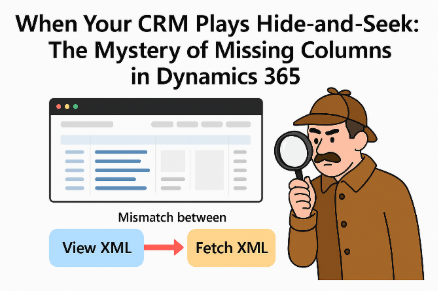
When Your CRM Plays Hide-and-Seek: The Mystery of Missing Columns in Dynamics 365
What Happened? Personal views across multiple organizations started showing empty columns, even though the data was there. For businesses that rely on these views for daily decisions, this isn’t a normal glitch—the end users can easily assume that “no data” in the view means no data in the record and make decisions based on an incomplete picture of customer information. The Detective Work Our investigation uncovered the culprit: a mismatch between two behind-the-scenes players—View XML and Fetch XML. Think of them as the blueprint and the builder. When they don’t talk to each other properly, your view looks fine but can’t fetch the data it needs. Why It Matters This isn’t just a tech hiccup—it’s a reminder of how small cracks in system design can ripple into big business headaches. It also highlights the need for smarter automation and better error detection in enterprise platforms. The Fix (and the Frustration) The good news? A manual fix was quickly identified over a year ago. The bad news? It was manual. And many impacted users didn’t even know that their views were bad. We needed a better solution and now, we have one. Starting in October 2025, Microsoft rolled out a behind the scenes fix option. Once it’s turned on, any time a user opens a corrupted view, that view will be automatically updated to display the correct data. If the user has permission to edit the view, the updates will be saved so that the view will be permanently fixed. But there’s still a catch. Microsoft doesn’t want to enable a process that makes data changes (in this case, the data is the view definition) without your company’s permission. If your organization is running into this issue, here’s a quick test to assure that the new Microsoft fix will work for you: Identify views that you know are not rendering properly and that you will be able to access If you create a copy of a view that is corrupted, the copy will also have the corruption, so you can create additional views to test In your browser URL bar, append the following to the end of your Dynamics URL: &flags=FCB.DataSetViewFixMissingFetchColumns=true This will enables a “feature flag” that fixes the views issue, but only for the user that added the flag to the URL and only until their session expires. Other users will not see the update. If your URL looks like this: https://org7909d641.crm.dynamics.com/main.aspx?appid=12345678-1234-1234-1234-123456789012 … make it look like this and hit enter https://org7909d641.crm.dynamics.com/main.aspx?appid=12345678-1234-1234-1234-123456789012&flags=FCB.DataSetViewFixMissingFetchColumns=true Wait for Dynamics to reload Test opening the corrupted views. You’ll see that they’re magically working as expected When you are satisfied that this is working for you as desired, open a case with Microsoft Support and request that your organization be enabled for the DataSetViewFixMissingFetchColumns FCB. This will enable the fix for all users across your Dynamics organization Takeaway: If your CRM starts acting like a magician hiding data, don’t panic. The data is still there—you just need to coax it back with the right fix. And now there’s an option to make sure that this issues goes away for good.599Views1like0CommentsBuilding Resilient Power Automate Flows That Stay Running
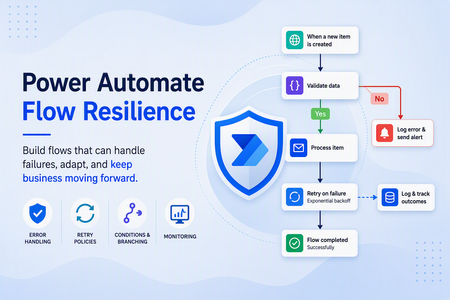
If you've spent any time working with Power Automate in enterprise environments, you've seen it happen. A business-critical flow fails on a Friday afternoon. The person who built it left the company six months ago. Nobody gets an alert. Nobody knows until Monday morning when someone notices the reports didn't run. By then, the blast radius is already bigger than it needed to be. Flow failures aren't inevitable, but unplanned ones usually share the same root causes: personal account dependencies, missing error handling, hardcoded configurations, and no visibility into what's actually happening at runtime. The good news is that most of these are solvable with patterns that aren't especially complex, they just require intentionality. This post covers 16 recommendations across 5 focus areas that I've found to be the highest-leverage investments for making Power Automate flows more resilient, performant, and easier to operate at scale. I've ordered them roughly by the impact you'll see fastest, with supporting documentation for each section for further reading and implementation guidance. 1. Credential and Connection Resilience This is where I always start with customers, because it's the most common source of outages and also one of the easiest to fix systematically. Migrate high-value flows to service principal ownership. Flows owned by user accounts fail when passwords change, MFA prompts fire, or the user leaves the organization. A service principal is a non-human identity that represents an application or service and doesn't have any of those human lifecycle problems. The pattern is to register an Azure AD app registration per workload domain, grant it the required API permissions, and bind the flow to it using connection references rather than a personal connection. For connectors that don't yet support service principals (SharePoint, Outlook, Teams), use a hardened service account protected with Privileged Identity Management. Service principal owned flows Service Principal Licensing Requirements Resolve broken connections Use connection references for all connections. Embedded personal connections break when flows are exported, imported, or the owner changes. If you're building flows inside solutions, there's no good reason not to be using connection references. Create one per connector type used in your solution and bind every flow to the reference rather than a personal connection. When you deploy through environments, you update the binding once rather than hunting through individual flows. Use connection references in solutions Pre-populate connection references for CI/CD Store secrets in Azure Key Vault, not flow variables. Hardcoded API keys or tokens in flow expressions show up in run history and are a real security exposure. The Key Vault connector has a "Get secret" action you can drop at the top of any flow. Restrict access to the service principal only, and when you rotate a secret in Key Vault, the flow picks it up dynamically with no changes needed. Azure Key Vault connector reference Key Vault secrets with environment variables Secure data in cloud flows 2. Error Handling and Retry Logic Unhandled errors in Power Automate produce silent failures. The flow shows red, maybe an email goes out if you're lucky, and whoever is on call has to play detective with limited context. Building proper failure boundaries before flows reach production is one of the highest-ROI things you can do. Wrap every action in a Scope with "Configure run after." A Scope action groups a logical block of actions and lets you branch on "Has failed." The pattern is straightforward: wrap each logical unit (get data, send notification, write to Dataverse), add a parallel branch configured to run on failure, and in that branch log the error, send an alert, and terminate cleanly. This keeps failure handling isolated and predictable rather than having it bleed across the entire flow. Use scopes to organize actions Best practices for using scopes Employ robust error handling Enable built-in retry policies on connector actions. Transient HTTP and connector errors are a fact of life. The retry policy setting on any connector action handles them automatically without custom logic. Exponential interval is generally preferable over fixed. Four retries with a PT10S interval is a reasonable starting point. One important caveat: check for idempotency before enabling retries on Dataverse writes, since a write that partially succeeded before a transient error can create duplicate records if blindly retried. Implement a retry policy Handle transient faults (Well-Architected) Flow limits & config (retry settings) Use "Do until" loops with exit conditions for polling. A polling loop without bounds can run indefinitely or silently miss the exit condition it was waiting for. Set a maximum iteration count and a timeout, and make sure your exit condition is the expected success state and not just the absence of error. Until logic documentation Flow limits: concurrency & looping Capture and surface error details in failure notifications. Generic failure emails like "Your flow failed" are nearly useless for triage. In the failure branch, use workflow().run.name and actions('ActionName')?['error'] expressions to pull the actual error message, and construct a direct link to the run using the environment name, flow ID, and run ID. Sending this as a Teams adaptive card with structured fields makes triage significantly faster than sifting through the admin center. Understand error codes 3. ALM and Environment Strategy Environment drift is sneaky. It builds up over time through ad-hoc edits made directly in production, hardcoded values that break on promotion, and manual export/import processes that are just inconsistent enough to cause problems at the worst times. Deploy only managed solutions to production. Unmanaged solutions in production allow anyone with access to make direct edits that bypass your ALM process. The model I recommend is straightforward: build in Dev with unmanaged solutions, export as managed for promotion, validate in Sandbox, and promote to Production through Pipelines. Use the "Block unmanaged customizations" setting in Environment security policies to enforce this at the platform level. Solution concepts with Power Platform Create and update custom solutions for ALM in Power Platform Use Power Platform Pipelines for automated promotion. Manual export and import is error-prone and doesn't scale. Pipelines automate the full Dev to Sandbox to Production path, support pre-deployment validation before each promotion, and let you restrict production deployment approvals to designated owners. If you're not using Pipelines yet, this is worth the setup investment. Overview of pipelines in Power Platform Set up pipelines in Power Platform Deploy pipelines as a service principal Eliminate hardcoding with Environment Variables. Flows that reference hardcoded SharePoint site URLs, list names, or IDs break every time they're promoted to a new environment. Replace them with environment variables, set the values at the environment level rather than in the solution itself, and validate bindings as part of your pre-deployment checklist. Environment variables for Power Platform overview Use environment variables in Power Automate solution cloud flows Apply DLP policies scoped per environment. Overly permissive DLP in production is a real risk for data leakage and flow instability. Classify connectors intentionally across Business, Non-Business, and Blocked. Scope policies from the top down, tenant-level first and then environment-level. Use endpoint filtering to restrict rather than wholesale block where possible, and always test DLP policy changes in Sandbox before promoting them to production. Data loss prevention policies overview Data policies for Managed Environments Identify blocked Power Automate flows from data policies 4. Monitoring and Observability If you don't have visibility into flow health, you're finding out about failures the worst possible way: from users. Most organizations have significantly less monitoring in place for Power Automate than they do for their traditional application workloads. Enable Power Platform admin center flow analytics. This is the quickest win in the monitoring category. In the Power Platform admin center, navigate to Analytics and enable flow run history and error reporting at the environment level. From there, set up a regular cadence (weekly is a good start) to review failure rates for flows classified as business-critical. Having that baseline gives you something to measure against when you start making resilience improvements. Tenant-level analytics Best practices for monitor your flows (analytics) Integrate with Application Insights for deeper observability. For environments running Managed Environments, you can configure the Data Export setting in the admin center to push cloud flow runs, triggers, and actions to an Azure Application Insights resource. Once data is flowing, you get full query and visualization capability for run health, custom diagnostics, and alerting. This is the right long-term destination for any organization that takes operational reliability seriously. Overview of integration with Application Insights Set up Application Insights with Power Automate 5. Performance and Throttling High-volume flows that aren't tuned for throttling will eventually hit API rate limits and start failing or queuing in ways that are hard to predict. Most of the common patterns here are straightforward to address. Apply concurrency control on trigger-heavy flows. By default, Power Automate concurrency is unbounded. A high-volume trigger can spin up thousands of parallel runs simultaneously and hit API limits quickly. Enable concurrency control on the trigger, set the degree of parallelism based on your connector's rate limits (starting between 10 and 25 is reasonable), and monitor queue depth in the Power Automate portal to tune from there. Understand limits & avoid throttling Flow limits: concurrency, looping, debatching Batch SharePoint and Dataverse operations instead of looping. An "Apply to each" loop that makes an individual API call per item scales linearly in both API call count and runtime. For SharePoint, use the "Send an HTTP request to SharePoint" action with OData $batch to group reads and writes. For Dataverse, use batch actions or FetchXML to pull multiple records in a single call. As a rough target, if a loop is making more than 50 individual API calls per run, it's a good candidate for batching. Make batch requests with the REST APIs - SharePoint Execute batch operations by using the Web API - Dataverse Use chunking for large file or record sets. Flows processing large payloads can hit the 100MB message size limit or simply time out. The pattern here is to split large workloads into pages using OData $top and $skip or Dataverse paging cookies, use a parent flow to orchestrate chunked child flows, and log progress state to Dataverse so the parent can resume if a chunk fails. Handle large messages in workflows using chunking in Azure Logic Apps (applies to Power Automate) Message size limits in Power Automate Where to Start If you're looking at this list and wondering where to begin, the recommended implementation order is: Credential and Connection Resilience first. This eliminates the most common source of outages. Migrate to service principals where supported and harden service accounts with PIM everywhere else. Error Handling and Retry Logic second. Low effort relative to the impact. Adding scopes, run-after branches, and retry policies is mostly configuration work, and the payoff is immediate. ALM and Environment Strategy third. Managed solutions in production, Pipelines for promotion, and environment variables in place of hardcoded values. Monitoring and Observability fourth. Structured logging and failure alerting gives you quantifiable before-and-after visibility on everything else you're doing. Performance and Throttling last. Address this for high-volume flows once the foundational reliability work is in place. You don't need to implement all 16 of these at once. Even getting the first two focus areas locked down will materially reduce the failure rate for most enterprise Power Automate implementations. The goal is to build flows that run reliably, fail visibly when something goes wrong, and don't require a forensic investigation every time they do. Start there and layer in the rest over time. Author: Marc Lotorto Contributors: Sheldon Dsouza, Ben Kohler500Views0likes0CommentsDemystifying SessionTrackingId and Request Correlation in D365 CE Integrations
Introduction As a Cloud Solution Architect working with Dynamics 365 Customer Engagement (D365 CE) customers, I often see organizations building high-volume integrations using the ServiceClient SDK for .NET Core (or CrmServiceClient for classic .NET Framework). While these SDKs make it easy to connect and interact with Dataverse, tracking and diagnosing issues—especially in production—can be challenging. One of the least-known but most powerful features for support and diagnostics is the SessionTrackingId property on ServiceClient. In this post, I’ll explain what it is, how to use it, and why it’s invaluable for working with Microsoft support and troubleshooting performance issues. The Problem: Diagnosing Integration Performance Many customers log the time before and after each Dataverse call, and if they see high latency, they often suspect the Dataverse service itself. However, in large-scale, high-volume integrations, the real culprit is frequently client-side resource contention or SNAT port exhaustion. This can lead to slow connection establishment, WCF binding timeouts, and misleadingly high client-side timings—even when the server-side execution is fast. The Solution: SessionTrackingId and Request Correlation With ServiceClient, you cannot manually set HTTP headers. You rely on the SessionTrackingId property, which internally maps to the x-ms-client-session-id header. Microsoft support can use this ID to trace your request end-to-end, from your client to the Dataverse backend. When using HttpClient, you can achieve similar tracking by utilizing the User-Agent HTTP header to append a GUID, which helps Microsoft support correlate requests in telemetry for diagnostics and troubleshooting. Sample: Using SessionTrackingId and Logging Request Timing using Microsoft.PowerPlatform.Dataverse.Client; using Microsoft.Extensions.Configuration; using System; using System.IO; using System.Diagnostics; using Microsoft.Crm.Sdk.Messages; namespace D365UserAgentDemo { class Program { static void Main(string[] args) { var config = new ConfigurationBuilder() .SetBasePath(Directory.GetCurrentDirectory()) .AddJsonFile("appsettings.json", optional: false) .Build(); var d365Section = config.GetSection("D365"); string appId = d365Section["AppId"]; string clientSecret = d365Section["ClientSecret"]; string orgUrl = d365Section["OrgUrl"]; string tenantId = d365Section["TenantId"]; string connectionString = $"AuthType=ClientSecret;Url={orgUrl};ClientId={appId};ClientSecret={clientSecret};TenantId={tenantId};"; // 1. Call with ServiceClient var sessionTrackingId1 = Guid.NewGuid(); Console.WriteLine($"\n[ServiceClient] Using SessionTrackingId: {sessionTrackingId1}"); string? accessToken = null; using (var svc = new ServiceClient(connectionString)) { svc.SessionTrackingId = sessionTrackingId1; try { var sw = Stopwatch.StartNew(); var response = svc.Execute(new WhoAmIRequest()); sw.Stop(); var userId = ((WhoAmIResponse)response).UserId; Console.WriteLine($"[ServiceClient] WhoAmI UserId: {userId}"); Console.WriteLine($"[ServiceClient] Time taken: {sw.ElapsedMilliseconds} ms"); Console.WriteLine($"[ServiceClient] TrackingId: {sessionTrackingId1}"); accessToken = svc.CurrentAccessToken; } catch (Exception ex) { Console.WriteLine($"[ServiceClient] Error: {ex.Message}"); } } // 2. Call with HttpClient var trackingId2 = Guid.NewGuid(); Console.WriteLine($"\n[HttpClient] Using User-Agent with embedded tracking ID: {trackingId2}"); if (!string.IsNullOrWhiteSpace(accessToken)) { using (var httpClient = new System.Net.Http.HttpClient()) { httpClient.DefaultRequestHeaders.Authorization = new System.Net.Http.Headers.AuthenticationHeaderValue("Bearer", accessToken); httpClient.DefaultRequestHeaders.UserAgent.Clear(); httpClient.DefaultRequestHeaders.UserAgent.ParseAdd($"D365UserAgentDemo/{trackingId2}"); httpClient.DefaultRequestHeaders.Remove("x-ms-client-request-id"); httpClient.DefaultRequestHeaders.Add("x-ms-client-request-id", trackingId2.ToString()); var apiBase = orgUrl.TrimEnd('/'); var apiUrl = $"{apiBase}/api/data/v9.2/WhoAmI"; try { var sw = Stopwatch.StartNew(); var httpResponse = httpClient.GetAsync(apiUrl).GetAwaiter().GetResult(); sw.Stop(); var content = httpResponse.Content.ReadAsStringAsync().GetAwaiter().GetResult(); Console.WriteLine($"[HttpClient] WhoAmI response: {content}"); Console.WriteLine($"[HttpClient] Time taken: {sw.ElapsedMilliseconds} ms"); Console.WriteLine($"[HttpClient] TrackingId (User-Agent): {trackingId2}"); } catch (Exception ex) { Console.WriteLine($"[HttpClient] Error: {ex.Message}"); } } } else { Console.WriteLine("No access token available from ServiceClient for HttpClient call."); } } } } Why This Matters Supportability: When you open a support ticket, provide the SessionTrackingId (for SDK). Microsoft support can trace your request through the entire stack. Root Cause Analysis: If you see high client-side latency, but Microsoft support shows fast server-side execution for your tracking ID, the issue is likely on the client (resource contention, SNAT exhaustion, etc.). Bonus: Classic .NET Framework If you’re using classic .NET Framework, use CrmServiceClient instead. The pattern is similar, and the property is also called SessionTrackingId. Conclusion The SessionTrackingId and embedded tracking IDs in User-Agent headers are powerful but underutilized features for D365 CE integrations. They enable precise request tracking, better support experiences, and faster root cause analysis. Although SessionTrackingId is documented as a session-level identifier, in practice it is best used to track individual requests—especially when diagnosing performance issues. Since ServiceClient does not expose a separate property for request-level correlation, assigning a unique SessionTrackingId per request is the most effective approach. Takeaway When client-side telemetry shows significantly higher latency than Power Platform telemetry, it’s a strong indicator that your integration needs horizontal scaling. Logging request-level timing with a unique tracking ID helps pinpoint these bottlenecks and guides you toward the right architectural decisions.500Views0likes0CommentsSeamless blend of ILogger with ITracingService inside D365 CE Plugins
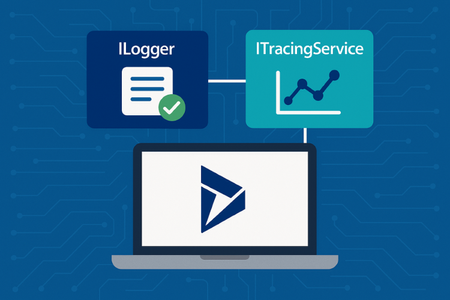
👋 Introduction This document introduces a practical approach for integrating Application Insights logging into Dynamics 365 plugins using the ILogger interface alongside the existing ITracingService. The key advantage of this method is its minimal impact on the existing codebase, allowing developers to adopt enhanced logging capabilities without the need to refactor or modify each plugin individually. By wrapping the tracing logic, this pattern promotes maintainability and simplifies the transition to modern observability practices with a single, centralized change. 🧱 The Classic Plugin Base Pattern Most customers already use a base class pattern for plugins. This pattern wraps the IPlugin interface and provides a LocalPluginContext object that encapsulates services like IOrganizationService, ITracingService, and IPluginExecutionContext. ✅ Benefits: Reduces boilerplate Encourages separation of concerns Makes plugins easier to test and maintain 🧩 Base Class with try-catch in Execute public abstract class PluginBase : IPlugin { protected internal class LocalPluginContext { public IOrganizationService OrganizationService { get; } public ITracingService TracingService { get; } public IPluginExecutionContext PluginExecutionContext { get; } public LocalPluginContext(IServiceProvider serviceProvider) { PluginExecutionContext = (IPluginExecutionContext)serviceProvider.GetService(typeof(IPluginExecutionContext)); TracingService = (ITracingService)serviceProvider.GetService(typeof(ITracingService)); OrganizationService = ((IOrganizationServiceFactory)serviceProvider.GetService(typeof(IOrganizationServiceFactory))) .CreateOrganizationService(PluginExecutionContext.UserId); } } public void Execute(IServiceProvider serviceProvider) { try { var localContext = new LocalPluginContext(serviceProvider); localContext.TracingService.Trace("Plugin execution started."); ExecutePlugin(localContext); localContext.TracingService.Trace("Plugin execution completed."); } catch (Exception ex) { var tracingService = (ITracingService)serviceProvider.GetService(typeof(ITracingService)); tracingService.Trace($"Unhandled exception: {ex}"); throw new InvalidPluginExecutionException("An error occurred in the plugin.", ex); } } protected abstract void ExecutePlugin(LocalPluginContext localContext); } 📈 Seamless Application Insights Logging with a Tracing Adapter 💡 The Problem Many customers want to adopt Application Insights for plugin telemetry—but hesitate due to the need to refactor hundreds of TracingService.Trace(...) calls across their plugin codebase. 💡 The Innovation The following decorator pattern wraps ITracingService and forwards trace messages to both the original tracing service and an ILogger implementation (e.g., Application Insights). The only change required is in the base class constructor—no changes to existing trace calls. 🧩 Tracing Adapter public class LoggerTracingServiceDecorator : ITracingService { private readonly ITracingService _tracingService; private readonly ILogger _logger; public LoggerTracingServiceDecorator(ITracingService tracingService, ILogger logger) { _tracingService = tracingService; _logger = logger; } public void Trace(string format, params object[] args) { _tracingService.Trace(format, args); _logger?.LogInformation(format, args); } } 🧩 Updated Base Class Constructor public LocalPluginContext(IServiceProvider serviceProvider) { PluginExecutionContext = (IPluginExecutionContext)serviceProvider.GetService(typeof(IPluginExecutionContext)); var standardTracingService = (ITracingService)serviceProvider.GetService(typeof(ITracingService)); var logger = (ILogger)serviceProvider.GetService(typeof(ILogger)); TracingService = new LoggerTracingServiceDecorator(standardTracingService, logger); OrganizationService = ((IOrganizationServiceFactory)serviceProvider.GetService(typeof(IOrganizationServiceFactory))) .CreateOrganizationService(PluginExecutionContext.UserId); } This enables all trace calls to be logged both to Plugin Trace Logs and Application Insights. AppInsights Traces allows for easier troubleshooting using Kusto Query Language and enables alerting based on custom trace messages. 🧩 Using ILogger inside a plugin without base class This approach is exactly the same as implemented in plugins with a base class. However, in this case, we make the wrapping assignment once at the beginning of each plugin. This is far better compared to modifying every line that uses tracingService.Trace. public class ExistingPlugin : IPlugin { public void Execute(IServiceProvider serviceProvider) { var originalTracingService = (ITracingService)serviceProvider.GetService(typeof(ITracingService)); var logger = (ILogger)serviceProvider.GetService(typeof(ILogger)); // Wrap the original tracing service with the decorator var tracingService = new LoggerTracingServiceDecorator(originalTracingService, logger); tracingService.Trace("Plugin execution started."); try { // Existing plugin logic tracingService.Trace("Processing business logic..."); } catch (Exception ex) { tracingService.Trace($"Exception occurred: {ex}"); throw; } tracingService.Trace("Plugin execution completed."); } } 📣 Final Thoughts Logging with both ITracingService and ILogger inside LoggerTracingServiceDecorator will double the chance of WorkerCommunication, as it is usually a symptom of large amount text(Strings) tracing from loop constructs inside custom plugin code, hence it is good idea to stick to ILogger alone inside your decorator Trace method.480Views0likes0Comments