backup
8 Topics
File History KB5124010 bug: File copy to D: drive but Last Copy Time and Previous Versions no update
Current version: Laptop: Windows 11 25H2 OS Build 26200.8973 Desktop: Windows 10 22H2 OS Build 19045.7725 Hi everyone,I wanted to share my findings regarding recent Windows Updates and File History behavior to see if others are experiencing the same issue or if Microsoft engineering is aware of this. After the recent KB5124010 update, "File History" can find and run backup drives, and all new files are copied, but the last copy date of the files is not changed. Under "File Properties" -> "Previous Versions," either it displays "No previous versions available" or it cannot list the most recent backup timestamp, and some unmodified archives are backed up indefinitely. If Microsoft's quality assurance department knew what this meant, it would be another major failure.The deeper, more fundamental problems introduced in the July 28th updates (KB5101684 / KB5120249) have not yet been resolved. If you are experiencing the same problem, please like, ask a question to media outlets like Windows Latest or Microsoft support engineers, or reply to help spread the word. I have submitted this issue through the Feedback Hub, hoping that media outlets like Windows Latest or Microsoft support engineers can further investigate this metadata synchronization issue. Feedback Hub report: https://aka.ms/AA13n22w The screenshot of the problem screen is as follows: This is a post I made where people commented that they had encountered similar issues, and there were also test results from others. : KB5101684/KB5120249 caused File History errors, but Microsoft has not acknowledged them. | Microsoft Community Hub Welcome to comment if KB5101684 or KB5120249 caused the same File History issue. | Microsoft Community Hub I want to ask Microsoft, why are there abnormal in the file history logs after these two updates? | Microsoft Community Hub Win 10/11 file history is malfunctioning after an update why hasn't Microsoft fixed this issue yet? | Microsoft Community Hub https://learn.microsoft.com/en-nz/answers/questions/5972265/windows-11-file-history-not-updating-correctly-aft https://learn.microsoft.com/en-nz/answers/questions/5978256/win-11-25h2kb5101684-os-builds-26200-8973-and-2610 https://www.w2eb.com/kb5124010-file-history-initial-backup-incomplete/134Views0likes0CommentsFile History problems after installing KB5124008, KB5126052,KB5126146, KB5122878, and KB890830
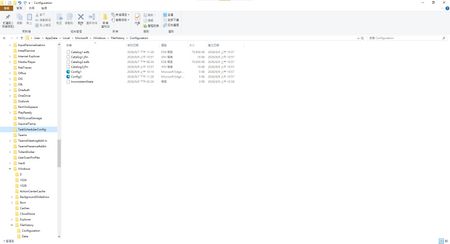
This morning, I ran Windows Update on two Windows 10/11 computers, but the file history feature stopped working completely after the update. Previously, after updating KB5120249 and KB5101684, files could still be backed up to the D: drive normally. The "Last Backup" time in "File History" is not updating correctly. Newly created or saved Word documents, pictures, videos, etc., still show "No previous version available" in "Content → Previous Versions". No folders were corrected; their dates are automatically updated. After running Windows Update again today, the file history feature stopped working on both computers. The File History panel pops up but cannot be used, prompting for a hard drive connection. (The hard drive is connected and I've confirmed it can read and write.) resulting in an "InconsistentState" entry in C:\Users\User\AppData\Local\Microsoft\Windows\FileHistory\Configuration. I'm very angry. If Microsoft doesn't address this, I'll keep complaining. If anyone else has encountered the same situation, please leave a comment below. You can also check Microsoft Q&A or the Microsoft Community Hub. The five updates installed are: September 8, 2026—KB5122878 (OS Builds 19045.7725 and 19044.7725) September 8, 2026-KB5126146 Cumulative Update for .NET Framework 3.5, 4.8 and 4.8.1 for Windows 10 Version 22H2 2026-09 Security Update (KB5124008) (26200.9445) 2026-09 .NET Framework Security Update (KB5126052) Windows Malicious Software Removal Tool x64 - v5.145 (KB890830) Deleting the %LocalAppData%\Microsoft\Windows\FileHistory folder also failed. Furthermore, "File History" itself is not listed in Microsoft's "Deprecated Features List." While other backup features suggest that Microsoft has no plans to discontinue it. Microsoft is going to pretend it doesn't exist. These worked normally before the update but stopped working afterward. This is to inform other users experiencing the same problem.4KViews5likes23CommentsThere is problem with file history logging after the recent Windows updates (KB5101684 / KB5121003)
Hi everyone, This is not spam, I did not spam the site. It appeared after the update. I hope Microsoft can resolve this issue, and I also hope other users experiencing the same problem can reply to me. Please, please. Ever since the latest Windows updates (specifically around KB5101684 / KB5120249 on Windows 11 Build 26200/Windows 10 Build 19045), The File History feature is almost unusable for me; although it works, the problem only occurs after an update. Symptoms: The "Last Backup" time in File History is not updating correctly. Newly created or saved Word documents, images, videos, etc., still show "No previous version available" in "Content → Previous Versions". The Correct folder's date is automatically changed. System details: OS: Windows 11 25H2 (Build 26200.9278) OS: Windows 10 22H2 (Build 19045.7663) Recent Updates Installed: KB5120998, KB5120249, KB5101684. Has anyone else experienced this issue with recent Windows updates? Currently, the only solution is to go to Control Panel → All Console Items → File History → Select Drive → Select D: drive again. After completing this step, File History will return to normal. This is a post I made. Other users who have experienced the same thing left comments below. KB5101684/KB5120249 caused File History errors, but Microsoft has not acknowledged them. | Microsoft Community Hub Welcome to comment if KB5101684 or KB5120249 caused the same File History issue. | Microsoft Community Hub I want to ask Microsoft, why are there abnormal in the file history logs after these two updates? | Microsoft Community Hub Win 10/11 file history is malfunctioning after an update why hasn't Microsoft fixed this issue yet? | Microsoft Community Hub https://learn.microsoft.com/en-nz/answers/questions/5972265/windows-11-file-history-not-updating-correctly-aft https://learn.microsoft.com/en-nz/answers/questions/5978256/win-11-25h2kb5101684-os-builds-26200-8973-and-2610 https://www.reddit.com/r/computerhelp/comments/1vituh0/comment/p6dxvs4/?context=1&screen_view_count=2&ext-referrer=DIRECT https://www.reddit.com/r/WindowsHelp/comments/1w6zlem/comment/p8bbu3j/?context=1&screen_view_count=2&ext-referrer=DIRECT276Views2likes1CommentI've tried the methods but they still don't work. I don't know what to do.
This past month has been very frustrating for me. It's not that I like to ramble, but I've genuinely encountered problems after updating. I want to ask Microsoft: after updating my laptop and desktop to KB5101684 and KB5120249, I'm experiencing issues with file history: Files can still be backed up to the D drive normally. The "Last Backup" time in "File History" is not updating correctly. Newly created or saved Word documents, images, videos, etc., still show "No previous version available" in "Content → Previous Versions". I haven't modified some folders; please change the modification dates yourself. Both updates state, "This update fixes an issue that affects File History automatic backups to network shares using Server Message Block (SMB). Backups did not work because Windows showed a false 'invalid credentials' error when connecting to SMB shares." I didn't expect the update to cause this problem; dozens of users have reported the same issue. Microsoft, please investigate and fix this. When will it be fixed? If you have the same problem as me, please leave a comment below. I want to ask Microsoft, why are there abnormal in the file history logs after these two updates? | Microsoft Community Hub According to methods suggested by online users: Open File Explorer, navigate to C:\Users\[Your Username]\AppData\Local\Microsoft\Windows\FileHistory, and delete all contents in the Configuration folder. Next, go to Settings > System > Storage, turn off File History, and then re-add drive D as the backup destination. This method still did not work. Both updates state, "This update fixes an issue that affects File History automatic backups to network shares using Server Message Block (SMB). Backups did not work because Windows showed a false 'invalid credentials' error when connecting to SMB shares." I didn't expect the update to cause this problem; dozens of users have reported the same issue. Microsoft, please investigate and fix this. When will it be fixed? If you have the same problem as me, please leave a comment below.253Views0likes2CommentsI want to ask Microsoft, why are there abnormal in the file history logs after these two updates?
This past month has been very frustrating for me. It's not that I like to ramble, but I've genuinely encountered problems after updating. I want to ask Microsoft: after updating my laptop and desktop to KB5101684 and KB5120249, I'm experiencing issues with file history: Files can still be backed up to the D drive normally. The "Last Backup" time in "File History" is not updating correctly. Newly created or saved Word documents, images, videos, etc., still show "No previous version available" in "Content → Previous Versions". I haven't modified some folders; please change the modification dates yourself. Both updates state, "This update fixes an issue that affects File History automatic backups to network shares using Server Message Block (SMB). Backups did not work because Windows showed a false 'invalid credentials' error when connecting to SMB shares." I didn't expect the update to cause this problem; dozens of users have reported the same issue. Microsoft, please investigate and fix this. When will it be fixed? If you have the same problem as me, please leave a comment below.304Views0likes3CommentsBroken File History after July/August Updates (KB5101684 on Win11 25H2 / KB5120249 on Win10 22H2)
Hi everyone, I am writing to report a major regression bug with File History that was introduced in the recent Windows updates. This is happening across two entirely different machines with no settings changed, no system files modified, and no registry tweaks applied. The Issue: Windows 11 25H2 > after installing KB5101684 (July 29, 2026) Windows 10 22H2 > after installing KB5120249 (August 12, 2026) On both PCs backing up to a local drive (D:), the underlying files are actually being written to the drive, but the File History interface is completely broken: TheLast Backup time stamp in Control Panel frozen and fails to update automatically. In File Explorer, right-clicking new files > Properties> Previous Versions shows There are no previous versions available, making daily time-travel restoration impossible. Temporary Workaround: The only way to force it to sync is to go to Control Panel > File History > Select Drive, and re-select the D: drive again. This proves the backup engine works, but the automatic scheduling and catalog syncing are completely frozen by these updates. Please Help Upvote on Feedback Hub: I have already submitted this issue via the Feedback Hub but have received no official response yet. Since File History is critical for users who prefer local offline backups over OneDrive, we need to bring this to Microsoft’s attention immediately so they can patch it in the next cumulative update. If you are experiencing the same issue, please upvote my feedback link below:[Post your Feedback Hub sharing screenshot]331Views4likes1CommentWindows 11 to KB5101684 File History bug
Hello everyone, I have a question about Windows 11 File History. After updating my laptop to KB5101684, I modified a file today and confirmed that it was successfully saved. However, after enabling "File History" and clicking "Execute Now," the backup time still shows yesterday's date (2026/7/28), not today's. I have confirmed the following: The backup drive D is properly connected. File History is enabled. The File History Service is started and running normally. The backup location is set to drive D. The modified files and images were indeed backed up to:D:\FileHistory\user\LAPTOP-GJTRIQFJ\Data\C\Users\user However, in the "Restore Profile" section of File History, I don't see the new version date after today's modification. Additionally, I found that if I go to: Control Panel → All Console Items → File History → Select Drive → Select D drive again Newly created or saved Word documents, images, videos, etc., will still show "No previous version available" in "Content → Previous Versions". and then re-specify the same backup drive, then perform the backup, the update works normally; unlike before the update, where simply clicking "Execute Now" would create a new backup version. Furthermore, before this problem occurred, I did not change any File History settings, nor did I delete any related files or system folders, so I suspect the problem only started appearing after installing KB5101684. I would like to ask everyone: Is this a normal phenomenon? Could it be related to the Windows 11 update KB5101684? Does this indicate a possible anomaly in the File History database, settings, or related services? Has anyone else encountered the same situation after updating KB5101684? Currently, the original files can be opened, modified, and saved normally, and the backup drive is connected normally. I'm just worried that the File History isn't creating a new version correctly, so I want to confirm if further action is needed. Do you have any suggested troubleshooting methods, such as re-establishing the file history settings, checking related services, or other repair methods? Thank you for your assistance!632Views1like4Comments