azurepostgres
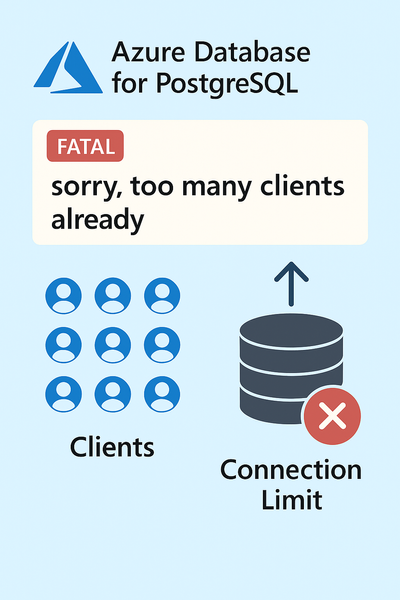
7 TopicsAzure PostgreSQL Lesson Learned #3: Fix FATAL: sorry, too many clients already
We encountered a support case involving Azure Database for PostgreSQL Flexible Server where the application started failing with connection errors. This blog explains the root cause, resolution steps, and best practices to prevent similar issues.482Views4likes0Comments
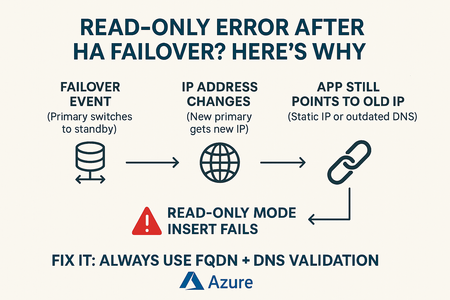
Azure PostgreSQL Lesson Learned#1:Fix Cannot Execute in a Read-Only Transaction After HA Failover
We encountered a support case involving Azure Database for PostgreSQL Flexible Server where the database returned a read-only error after a High Availability (HA) failover. This blog explains the root cause, resolution steps, and best practices to prevent similar issues. The issue occurred when the application attempted write operations immediately after an HA failover. The failover caused the primary role to switch, but the client continued connecting to the old primary (now standby), which is in read-only mode.493Views2likes0CommentsAzure PostgreSQL Lesson Learned #13: Major Version Upgrade Failure Due to HypoPG Extension
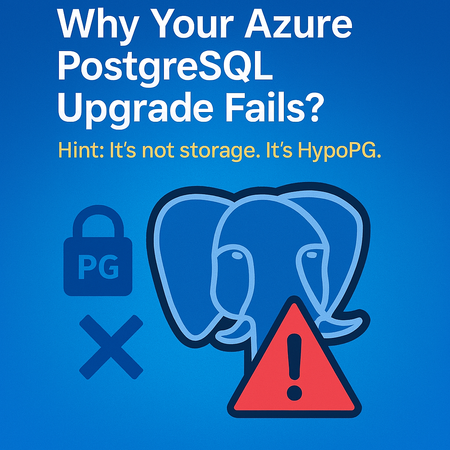
Co-authored with angesalsaa Case Overview We investigated a customer case where a Major Version Upgrade (MVU) from PostgreSQL 11 to 17 on Azure Database for PostgreSQL Flexible Server consistently failed during the pre-check phase. The upgrade was triggered through the Azure Portal, but the process was blocked due to the presence of the HypoPG extension installed across multiple databases. Symptoms: How the Failure Appears When attempting a Major Version Upgrade in Azure Portal, customers typically encounter: Immediate failure during pre-check validation. Portal error indicating failed at pre-check. Upgrade does not proceed beyond validation. This is expected behavior because Azure validates extension compatibility before performing any in-place upgrade. Root Cause: HypoPG Extension Blocks MVU Azure Database for PostgreSQL Flexible Server supports only a specific list of extensions during major version upgrades. HypoPG is not part of the allow-listed extensions for MVU. If your source server contains HypoPG in any database, the upgrade will fail. Step-by-Step Troubleshooting & Resolution Guide STEP 1 — Audit All Extensions on the Server Azure PostgreSQL does not allow cross-database queries, so you must inspect each database individually. Option A: Check Extensions in Current Database SELECT current_database() AS database_name, extname AS extension_name, extversion AS version FROM pg_extension; 👉 In our case, HypoPG appeared in 4 databases, causing the pre-check failure. STEP 2 — Enable HypoPG Temporarily in Azure Portal Before removing the extension, we had to re-enable HypoPG in Server Parameters because it was previously disabled at Azure Portal level as customer disabled as precaution step but removing part was not enough here: Azure Portal → Server → Server Parameters → azure.extensions → Add hypopg STEP 3 — Remove HypoPG Extension from All Databases Once enabled the extension, remove the extension from each affected database using following command: DROP EXTENSION hypopg CASCADE; ⚠️ CASCADE will drop dependent objects verify impact before execution. After running this command on all affected databases, HypoPG was successfully removed. STEP 4 — Validate Allowed Extensions In Azure Portal: Server → Server Parameters → azure.extensions Ensure only supported extensions are listed. Remove unsupported entries. Make sure hypopg is removed STEP 5 — Re-Run MVU With HypoPG removed and supported extensions validated: Server was in Ready state. Trigger MVU again via Portal: Portal → Server → Overview → Upgrade → Select PostgreSQL 17 Upgrade completed successfully. a { text-decoration: none; color: #464feb; } tr th, tr td { border: 1px solid #e6e6e6; } tr th { background-color: #f5f5f5; } Final Outcome After removing HypoPG and validating the server parameters: MVU completed without errors. Server upgraded from PostgreSQL 11 to 17. Best Practices to Avoid Future Upgrade Failures Audit Extensions Regularly — Especially before major version upgrades. Limit Extensions via azure.extensions — Only enable what you actively use. Clean Up Deprecated Extensions — Remove unused or legacy extensions early. Align with Azure’s Supported Extension List — Check official documentation. Automate Extension Validation — Prevent last-minute surprises. Helpful References Major Version Upgrades | Microsoft Learn276Views1like0Comments